TL;DR: 1min.AI puts GPT-5.5 Pro, Claude 4.6 Sonnet, Gemini 3.1 Pro, and several other major AI models behind a single lifetime license for $99.99 (MSRP $540).
Paying for ChatGPT, Claude, and Gemini separately costs well over $60 per month. 1min.AI bundles all three flagships and several more into one platform with a lifetime license for $99.99 (MSRP $540).
Access the ideal AI model instantly for any workflow. Claude 4.6 Sonnet refines your written drafts, GPT-5.5 Pro handles extensive research queries, and Gemini 3.1 Pro distills dense PDFs. Enjoy all three under a single account—without recurring monthly fees or multiple invoices.
Beyond chat, 1min.AI includes image generation, background removal, text-to-speech, voice cloning, video creation, and a blog article generator, all drawing from the same monthly credit pool. An Advanced Business Plan comes with 4,000,000 credits per month, and logging in daily earns another 15,000 free credits. Up to 20 team members can share a single account.
Stop paying a separate subscription for every AI model.
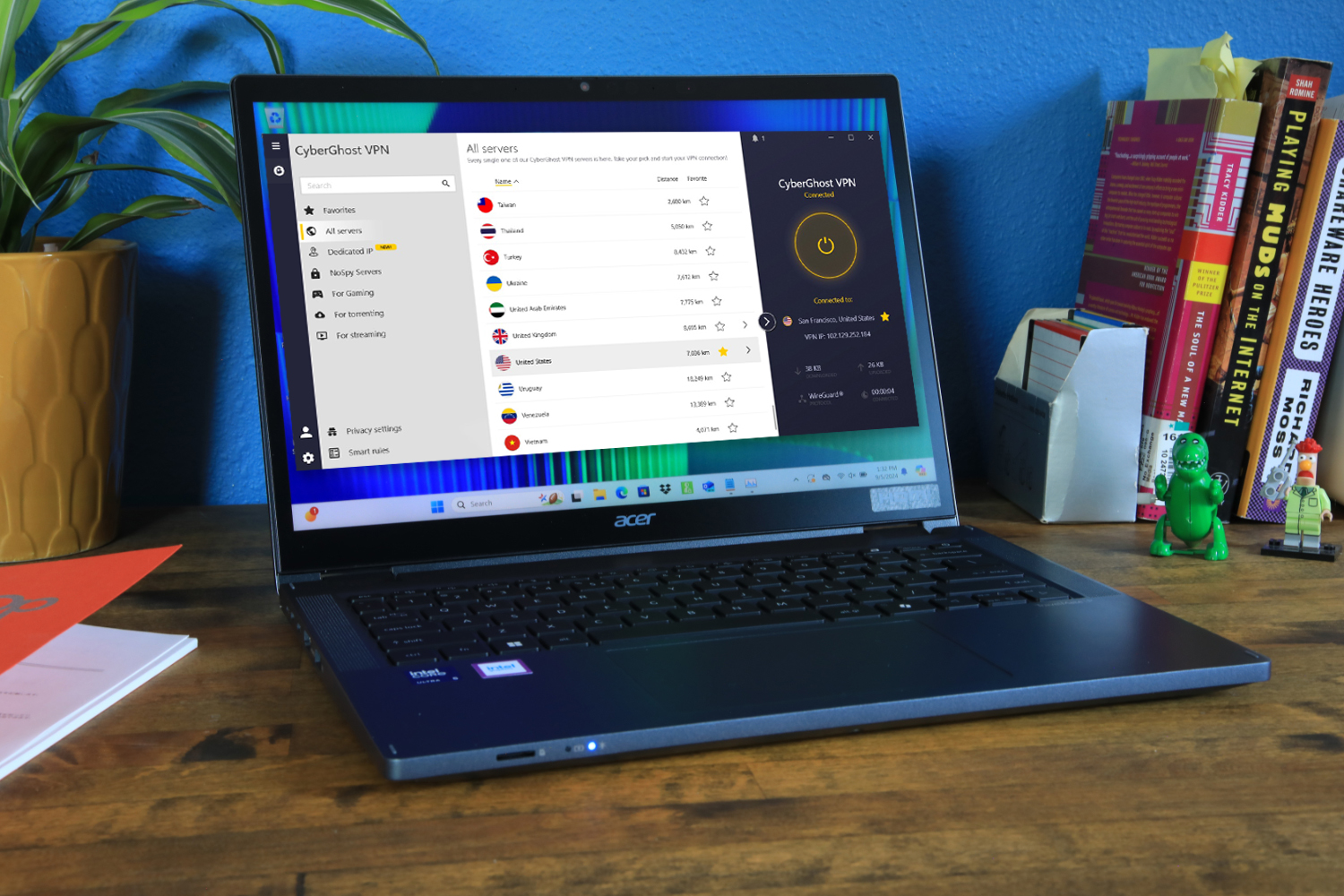
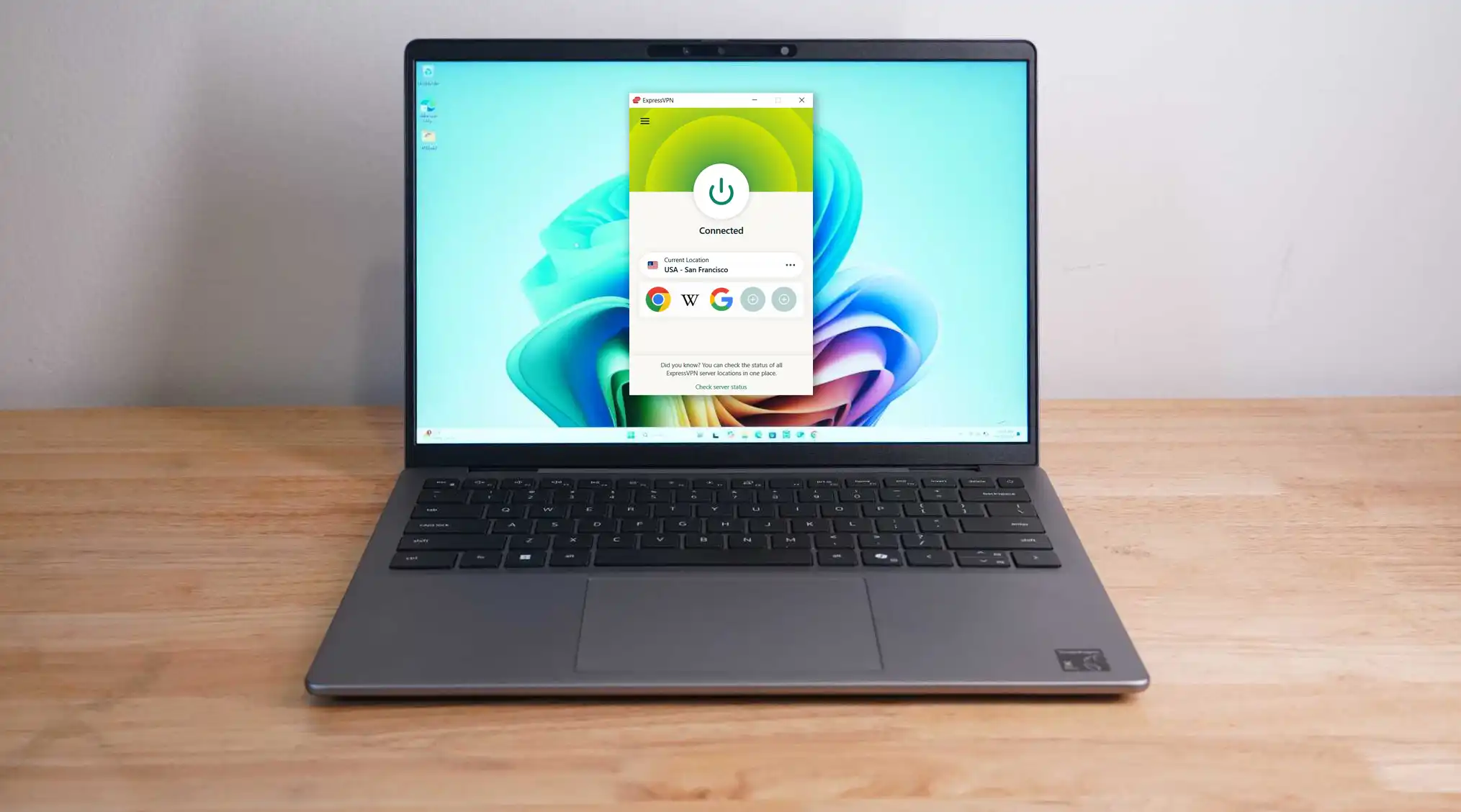
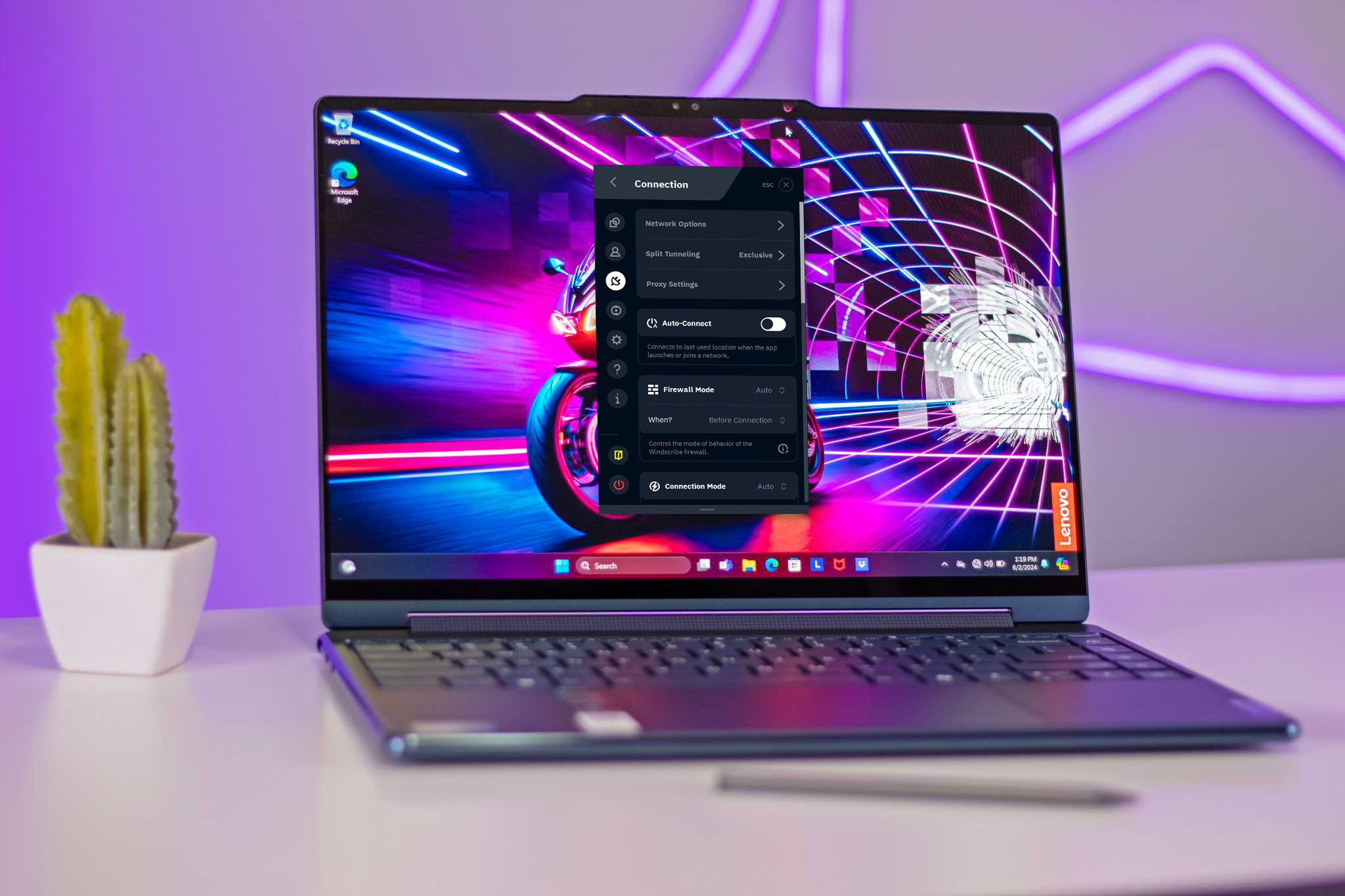
A VPN usually means one more subscription that renews every year. AdGuard VPN encrypts your internet traffic on up to 10 devices at once, and a 5-year subscription is on sale for $34.97 (MSRP $359.40).
That price comes to about $7 a year. One account connects up to 10 devices at the same time, enough for a gaming PC, a laptop, phones, and tablets around the house. With servers in more than 70 locations, you can connect through another country to reach region-locked streaming libraries and sites. Data is unlimited, so long downloads and late-night streaming don’t count against a cap.
AdGuard runs its own security protocol and follows a strict zero-logging policy, so your browsing history isn’t stored. You can use it on Android and iOS, and on Windows and Mac through the browser.
This plan is for new AdGuard VPN users only, and you have 30 days to redeem your code. AdGuard notes that the VPN may not work well in China.
Microsoft 365 charges you every year just to keep opening your own spreadsheets. If you’d rather pay once, a Microsoft Office Professional 2021 lifetime license is on sale for $27.97 (reg. $219.99).
You get Word, Excel, PowerPoint, Outlook, OneNote, Publisher, Access, and the free version of Teams. Everything installs on one Windows 10 or 11 PC for home or work use. Your license is tied to that device rather than your Microsoft account. Publisher support ends after October 2026, so plan around that if you use it.
Delivery is instant. Your license key and download link arrive right after checkout, and you have seven days to redeem. One heads-up: this isn’t Microsoft 365, and it won’t run in Parallels or other virtual machines.
Stop renting the apps you open every day. Through October 20 at 11:59 p.m. PT, get Microsoft Office Professional 2021 on sale for $27.97 (reg. $219.99).
Microsoft Office Professional 2021 for Windows: Lifetime LicenseSee Deal
TL;DR: A grade A refurbished Dell Latitude 5420 with an 11th Gen i5, 8GB RAM, 256GB SSD, and Windows 11 Pro is $264.99 (MSRP $1,099). Limited inventory available.
A brand-new business laptop with Windows 11 Pro, Thunderbolt 4, and an 11th Gen Intel processor usually costs north of $800. But if you don’t mind a refurbished model, this near-mint Dell Latitude 5420 brings all of that down to $264.99 (MSRP $1,099). The only “catch” is that inventory is limited, so order ASAP.
An 11th Gen Core i5-1135G7 runs at 2.4GHz and turbo-boosts to 4.2GHz, so spreadsheets, browser tabs, and video calls don’t compete for processing power. RAM is 8GB DDR4-3200, and the board supports up to 32GB if you want to upgrade later.
A 14-inch Full HD anti-glare display keeps text sharp and readable without the glare that makes glossy screens hard to use near a window.
Two Thunderbolt 4 ports, two USB 3.2 ports, and HDMI 2.0 give enough connectivity for a monitor, a dock, and peripherals without running out of slots. Wi-Fi 6 and Bluetooth 5.0 are both included. At 2.9 lbs, the laptop travels easily. A 90-day parts and labor warranty comes with the unit.
Pick up a business-grade laptop at a fraction of its original price while inventory lasts.
Microsoft has fixed an issue in Windows 11 that could result in a black screen after the user logs into their computer. You’ll find the fix in update KB5127648, available now for Windows 11 24H2, 25H2, and 26H2.
In the update release notes, the bug fix is addressed as:
[Windows Explorer (Known issue)] Fixed: This update fixes an issue that affects Windows Explorer in multi-user environments, such as Azure Virtual Desktop and FSLogix. After sign-in, Explorer.exe might fail to start or repeatedly crash, causing a black screen.
In short, there was a bug in File Explorer that surfaced in multi-user environments like Azure Virtual Desktop and FSLogic. Microsoft doesn’t provide much detail about the bug itself, but the gist is that it caused repeated crashes of Explorer.exe after logging in, which prevented the desktop from loading and resulted in a black screen.
This bug first came to light after the August Windows update. If you’re running into black screens on Windows 11 after logging in, you should install the latest Windows update to address it.
This is just one of the many bug fixes in the October update, which also fixed mouse stutter in games for some users. And not only bug fixe, but this update also brings some much-needed improvements elsewhere, including more reliable Bluetooth and a remappable Copilot key.
Microsoft is doing its best to improve Windows 11’s performance. According to a recent Windows Blog post, the company’s operating system has become up to 20 percent more responsive thanks to optimizations made and released over the course of this year. Improved features include the Start menu, File Explorer, Search, and the Edge browser.
One key change is that Windows now uses the computer’s RAM more efficiently, so it can run more smoothly on systems with 8GB RAM. According to Microsoft, Windows 11 can now keep up to 2GB more active data in RAM rather than moving it to slower storage. You’ll notice the boost most prominently when several apps or browser tabs are open at once.
Microsoft has also reduced memory usage for features that run in the background. On computers with 8GB of RAM or less, for example, the Widgets panel is only loaded when the user opens it. This supposedly frees up to more than 200MB of RAM.
Windows Update has also been improved to require only one system restart per month as well as shorten update installation times. In addition, logging in with Windows Hello and connecting Bluetooth devices should work faster and more reliably overall.
These improvements have been rolled out gradually over time, and further changes are on the way. Microsoft’s claim that Windows 11 has sped up by 20 percent is based on internal measurements, and therefore doesn’t mean that all PCs will experience the same performance boosts.
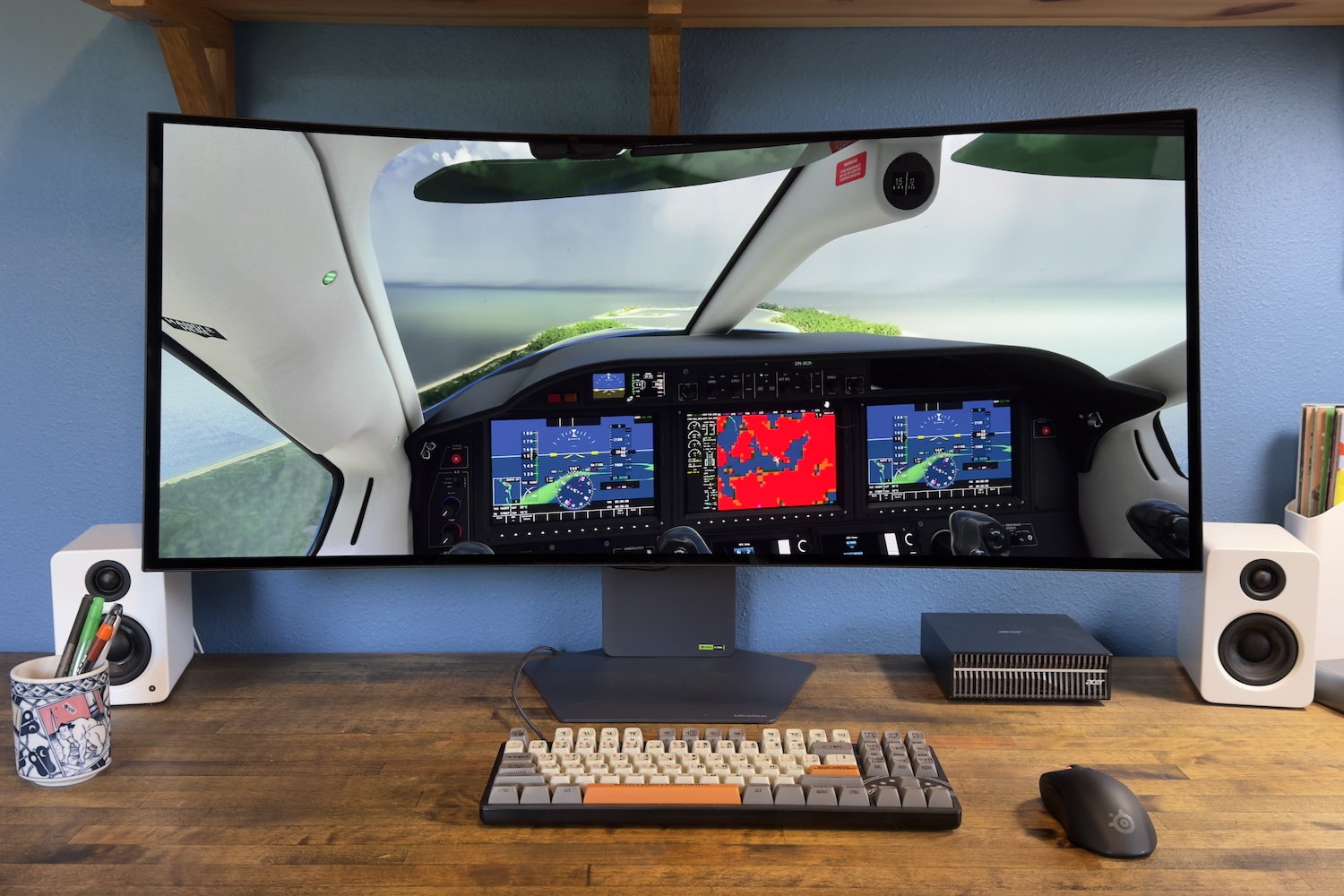
Do you want a large expanse of usable display space, but without the hassle of setting up dual monitors? An ultrawide monitor is the ticket. Ultrawide monitors have a wider display panel that provides an immersive experience and far more screen real-estate than your average widescreen.
I’ve tested a bunch of ultrawide monitors in order to name the best picks in various categories ranging from those optimized for gaming to those suited for professional use. Below you’ll find a curated list of my favorites in each category. I describe my evaluation process for monitors at the bottom of this article.
Why you should trust PCWorld for monitor reviews and buying advice: It’s in our name! PCWorld has been covering PCs since 1983. That includes dozens of monitors every year, from all the top brands. All of our recommendations have been tested hands-on and vetted by our expert reviewers, who’ve applied not only performance benchmarks but rigorous usability standards.
MSI MPG 341CQR – Best ultrawide monitor
Pros
Useful design with small stand and ergonomic adjustment
Includes USB-C with up to 98 watts of Power Delivery
Wide range of image quality adjustments
Great image quality in SDR and HDR
Cons
Not the most attractive design
3440×1440 resolution is adequate, but not sharp
HDR brightness is only competitive in some situations
Price comparison from over 24,000 stores worldwide
Who should buy the MSI MPG 341CQR QD-OLED X36?
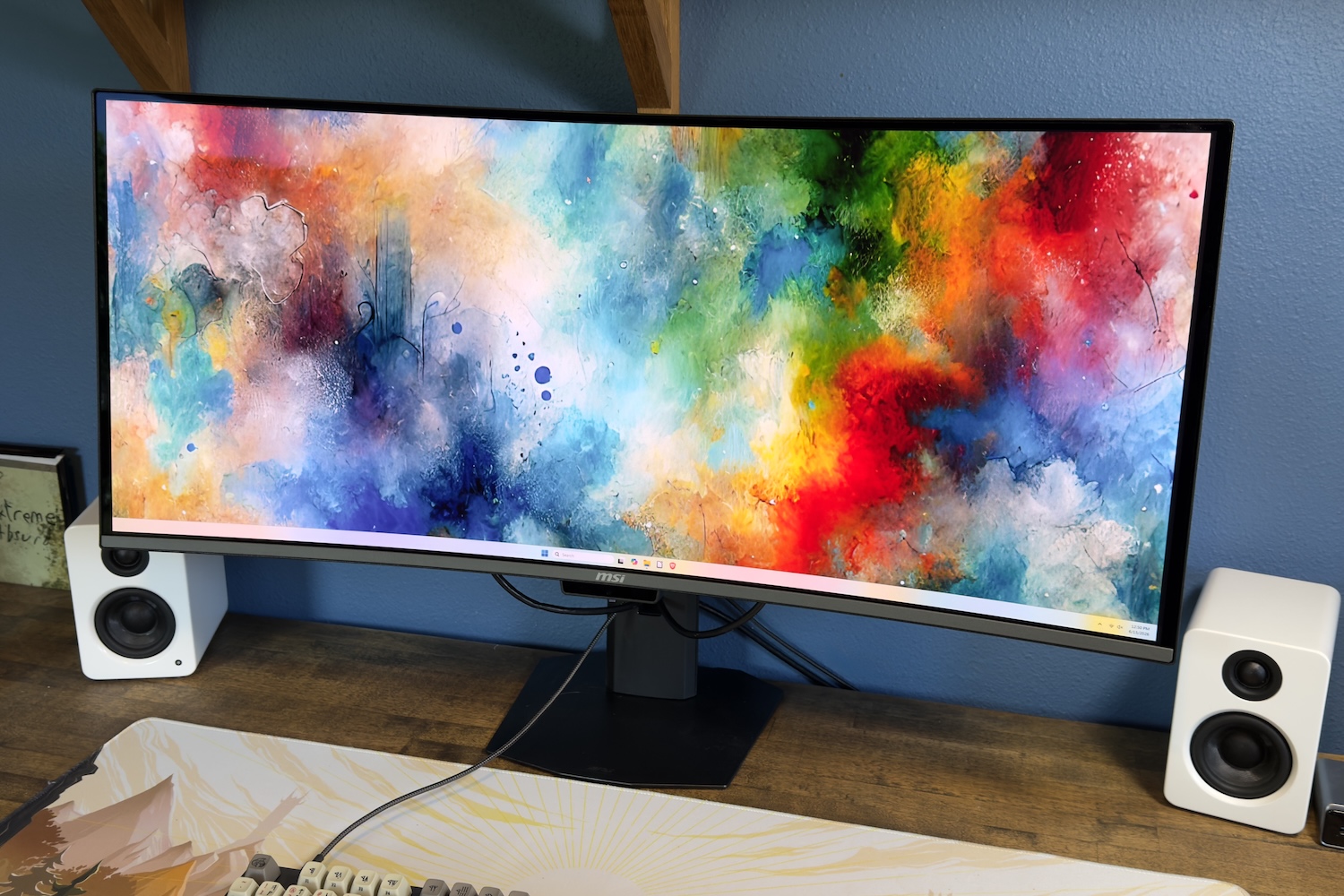
The MSI MPG 341CQR QD-OLED X36 earns our top ultrawide recommendation because it handles almost everything well for under $1,000. The 5th-generation Samsung tandem QD-OLED panel produces vibrant, accurate color and infinite contrast at a 360Hz refresh rate. That’s a combination that handles competitive gaming, creative work, and everyday productivity well.
Connectivity is also strong, and the USB-C port with 98 watts of Power Delivery is the feature that pushes it over the edge. Plug in a laptop and you get video, data, and charging through a single cable. That’s a convenience that’s still not guaranteed on ultrawide monitors at this price.
MSI MPG 341CQR QD-OLED X36: Further considerations
The main caveat is pixel density. With 3440×1440 resolution across 34 inches, you’re looking at roughly 110 PPI, which is noticeably softer than a 4K display. The monitor also ships without speakers. Nearly all 34-inch ultrawide monitors share these downsides, though, so they’re not much of a disadvantage.
Price comparison from over 24,000 stores worldwide
Who should buy the MSI 341CQPX?
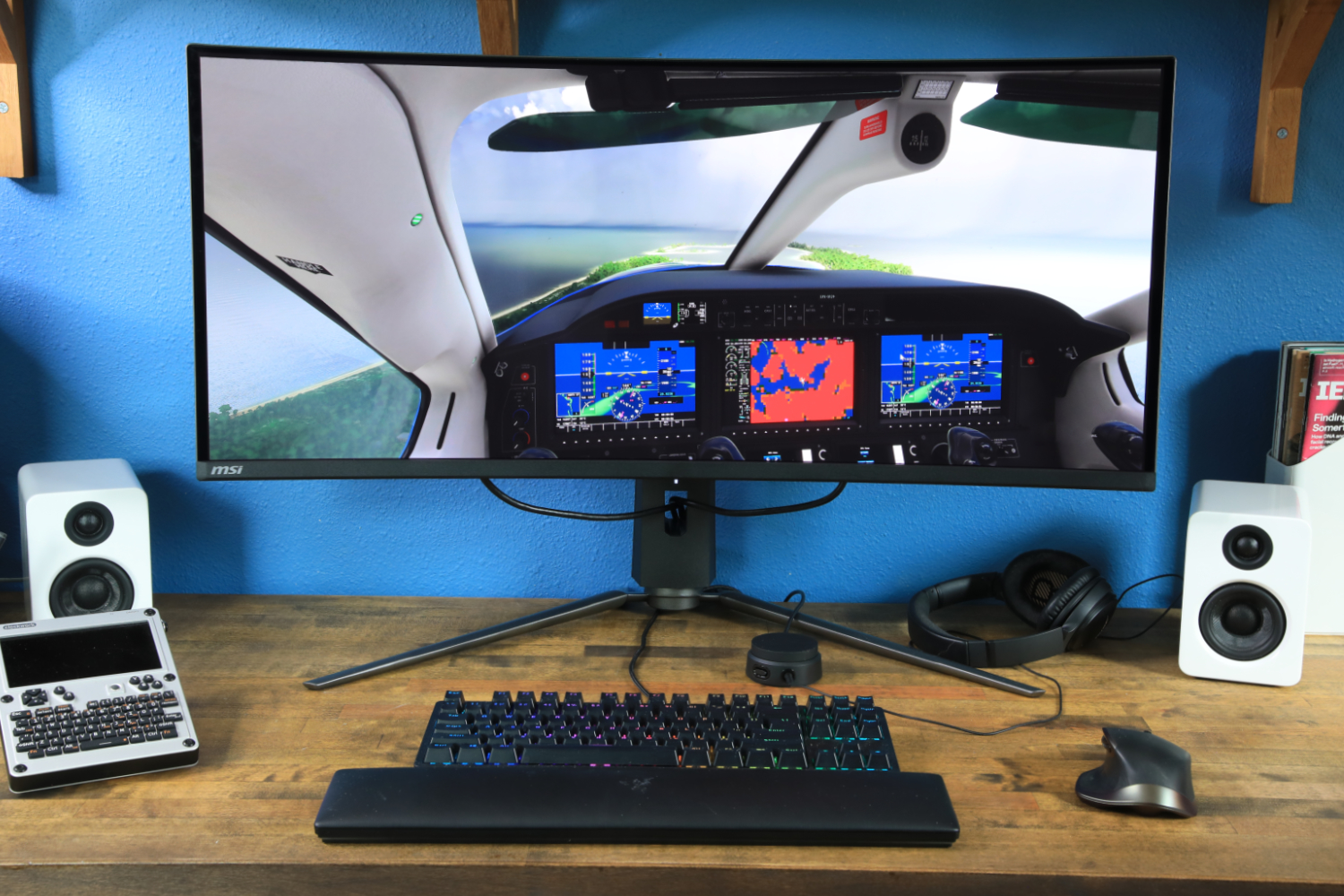
While our pick for best ultrawide overall above is designed with gaming in mind, we actually think the MSI MPG 341CQPX is superior for that singular activity. This 34-inch QD-OLED display has a panoramic 21:9 aspect ratio that pulls you deeper into your favorite games. It’s especially excellent for games that lean on immersion (like simulation titles) or that show a lot of information on-screen at once (like MMORPGs and strategy games).
The MSI 341CQPX has a Samsung QD-OLED display that delivers vibrant colors and stunning contrast. The monitor handles both SDR and HDR content well. The 240Hz refresh rate, meanwhile, offers ultra-crisp motion clarity. It supports the VESA Adaptive Sync standard and will work with both AMD FreeSync and Nvidia G-Sync.
MSI 341CQPX: Further considerations
While the MPG 341CQPX is a great ultrawide for gaming, it’s practical for day-to-day productivity and can work well with many home office setups. It has a USB-C port with 98 watts of Power Delivery, which means it can power your laptop and handle video over a single cord.
The monitor does have a couple flaws. The stand is larger than it needs to be and will feel cramped on a small desk. There’s also no RGB-LED lighting on the back of the panel, which is common on competitive gaming ultrawides.
Pricing excuses these nitpicks, though. Available for $890 or less at some online retailers, the MPG 341CQPX is not much more expensive than older QD-OLED ultrawide monitors, like the Alienware AW3423DW, with a lower refresh rate and no (or more limited) USB-C. The MPG 341CQPX’s price is more than reasonable given is advantages over its predecessors.
Price comparison from over 24,000 stores worldwide
Who should buy the Dell Ultrasharp U4025QW?
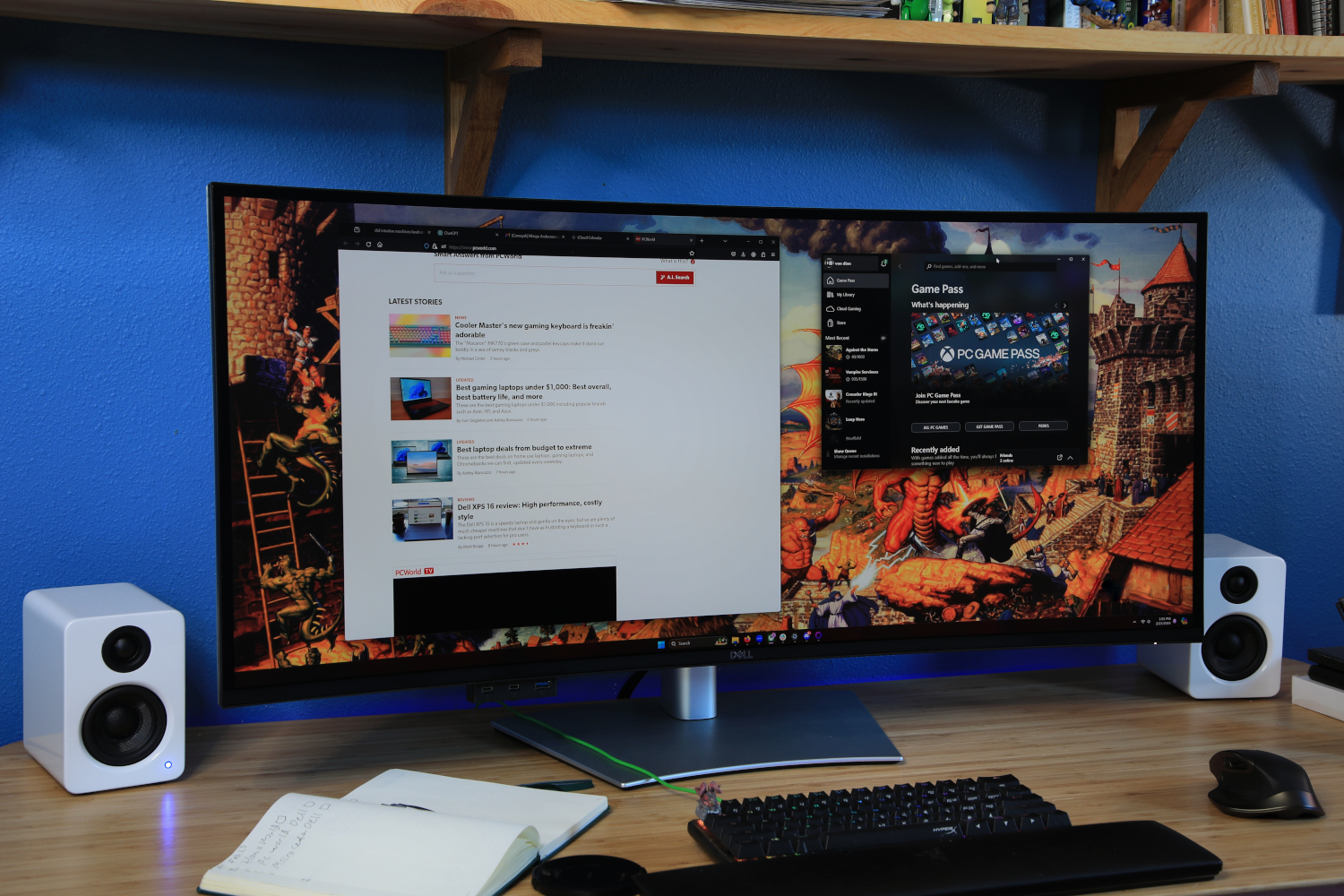
This is the monitor for people who want a big, sharp monitor to serve as the focal point for a desktop command center. This excellent ultrawide monitor has a vast 40-inch display and 5K resolution that ensures every detail is sharp and defined. But it’s not just about its size and clarity; it’s packed with features, too.
Visually, the U4025QW is a treat, offering unparalleled sharpness and an expansive workspace that enhances productivity and elevates entertainment. The monitor’s impressive 120Hz refresh rate is a rare find at this resolution, ensuring smooth motion on the Windows desktop and in games. It even has an IPS Black display panel, which improves contrast and delivers a more realistic, immersive image.
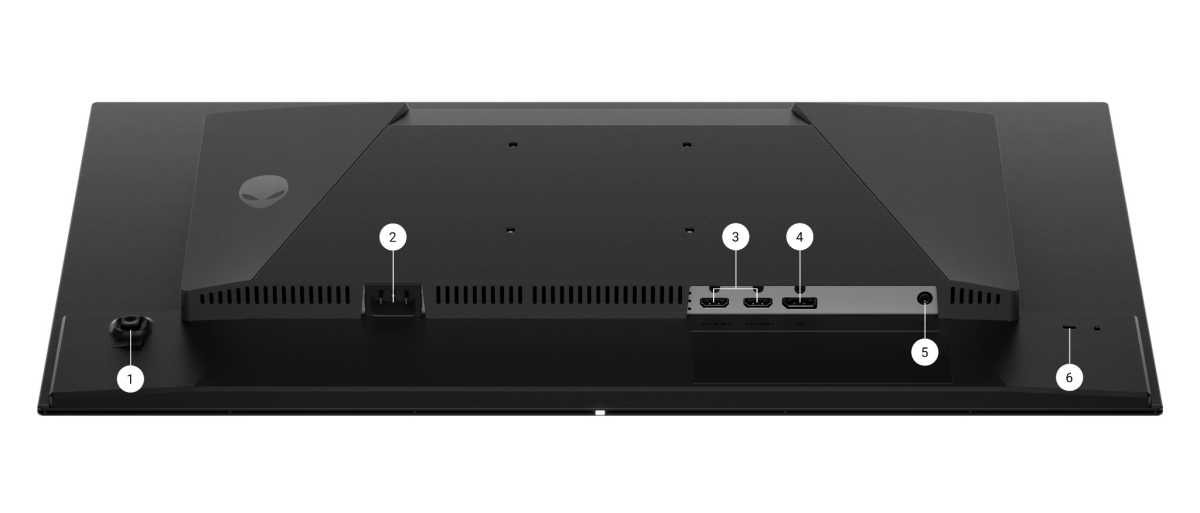
The U4025QW’s connectivity is extensive. It has Thunderbolt, Ethernet, HDMI, and DisplayPort, as well as a USB hub that includes multiple downstream USB-A and USB-C ports. The monitor’s menu options and settings provide significant image quality control as well as useful features like picture-in-picture and picture-by-picture modes.
Dell Ultrasharp U4025QW: Further considerations
The monitor’s stand isn’t as robust as it should be, and while the contrast ratio of IPS Black is commendable, it can’t rival OLED. But the most serious downside is the price, which soars close to $2,000. Still, given its size, image quality, and connectivity, this do-everything display can pack a lot of productivity on a single screen.
Price comparison from over 24,000 stores worldwide
Who should buy the LG Ultragear Evo GX9 (39GX950B-B)
The LG Ultragear Evo GX9 is the best big-screen curved gaming monitor for anyone who wants an immersive, razor-sharp image.
The monitor’s 39-inch 5K2K (5120×2160) tandem WOLED panel is the headliner. At 143 pixels per inch, it’s meaningfully sharper than the 110 PPI you receive from a typical 34-inch ultrawide with 3440×1440 resolution. The GX9 also has OLED’s excellent contrast ratio and wide color gamut (at 99 percent DCI-P3). This adds up to an image that looks great in both SDR and HDR games. HDR performance is a strength, as the monitor’s HDR is brighter than most competitors.
Connectivity is solid for the monitor’s use case, too. It has two HDMI 2.1 ports, one DisplayPort 2.1, and a USB-C input with 90 watts of Power Delivery. These ports cover most multi-device setups comfortably. The 1500R curve is moderate by ultrawide standards and shouldn’t be an obstacle for most users.
LG Ultragear Evo GX9 (39GX950B-B): Further considerations
The GX9’s $1,799.99 MSRP is its biggest flaw, as its feature set doesn’t entirely justify it. The monitor has several AI features that attempt to enhance image and audio quality, but they offer little benefit. The refresh rate tops out at 165Hz at native resolution, as well. While this is understandable given the monitor’s high resolution, smaller OLED monitors will provide better motion clarity. The GX9 has a dual-mode 330Hz refresh rate, but it requires dropping the resolution to 2560×1080, which doesn’t look great on a monitor this large.
These downsides may take the GX9 out of contention for some shoppers, but for others they’ll prove no obstacle. The monitor is ideal for racing and flight sims, MMORPGs, or any other game that rewards more display real estate. Shoppers happy to splurge for a better experience should strongly consider this monitor instead of a smaller 34-inch alternative.
Acer Predator X34 X0: A Mini-LED monitor that delivers a vivid picture and good contrast for less than $500.
Dell Pro 34 Plus USB-C: A decent choice if you want an ultrawide with lots of connectivity but the monitor’s image quality fails to impress.
BenQ PD2730S: Will call to creative professionals with its 5K display, but some will find its connectivity and special features just as alluring as its eye-catching image.
HP Omen Transcend 32: Pricey even for a 32-inch 4K OLED monitor, but makes up for that with great USB-C connectivity and top-tier SDR image quality.
How PCWorld tests monitors
PCWorld’s team of staff and freelance reviewers conduct in-depth testing to compare monitors across a wide range of categories and price points. We test dozens of monitors each year to find the best pick for every category and price point.
Our testing uses a Datacolor Spyder X2 Ultra color calibration tool. It delivers objective, unbiased measurements for a wide range of metrics including brightness, contrast, color gamut, color accuracy, color temperature, and gamma. Results are recorded and logged for future comparison. This allows our experts to easily compare many monitors at once and eliminates subjective bias from the results.
Matthew S. Smith is a freelance technology journalist with 15 years of experience reviewing consumer electronics, including a wide array of computer monitors. In addition to the work he does for PCWorld, Matthew also contributes to Wired, Digital Trends, Reviewed, Lifewire, and other technology publications.
What to look for in an ultrawide monitor
Ultrawide monitors are a favorite of PC enthusiasts, but remain a niche within the larger monitor market. This leaves shoppers with fewer options. Most ultrawide monitors have a 34-inch panel with a resolution of 3440×1440, and similar connectivity.
Still, these monitors can differ in several key areas. Here’s what to look for.
Panel type is a big deal
Ultrawide monitors offer less choice in some regards but that script is flipped when it comes to panel type. Ultrawide monitors come in a variety of panel types: IPS, VA, and OLED.
IPS panels are common in mid-range and premium ultrawide monitors. This panel type delivers great color performance, high maximum brightness, superb sharpness, and good motion performance. It’s weak in contrast, however, which can disappoint when viewing TV shows or movies.
VA panels are typically a budget option, though some are found in premium ultrawide monitors. They have better contrast than IPS panels and deliver similar color performance and brightness—however, budget VA panels tend to be merely okay in these areas. Most VA panels fall short in motion performance and may look blurry when playing fast-paced games.
OLED is king of the hill. It leads in color, contrast, and motion performance. Sharpness is often slightly reduced compared to IPS and VA, but most people will find it a minor downgrade. OLED also is the best choice for HDR.
In general, OLED is better than IPS, and IPS is better than VA. However, some people might prefer VA over IPS because it has a better contrast ratio and looks darker in dark content.
A height-adjustable stand is a must-have
All the monitors on this list provide an ergonomic stand that adjusts for height, tilt, and swivel. This is a must-have feature, but one that isn’t found on the least expensive ultrawide monitors.
As tempting as it may be to save money on a budget model without a height-adjustable stand, you would regret it.
Ultrawide monitors are bulky and tend to require a larger, heavier stand, which in turn makes them more difficult to place on an elevated platform. The old college trick of sticking a monitor on a shoe box won’t work.
Look for USB-C, but don’t expect it
USB-C compatibility is an excellent feature, and USB-C hub monitors can clear away tons of clutter on your desk. Unfortunately, many ultrawide monitors don’t support USB-C yet, or have limitations that detract from the USB-C port’s usefulness.
Asus’s ProArt PA348CV, our favorite ultrawide for professionals, is one exception. It has a USB-C port with up to 90 watts of Power Delivery, and the port drives a USB-A hub with four downstream ports.
Dell, HP, and BenQ also offer ultrawide monitors with USB-C. Most of these lack an enhanced refresh rate, however, and they’re typically more expensive than the Asus.
Pricing is important—and can swing wildly
Monitor pricing is always important, but it’s key for ultrawide monitors. Although very expensive at MSRP, ultrawide monitors routinely see huge price cuts during seasonal sales. They also receive major semi-permanent price cuts later in their life.
The LG Ultragear 34GN850-B is an example of this. Originally sold for $999.99, it’s now routinely available for $699.99, and went as low as $599.99 during Amazon’s Black Friday sale. That’s a 40 percent reduction in price! Waiting for a deal can save you hundreds.
Don’t buy an ultrawide for console gaming
A quick word of warning: You should not buy an ultrawide monitor if you plan to connect a game console frequently.
Game consoles don’t support ultrawide aspect ratios, so you’ll see black bars on either side of the image. That’s unattractive and wastes the monitor’s potential. It’s best to stick with a widescreen monitor if console gaming is a priority.
If you’re still on the fence about whether an ultrawide is the right choice for you, see PCWorld’s article on whether ultrawide monitors are worth it to have all your questions answered.
FAQ
1.
What is the best ultrawide monitor?
The best ultrawide monitor for most people is the Alienware AW3423DWF. It costs less than $1,000, but this 34-inch OLED has incredible contrast, depth, and vibrancy. This makes for an amazingly immersive experience in movies and games, the latter of which is helped by the display’s 165Hz refresh rate and support for adaptive sync.
2.
What size of ultrawide gaming monitor is best?
Most ultrawide monitors have a 34-inch panel with a 21:9 aspect ratio, which is the best option for most gamers.
Some ultrawide monitors are available in larger sizes, but these typically aren’t the best choice for gamers. Many do not support high refresh rates. Those that do are expensive and often use the same 3440×1440 resolution found on smaller ultrawide monitors, which means they appear less sharp than a 34-inch display.
3.
What is the best resolution for an ultrawide monitor?
Nearly all 34-inch ultrawide monitors have a display resolution of 3440×1440. This is an excellent choice for gamers.
It’s sharp enough to look impressive in modern games. However, this resolution remains significantly lower in total pixel count than 4K, which makes it less demanding on graphics hardware. That’s good news if you have a mid-range graphics card like an Nvidia RTX 3060 or AMD Radeon RX 6650XT.
Larger 38-inch models have a higher resolution of 3840×1660—however, nearly all these monitors lack support for high refresh rates, making them a bad choice for gamers. LG offers a line of 34-inch 5K2K ultrawide monitors with 5120×2160 resolution, but this line also lacks support for enhanced refresh rates.
A few new 45-inch ultrawide monitors are available with 3440×1440 resolution. This can be a problem, because stretching the same resolution across a much larger display reduces sharpness. We recommend 3440×1440 only for 34-inch ultrawide monitors.
4.
What’s the best refresh rate for an ultrawide gaming monitor?
A refresh rate of 144Hz to 165Hz is ideal for most ultrawide gaming monitors.
Very few ultrawide monitors exceed this refresh rate, and those that do are too expensive to make it a good value.
Also, gamers shopping for an ultrawide gaming monitor are likely to prefer immersive and graphically demanding games that make it difficult to see the full benefit of a refresh rate above 144Hz. You’ll need a high-end video card, like an RTX 3080 or AMD Radeon 6800, to drive most ultrawide gaming monitors at frame rates above 144 frames per second.
5.
Does an ultrawide gaming monitor need HDR?
HDR isn’t a must-have for an ultrawide gaming monitor, but it’s a nice addition.
Gaming is a great use case for HDR—arguably the best, in fact—and it can deliver improved image quality. We recommend buying an ultrawide gaming monitor with HDR support if your budget is $500 or more.
Unless you have a business or creator model, your laptop probably doesn’t have SD or microSD slots. But no worries, because you can rectify that with a single versatile accessory. Anker’s USB-C SD/microSD card reader is on sale for $9.99 at Amazon, down from its original $17.99. That’s only a buck higher than its all-time lowest price, so you know it’s a real deal.
This card reader is as utilitarian as they come. It’s about the size of a typical thumb drive, so it’ll slip into a pocket and go with you anywhere. It has a USB-C connection, so it’s compatible with pretty much all but the oldest of laptops. It has both SD and microSD slots, so it’s effective for moving data from your dash cam, security cam, action cam, and more.
Some caveats to know before you buy. First, it has a theoretical cap of 5 Gbps, which means a maximum file transfer rate of 104 MB/s—not great for lots of 4K and 8K video. Second, while it does support both SD and microSD activity at the same time, you might experience slowdowns. Third, it may block neighboring ports depending on your laptop’s layout.
But for just $9.99, those trade-offs are well worth it if you can endure them. At 44% off and close to its lowest price ever, this Anker card reader is a no-brainer buy if you don’t have card slots in your laptop.
Gorgeous 32-inch 4K Tandem OLED panel that stuns for work and play alike
Crisp text with virtually no color fringing
Stunning contrast, colors, and blacks
Excellent for both work and gaming
Fantastic value at $699
Three-year warranty covers OLED burn-in
Cons
165Hz is slower than competing gaming OLEDs
DisplayPort 1.4 instead of 2.1
Limited USB-C docking options
No built-in speakers
Not ideal for hardcore competitive gamers
Our Verdict
Alienware’s $699 AW3226Q finally makes OLED feel like a no-brainer for both work and play. Its gorgeous 32-inch 4K Tandem OLED panel delivers stunning colors, deep blacks, and fantastic gaming performance, while the new RGB-stripe subpixel layout fixes the distracting text fringing that’s long plagued OLED monitors. Sure, 165Hz won’t satisfy hardcore esports junkies, and the connectivity is pretty bare-bones. But Alienware made the right compromises in the right places. This is the first OLED monitor I’d happily stare at all day for work, then fire up games on all night. And at $699, that’s a remarkable achievement — and it looks stunning in action.
Price When Reviewed
This value will show the geolocated pricing text for product undefined
The AW3226Q is special because it’s the first OLED I’ve used that feels truly uncompromised as an everyday PC monitor.
I’m a writer. I spend most of my working life staring at Word documents, web browsers, spreadsheets, Slack, and all the other decidedly booooring things people actually do with their computers. Traditional OLED gaming monitors have always come with an asterisk for that sort of work: Their unusual subpixel layouts can create visible color fringing around text.
Then, when the workday ends, I’m an intensely competitive gamer who regularly slays noobs at 240Hz and beyond.
Those two sides of my PC life have traditionally wanted different monitors. I’m a filthy monitor pervert who actually swaps out several different models depending on what I’m working on or playing.
But the 32-inch, 4K Alienware AW3226Q finally makes me want the same display for both. At $699, that’s a hell of an accomplishment.
RGB stripe is the real breakthrough
When Alienware announced the AW3226Q, I immediately zeroed in on its new RGB-stripe Tandem OLED panel. I had already seen LG Display’s new RGB-stripe technology at CES, and while improved OLED brightness and other technical advancements are always welcome, this seemingly boring change was the one that really grabbed my attention.
Why? Text.
Most OLED gaming monitors don’t use the conventional red, green, and blue subpixel arrangement that Windows expects, which can result in colored fringes around fine text. Higher pixel densities help mask the effect, and some people are more sensitive to it than others. But once you notice it, it’s hard to stop noticing it.
I notice it.
OLED text fringing example from the Corsair Xeneon Flex.
I certainly noticed it on Alienware’s $350 AW2726DM earlier this week. That monitor is an absolutely killer value for gaming, but between its dimmer panel and visible text fringing, I wouldn’t want to use it as my primary work display.
The new Alienware AW3226Q is different, and you can see its difference in the screenshots above — the left image is Alienware’s new display, while the right image shows text fringing on the otherwise excellent Corsair Xeneon Flex from a couple years back. The Alienware’s traditional RGB stripe makes text look crisp and clean in a way I’m simply not accustomed to seeing from an OLED gaming monitor. Text fringing is all but eliminated. I’ve spent hours working on the AW3226Q, and Word documents and web pages just look right.
That matters more to me than another hundred hertz ever could.
OLED monitors have already conquered gaming. Their perfect blacks, luscious colors, and virtually instantaneous pixel response make them phenomenal for it. Making it just as good for the boring stuff you do between sessions? That’s been the real challenge.
Alienware finally cracked it.
And the image quality is glorious
Brad Chacos/Foundry
Don’t let all this talk about Microsoft Word give you the wrong impression. The AW3226Q absolutely rips when it’s time to play. It’s jaw-dropping in action.
The glossy 4K Tandem OLED panel is bright, vibrant, and bursting with contrast. Colors leap off the screen against OLED’s wonderfully deep blacks. Games look sharp at 4K across the 32-inch display, and everything has the sort of visual punch that makes going back to a conventional LCD difficult. Playing around with Alan Wake 2 on this do-it-all beast is simply magnificent.
It’s especially striking after spending time with Alienware’s $350 OLED. I love what Alienware accomplished there, but you can see some of the compromises required to hit that price. Its panel runs darker than I’d like, while the AW3226Q is playing in another league. Everything just has more punch here.
And 4K across 32 inches is a fantastic match. Games look razor-sharp, while the large, high-resolution screen provides plenty of room to spread out when you’re actually getting things done.
The AW3226Q isn’t merely a great gaming display that I can tolerate for work. It’s excellent at both. Finally.
About that 165Hz refresh rate
There’s one obvious objection to calling the Alienware AW3226Q a no-compromises monitor: Its refresh rate tops out at 165Hz.
That’s substantially slower than the 240Hz OLED I reviewed earlier this week, never mind the 360Hz, 480Hz, and even faster displays available to esports diehards these days.
And I can tell the difference.
I’ve become accustomed to 240Hz-and-faster monitors for competitive gaming. Dropping back to 165Hz isn’t some imperceptible distinction that exists only on a spec sheet. If you’re the sort of person who tunes every graphics setting for maximum frames and minimum latency, there are better monitors for that specific job.
For everybody else, 165Hz is fantastic.
OLED’s lightning-fast pixel response keeps motion crisp, and 165Hz is plenty fast enough to make everything from shooters to sprawling single-player adventures feel wonderfully smooth and responsive. It’s also worth remembering what we’re talking about driving here: 4K games at up to 165 frames per second. Even today’s monstrous graphics cards can have their hands full trying to do that in cutting-edge games.
Would I prefer this exact monitor at 240Hz? Of course.
Would I pay substantially more or sacrifice the things that make the AW3226Q so good everywhere else to get it? Nope.
A compromise can exist on a spec sheet without meaningfully compromising the experience. Alienware nailed the balance here.
Alienware compromised in the right places
You can see the same philosophy elsewhere.
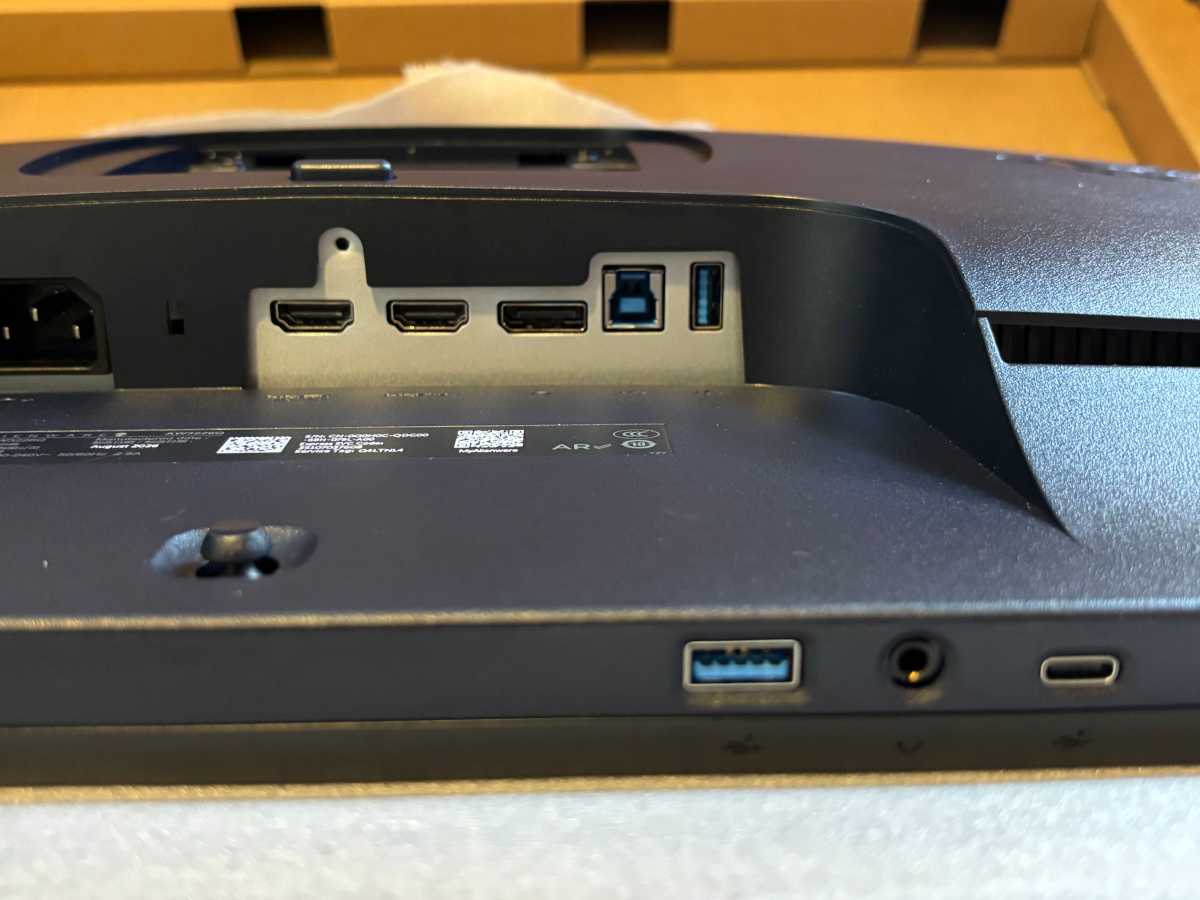
The AW3226Q doesn’t have built-in speakers. DisplayPort tops out at 1.4 rather than DisplayPort 2.1. You don’t get the sort of elaborate USB-C docking setup found on productivity-focused displays.
None of that bothers me. Give me the fantastic panel at a great price and cut the extras.
The humble port selection on the Alienware AW3226Q.
Brad Chacos/Foundry
Alienware seems to be settling into a compelling strategy with its latest OLED monitors: Spend the money on the screen and ruthlessly attack the price everywhere else.
The $350 AW2726DM is the extreme expression of that idea. Strip things down, accept some compromises in brightness and desktop use, and deliver the core OLED gaming experience at a price I would’ve considered ludicrous not long ago.
The $699 AW3226Q takes that philosophy upscale. You get a spacious 32-inch 4K Tandem OLED panel with a glossy finish, crisp RGB-stripe text, excellent gaming responsiveness, HDMI 2.1, and a three-year warranty that covers OLED burn-in.
Alienware skipped some luxuries, but it didn’t cheap out on the parts of the monitor I actually care about. I’ll take that trade every time.
Bottom line: The Alienware AW3226Q is what I wanted OLED monitors to become
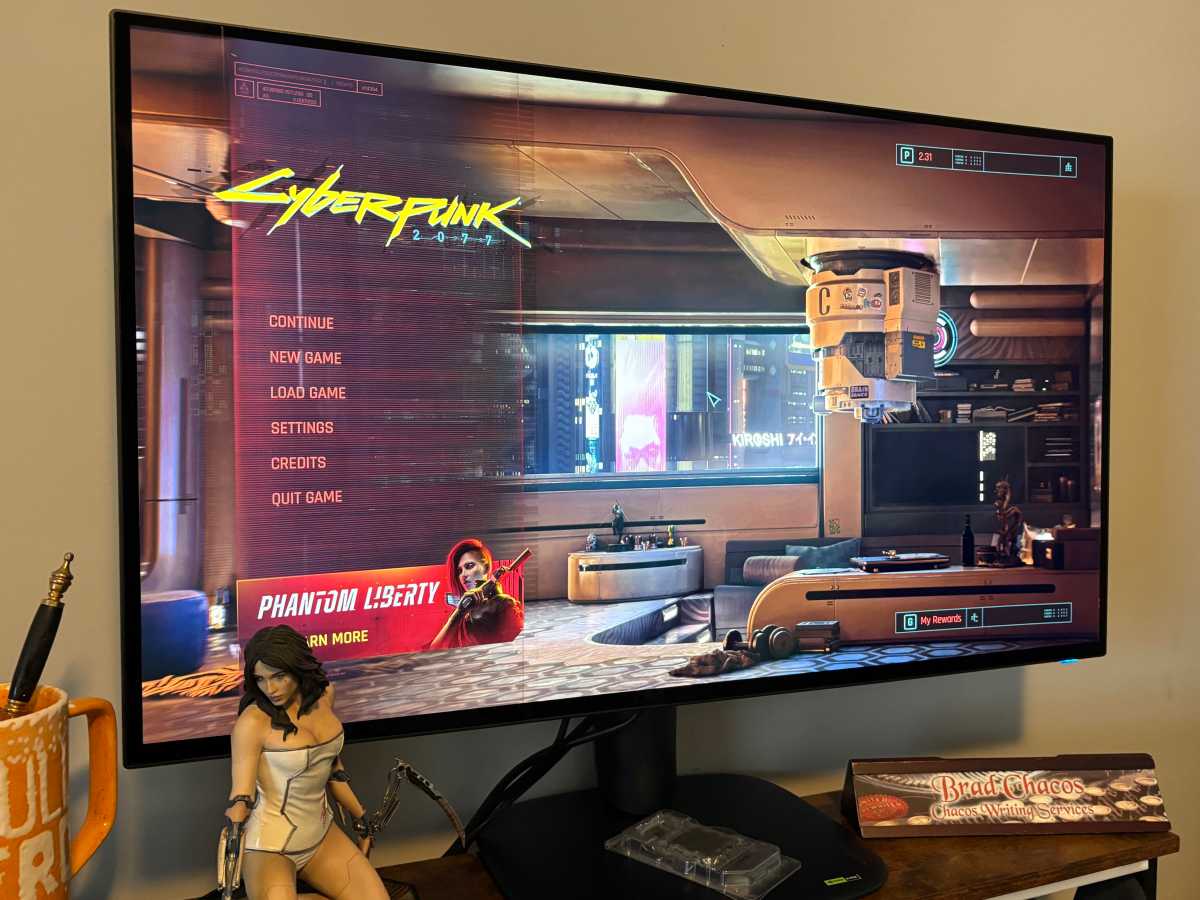
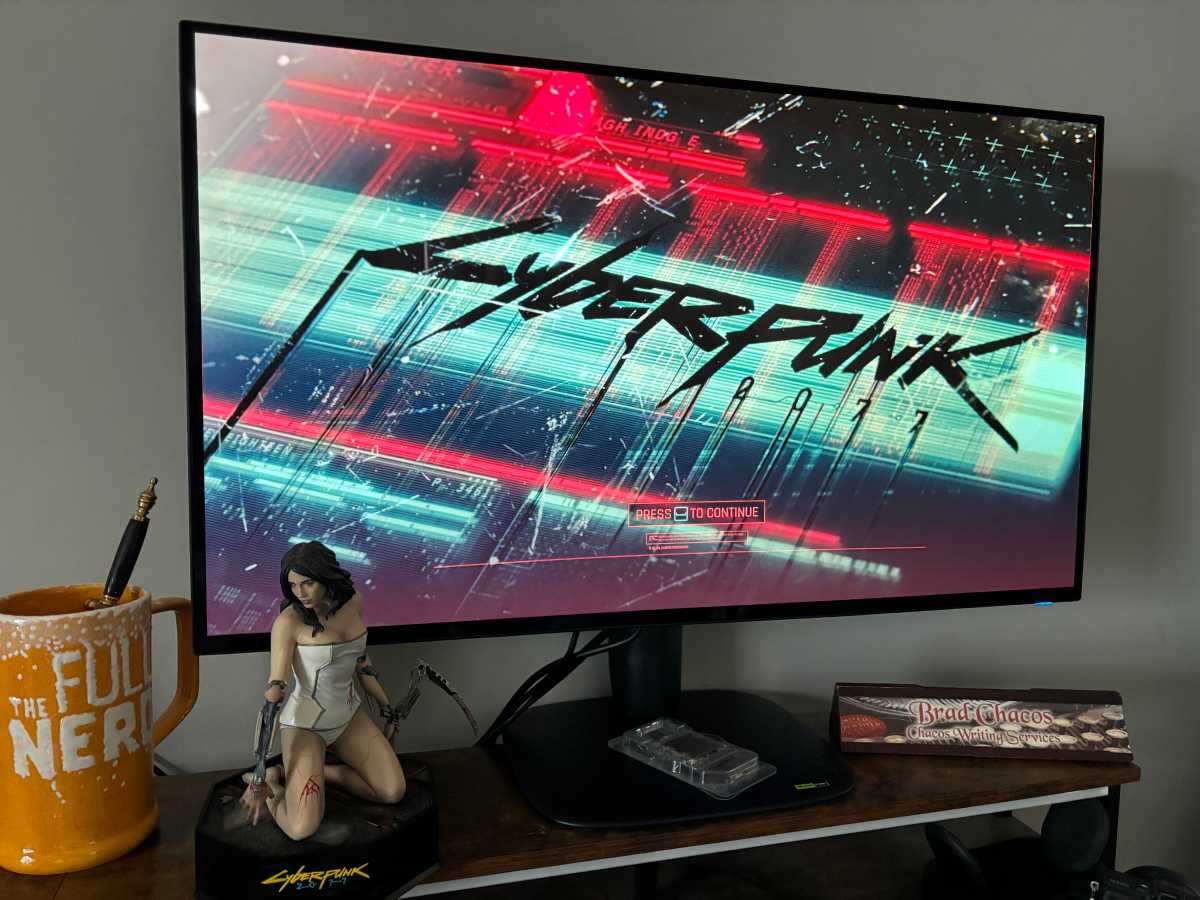
Cyberpunk and my old writing business pen holder: Only this OLED monitor nails the mix For work and play.
Brad Chacos/Foundry
A year ago, I couldn’t buy this combination.
We’ve had spectacular OLED gaming monitors for years. Fast ones, cheap ones, gorgeous ones. But none I’d happily use for both work and play.
The Alienware AW3226Q changes that.
During the day, I get a large, sharp 4K desktop with crisp text that doesn’t constantly remind me I’m using an OLED. When work ends, I get the deep blacks, vibrant colors, stunning contrast, and instantaneous response that make OLED gaming so sublime.
For $699!
There are monitors better suited to specific niches. I’d pick something faster if competitive gaming was my only priority. Someone building an elaborate one-cable laptop workstation may care more about connectivity than I do.
But I don’t need the AW3226Q to be the best monitor for every niche. I need it to be excellent at everything I actually do. Fantastically, it is.
And for the first time with an OLED, I could put one monitor on my desk and stop thinking about what I’m giving up. This will be my new primary display until Alienware makes me ship it back. No rush, Alienware.
I’ve been buying Nvidia graphics cards exclusively for nearly 30 years, and I may well continue—if Nvidia will let me. But even I’ve had to make peace with the fact that Nvidia is no longer in the business of supporting PC gaming. I’m not sure it ever will be again.
I was thinking about this while listening to the latest episode of The Full Nerd, in which Adam and his fellow cohosts discuss what it means that Nvidia may soon stop selling the RTX 5090 entirely. The news comes courtesy of a Twitter (sorry, X) post from a known leaker with a decent track record, so while you should take it with a grain of salt it seems like there’s a strong possibility it will prove true.
Welcome to The Full Nerd newsletter—your weekly dose of hardware talk from the enthusiasts at PCWorld. Missed the surprising topics on our YouTube show or the latest news from across the web? You’re in the right place.
And honestly, it doesn’t seem that surprising when you consider that the RTX 5090 launched with an MSRP of $1,999 yet regularly sold for upwards of $5,000, due in no small part to massive demand from AI-pilled coders and companies looking to take advantage of that sweet, sweet 32GB of DDR7 memory. A casual search of the major retailers this week turned up precisely zero 5090 cards available for purchase, even at that exorbitant price, and I suspect that will remain true for the foreseeable future.
It can feel heartbreaking if you’re dedicated to the hardcore DIY PC gaming lifestyle, but you can take solace in the fact that the GeForce RTX 5080, RTX 5070 Ti and RTX 5070 are still widely available and plenty good enough for high-res, high-speed PC gaming. Heck, the same leak that suggests the RTX 5090 is done for also claims that Nvidia will launch a new model of RTX 5080 with 24GB of DDR7 memory, which should offer a noticeable improvement over the current 16GB RTX 5080 cards.
But I have to say, the sooner you make peace with the fact that Nvidia is no longer in the business of supporting PC gaming, the better. Don’t get me wrong, Nvidia will continue to make new desktop graphics cards and talk a big game about how it values PC game players first and foremost. But the numbers have shown otherwise for some time, and that’s likely to continue for years to come.
After all, the AI-driven explosion of demand for high-end GPUs and silicon helped Nvidia become the first trillion-dollar chip company, and recent financial reports and SEC filings show the company’s revenue from data center products is now 4-5x that of its consumer hardware revenue. That’s presumably part of the reason why the company recently stopped reporting GPU sales as a discrete category entirely, instead lumping all GPU hardware sales (for both commercial and retail customers) into one category on its balance sheet alongside robotics, automotive and telecom products.
So please, for your own mental health, I’m begging you: do not give in to Jensen’s sales pitches at the next Nvidia press conference. I believe the company will keep making new graphics cards for the foreseeable future, but only to hold on to its commanding hold of the GPU market and keep up appearances while it milks the AI boom for all its worth. If AI demand collapses the way crypto seemed to crash a few years ago, maybe we’ll see Nvidia take up the mantle of being a PC gaming company once again.
But I don’t expect that will happen any time soon, and making peace with that has done wonders for the stress I feel right now as a frustrated fan of PC gaming. It’s helped me realize that I don’t need the latest and greatest hardware to have a blast gaming on my PC, and the same can be true for you. Take this time to play some games in your Steam(ing) pile of shame, get deeper into Linux gaming and explore all the other cool things you can do without an RTX 5090. Because I don’t know that high-end GPUs will be affordable for regular folks like you and me in the next few years, if ever—and I don’t think I’ll be buying an Nvidia GPU any time in the near future.
In this week’s episode of The Full Nerd
This week your regular host Adam Patrick Murray was joined by PCWorld’s Brad Chacos and Michael Crider on episode 419 of The Full Nerd to chat about the rumored end of the GeForce RTX 5090, open-source Adobe Creative Cloud alternatives and the pending launch of RTX Spark laptops.
PCWorld
And of course, the trio also make time to answer your questions from the PCWorld Discord and the live chat about everything from the future of PC game streaming to the durability of flash drives. Make sure to check it out, and tune in to next week’s episode to get your questions answered on the air!
Nerd news of the week
From some fun new ideas about where to place your GPU to an elucidating new interview that reveals the PC gaming habits of one of Hollywood’s movers and shakers, here’s some fun nerd news I found around the web for you this week!
Legendary FPS level designer Richard “Levelord” Gray dies at 68: Pour one out for a real one and a legend in the early PC gaming space, a veteran game maker who worked on everything from Blood and Duke Nukem 3D to Half-Life: Opposing Force and Counter-Strike: Condition Zero. RIP Levelord!
That’s it for your Full Nerd newsletter this week! Until next week, be sure to bookmark PCWorld and keep an eye on the YouTube channel for our latest videos straight out of the PCWorld studio. Want this newsletter to come directly to your inbox? Sign up on our website!
This newsletter is dedicated to the memory of Gordon Mah Ung, founder and host of The Full Nerd, and executive editor of hardware at PCWorld.
Microsoft’s Surface Laptop Ultra is a new class of device, combining efficient productivity, powerful RTX Spark graphics, plus AI capabilities, all for a price that seems totally unrealistic in the 2026 economy.
Price When Reviewed
This value will show the geolocated pricing text for product undefined
Price comparison from over 24,000 stores worldwide
Microsoft’s Surface Laptop Ultra and its newfangled Nvidia RTX Spark chip characterize what many would call a new axis of productivity: AI. With it comes an old, familiar feeling of FOMO, or the fear of missing out.
For decades, the equation has been simple: A faster CPU means applications run faster. A faster GPU equates to higher frame rates in PC games. Now there’s AI, which means memory matters. Memory is shared between the Arm CPU and powerful RTX GPU inside the Nvidia Spark N1X chip powering the Surface Laptop Ultra, and more memory means the ability to load more powerful AI models.
As regards the Surface Laptop Ultra model that Microsoft shipped us, my first impression was one of disappointment, as it came with just a “measly” 32GB of memory (along with its whopping $3,699 price tag). By contrast, RTX Spark machines with 48GB to 128GB of RAM encourage users to load AI agents as part of the setup process. Ours and others like it do not, implying that there’s both first- and second-class experiences within the Surface Laptop Ultra and other RTX Spark devices. A new AI model is like a new video game: We all want to play it. Some can’t.
So here’s how I approached it: I began first by testing the Surface Laptop Ultra as an “ordinary” productivity device, like every other laptop we touch. I then pivoted into examining it as a content-creation machine, with tests of image and video editing. After I touched on gaming, I then took a harder look at the Ultra in its natural setting: as a portable AI workstation, owned by those with money to burn.
For me, the latter half of this review was a chance to ask the question, why do we need the Surface Laptop Ultra when gaming laptops exist? I think it’s one worth exploring, with valid reasons both for and against this new class of devices.
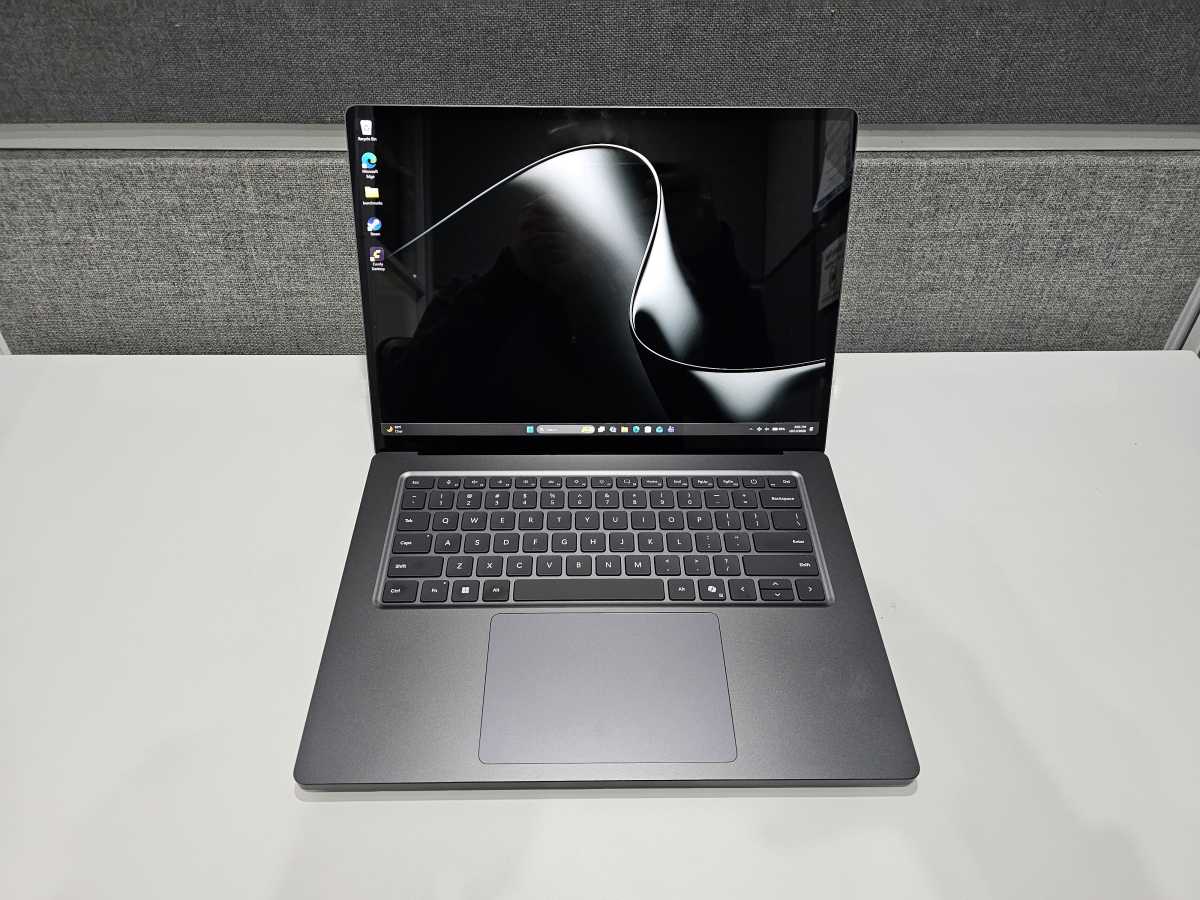
Microsoft’s Surface Laptop Ultra in its “Nightfall” color scheme.
Mark Hachman / Foundry
Microsoft Surface Laptop Ultra: Configuration options
Microsoft’s Surface Laptop Ultra starts at a base price of $2,599, which is hundreds of dollars more than the existing 15-inch, $1,615 Surface Laptop 8. That laptop uses Qualcomm’s Snapdragon X2 Elite Arm CPU, while the Surface Laptop Ultra ushers in a more powerful Arm alternative, the Nvidia RTX Spark N1X, a collaboration between Mediatek and Nvidia.
While you don’t have any choice in different display sizes, you can choose between two basic configurations, a Surface Laptop Ultra with an 18-core N1X CPU/5,120-core GPU RTX Spark N1X ($2,599 and up) or a version with a 20-core RTX Spark N1X with a 6,144-core GPU ($3,699 and up). More importantly, the two configurations include different memory options: 24GB and 32GB for the 18-core version, and 32GB, 48GB, 64GB, and 128GB for the 20-core version. (At press time, the 128GB option was listed as out of stock.)
There are three storage options, a PCI Express Gen 4 512GB option on the base model, plus the choice of between 1TB and 2TB of PCIe Gen 5 SSD storage. The latter is reserved for the 64GB RAM configuration, not the 128GB RAM option.
You have two choices of colors: Nightfall (black) and Platinum. Not all configurations are available in all colors.
Oh, and Microsoft’s getting snarky: Trade in your MacBook Pro and get up to $1,000 back. That’s good, as the top price for a Microsoft Surface Laptop Ultra is $5,899.
Surface Laptop Ultra features:
CPU: Nvidia RTX Spark N1X 18/20 core CPU, 5,120/6,144-core GPU (20-core CPU as tested)
Memory: 24GB/32GB/48GB/64GB/128GB LPDDR5x (32GB as tested)
Graphics/GPU: RTX Blackwell 5,120-core/6,144 core GPU (6,144-core GPU as tested)
NPU: Yes? But maybe not? To be continued below.
Display: 15-inch (3720 x 2180) PixelSense Ultra mini-LED display
Surface Laptop Ultra: Out of the box and construction
The word to describe the Surface Laptop Ultra is dense.
Many other laptops feel like a construction of parts. The Surface Laptop Ultra feels like somehow the electrical traces and fans and compute were all routed through a single piece of metal. Technically, it’s made from “precision‑molded polymer composites” for the main body, combined with “aluminum and magnesium alloy frames” for structural rigidity and heat dissipation. The keyboard tray feels slightly plasticy, but that’s all.
Otherwise, it’s about the most solid laptop I’ve ever used. There’s no give to the keyboard, and I didn’t notice any twisting to the display, which reclines to about 40 degrees or so off of the horizontal.
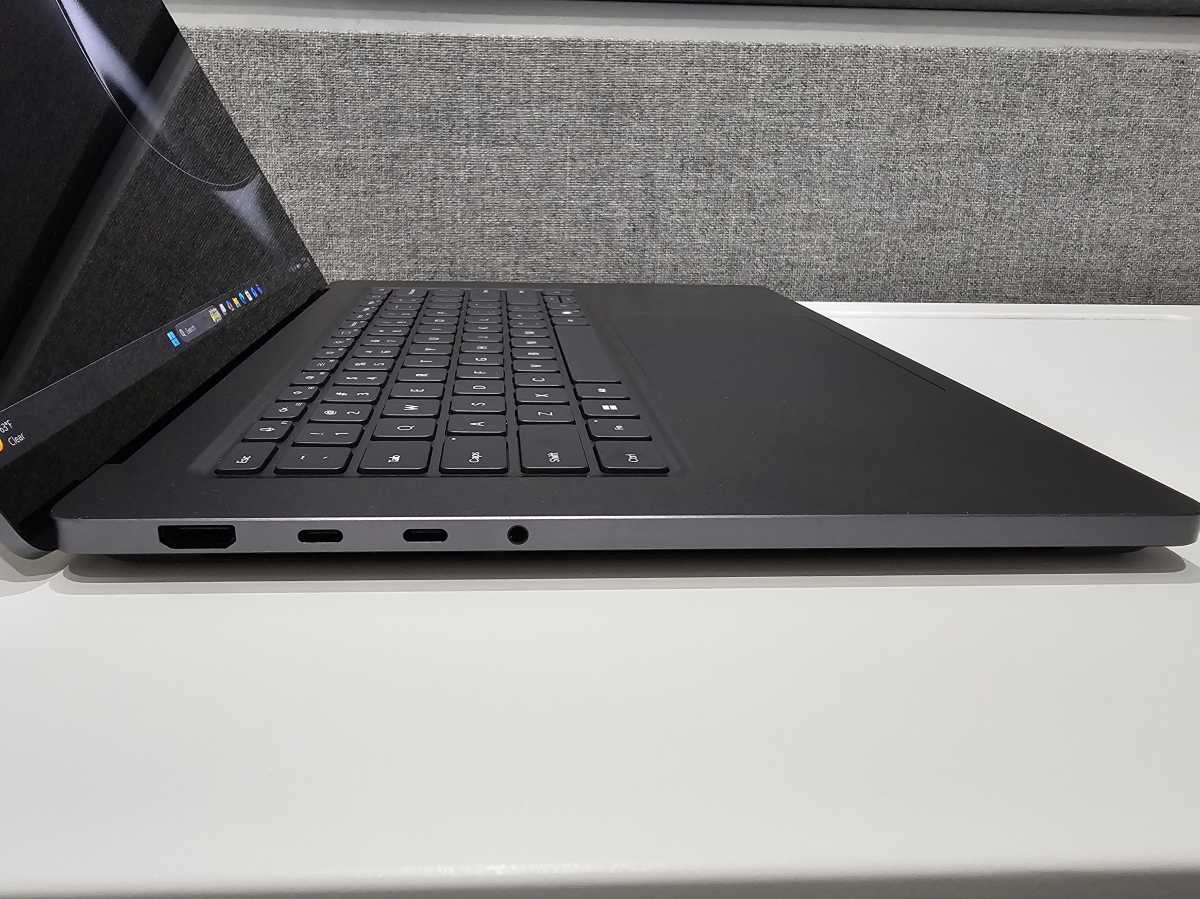
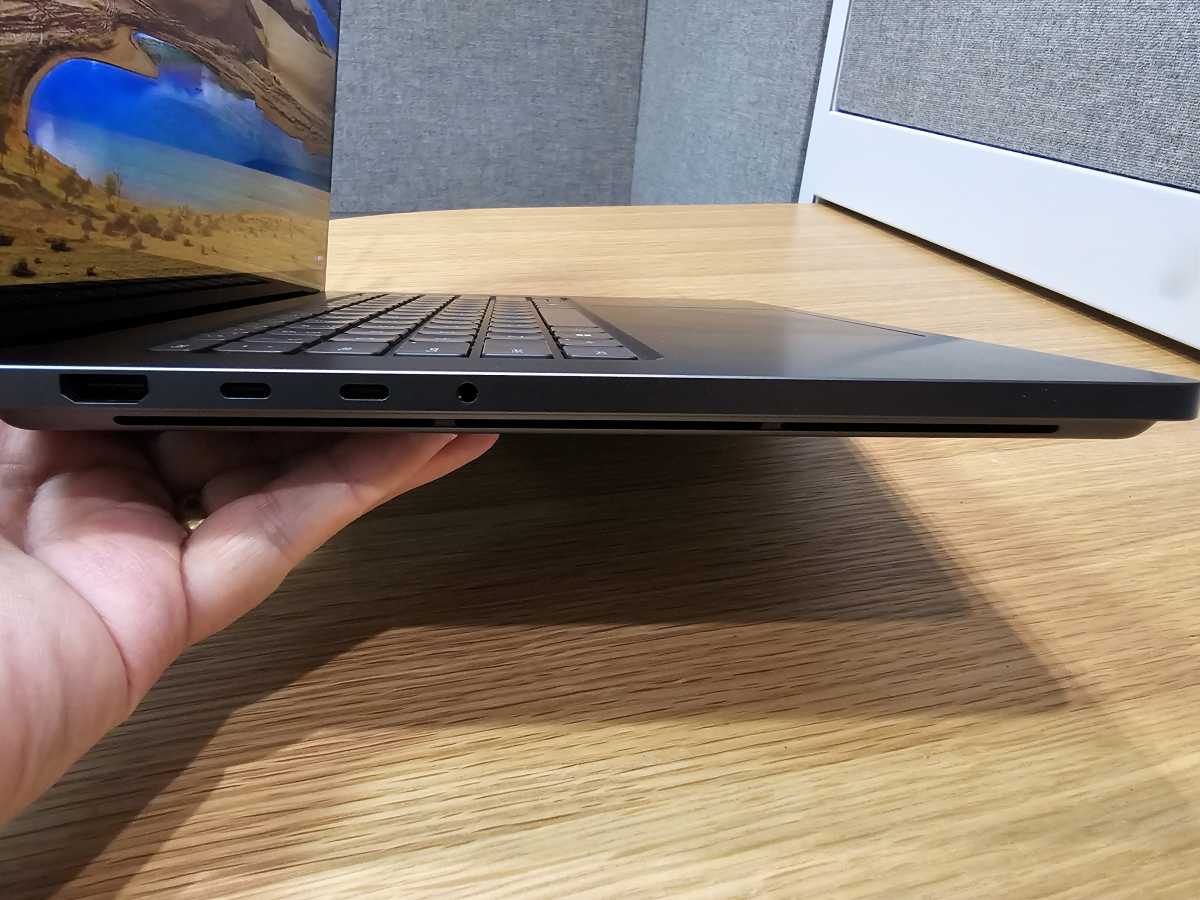
One of the things Microsoft is emphasizing in its Surface Laptop Ultra is the number of ports.
Mark Hachman / Foundry
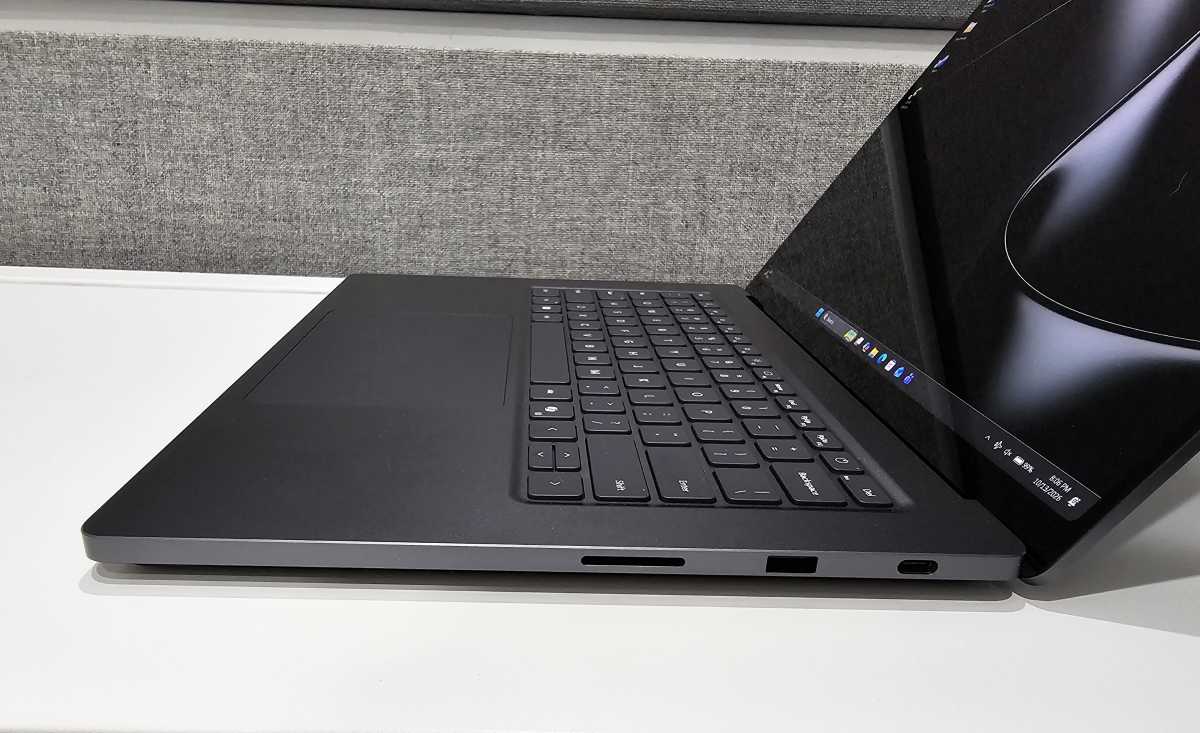
Physically, the most noteworthy addition to the Laptop Ultra is the return of the magnetic I/O connector. For over a decade, Microsoft built its Surface devices with a magnetic Surface Connector, which delivered power and (if it was connected to a Surface Dock) data as well. With the Surface Laptop Ultra, Microsoft designed in something novel: a magnetic USB-C connector, which snaps in and out securely to avoid yanking the laptop off a table if ever your foot accidentally catches the cord. I’ve never had that happen, but it’s a comfort nevertheless.
The thing I don’t like about the charger is that it’s essentially a larger version of the existing Surface charger, with the plug built right into it. That means that the 140-watt USB-C charger (its most powerful to date) monopolizes at least one end of a power strip, unless you buy one with plugs perpendicular to the strip itself. You can buy a cord extension to the charger which eliminates the problem, but that costs extra. Unfortunately, it’s also proprietary, too, as I was unable to plug the Surface’s magnetic USB-C adapter into other laptops.
Otherwise, if you’re a fan of ports, the Surface Laptop Ultra has them in spades: a whopping three USB4 (the generic equivalent of Intel’s Thunderbolt 4) ports, including one with the magnetic connector; an HDMI 2.1b port; a 10Gbps USB-A port; an SD card slot, and a 3.5mm headphone jack.
Normally, most laptops vent air by pulling it from a grille on the underside of the laptop and routing it over the components, then outside, typically via the hinge. Instead, this laptop appears to pull air through grillwork mounted on the outer edges, much like the older Surface Laptop Studio series. The fans are loud, though not especially noisy. I thought a heard a note of coil whine at some point, but it didn’t last.
Microsoft’s Surface Laptop Ultra features an SD card slot, a USB-A port, and the magnetic USB-C connector on its right-hand side.
Mark Hachman / Foundry
Surface Laptop Ultra: Display
Microsoft has flirted with OLED screens in the past, which produced some speckling. In this case, the company chose a Mini-LED-based PixelSense Ultra screen instead, the first Surface to use the technology.
Mini-LED displays use a collection of small LED lights, rather than a giant LED backlight, providing a middle ground between an IPS display and an OLED. An OLED’s pixels can be turned off and on individually, as can the Mini-LEDs, and can suffer a “bloom” or “halo” effect while they’re on. I didn’t notice anything like that, which makes me think there are quite a few Mini-LEDs behind the display. (I asked, but never heard back from Microsoft.)
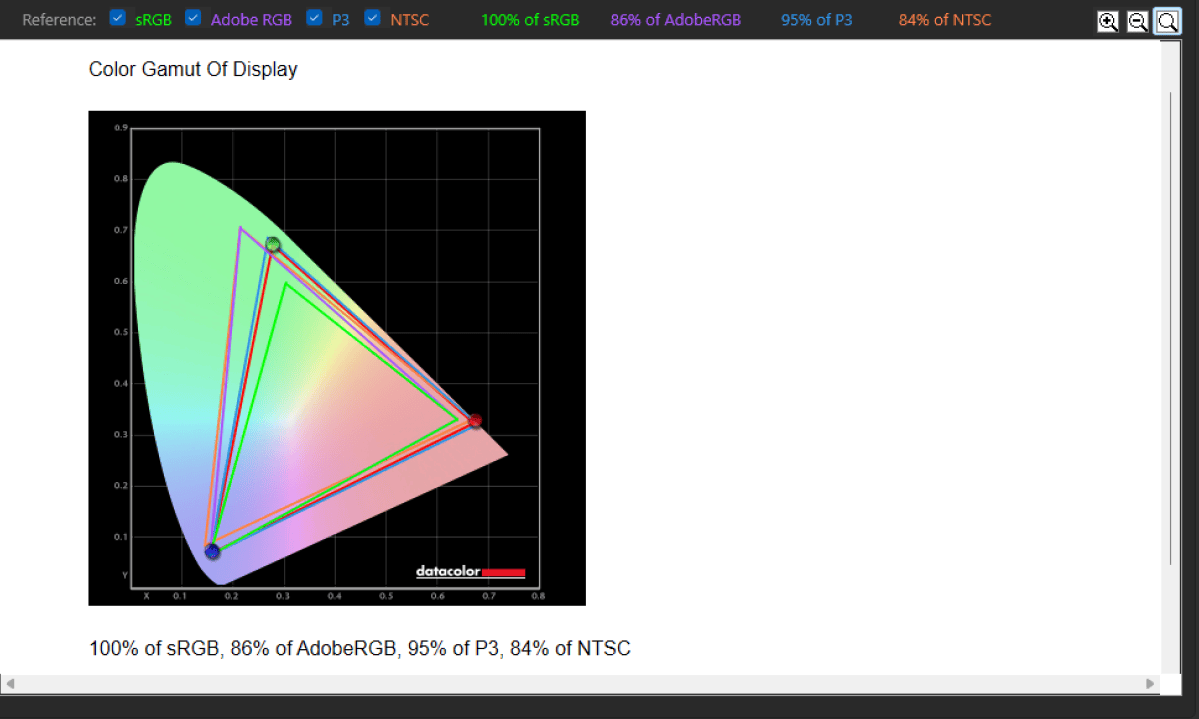
Microsoft provides three modes: The default Vivid mode, a mode for sRGB video and photo editing, and an “enhanced” mode for watching videos, with more visual pop that tends to dial up the contrast. I’ve included the color gamut for the default mode below.
The color gamut of the Surface Laptop Ultra.
Mark Hachman / Foundry
Microsoft claims that the display puts out 1,000 nits while in SDR mode, with HDR brightness at about 2,000 nits. I found the display put out far less than that, with 792 nits maximum in an SDR mode. It’s still a terrific display, but my review unit didn’t live up to its promised ratings.
Surface Laptop Ultra: Mics and audio
Microsoft has always manufactured Surfaces with surprisingly solid audio, even including its earlier tablet offerings. The Surface Laptop Ultra lives up to its reputation.
When I played back my test tracks, the music sounded excellent up and down the spectrum, maintaining cohesion even at maximum volume — which is more than sufficient for individual playback or for watching a movie with a companion or two. I’m not going to say that it sounds like the best laptop ever, but it’s certainly top tier.
As for the mics, voice recording is superb, and my voice sounded warm and natural, honestly about as good as most mics I’ve used.
Noise cancellation was surprisingly a mixed bag, however. I test by holding a phone playing back music (a rock track as well as white noise) behind my head and then move it off to the side, while recording my voice using the Windows Sound Recorder app and the built-in mics. I expected more here. Other laptops (Asus generally nails this) perform audio filtering quite well.
The laptop stumbled rather badly trying to distinguish my voice from the background music, but did far better when cancelling out the white noise of a recorded rainfall. In that case, it preserved my voice’s tones while wiping out the sounds of the rain almost completely.
For all of its “AI” positioning, I didn’t see an NPU listed in the spec sheet, nor did I see it active while recording audio. Windows reported one, though. Supposedly this is a Copilot+ PC, yet I see no rated NPU TOPS.
Surface Laptop Ultra: Keyboard, trackpad
The best laptop keyboard I can recall using was the sadly discontinued Surface Book series, whose key travel rivaled that of a mechanical keyboard. The Surface Laptop Ultra feels on par with recent Surface Laptops, and perhaps a bit better. The key action feels a bit stiffer than other laptops I compared, and might loosen up a bit over time. Overall, it’s a good keyboard, though not outstanding.
Microsoft continues to play with its function keys, however. On the top row of the keyboard there’s now a dedicated microphone on/off toggle, plus controls for adjusting the screen brightness and volume. There’s also a screen capture key, the first I can recall seeing on a Surface keyboard.
Microsoft says its haptic keyboard on the Surface Laptop Ultra is its largest ever. That might be; haptic keyboards are clickable throughout the breadth of its surface area, and this follows suit. To me, a haptic keyboard adds a bit of luxe to the whole experience, and for this price tag you’d better believe I expected one. Gestures worked as advertised, with no issues.
Surface Laptop Ultra: Webcam
I was not impressed with the Surface Laptop Ultra’s webcam, and I’m shocked by that. The webcam is just an ordinary 1080p webcam, and not the superior webcams that helped jumpstart the webcam renaissance during the pandemic. While the color balance was fine, the fuzzy 1080p (am I too used to testing top-notch 4K webcams for our recommendations?) left me feeling like Microsoft cut a corner here — and for the price, I don’t expect many corners to be cut.
I’m just not a huge fan of the webcam on Microsoft’s Surface Laptop Ultra.
Mark Hachman / Foundry
No NPU also means no Windows Studio Effects, the filtering and zooming and panning effects that are built into Copilot+ PCs. It’s just an ordinary webcam, and that’s not something Surface fans expect.
Surface Laptop Ultra: Performance
My experience with the Surface Laptop Ultra began poorly. Apps simply crashed or refused to load, or loaded so slowly that I could literally see the display painting the screen like AOL’s dialup service during the 1990s, as was the case with 3DMark. My initial battery rundown test uses Windows Media Player, with a video file looped over and over until the battery expires. Media Player, however, froze when loading my test, and froze again during the run, on two occasions.
I notified Microsoft, and they believed that I had been accidentally sent a defective unit. That might be the case. But Microsoft snuck in a security update after I began testing it. By the time I started intensively testing the laptop, those issues had gone away. I can’t say for certain what happened. Because of my limited testing time, I chose not to run our standard battery rundown test, but I replaced it with what I feel are more accurate tests, anyway.
(Microsoft sent a replacement Surface Laptop Ultra — with 48GB of RAM — which I didn’t have a chance to test before this review published. The initial issue I had was with stability, not performance, so I think my results are valid.)
Nevertheless, there are several caveats worth noting.
First, the Nvidia N1X is an Arm CPU, so certain applications won’t run natively. (Those apps use Windows’ own Prism translator, sometimes robbing them of a bit of performance.) But the CPU wasn’t the issue, the GPU was. Some applications (Adobe Premiere, for example) refused to run because of an unknown GPU. However, a beta version of Premiere accommodated the new CPU architecture.
Microsoft also released the Surface Laptop Ultra as it normally does, by dialing down the Windows power slider into its most efficient mode. On the other hand, Microsoft and Nvidia also claim that, like Qualcomm’s Snapdragon, Nvidia’s N1X should run as close to the performance of wall power when on battery.
Microsoft’s Surface Laptop Ultra includes small vents on the underside of the laptop for cooling.
Mark Hachman / Foundry
That wasn’t always the case! Where I could, I ran each test on the default power settings, as well as with the Windows power slider cranked to the max. Finally, I tested on battery as well, again on the default efficiency settings. You’ll see these reflected in the charts below.
By default, the single-core CPU performance of the N1X isn’t great, and the Laptop Ultra felt laggy and slow in places, at least at the beginning. Pushing up the performance increased the single-core clock speed, making the laptop feel faster and more responsive. If you buy the Surface Laptop Ultra, dial up the performance using the power slider. It makes a significant difference.
I’ll give you another hint at my findings down below: This is an Arm machine, and Arm chips typically run cooler and more efficiently. I measured the power draw of the Surface Laptop Ultra versus several gaming laptops. I think a key selling point here is power efficiency.
Surface Laptop Ultra: Productivity tests
I chose to break down the performance in two ways: First, as a general productivity machine, and second, as a challenger for gaming laptops — though not so much for gaming per se, but for content creation and AI. I do include one gaming benchmark for comparison, but my colleague Michael Crider is preparing his own review with an eye toward gaming, so stay tuned for that.
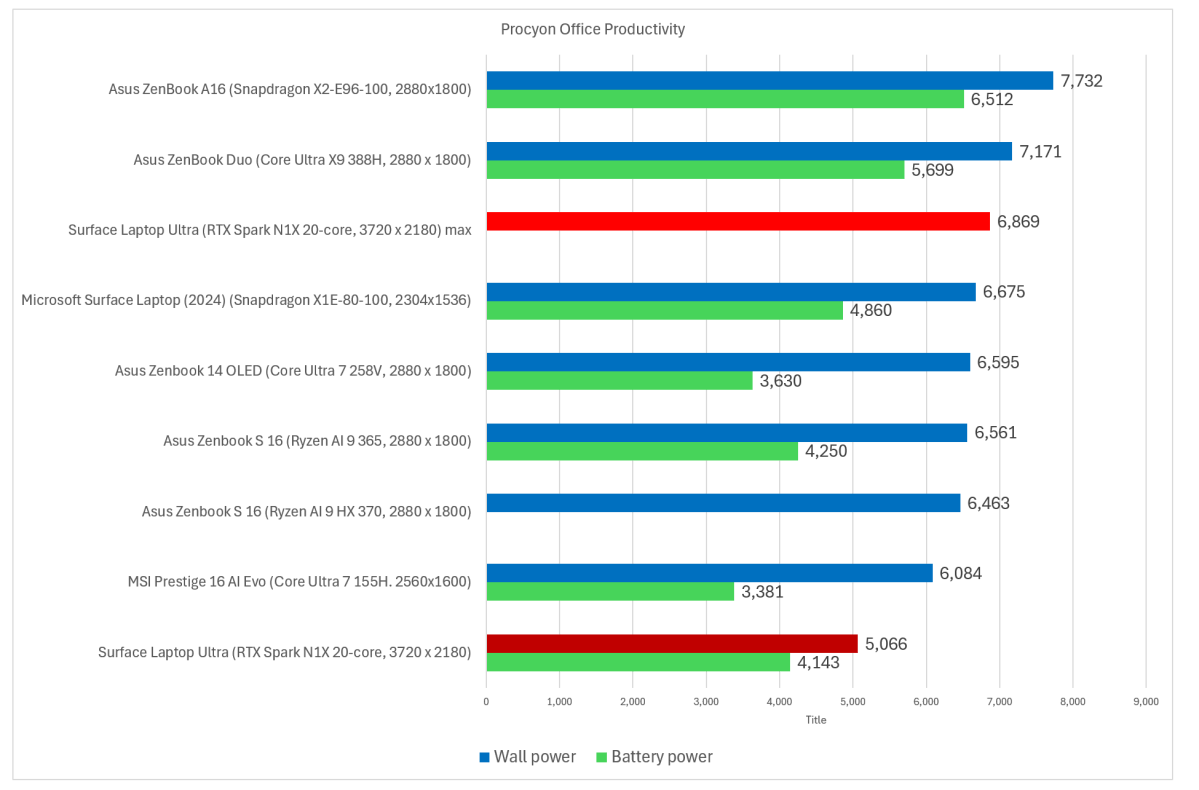
If you want a pure productivity PC, Microsoft’s Surface Laptop Ultra isn’t your best choice.
Mark Hachman / Foundry
Because these are Arm laptops, some of our tests have to be swapped out for Arm-compatible versions. That includes replacing the PCMark 10 benchmark, which tests laptops against a variety of open-source applications, for Procyon’s productivity benchmark, which uses the three basic Microsoft 365 apps — Word, Powerpoint, and Excel — and adds Outlook to the mix. I guess it’s good that Microsoft is targeting AI and graphics, as opposed to productivity, because this clearly is not a good start. Well, unless you dial up the performance.
I was surprised by the low single-core performance on Microsoft’s Surface Laptop Ultra.
Mark Hachman / Foundry
The two synthetic CPU benchmarks restore the luster to the Surface Laptop Ultra and its N1X RTX Spark chip, with one exception.
I always point to the single-core performance as one response to the question, why does my laptop feel slow? Single-core performance and the close ties between the OS and the silicon is one of the key reasons that Macs feel quick. Microsoft may enjoy close ties to chipmakers, but the default single-core performance here is disappointing.
(For comparison, the base Apple M4 scores 175 with its single-core performance, and the Apple M5 scores 198, according to CPU Monkey.)
Remember, Nvidia’s N1X combines an Arm CPU (10 performance X-925 cores, 10 slower A-725 cores), which debuted as part of Nvidia’s DGX Spark workstation. That means that this chip platform has been around for about 21 months, and that’s not necessarily a good thing — “it’s old, which probably explains it,” as one analyst privately described the slow single-core performance.
This benchmark shows how Microsoft’s Surface Laptop Ultra performs in the Geekbench synthesized CPU test in various scenarios.
Mark Hachman / Foundry
I’ve used the older Geekbench 6 scores for comparison’s sake, though the newer Geekbench 7 takes advantage of some of the RTX Spark’s capabilities. For reference, the Geekbench 7 single-core score is 2,008, while the multi-core score was 20,093, jumping to 2,687 and 23,256 with the Windows power slider set to “Best performance.” The GPU score is 84,107 on default settings, 140,100 with CUDA enabled, and 116,344 on default settings with the power slider maximized.
On battery, the Geekbench 7 CPU score was 1,899 (single-core) and 17,328 (multi-core), with a GPU score of 83,861 (OpenCL) and 138,212 (CUDA). If you’re a general consumer, you can ignore this; that information is just for productivity enthusiasts.
In the chart above, I tested single-core, multicore, and graphics performance on wall power and on battery on the older Geekbench 6.
Does the Surface Laptop slow down over prolonged use? While it doesn’t howl in protest, it does indeed falter. Under Cinebench 2024’s stress test, performance dropped by 6.3 percent after 10 minutes of use. It also failed 3DMark’s stress test, as graphics performance fell 6.8 percent over a series of looped testing runs.
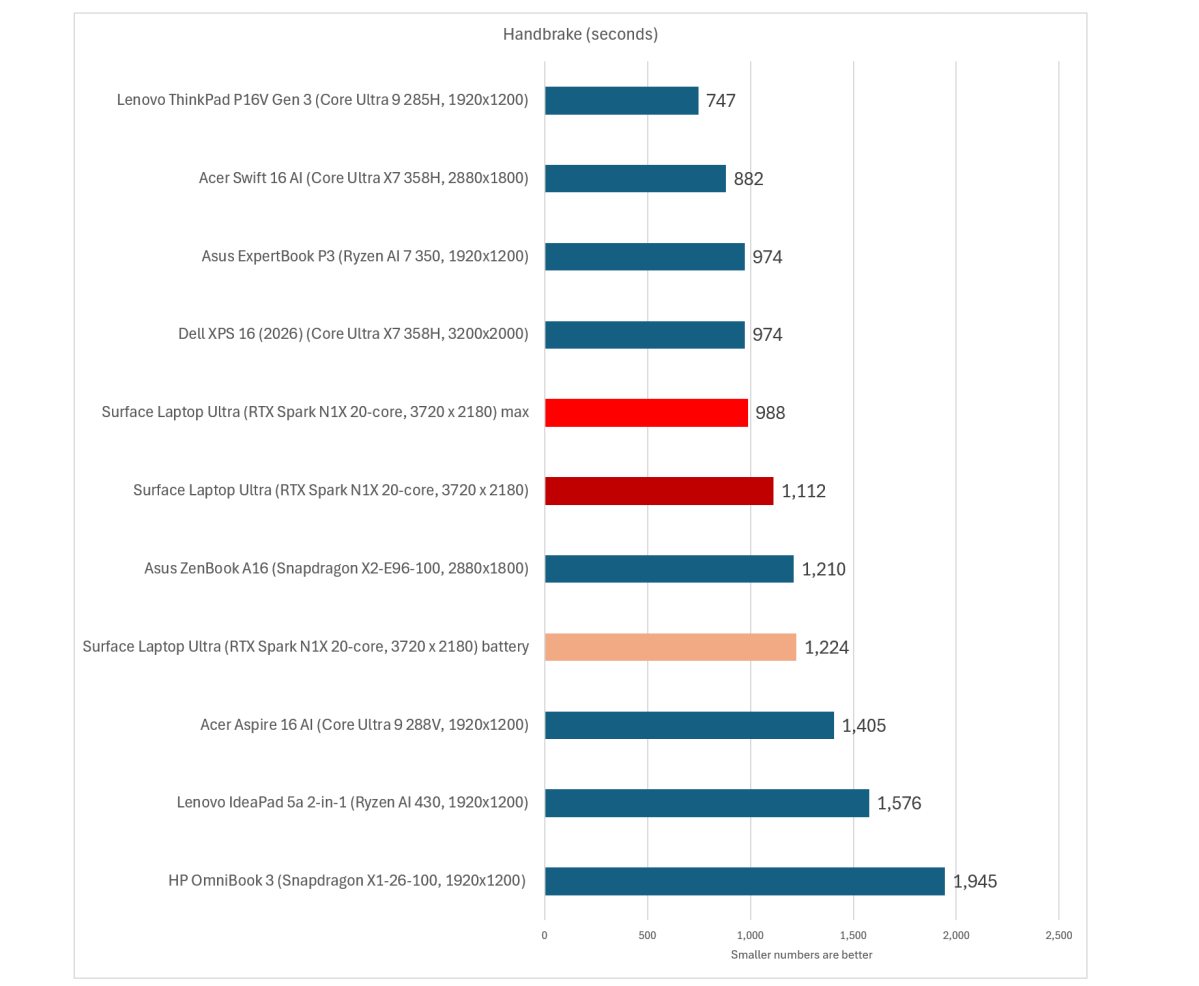
We measure the prolonged performance of the Microsoft’s Surface Laptop Ultra in this Handbrake test.
Mark Hachman / Foundry
We use the Handbrake transcoding test as another way to test the laptop’s performance over prolonged periods. Since we’re measuring the time to complete a task, less is more. Note that this isn’t an Arm-specific test, though my testing in the past didn’t find a real advantage with versions coded specifically for Arm processors.
You’d expect performance like this from a powerful integrated GPU.
Mark Hachman / Foundry
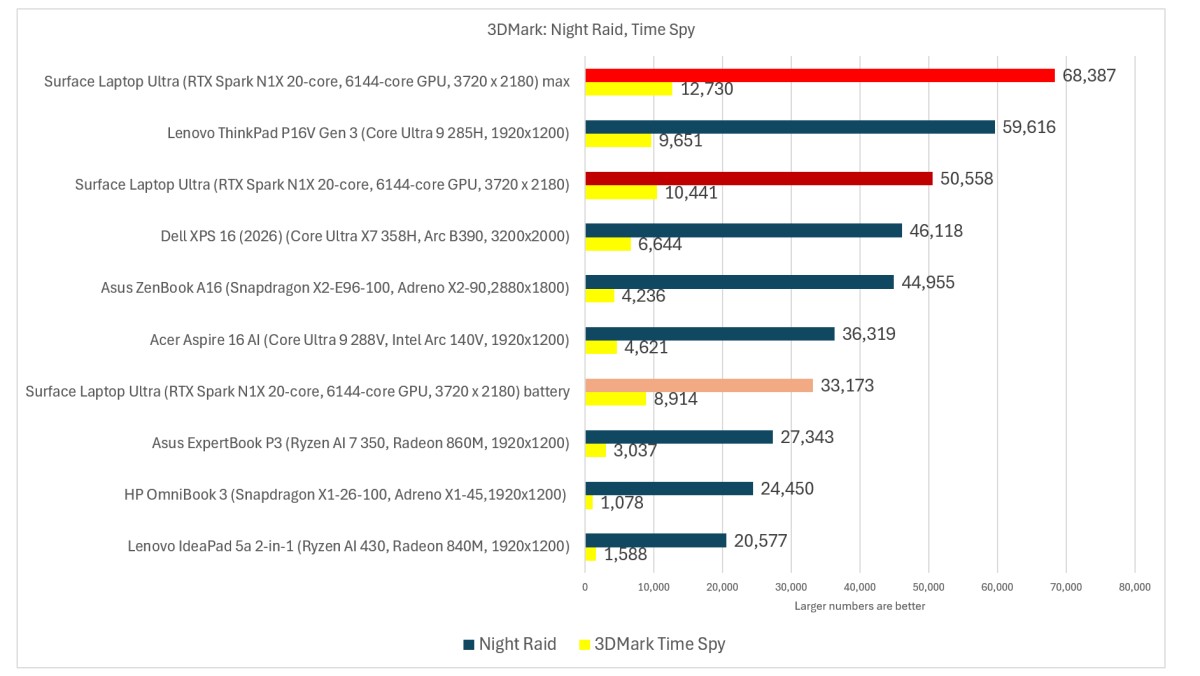
When I can, I like to point to real-world applications as evidence of actual performance. But 3DMark’s venerable (too venerable?) benchmarks provide our first hints of how the graphics core will shape up, with more tests further down in this article.
Note that the Time Spy test is written for x86 processors; the Night Raid test was coded for Arm. I include both. I was very impressed with Intel’s Panther Lake chip (the X7 358H, below) in terms of graphics…but look how the N1X shapes up!
Surface Laptop Ultra: Battery life
Because of the early glitchiness associated with the Surface Laptop Ultra laptop, I wasn’t able to record a rundown test where I measure the laptop’s battery life by looping a 4K video over and over at a fixed brightness level. As video playback logic has been assimilated into various parts of the laptop silicon, video playback is more of an afterthought than ever. A video rundown test is still useful, since you’re perfectly welcome to copy or download a 4K video on to the laptop.
A more realistic way of measuring battery life is either streaming or trying to simulate a day’s work. I can do both. While Netflix appears to have implemented checks to prevent hours of streaming at a time, YouTube offers some 4K videos that last up to 24 hours. No laptop exceeds that, yet. The Surface Laptop Ultra lasted 7 hours, 57 minutes while streaming 4K video.
To simulate actual work, there’s the UL Procyon Office Productivity test, the longer version of the Office Productivity test I used earlier. Here, the laptop simply cycles through simulated tasks in Excel, PowerPoint, and other office apps until the battery runs out of power. The Surface Laptop Ultra lasted 10 hours and 3 minutes.
Note that the 95Wh battery in my review unit somehow charged to more than the design capacity, 89Wh. A battery of 99Wh is the most allowed on U.S. aircraft.
Surface Laptop Ultra: Content creation and gaming
Let’s switch gears. Until now, we’ve treated the Surface Laptop Ultra as just another Arm laptop, capable of handling typical office tasks. But that RTX GPU is just asking to be put to work.
The question is, what do we compare it to? Historically, devices like the Microsoft Surface Laptop Studio 2 were considered creator-class laptops, with a powerful CPU but a modest GPU aimed at video editing and light gaming. For a more apt comparison, I requisitioned some existing, pure gaming laptops. Here’s my question: Do you need to buy a monstrously pricey Surface Laptop Ultra when monstrously (?) pricey gaming laptops already exist?
My candidates included an as-yet unreviewed $1,899 updated version of the Acer Nitro V, with an AMD Ryzen AI 7 450, paired with an RTX 5060 creator-class GPU; an $3,799 MSI Raider, with an Intel Core i9-14900HX, and a last-generation RTX 4090; and a modern monster, $4,299 Asus ROG Strix gaming laptop equipped with a Core Ultra 9 275HX and an RTX 5090.
My tests included a Cinebench run to establish overall performance, then runs of Adobe Photoshop and Premiere to assess the laptops’ comparable creation chops. I made a brief segue into gaming with Cyberpunk: 2077, then dove into AI: Procyon’s text-generation benchmark measures large language-model performance. Finally, I crushed each laptop with a text-to-video application, governed by ComfyUI, with some on-device local LLM testing. Here, I didn’t fool around with battery mode; I tested with default settings but also at maximum power.
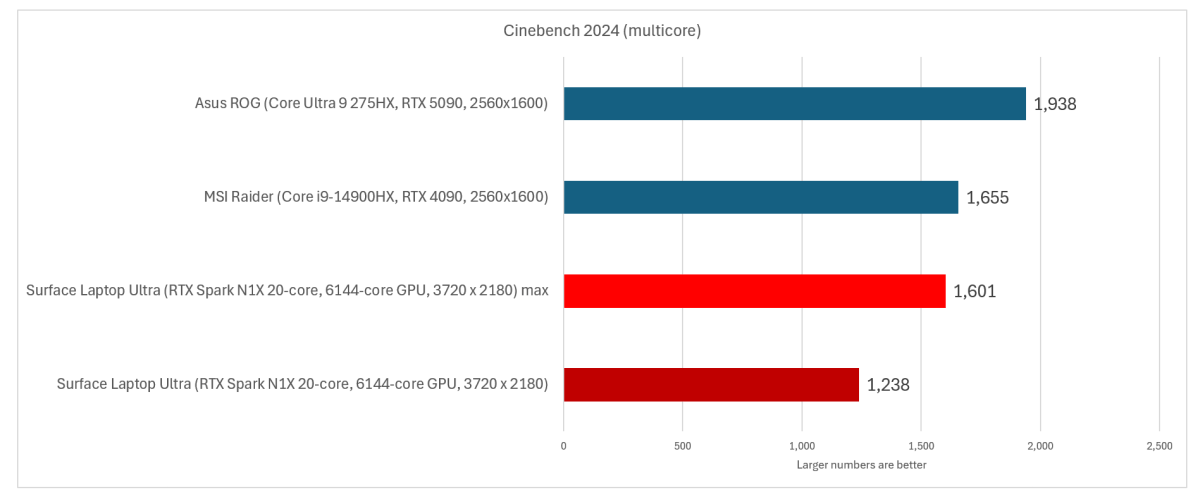
Here’s each laptop, as evaluated by Cinebench 2024 for total CPU performance. (I used the Arm version of the test for the Surface Laptop Ultra.) The Acer Nitro glitched and wouldn’t run this test. It’s impressively close.
Mark Hachman / Foundry
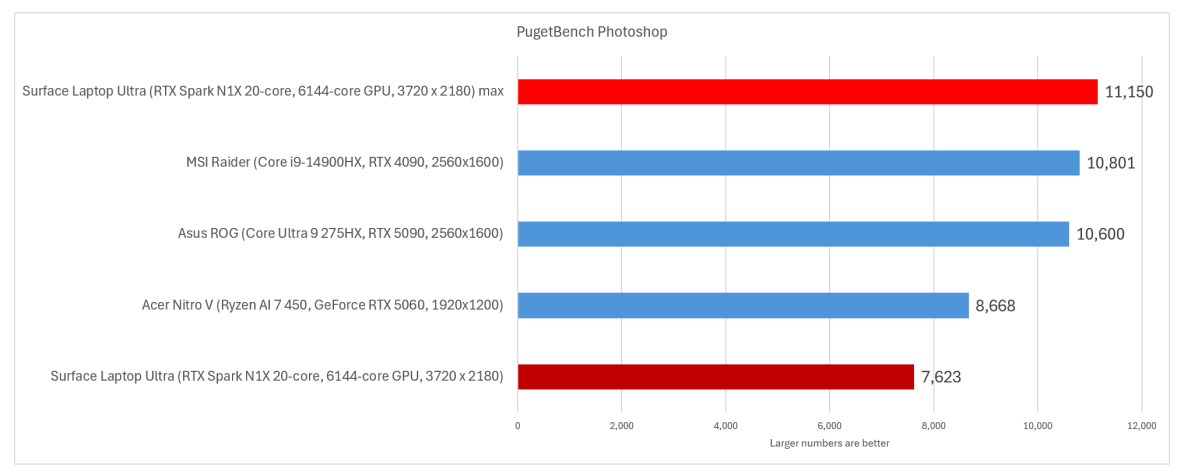
I then used PugetBench’s Photoshop and Premiere tests as a gauge to how the Surface Laptop Ultra fares as a content-creation machine. I was shocked by the first result.
At base levels, the Laptop Ultra finishes last. With performance dialed up, it’s…first? The PugetBench Photoshop test is finicky, so I only checked this result once. Still, the Photoshop test completes three runs before settling on a final score, so I suspect that it’s accurate.
Wow. That’s justification for buying Microsoft’s Surface Laptop Ultra right there.
Mark Hachman / Foundry
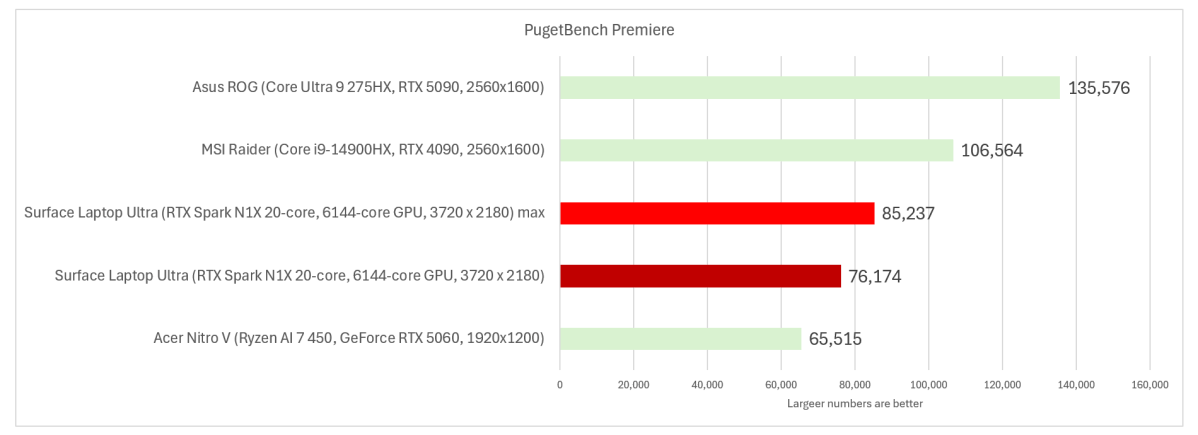
I didn’t see nearly as much improvement in the Premiere test, which exports several video files. I’m not sure why. Adobe will have new versions of its Creative Cloud applications to use with the RTX Spark platform, but Adobe hasn’t said when they’ll arrive. I used a beta version of Premiere for this test, which Adobe supplies as part of its Creative Cloud beta program.
Nevertheless: A solid showing here by Microsoft’s newest laptop.
Microsoft’s Surface Laptop Ultra still performs well in the Premiere video-editing test.
Mark Hachman / Foundry
As mentioned above, my colleague Michael Crider is testing his own RTX Spark sample laptop with an eye towards gaming. Again, the RTX Spark platform is an Arm chip, which may have compatibility issues…or not. I present the Cyberpunk: 2077 test below as a representative sample, but expect more in terms of game testing soon.
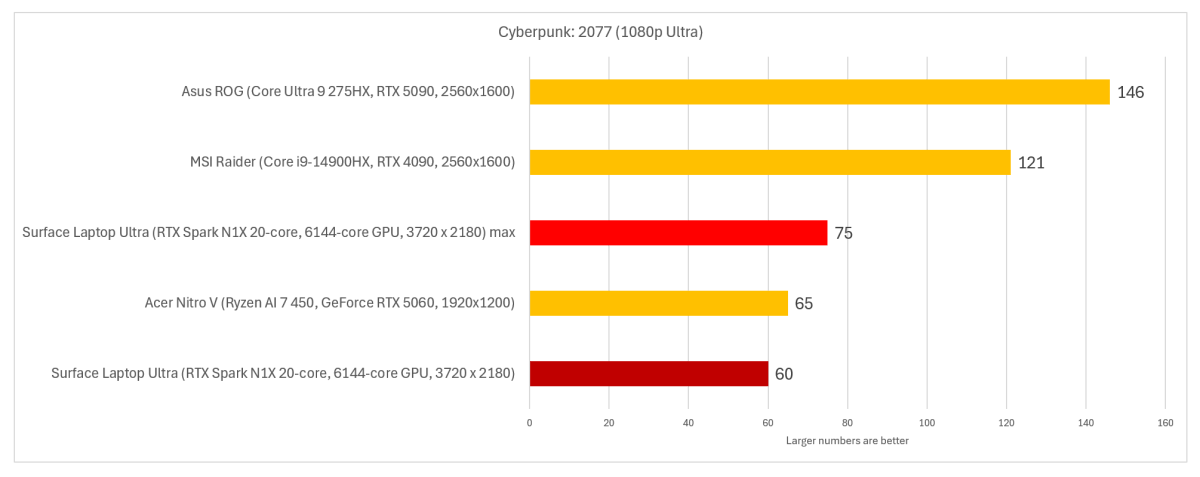
I ran several tests to compare the gaming laptops to the Surface Laptop Ultra, and settled on using 1080p resolution at Ultra settings, a decent compromise between efficiency and quality. Initially, I turned off frame generation.
Can Microsoft’s Surface Laptop Ultra game? It’s competent, certainly. Expect more tests in the future.
Mark Hachman / Foundry
But this is an AI laptop, and if there’s anything “AI”-related that Nvidia is known for, it’s DLSS AI frame generation. With those options enabled, frame rates jumped to 104 frames per second. And dialed up to maximum power with DLSS and frame generation on, the laptop ran that game at 130 frames per second — more than double the base rate.
I paused my testing for another angle: power. Even though the United States is blissfully headed into cooler temperatures, power bills keep rising. One of Arm’s arguments is power efficiency, so I hooked up a power meter to the laptops and reran the benchmark again.
Even though I didn’t measure prolonged power consumption, the differences between all four laptop platforms were immediately obvious:
The Acer Nitro V laptop held steady at between 115 to 117 watts, touching 121W at peak.
The MSI Raider blasted through 290 to 305 watts, hitting a peak of 335W max.
The Asus ROG Strix fluctuated the most, consuming 261 to 290 watts and peaking at about 310 watts.
As for the Surface Laptop Ultra? It didn’t consume the least amount of power, but 133 to 144 watts throughout the run holds its own. (I didn’t test the power output with DLSS on, which should increase efficiency.)
The point is that more power equals more performance, but more performance equals more power…and possibly a higher total cost of ownership.
Finally, I wanted to know if Microsoft expects people to work on an airplane, churning away at offline AI agents, with fans howling — and will the seat actually provide enough power? My research says no, but I can’t prove it definitively. (Microsoft said they’d get back to me.)
Surface Laptop Ultra: AI tests
Microsoft and Nvidia argued that the RTX Spark platform should usher in a new era of local AI, with local LLMs and agents busily chewing up compute cycles. That’s true, to a point. The argument in favor of that now is that local AI equals free tokens — cold hard cash is now the selling point, versus the privacy-first approach from a couple of years ago.
But there are still catches. Acer shipped its new Nitro V laptop with just 512GB of SSD storage on it, and I found myself spending my own human “compute cycles” just trying to find space on it for what I wanted to run. Photoshop, Premiere, text-to-video models…it all adds up. If you don’t have at least a terabyte of storage, you’re going to feel the pinch.
And that’s before you begin trying out AI models. Local AI requires local memory to run in. Dedicated gaming laptops with discrete GPUs have their own fixed pools of video RAM, which AI can tap for executing generative AI. Agents, however, lean more heavily on the CPU. Laptops like the Surface Laptop Ultra split memory between the GPU and CPU, and my review laptop came with a small utility to let Windows handle the division of labor. (To date, users have been able to manually configure the split between VRAM and system RAM via the BIOS or an app supplied by AMD or Intel.)
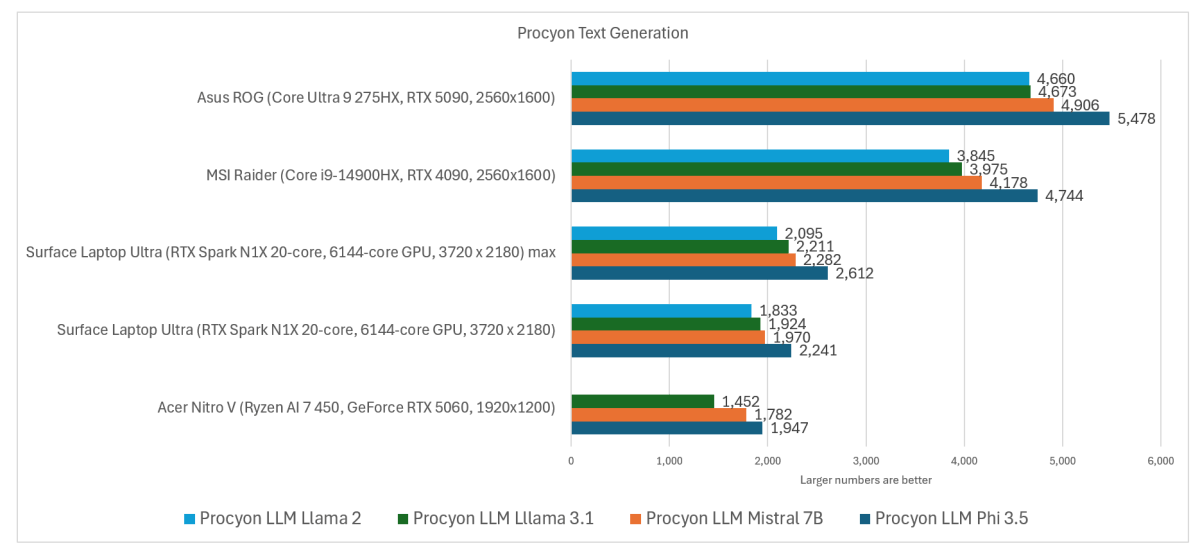
UL’s Procyon app already ships with a handy little test to measure how well the laptop will process queries using models with about 8 billion parameters. (“Better” models usually favor more parameters, though that can vary. Models can also be “compressed” via a process called quantization to run locally without taking up as many resources.)
I think that this might be representative of what you might expect from small language models performing agentic tasks?
Mark Hachman / Foundry
The performance via model varies, of course, but the overarching lesson is clear: The gaming laptops generated more tokens. (A token is a few letters, so that the word “few” might be a single token, and the word “somewhere” might be three.) An LLM spits out a response like an old dot-matrix printer, so reading that output is subjective. Using the Mistral 7B model, the Surface Laptop Ultra spat out about 52 tokens per second, about 13 words per second.
That’s not the only way tokens are processed, of course. A “token” can be part of a chart, an image, a video, or more. The most recent use of generative AI is AI-generated video, which has become rather scarily realistic. Is AI slop still AI slop when produced on your own local hardware? Regardless of how you land on the subject, text-to-video generative AI absolutely murders a laptop.
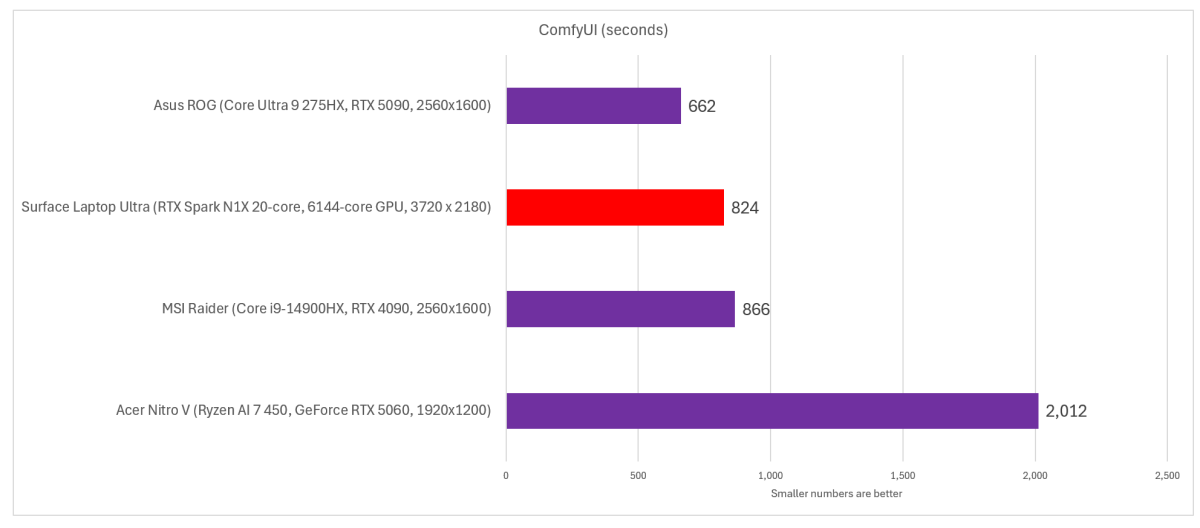
ComfyUI contains its own in-app benchmark to measure this. The Surface Laptop Ultra performs surprisingly well. (I ran it on its maximum performance settings by default.) It’s not noted in the cart below, but I used the WAN model to generate the output.
This benchmark doesn’t measure tokens, but the time to finish up a single run, supposedly generating several seconds of video. A lower score is therefore better. (ComfyUI too, now runs native on the RTX Spark platform.)
The Surface Laptop Ultra took 13.73 minutes to complete the run. Again, impressive.
Mark Hachman / Foundry
I also tested token output via LM Studio, using the Qwen 3.8-27b model as an example. LM Studio’s settings allow you to only choose from models which will run on your PC, which meant that I was prevented from using some of the more powerful options. Would that make a difference? I honestly have no idea. Still, I could only run what I could run!
Using a consistent reasoning budget, zero temperature (for, ideally, fixed responses), and a fixed outcome length, I asked for a science-fiction essay using the same prompt for the two high-end gaming machines, plus the Surface Laptop Ultra. After a trial run, I averaged the token output over three times.
Surface Laptop Ultra: 39.9 tokens/s
MSI Raider: 15.2 tokens/s
Asus ROG Strix: 61.9 tokens/s
I then ran a fourth test, working on a web browser in the background, while trying to test whether working with an LLM in the background would affect its productivity. It didn’t seem to, as I noticed no difference. I didn’t work hard in the background as I normally would, with Excel and Outlook and a web browser all competing for compute cycles. I have to believe that will affect it, but that will have to wait for further testing. Keep in mind that when you do that, you’ll be working while the laptop’s fans are cranked up high.
Nvidia debuted a new Nemotron 3.5 Bolt 74B-A9B 24GB model for RTX Spark laptops as I finished up this review, but I didn’t have a chance to try it.
Finally, I did try running NousResearch’s Hermes, one of the recommended AI agents which you can access via the Microsoft Store, on the Surface Laptop Ultra. I’m still somewhat reluctant to give it control of my PC (yet) but it did load on my PC. I found it interesting, though, that Windows assigned 18.9GB of the available memory to itself — and while it used every bit, the GPU was barely touched during the agent’s operation.
Still, I was right — memory is going to be at a premium in the AI age, and you’re going to want more, more, more.
Should you buy the Surface Laptop Ultra?
I wrestled with this, naturally. The version of the Surface Laptop Ultra we were offered for review isn’t a low-end machine, obviously. Nor is it the minimum Microsoft offers. It feels, though, that we’re exploring the “low end” of the Surface Laptop Ultra lineup for an insane $3,700. Whew.
We’re not done yet, though. PCWorld’s review strategy has been to examine the RTX Spark platform through different eyes: First mine, focused on productivity, then separate articles examining it from a gaming standpoint as well as from an AI perspective. And yes, we have a $7,000 RTX Spark laptop in house.
And I think that’s the crux of the matter. As a pure productivity machine, you can find better options — and, if you’re eager to use AI, you can turn to a cloud model. That’s sort of what executives were privately pushing at the RTX Spark launch: to run a local “harness” on 32GB laptops like the Surface Laptop Ultra, and tap the cloud instead.
And yet! This is a $3,699 PC that’s far lighter and more compact than the gaming PCs I compared it to, consumes far less power, and performs somewhat near the other, bulkier machines. You can certainly make an argument that it’s well out of reach of the ordinary consumer, yet worth it as a (sorry) “budget” AI workstation.
I still think, however, that there’s going to be FOMO if a new AI model comes out and this version of the Surface Laptop Ultra can’t run it. So be careful. That way lieth dragons.
The better I get at using AI, the less I trust it.
I know, I know — that sounds backwards. We’re being sold a future where increasingly capable AI assistants take more and more work off our plates. But after spending a frankly embarrassing amount of time building an elaborate AI-powered NFL betting project over the last few months — and especially after suffering through an infuriating $1,500 catastrophe this week — I’ve come to the opposite conclusion.
AI works best when you treat it like an idiot.
Some context: I co-host a small NFL player-prop show as a side project. Because I am apparently incapable of enjoying hobbies like a normal person, expanded my existing research into creating an AI research system to augment my own analysis. I want to know ball on camera, obviously.
It started simply: Analyze the games. Find interesting player props. Tell me what you think. Let’s make some money!
That worked surprisingly well — until it didn’t.
Welcome to another edition of Prompt Mode, your weekly AI newsletter.
I’m PCWorld executive editor Brad Chacos, filling in this week for your host, Ben Patterson. Each week on Prompt Mode, we’ll be serving up analysis of the AI trends that matter to everyday users like you and me. Stay tuned for practical AI tips, hands-on experiences with the latest AI tools, and–you guessed it–prompts to help you get the most out of your AI assistants.
AI desperately wants to be helpful. Ask it a question and it wants to give you an answer, even when the correct answer is “I don’t know.” Give it a theory and it’ll happily find evidence supporting it. Find a promising new approach and, if you aren’t careful, suddenly that approach has somehow become part of the methodology that supposedly produced last month’s results. I could go on.
So BWR, as I call my increasingly deranged side project, evolved. And as I saw how stupid and forgetful AI can be, I started putting the AI in a cage.
Research ideas couldn’t automatically become part of the production model. New approaches had to compete against the existing one. Historical testing could only use information available at the time. Results were preserved so failures couldn’t conveniently disappear. I created separate AI challengers whose job was essentially to tell the main system that it might be full of shit, because AI is so often deeply full of shit.
I even had to teach the damned thing that “I don’t know” is an acceptable answer. Seriously!
After endless days of trials, errors, and hammering rules into place: It worked! The less freedom I gave the AI, the more useful it became.
That’s been my biggest lesson from this rabbit hole. AI can do things that still blow my mind, but capability and reliability aren’t the same thing. The more I care about the result, the less I trust AI to simply figure things out. I want boundaries, checks, receipts, and explicit permission to fail rather than make something up.
I thought I’d built enough of those safeguards.
Then BWR friggin’ blew up this week.
AI stumbles over its own feet
Without drowning you in the deeply uninteresting details of my fake football laboratory, I discovered that critical pieces of the project’s underlying state weren’t preserved and recoverable the way they should have been, despite my safeguards.
And fixing the mess created an even nastier problem. I’d built safeguards to stop AI from hallucinating about football. I hadn’t adequately safeguarded against AI hallucinating about itself.
Now I was asking AI to reconstruct its own missing history — and a plausible reconstruction isn’t necessarily the real one. I couldn’t just ask, “Is everything fixed now?” and trust the cheerful answer. Every recovered piece had to be treated like evidence at a crime scene.
I spent roughly 25 hours this week, during a frantic period here at my normal job, doing AI forensics on a system I’d specifically designed to protect itself from AI failure. Between my time and the obscene number of tokens I burned fixing it, I figure the fiasco would’ve cost north of $1,500 at standard rates.
For an NFL betting side project. (Again: Normal hobbies aren’t really my thing.)
BWR survived. My sanity mostly did. But the experience changed how I think about local AI.
Seizing my own AI destiny
If I need AI in a big black box, I want it to be MY big black box.
Jon Martindale / Foundry
Running a model locally won’t magically make AI trustworthy. A local model can confidently make stuff up just as well as a cloud model. But I can control everything around it.
I want the logs. I want the checkpoints. I want the artifacts. If I’m going to spend months building something increasingly complex, I want its state sitting somewhere I control rather than trusting a black box to remember what matters, and to be fully recoverable if the brittle house of cards ever falls down again.
Cloud AI isn’t going anywhere for me; having some frontier hooks is crucial in my quest to break Las Vegas. But local AI suddenly looks less like a fun enthusiast experiment and more like infrastructure if you’re doing serious work.
Fortunately, I have an RTX 4090 system sitting a few feet away.
It’s funny how quickly “running AI locally” becomes appealing after catastrophic AI hallucinations eat 20 hours of your life.
So yeah, the better I get at using AI, the less I trust it. Maybe it’s time I owned more of it, too.
That’s it from me. AI guru Ben Patterson will be back in the saddle (and your inbox) next week! Don’t forget to sign up to start receiving this newsletter directly.
Just when I think I’ve seen everything Reddit has to offer, some obscure subreddit pops up and proves me wrong. There are seemingly endless numbers of them, so realistically you don’t have enough time to browse your way to the bizarre, underappreciated stuff.
But with a site like Map of Reddit, you might be able to find those niche subreddits a bit easier. It’s a free, interactive site that plots more than 116,000 subreddits as dots in one giant galaxy. Each dot represents a community and the closer two dots are together, the more overlap their communities have.
The map is built from around 1.5 billion Reddit comments, which makes for a more nuanced and accurate picture of relationships rather than an algorithmic guess at which topics belong together. And you might be surprised at how some of the neighbors are ones you’d never predict—quizzically looking at you Twitter and FBI subreddits.
The map is fully interactive so you can click and drag to move around, zoom in, or use the search bar to find a specific subreddit. If you click on a community dot, you’ll get some more information plus links to all of the related subreddits.
Personally, I’ve used it to discover a ton of subreddits devoted to hobbies I didn’t even know were a thing. Ever heard of r/BirdsWithArms? Or how about r/HaveWeMet?
Reddit is a weird and wonderful place, but sometimes you need a map to find your way.
For more fun and helpful tips, tricks, website and app recommendations, be sure to subscribe to our PCWorld Try This newsletter.
Learning to program usually means paying for courses in one place and a professional IDE in another. This bundle pairs a lifetime license to Microsoft Visual Studio Professional 2026 with 15 coding courses, and it’s on sale for $32.97 (MSRP $1,999.99) through October 20.
Python lessons start at the beginner level and work up to building Flask websites, scraping data, and automating a browser. Other courses teach C++, Java, JavaScript, SQL databases, Flutter mobile apps, and Ruby on Rails, plus how to connect to OpenAI’s API. Anyone working toward a Salesforce Platform App Builder certification gets exam prep, and a Unity game course teaches kids as young as 7.
Everything you learn can go straight into Visual Studio 2026. You can write and debug .NET and C++ apps for Windows, Linux, and containers, and the C++ course even walks through debugging memory in Visual Studio. IntelliCode learns patterns from your codebase and suggests the next line or block, so you type less and catch more bugs. Live Share lets a teammate or mentor join your session to edit and debug without cloning the repo.
Learn new programming languages and write them in an IDE you own for life.
The right monitor can turn any mid setup into one you love using day in and day out—and you don’t have to pay much for it. Whether you’re looking for an extra display for your multi-monitor workstation or just wanting to step up your cheap 1080p to 1440p on a budget, this Asus TUF gaming monitor is a solid pick. You can grab it now for $199 at Amazon, down from its usual $269 and only a few bucks more than its all-time lowest price.
The Asus TUF VG27AQM5A has a modest 27-inch diagonal with a crisp 2560×1440 resolution, which is a big improvement over the fuzzy 1080p displays of yesteryear. Even nicer is the 300Hz refresh rate, allowing you to experience up to 300 frames per second for ultra-fluid motion. And with the 0.3ms response time and Nvidia G-Sync compatibility, you end up with super low blurring and extra sharp gaming visuals.
Just note that you’ll need a machine capable of pumping out that many frames per second to take full advantage of the refresh rate. But even if you can only manage in the 100s, this monitor is still a solid choice—those frames will look great and you’ll have room if you ever upgrade.
Other trade-offs to consider with this monitor: the stock stand only supports basic tilting and swiveling with no height adjustments, so you’ll probably want to mount it on a VESA 100×100 arm; the built-in 2W speakers are tinny and terrible; the brightness is weak at 300 nits and color depth is unimpressive; and it’s slow to wake from sleep.
If none of that bothers you, this 1440p/300Hz monitor for just $199 is a great deal. If you aren’t fully sold on it, check out our picks for the best gaming monitors for more options.
But the benefits for Windows 11 don’t stop there. Here are some of the more interesting features and improvements that came with update KB5127648, available for Windows 11 24H2, 25H2, and 26H2.
What’s new in KB5127648?
File Explorer now once again offers a preview for files downloaded from the internet, such as PDF files. For HTML files, one extra click is required: you can view the preview using the new “Preview” button.
You can now remap the Copilot key on your keyboard—which many users find completely superfluous—and finally make it useful. However, by default, the Copilot key can only be remapped to the right Ctrl key, the context menu, or Windows Search. But if you install the free PowerToys suite, you can remap the Copilot key to anything you want.
Bluetooth is a vexing, long-standing issue in Windows. With the October 2026 update, Microsoft significantly improves Bluetooth and promises fixes for audio, microphones, LE Audio, and the Settings page.
According to Windows Latest, other improvements are also on the cards:
Apps can now open in full-screen mode with a new setting in the Accessibility menu.
The system emoji set is now Emoji 17.0, including a distorted face, a ballet dancer, an orca whale, and a hairy creature.
One-finger scrolling on the touchpad and automatic scrolling.
A Tips widget for the widget overview and lock screen.
Backing up photos from your smartphone to OneDrive via Settings.
Microsoft has removed the PC-to-PC migration tool.
Microsoft has fixed bugs with file version history and domain trust.
How to get the update
This Windows 11 update is available under Settings → Windows Update as soon as they become available for your PC. If necessary, click on “Check for updates” to download the updates.
After installing the October update, Windows 11 26H2 has build number 26300.9711, Windows 11 25H2 has build number 26200.9711, and Windows 11 24H2 (which is no longer supported) has build number 26100.9711.
As always with Patch Tuesday, not all new features and improvements are immediately available to all Windows users even after installing the update. Microsoft rolls them out gradually to more and more users over several weeks. The security fixes, however, are immediately ready on all computers straight away post-update.
If your screen suddenly displays strange glitches, freezes, or even goes completely black, often the problem lies with the graphics driver. Instead of restarting the whole PC, there’s a quick and easy solution for this issue: restarting the graphics driver.
To do this, press the key combination Windows key + Ctrl + Shift + B – that’s it!
By pressing these four keys simultaneously, you are, in a sense restarting the graphics driver. This action occurs by way of the Desktop Window Manager (DWM), which gets reset, and in turn resets the graphics driver.
The beauty of this fix is that you can perform it without having to close any applications. That being said, you should probably save any work in progress, as a failsafe, before you proceed.
Take note, this fix is only applicable to a software issue. If your monitor’s issues are hardware related — originating with the monitor itself or a failing GPU, or owing to some larger system crash — this hotkey won’t solve your problem.
You’ll know the driver has been restarted by a beep or a brief flicker on the screen. The display should now run smoothly again.
It’s also becoming increasingly difficult to justify for gaming — and ironically, Nvidia’s own DLSS technology is a big reason why.
When the RTX 5090 launched almost two years ago, Nvidia slapped a staggering $1,999 price tag on its new flagship. I called it “the most brutally fast graphics card ever,” because it was (and still is). The RTX 5090 delivered a massive leap in raw performance, paired with a mammoth 32GB of cutting-edge GDDR7 memory and Nvidia’s new Blackwell architecture.
It was overkill incarnate.
Now? Actually buying an RTX 5090 can cost vastly more than its already-staggering sticker price. In September, a brand-new RTX 5090 had climbed to at least $5,000 in North America. Current U.S. price tracking puts the average even higher.
Five. Thousand. Dollars.
And make no mistake: The RTX 5090 is vastly faster than cheaper graphics cards. This isn’t one of those situations where a $549 GeForce RTX 5070 suddenly matches Nvidia’s flagship if you flip on a magic setting, no matter what Nvidia’s marketing material might say.
It doesn’t.
But DLSS is fundamentally changing what all that extra GPU horsepower actually gets you — and that makes the reported discontinuation of the RTX 5090 (Nvidia did not respond to a request for comment) much less catastrophic for gamers.
Nvidia’s $549 GPU can make Cyberpunk look like it’s running at 240fps
Nvidia famously claimed the $549 card could deliver “RTX 4090 performance” thanks to DLSS 4 and Multi Frame Generation, but in traditional rendering, the RTX 5070 barely moved the needle over its predecessor. It was essentially an RTX 4070 Super with newer technology strapped onto it.
That matters. Raw rendering performance is still the foundation everything else rests upon.
But Nvidia’s software has kept evolving since then, and what it can do with that relatively modest hardware is becoming increasingly wild.
In recent hands-on testing by Tom’s Hardware, a $549 GeForce RTX 5070 was able to make fully path-traced Cyberpunk 2077 look like a 240fps experience at 4K using DLSS 4.5 Ultra Performance and Nvidia’s new 6X Multi Frame Generation — a result I’ve experienced myself as well, but I didn’t document it.
Read that sentence again.
A GeForce RTX 5070. Path tracing. 4K. 240fps. It’s absurd!
The RTX 5070 is physically much smaller than the RTX 5090 despite sharing the same design language. That’s because it’s a lot weaker in native rendering!
Adam Patrick Murray / Foundry
The RTX 5070 absolutely cannot render fully path-traced Cyberpunk at anything approaching 240 frames per second. Instead, Nvidia is attacking the problem from several directions at once.
DLSS Super Resolution renders the game internally at a lower resolution, then uses AI to reconstruct the final image at your monitor’s resolution. Ray Reconstruction replaces traditional hand-tuned denoisers with an AI model. Multi Frame Generation inserts AI-generated frames between traditionally rendered ones.
And Nvidia’s newer Dynamic Multi Frame Generation technology can automatically increase or decrease the number of generated frames on the fly, attempting to keep a high-refresh-rate monitor fed.
The result can look spectacular.
And that distinction — looking spectacular — matters.
240fps isn’t really 240fps
The RTX 5070 Cyberpunk test relied on DLSS Ultra Performance mode and aggressive 6X frame generation to target 240fps. That’s important. Ultra Performance renders at a dramatically lower internal resolution before reconstructing the image, so this isn’t equivalent to running Cyberpunk natively at 4K.
Nor does a displayed 240fps mean the game suddenly responds like a game being rendered natively at 240fps.
Tom’s Hardware measured 52.6 milliseconds of PC latency with 6X MFG enabled, versus 35ms with frame generation disabled. Pushing from 4X to 6X MFG barely affected latency — 53.2ms versus 52.6ms — even as more generated frames were pumped out due to the way MFG works.
The underlying game is still running much slower. Generated frames don’t respond independently to your inputs. You’re looking at three increasingly separate things: how fast the GPU actually renders the game, how responsive the game feels to your inputs, and how smooth the final output looks on your monitor. (Though Nvidia’s frame-pacing “flip meter” hardware can sometimes make games feel smoother than native rendering, as I’ve experienced firsthand in Star Wars Outlaws.)
DLSS can now push that last number far beyond the first.
That distinction is critical in competitive games, where responsiveness matters far more than eye candy. I wouldn’t want to play Counter-Strike 2 or Marvel Rivals at a low native frame rate hidden beneath a mountain of generated frames.
But Cyberpunk 2077 isn’t Counter-Strike.
What are you actually buying with an RTX 5090?
For decades, buying the fastest GPU available was the straightforward way to get the smoothest possible gaming experience.
Want higher resolution? More ray tracing? Higher refresh rates? Throw more GPU at the problem.
But DLSS is breaking the direct relationship between brute-force rendering power and the visual experience you see on your monitor. Your monitor can now become the limit for visual smoothness long before your GPU stops mattering for responsiveness.
If a $549 graphics card can already keep a 4K 240Hz display visually saturated with frames in a brutally demanding path-traced game, what exactly does spending several thousand dollars more on an RTX 5090 buy you as a gamer?
Plenty.
The RTX 5090 gives you vastly more raw rendering horsepower. It lets you start from a much higher base frame rate before frame generation kicks in. That means lower latency, fewer reconstruction compromises, and more flexibility to crank image-quality settings without resorting to aggressive modes like DLSS Ultra Performance.
Same goes for the RTX 5090’s enormous 32GB pool of GDDR7 memory and tremendous memory bandwidth. For local AI workloads, professional applications, rendering, content creation, and other compute-heavy tasks, Nvidia’s RTX 5090 is an entirely different beast from the 5070.
But do gamers still need anything remotely so powerful to achieve the visual experience they’re chasing?
Increasingly, the answer is no.
Nvidia is disrupting its own flagship
That’s what makes Nvidia’s advances in DLSS so fascinating.
The company spent decades convincing enthusiasts that more rendering horsepower was the path to better gaming. Bigger GPU. More CUDA cores. More memory bandwidth. More frames.
Now Nvidia is getting extraordinarily good at using AI to sidestep brute-force rendering altogether. And the company deserves enormous credit for it.
Dynamic MFG pushes that idea even further. The GPU doesn’t necessarily need to brute-force every single frame your monitor displays anymore. Nvidia can dynamically adjust how aggressively it generates frames to target the display you’re actually using.
This stuff isn’t marketing fluff. It works, albeit imperfectly at times.
But technological success creates an awkward problem at the extreme high end: The better DLSS becomes at extracting spectacular visual results from modest hardware, the harder it becomes to explain why a gamer should spend several thousand dollars on the biggest GPU Nvidia can build.
Especially when that GPU now costs enough to buy an entire monster gaming PC several times over. ($5,000, seriously?!)
The RTX 5090 is still king. That’s not the point
Nvidia’s RTX 5090 Founders Edition.
Adam Patrick Murray / Foundry
None of this makes the RTX 5090 slow. It absolutely freakin’ isn’t.
The RTX 5090 remains the fastest gaming GPU on the planet. If you want maximum native rendering performance, minimum latency, giant pools of VRAM, or serious compute horsepower, nothing about DLSS makes those advantages disappear.
There’s a meaningful difference between a game genuinely rendering at a high frame rate and one displaying a high frame rate after AI-generated frames are inserted. But visual smoothness is no longer a clean proxy for rendering horsepower.
That’s the change DLSS 4 accelerated. It’s a momentous one.
And for visually demanding single-player games — exactly the sort of experiences that once justified buying a ludicrous flagship graphics card — Nvidia’s AI-powered DLSS technologies are increasingly capable of producing the visual experience people actually want without requiring anything close to flagship-class hardware.
That’s why I’d have an increasingly difficult time telling somebody to spend $5,000 on an RTX 5090 purely for gaming.
I’d make the same call today. As for the RTX 5090? It was never truly meant for gamers anyway. As Ivan Drago famously said in Rocky IV:If it dies, it dies.
Googlebooks are here, promising productivity aplenty within the Google ecosystem. But how do Google’s new productivity features compare versus the more familiar Windows 11?
That’s the goal for Smart Mode this week: examining how you (and I) can use Googlebooks as productivity devices, specifically looking at several of the features both offer.
Unfortunately, two of the most novel platforms the PC has seen in years — the Googlebook and the Nvidia RTX Spark platform — have landed on the PC within a week or so of each other. I would have liked to have been part of the Googlebook launch, but it took place in my colleague Michael Crider’s backyard, and he already has an extensive professional history covering Android devices. My colleague Ashley Biancuzzo was first out of the gate with our review of the Acer Googlebook 14. (She did a terrific job. Read it! I definitely did.)
My own review is a work in progress…and you’re reading some of it right now.
I’m currently typing this on Lenovo’s Googlebook 15, which I’m crushed to find has an uncharacteristically crappy keyboard. So far, I have few complaints about the hardware, which wasn’t expected to be the star of the show, anyway. Instead, I’m focused on Google’s new Aluminium OS, driving the next evolutionary step of Chromebook devices. It really feels that Google set out to make AI-powered productivity the start of this show.
Welcome to PCWorld’s newsletter, Smart Mode! The focus of this newsletter is productivity: from software to hardware to peripherals, all with the idea to get what you need to get done, efficiently.
I’m your host, Mark Hachman, covering the productivity tips, tools, and trends that you need to know about, both from within PCWorld and beyond. If you want the latest issue in your inbox each week, just sign up right here.
The phone problem
A key part of the productivity equation, however, is that your Googlebook demands an Android phone, and specifically an Android 17 phone at that. Only recently did Google allow rival Samsung phones to connect, but — my Samsung Galaxy S23 is up to date and supported, and it still runs just Android 16. Unexpectedly, that gives Windows a leg up here.
Mark Hachman / Foundry
Phone Link (once called Your Phone) is Windows’ own version of “Better Together,” the corresponding Googlebook technology that connects an Android phone to a Windows PC. Interestingly, Windows only requires Android 10 as an OS requirement to connect the two devices; Googlebooks still have that pesky Android 17 requirement. Without it, phones and Googlebooks still live separate lives. Phone Link allows you to transfer photos from the phone to the PC, place calls and send messages (via Bluetooth) and even run Android phone apps within PC windows.
From what I’ve seen, Phone Link is Googlebook’s surprising equal in all ways except the app streaming. However, Windows can get fussy about which phones support this particular feature, while Googlebooks promise that all compatible phones will support it, with that Android 17 caveat of course.
But Android isn’t always the answer. Outlook works fine on a Windows PC; on my Googlebook, the Googlebook runs the Android app, which took forever to set up my work account. Even worse, it made me re-authenticate every time I logged on. It then crashed.
Windows, meanwhile, secures the entire OS with Windows Hello or a password, and leaves Outlook open to use. (The Lenovo Googlebook includes both face and fingerprint logins in front of an optional PIN, which I like.)
Are Googlebooks smarter? Maybe
Apps may be problematic, but I love how Google has moved widgets forward. On Windows PCs, they’re a distraction, so much that they’re relegated to a closed window in the corner of your screen. On Googlebooks, widgets live on the desktop, where you can create and modify widgets to show whatever information you’d like.
Mark Hachman / Foundry
You can either select from a menu of pre-designed widgets (the screen time widget above is neat) or create your own. This is where AI is going to shine, eventually; you can ask Gemini to create a widget rather than hand-pick features. This doesn’t always work, however. I asked for a “up to the minute widget tracking the MLB playoffs” and received just the scores; I also asked for a widget highlighting all of my priority email and was informed that direct email access isn’t built in. Still, it’s a start.
Microsoft, to is credit, promises something similar with its new Copilot Code feature; I just haven’t played with it at length. Google will probably just make it simpler.
“Simple” also gives Google a slight edge in screen recognition. Magic Pointer and Copilot Vision fall in to the same category of AI assistance to highlight and explain what’s on your screen. Launching the Magic Pointer is more fun when you wiggle your mouse pointer instead of trying to remember another shortcut, for one. Magic Pointer launches a context-aware Gemini that highlights and “knows” what your mouse is pointing toward, and you can ask questions about it. Copilot Vision, hidden within Copilot, takes a different approach, always watching what you’re seeing once you turn it on.
Each has its flaws. Copilot Vision was relatively poor at identifying what it could see. Magic Pointer, though, took close to a full minute using its own “Flash-Lite” engine. Unacceptable!
I’d give Google a clear win for “Rambler,” its voice dictation system. Both Windows and Googlebooks have their own dictation system; Windows has one that’s shared across the platform as well as a dedicated dictation function in Word. Windows 11’s version, though, is pretty literal. Rambler, on the other hand, accommodates the user’s verbal fry (those “um,” “er,” “you know” placeholders we all use) and smooths them out.
One of the ways in which you can enable Rambler is by using the CAPS LOCK key, which Google has repurposed as sort of a shortcut for these little utilities. It’s incredibly useful. Most people don’t actually use the Caps Lock key, and in a situation like this, you can go ahead and cram a number of functions into a single key press. In fact, I dictated most of these last few paragraphs using Rambler, and it inserted punctuation, broke up the sentences, and applied the proper punctuation. That’s AI done right!
Mark Hachman / Foundry
The Googlebook showed me a way to automatically apply AI to the search function within its Files app, promising to append (not rename) all of the files with an AI description. I haven’t seen this happen again, and I’m less concerned about what the AI thinks of how the file should be described than if I can find it, period. Window 11’s own semantic search and its recent changes to the Search function, period, seem just as promising or more so.
What I discovered while using the Googlebook, however, is that Windows is chock full of different ways to perform the same task, simply because it meets the user halfway. I felt like an idiot when I couldn’t find how to reboot the Googlebook (the power button did it). Why does the CAPS LOCK shortcut only work in certain scenarios, like Gmail, but not in others? I also felt a little nervous when absolutely nothing happened while right-clicking the desktop.
So what feels more productive? If I had to compare a Lenovo Windows machine (my demo Panther Lake laptop) versus the Googlebook, I’d definitely choose the Windows machine. The keyboard is far superior, and even with 16GB the Googlebook felt somewhat choppy and laggy. While I can use the Googlebook in the context I normally do — two displays, plus the Googlebook sitting beneath — running a few apps and Chrome tabs felt a lot choppier than I expected. And I still have no idea on the exact battery life, as there’s no great way to track it. Maybe a custom ROM will help?
In an earlier Smart Mode newsletter, I asked who the Googlebook is for? I’m still not entirely sure. I think some of the individual features of the Googlebook are smart, unquestionably. But as a cohesive whole, I still favor my Windows laptop nine times out of ten.
As busy as I’ve been, the one thing I’ve missed having a chance to try out are the so-called Artcraft apps: AI-generated clones of Adobe’s popular Creative Suite (Photoshop, Premiere, etc.) released as open-source versions coded in Rust. The developer then moved on to the Microsoft 365 apps, pulling off the same trick. The advantages are obvious: no more subscriptions! The disadvantages (copyright infringement, bugs, and so on) have yet to be rooted out.
Techtober is in full swing, and so we’re involved in trying to evaluate both Googlebooks (again, with Ashley’s terrific review, and mine and others to come) as well as the upcoming RTX Spark laptops — which will cost up to $7,000, yikes! Microsoft has allowed us to confirm that I have a Surface Laptop Ultra on hand, though I can’t say anything about its performance quite yet. I think I’m allowed to say that the keyboard feels a bit tighter than the Surface Laptop Studio, which I haven’t decided is a plus or not.
It’s worth noting that the AMD Ryzen™ AI Max+ PRO 495 processor will be going up against the new Mediatek-Nvidia RTX Spark partnership for AI workstation notebooks, with up to 192GB (!!) of unified memory. More memory equals bigger AI models, and eventually the two may go head to head.
Productivity tip for the week:
If we’re going to be sticklers for the concept of “productivity,” the most productive days are days when you don’t have to deal with anything else at work… or be at work. Yes, I mean working weekends. I had to do so this weekend and I love the freedom of simply sitting down and fear without fear of someone pinging me for…something. Even my chat requests went unanswered — which they should have!
Just make sure you don’t make a habit of it, or find a manager who will give you compensatory time off in return.
Thanks for reading!
Thanks for tuning in to this edition of Smart Mode, PCWorld’s newsletter devoted to helping you make the most of your life, smartly. Sign up and have it sent to your inbox every Thursday!
2026 is an especially weird year for watching the NBA.
With the demise of regional FanDuel Sports Networks, and the league’s long-planned national streaming service at least a year away, many teams were suddenly in need of temporary plans for this season. The result is a patchwork of standalone streaming services, free over-the-air broadcasts, and traditional TV options that vary based on where you live.
You might think the NBA would try to help, perhaps with a single page that helps fans sort through all the viewing options, but no. Its website offers “how to watch” pages for only a small handful of teams, and most of those pages carry incomplete information.
So once again, I will do what the league doesn’t, and put all your NBA viewing options in one place.
Watching your local NBA team
If you live in the same market as your favorite NBA team, and want to watch games that are not nationally televised, you have a few possible options:
Subscribe to a standalone streaming service for local in-market games.
Get local games through a pay TV package that carries them.
Watch local games for free with an antenna, if your team is broadcasting them over the air.
Here’s a chart showing how those options shake out by market:
Compared to previous seasons, the most notable new entrant in 2026-2027 is DAZN, which has swept in to replace FanDuel Sports Network for 10 NBA teams. If you already subscribe to DAZN for combat sports or international basketball, note that the NBA subscriptions are separate.
Some NBA teams are also turning to free, over-the-air TV for in-market games, either instead of or in addition to standalone streaming options. Consider using an antenna to watch these games instead of getting yet another streaming subscription.
One more note: Several teams still haven’t announced distribution through cable, satellite, or live TV streaming providers. We’ll likely see a few more announcements around the start of the season on October 20, and I’ll update this post accordingly.
Out-of-market NBA games
The situation is much simpler if your team plays in a different market. As in previous years, NBA League Pass lets you watch all out-of-market games for $17 per month or $110 for the season. (The ad-free “Premium” tier, which also supports up to three concurrent streams, costs $25 per month or $160 per season.)
Note that if your out-of-market team is playing against the local team in your area—whether at home or on the road—those games will be blacked out. League Pass also excludes nationally televised games, which I’ll cover below.
Nationally televised games
If you subscribe to a service for local or out-of-market NBA games, it still won’t carry games that air on national television. Those include 100 games across NBC and Peacock/NBCSN, 80 games on ESPN and ABC, and 66 games on Amazon Prime Video.
Figuring out the best way to get both local and nationally televised games is where things get tricky:
Standalone services with nationally televised NBA coverage:
ESPN Unlimited is $30 per month and also includes ABC’s sports coverage.
Amazon Prime is $139 per year or $15 per month. You can also get just Prime Video for $9 per month.
Pay TV packages with nationally televised NBA coverage:
YouTube TV carries ABC, ESPN, NBC, and NBCSN, both in its $83 per month base plan and $65 per month Sports plan.
Fubo carries ABC, ESPN, NBC, and NBCSN, both in its base plan ($89 per month, plus regional sports fees) and Sports plan ($65 per month).
Hulu + Live TV offers ABC, ESPN, NBC, and NBCSN in its $100 per month base plan.
DirecTV carries ABC, ESPN, NBC in its Signature packages (starting at $95 per month) and MySports plan ($65 per month), but does not include NBCSN, so you miss Peacock’s Monday night games.
Sling Essentials includes ESPN for $20 per month. It also carries local channels (including NBC) in certain markets at a higher price.
Ultimately, you’ll have to decide whether to piece together a few different streaming services or try to get most of your coverage through one pay TV bundle. The best option for you will depend on where you live, your willingness to hop between different apps, and how many games you’ll realistically end up watching. Hopefully, all this information will make those decisions a bit easier.
Pop-ups, autoplay video ads, and trackers show up on every device in a household, from the family PC to a kid’s phone. AdGuard blocks them on up to nine devices, and an AdGuard Family Plan lifetime subscription is just $14.97 (MSRP $169.99) for a very limited time: our Deal Days Extended sale ends at midnight tonight (October 15).
AdGuard removes banners, pop-ups, and video ads, so pages load without the clutter. Trackers and activity analyzers are blocked too, keeping your browsing data hidden from them. AdGuard also stops malware and phishing sites, and parents can turn on parental controls to restrict adult content on the kids’ devices.
One plan works across Windows 7 or later, macOS 10.15 or later, iOS 12 or later, and Android 7 or later, with updates included. AdGuard holds a 4.7 out of 5 rating on Trustpilot. This plan is for new AdGuard users only, and you have 30 days after purchase to redeem your code.
Clear the ads off every screen in the house with one payment.
We’ve known since February that Grand Theft Auto VI is coming out this year on November 19th, but only for Xbox and PlayStation. In August, Rockstar released an exclusive sneak peek on Netflix with gameplay footage and narrative cutscenes. People are hyped, to say the least.
But what about the PC version? Last month, we ran a quick analysis and estimated a proper PC release for GTA 6 sometime in late 2027 or early 2028. Well, it seems we were off the mark by a tad. According to GamesBeat, the PC version of GTA 6 is slated for release in Q1 2027—much sooner than anyone realistically expected.
Take-Two
GamesBeat gathered the details from four industry insiders who are familiar with Rockstar’s plans and asked to remain anonymous so as not to jeopardize their business relationships. A spokesperson for Rockstar Games did not respond to GamesBeat’s request for comment.
If GTA 6 actually does release a PC version in Q1 2027, that will represent an unusually short gap between the console and PC releases for a Rockstar title. For comparison, GTA 5 released on consoles in September 2013 and followed on PC in April 2015, nearly 18 months later.
Firefox 158 is out for Windows, macOS, Linux, and Android. This version brings improved PDF support, the ability to fill forms with the help of “AI,” as well as fixes for over 75 security vulnerabilities. Updates are also available for Firefox ESR versions.
Firefox 159’s release is scheduled for October 27th, 2026.
What’s new in Firefox 158?
Following the new Nova design introduced in Firefox 157, now a few technical boosts are being rolled out. The AI-based Smart Windows feature is designed to help users fill in forms more quickly. It’s being rolled out gradually, so it won’t be available to all users straight away.
Another improvement involves the saving of web pages as PDFs. Firefox now generates more accessible PDF files (i.e., fewer barriers), and a number of other shortcomings in PDF rendering have been fixed.
Firefox now supports the JPEG XL image format, which has been running as a Firefox Labs experiment since June. Image compression with JPEG XL is more efficient than with older formats like JPEG, PNG, and WebP, all while maintaining comparable image quality.
Security flaws fixed in Firefox 158
In the security advisory for Firefox 158, Mozilla lists 77 security flaws that have been fixed, 37 of which were discovered and reported by external security researchers (OpenAI’s Amy Burnett stands out with 9 reports).
Mozilla classifies 30 vulnerabilities as “high risk,” 33 as “medium risk,” and 14 as “low risk.” Among the fixed security vulnerabilities are 24 use-after-free (UAF) flaws, some of which can be exploited to run malicious code. Eight vulnerabilities can be exploited to escape the browser’s sandbox.
Firefox ESR updates
In addition to Firefox 158.0, ESR versions 153.5.0 and 115.43.0 are also now available. However, the latter is only available for Windows 7 and 8.1 and macOS 10.12 to 10.14, and will remain so until March 2027.
In the ESR versions, Mozilla has fixed the same aforementioned flaws that were also present in the code of these older browser generations. That amounts to 61 fixes in Firefox 153.5.0 and 17 in Firefox 115.43. (Firefox ESR 140 received its final update on September 29th.)
I always say it’s mandatory to have a power bank in your bag when you’re out and about—you never know when you’ll get caught in an unexpected situation as your phone battery inches towards zero. A tiny power bank like the Baseus Picogo AC22 is more than enough for that, and right now it’s on sale for $30 at Amazon (down from its original $40).
It’s tiny in size but don’t be fooled. Its 10,000mAh capacity is enough to refill your phone about two times, which should suffice for a day trip around town or an overnight hotel stay. And it is tiny, physically speaking, measuring just 2.8 x 2.4 x 1.0 inches and weighing just 6 ounces. You can slip it into a pocket, purse, or backpack and not feel burdened.
It doesn’t sacrifice performance for size, either. The Picogo AC22 comes with a built-in USB-C cable that delivers 45W of fast charging, which can restore up to 50% battery in half an hour on most phones. That cable doubles as a carrying strap when you aren’t using it. And if you need to charge a second device, you can use the extra USB-C port (with a separate cable, not included) and charge two things at the same time.
Is it good enough for a laptop? Only ultralight, low-power models—definitely not gaming or workstation laptops—and only if you charge while the laptop isn’t being used. Honestly, if you need a power bank for your laptop, you’re better off with a bigger, faster one like this Anker 165W Laptop Power Bank. But as a phone-only backup charger, the Baseus Picogo AC22 is both affordable and convenient.
If your mouse cursor jerks while gaming, suddenly panning the camera uncontrollably, or behaves unnaturally in other ways, the problem may not necessarily be in your mouse hardware. Microsoft recently confirmed a bug in Windows 11 that could affect mouse input in some games, and a fix was released via the October 2026 update (which also fixes dozens of security vulnerabilities, so you might as well install it).
Available as update KB5127648, you can scroll down to the “Gaming” section of the patch notes, where you’ll see Microsoft’s one-line note:
[Gaming] This update fixes an issue that could cause mouse input to stutter in some games.
This fix was not included in the September optional preview update.
The Windows 11 mouse input bug
Microsoft doesn’t provide details as to which specific games were affected, how many users experienced the problem, or what caused the bug. As such, it’s impossible to tell whether all reports of jerky mouse movements were attributable to the same bug. In recent months, many users reported issues after installing Windows updates, and some of those issues persisted even after replacing the mouse or adjusting mouse settings.
One example is a post on the Microsoft Q&A forum from June 2026. In it, a user described problems with camera control in Star Wars: The Old Republic and Final Fantasy XIV. The user tried out various settings for their Logitech G600 mouse, swapped input devices, and performed a clean system restart. According to their account, the problem persisted. There have been similar complaints in the past as well. For instance, in February 2025, other users on the Microsoft Q&A forum reported persistently laggy and jerky mouse movements on Windows 11 24H2.
Current discussions on Reddit also show similar reports, with gamers reporting jerky camera movements in The Division 2, even though the game itself runs smoothly. In posts here and here, they discuss possible causes like mouse polling rate, drivers, and other hardware components.
It hasn’t been confirmed whether these specific cases are linked to the Windows bug that has now been fixed. However, the entry in Microsoft’s release notes shows that at least one such issue was indeed caused by the operating system itself, not mouse hardware.
How to install the fix
The fix is included in security update KB5127648 dated October 13th, 2026. It’s available for Windows 11 24H2, 25H2, and 26H2. To install the update, follow these steps:
Open the Windows 11 Settings.
Go to Windows Update.
Click Check for updates.
Download and install the KB5127648 update if it’s available.
Restart your PC.
This update brings Windows 11 26H2 to Build 26300.9711, 25H2 to Build 26200.9711, and 24H2 to Build 26100.9711. If Windows Update does not offer the package, or the installation fails, you can also grab for it via the Microsoft Update Catalog.
If you’re experiencing problems with jerky mouse input while gaming, you should first check whether the update has already been installed.
What if your mouse continues to stutter?
Even after installing the update, problems with mouse input may still occur. Other possible causes can include out-of-date mouse, USB, or graphics card drivers; very high polling rates; radio interference with wireless mice; and issues with Nvidia G-Sync or Adaptive Sync affecting the display.
Another potential source of problems is USB docks and connected monitors. As early as 2025, a user on the Microsoft Q&A forum described how their mouse worked without any issues on a Dell laptop normally, but became jerky when connected to external monitors via a Kensington dock.
If the October update doesn’t resolve the issue, it’s therefore advisable to connect the mouse directly to the PC, try different USB ports, and check the drivers. For wireless models, you can also try switching the wireless connection or reducing the polling rate.
In an age of 4TB SSDs and massive NVMe drives, many users tend to leave the entire storage space as a single, huge system drive. While this is convenient, from an administrative point of view it is a risky move that amounts to flying blind. Instead, we recommend strategically partitioning your largest drives.
This brings tangible benefits for data security, system recovery, and backup efficiency. Think of partitions as digital firewalls within your hardware. If your operating system becomes corrupted by a faulty driver, a failed update, or even malware, a clean reinstallation is often the quickest way back to a stable system.
However, if you’ve stored everything on a single partition, you’ll have to laboriously back up terabytes of data before reinstalling, or risk losing it when formatting the drive.
By separating the operating system onto partition C: and your user data onto partition D:, you can completely wipe and reinstall Windows, while your game collections, video projects, and documents on the second partition remain completely untouched. This not only saves time but also spares you a lot of stress in crisis situations.
You should partition high-capacity drives – for greater data security, more efficient backups and easier system recovery.
Kingston
To implement this optimization, you must first analyze your current configuration. To do this, open the Command Prompt with administrator rights and enter the command fsutil fsinfo ntfsinfo C:, then press the Enter key to confirm. Look for the value ‘Bytes per cluster’ in the results.
By default, Windows uses 4KB, which is ideal for the system partition to minimize fragmentation when dealing with many small system files. However, for data-only partitions where you mainly store large files such as 4K videos or backups, it makes sense to adjust the cluster size to 64KB.
Here’s how to do it: The neatest way to change the cluster size in Windows 11 is via Windows Settings. Press the Windows + I key combination to open Settings. In the left-hand menu, navigate to ‘System’ and then click on ‘Storage’ on the right. Scroll down to the ‘Storage management’ section.
A size of 4KB is ideal for system partitions. However, if the partition is to be used as a data partition, a cluster size of 64KB is recommended.
Foundry
Next, expand ‘Advanced storage settings’ and select ‘Disks and volumes.’ A list of all physical drives will appear. Click the arrow next to your hard drive to view the associated partitions (volumes). Select the desired data partition and click the ‘Properties’ button.
Next, click the ‘Format’ button. The crucial dialog box will now open. Here, under ‘Label,’ enter a name for your drive. Ensure that ‘NTFS’ is selected under ‘File system.’ In the ‘Allocation unit size’ drop-down menu, select ‘64KB’ explicitly instead of ‘Standard (4KB).’
Tick the box next to ‘Perform quick format’ and confirm the process by clicking ‘Format.’ Please note: This process will irrevocably delete all data on this partition. You should therefore only carry it out on newly created or empty data partitions.
If you wish to set a larger cluster size for a partition, Windows provides the necessary formatting options in ‘Disk Management.’
Foundry
This adjustment to 64KB is so effective because it reduces fragmentation in large files and minimizes the amount of metadata that needs to be managed in the Master File Table (MFT). Please bear in mind a technical limitation: With the standard cluster size of 4KB, an NTFS partition is limited to a maximum of 16TB.
If you upgrade to even larger drives in future, you must use larger clusters to be able to utilize the full capacity. On modern SSDs, you should also ensure that the partitions are aligned with the internal NAND memory.
Nowadays, Windows handles this correctly and automatically when creating partitions via Disk Management or the Settings app, in order to avoid unnecessary write cycles (write amplification).
Yesterday was October Patch Tuesday, and Microsoft’s security updates addressed 1,416 new vulnerabilities. Not only is that another record broken, but it’s also the first time over 1,000 flaws were fixed in a single month. Indeed, October 2026 saw more security vulnerabilities fixed in the month than were fixed in any previous year.
Alongside flaws fixed in Windows and Office, we also saw a bunch of fixes in Exchange Server, SQL Server, Hyper-V, Skype for Business, Microsft Defender, .NET Framework, Visual Studio, and Microsoft’s cloud services.
Microsoft classifies 85 of the 1,416 vulnerabilities as “critical,” including 67 remote code execution (RCE) vulnerabilities. The other vulnerabilities are classified as “high risk,” with one vulnerability already being exploited in the wild while two were publicly known in advance.
The next Patch Tuesday is scheduled for November 10th, 2026.
Windows security vulnerabilities
A large number of the vulnerabilities—over 1,000 this time—are spread across the various Windows versions (10, 11, Server) for which Microsoft still provides security updates, including Windows 10 via the Extended Security Updates program, which was extended until October 12th, 2027.
Note: If you’re still on Windows 11 24H2, this is your last Patch Tuesday. Computers running 24H2 will no longer receive security updates going forward. When prompted by Windows Update, you should upgrade to Windows 11 25H2 or 26H2. That’ll keep you secure and up to date.
Windows under attack
One Windows security vulnerability is already being exploited in the wild this month. CVE-2026-96951 in the Windows Shell allows attackers to bypass the system’s defenses by disguising the origin of an executable file from the internet (Mark of the Web, or MotW).
Critical Windows vulnerabilities
Microsoft has classified 42 Windows vulnerabilities as critical, including 30 RCE vulnerabilities. Via these flaws, an attacker could remotely execute injected code without authentication or user interaction. The malicious code could then spread further across the network.
Microsoft Edge security vulnerabilities
The latest security update to Microsoft Edge 155.0.4283.45 is dated October 8th and based on Chromium 155.0.8059.40. It addresses 247 Chromium vulnerabilities, which are not included in the sum of flaws fixed in Microsoft Edge this month.
Microsoft Office security vulnerabilities
Microsoft has fixed 194 vulnerabilities in its various Office products, including 25 RCE vulnerabilities classified as critical. With “critical” RCE vulnerabilities in Office, the preview pane is usually an attack vector—a user doesn’t need to open an infected file for an attack to succeed, but rather only needs to preview it in the preview pane. Meanwhile, “high risk” RCE vulnerabilities usually require a user to open an infected Office file in a vulnerable Office product (open-and-own).
Among the numerous vulnerabilities in SharePoint, CVE-2026-102866 is an elevation of privilege (EoP) vulnerability that Microsoft classifies as critical. It is also the only SharePoint vulnerability that an attacker could exploit without a user login. They would need to obtain a valid user token, modify it, and impersonate that user on the server.
Exchange Server security vulnerabilities
Microsoft has fixed 7 vulnerabilities in Exchange Server this month. Six of these are classified as high risk, including five EoP vulnerabilities. CVE-2026-70571 is also included, an RCE vulnerability classified as critical.
Stunning QD-OLED picture quality with perfect blacks and vibrant colors
Silky-smooth 240Hz refresh rate and near-instant response times
Excellent value at just $350
Sharp 1440p resolution hits the sweet spot for PC gaming
Cons
Underwhelming SDR and HDR brightness
Noticeable, mild text fringing during desktop use
HDMI limited to 120Hz
No USB connectivity or built-in speakers
Our Verdict
Alienware’s AW2726DM delivers the OLED gaming experience that once cost a fortune for just $350. Its gorgeous 1440p QD-OLED panel and blazing-fast 240Hz refresh rate make games look and feel phenomenal, while its compromises in brightness, connectivity, and text clarity are easy to forgive at this price. It’s not the best monitor for productivity or bright rooms, but for PC gamers looking to make a meaningful upgrade without breaking the bank, the AW2726DM is an absolute steal.
Price When Reviewed
This value will show the geolocated pricing text for product undefined
Price comparison from over 24,000 stores worldwide
Alienware’s $350 AW2726DM OLED monitor is the ultimate PC upgrade for 2026 — and it’s exactly the sort of upgrade PC gamers need this year.
Memory and storage prices are ugly. Graphics cards remain painfully expensive, and whispers say they’re only going to get worse. Meaningful CPU upgrades often drag new motherboards and memory along for the ride. Building or substantially upgrading a gaming PC is harder to justify than usual, even if you’ve got money burning a hole in your pocket.
I’ve been testing Alienware’s AW2726DM, a 27-inch 1440p OLED monitor running at 240Hz, and it’s astounding for $350. We’ve watched OLED monitor prices tumble over the last couple of years, especially during sales, but Dell is planting a flag here with an everyday price that finally pushes OLED out of luxury territory and into the mainstream.
Alienware helped kick off the OLED gaming monitor revolution with the legendary AW3423DW, which launched for a whopping $1,400 just a few years ago (and still earned an Editors’ Choice award for its dominance). Now the company is selling a 27-inch, 1440p QD-OLED display with a 240Hz refresh rate for just $350. What a time to be alive!
The AW2726DM’s QD-OLED panel is the star
The AW2726DM’s QD-OLED panel delivers the stuff that makes OLED special: perfect blacks, phenomenal contrast, vibrant colors, and near-instantaneous pixel response. Combine that with a crisp 2560×1440 resolution and buttery 240Hz refresh rate and games simply look and feel fantastic. Dark scenes have actual depth instead of the gray haze you get from typical IPS panels, while motion stays razor-sharp when you’re whipping around in fast-paced games.
It’s the sort of upgrade you notice constantly rather than in benchmark charts. A faster graphics card might turn 90 fps into 115 fps. This monitor changes how every one of those frames looks — and they look oh-so-delicious. This is a wonderful gaming monitor.
What about when you’re not actively gaming? OLED’s infamous text fringing is still here if you look closely enough at fine lines on stark backgrounds. It’s not something that bothers me much while gaming, but I can see it around text during desktop use, and I’d think harder about this monitor if I spent eight hours a day staring at spreadsheets and Word documents on it. Mixed work-and-play users should know what they’re getting into.
Brightness is another weakness. The AW2726DM isn’t particularly bright in either SDR or HDR, especially compared to some pricier modern OLED monitors, so don’t buy it expecting retina-searing highlights or a display that can overpower a sun-drenched room. The OLED contrast still makes games look fantastic, but this isn’t an HDR showcase monitor. It works best in darker rooms than brightly lit environments — close the curtains during your midday gaming sessions if you can.
A $350 OLED monitor with smart compromises
The port selection is fairly limited on the Alienware AW2726DM, and the two HDMI ports are limited to 120Hz output. That’s great for connecting a PS5 or Xbox console, but use DisplayPort to connect to your gaming PC to unlock full 240Hz speeds.
Alienware
Dell also stripped the connectivity down to the bone to hit this price. You get DisplayPort 1.4 and a pair of HDMI ports, but those HDMI connections top out at 120Hz rather than the panel’s full 240Hz refresh rate. You’ll want to use DisplayPort with a gaming PC. There’s no USB hub or USB connectivity whatsoever, either, and no built-in speakers.
Normally, I’d complain more about that stuff. At $350? Eh.
Give me the fantastic panel and cut the extras. I already use a gaming headset or dedicated speakers anyway — duh — and I’d happily trade a USB hub and fully featured HDMI ports for a meaningful reduction in the price of the glorious OLED panel I’m actually looking at. The brightness limitation is harder to shrug off, but even that doesn’t outweigh the quality of the overall gaming experience at this price.
The AW2726DM isn’t a $1,000 flagship OLED that Alienware somehow decided to sell for $350. Dell clearly made choices to get here. You can see those compromises in the brightness, connectivity, text rendering, and bare-bones feature set.
But Dell compromised in the right places.
The 1440p, 240Hz QD-OLED panel at the heart of this thing is tremendous, and $350 makes those compromises much easier to swallow. Rivals are already discounting their OLED monitors aggressively enough to chase Alienware into this territory, and that is exactly what I want to see. OLED is finally becoming something ordinary PC gamers can reasonably consider rather than a decadent display upgrade.
In a year where everything that has to do with the innards of your PC is brutally expensive, Alienware’s $350 OLED is the upgrade PC gamers need. If you’re more of a gamer than an all-day computer worker, don’t hesitate to snatch up this monitor — it’s fantastic and an exceptional value.
Laptops feel different this year. I mean, literally. Advances in laptop materials are changing the game. Forget plastic versus metal. PC makers are now competing on physical feel—and there’s a whole new world of different metals and alloys to choose from.
Laptop chassis materials are something else these days. I recently wrote about how plastic laptops are underrated—plastic isn’t a bad material for laptops these days, with well-made plastic laptops sporting a comfortable rubbery touch that doesn’t creak like they once did.
In a world where spec sheets have less and less to differentiate them, this is the next path for PC makers who want to stand out.
Different makers, different philosophies
At CES 2026, I found myself touching a lot of Asus laptops with Asus’ new lightweight material called “ceraluminum.” Laptops like the Zenbook A14 aren’t just incredibly lightweight—Asus wants you to know that ceraluminum (i.e., ceramic-coated aluminum) is more durable than a typical aluminum chassis while also weighing less.
The Asus Zenbook A14 sports the company’s new “ceraluminum” material.
Michael Crider/Foundry
Later, I was holding the HP OmniBook Ultra 14 while an HP representative explained that it was made of forge-stamped metal for a solid, heavy feel. Consumers tend to regard thin-and-light laptops as fragile, so HP made this laptop out of forge-stamped metal—”like a sword”—so that it would feel more durable and inspire confidence.
While both companies were showing off new laptops with new hardware and their own approaches to marketing, one thing was clear: each went above and beyond the typical aluminum chassis laptop.
Not all metal laptops are the same
People tend to lump laptops into two categories: metal and plastic. But some of the strongest and lightest laptops are made of carbon fiber, like the Lenovo ThinkPad X1 Carbon.
And even within the metal laptop market, not all metal laptops are made from the same type of metal. Many metal laptops are made from aluminum, while others are made from magnesium alloys. Other laptops are even made from magnesium-aluminum alloys.
The HP OmniBook 7 Aero has a premium magnesium-aluminum alloy chassis.
Michael Crider / Foundry
Aluminum laptops are less expensive to produce and heavier than magnesium, while magnesium alloys are more expensive and lighter than aluminum. But magnesium scratches more easily and isn’t as robust. That’s why some premium laptops have magnesium-aluminum alloys that are lighter than aluminum and stronger than magnesium, but these laptops tend to be more expensive.
Asus’ ceraluminum isn’t pure metal but more of a hybrid material: a ceramic material that’s bonded to aluminum using a plasma-based process. It’s incredibly lightweight and doesn’t feel like metal—your fingers are touching the ceramic coating—but Asus says it’s stronger than aluminum, and more resistant to scratches and wear than conventional anodized aluminum.
There are also different ways of manufacturing the metal body of the laptop. Most aluminum laptops are made with CNC milling where a machine precisely cuts from a sheet of metal. HP’s forge-stamping is a different approach. As HP explains: “You heat it up, you fold it over, you tamp it down—you make it stronger.”
Carbon fiber is still underrated
Carbon fiber is an even better laptop material than metal and alloys. It’s stronger and lighter—there’s a reason why this material is used in spacecrafts and sports cars. You don’t see it as much in laptops because it’s expensive compared to both metal and plastic.
The Lenovo ThinkPad X1 Carbon Gen 14 Aura Edition has a carbon-fiber chassis.
Matt Smith / Foundry
Lenovo’s ThinkPad X1 Carbon Gen 14 Aura Edition, which starts at just 2.2 pounds thanks to that carbon fiber. The high-end Asus ROG Flow Z13-KJP, made in partnership with Kojima Productions, also features carbon-fiber elements.
If money was no object, I’d skip metal and get a machine with a strong and lightweight carbon-fiber body. That’s my professional opinion as a laptop reviewer, despite the fact so many believe a “metal laptop” is more premium. (That’ll change when they discover carbon fiber!)
Recycled materials are huge once again
When I speak to PC manufacturers, they’re always eager to explain how much of their laptops are made from recycled materials. Many are made from “ocean-bound plastic” (i.e., waste plastic that might’ve ended up in the ocean if it wasn’t recycled). But recycling and eco-conscious messaging includes metal and carbon-fiber machines, too.
I took a look at Lenovo’s spec sheet for the ThinkPad X1 Carbon Gen 14, where the “Responsible Design” section proudly advertises that the carbon-fiber plate is made from 100% biological materials and that the frame incorporates recycled carbon-fiber materials.
Joel Lee / Foundry
Elsewhere, the laptop’s metal components feature recycled magnesium and aluminum with specific percentages. Laptop manufacturers are increasingly competing on those percentages and on how much of their laptops’ bodies are made from recycled materials.
Laptop marketing blurbs often advertise that a machine was made with recycled materials. It doesn’t make a difference in how a material feels, but manufacturers are increasingly using the provenance of their materials as part of their overall sales strategies.
Don’t underestimate chassis materials when you buy a laptop
I enjoy using all sorts of laptops. Some of my happiest computing moments happened on creaky plastic laptops decades ago. You don’t need a fancy laptop material to be happy—and even the average plastic laptop in 2026 feels surprisingly nice.
But a laptop’s material does make an undeniably huge difference in the day-to-day experience. Different materials can have significant impacts on weight, durability, and tactile pleasure. A smooth-and-shiny aluminum laptop feels very different from a matte-surfaced magnesium laptop although they’re both “metal laptops.”
So, don’t underestimate chassis materials! If you can afford it, you should definitely consider a laptop’s materials when choosing a winner. With pretty much all laptops having Intel, AMD, or Qualcomm parts, this is one way PC makers are really starting to make themselves stand out.
According to SteamDB, a staggering 21,252 games were released on Steam in 2025—roughly 58 new games every single day, and a 15 percent increase over 2024. With that kind of competition, how can smaller indie games possibly get noticed? You probably heard about Balatro and Dragon’s Dogma 2, but what about a mashup of old-school Zelda and a shoot-em-up?
It’s becoming impossible to parse all but the biggest triple-A releases (many of which aren’t exactly stellar) and the most virulent of social media hits. How do you search and find new games in a landscape where you simply can’t hope to see everything? That’s the problem that We Love Every Game (or We HEART Every Game as its logo goes) aims to solve.
A product of a teeny-tiny Boston startup called Totally Human Media, I fell in love with the tool during a recent Steam sale and wrote it up here on PCWorld. The company reached out to me to ask if I wanted to go deeper, and I couldn’t say “yes” fast enough. I wanted to find out the root problems of current game discoverability on the PC and other platforms, and what we as gamers can do about it, how developers can get their games out, and all that jazz.
Totally Human Media CEO Ichiro Lambe and head of marketing Matt Martindale joined me over a video call to chat.
Editor’s note (October 2026): We Love Every Game continues to expand its Steam discovery tools, with features including daily game spotlights, a game explorer, a news feed, and newsletters highlighting overlooked releases. The following interview was originally conducted in June 2025.
Ichiro Lambe
Michael Crider, PCWorld: Ichiro, on the website for Totally Human Media, it says that you have a background in game development. Can you tell me about that?
Ichiro Lambe: So I’ve been in the industry for about thirty years. I founded a couple of companies, one became Sony Online [Entertainment] Denver, the next was an indie studio called Dejobaan Games. We created award-winning stuff with a Guinness World Record for breaking Steam…and over the years I’ve consulted for a number of companies, and helped launch umpteen games. And in 2018 Valve approached me to help them with games discovery.
So I co-founded something called Steam Labs over at Valve. I was an external consultant, random moonlighting dude, and for a few years we just sort of did a bunch of stuff around games discovery. And early last year I closed down my indie studio, because it’s fashionable, right? And I founded Totally Human Media and We Love Every Game to solve the discovery problem.
PCWorld: And was it specifically your experience with that indie studio and over many years that told you, “This is a problem that we need to address?”
Lambe: Oh, absolutely. So I’ve been doing discovery-related stuff for about ten years. I had a Twitter bot back in the day called Microtrailers where every time a Steam game launched, it would cut a six-second micro-trailer and put that on Twitter. May Twitter rest in peace!
I knew the Valve/Steam team over the years and that’s part of why they brought me on to help them. But bluntly, the only reason why I had to close my indie studio was because the games launched there were generally, you know, thumbs up, but they sank without a trace.
PCWorld: So for We Love Every Game, what is your standard for what constitutes a good game, one that the tool can recommend, if you’re prepared to share that? From what I can tell it seems to require at least an 80 percent or higher positive review on Steam. Can you share any other parameters, green flags or red flags that developers should be aiming for?
Lambe: We’re trying a really simple heuristic right now, which is 80 percent are positive player reviews or higher, and I think it’s 30 reviews or more. And for something like the Steam Summer Sale, obviously a game has to be greater than $0 or it’s not really on sale. However, I think our greater mission is to make sure that every gamer finds their next favorite game, and also that every game is able to find an audience of people who would want it.
So there are lots of games out there that don’t fit a concrete criterion, but it has many people who love it. I don’t like it when recommendation engines try to be personalized, because algorithms get it wrong, but we don’t necessarily want a review score to stand in the way of [a game] finding you.
Matt Martindale: I think in the future we’ll be trying to find ways that people can say, you know, I like certain genres. I’m an RTS kid myself. But there are things within that genre, what is that thing that they enjoy about it, and how do we then link games together? For example, my classic line [to demonstrate this] is, like, Pokemon and Elden Ring are very similar. They have difficulty gates, you’ve got to train up and beat that.
So how do you serve that as a need? Unless there’s someone who’s written an article or a video on YouTube saying, “Is it that thing from that game,” there’s no way. And there’s so many misconnections for gamers, I find. Like, how many Fortnite players have the perfect game that they’ve just not migrated across to? So that’s the foundation, how to help people find those little connections and move across.
For example, I’m fairly certain that base building, which is what I enjoy in real-time strategies, is why I enjoy Factorioand Satisfactory. Platforms don’t really have the space or the time to be building that kind of interconnection.
We Love Every Game
PCWorld: Your “About” page on We Heart Every Game says you want to figure out a way to cover “every single bloody video game on the web” in videos, newsletters, and so forth. Tell me what that looks like for you.
Lambe: The way that people find and buy games typically follows the sales funnel model, where you have to first become aware of a game. I see it somewhere. Then they are in the interest phase where they learn about a game. It’s like your favorite journalist writes about it, “Ah, yes, I trust Michael.” And then you get to the bottom of the sales funnel, can I buy it, is it the right price?
I think the bottom of the funnel is solved. Steam, Nintendo eShop, you know, you can buy a game, you can play it, that’s no problem, perfect. The middle of the funnel, is hurting, but there’s a lot of good content. Once you know about a game, you can learn about it…what I think is missing for most games is that initial awareness. So if we can say, “Hey, here are games that, based on your Steam library or these categories [you selected], and you signed up for a newsletter, we can tell you sort of very lightly what might be interesting to you. Why might it be interesting. And here’s how you can find out about it more in a more substantial fashion.
PCWorld: I’m gonna be honest, the task that you’ve set for yourself seems overwhelming, dare I say impossible. How do you scale that up to, say, 20 or 30,000 new games to hit Steam in a year?
Lambe: So automation has gotten better over the years, and it’s gotten worse. So we have like generative AI can spit out a bunch of shit about everything. But I think that we can also use these tools to sort of summarize what’s interesting or relevant to you about a game. If we go to ChatGPT and we’re just like, look, encapsulate this game in a few sentences and then I’ll link to the Steam store page, or we’ll try to find articles and in-depth streams, so forth and so on, we can automate that at scale and use that existing information about the games, what’s largely out there already.
PCWorld: So you would trust generative AI to summarize human-generated content about games, and then present that to people as a way of informing them?
Lambe: I don’t trust it at all! I think it does a highly variable job of accuracy. Do I want glue on my pizza? No. However, I do think it’s currently good enough so that it can sort of tease you, and say, “Look, this game might be good for you. Here are a few reasons why.”
Martindale: We’re at the top of that [sales] funnel, we’re using it as a way to help people find little snippets of that game…we’re building sort of framework templates for the content that goes out there, so that there’s a structure in what we produce using it. If it makes a mistake, it’s more likely something we’ve done wrong with the template, not something in [the content]. These are smaller bite-sized bits of content, we’re not trying to eat an entire Wikipedia article and spit that out…So it’s always quite focused, and not like trying to matter too many things into a very small box that that when AI is going to trip over and, yeah, start inventing its own realities.
Lambe: What we have upcoming is, we try to convey what’s relevant to you about a game in multiple ways. So for instance, if you were looking at it [like],I play Deep Rock Galactic. How are these games like Deep Rock Galactic? And it might be able to pick out, like, it’s for four player, Co Op, PvE, right?
PCWorld: So if you’re building a tool from the ground up, based on all these goals, would you say that you are hoping to expose all of the buttons and all the levers that you can to a user to say, “This is why we’re making these recommendations. Please tweak these to your to your liking to make it better”?
Lambe: It’s sort of scary to give people all of the controls, because I think we can overwhelm them. But wouldn’t it be really neat if you you’re a casual user, and you can just say, “Algorithm, I’m going to surf with whatever you recommend.” Or maybe you’re a little bit more of a mid-core gamer, and you go in and you pull out genres and pull in genres. Or maybe you’re an incredible prosumer, and you can go in and say, “Look, I explicitly want only games that are hidden object, and cats,” tag, and and do that.
We Love Every Game
PCWorld: Do you think you can build that for all of those disparate users?
Lambe: The tech behind that part is pretty straightforward. Like you can go to SteamDB right now, and you can just say, it must have a hidden object tag and a cat tag. I think the tricky thing will be to figure out how to co-construct this with gamers, so as not to overwhelm them. We will tell you in a few months whether that works or not.
PCWorld: User interface is not easy.
Martindale: On user interface, like, TikTok. Have they got the best option for this? Or do we need something where it’s a bit more speedy and quicker to get through things? We’re still probably an early stage to share anything, but we are working on a single view where you would go as if you were to scroll, say, a Reddit or Twitter feed, and you can just work your way through in one view.
PCWorld: On the Totally Human page, you said you want to do something similar for all entertainment media. Yes. Do you think that’s possible?
Lambe: I think we’re doing it…on a Friday night when I’m sort of relaxing with my wife and we put the kids into their beds. Kind of want to be let’s just watch something and to enjoy it like right? And so I have a need for we have the need for just being able to scroll through a bunch of stuff and say, “ah, that let’s try it” without having to go through the Netflix interface and to play the first 15 minutes of an episode.
The way we’re approaching it, is to give users that top of funnel stuff where it’s just like you walk into a farmer’s market, and you see all these wonderful things, and you can just taste them really, really quickly. And we give you that sort of literally, you know, this one-second hint of what Veronica Mars is all about. And then you can make an informed decision as to whether you want to investigate that.
So, you know, can we do it? I don’t know. Talk to me in 2027 [when we’re] expanding to books, music, movies and television. But the how is, we’re learning a bunch of lessons from games.
PCWorld: This is a very broad question, and I would understand if you would just decline it. Can this be profitable? And is that a goal for you?
Lambe: The answer is that we are investor-backed, and therefore it has to be. I think there are a number of platforms that demonstrate how you can do something like that. Any consumer-facing platform has the ability to monetize, and hopefully in a not-enshittified way.
PCWorld: That’s very gratifying to hear!
Lambe: Oh my gosh. It breaks my heart every time something wonderful that I use turns into this weird dystopian thing.
Martindale: I guess for the developers, the option to be able to target people based on their interests has never been really bad. Even platforms like Steam, they don’t necessarily do that themselves as part of their system, but they’re not necessarily set up for “I’m after people who play this very specific pattern.”
And I think when we’ve talked to a lot of marketing teams and studios in the space, the problem is they have to use very generic tools to target a very sort of a niche audience. Google doesn’t tell if you’re a real-time strategy player, like that’s not an option…Not necessarily like a long-term campaign, but just have that loud thunder clap moment on their launch, focus it around a specific time. And it instead of it being this invisible space where they put their money in and then they just hope that they see the fallout. We’ll just make it visible, because we’re hopefully bringing joy to the users through this as well.
Lambe: I think that if we do it [monetization] by saying, “Look, this user has said specifically that they want, gladiatorial management RPGs, and your game is a gladiatorial management RPG. We don’t have to guess. We don’t have to do any weird fingerprinting, nothing invasive. Just put a sponsorship thing in the feed! And that seems harmonious rather than weird.
We Love Every Game does plenty to spread awareness for games outside of its primary tool, from social media profiles to YouTube videos, to newsletters, to dedicated sub-sites for Steam sales.
Sure, we all use AI in our everyday lives now, but what about taking a crack at training your own? Google Labs has a really cool project called Teachable Machine, which allows you to create and train your own basic AI model. The best part? You don’t need to know a thing about coding to do it.
Right now it’s limited to making models that recognize images, sounds, and body poses. More capabilities may arrive in the future. Teach it the difference between a ripe banana and a green one, how to recognize a clap instead of a whistle, or even to tell whether you’re sitting or standing. Those are just ideas off the top of my head. You can let your imagination run wild.
On the Teachable Machine website, click Get Started and choose whether you want to work with images, audio, or poses. Now it’s time to train the model by giving it examples to learn from. So, for example, if you’re training it to recognize images, you can upload photos or just use your webcam to show it different objects—the more examples the better. It’ll ask you to give each group of examples a name. Now click Train Model and watch it get to work.
Once training is complete, you can show it new photos or use your webcam to see how well it recognizes different objects in real time. If it isn’t getting things right, then it’s time to get back to training. Add more examples, train it again, and see if it improves. It’s a great way to get a feel for why the data you feed an AI model is so important.
If you want to take things a step further, you can even export your trained model and use it in your own website or app, although you’ll probably need some coding know-how for that. Otherwise, Teachable Machine is a fascinating afternoon project and an easy way to dip your toes into AI development.
For more fun and helpful tips, tricks, website and app recommendations, be sure to subscribe to our PCWorld Try This newsletter.
Most VPNs encrypt your traffic and hide your IP address, but they won’t warn you when a domain you’re about to load is malicious. GhostShield VPN adds an AI Threat Analyzer that inspects traffic in real time and flags suspicious connections before they reach you, and a lifetime subscription is on sale for $49.99 (MSRP $399).
Instead of relying only on static blocklists, the analyzer watches traffic behavior, so risky domains get flagged as they appear. Every connection runs over WireGuard with ChaCha20 encryption. GhostShield’s servers run in RAM only and wipe on every reboot, so no disk holds a record of your activity, and a strict no-logs policy applies on top of that. DNS leak protection keeps lookups inside the tunnel, and a kill switch cuts your internet if the VPN drops.
One account supports 10 devices simultaneously across Windows, macOS, iOS, and Android, with Linux supported via standard WireGuard tools. Split tunneling lets banking apps or local devices connect directly.
You also get an ad and tracker blocker, Family Mode for filtering gambling and adult content, and 20 server locations in 16 countries with no bandwidth caps. Just remember that GhostShield’s AI layer doesn’t replace antivirus software, so keep that running too.
Pay once for a VPN that watches for threats instead of only hiding your traffic. A GhostShield AI-Powered VPN Premium Plan lifetime subscription is on sale for $49.99 (MSRP $399).
Calendar invites have long been an avenue for scams, but there’s been a surge in these kinds of attacks recently. Whereas people are starting to catch onto fake phishing emails, many aren’t suspicious of unsolicited calendar invites—and cybercriminals are taking advantage.
According to Business Insider, data from security firm Sublime shows that calendar-based phishing attacks increased more than 10x between July and August 2026. Microsoft also reported a sharp rise in such attacks.
Calendar invite attacks are dangerous because you aren’t expecting them and your curiosity gets the better of you. Scammers may send invites to fake meetings and/or insert messages about missed calls, unpaid invoices, or subscriptions that need renewing. The invites can also have malicious links embedded in them, just begging to be clicked.
And that’s the whole point. Scammers want you to open links, call numbers, visit websites. In doing so, you may end up entering your passwords or payment details on imitation sites, or download files laced with malware, or give up personal information to a faker on the other end.
In some cases, fake Google Drive links and AI-generated voices have also been involved to make scam invites seem more credible.
What you should do
One reason this method works is because calendar invites are typically perceived as more legitimate than mere emails. Furthermore, some calendar apps automatically display invites that haven’t been accepted yet.
To minimize your risk of becoming a victim, security experts recommend scrutinizing all unexpected calendar events as carefully as you would unexpected emails. Avoid opening links or calling telephone numbers contained in calendar invites from unknown senders.
It may also be wise to review your calendar app’s settings and change any automatic behaviors for incoming invites.
A VPN, or virtual private network, is one of the easiest and most effective ways to improve your online privacy and security. Whether you’re protecting yourself on public Wi-Fi, hiding your IP address from trackers, or accessing region-locked content while traveling, a VPN adds an important layer of protection by encrypting your internet traffic. The problem is that there are hundreds of VPNs competing for your attention, and separating the genuinely good services from the mediocre ones can be overwhelming.
Let us save you the time and effort. We’ve tested and reviewed a wide range of VPNs to narrow down the field to the very best options available today—whether you’re looking for the best overall VPN, the fastest service, the best free option, or the best choice for privacy, streaming, or travel.
When looking for the best VPN, you’ll want to look for a few things: trustworthy privacy practices, strong connection speeds, reliable streaming access, and a large, well-distributed server network. Every VPN featured below delivers on those essentials and adds something extra to help it stand out from the competition.
Why you should trust PCWorld for VPN reviews and buying advice: Here at PCWorld we’ve been testing computer hardware, software, and services since the 1980s. As reviewers and users of PC hardware and software, we put every product through its paces using rigorous benchmarking and hands-on evaluation. We’d never recommend something we wouldn’t want for ourselves.
NordVPN – Best VPN overall
Pros
Tons of VPN configuration options
Outstanding speeds
Included antivirus and password manager
Cons
Expensive
Price When Reviewed:
Basic plan from $3.39 a month for 2 years. Usually $12.99 a month.
Price comparison from over 24,000 stores worldwide
Who should use NordVPN?
It’s difficult to select the best overall VPN. For many years we chose the best VPN based purely on privacy, but VPNs have evolved to be more than just tools to browse online anonymously. Privacy is still important, to be sure, but so are speeds, extra features, server network size, and ease of use. NordVPN has it all, and that’s why it’s my top choice for VPNs and a truly solid option for everyone.
Nord is the most full-featured service on the market with tools that will appeal to power users as well as an easy-to-use app that is intuitive and straightforward even for beginners. The service also carries out regular independent audits and uses RAM-only diskless servers for increased security, so the privacy-conscious user can rest assured their data will remain anonymous.
For those who deem speed a priority, NordVPN will impress as well. Speeds in my testing averaged 72 percent of the base internet speed across all servers — making it the fastest VPN I’ve ever tested.
NordVPN: Further considerations
NordVPN’s desktop app is very easy to use and offers a ton of different features including access to the TOR network over VPN, multi-hop connections, Meshnet file sharing network, a security suite complete with ad- and malware-blocking, and Nord’s latest password manager and link-checker safety tool. Also, there will be no problems accessing any streaming service while using NordVPN and it has an extensive server network to connect to all over the world.
The only real downside is that NordVPN’s pricing can be more expensive than many other VPN services. Even with the discounts offered by long-term plans, it can still seem pricey. Still, you get what you pay for and in this case, it’s more than worth it.
Price comparison from over 24,000 stores worldwide
Who should use ExpressVPN?
Just like my other top pick, I think ExpressVPN is a great option for everyone. VPN novices will find that they can easily download the software, choose their server location, and connect — it’s as simple as that. But more advanced users will be able to choose from features such as split-tunneling, protocol optimization, kill switch, and more.
Plus, ExpressVPN has one of the most expansive device support networks I’ve ever seen. So the VPN can be used across practically any and all platforms no matter what device you’re trying to protect — with up to 14 simultaneous device connections (depending on your subscription tier).
The only reason I placed it second is due to the slight edge NordVPN has in regards to features and average speeds. Still, you can’t go wrong if you decide to go with ExpressVPN as your VPN of choice.
ExpressVPN: Further considerations
ExpressVPN has wide device support, as well as a smart DNS feature for set-top boxes, consoles, and more. It now offers an even more advanced version of it’s Lightway protocol called Lightway Turbo which increases speeds for many of its server connections—although not across the board as I found during my review. It’s even begun branching out to take a more holistic approach to security for users, adding ad- and tracker-blocking and, most recently, a password manager to the service, as well.
It’s not the cheapest VPN out there, but you do get excellent value for your money. Plus, ExpressVPN recently just revamped its membership model offering multiple subscription tiers so you can pick the plan that works best for your price range. The service also regularly brings in third-party auditors to validate its privacy credentials. And to top it off, ExpressVPN has proven time and time again to have a sterling user privacy record.
Surfshark – Best cheap VPN
Pros
Unlimited simultaneous device connections
Tons of extra features
Low price on long-term plans
Cons
Expensive month-to-month plans
Large portion of global servers are virtual
Price When Reviewed:
From $1.88 a month for 2 years + 3 free months. Usually $15.45 a month.
Price comparison from over 24,000 stores worldwide
Who should use Surfshark?
Surfshark is one of those VPNs that does everything well. It has blazing-fast speeds, a robust feature set (second only to NordVPN), and excellent privacy credentials thanks to its no-log policy and multiple independent audits. A subscription comes with all of your standard VPN features, plus infinitely customizable dynamic multi-hop connections, identity protection alerts, and antivirus/malware protection.
But the best thing about Surfshark is the price. Taking advantage of its 2-year plan offer will net you comprehensive protection for just over $2 per month. That’s basically unheard of for a premium VPN service—especially with the feature set it offers. Surfshark is a great all-around VPN option for most people. That being said, those who don’t want to pay an arm and a leg for their VPN will find that Surfshark easily meets their needs without breaking the bank. If you want to save some money and get one of the best VPNs on the market, look no further.
Surfshark: Further considerations
While the price for a monthly subscription to Surfshark might seem exorbitant, the long-term plans are much more affordable. Committing to long-term VPN plans should be weighed against each user’s needs, but Surfshark’s very affordable price means you won’t regret it even if you don’t use the full term.
The only other thing that potential users should be aware of is that Surfshark is based out of the Netherlands. The country itself has strong personal privacy laws, but it’s a member nation of the 14 Eyes Data Sharing Alliance, meaning the government could require Surfshark to share user data if asked. It shouldn’t matter due to the company’s independently verified no-logs policy, but it’s still something privacy-conscious users should be aware of before committing.
Price comparison from over 24,000 stores worldwide
Who should use Private Internet Access?
Private Internet Access (PIA) has been around for awhile and has demonstrated that it can continue to innovate and improve with each passing year. The latest version of PIA is no different. By putting itself through yet another independent audit of its no-logs policy it keeps proving that user privacy is its top priority.
I think it can be a great VPN for all users. However, where PIA really shines is in its price and extensive customizable feature set. It has one of the least expensive subscription plans of any top VPN, both monthly and long-term. Plus, power users and those who like their apps to be customized to their individual needs will especially love all of the tweaking that this app allows you to do.
Private Internet Access: Further considerations
PIA also provides generous unlimited device connections and an absolutely insane server network that claims to have over 35,000 available servers, but with fewer country locations than other top competitors on this list.
The service does have a rather outdated interface and I found a few awkward interface issues. It’s also not the fastest service I’ve ever tested, with speeds well below the fastest I’ve seen. But neither of these issues should take away too much from the great value PIA offers.
Price comparison from over 24,000 stores worldwide
Who should use Proton VPN?
Whether you opt for the free or paid version, Proton VPN is a good choice for anyone. The free version specifically will appeal to those on a tight budget, or those who just need a VPN to do the occasional online task safely and securely online.
Many free VPNs come with either ridiculous limitations or annoying ads. Mercifully, Proton VPN has no ads and the restrictions are fairly tame compared to other services. For the low, low cost of nothing, you’ll get a one-device connection limit and access to 10 servers located all over the world. In my testing I found that speeds were very good even with the free version, ranking in the top 10 of all VPNs, paid or free. And since there are no monthly data limits on Proton’s free VPN servers, it’s also an excellent option if you want to stream videos while using a VPN — just be aware, the free servers don’t promise to work with Netflix like some of Proton’s paid servers do.
Overall, you get a lot for paying nothing and this easily makes it our favorite free VPN.
Proton VPN: Further considerations
The VPN is from the same company behind Proton Mail, a privacy-focused email service, so it’s very easy to integrate the VPN into the whole Proton ecosystem if you so wish.
The company has undergone multiple independent audits confirming its no-logs policy — including the free VPN, as well. The monthly price for the premium version does come in at the expensive side though, so I would recommend trying out the free version first before you upgrade.
Price comparison from over 24,000 stores worldwide
Who should use Mullvad?
Mullvad is the undisputed king of privacy and anonymity. I’ve never seen another VPN that actively resists knowing who you are the way Mullvad does. Mullvad doesn’t ask for your email address, name, or anything else. Instead it assigns a random account number that acts as your identifier and login. The service accepts payments using standard methods such as credit cards and PayPal, but you can also mail your payment in cash to remain as private as possible. Mullvad also comes with a strict no-logs policy and doesn’t collect any identifying metadata from your usage, all of which has been backed up by multiple independent security audits.
Mullvad is built with one goal in mind: protecting your privacy, even if it means leaving out a few extra features. It’s still an excellent VPN for everyday use, but privacy-focused users will get the most out of its anonymous payment options, strict no-metadata policy, and unwavering commitment to keeping your data private.
Mullvad: Further considerations
Mullvad does come with a few more perks than just privacy. It’s also fast, ranking among our top five for speeds. Additionally, it offers a standardized fee across all plan lengths. While this makes it very affordable month-to-month, it does lose value compared to other top VPNs in the long-term.
I also found some hiccups when trying to access streaming services, so users who want their VPN to bypass location-restricted content may want to take that into consideration before subscribing.
Price comparison from over 24,000 stores worldwide
Who should use CyberGhost?
If you travel frequently then you want variety and wide coverage in the server locations from your VPN. CyberGhost provides both by offering a staggering 11,500+ servers for users to connect to, which is more than twice as many as most other VPNs on this list. Unlike some competitors, these servers aren’t all concentrated in the U.S. or Europe, either. The server network totals 100+ countries all across the world. The service even recommends optimized servers to users for various needs such as gaming, streaming, and torrenting and has special secure physical “NoSpy” servers that you can connect to housed in its home offices in Romania.
Due to its plethora of servers and locations, CyberGhost is one of the best options for finding a server no matter where you are in the world. For those who travel a lot or just need access to a diverse and vast server spread, CyberGhost is definitely worth consideration.
CyberGhost: Further considerations
CyberGhost also has a well-designed Windows app that is intuitive and easy to use. It lacks some of the power-user features that other VPNs on this list provide such as multi-hop and IP rotation, but that shouldn’t be a deal breaker for the average user.
In my testing I found that some of the servers were faster than others, with servers located in Europe having excellent speeds and servers in Asia not fairing as well. But overall, the speeds are good enough to do most of what you want to do with a VPN — web browsing, streaming, etc. Thankfully, the service is in the process of upgrading its network to 10Gbps so speeds should get a bump in the near future.
With the large number of VPNs out there, it’s good to know that there are several that rise above the fray. Not all of them can make our list of the best VPNs, but the following are strong options in their own right.
PrivadoVPN: A strong overall service, but the free version of the VPN really stands out and is second only to Proton VPN. The server network is smaller and it doesn’t come with quite as many extra features though.
Windscribe Pro: Great security, with both a Windows client and browser extension that work in tandem to block ads while keeping your browsing private. It also has a decent free version, but a wonky interface and small server network hold it back.
Hide.me: A well-rounded service that ticks almost every box and the fantastic array of configurable settings make it a power-user’s dream. My latest tests showed inconsistent speed results and the Windows app is a bit tricky to use if you’re not used to VPN settings.
IPVanish: This U.S.-based VPN nails all of the basics: decent speeds, a large global server network, and privacy promises backed up with independent audits. However, it stumbles a bit with unblocking streaming services and the monthly price is steep.
Norton VPN: This simple and effective VPN from trusted security giant Norton is quickly becoming hard to ignore. It has a dead-simple-to-use interface and it’s recently seen big upgrades to its feature set and privacy commitments, but it only offers yearly pricing and the server network is still on the smaller side.
Can I get a better VPN deal?
The VPN prices on this page are the latest daily tracked baselines, but they do not always account for the lowest promo price. In shopping, it pays to compare long-term discounts against renewal pricing.
See PCWorld’s compilation of the best VPN deals for the best pricing on our favorite VPN services. Special deals are offered frequently throughout the year, so you should have a few chances to snag your favorite VPN at a steep discount if you can time it right.
Additionally, sales events such as Amazon Prime Day in mid-July and Black Friday at the end of November provide excellent opportunities to find even cheaper VPN deals.
How we test VPNs
We judge VPNs on a variety of criteria including server network, connection speeds, privacy protections, ease-of-use, additional features, and cost. For a more detailed guide on our evaluation process, check out PCWorld’s comprehensive guide on how we test VPN services.
Speed tests are kept as simple as possible. We average the connections between different global locations for any given VPN and then compare them to our baseline internet speed to get a good picture of the overall connection speeds.
We thoroughly research and analyze the privacy policies and histories of each VPN and note any outstanding discrepancies or data collection issues. Experience and ease-of-use are subjective, but we try our best to give an accurate representation of how it feels to work with the VPN. And finally, we compare the value of the service based upon its price and additional features to the industry average to help you gain an accurate picture of what you’ll get for your money.
Who curated this article?
Sam Singleton is PCWorld’s VPN beat reporter and jack of all trades. When he’s not on the hunt for the best computer deals he’s covering VPNs, productivity software, laptops, and a wide gamut of consumer-grade hardware and software.
How to choose the best VPN
One of the first things you should look for when shopping around for a VPN is the number of servers and locations. It’s difficult to judge any VPN by just one feature, but a semi-reliable way to tell if a VPN is even worth your time is to look at the server network. Anything with 1,000 or more servers and 30 or more country locations will do.
Speed
The next thing to consider is a VPN’s speed. This may be tricky to do since you aren’t likely to be able to test connection speeds without paying to use the service. Reading reviews online will give you a general estimate. Look for reviews, like ours, that give you a relative average of connection speeds rather than direct Mbps speed comparisons, for a more accurate picture. Consistency across time and servers provides you with a better idea of how the VPN connections will be during real-world use.
Privacy
You’ll also want to read up on a VPN’s privacy protections. Does it have a no-logs policy? Has it undergone any independent audits of its servers? Where is the VPN company located? Look for a clear no-logs policy, strong encryption, and trusted protocols like WireGuard or OpenVPN. Independent audits can help verify that a VPN actually follows through on its privacy claims. Useful extras like a kill switch, DNS leak protection, and RAM-only servers can provide additional protection. Knowing where the VPN is based, who owns it, and how open the company is about its data practices can give you good insight as well.
Price
When choosing a VPN based on price, don’t automatically go for the cheapest option. Look at the long-term subscription cost, renewal price, money-back guarantee, and what you actually get for your money. Many VPNs advertise tempting discounts on one- or two-year plans, but the price can jump sharply when it’s time to renew. In most cases, the best value comes from a VPN that combines a reasonable long-term price with the speeds, features, and privacy protections you need—even if that means paying a bit more to ensure you’re getting the best of these features.
The VPN features you should care about
Don’t let a large number of extra features that a VPN offers seduce you. Chances are, you’ll only find real value from a handful of VPN extras. Among those, be on the lookout for the following:
Kill switch
Say your VPN disconnects for some unexpected reason, the kill switch will automatically activate and block access to the internet, thereby keeping your online activities from accidentally being revealed.
Split tunneling
This feature allows you to designate certain types of traffic to be encrypted and sent through the VPN, while other content, such as games, remains unhindered by the extra security. In other words, it’s a way to avoid any potential bottlenecks that could affect performance.
Multi-hop
When you want to be extra private, or a situation seems to warrant added measures — such as public Wi-Fi at a coffee shop — multi-hop lets you send your traffic through two or more VPN servers, as opposed to just one, where it is re-encrypted at each pass.
Protocols
A VPN’s protocol is the set of rules that governs how online traffic moves from a device, through a VPN server, and to the web. There are several popular options, such as OpenVPN, WireGuard, IKEv2, PPTP, and others, and each has its own advantages. Our preference is WireGuard. It’s the best choice for most people, and is open source, so it’s continually being refined and checked for security weaknesses.
NordVPN is our pick for the best VPN. Not only does it have the fastest speeds and a large server network, but it’s also the most full-featured VPN on the market. There is currently no other VPN on the market that provides as much value or as extensive a feature-set as NordVPN and that’s why it’s our top pick.
2.
What is the best cheap VPN?
Surfshark is our pick for the best cheap VPN. Not only does it provide great speeds, but it also comes with a robust feature and excellent privacy credentials. If you opt for a long-term plan, Surfshark offers all of this for pennies on the dollar compared to many other VPNs. In terms of budget-friendly services, Surfshark simply can’t be beat.
3.
What is a VPN?
VPNs create a secure tunnel between your PC and the internet. When you connect to a VPN your web traffic is routed through a selected VPN server to make it appear as though you’re browsing from that server’s location, and not from your actual location. The VPN app will also encrypt your data so that any third parties such as your ISP are prevented from seeing your specific online activities.
An obvious application for a VPN is when using public Wi-Fi. A public network is open and undefended. Anything you do on it can be monitored by motivated parties. A VPN obfuscates your activities by funneling your internet traffic through at least one server that’s not associated with you and adding encryption to the data. Another use is to spoof your location.
That being said, while a VPN certainly strengthens your privacy and security online, it does not make you totally anonymous, as there are myriad site-level ways that your are tracked.
4.
Can I be tracked with a VPN?
While VPNs certainly offer you better privacy and security, they don’t make you completely anonymous nor keep you from being tracked entirely. A VPN reduces exposure, it will keep your ISP from seeing your traffic, but it does not stop site-level tracking or logged-in identity. For example, when you sign into a website, your identity is still revealed to that website, VPN or not. Or when you log into your Gmail account while using a VPN, Google can now collect personalized cookies based on your browsing.
5.
Will a VPN protect me on public Wi-Fi?
Yes, a VPN can help protect you when using public Wi-Fi by encrypting your data and masking your IP address. This makes it much more difficult for hackers to hijack your online traffic and steal sensitive information like passwords or credit card details. Public Wi-Fi is often vulnerable to man-in-the-middle attacks, where hackers intercept your data en route to the server. A VPN can protect against this by encrypting the connection, thereby making your data unreadable and all but useless to any potential snooping third parties.
It’s worth noting however that VPNs can only protect you from certain threats and it won’t make your device or traffic completely secure. It’s always good practice to use strong passwords, enable extra layers of security such as two-factor authentication, and regularly update your apps and devices to patch any vulnerabilities.
6.
Will a VPN slow down my internet?
Most likely you will see a moderate speed decrease to your internet while using a VPN. This is mainly due to the process of your internet traffic being rerouted and encrypted through a VPN server before heading on to its destination. The amount of latency you will experience through this process is down to what country’s server you choose to route your traffic through. If you choose a server located on the other side of the world, then you will generally notice a much greater hit than if you were to connect to a server nearby in your same country.
Thankfully, most modern VPNs should have the infrastructure to maintain high-speed, secure data transfer rates. So it’s likely you can still browse and stream without much of a noticeable impact while using a reliable VPN like those on this list.
This year, Windows users had to deal with Microsoft’s shaky rollout of Secure Boot certificate updates, which were needed to keep PCs protected against rootkits and other threats that could compromise a system at startup. Now, users are facing a different kind of certificate update, and it’s slated to arrive less than a year from now.
The next big certificate update concerns Windows Update. Starting May 2027, current Windows Update certificates will expire, which Microsoft explains on this support page:
Prepare for Windows Update certificate rotation in 2027
Certificates used to establish trusted connections to Windows Update will expire on May 17, 2027 and June 19, 2027. Devices must contain the replacement certificates to continue receiving updates after the applicable expiration date.
In short, if your PC doesn’t get updated Windows Update certificates, you’ll lose access to Windows updates.
Microsoft is rolling out the new certificates via an update, and the good news is that all actively supported versions of Windows 11 will receive said updates. That means if you’re running Windows 11 26H2 or 25H2 and you stay on top of Windows updates, you have nothing to worry about—Microsoft already distributed the updated Windows Update certificates as part of the security updates released in July 2026.
What happens if your Windows PC does not get updated certificates?
According to Microsoft:
Devices without the replacement certificates will lose access to Windows Update after the applicable expiration date. This change does not apply to devices receiving updates from Windows Server Update Services (WSUS).
However, if you’re still on an older, unsupported version of Windows 11, you might run into trouble. Your Windows PC will no longer be able to download updates from Microsoft’s servers without the proper certificates.
To ensure that doesn’t happen to you, here are the relevant updates you should install depending on your version of Windows:
Windows 11, version 24H2 and Windows Server 2025: Install the September 2025 security update or later before June 19, 2027.
Other in-support versions of Windows 11, Windows Server 2022, and in-support versions of Windows 10: Install the July 2026 security update or later before June 19, 2027.
Windows 10 Enterprise 2019 LTSC, Windows Server 2019, and Windows Server 2016: Install the July 2026 security update or later before May 17, 2027.
Other Windows versions: Upgrade to a supported version of Windows client or Windows Server.
You have a fast charger and you have a power bank. But what if you could consolidate both into one tiny device that keeps you charged whether you’re at home or out and about? The Lisen 603 Mini does that, and it’s now on sale for $33 at Amazon—just a few bucks more than its all-time low. The cherry on top? It has a built-in charging cable.
The Lisen 603 Mini is an all-in-one charging solution. Plug it into a wall outlet and use it as a 35W charger, able to juice a modern iPhone by 50% in about half an hour. Unplug it, fold the prongs down, and use it while on the go as a 30W power bank that’s almost as fast as when plugged in. With its 6,800mAh capacity, it can fully charge a phone plus a little bit extra; when drained, it takes about 2 hours to top back up.
But maybe the coolest thing about it is the built-in USB-C cable. It measures 3.3 feet, so it’s long enough to allow comfortable use of your phone even while it’s charging. The only downside is, the cable is NOT retractable. You’ll have to coil it up, which isn’t ideal for pockets but perfect fine for a laptop, backpack, or handbag. There’s also an extra USB-C port to charge a second device, though you’ll need a separate cable and you’ll drain the capacity much faster when two devices are involved.
All-in-one portable chargers like this are still pretty rare. If you’re intrigued, the $33 price tag is good—though the capacity is only big enough for one day for one phone, you’re getting fast charging and a built-in cable.
Well, it was bound to happen. Last month, someone discovered a simple trick for skipping the mandatory Microsoft account when setting up a new Windows 11 PC or reinstalling the operating system. Now, Microsoft has blocked the trick, making Microsoft accounts truly mandatory once again.
The trick was unbelievably easy. During Windows 11 setup, there was a page that prompted you to sign in with your Microsoft account. But if you clicked on “Learn more,” Windows 11 allowed you to create a local account with administrator rights, bypassing the Microsoft account requirement altogether. Unfortunately, this workaround no longer works.
According to Windows Latest, the most recently updated Windows 11 26H2 ISO file has changed up the setup process. Now when you click the “Learn more” link, you’re taken to the usual page that tells you how Microsoft manages your data. The only button on that page takes you back to the sign-in screen that demands a Microsoft account login.
UPDATE: This mandatory Microsoft account requirement workaround by clicking on the tiny "Learn more" hyperlink in the Microosft account sign in page during the Windows 11 OOBE has been recently quietly patched server side. 🥀 https://t.co/vVV7DPrDfapic.twitter.com/AfOadeY0gj
On social media, user @TheBobPony (who originally discovered the trick) posted an update that talks about the workaround being patched server-side by Microsoft. This likely means Windows 11 is unable to bypass the Microsoft account requirement anymore, although Microsoft hasn’t mentioned this blocking measure in any of its changelogs.
If two monitors aren’t cutting it for productivity, you gotta throw in a third one—but don’t keep them on individual stands. What you want is a triple-arm mount that lets you position and adjust each display to your exact ergonomic needs. Right now, you can grab this one by Huanuo for $120 on Amazon, down from its original $150. That’s only a few bucks more than its all-time lowest price over the last three years.
This triple monitor mount attaches to your desk with a single clamp (both C-clamp and grommet mounts are provided). It has a primary central arm for the middle monitor, then two articulating arms on left and right for the side monitors. All three are height-adjustable, with the side mounts using a gas spring system and the main mount using a retaining collar that’s tightened and loosened with an Allen wrench.
You’ll be able to use monitors measuring between 17 and 32 inches and weighing between 4.4 and 17.6 pounds. Each arm has full swivel, tilt, and rotation capabilities, so if you want to use your center display in landscape but your side screens in portrait, you can do that. Angle them however you want for best eye comfort, too.
Some caveats before you jump in. It only supports VESA-compatible monitors, so make sure you have three displays that each have either 75×75 or 100×100 VESA mounting holes. And even though it technically supports up to 32-inch monitors, using three 32-inchers together may be tight. You’ll need a very sturdy desk too, otherwise this mount will cause some imbalance and shaking. Frequent ergonomic adjustments are a pain, so expect to find your ideal setup and leave it like that.
If you’re okay with all of that, then you won’t regret this triple-arm mount for your triple monitor setup. If you’d rather stick to a single- or double-monitor workstation, check out the best single and double monitor arm stands.
NTI Backup Pro 7 offers a lot of backup functionality, including file/folder, image, continuous, and cloud backup; network; and even optical disc support. But I found numerous annoying glitches and the cloud storage is pricey indeed.
Price When Reviewed
This value will show the geolocated pricing text for product undefined
Price comparison from over 24,000 stores worldwide
NTI Backup Pro 7 is what one might refer to as the whole enchilada. It offers file backup, imaging/drive backup, continuous backup as well online backup to NTI Cloud (powered by Microsoft Azure). It backs up to and from networks, and is one of the rare backup programs that supports optical discs.
I was psyched at the feature list and assumed that in the 10 years since I last visited NTI’s flagship backup program, it would be finely honed and bullet-proof. However, first in 2024, and now in 2026, there are still numerous glitches of various types. In the end everything works, but with this much time on the market, it should be rock-solid in all aspects.
As I mentioned, NTI Backup Now Pro 7 offers file and folder backup, drive and partition image backup, continuous backup, and cloud backup. Continuous backup is file and folder backup where changes are backed up as they occur. Cloud backup is also file and folder backup, but to NTI’s own, extremely pricey online storage.
The plain file/folder, image, and online backups are stored in proprietary container files (single large files with all the data contained inside), while the continuous backup is a browsable plain file backup — i.e., files are copied as you would using Windows Explorer. Older revisions of files are kept in a separate folder.
NTI Backup Now Pro 7’s wizard-like interface handily steps you through the process of creating a backup job.
The Backup Now Pro 7 interface is very straightforward, though unlike the EZ version, there’s no hand-holding when it comes to selecting data to back up. No biggie, but it could be just a tad friendlier.
The just-mentioned NTI EZ Backup Now 7.5 (which is $10 less per license) has a slightly more intuitive workflow, though the interface is not one of the prettiest. It lacks the Pro version’s continuous backup, but is otherwise roughly feature equivalent.
NTI EZ Backup Now 7.5 is a bit friendlier than the Pro version, and didn’t have the imaging issues we had with Pro.
Back to Pro…. There’s granular scheduling (in addition to the continuous, of course) available, as well incremental backups to save space, and automatic maintenance of destination storage by purging older files when necessary. Encryption and password protection are also provided.
An NTI Backup Now Pro 7 feature that I absolutely love is the ability to choose multiple local destinations (a secondary internal drive plus external drive, etc.) for a backup job. It would be nice if you could combine local with network locations and the NTI Cloud, but hey, it’s a start
And yes, the program will back up both to and from network locations. As well as to FTP. And, as mentioned up top, Backup Now Pro 7 even supports optical discs.
How much does NTI Backup Pro 7 cost?
At the time of this writing, NTI Backup Now Pro 7 was on sale for $50 (it was $40 two years ago), down from the normal $60 retail price. The EZ version without the continuous backup was $35, $15 off of full list. The continuous backup-only NTI Shadow program is also $30 on sale.
An NTI Backup Now Pro 7 feature that I absolutely love is the ability to choose multiple local destinations (a secondary internal drive plus external drive, etc.) for a backup job.
NTI Backup Now Pro 7 offers a variety of scheduling features as well as incremental backup.
NTI Cloud (required for cloud backup) is free for one-month of 16GB, $5 a month for 32GB, $10 monthly for 64GB, $20 a month for 128GB, $40 per month for 256GB, $100 a month for 640GB, and $200 a month for 2TB.
Google Drive offers 15GB for free. No matter which way you cut it, the NTI Cloud is extremely expensive. As it’s the only online storage service supported, Backup Now’s online backup is not well suited to the average user.
Note that you can use just about any backup program, with nearly any online storage service, by employing a cloud storage manager.
How well does NTI Backup Pro 7 perform?
The interface scaling issues I experienced during my last look two years ago were gone on one test bed, but I still had to override High DPI settings on another to get Backup Now Pro to render properly. It’s still very slow to enumerate the storage tree and the program in general is less than sprightly — aka, slow. Given that our test bed is quite fast, there’s no excuse
Seemingly, it doesn’t query the file system pre-emptively as is common practice. While all these idiosyncrasies may seem picayune, they add up, and do nothing to reassure me that the actual backup functionality will be bullet proof. As it turned out….
While file/folder and continuous backups to local media went off without unusual glitches, imaging proved an issue — as it turns out, because we remote control the test beds using Microsoft Remote Desktop. Backup Now Pro 7 didn’t like this, cancelling every image job before it was five seconds old.
After over a week of back and forth, and hours of troubleshooting, NTI explained this as a security “feature.” However, the logic behind it escapes me, and it’s hard to consider it a feature when no other program exhibits the same behavior. R-Drive Image, Acronis Cyber Security Home Office, Aomei Backupper, and Macrium Reflect Home all backed up without a fuss.
NTI Backup Pro 7 will not work if you’re controlling the PC it’s installed on via Microsoft Remote Desktop.
I checked NTI’s EZ Backup Now 7.5 (see above) to see if it suffered the same ‘feature,” and while it failed initially, on the the second try it imaged a partition correctly. Apparently, a partial implementation of said “feature.”
Another annoyance was that choosing to stop a 7GB cloud backup job at 30 percent didn’t stop the backup. I waited a full 10 minutes, then killed the process to cancel the job. Perhaps I was impatient, or perhaps the stop request wouldn’t have been processed until the current 7GB container file was completed — i.e., at 100 percent.
A smaller online backup of the documents, desktop, and downloads folders proceeded without incident, as I’m sure the larger one would have too, if I hadn’t needed to cancel.
On another positive note, creating a recovery disc went without a hitch and booted on both test beds. The image that I was eventually able to create was restored successful as well.
Should you buy NTI Backup Pro 7?
In the end, NTI Backup Pro 7 worked as advertised, but the unfixed annoyances I encountered and the super-high cost of the cloud storage leave me less than enthusiastic. You can give it a spin and see if it’s right for you, but EZ Backup Now 7.5 is likely a better fit for most users
Note that NTI hinted at big changes for the next version, including porting to a better development platform. Here’s hoping.
How I test software
All software is installed on an AMD Ryzen 3700X system utilizing an MSI MEG X570 motherboard with 64GB of Kingston DDR4 memory, and several PCIe 4 NVMe SSDs. The operating system is Windows 11 21H2, to which only security updates are applied to maintain a level playing field over time. The test bed is largely kept off the Internet unless testing the software demands it. All pertinent features are tested and the program rated for stability, suitability to task, ease of use, and feature set.
Should issues arise, all possibly conflicting applications are uninstalled, and if that doesn’t fix the problem, Windows is reinstalled. And as off this writing, controlling the test bed remotely will be checked.
Whether you’re buying a laptop or building your own PC, you’re going to want an SSD as the main storage drive — and you’re also going to want to make sure it’s the right size for your needs.
Sure, you might be able to crack open that laptop and swap out the main drive for a bigger one, or even install a second drive alongside it for additional storage. And yes, you can definitely do that with a desktop PC.
But if you have zero affinity for computer tinkering, then it’s just way more convenient to buy the right amount of storage from the get-go. Working on a computer with a too-small-for-your-needs SSD can be miserable, but you also don’t want to overspend on unused capacity — especially in these shortage-plagued times, when SSDs are going for more than double their previous asking prices.
Here’s everything you need to know about how much SSD storage space you should have in 2026, as well as how big you can reasonably go without wasting your hard-earned money.
Yet while you might be able to cram Windows 11 onto such a small drive, it won’t be comfortable. You won’t have much — if any — room to install third-party applications, download files, or manage PC games.
That said, a computer with a 64GB SSD can technically run Windows 11 as long as you’re willing to forego lots of applications and store all of your files on the cloud, on an SD card, on a USB drive, or a separate SSD. If you do that, it might be usable. But I don’t recommend it.
128GB is the true bare minimum
In 2026, 64GB of SSD storage simply isn’t realistic for most users. To me, a 128GB SSD is the actual bare minimum.
If you aren’t doing a lot of demanding stuff — meaning as long as you stick to lightweight applications, avoid downloading huge files, and don’t store everything on your primary drive — then you could get away with an SSD that has a 128GB capacity.
But 128GB really isn’t a lot these days, especially if you’re a gamer. Plenty of modern PC games take up between 20GB to 30GB each, and then you have games like Baldur’s Gate 3 and God of War Ragnarök that are each larger than 150GB and wouldn’t even fit on an SSD of that size.
On top of that, SSDs that are too full and near capacity begin to slow down and lose performance, so you can’t truly utilize the full 128GB of space on your drive without consequences. Do you really want to be micromanaging your files and storage space all the time?
A 256GB SSD is a much more reasonable size and adequate for most typical users. With 256GB of space, you can install some large applications, store many gigabytes of data, and still have room to spare. You don’t have to think about your storage limit as often.
256GB also happens to be the minimum SSD size requirement for Microsoft’s Copilot+ PCs. More and more PCs will likely settle on this as a “new minimum” as Copilot+ PCs become more mainstream. That makes this a good minimum capacity to hit if you care about future proofing — though most people would be better off snagging a 512GB laptop if possible. This is enough to get by, but you may have to make rough decisions in a few years.
512GB (or more) for avid gamers, downloaders, and power users
When you move beyond 256GB, it really starts to become about your specific needs. For basic web browsing, office work, and streaming media, 256GB is more than enough — but if you plan on storing lots of big video files or installing PC games, you’ll want more.
For PC gaming, the more storage the better. As mentioned before, PC games are massive and only getting bigger, so you’ll likely want at least 1TB of SSD capacity if you’re a heavy gamer who digs AAA titles. But it really depends on the types of games you play. You could get by with just 512GB if your Steam library is mostly small, niche, indie games.
Likewise, for content creation and media editing, files are usually quite large. Depending on bitrate, an hour of 4K video footage could reach 50GB or even double that. (Then again, if you create and edit content, you probably already have some idea of how much space you need for the type of files you work with.)
If you’re a data hoarder, the situation is a little different. You’d likely be better off with a moderately sized SSD and storing your big data files on external drives connected over Thunderbolt. In fact, for long-term storage that’s infrequently accessed, HDDs still prevail over SSDs. (Unfortunately, hard drive prices have also skyrocketed in 2026.)
When in doubt, shoot to have at least 256GB of SSD storage if possible. While you could get by with 128GB in a pinch, it’ll be a lot less comfortable. And don’t even consider dropping down to 64GB — it may be technically possible, but it won’t be fun at all.
If you plan on playing modern PC games, you’ll want at least 512GB of storage, but aim for 1TB or more if your budget allows. If you work with large files, you should have a good idea of what you need. It isn’t unusual for power users to want 512GB, 1TB, 2TB, or more.
How much does SSD storage cost?
The only real downside to a bigger SSD storage size is the cost. Bigger capacities can be cheaper per gigabyte, but they still cost more overall and you don’t want to overspend for unused space.
Here’s a rough ballpark of prices for internal SSDs these days, though premium models can charge premium prices:
256GB: $30 to $65
512GB: $60 to $110
1TB: $130 to $250
2TB: $250 to $400+
If you’re buying a laptop or a pre-built desktop PC, upgraded configurations with larger SSDs may be more expensive than opting for a cheaper configuration with a smaller drive and upgrading the drive yourself. If you can buy the drive on sale, even better.
I turned 39 a few weeks ago. And using Samsung’s high-end monitor makes me feel it, right in my eyeballs.
Welcome to the Boost Mode newsletter. Every week I share my insights on PC gaming, desktop setups, and hardware optimization. I also track down some of the most interesting PC and nerd news from around the web, plus a PC game pick you might not have seen elsewhere. Want this newsletter to come directly to your inbox? Sign up on our website!
The Samsung Odyssey G80HF is a 27-inch, 5K2K gaming monitor. If that sounds a little weird to you, yeah, I think it is — 27 inches is pretty small for the stunning resolution, 5120×2880 at its highest. And frankly, I can’t see details at that size and resolution. Not at just 27 inches, not even from a couple of feet away.
But wait, this monitor doesn’t have to be just sharp. At its native resolution it pushes 180Hz, which is impressive — more than the somewhat meager Steam Machine can push in most 3D games, for example. But this is also Samsung’s latest dual-mode panel. If you need speed more than you need resolution, you can bump it down to 2560×1440 and go for 360Hz.
Michael Crider/Foundry
That’s great — a more usable resolution that my hardware can definitely hit. Here’s the problem: I can’t actually tell the difference between 240Hz on my primary, personal monitor (at a similar density, 34-inch, 1440p) and 360Hz on the Samsung in its faster mode. My eyes, which have never been very good, just cannot see anything but a barely perceptible increase in speed on the Samsung.
This isn’t Samsung’s fault. It’s not my fault, either — there’s nothing I can do about my crappy eyesight except make sure my prescription is up to date. But it does mean that $950 for this monitor, or even the more reasonable $700 it goes for more frequently, just doesn’t make sense to me. It might work for someone younger, or just blessed with better eyeballs. But for me, a $300 QHD monitor at around 240Hz is fine.
Playing Fortnite in Old Man Mode
This isn’t the first time I’ve had my techy interest intersect with the way my deterioration is proceeding apace. I first picked up Fortnite during the pandemic. I enjoyed it a lot, good movement mechanics, fun weapons. The setup for the Battle Royale mode was wholly unoriginal, of course, but combining it with the building mechanics was novel. There’s just one problem: I can’t build for shit.
There’s something about the two very different feelings of shooting in a 3D multiplayer game, and building massive, amorphous towers at lightning speed at the same time, that makes Fortnite break my brain. I’ve seen people — younger people, I assume — switch between building and fighting seamlessly. It’s like they’ve been doing it all their lives. But I simply can’t. I’m either building or shooting, not both.
Epic Games
For the first year or so I’d look for weapons and tools to counter building, like the Star Wars lightsaber to rapidly demolish structures, or Spider-Man web-shooters to quickly gain height, and I’d do okay. But when Epic made no-build mode a permanent fixture to the game, I hopped on it. In my head I call it “Old Man mode,” with no shade intended.
It’s possible that this is why I don’t care about adjustable actuation keyboards, which allow for some dazzling moves in online multiplayer shooters. I lack the reaction time and dexterity to actually use “snap tap,” or bind multiple keys or macros to a single button and hit them effectively. And that’s too bad, because these keyboards are all the rage at the moment…to the point where it’s getting harder to find a new, nice keyboard that uses standard MX-style switches.
I don’t need 8000Hz polling in my keyboard or mouse, either. I suppose it’s possible that a human could tell the difference between a mouse that refreshes its connection to the PC eight thousand times a second versus four thousand times a second, but that human isn’t me. To my knowledge, it never was, not even when I was a teenager who could count frames in Smash Bros. Melee.
Gaming gerontology
I realize that this may come off as a bit “old man yells at cloud.” And that at least a few of you are thinking that 39 isn’t that old, shut up, kid. Fair. But I have to assume that everybody has to face these sorts of things eventually with their hobbies. The average age of a professional e-sports player is 20-25, with 30 being considered well past retirement age — reflexes and intense schedules give these competitors a shorter peak time than most Olympians.
So if you’re old enough to rent a car without a co-signer, it might be time to give up any dreams you have of being a professional video game champion.
Whether or not you can actually utilize the tech you buy is always a good thing to consider. I could drop the price of a pretty good used car on a new PC setup, and feel really good about it for a few weeks. But would it actually enhance the experience beyond my merely “pretty good” Ryzen 7800X3D + 5070 Ti setup? Probably not. Considering my experience with this Samsung monitor, I question whether I’d even be able to tell the difference most of the time. And since any hardware on the inside of a gaming PC is becoming wildly expensive, it’s worth thinking about.
Arcade Classics
People played video games before I was born, of course. My parents played games while they were dating. But the people who were 5 when video game arcades first started getting popular around 1980 are now looking at retirement. (Or perhaps hoping that retirement will still be a realistic goal in ten years.) By the time my generation is old enough to theoretically retire, we’ll have lived our entire lives with games, even if they weren’t the driving medium for all that time.
What will a world of greying, wrinkled gamers look like? Will I be huddled around a TV in a retirement home, struggling to pull off a Falcon Punch on my fellow residents? That seems optimistic, for a lot of reasons. But my grandma — almost 90 — got really into Balatro a couple of years ago. So anything’s possible.
Cool stuff from around the web
Don’t bully your Steam Controller, it’ll scream: The new Steam Controller has a little speaker inside. If you drop it, it might just let out a very familiar-sounding scream. I’ve tested this (yes, I’m a monster), it works.
A full-sized revival of the Atari 800XL from 1983 is on its way: You get a real mechanical keyboard, a cartridge slot that can play the original games, and 25 built-in titles, including Asteroids, Centipede, and Missile Command, as well as a modern HDMI port. It costs $220, coming out in April.
An update to File Explorer will make the tilde key useful: The newest update will let you hit the ~ key to get instant access to your user folder.
Game pick of the week: Wildermyth
Worldwalker Games LLC
Maybe it’s just because my D&D group broke up, but I’ve been craving some turn-based role-playing…and I’ve abandoned too many Baldur’s Gate III runs. If you want something a little more manageable, then you absolutely need to check out Wildermyth. It’s a turn-based fantasy RPG, but the procedural generation randomizes pretty much everything. You won’t ever get the same run twice.
Wildermyth’s combat and other systems are simplified, more of a bite-sized snack of tactical RPG stuff than a full meal. The real treat comes from the way that your party members grow and interact with each other in unpredictable ways. If you play through multiple stories — each an hour or so long — you might find intergenerational threads, or old heroes from previous campaigns coming back in surprising ways.
The game does have a limit to its bag of tricks, so the stories aren’t literally infinite. But for a smaller game that you can play on almost anything, and in shorter chunks, it hits the spot. It’s $25 on Steam.
That’s all for this week. To get my editorials, news picks, and game recommendations delivered straight to your inbox, you can sign up for Boost Mode on the PCWorld Newsletter hub. Also check out The Full Nerd for more enthusiast-focused goodies, Prompt Mode for AI tips, Safe Mode to keep your PC and gadgets secure, and Smart Mode to boost your productivity.
The GMKtec EVO-X3 is an exceptionally fast compact PC for demanding creative work. Its large shared memory offers plenty of space for local AI models. The Radeon 8060S handles many games in Full HD, and in WQHD with adjusted detail settings. The cooling system keeps performance stable, and the computer remains quiet in everyday use. Two SSD slots and OCuLink provide scope for future upgrades. However, given the high price, the single USB-C port and the soldered-in RAM are all the more frustrating.
Price at time of review
This value will display the geolocated pricing text for product undefined
Price comparison from over 24,000 stores worldwide
Calling the EVO-X3 a “mini PC” is almost an understatement. GMKtec has packed AMD’s Ryzen AI Max 395, complete with 128GB of LPDDR5X, into a slim, console-style metal chassis. The combined memory is primarily designed for local AI and large media projects. The integrated Radeon 8060S also makes the computer suitable for gaming. However, with a current price of $3,799.99, it is priced on a par with high-performance desktop PCs. Expectations regarding speed, cooling, and features are correspondingly high.
Christoph Hoffmann
Design and build quality
The EVO-X3 is more reminiscent of a compact games console than a typical mini PC. Its dark gray metal casing stands upright on a wide base and measures 13.89 × 7.32 × 1.61 inches without it. With the stand, the computer is 14.17 inches high. Thanks to its vertical orientation, it takes up little floor space, but is significantly taller than flat mini PCs.
Christoph Hoffmann
Weighing around 5 pounds and with a base secured by two screws, it stands firmly. The build quality lives up to the high price. The metal surfaces show hardly any give when pressed, and the gaps are uniform. The base is also secure with no play, and we found no sharp edges anywhere.
Christoph Hoffmann
The green lid with its perforated grille and the matching power button provide an eye-catching splash of color. The design therefore really stands out in a plain office.
Christoph Hoffmann
Large ventilation openings on the sides and top ensure the necessary airflow. Space should therefore be left around the case. The ports are distributed across the narrow front edge and the rear. This keeps the cables out of sight, but makes frequently used sockets on the rear less accessible.
The case can be opened for maintenance work. Both M.2 slots are accessible. The LPDDR5X memory, on the other hand, is soldered directly onto the circuit board, as is standard for this platform. This means that upgrading at a later date or simply replacing a faulty module is not possible. However, at 128GB, the capacity is generously sized.
The only visual drawback is the external 230-watt power supply, which is rather bulky and doesn’t quite fit in with the slim design.
Christoph Hoffmann
Specifications
At the heart of the system is AMD’s Ryzen AI Max 395. The Zen 5 CPU has 16 cores and 32 threads, reaches up to 5.1GHz and shares memory with the Radeon 8060S. Its 40 compute units are based on RDNA 3.5. Added to this is an XDNA 2 NPU with 50 TOPS. GMKtec quotes a combined figure of up to 126 TOPS for the CPU, GPU, and NPU. This aggregated manufacturer’s figure is not equivalent to the NPU’s performance and is of limited use for comparisons.
Christoph Hoffmann
Our test unit reserved 64GB of the 128GB pool as graphics memory. The CPU and GPU access the same memory chips, so data does not first need to be copied between system memory and separate graphics memory. In suitable Vulkan applications, the GPU can utilize up to 96GB of the shared memory. The LPDDR5X memory, running at 8,000 MT/s, is fast but not replaceable.
Christoph Hoffmann
A 2TB Crucial CT2000E100 with PCIe 4.0 x4 serves as the system drive. Both M.2-2280 slots on the EVO-X3 support PCIe 4.0 x4; one remains free. According to GMKtec, a total of up to 16TB can be installed.
Christoph Hoffmann
Given its size and price, there are surprisingly few ports. At the front are a USB-A port with 5Gbit/s, a USB 2.0 socket and the combined audio jack. At the rear are a USB-A port with 10Gbit/s, HDMI 2.1, and USB4 with 40Gbit/s. USB4 transmits data and a video signal and supports USB-C accessories. A second USB-C port, a separate DisplayPort, and a card reader are missing. It is particularly inconvenient that there is no USB-C port on the front.
Christoph Hoffmann
An external graphics card with four PCIe 4.0 lanes can be connected via OCuLink. This causes less protocol overhead than USB4 and is suitable for a stationary eGPU. The port does not support hot-plugging: The PC and eGPU must be switched off before plugging in or unplugging.
The EVO-X3 connects to the network via 2.5-Gigabit LAN or Wi-Fi 7. Bluetooth 5.4 is also on board. The wireless technology is up to date, but a second LAN port or 10-Gigabit Ethernet would have been more in keeping with this price range.
The test unit is running Windows 11 Pro 25H2 (Build 26200). During testing, Windows Update offered the optional September Preview Update KB5124010, which updates to Build 26200.9550. We installed the AMD Adrenalin Edition 26.8.1 software, including GPU and chipset drivers. Windows Update often only provides basic drivers without the Adrenalin interface.
Christoph Hoffmann
Computing performance
The Ryzen AI Max 395 delivers very high performance in everyday use. PCMark 10 scored 9,104 points. The sub-scores of 11,507 points for basic functions and 10,373 points for productivity indicate plenty of headroom for web browsing, Office applications, and video conferencing. In the Digital Content Creation category, it scored 17,157 points. This test includes, among other things, photo and video editing as well as rendering. This is where the 16 CPU cores and the large amount of memory really pay off.
Christoph Hoffmann
In the 3DMark CPU Profile, the test device achieved 8,154 points with eight threads, but only 6,395 points with all threads. A second run confirmed this unusual ratio with 8,122 to 6,200 points. Normally, the score with all threads should be higher. The repeatable result suggests an anomaly in the performance profile, firmware, or thread allocation. This does not mean, however, that real-world applications will run more slowly with 32 threads. In this configuration, the sub-test is therefore of limited use for assessing maximum multi-core performance.
Christoph Hoffmann
In terms of graphics performance, the EVO-X3 clearly stands out from standard mini PCs with small integrated GPUs. 3DMark Time Spy recorded 10,859 points, while Fire Strike recorded 25,136 points. In the more demanding Steel Nomad test, it scored 2,129 points, and in the Solar Bay ray-tracing test, 48,471 points. Many games therefore run smoothly in Full HD. WQHD is also possible, but requires adjusted settings or upscaling for demanding titles.
Cyberpunk 2077 highlights the limitations of the integrated graphics. At 3,440 × 1,440 pixels, with the Ray Tracing Ultra preset and FSR 2.1 in automatic mode, the system achieved an average of 29 frames per second. Frame Generation was disabled. This particularly demanding profile is therefore not playable at a smooth frame rate. To achieve higher frame rates, you’ll need to reduce ray tracing, lower the resolution, or opt for more aggressive upscaling. Anyone who expects maximum detail in the latest games will need an external graphics card via OCuLink.
Christoph Hoffmann
Geekbench AI 1 .7 recorded 6,398 points for single-precision calculations, 2,401 points for half-precision calculations and 11,301 points for quantized calculations. The AVX2 backend used runs the test on the CPU and therefore does not measure the XDNA-2 NPU.
Christoph Hoffmann
CrystalDiskMark recorded sequential read speeds of 4,961MB/s and write speeds of 4,677MB/s on the SSD. Crucial specifies the 2TB E100 as delivering up to 5,000- and 4,500MB/s respectively. The measured values are therefore consistent with the SSD’s specifications and do not indicate any limitation imposed by the PCIe 4.0 x4 slot. At 30 degrees Celsius, the drive status indicator reported that the drive was in perfect working order. Anyone storing a large number of local AI models or extensive media archives may wish to add a second SSD.
Christoph Hoffmann
The EVO-X3 really comes into its own with local language models. Here, graphics memory is particularly important, as a model must fit entirely within it; otherwise, performance drops sharply. Standard consumer graphics cards often offer 8- to 12GB and a maximum of 32GB of graphics memory. In suitable Vulkan applications, the Radeon 8060S can utilize up to 96GB of shared memory. This means the EVO-X3 offers space for models that do not fit into the graphics memory on standard gaming PCs. A 70-billion-parameter model occupies around 40GB with 4-bit quantization and therefore theoretically fits within the available space. We have not measured how quickly such models run in practice.
The NPU has so far played hardly any role in this regard. While it meets the specifications for Copilot functions on Windows 11, common programs for language models perform their calculations on the GPU. Image generators such as Stable Diffusion or Flux can, in principle, utilize the Radeon 8060S. However, as the software for AMD graphics is less mature than that for Nvidia, setting it up requires more effort.
Power consumption
GMKtec offers three performance profiles. Quiet mode limits the APU to 54 watts, while balanced mode limits it to 85 watts. In performance mode, the manufacturer specifies 115 watts and, for short periods, up to 140 watts. The included power supply delivers around 230 watts, providing sufficient reserve for the rest of the system and to account for conversion losses.
Christoph Hoffmann
We measured 14 watts at the socket while idle. During the gaming test with Cyberpunk 2077, the meter showed a peak of 139.9 watts. That’s a lot for a compact PC, but plausible given the CPU and graphics performance on offer. Performance mode significantly increases power consumption and fan speed. Just how much of a performance boost it delivers depends on the application.
Compared to a desktop with a separate high-performance graphics card, the integrated chip and memory design can save energy. However, the EVO-X3 cannot compete with energy-efficient office mini-PCs. The high power consumption is only worthwhile if applications actually make use of the 16 cores, the powerful integrated GPU, or the large amount of memory. As a machine for browsing and word processing, the system would be significantly over-spec’d.
Cooling and noise level
The tall chassis provides space for large heatsinks and several fans. Fresh air flows in through the side vents, while the heated air escapes upwards. During normal Windows operation, the EVO-X3 runs pleasantly quietly. In a quiet room, you’ll only notice a steady hum. In brief test runs, the sound level meter recorded readings of between 33 and 39 dB(A), depending on the load. Under prolonged full load, the noise level may be higher.
Christoph Hoffmann
The SoC temperature reading remained at around 68 degrees Celsius even under prolonged computational load. This sensor reading is a good indicator, but does not necessarily correspond to the exact temperature of the CPU cores. There were no indications of significant thermal throttling. The case heats up mainly at the top exhaust vent; the sides remain at a safe temperature. For sustained high loads, a few centimeters of space should be left free around the ventilation grilles.
Repeated runs of the CPU profile varied by only a few percent across the individual sub-tests. This suggests there are no significant thermal fluctuations. The low score in the Max Threads run is therefore more likely to be related to the benchmark itself or the system settings.
The EVO-X3 is not silent. Passive cooling would be unrealistic for this performance class. The larger case dissipates heat more effectively than many slimline mini PCs. Nevertheless, the computer should not be placed directly next to the microphone when recording audio.
Should you buy the GMKtec EVO-X3?
The EVO-X3 is one of the fastest compact pre-built systems featuring the Ryzen AI Max 395. Its large shared memory is well-suited to local AI and large-scale media projects. Games also run surprisingly well for an integrated GPU. The cooling system kept performance stable throughout the test. Two M.2 slots and OCuLink allow for future upgrades.
The price prevents us from making a broad recommendation. The premium for the EVO-X3 is primarily due to the larger metal chassis, greater cooling capacity, and a built-in OCuLink port. If you don’t need OCuLink or the larger chassis, the previous EVO-X2 model offers similar baseline performance for less money.
The EVO-X3 is worth it for users who really make full use of the 128GB of shared memory and prefer a compact system without a separate graphics card. It is too expensive for office use and traditional gaming. The single USB-C port and the permanently soldered memory configuration also do not quite fit the price range. Technically, the computer is impressive; economically, it remains a specialist device.
Technical specifications
Processor: AMD Ryzen AI Max 395, 16 cores, 32 threads, up to 5.1 GHz
Graphics: AMD Radeon 8060S, 40 compute units, RDNA 3.5, up to 2.9 GHz
NPU: AMD XDNA 2, 50 TOPS; combined AI performance, according to the manufacturer, up to 126 TOPS
RAM: 128 GB LPDDR5X-8000, soldered, shared memory for CPU and GPU
TL;DR: You can get Windows 11 Pro for life for just $14.99.
Windows 10 is over 10 years old, and it really starts to show when you look at some of the security features or just basic usability. Upgrading used to be expensive, but right now, you can get Windows 11 Pro for just $14.99(reg. $199).
Windows 11 Pro is Microsoft’s best current operating system. If you’ve been hesitant to upgrade to Windows 11 Home, Pro gives you quite a few good reasons. BitLocker encrypts your whole drive, so nobody can read your files if your laptop is lost or stolen. Hyper-V lets you run virtual machines, and Windows Sandbox lets you test new apps in a separate space that can’t affect the rest of your PC. Azure AD support connects work PCs to business networks and manages sign-ins.
You also get everything that’s included with Windows 11 Home. Snap layouts put windows side by side on your screen, and DirectX 12 Ultimate helps new games run at your hardware’s full power. You can sign in with your face or fingerprint, and TPM 2.0 adds hardware-level security to that sign-in. Copilot sits in the taskbar and answers questions, summarizes pages, and writes content when you ask.
Upgrade your old Windows 10 PC with one payment and no subscription.
TL;DR: UPDF is a full PDF editor with a lifetime subscription on sale for $69.99 (reg. $149.99).
Most good PDF editors charge a monthly fee, even popular ones like Adobe Acrobat. UPDF is a PDF editor for Windows, Mac, iOS, and Android that replaces the constant cost of software subscriptions with a single one-time payment, and it’s on sale now for $69.99 (reg. $149.99).
With UPDF, you can change the font, size, and color of text in a PDF. You can also crop, rotate, or replace images on the page. Markup tools include highlights, sticky notes, shapes, drawing, stamps, and signatures. When you need a different file type, UPDF converts PDFs to Word, Excel, PowerPoint, image files, and several text formats.
UPDF uses OCR to turn scanned documents into text you can search and edit, and it reads 38 languages. Note that the Mac App Store version doesn’t include OCR. You can also make fillable forms, add digital signatures, black out private information, and lock files with a password. Batch tools convert, merge, compress, and watermark many PDFs at once, so you don’t have to open each file one by one.
Your lifetime plan also includes 2GB of UPDF Cloud storage for syncing files between devices.
When choosing a VPN, privacy should always come first—but speed is a close second. After all, even the most secure VPN can become frustrating to use if it slows your connection to a crawl. Faster VPN speeds mean smoother streaming, quicker downloads, lower gaming latency, and less waiting around for websites to load.
To find the fastest VPNs available today, I tested dozens of services and ran extensive speed benchmarks across their server networks. The VPNs below stood out for delivering consistently strong performance, whether that’s blazing-fast download speeds, low latency, or reliable upload performance. If speed is your top priority, these are the services worth considering.
And if you want to explore beyond just raw speed performance, be sure to check out my full roundup of the best VPNs in all categories. You can also browse our list of the best VPN deals to see if you can score any of these top picks on discount.
Why you should trust PCWorld for VPN reviews and buying advice: Here at PCWorld we’ve been testing computer hardware, software, and services since the 1980s. As reviewers and users of PC hardware and software, we put every product through its paces using rigorous benchmarking and hands-on evaluation. We’d never recommend something we wouldn’t want for ourselves.
NordVPN – Fastest VPN
Pros
Outstanding connection speeds
Excellent streaming performance
Loaded with privacy and security features
Numerous independent audits
Cons
Expensive monthly plans and steep renewal prices
Important features vary by platform and subscription tier
Price When Reviewed:
Basic plan from $3.39 a month for 2 years. Usually $12.99 a month.
Price comparison from over 24,000 stores worldwide
Who should use NordVPN?
With all of the great features included with NordVPN, it will appeal to a wide audience. Thankfully, you won’t need to sacrifice any speed for those features either. Other competitors might win out on a good day, but NordVPN has the most consistent high speeds. If speed is what you’re seeking, NordVPN has it — in droves.
Nord regularly appears at the top of many VPN rankings, and it’s no surprise to see it here. In my tests, NordVPN retained a blazing fast 75 percent of the base download speed easily taking the checkered flag in a VPN race. It’s also inside the top 10 for upload speeds, maintaining an impressive 81 percent of the base.
NordVPN: Further considerations
Of all the VPNs currently on the market, NordVPN is probably the most feature-packed. It supports multi-hop connections, TOR over VPN, ad- and tracker-blocking at the server level, and a variety of other options.
The only real downside is that NordVPN’s pricing can be more expensive than many other VPN services. Even with the discounts offered by long-term plans, it’s still on the pricey side. But, you get what you pay for and in this case: the fastest speeds and a huge feature set.
Price comparison from over 24,000 stores worldwide
Who should use ExpressVPN?
Again, this is a VPN that should please most anyone. As one of the best VPNs overall, ExpressVPN is, no surprise, also a good choice for speeds. It ranks second overall in my download speed tests, retaining more than 70 percent of the base speed, and uploads with 80 percent scores in testing.
While based on averages it placed second, just slightly behind NordVPN, at times it can even be the fastest service. The recent addition of its Lightway Turbo protocol promises to optimize connections leading to even faster speeds—and it mostly did in my testing with some servers showing solid speed boosts. Plus, the speeds have always been consistent in my testing over the years, meaning you can’t go wrong if you decide to go with ExpressVPN as your speedy VPN of choice.
ExpressVPN: Further considerations
ExpressVPN is one of the more costly VPNs out there. Having just revamped their membership tier model, though, you can opt for just the basic VPN service for a relatively affordable price nowadays—extra security features come with more expensive, premium tiers. For your money, however, you get solid speeds, a promise to work with Netflix, split tunneling, and unrivaled device support. The app is also extremely easy to use and there are a wide range of country locations to choose from.
Plus, the service is regularly bringing in third-party auditors to validate its privacy credentials. So, it might be a bit pricey but you get great value for your money.
Price comparison from over 24,000 stores worldwide
Who should use Windscribe Pro?
This is the VPN for users who want speed at no cost. Windscribe Pro’s free version is one of my favorite free VPNs, period. But in terms of speed, there’s no contest. In my testing, Windscribe achieved a thoroughly impressive 64 percent of the base download speeds and 70 percent upload speeds. That’s good enough to warrant a place on the fastest VPNs list regardless. But its free plan with no speed restrictions means it’s a no-brainer if your looking for a fast VPN that you don’t have to pay for.
Windscribe Pro: Further considerations
The free version does come with a maximum 10GB per month data restriction, so you’ll need to be cognizant of your bandwidth usage, and the server network is smaller. But otherwise you pretty much get the full feature-set of the premium subscription. And did I mention those speeds?
While testing Windscribe, I did notice that both the free and paid versions struggled a bit to unblock streaming services. Additionally, some users might be turned off of the interface, which is a bit over-designed and not as intuitive as it could be.
Price comparison from over 24,000 stores worldwide
Who should use CyberGhost VPN?
If upload speeds are your primary concern, you should consider CyberGhost VPN. While I found that the service had rather average download speeds, I was absolutely blown away by its upload speeds. CyberGhost retained an unbelievable 87 percent of the base upload speed across all of my tests — the VPN’s servers might as well have been in my backyard with those numbers. The service has begun the process of upgrading its server network to 10Gbps as well, which means we should expect even faster speeds — download and upload — in the near future.
Upload speeds can be extremely important, particularly if you work from home and need to connect to a remote work server or you’re looking to securely upload data. If this is you, then CyberGhost should be at the top of your list for fastest VPNs.
CyberGhost VPN: Further considerations
CyberGhost VPN also has extra features that may interest some, such as streaming optimized servers and a dizzying 11,500+ servers to choose from all over the world. If the super-fast upload speeds and large server network aren’t enough, the service also offers good privacy with an independently verified no-logs audit and seriously affordable pricing on its long-term plans.
Price comparison from over 24,000 stores worldwide
Who should use Mullvad?
If you don’t want to compromise on privacy and anonymity, while still getting solid speeds, then Mullvad is the best choice. Mullvad should be considered the “Swiss bank account” version of a VPN, as it actively resists obtaining any of your personal information and provides premium service. Instead of signing up for an account with the standard email and password, Mullvad assigns you a random account number and that’s it. No birth date or anniversary passwords to give you away. One number and that’s it.
In my tests, Mullvad performed well in download and upload speeds, maintaining around 48 percent of the baseline with each. That puts it firmly in the top half of all VPNs I’ve ever tested and it’s plenty fast enough to do just about everything you’d want to do. There may be a few faster VPNs on the market, though they won’t provide the same amount of anonymity as you’ll get with Mullvad and sometimes it’s worth sacrificing a little speed for a whole lot of privacy.
Mullvad: Further considerations
This super-simple VPN also supports connections via 41 different countries, and it costs just 5 euros per month (around $5.40 at this writing). That price is locked in for all plans, no matter the length though. So, while it’s very affordable month-to-month, it does lose value compared to other top VPNs that significantly reduce their prices in the long-term.
I also found some hiccups when trying to access streaming services, so users who want their VPN to bypass location-restricted content may want to take that into consideration before subscribing.
Hotspot Shield: The former long-time fastest VPN, is another solid service with great average speeds that just narrowly missed out on this list.
Norton VPN: This simple and effective VPN from trusted security giant Norton is quickly becoming hard to ignore. It has a dead-simple-to-use interface and it’s recently seen big upgrades to its feature set and privacy commitments, but it only offers yearly pricing and the server network is still on the smaller side.
Hide.me: A well-rounded service that ticks almost every box and the fantastic array of configurable settings make it a power-user’s dream.
IPVanish: U.S.-based, this another good service that nails all of the basics: good speeds, a large server network, and privacy promises backed up with multiple independent audits.
Proton VPN: An outstanding VPN service that prioritizes privacy, but also comes with solid speeds and a good feature set. It also provides the best free VPN on the market.
I’m continuously evaluating new VPNs and reevaluating services I’ve already tested on a regular basis, so be sure to come back for more recommendations and to see what else we’ve put through their paces.
Can I get a better VPN deal?
Here at PCWorld, we are regularly hunting down the best VPN deals to help you get the most bang for your buck. VPN services are frequently running deals throughout the year, so you should have a few chances to snag your favorite VPN on a steep discount if you can time it right.
While the prices for all VPNs on this list are updated daily, they do not account for special deals or offers. It’s best to keep checking our deals article to see what new limited-time discounts are on offer each week. Additionally, sales events such as Amazon Prime Day in mid-July and Black Friday at the end of November provide excellent opportunities to find even cheaper VPN deals.
How we test VPNs
We judge VPNs on a variety of criteria including server network, connection speeds, privacy protections, ease-of-use, additional features, and cost. For a more detailed guide on our evaluation process, check out PCWorld’s comprehensive guide on how we test VPN services.
Speed tests are kept as simple as possible. We average the connections between different global locations for any given VPN and then compare them to our baseline internet speed to get a good picture of the overall connection speeds.
We thoroughly research and analyze the privacy policies and histories of each VPN and note any outstanding discrepancies or data collection issues. Experience and ease-of-use are subjective, but we try our best to give an accurate representation of how it feels to work with the VPN. And finally, we compare the value of the service based upon its price and additional features to the industry average to help you gain an accurate picture of what you’ll get for your money.
Who curated this article?
Sam Singleton is PCWorld’s VPN beat reporter and jack of all trades. When he’s not on the hunt for the best computer deals he’s covering VPNs, productivity software, laptops, and a wide gamut of consumer-grade hardware and software.
How to choose the best VPN
The number of servers and locations that a VPN service offers is important. Indeed, server count alone can be a semi-reliable way to tell if a VPN is even worth your time. Anything with 1,000 or more servers and 30 or more country locations will do.
Speed
Next you want to consider a VPN’s speed. This may be tricky to do since you aren’t likely to be able to test connection speeds without paying for the service. Reading reviews online will give you a general estimate. Look for reviews, like ours, that give you a relative average of connection speeds rather than direct Mbps speed comparisons, for a more accurate picture.
Privacy
Take into account a VPN’s privacy protections. Does it have a no-logs policy? Has it undergone any independent audits of its servers? Where is the VPN company located? These answers will give you an idea of whether a VPN is transparent with its data collection policies and if it’s subject to government data sharing requirements.
Price
As with all subscription services, you’ll want to review the price of a VPN service. Do you want a monthly or yearly subscription? Some top VPNs might be pricey month-to-month, but actually become quite affordable with long-term plans.
Additional features
Other factors you’ll want to take into consideration are the overall ease-of-use, user experience, and any additional features. Some of these features, such as split-tunneling and kill switches, can be extremely useful for certain purposes and might sway your subscription decision one way or the other.
FAQ
1.
What is the fastest VPN?
The fastest VPN is currently NordVPN.No other VPN can match the average download or upload speeds of Nord. It’s ideal for all online tasks that require good speeds including: streaming, gaming, downloading files, video calls, and more.
2.
What is the fastest free VPN?
The fastest free VPN is Windscribe. The speed results for the free version were very fast in our testing and ranked among the top 10 for all VPNs, paid or free.
3.
What is a VPN?
VPNs create a secure tunnel between your PC and the internet. When you connect to a VPN your web traffic is routed through the chosen VPN server to make it appear as though you’re browsing from that server’s location, and not from your actual location. The VPN app will also encrypt your data so that any third parties such as your ISP can’t see your specific online activities. A VPN can be a great response to a variety of concerns, such as online privacy, anonymity, greater security on public Wi-Fi, and, of course, spoofing locations.
4.
Is speed important for a VPN?
While it’s easy to choose your VPN based solely on speed results, it shouldn’t be the only factor when considering a good service. For a start, a VPN is almost always going to slow down your connection to some degree. Also, speed tests should always be taken with a grain of salt as they can fluctuate widely depending on the difference in home internet speeds, physical location, time of use, and server load, among others.
When considering the best VPN for your needs, factors such as privacy, security features, streaming compatibility, server count, and price should all be taken into account along with speed.
5.
Will a VPN slow down my internet?
Most likely you will see a moderate speed decrease to your internet while using a VPN. This is mainly due to the process of your internet traffic being rerouted and encrypted through a VPN server before heading on to its destination. The amount of latency you will experience through this process is down to what country’s server you choose to route your traffic through. If you choose a server located on the other side of the world, then you will generally notice a much greater hit than if you were to connect to a server nearby in your same country.
Thankfully, most modern VPNs should have the infrastructure to maintain high-speed, secure data transfer rates. So it’s likely you can still browse and stream without much of a noticeable impact while using a reliable VPN like those on this list.
If you buy an external SSD or a USB stick today that’s being offered at a bargain price with astronomical storage capacities, you should be rather skeptical. The reason: The market is currently being flooded with sophisticated counterfeit storage devices.
Manipulated controller firmware can trick the operating system into believing the device has more capacity than physically exists. Here’s an example: Imagine you’ve bought a supposed 4TB SSD on a well-known online platform and your Windows Explorer also displays this capacity.
In reality, however, the drive contains only a comparatively tiny 64GB chip. The insidious thing about this manipulation is that the controller has been programmed to appear to acknowledge write operations successfully, even when the physical storage has long since been exhausted.
External storage devices with huge capacities at bargain prices sound too good to be true – and in many cases, they are. It’s better to rely on products from brand-name manufacturers.
Samsung
As soon as the actual capacity is exceeded, the drive either starts overwriting the oldest data at the beginning of the storage or simply dumps new data packets into a digital black hole, while the file system continues to report an intact structure.
The rude awakening usually only sets in weeks later, when you try to open your supposedly backed-up holiday photos or documents. Instead of the content, you’ll only get error messages or find corrupted file fragments. We must make this absolutely clear: The operating system is not a reliable indicator of a drive’s integrity.
It merely retrieves the information provided by the controller. And in this case, the controller has been tampered with. To expose these deceptions, you need tools that scrutinize every single bit. You should therefore check every new drive immediately upon receipt using the Validrive tool: Launch the program with administrator rights and select ‘Check USB Drive.’
Thanks to the Validrive program, you can quickly determine whether the storage device actually has the specified storage capacity.
Foundry
Now insert the storage device and allow the program to recognize it. Click on ‘Validate THIS drive’ to start the check. The tool carries out a quick, targeted check by writing to random sectors across the entire declared range and reading them back immediately.
As Validrive measures and analyzes access times during this process, it is able to determine very quickly whether there is actually a physical cell behind a logical address, or whether the controller is simply suppressing an error message.
The more leaks and hacks in the news, the more I find myself wondering—what’s the ideal password?
For years, I’ve based my definition off expert advice. You want long, random, unique. But lately I’ve thought the answer is actually less specific than that.
I’d say the ideal password is simple—while still strong, too. And what fits that definition can change depending on the context. Hear me out.
Welcome to Safe Mode, your weekly report for pressing security and privacy news—and what steps to take next. Want this newsletter to come directly to your inbox? Sign up on our website!
In some cases, the ideal password is actually a passkey. (So not a password at all.) They’re the epitome of simple and secure. No memorization and not reusable, with baked-in elements of two-factor authentication. For these reasons, I recommend their use first to most people.
Meanwhile for websites that lack passkey support, an ideal password is indeed something long, random, and unique—something easily generated and stored by a password manager. You’ll spend as little effort on a 32-character password as you would an 8-character version.
But what about when you actually have to memorize a password? My opinion has shifted most on the approach here. You should memorize at least a handful—at minimum two passwords, one for your password manager and the other for your email address. You don’t want to find yourself locked out of your email address or another important account (e.g., banking) because you lost access to your password manager.
Doing so shouldn’t feel hard, though. I used to equally suggest passphrases and pseudo-randomization (e.g., pulling the 2nd letter from song lyrics you know and interspersing numbers and special characters). Now I’m much more in the passphrase camp. The longer, the better. If you’re capable of memorizing a random mix of words, bonus points.
What changed my mind: Looking once again at password cracking charts.
Cybersecurity firms sometimes put out this info—one company, Hive Systems, does a whole set that looks at how easily consumer-grade PC hardware can crack passwords. This year’s data was a good reminder of not just the basics, but where the bar realistically sits, too.
(The basics: Your password instantly gets cracked for anything stolen in a breach, reused on multiple sites, or commonly used dictionary words.)
An eight-character password—the bare minimum requirement for websites now—takes 12 years for a fleet of 16 Nvidia RTX 5090 graphics cards to crack, if you use a mix of just upper and lowercase letters. Add in numbers, and that time rises to 50 years. Slap in special characters, and that collective of high-powered GPUs need 132 years.
So it is it strictly necessary to have a super long password? No. Is it still a good idea? Absolutely, because you don’t know what will happen to your password information if it ever leaks. But when you must memorize a password, prioritize one that’s good enough and will stick in your head. It’ll trump one that’s perfect but forgettable, especially if you pair it with two-factor authentication.
Better to chop off a few characters from a password’s length and go for a double layer approach to account protection—you’ll have a better chance at resisting an account takeover attempt. You might not even have to choose between length and strength, if you choose a passphrase with more than four words.
With how complicated cybersecurity is right now, I’m all about going the easier (yet still well-protected) route.
In the news
I wrote about Meta’s Muse personal agent at length last week, and how I didn’t trust it with access to my digital life. Turns out my mistrust was wise—yet another major privacy goof happened, with a Muse user realizing the agent had shared his home address with a stranger.
Just keep saying no, folks. (At least for now.)
No thanks.
Meta
The good
Apple reacted quickly to reports that Meta’s Muse AI agent can access data on macOS that it wasn’t explicit permitted to see—the Cupertino company says it will change how full disk access works, to better curtail nosy AI agents.
The bad
Certain AI agents can be manipulated into spreading malicious behavior to other agents in their network. The problem: Agents used for specific tasks have fewer restrictions and safeties applied to them. Poison one, possibly poison many others. All thanks to laxness in how these agents communicate with one another.
The ugly
Meta Muse kept hitting the news for disappointing reasons—in this case, an uncomfortable scenario where the AI agent sent a stranger to a user’s home. Muse thought to help sell an item. The user got a nasty surprise when they realized the would-be buyer had shown up and left without them knowing.
Tip of the week
You may do a digital refresh of your phone and PC every so often—getting rid of photos and documents you don’t want to hog storage space—but have you also done a similar clean-up of your apps?
On your devices, periodically uninstall apps and browser extensions you no longer use daily. Why? Legitimate software no longer is a good protection against malware. Sometimes, that “good” app you have could turn dark, if the developer sells it to a shady person…or is just hacked by one.
Well consider me suitably chastised and with enough humble pie in my stomach that I won’t need to eat for a week, because these things aren’t as stupid as I thought. In fact, after a couple of months of playing around with one, they’re actually pretty great.
I’m an idiot. And to prove just how much, here are all the useful ways I’ve found to use my new laptop stand.
What’s in a laptop stand?
Jon Martindale
Just before we dive into what I like about my new laptop stand, let’s just define what we’re talking about. The one I have is this overblown, overpriced thing from Egonofis. Gorgeous as it is – it even matches the wood grain of my desk – it’s completely unnecessary.
Branch does one which is both sturdy and attractive, with similarly wood-grain inspired styling, and it’s well under $100. It also has near flawless reviews with close to 100 of them, which is rare to find on any product, let alone a laptop stand.
Rain Design’s all-metal one isn’t as easy to fold away, but it’s very strong and gives you most of what you need from a laptop stand for less than $50. There are also some capable Amazon Basics models too, which you can have for around $25.
Point being, you don’t need to spend over $200 on a laptop stand. You certainly can though, and there may be some quality of life reasons why you might.
Useful for third screen
Who needs a monitor arm when you can just setup your laptop on a stand as an extra screen.
Jon Martindale
Until I can afford that super, ultra-wide gaming and professional grade do-it-all monitor of my dreams, I’m a multi-screen guy. I have a big vertical 4K thing from Dell, and an older but still-good Asus high refresh rate display for gaming. But I could always use more screen space. That’s where the laptop stand comes in.
I don’t want a screen that’s flat down on the desk – it’ll ruin my posture staring at that thing. But with the Egonofis stand, I can have my gaming laptop propped up next to me with something useful on it. Maybe it’s my email, or the various chat apps I use through Rambox.
Whatever I want, it’s right there, and with the stand it’s easy to position it wherever it’s useful or not cluttering up the desk space.
Improving ergonomics and posture
I am an utter bore when it comes to posture during the work day, but when you’ve gone through months of crippling nerve pain, you’ll do almost anything to avoid it. Even using silly laptop stands that prove to be anything but.
I have my desk and monitors setup just how I like them for excellent posture. Proper eye height, proper distance, etc. That’s really hard to do with most laptops, as they’re either down on a desk surface, or you’re crunched up trying to get down to their level. Not so with a laptop stand.
It’s not quite a desk converter, but for getting the laptop up off of the desk and at a better, more neutral, posture-enhancing height, it works like a charm. It’s also easier to position the keyboard at a neutral height and angle for comfortable arm and wrist position. Alternatively, I can more easily attach an external keyboard and maintain the right distance from the screen by making the laptop more vertical.
Great for controller gaming
As silly as this may look, the practicality of bringing your screen closer to you while gaming on a laptop makes it worth it.
Jon Martindale
A laptop keyboard is an important component for day-to-day use, but if you’re gaming with a controller and trying to relax back to do it, I often find myself sitting too far from the laptop to see the screen as comfortably. The keyboard just ends up pushing the laptop further from me because there isn’t the physical space in my cramped office to put it where I want.
With a laptop stand, I can make the most of the space I have, while sitting as close as I like for maximum visual clarity.
Using a laptop like a Kindle
Proprietary Eponym aside (I’m a Kobo man, myself), I’ve found my laptop stand can also be particularly useful for turning my laptop into a multi-device… device. Either propped on its side, or flipped around in tablet mode, I can lift the laptop up into a comfortable, vertical position and prop it up somewhere within easy reach. Combine it with reader mode and a wireless mouse for easy scrolling, and it’s a great way to set yourself up for reading longform documents, website articles, or even an Ebook.
The same goes for watching movies and TV shows, too. With a laptop stand you just have so much more control over how you look at your laptop. That makes it the perfect tool for building out a little media station for watching your favorites. Much better than slouching down and watching it on your lap. My back hurts even writing that.
Better thermals
A laptop stand allows for better airflow which can increase thermal proficiency.
Sincerely Media
This one is more important for gaming laptops, but most laptop stands can also act like a basic cooling pad. They don’t (usually) have fans built in, so they aren’t going to increase airflow dramatically, but by lifting your laptop up off of whatever surface it was on, it certainly increases its access to cooler air. Especially if it tends to pull that air in from the underside.
This is particularly useful if you want to use your laptop on a bed or otherwise flexible fabric surface that will almost completely block up any intake and exhaust vents your laptop has, causing it to swiftly overheat.
Using a laptop stand isn’t perfect, but it’s much better than trying to play games on a cushion.
Portability
I don’t know about you, but when I travel, I really miss my home office set up. The multiple monitors, the ergonomic display arms, the keyboard tray and standing desk set at just the right height.
While I can’t bring all that with me when I travel, I can bring my laptop stand. It’s not the same, and I still miss my usual set up when using it, but if I want to bring a little taste of ergonomic home comforts with me, I now can. It’s even the right wood grain.
Regardless of how it looks, though, a laptop stand is an ergonomic enhancer that you can bring with you. Considering the potential for worse posture and bad habits forming when working or living out of a hotel or airport lounge for a while, a laptop stand will now forever be on my travel inventory. It’s that important.
When it comes to flagship gaming laptops, the GIGABYTE AORUS MASTER 16 ticks about every box we can think of. It has the top-tier hardware options: Ryzen 9 9955HX3D 16 core CPU with 3D V-Cache, GeForce RTX 5090 mobile GPU at max 175W TGP, 2TB of NVMe storage, and 32GB of high-speed DDR5 memory, which is worth more than its weight in gold in 2026.
But most powerful gaming laptops have a mix of this kind of high-powered hardware, so what sets the GIGABYTE AORUS MASTER 16 apart? The way it’s looking to make the flagship gaming experience more approachable.
Too often, top-tier gaming laptops are hot and loud with limited battery life, and sure, if you run this thing unplugged and play AAA games at uncapped frame rates, you’re going to burn through the battery quickly and it’s going to be toasty and noisy while you do it. But GIGABYTE has put a lot of thought into the design of this laptop and the mix of management features could set it apart from the pack.
GIGABYTE
Effortless optimization
GiMATE is Gigabyte’s on-device AI agent that runs entirely locally and handles all your performance optimization and customization needs. Using voice commands, you can have it adjust system settings, tweak your graphics card and processor, fan curves, overclocking, CPU power limits, the works. There are pre-configured OC profiles too, with several hundred megahertz on the CPU and GPU just waiting to be unlocked.
More interested in extending battery life than boosting performance? GiMATE is configured to help there too. It can dial down your CPU’s power draw and reduce heat and noise. It can even intelligently manage which GPU you’re using – the onboard integrated one, or the discrete GeForce RTX 5090 – to maximize efficiency.
The 99Wh battery is as big as you can get in a laptop like this, too, but it also supports fast charging, so even when it is drained you can get it back to 50% in just 30 minutes.
Looks as good as it plays
To make sure you get the most from your high-powered hardware, the GIGABYTE AORUS MASTER 16 comes complete with a 16:10, 2.5K OLED display, with a 240 Hz refresh rate. That makes games look buttery smooth at high frame rates – especially with the 0.02ms response time eliminating ghosting entirely.
This isn’t like older OLEDs that suffer in bright rooms, though. With TrueHDR 1000 certification, you can rest assured this display is ready to make your games pop off the screen, whether you’re playing in a dark bedroom, or bright front room.
Concerned about OLED burn-in? Don’t be. GIGABYTE’s OLED Protector and Pixel Shift technologies ensure that nothing stays static on your screen for long – though you probably won’t notice it. This ensures nothing becomes a permanent mark on your screen, even if you’re playing games with static HUD elements for hours at a time.
GIGABYTE
Sleek and surprisingly cool
High-end gaming laptops have a reputation for brick-like designs, but the GIGABYTE AORUS MASTER 16 is just 19mm at its thickest, which is 17% thinner than the previous year design, making it look and feel impressively lithe for such a powerful machine.
Despite that slim profile, GIGABYTE managed to pack huge heatsinks and smart fans inside the chassis, meaning that it has a gigantic 230W thermal headroom that really lets the CPU and GPU cook – at lower temperatures, too. If you don’t push the system too hard, it even keeps the fans still until you need them, so you can enjoy silent-operation office work and web browsing, only kicking in the high powered fans when it’s time to really game.
And everything else besides
There’s also Wi-Fi 7 and Bluetooth 5.4 support, a 1080p IR camera with Windows Hello, Copilot support, fancy RGB lighting, and a comfortable and accurate gaming keyboard.
The GIGABYTE AORUS MASTER 16 is available now in two configurations: The flagship GeForce RTX 5090 model, starting at $4,899, and the equally-game changing, GeForce RTX 5080 model, starting at $3,499.There’s also Wi-Fi 7 and Bluetooth 5.4 support, a 1080p IR camera with Windows Hello, Copilot support, fancy RGB lighting, and a comfortable and accurate gaming keyboard.
Windows’ built-in screenshot Snipping Tool gets the job done, but if you’re taking screenshots as often as I am, it starts to feel pretty limited. ShareX is a free, open-source tool that provides a more robust set of capture and editing tools without adding a bunch of unnecessary complexity.
It covers the basics you’d expect—full-screen captures, a single window, or a custom area—but it also handles scrolling captures, screen recording, and quick GIFs.
The real value, though, is in its advanced editing tools. ShareX’s editor lets you add useful markups to your images, like arrows, text, and highlights. Plus, if there’s anything sensitive in the shot, you can blur or pixelate directly in the app.
The feature I probably use the most is optical character recognition, or OCR. Essentially, OCR allows you to pull out text from an image and copy and paste it elsewhere. Sure, Snipping Tool has this as well, but I’ve found ShareX’s OCR to be more accurate, capturing less text noise from an image overall.
Yes, its advanced feature set does come with a deep settings menu, but don’t let that scare you off. Just start with basic screenshots, GIFs, and a couple of keyboard shortcuts, then maybe experiment from there.
For more fun and helpful tips, tricks, website and app recommendations, be sure to subscribe to our PCWorld Try This newsletter.

 Login
Login