The year’s second Amazon Prime Day may be done, but we’re still seeing steep discounts on all sorts of tech. Looking to mop up any loose ends on your shopping list or simply spruce up your quality of life without breaking the bank? This list of cool tech still going for under $50 is just what you need, Prime Day or not.
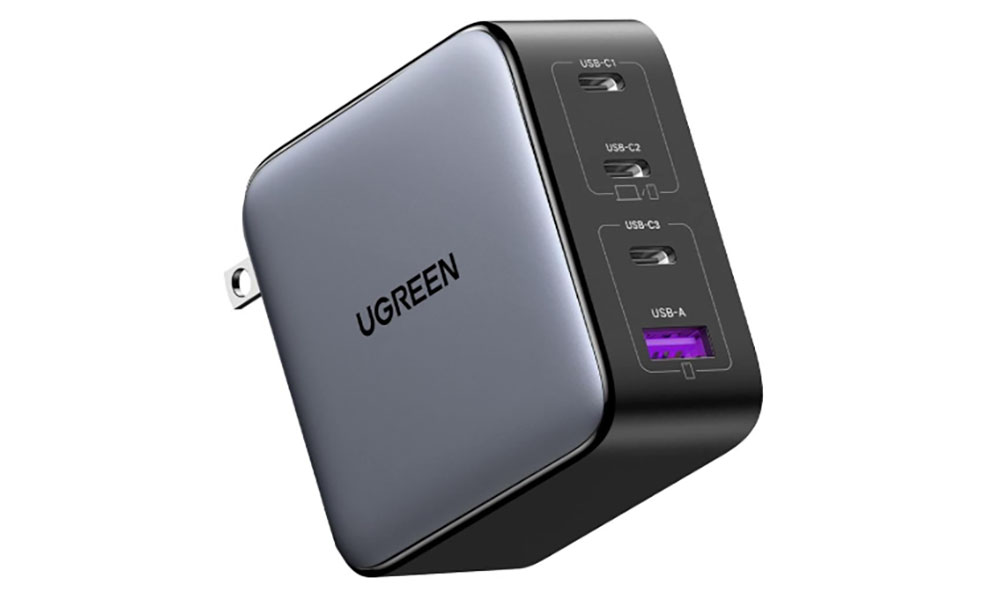
Charge it faster: $39.99
Ugreen
We don’t know what you need to charge, but we’re sure there’s something in your house with a failing battery. Well, this Ugreen Nexode GaN charger is 41% off on Prime Day and it delivers a 100W max output through the top two USB-C ports — so those are your go-to if you want to recharge your laptop — while the bottom two ports have a max 22.5W output. If you’re charging multiple devices at once, the 100W will get split between all ports.
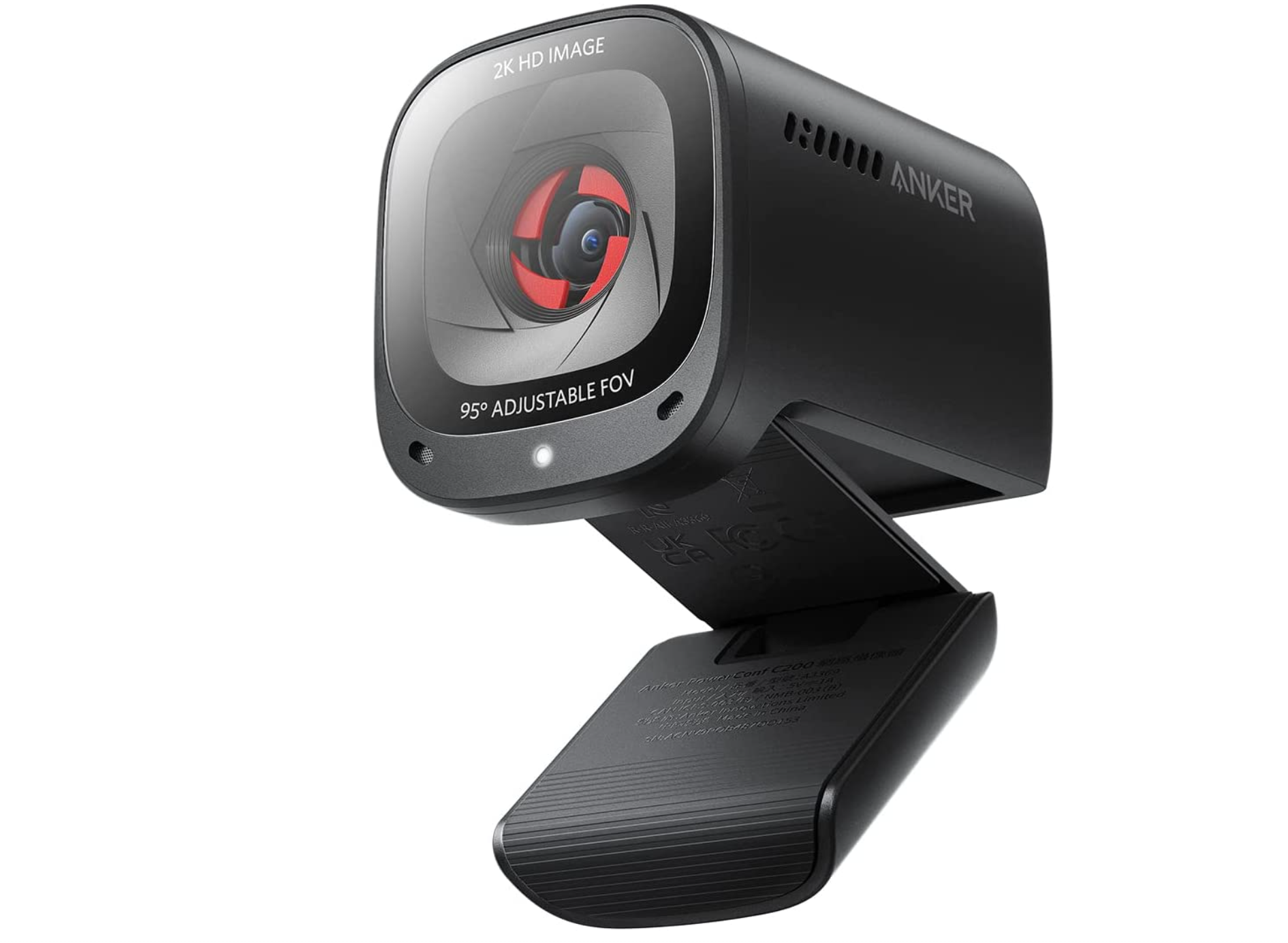
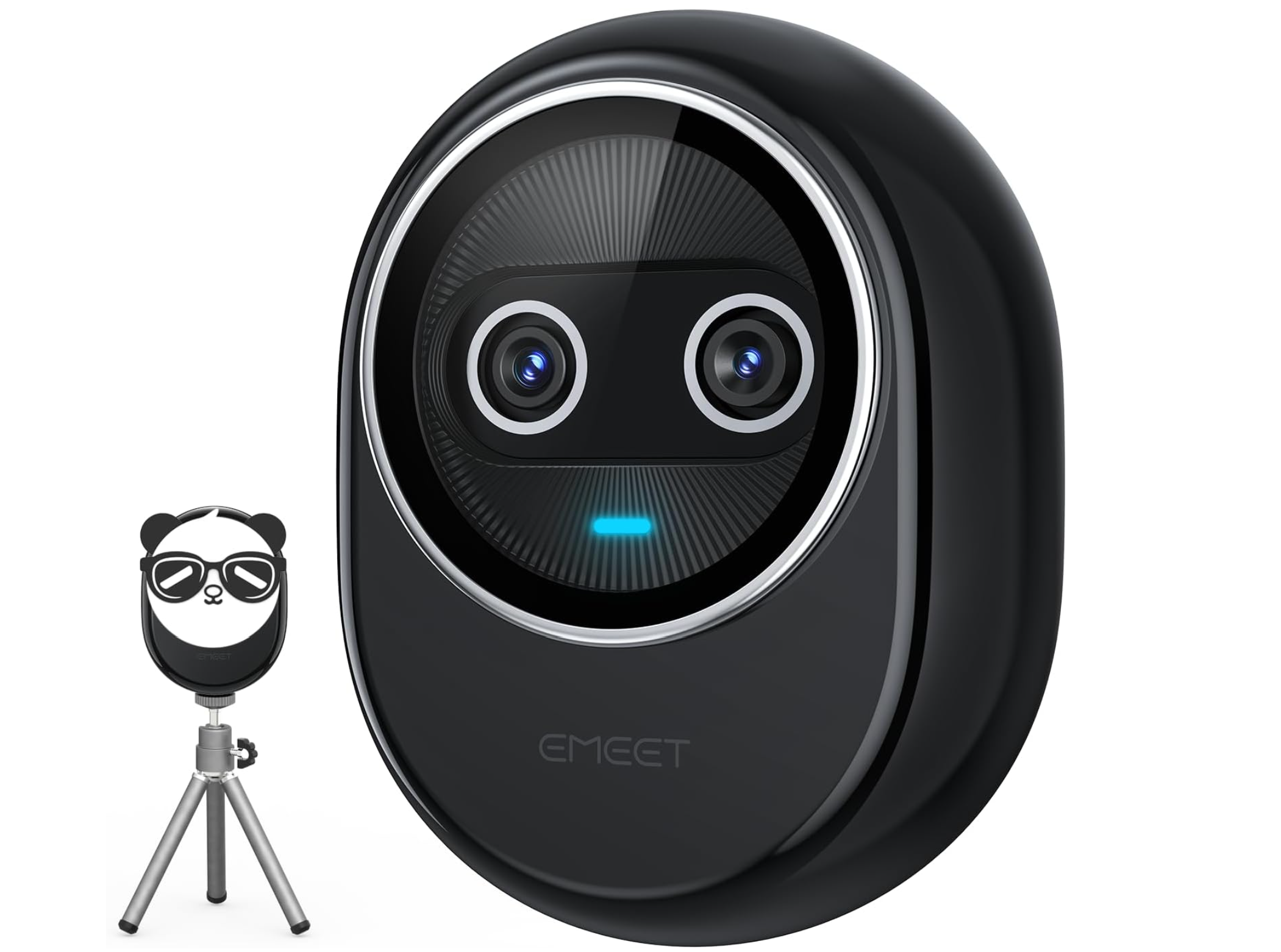
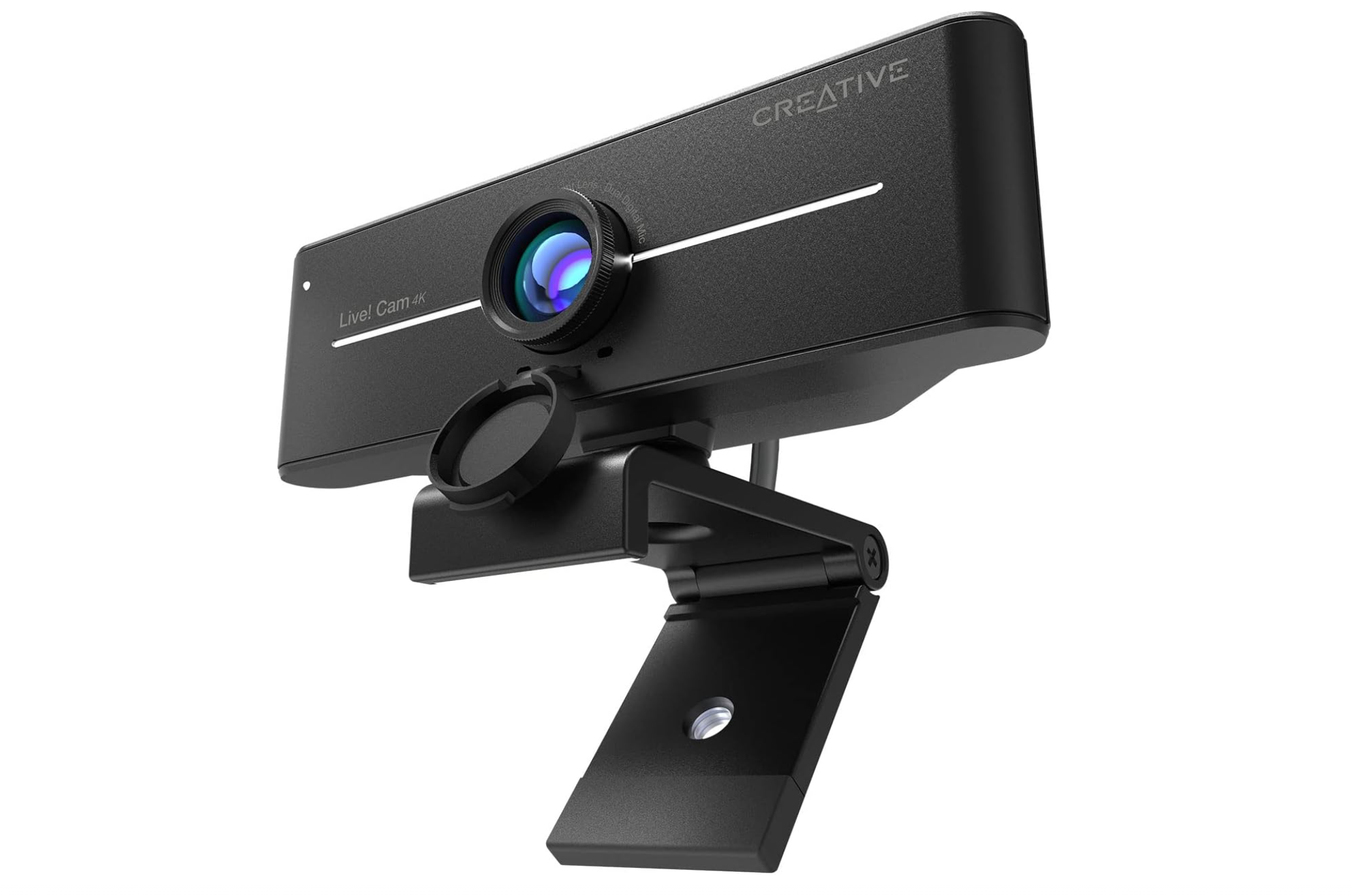
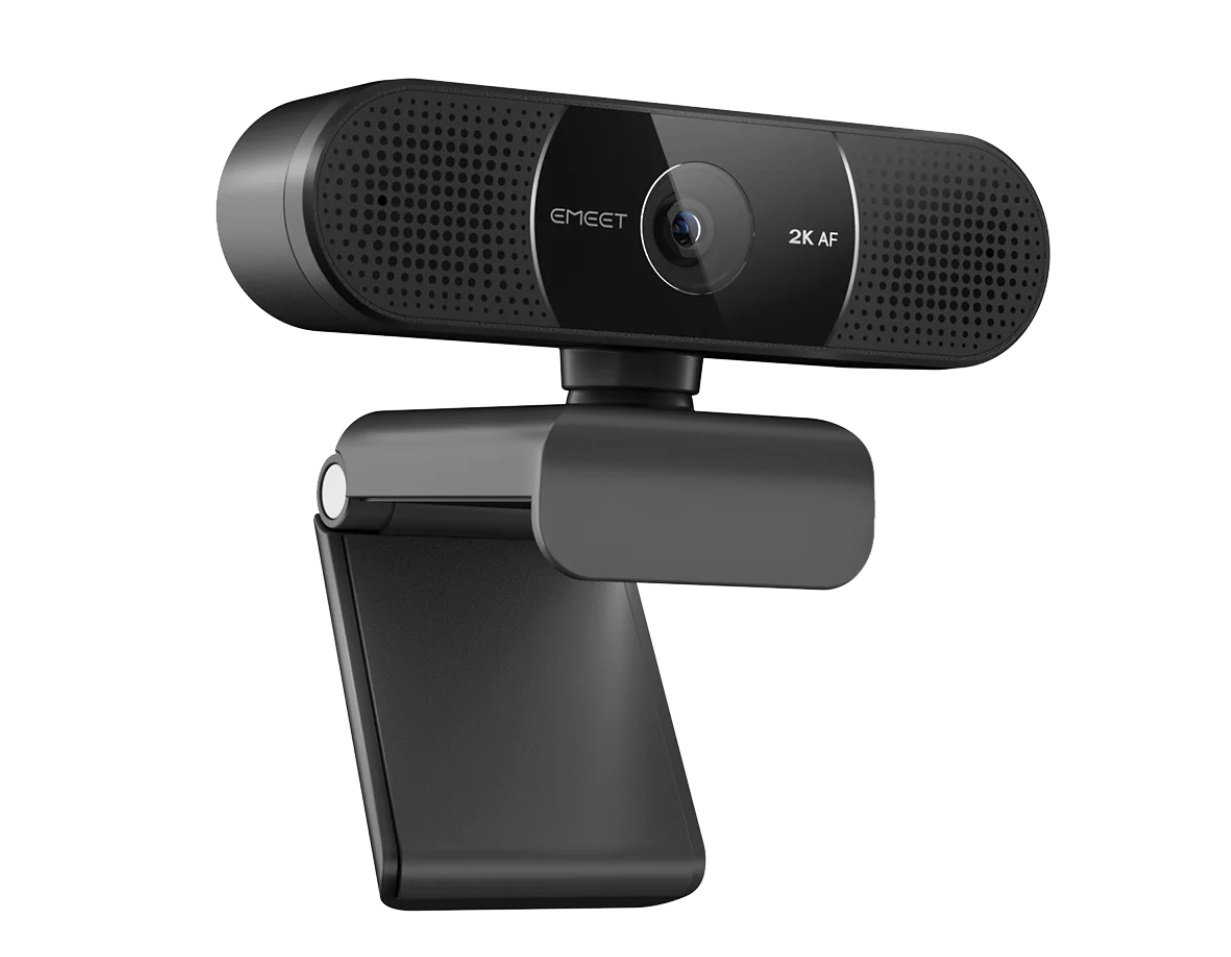
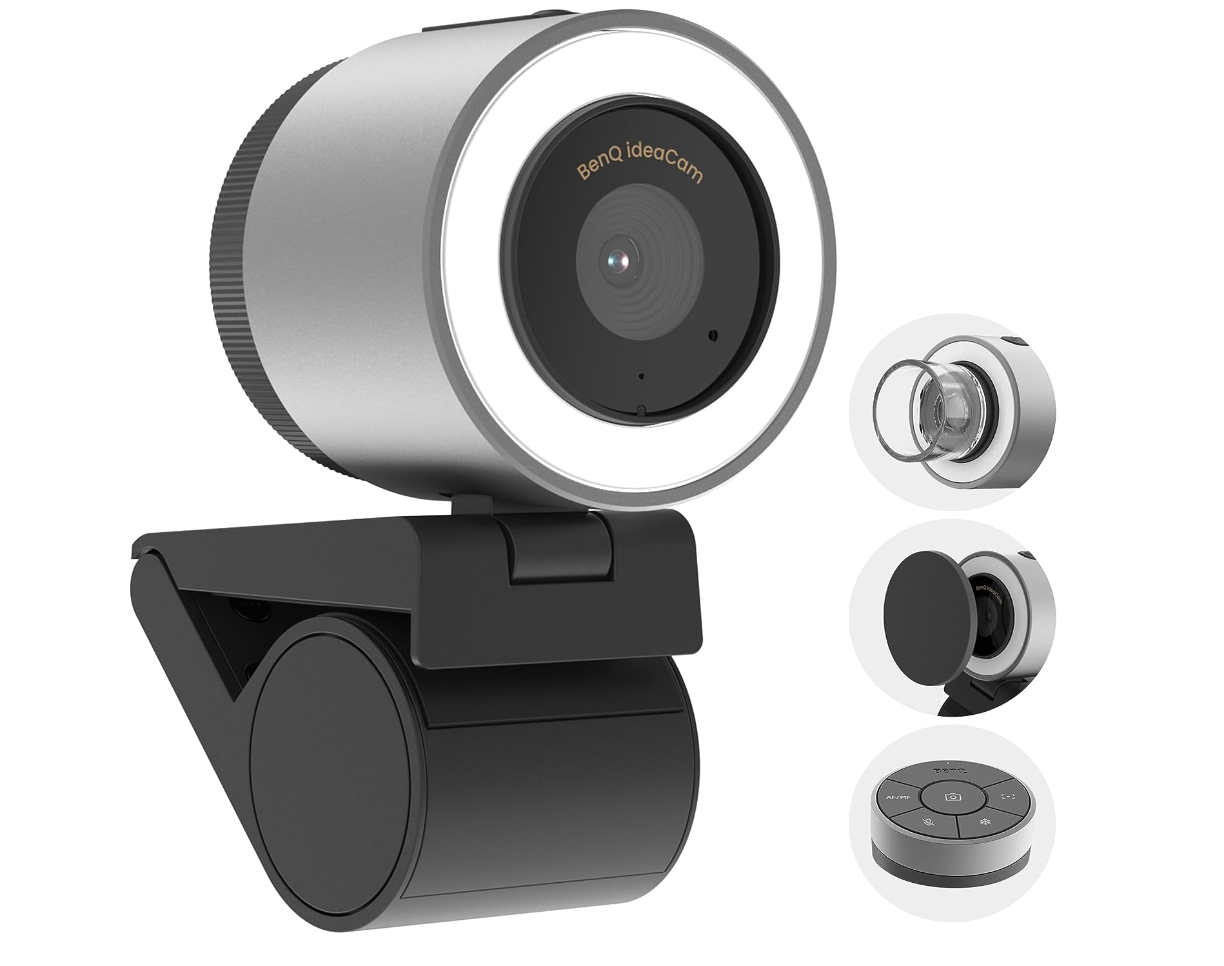
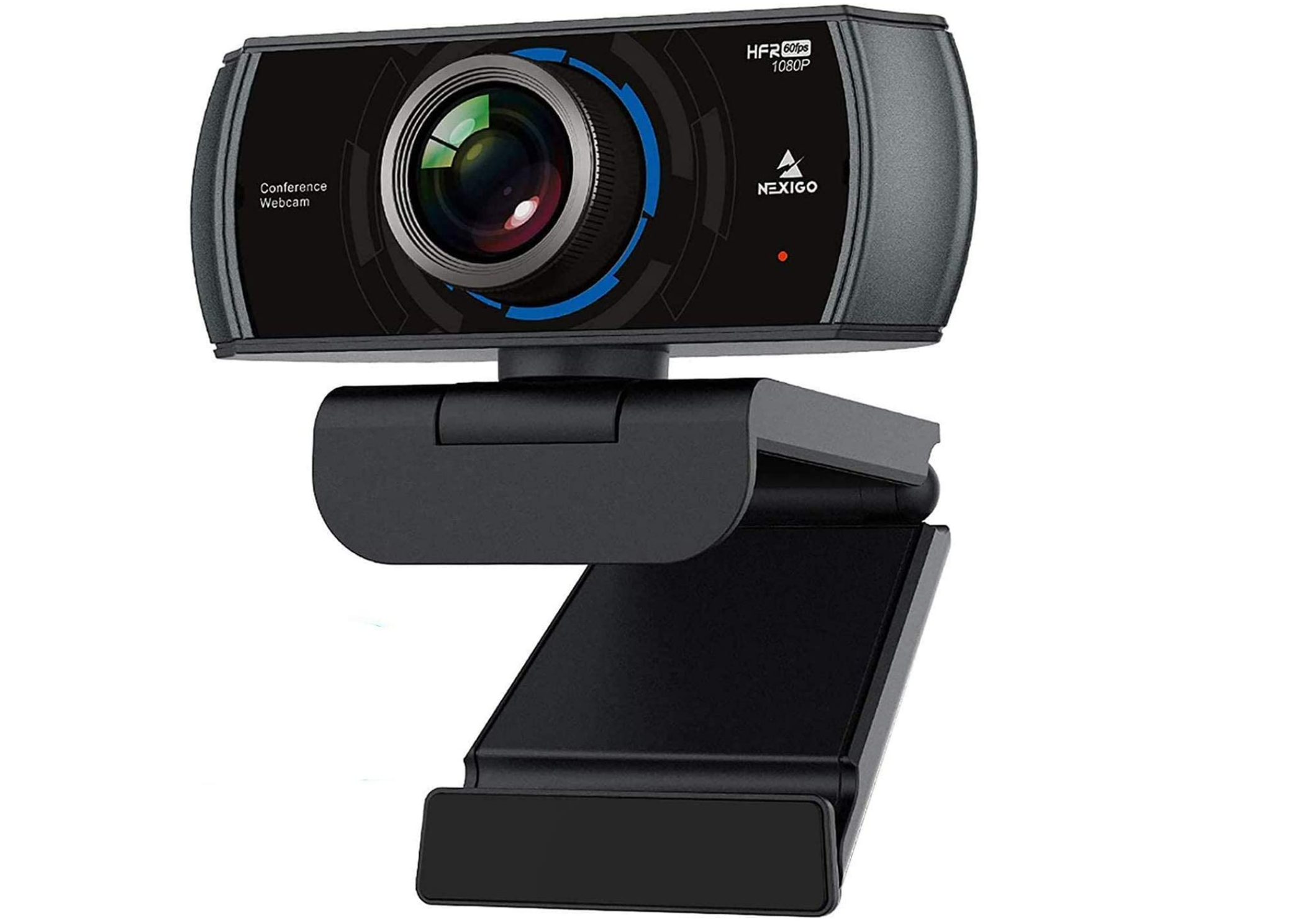
Webcams are important if you often have to attend online meetings or want to record yourself while streaming. This Anker PowerConf C200 is not only affordable, but it also captures video in 2K, features AI-noise canceling mics, and has an adjustable field of view. Oh, and when you don’t feel like worrying about your privacy, you can just slide in the physical privacy cover.
A long time ago, flash drives were quite large. Now they’re literally the size of your thumbnail, like this SanDisk Ultra Fit. For $38.28, you get 512GB of storage space, which is absolutely amazing. With up to 400MB/s transfer speeds, you’ll be backing up that data in a flash.
One of the best things you can get this October Prime Day is an Echo Spot — they’re cheap, they’re cute, and they give you full access to Alexa’s awesome powers. You can play music, control smart home gadgets, set alarms, and ask Alexa about that recipe you always forget. It also doesn’t hurt that the Echo Spot is cheaper than ever.
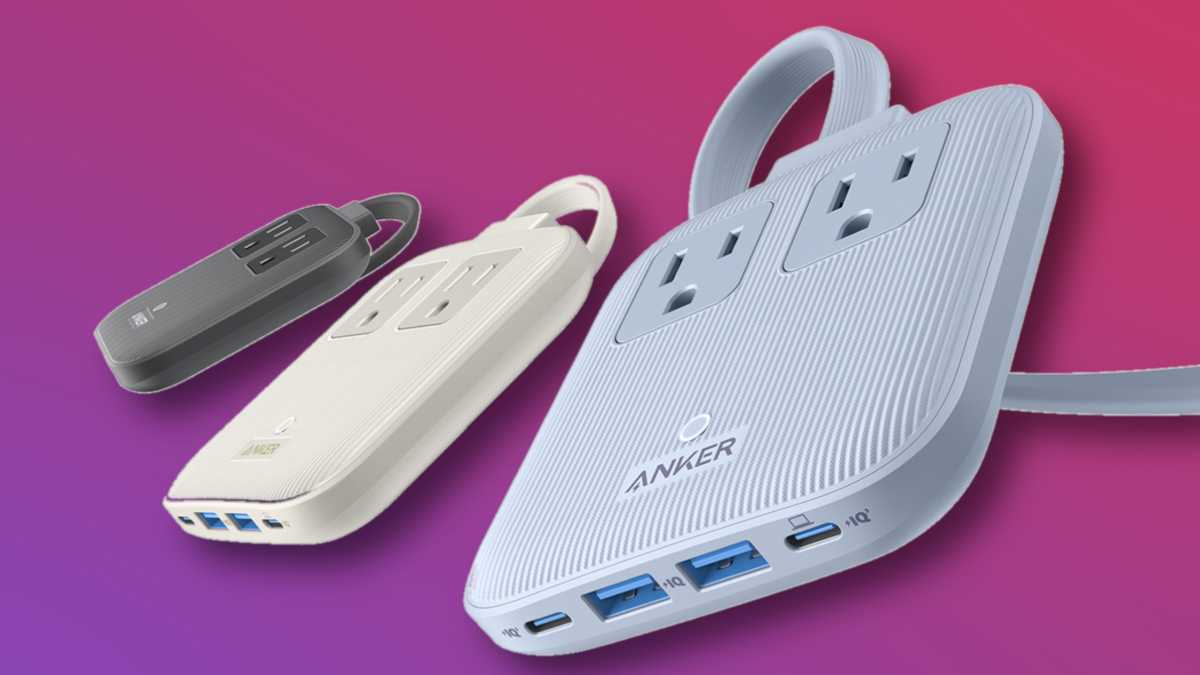
We love a good upgrade of a power strip and this Anker Nano charging station is a solid model. There’s no direct discount for this thing, but there is a $10 coupon available on the page, so you just have to tick the box. There are two AC outlets, two USB-A and two USB-C ports, therefore allowing you to charge six things at once.
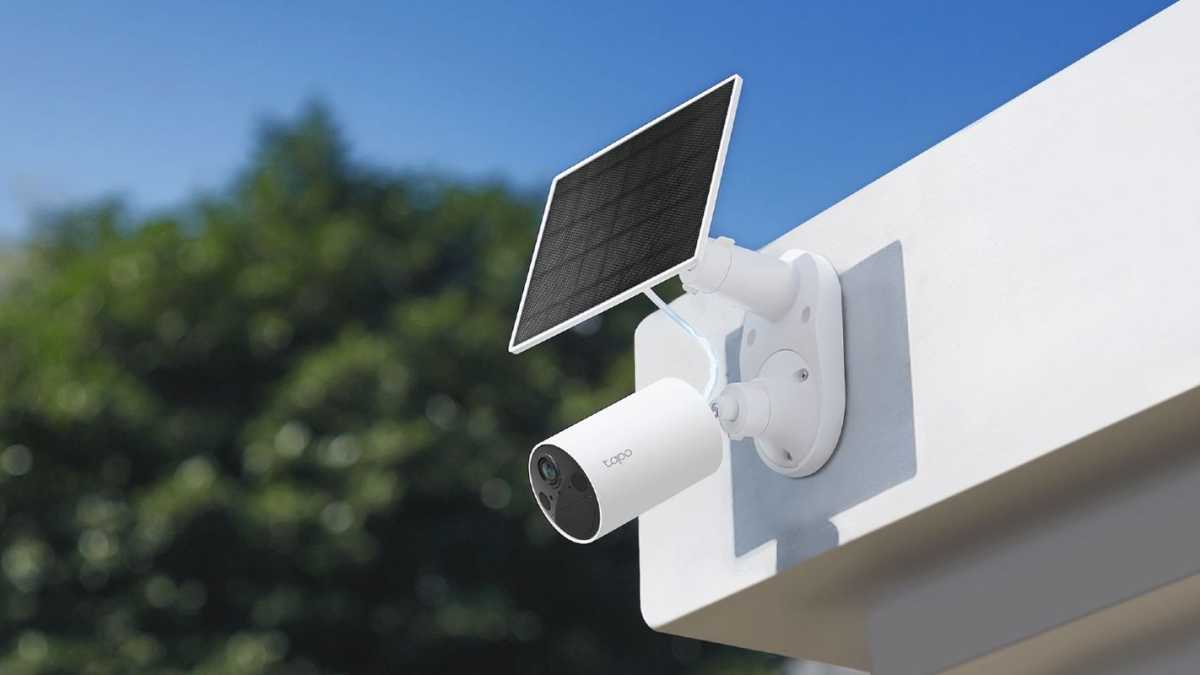
A good security camera will make your life so much easier when you’re away and this TP-Link Tapo SolarCam C402 is one of the best ones you can get for less than $50. Not only is it a wireless camera with 1080p video, but it also comes with a solar panel so it doesn’t need any wiring.
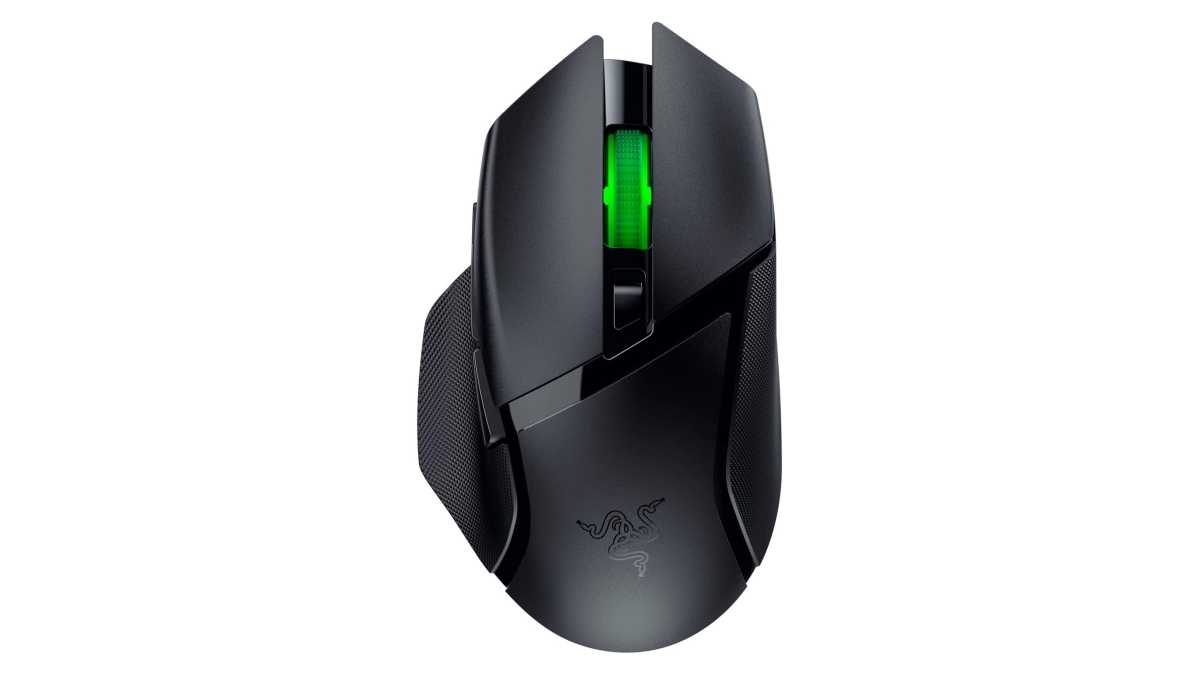
Stop blaming your gaming fails on your mouse: $37.99
Razer
We know you’ve blamed your mouse at least once when you failed a boss fight, so it’s time to upgrade, right? The super speedy Razer Basilisk V3 X HyperSpeed wireless gaming mouse is 46% off. It has an 18K optical sensor, 9 programmable buttons, and gorgeous RGB lighting. What’s not to love?
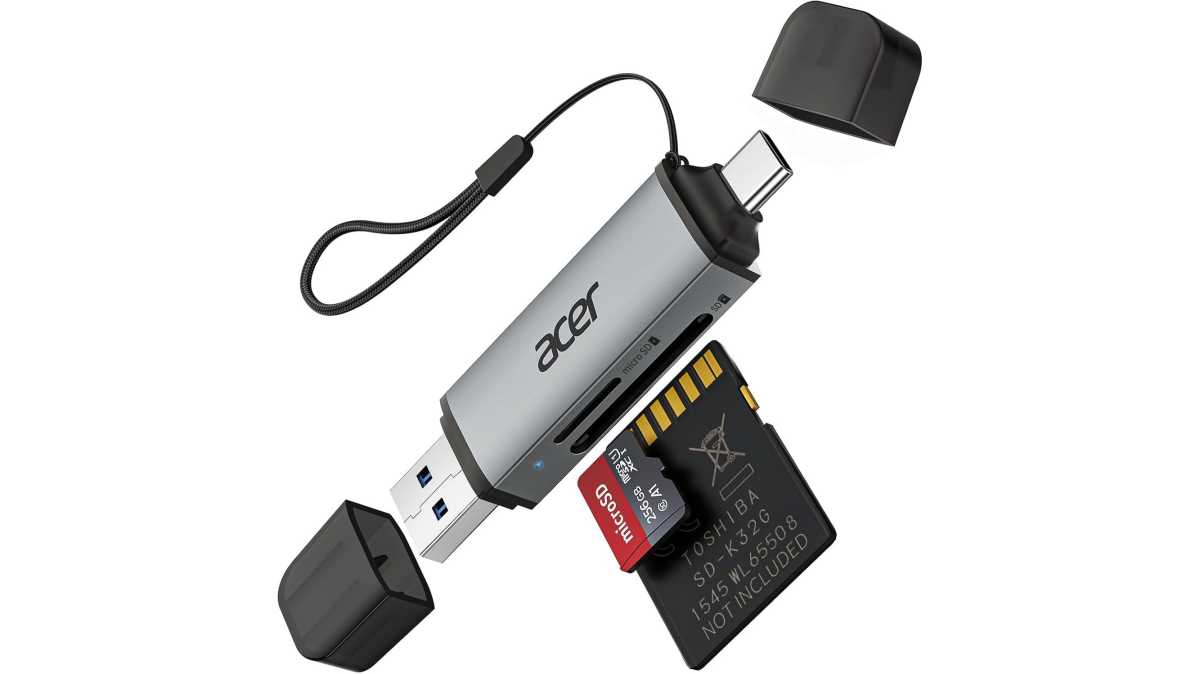
I don’t know about your laptop, but I haven’t seen a card reader in the past two laptops I’ve owned — it’s been maybe a decade. Obviously, I’m not buying the right laptops, but what I can get is one of these Acer card readers with both USB-A and USB-C plugs. This will make transfering data off the microSD in your dashcam, security cam, and so on, an absolute breeze. Plus, it’s super cheap.
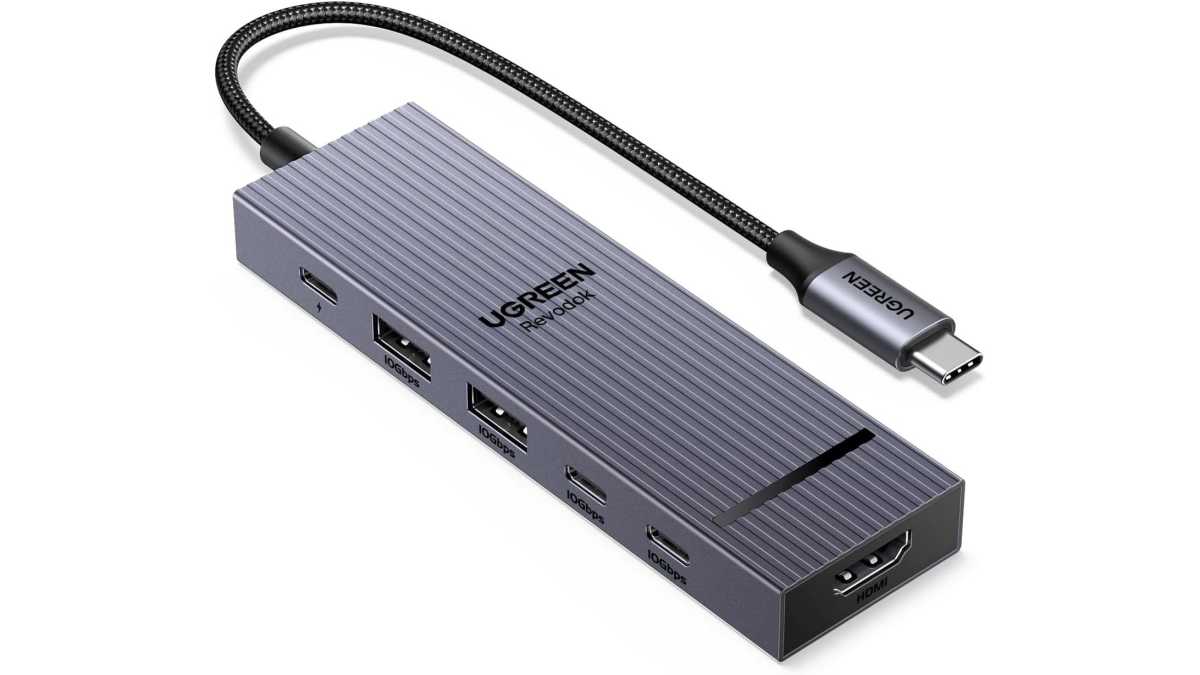
Many laptops need a few extra ports, and you can get some for $14 with this Ugreen Revodok Pro 6-in-1 USB-C hub. There’s a 4K HDMI for another display, a USB-C with 100W power delivery, two USB-A ports, and two USB-C data ports for all sorts of peripherals and charging.
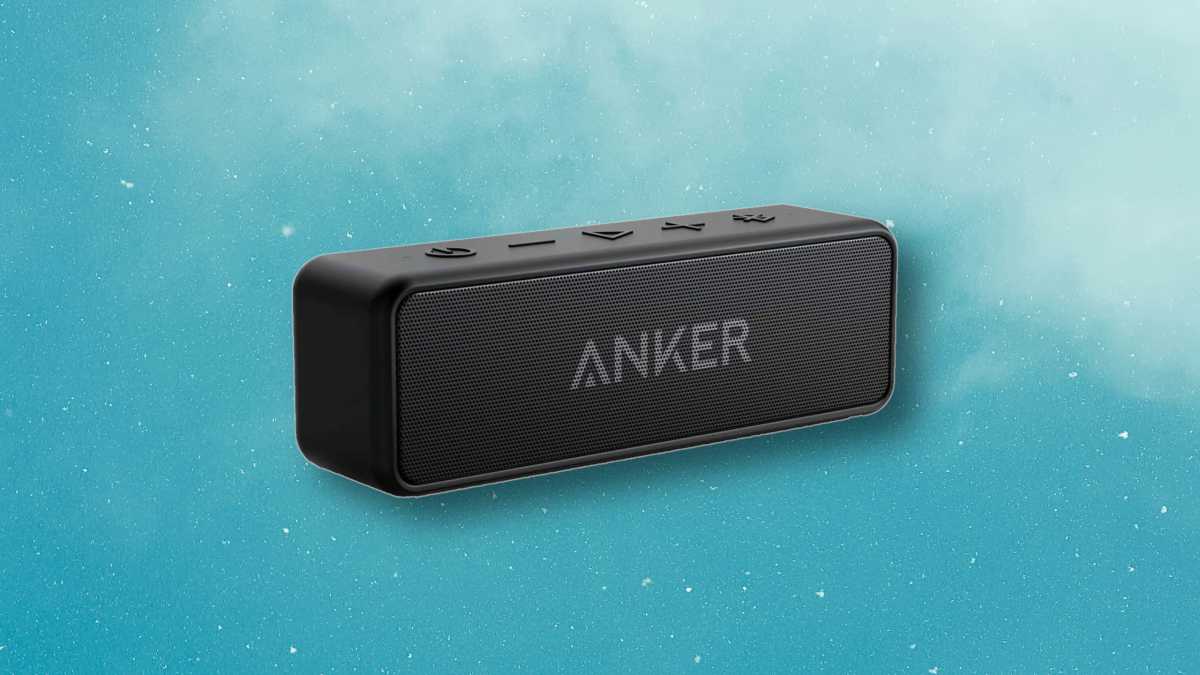
Everyone needs a cute Bluetooth speaker in their lives because music is everything, right? The Anker Soundcore 2 is an affordable option. Not only is this thing IPX7 waterproof, but you also get an impressive 24-hour playtime on a single charge. It’s great for home use, having fun in the yard, or taking it to the beach.
The odds say you won’t actually need your seatbelt today. The odds say that your phone won’t be hacked by a random USB-C wall charger, either. But, like a seatbelt, here’s why it’s worth investing in this cheap, easy protection device.
If you go on vacation or a business trip, chances are you’re going to need a data cable for your phone anyway, and an extra can’t hurt. But a power-only cable is a handy way of securing your phone no matter what out-of-the-way, dodgy hotel or airport you end up in.
Some people call these “USB condoms,” usually referring to a dongle that you can buy that blocks data from being transferred over the USB connection. In this case, “data” equals malware. Is a foreign government or hacker group building in standalone devices to push malware to your phone? Do credit-card skimmers exist? Okay then. If a malicious cable can be used to conceal malware, the wall port sure can.
I recently returned from a pair of trips to Arizona and Hawaii, and had planned to invest in a data-only USB-C cable anyway. As it turned out, Plugable alerted me about its entrance into the market, and asked if I’d like to try one out. The company offers a few cables of different lengths, and I think that Plugable’s $15.95 6-foot-cable works best, if only because it accommodates awkwardly placed outlets in airports, airplanes, and hotels. (There are also cheaper, shorter options.)
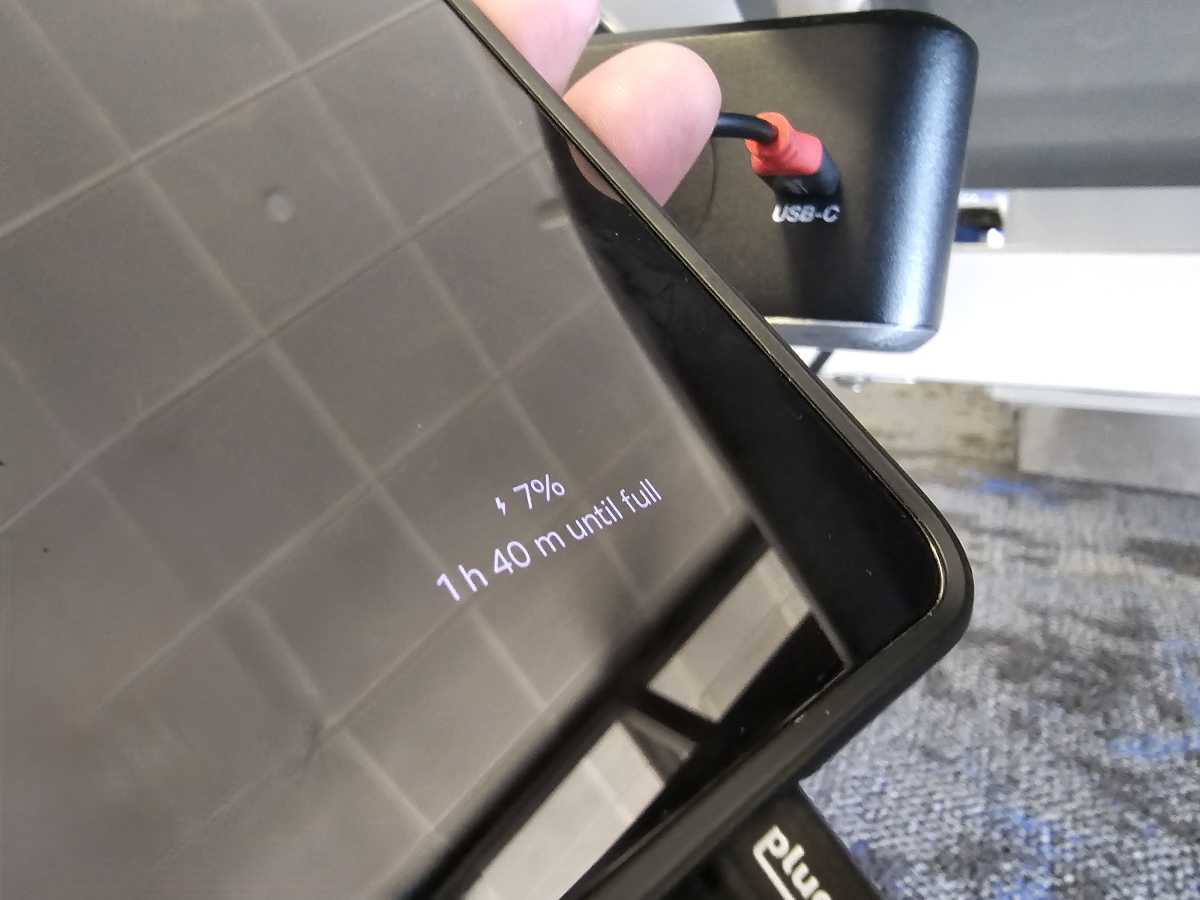
The chargers in the Phoenix Sky Harbor airport were underneath the seats in the terminal.
Mark Hachman / Foundry
Basically, you’re investing in a data cable that you know can be plugged into about anything. And no, you probably don’t need a wired data connection in this case, as Wi-Fi and cellular data can be used for anything that you need to download.
Plugable identifies its cables with a special red highlight so that you can distinguish it from other cables in your bag. As far as I can tell, it worked just fine, charging my phone on the road during some downtime and saving me from bringing another wall-wart charger. And since the cable handles power up to 240 watts, I could charge my phone, my tablet, and a laptop depending on which one needed some juice.
Admittedly, there was just one hitch. Virtually every phone on the planet uses USB-C for charging, now. But the chargers themselves were built years ago. In the airports in San Francisco (SFO), Kahului (Maui/OGG), and the Hyatt and Sheraton hotels I stayed at, every charger was USB-A, not USB-C. The exception? Sky Harbor Airport in Phoenix, which included both USB-C and USB-A connections.
A USB-A socket might be a more common sight than USB-C. depending on where you visit.
Mark Hachman / Foundry
So did I bring the wrong cables? Maybe. Fortunately, USB-A to USB-C data-blocking cables exist, and PortaPow is a trusted name in that regard. PortaPow’s 3-foot cable is just $6.99, though the company doesn’t state how much power it can handle.
In any event, a small data-blocker cable or “cable condom” is cheap, small, secure, inexpensive, and fits easily into a bag or purse — and that red accent certainly helps it to be found when you’re fumbling with a bag in the overhead bin. It’s just a good thing to have on a trip, just in case.
Your desk and chair’s ergonomics have a huge impact on how good you feel after a long session at your PC. But you don’t need to spend a ton on an office chair or standing desk—especially not right now, thanks to Amazon’s October Prime Day sales. And some of the best sales aren’t even found on Amazon!
The deals should last through October 8 at 11:59pm PT, but don’t wait too long if you see a good discount on popular chairs and desks. Deals on fan favorites like Staples’ Hyken and Dexley task chairs (beloved by Redditors and PCWorld staff alike!) can sell out before the end of the sale period.
When it comes to office chairs, Amazon has some contenders, but the best deals can actually be found at Staples.
Staples sells surprisingly affordable yet comfortable office chairs, with two of its more popular models on deep discount. Reddit’s beloved Hyken model is currently a little over half-off, with its wider-frame Dexley chair also available at an even bigger discount. Meanwhile, the more premium HON Ignition 2.0 is once again at its lowest price yet.
Best October Prime Day 2025 deals on standing desks
Flexispot’s standing desks start at much lower prices than competitors, making them popular among Amazon shoppers to begin with. With additional discounts, they’re a great entry into motorized sit-stand setups.
Other great October Prime Day deals
These aren’t the only October Prime Day deals being tracked by the PCWorld team. If you’re looking to supercharge your home setup with the juiciest tech sales, hit the links for only the best expert-curated picks we’ve found.
What features should I look for in a standing desk?
We like dual motor standing desks with programmable controls—they’re a little more expensive, but moving the desk up and down is smoother. Their frames usually have a better build overall, too, making for less wobble during height adjustments and while in use.
Programmable controls means you can go back and forth between two or even three height positions with a single button press, which makes for much better quality of life. No need to wait and monitor the adjustment as it’s happening. (That might sound like not such a big deal, but if you do it multiple times a day over the course of the year, those seconds feel tedious. Trust me on this one.)
2.
What makes for a good office chair?
This question can be tricky to answer, since what’s comfortable is a little different for everyone. Generally, you want enough support for your back so it doesn’t take on a hunched position, but not so much you can’t feel relaxed while sitting. You also ideally want to keep pressure off your lower back if you’ll be sitting for long periods—office chairs usually have seats shaped for this, rather than the flatter surfaces of kitchen and casual desk chairs.
Armrests, head supports, and mesh fabric can also play a role in comfort, but you may want to try out those features on a sample chair that a friend owns or in a store to see if you need those features. The mesh is particularly good if you sweat or get warm.
Wheeled models are also useful for easily moving the chair—and you can upgrade the casters, as Reddit recommends for an even smoother experience.
3.
How do I know if I’m getting a good deal on standing desks or office chairs during Prime Day?
The deals we select are chosen not just for the product, but because their prices are among the lowest we’ve seen, especially given the pricing history over the last year.
If you’re striking out on your own, be sure to look at reviews, as well as Amazon’s AI summaries of user reviews—avoid anything with high return rates, or a known flaw. Also look for brands with not just high user reviews, but independent reviews online. Many standing desks are just rebranded models, and so too for cheaper desk chairs.
4.
Have tariffs affect office chair and standing desk prices? Should I buy now?
So far, prices have been minimally affected, but that’s been projected to change after the holiday period. Why? Retailers stocked up before the heavier taxes on imports kicked in, but eventually supply will run out and new product will be imported at the higher tariff rates. So choosing to shop sooner rather than later could prove to be a smart financial move.
For the last five years, I’ve reviewed many Thunderbolt docks and DisplayLink docking stations for PCWorld, putting them through a battery of tests. Each year, I’m responsible for poring through prices on Black Friday, Prime Day, and other sales events to find the best value picks. Put simply, Plugable’s TBT4-UDX1 wins on affordability and flexibility, now priced at $175.96 (that’s 20% off) on Amazon.
We’re still in a weird transitional period between Thunderbolt 3, Thunderbolt 4, and Thunderbolt 5, but the latest Thunderbolt 5 specification simply isn’t widely supported by laptops yet. That rules out the latest, most expensive TB5 gear. And for me, a Thunderbolt dock is already priced high enough (hello, tariffs) without needing customers like you to buy extra cables for it.
A number of manufacturers have adopted Plugable’s strategy of placing a boatload of display ports into their docks. A dock maker can design in an HDMI or DisplayLink port to connect to your monitor—if they don’t, that generally means they’re using Thunderbolt outputs instead. If you’re an EV owner, you already understand the value of having the right adapter, and the need to buy one if it isn’t supplied. In this case, a Thunderbolt dock without the right display output forces you to make that purchase.
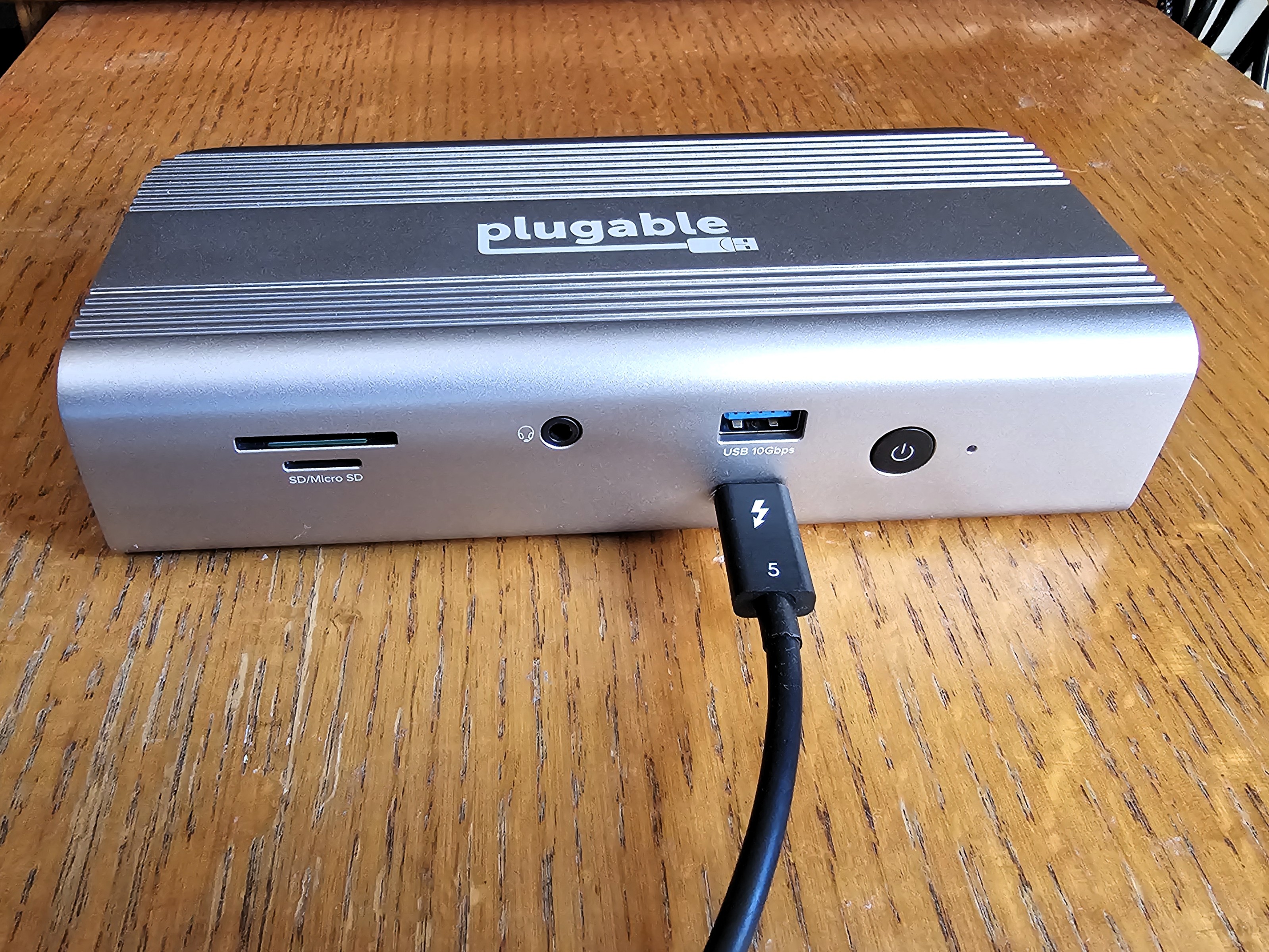
Plugable’s TBT4-UDX1 ships with just one HDMI display output and two other Thunderbolt 4 port connections. But Plugable also includes a display adapter in the box, a courtesy I don’t think any other dock maker provides at the moment. What does that mean? In short, you’re paying $175.96 for the dock and that’s it. Nothing else needed.
There are a ton of docking stations out there, and I’ll let you search for all of the Plugable reviews I’ve written. I haven’t reviewed the TBT4-UDX1 personally, but our sister site TechAdvisor has and liked it.
Get Plugable's TBT4-UDX1 Thunderbolt 4 dock for $175.96 right now!
The year’s second Amazon Prime Day event is here and we’re seeing steep discounts on tech gadgets all over the place, from laptops to fancy monitors and beyond. That’s great and all but if you’re looking for things that you can afford without breaking the bank, this list of cool tech under $50 is just what you need.
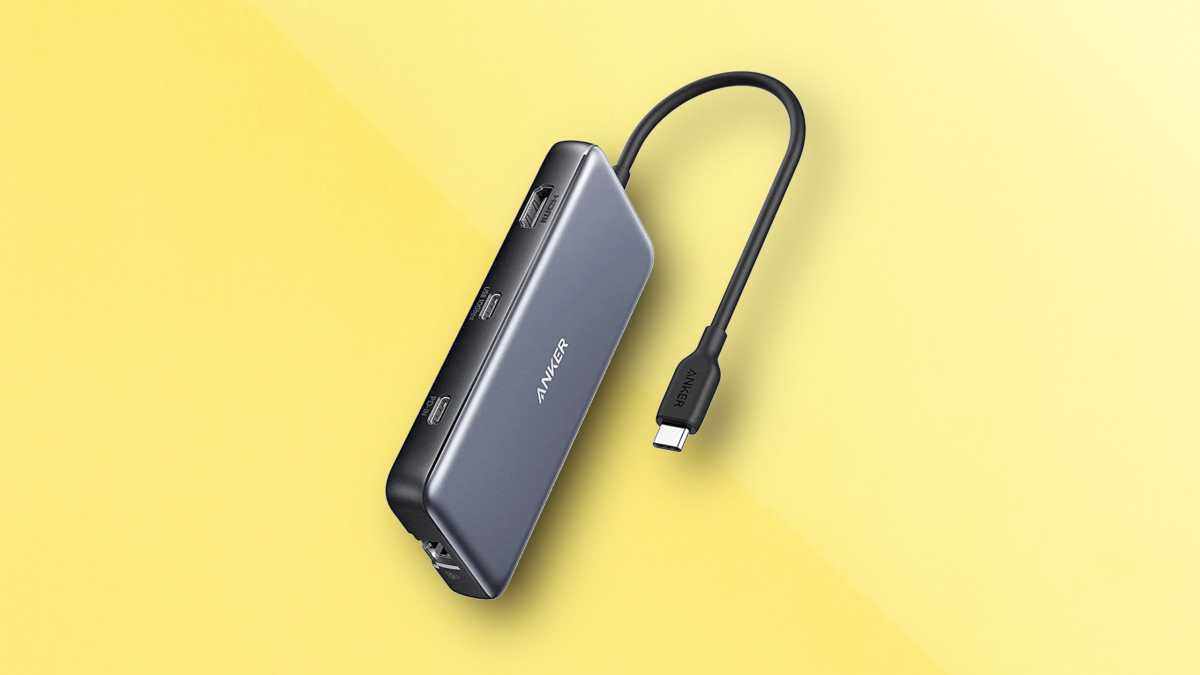
An Anker laptop hub: $36
Anker
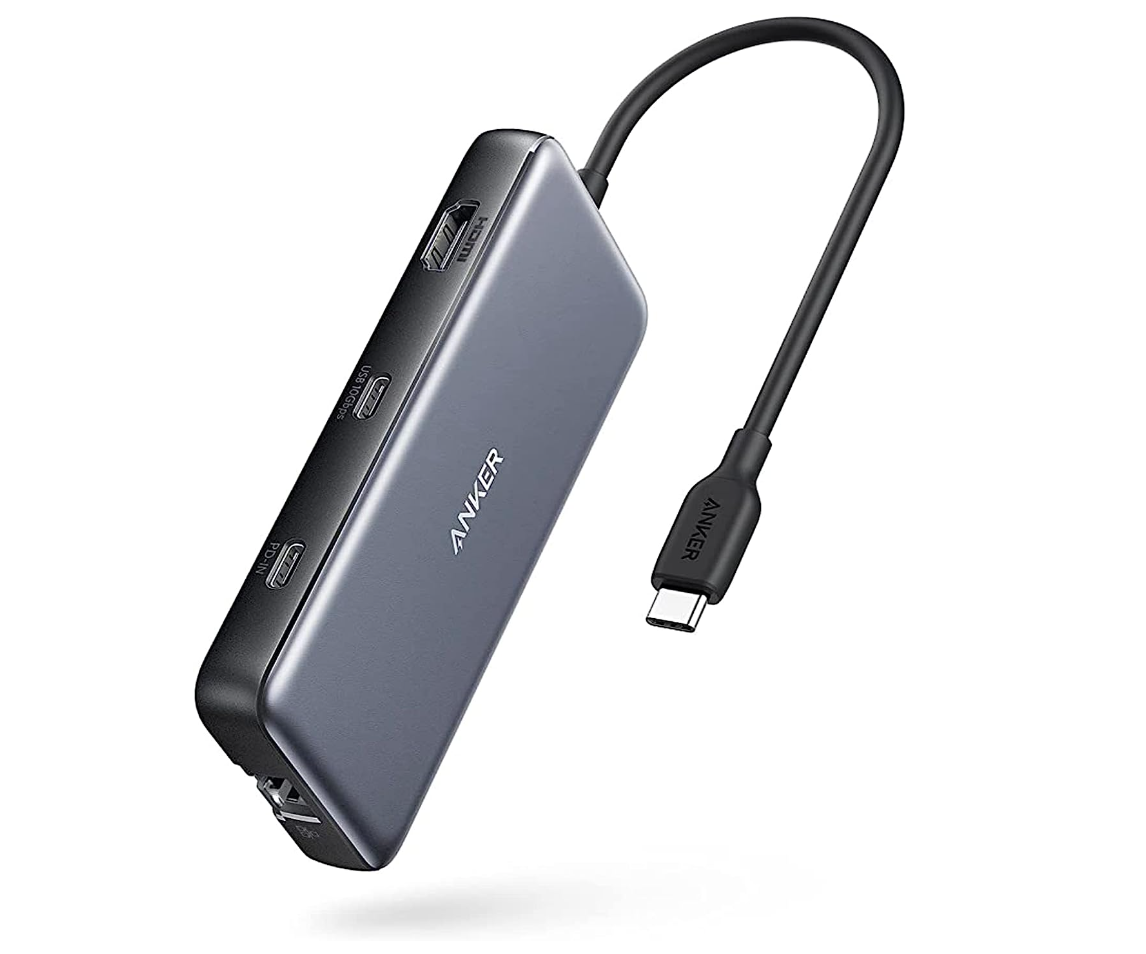
Without spending a ton of money, you get to turn one of your laptop’s ports into eight of them. This compact Anker USB-C hub includes a 4K HDMI port, two USB-A ports, a USB-C data port, a USB-C PD port with 85W pass-through charging, an Ethernet port, and both SD and microSD card readers. Since it can also help you add another monitor to your setup, this hub is the perfect splurge during October Prime Day.
We don’t know what you need to charge, but we’re sure there’s something in your house with a failing battery. Well, this Ugreen Nexode GaN charger is 41% off on Prime Day and it delivers a 100W max output vithrough the top two USB-C ports — so those are your go-to if you want to recharge your laptop — while the bottom two ports have a max 22.5W output. If you’re charging multiple devices at once, the 100W will get split between all ports.
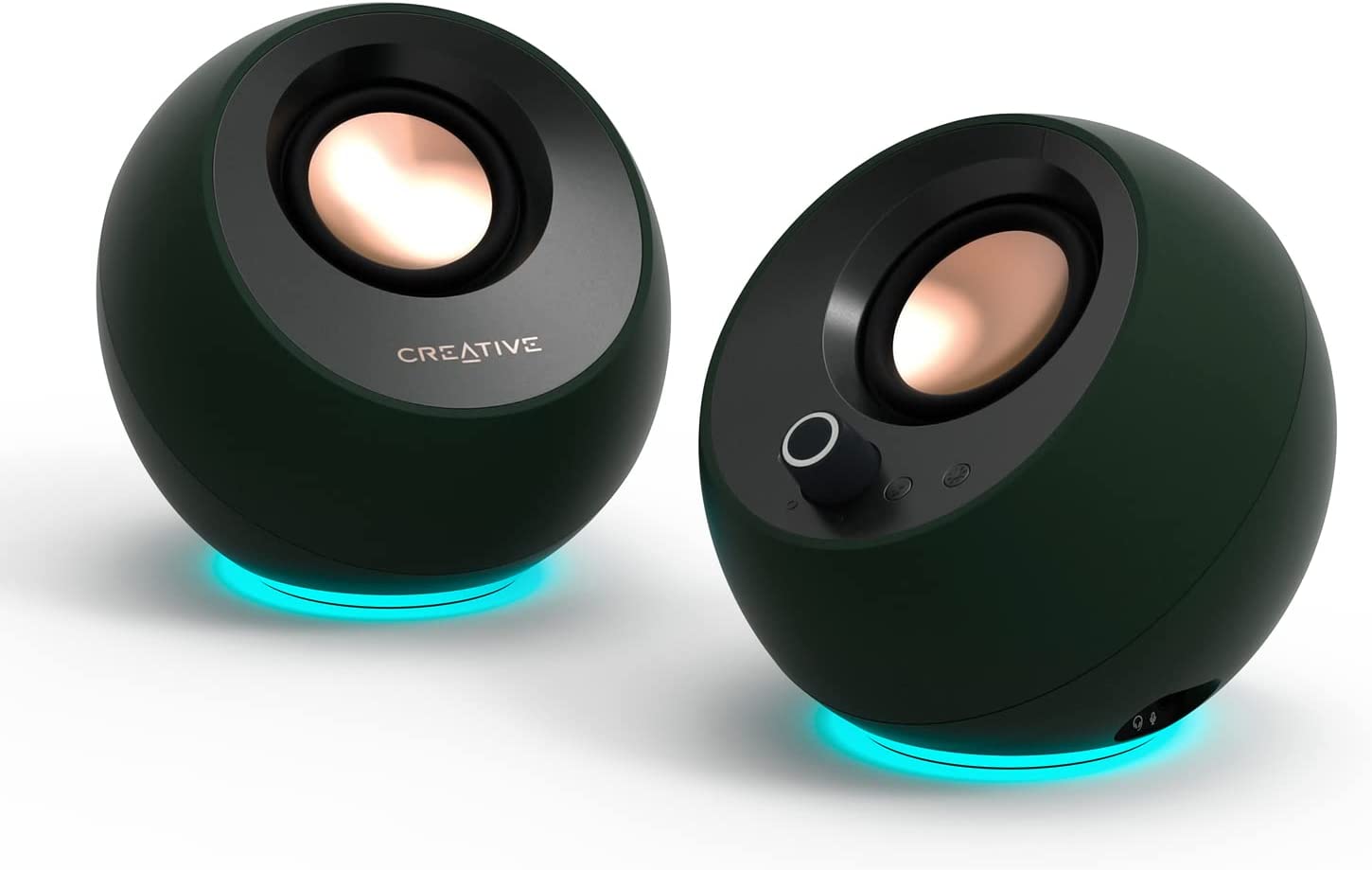
Everyone needs a fun way to rock out. Whether you set this up in the kitchen while you cook dinner, take it with you in the bathroom for some shower singing, or crank some tunes on your patio, you can jam to your new favorite album while you work, do chores, or chill out. Despite how small this speaker is, it’s actually quite loud. Plus, it also doesn’t hurt that it has an IP67 waterproof and dustproof rating and that you get 5 hours of playback on a single charge.
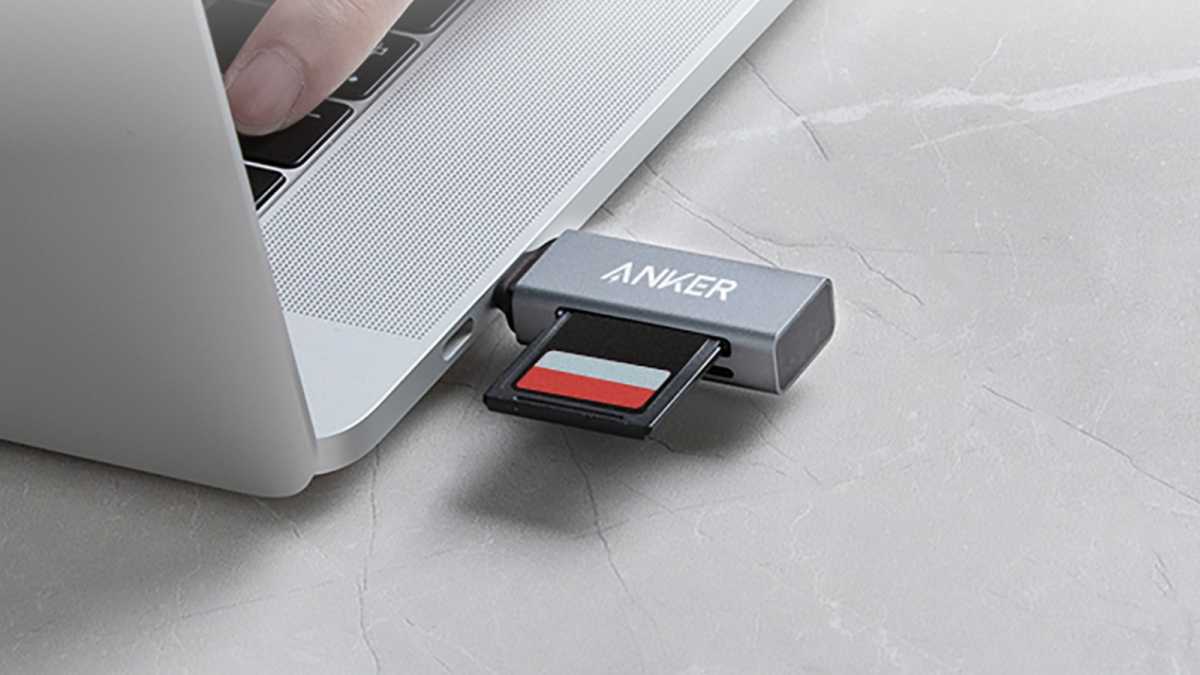
If your laptop is missing an SD card slot, then you should shell out the $9 to get this Anker card reader. This is a 2-in-1 device that can handle both your SD and your microSD cards, thus enabling you to read recordings off card you used with your dashcam, security cam, or your professional camera. This is a USB-C gadget so you’ll easily be able to plug it into your laptop. With a 50% discount, this is an impulse buy.
Get this half-off Anker SD card reader USB-C dongle
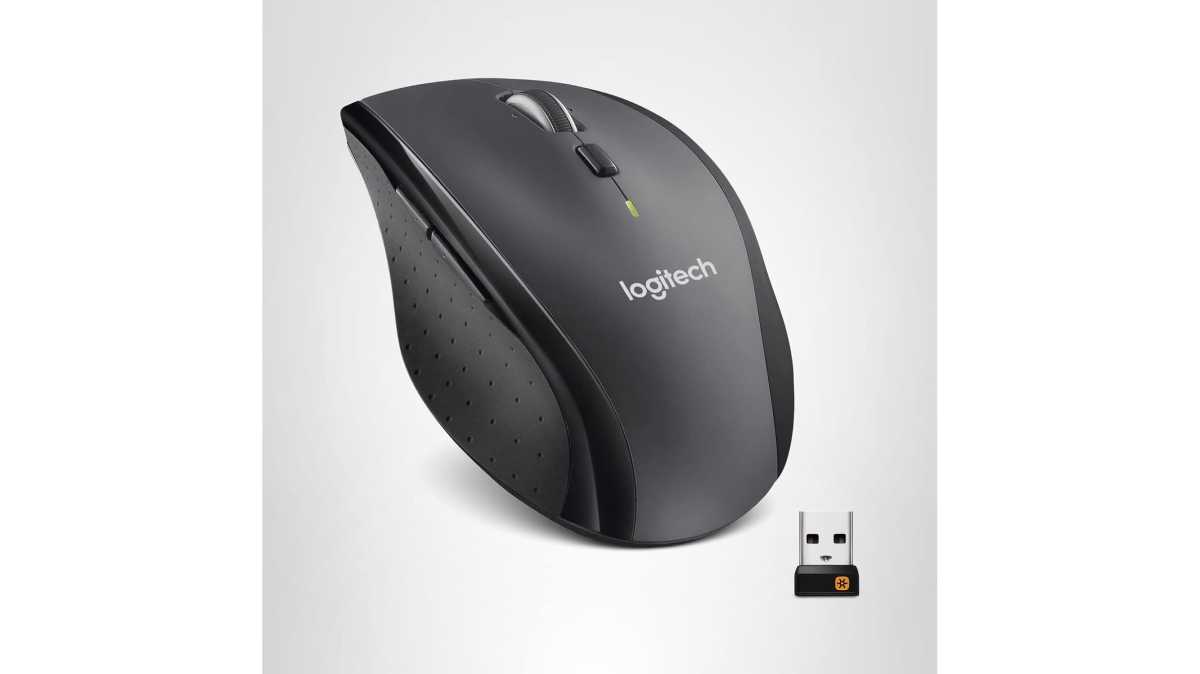
If you’re going to splurge on just one thing during October Prime Day, make sure to keep your hand comfortable while working or gaming. The Logitech M705 is a stellar mouse with five programmable buttons, a durable build, and cross-platform compatibility. I’m actually using this exact mouse mouse right now and can vouch that it’s absolutely perfect for day-to-day activities and gaming.
Webcams are important if you often have to attend online meetings or want to record yourself while streaming. This Anker PowerConf C200 is not only affordable, but it also captures video in 2K, features AI-noise canceling mics, and has an adjustable field of view. Oh, and when you don’t feel like worrying about your privacy, you can just slide in the physical privacy cover.
It’s tiny, it’s affordable, and it will keep an eye on your home when you’re not there. It’s great to record video at all times of the day and can even deliver color night vids. It has two-way audio so you can tell your dog off for hopping on the couch, or check in your baby while making lunch.
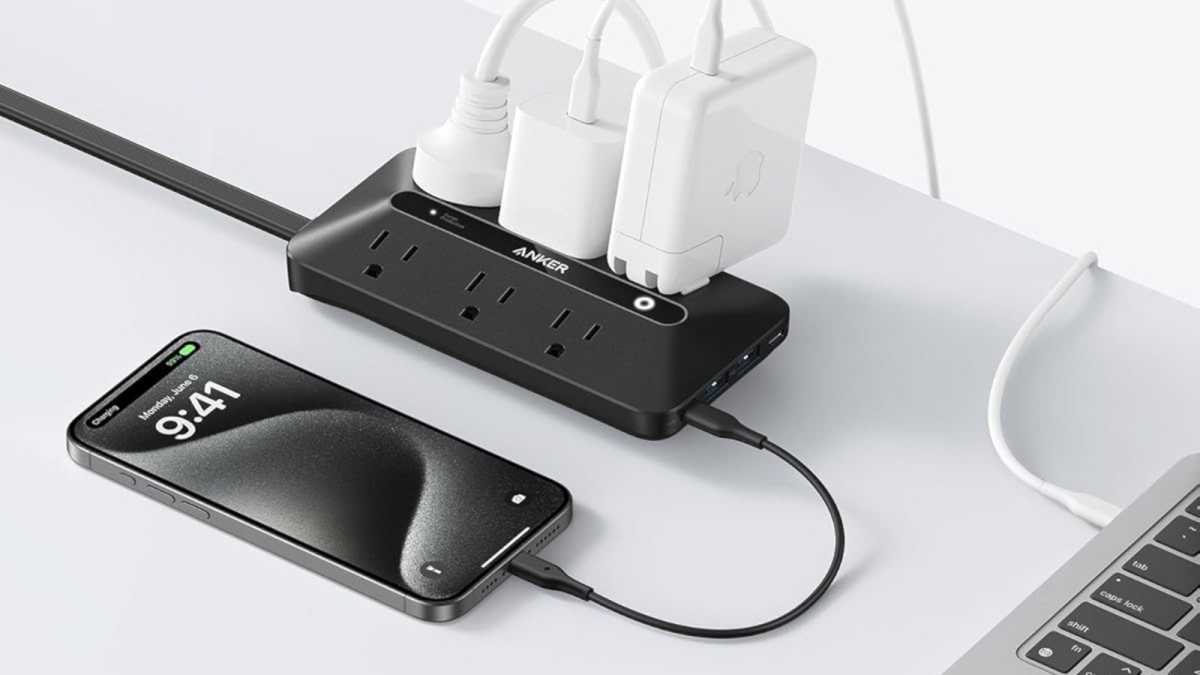
Your power strip is probably pretty old, right? Well, let’s upgrade to this one from Anker. There are six AC outlets on this thing, as well as two USB-A and two USB-C ports on its very edge, thus enabling you to charge ten gadgets at once. It will be perfect on your desk, in your office, and just about anywhere you spend a lot of time.
A long time ago, flash drives were quite large. Now they’re literally the size of your thumbnail, like this SanDisk Ultra Fit. For $35.88, you get 512GB of storage space, which is absolutely amazing. With up to 400MB/s transfer speeds, you’ll be backing up that data in a flash.
One of the best things you can get this October Prime Day is an Echo Spot — they’re cheap, they’re cute, and they give you full access to Alexa’s awesome powers. You can play music, control smart home gadgets, set alarms, and ask Alexa about that recipe you always forget. It also doesn’t hurt that the Echo Spot is cheaper than ever.
Amazon’s Prime Big Deal Days sales offer one of the year’s best opportunities to score deals on USB-C hubs and docks and their more powerful cousins, Thunderbolt docking stations. All offer important, necessary ways to expand your laptop’s ports and connect legacy devices like printers and mice.
What we call the October Prime Day event kicks off today, October 7 and will last through October 8. You probably will need to be an Amazon Prime member to take advantage of Amazon’s Prime Day sales.
I write, test, and recommend the best USB-C hubs and dongles, and do the same for the best Thunderbolt docks. For the past several years, I’ve been responsible for seeking out the best deals in both categories for Amazon’s Prime Days, Black Friday, and more. I think it’s fair to say that you’ll find the best USB-C and Thunderbolt docking station deals right here. Confused? Check the FAQ, below.
Below, you’ll find a list of deals, as well as a list of frequently-asked questions explaining what you should look for. I don’t expect anything unusual in terms of USB-C hub prices. Thunderbolt docks, however, are a different story: Thunderbolt 5 is arriving in the market, and older Thunderbolt 3 products (which are still somewhat viable) are being phased out. Tariffs also have an effect.
I value flexibility in my docking station choices, and right now StarTech’s dock offers the most port flexibility. I’ve reviewed StarTech’s Thunderbolt 4 dock/hub, though not this machine. (The MSRP of that dock was originally $483, but it’s at $160 for Prime Day.) In my experience, StarTech makes pretty solid hardware, and this offers all the ports you could want and then some.
My top choice right now is Plugable’s Thunderbolt 4 dock, however. I haven’t reviewed this dock personally, though our sister site Tech Advisor has, and liked it. StarTech’s dock offers more ports, but Plugable provides a dedicated HDMI port as well as a Thunderbolt 4-to-HDMI cable to allow you to connect a second 4K display without spending extra. That’s value! I’ve also reviewed numerous Plugable products, and their quality is generally excellent.
I really like Ugreen’s hardware as well, but the 208 is more of a hub, and you’ll need to buy display cables that take its USB-C video connections and translate them to HDMI. Those are about $18 per cable. (The 213 has a display port, but it’s also more expensive.) Kensington’s SD5700T falls under the same category, unfortunately.
I’ve reviewed the VisionTek VT7000, which was solid — just too pricey. A discount on the cheaper model is a welcome sight.
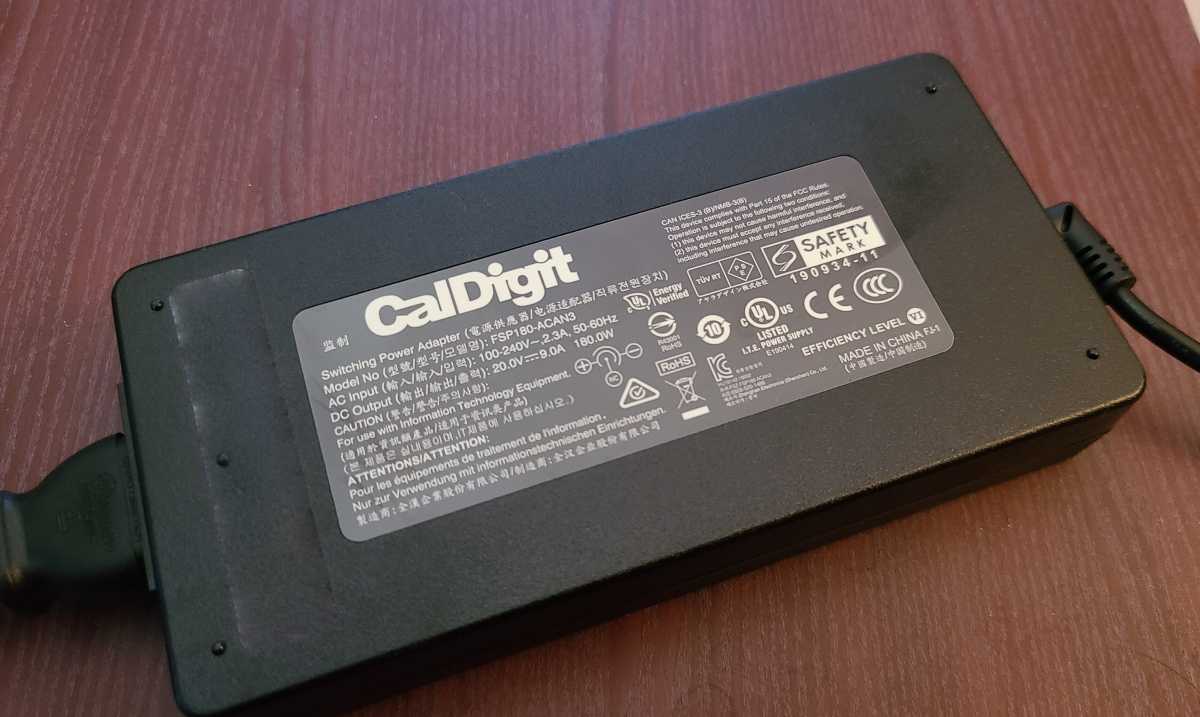
TechAdvisor, our sister site, loved the CalDigit TS4, which is still expensive but on a decent sale.
Belkin’s Connect TB4 dock is pretty basic, but honestly offers most of what you want. The discount isn’t exceptional, however.
Best October Prime Day deals on USB-C dongles and hubs
The number of deals has expanded, so I’m separating out the traditional “dongles” from the others, below. Ugreen is a top-rated brand that I’ve personally used, so just select whatever fits your budget.
Best October Prime Day deals on USB-C docking stations
These are more traditional, chunkier docking stations for your desktop, and something you might prefer if you’d like more ports or in some cases dedicated power.
I’ve reviewed the Baseus Spacemate 11-in-1 dock listed here, and I rather liked it, even though it felt a little unnecessarily over-engineered. Note that the price when I reviewed it was $199.99, so the discount is a little deceiving — it’s closer to half off the initial price. Note that the 11-in-1 supplies its own charger; the 9-in-1 hub does not.
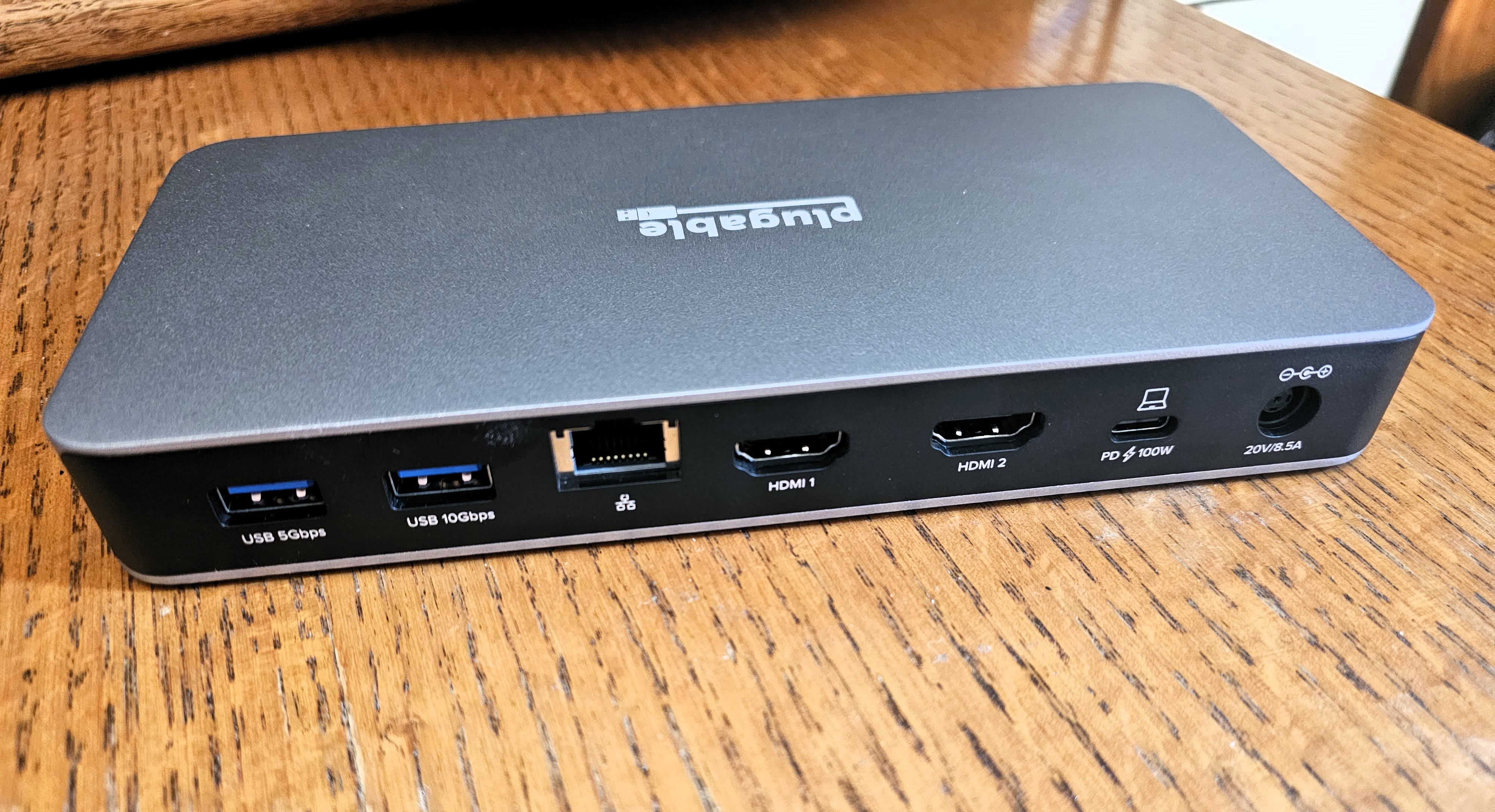
Plugable’s docking station is interesting. It only supports 1080p displays, but four of them. So if you’re a spreadsheet guru or financial analyst looking to construct an array of displays for tracking stocks, this dock might be what you need.
I’ve never used Benfei’s laptop stand, but that’s an intriguing find. If you think you might use a laptop stand, check it out.
Best October Prime Day deals on DisplayLink docking stations
All of these are DisplayLink docking stations, which means that you can use them with a laptop with a generic USB-C port. You’ll just have to install a software driver first. (The linked story has a fuller explanation.) They’re essentially more powerful versions of a generic USB-C docking station like the Belkin 11-in-1 GaN dock.
I ruled out several deals because retailers are unloading old docks, which connect at outdated resolutions like 1080p. The Plugable adapter is interesting; it just offers two 4K HDMI displays, and that’s it. It’s a bit novel, but connecting to displays is what a dock does best. The Kensington and Revodok docks are more traditional offerings.
Deals updated at 4:55 PM PT on Oct. 8, 2025.
Other great October Prime Day deals
These aren’t the only October Prime Day deals being tracked by the PCWorld team. If you’re looking to supercharge your home setup with the juiciest tech sales, hit the links for only the best expert-curated picks we’ve found.
Why should I buy a USB-C hub or Thunderbolt docking station?
Laptops have generally begun replacing all of the legacy ports (the boxy USB-A plug, HDMI, SD card slots, and more) with generic USB-C ports. That’s fine, but what if you have a wired printer or mouse or external SSD? You’ll need to connect it to your laptop, and you might need the right physical port connector.
If you have a fast external SSD or hard drive, the external throughput will certainly help you get the most out of your peripheral. And if you want to connect multiple displays, you’ll need a USB-C hub (and preferably a docking station) with support for two display connectors.
2.
How do I know whether to buy a USB-C hub or a Thunderbolt docking station?
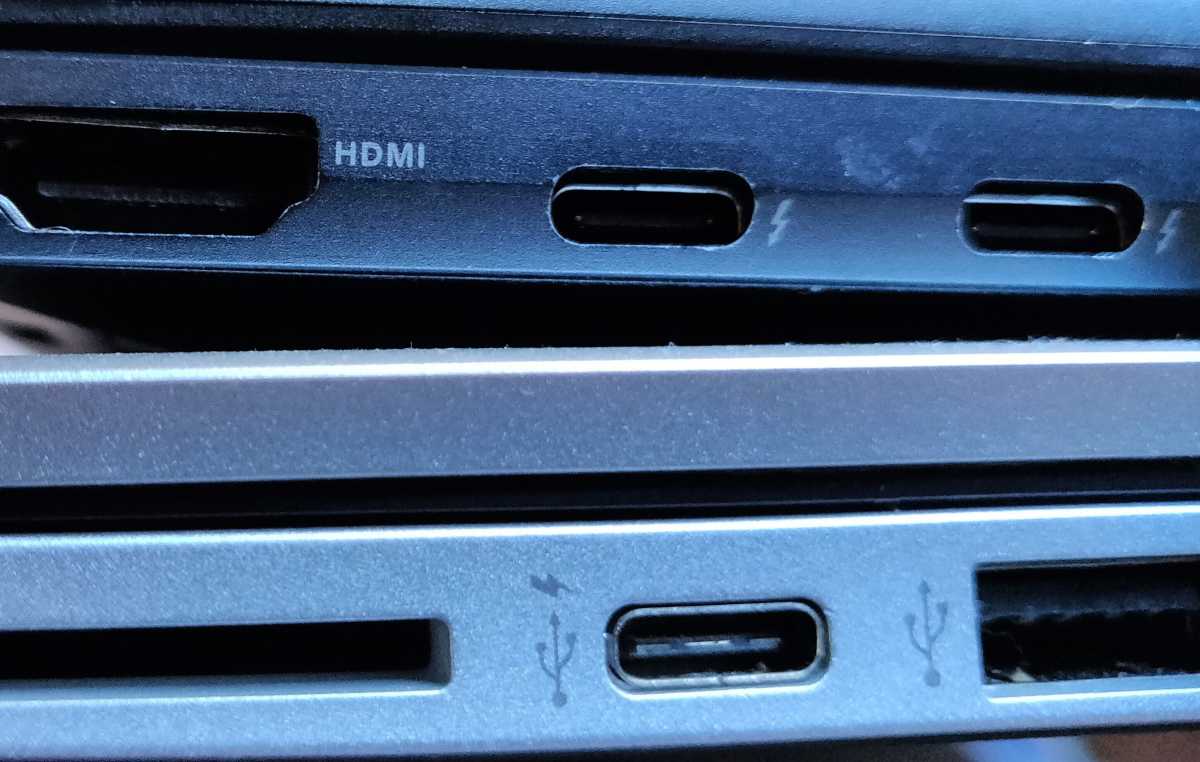
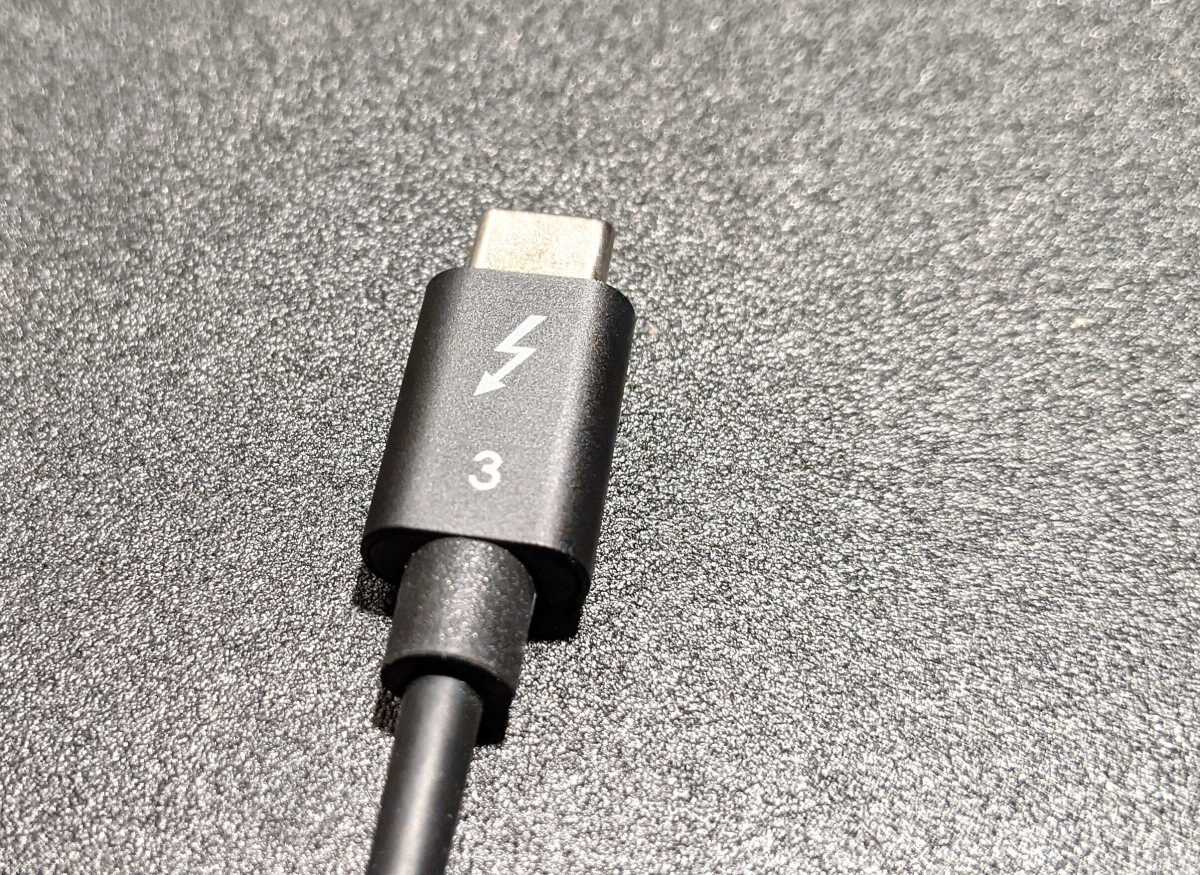
USB-C hubs and Thunderbolt docks use the same physical USB-C connection. A USB-C port (and USB-C hub or dongle) use a basic 10Gbps connection, while a Thunderbolt port increases the throughput to 40Gbps. Ideally, you should see a small “lightning bolt” icon signal a Thunderbolt port, while an unmarked port may be just a generic USB-C port.
Manufacturers, though, aren’t forced to label their ports. Your best bet is to haul out your laptop’s manual and check.
Thunderbolt docks will only work with a Thunderbolt connection. You can buy a USB-C hub or dongle and connect it to a Thunderbolt port, but it will only run at the 10Gbps speed.
3.
USB-C hubs, dongles, and docking stations: what’s the difference?
I use hubs and dongles interchangeably to describe the small devices that hang off your USB-C port with a short cable. A docking station is generally large and heavy enough that it will remain on your desk. Virtually all Thunderbolt devices are large enough to be considered docking stations.
You can buy USB-C docking stations that lack Thunderbolt connections, but those are a bit rarer. A docking station also usually includes a charger so you can use it instead of your laptop charger. I also associate a docking station as something that resides on your desk, all the time.
4.
My laptop has USB4, not Thunderbolt. Can I use a Thunderbolt dock?
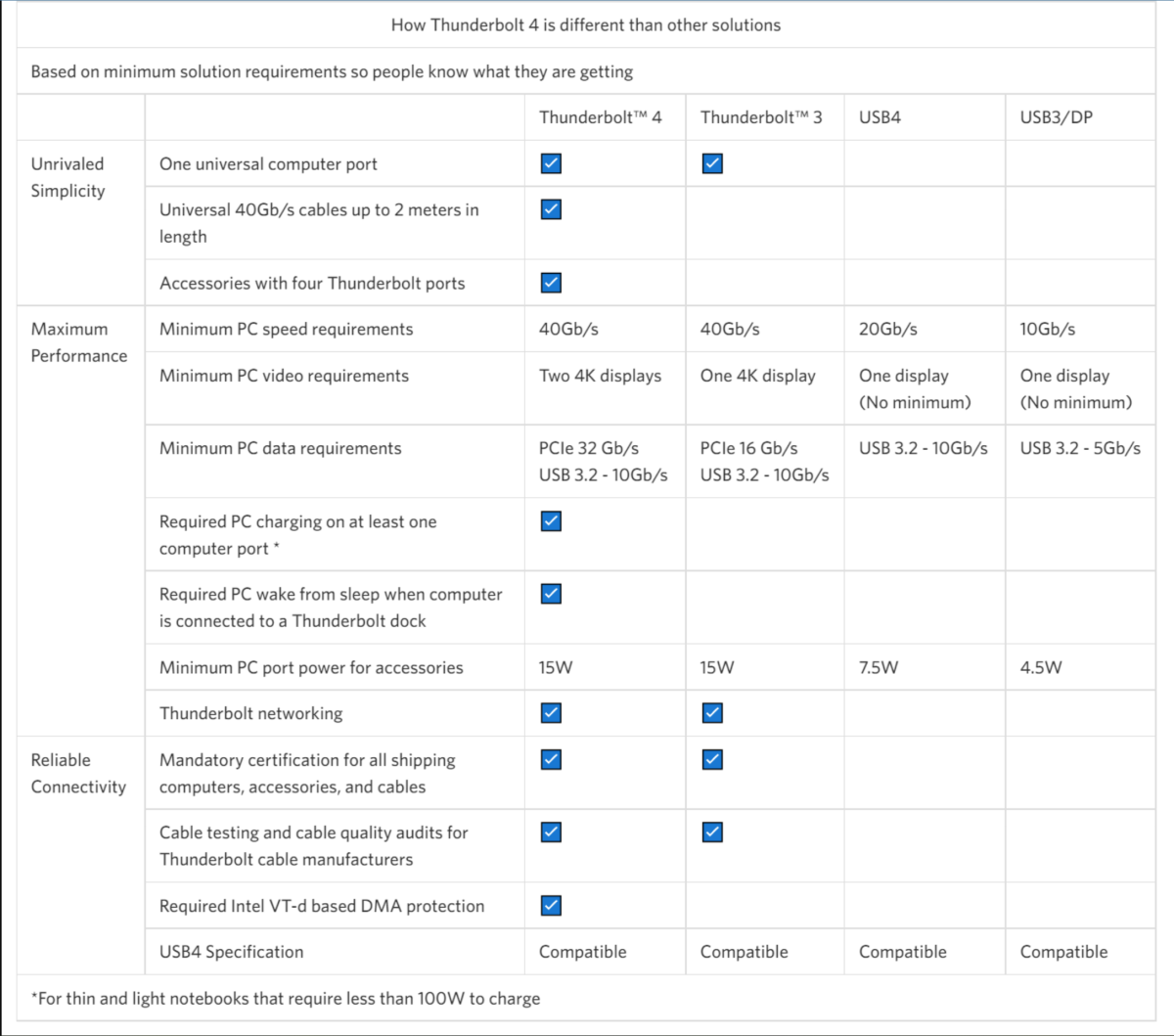
USB4 and Thunderbolt 4 are functionally the same. Intel refuses to certify non-Intel platforms like AMD’s Ryzen for Thunderbolt, and the new Copilot+ PCs from Microsoft powered by Qualcomm Snapdragon X Elite chips are in the same boat.
USB-C hubs work with basically anything with a USB-C port on it. Don’t worry about those at all.
5.
How do I know whether to buy Thunderbolt 3, 4, or 5?
Thunderbolt is backwards-compatible, so you can own a laptop with Thunderbolt 4 and connect it to a Thunderbolt 4 or Thunderbolt 3 dock without worry. It’s not forward-compatible, however. While Thunderbolt 3 and Thunderbolt 4 both transfer 40Gbps, you’re probably best to play it safe and match the specs of your port to the specs of the device. Thunderbolt 5 has been largely confined to gaming laptops, and doesn’t look to expand to the mainstream anytime soon.
6.
How will tariffs affect the prices of Thunderbolt docks and USB-C hubs during Prime Day sales?
This is the big wild card.
Many hubs and docks are made in China, which has been a prime tariff target for this administration. On the other hand, dock makers like Plugable have specifically told me that they’ve moved manufacturing out of China, too. But consider: CalDigit announced its TS4 docking station in 2022 for $359.95. Its current list price: $449.95, and it’s “on sale” at Amazon for $379.
You’ll probably go crazy trying to figure out tariffs. Just buy the price.
7.
Some of these docks have had bad reviews on shopping sites. Why?
While Macs adopted Thunderbolt first, some of the Apple M1 silicon couldn’t keep up with Intel Thunderbolt controllers used by Windows PCs, and the Apple MacOS experience suffered as a result. If you see a negative comment, try and determine if it’s a Windows user making it. The experience may be totally different.
8.
Are the best Thunderbolt dock and USB-C dongle deals at Amazon?
Historically, yes. I check other sites, but over the past few years Amazon has consistently offered the best deals on these two product categories. Thats not always the case; Best Buy, for example, is often very competitive in Chromebooks.
Your desk and chair’s ergonomics have a huge impact on how good you feel after a long session at your PC. But you don’t need to spend a ton on an office chair or standing desk—especially not right now, thanks to Amazon’s October Prime Day sales. And some of the best sales aren’t even found on Amazon!
The deals should last through October 8 at 11:59pm PT, but don’t wait too long if you see a good discount on popular chairs and desks. Deals on fan favorites like Staples’ Hyken and Dexley task chairs (beloved by Redditors and PCWorld staff alike!) can sell out before the end of the sale period.
When it comes to office chairs, Amazon has some contenders, but the best deals can actually be found at Staples.
Staples sells surprisingly affordable yet comfortable office chairs, with two of its more popular models on deep discount. Reddit’s beloved Hyken model is currently a little over half-off, with its wider-frame Dexley chair also available at a sizable discount. Meanwhile, the more premium HON Ignition 2.0 is once again at its lowest price yet.
Best October Prime Day 2025 deals on standing desks
Flexispot’s standing desks start at much lower prices than competitors, making them popular among Amazon shoppers to begin with. With additional discounts, they’re a great entry into motorized sit-stand setups.
Other great October Prime Day deals
These aren’t the only October Prime Day deals being tracked by the PCWorld team. If you’re looking to supercharge your home setup with the juiciest tech sales, hit the links for only the best expert-curated picks we’ve found.
What features should I look for in a standing desk?
We like dual motor standing desks with programmable controls—they’re a little more expensive, but moving the desk up and down is smoother. Their frames usually have a better build overall, too, making for less wobble during height adjustments and while in use.
Programmable controls means you can go back and forth between two or even three height positions with a single button press, which makes for much better quality of life. No need to wait and monitor the adjustment as it’s happening. (That might sound like not such a big deal, but if you do it multiple times a day over the course of the year, those seconds feel tedious. Trust me on this one.)
2.
What makes for a good office chair?
This question can be tricky to answer, since what’s comfortable is a little different for everyone. Generally, you want enough support for your back so it doesn’t take on a hunched position, but not so much you can’t feel relaxed while sitting. You also ideally want to keep pressure off your lower back if you’ll be sitting for long periods—office chairs usually have seats shaped for this, rather than the flatter surfaces of kitchen and casual desk chairs.
Armrests, head supports, and mesh fabric can also play a role in comfort, but you may want to try out those features on a sample chair that a friend owns or in a store to see if you need those features. The mesh is particularly good if you sweat or get warm.
Wheeled models are also useful for easily moving the chair—and you can upgrade the casters, as Reddit recommends for an even smoother experience.
3.
How do I know if I’m getting a good deal on standing desks or office chairs during Prime Day?
The deals we select are chosen not just for the product, but because their prices are among the lowest we’ve seen, especially given the pricing history over the last year.
If you’re striking out on your own, be sure to look at reviews, as well as Amazon’s AI summaries of user reviews—avoid anything with high return rates, or a known flaw. Also look for brands with not just high user reviews, but independent reviews online. Many standing desks are just rebranded models, and so too for cheaper desk chairs.
4.
Have tariffs affect office chair and standing desk prices? Should I buy now?
So far, prices have been minimally affected, but that’s been projected to change after the holiday period. Why? Retailers stocked up before the heavier taxes on imports kicked in, but eventually supply will run out and new product will be imported at the higher tariff rates. So choosing to shop sooner rather than later could prove to be a smart financial move.
The best USB-C hubs add ports to your PC, providing connections to legacy peripherals like mice, keyboards, printers, or more. If you follow my advice, you shouldn’t pay that much, either.
I’ve selected the best USB-C hub I’ve tested and put it at the very top of this story, followed by a cheaper budget option. For each, I’ve explained why I chose it and added further considerations, if warranted. Don’t expect to pay too much, though, period.
You’ll probably be happy with either choice. But if you want go further, I have additional options for more specialized purposes. Those include USB-C docking stations that sit on your desk, plus some higher-end alternatives: DisplayLink docks, as well as the best Thunderbolt docks. You might not need one, but I’ve tested these as well.
I keep at least one of these lightweight little USB-C hubs in my backpack at all times. You should too!
Why you should trust PCWorld for USB-C hub reviews and buying advice: PCWorld has been supplying news, reviews, and recommendations for the best computing products since our first magazines hit newsstand shelves in 1983. We maintain a rigorous testing process, and our reviews are not influenced by advertisers or other considerations. Most of these products were purchased directly by PCWorld reviewers, but in certain cases review units have been provided by the manufacturers.
Anker 555 8-in-1 USB-C Hub – Best overall USB-C hub
Price comparison from over 24,000 stores worldwide
Product
Price
Price comparison from Backmarket
Who should buy the Anker 555 8-in-1 USB-C Hub?
I’d recommend this USB-C hub to just about anyone. Most users will be able to take advantage of the USB-A ports for legacy mice and keyboards, the HDMI port, a USB-C port, and Ethernet. These are the ports I’d expect on a device like this. If you’re looking for more display ports or more USB-C connections, however, you’ll need to buy a more premium device.
Anker 555 8-in-1 USB-C Hub: Further considerations
Can a USB-C hub feel elegant? This one does. Anker’s 8-in-1 USB-C hub feels surprisingly weighty (4.5 ounces), with a premium metallic (aluminum and polycarbonate) sheen that keeps the hub cool. Overall, Anker’s hub is well designed, with adequate spacing between the two 5Gbps USB-A ports. There’s also a 5Gbps USB-C connection for data, plus a second USB-C port for power input at up to a rated 85W. (The charger allows up to 100W in, but supplies 85W.) There’s both an SD card slot and a microSD card slot, too.
I had previously recommended Anker’s 7-in-1 Hub instead. Both hubs are similar, but this upgrade adds two things: an Ethernet port, and an HDMI port capable of 60Hz. The earlier pick output just 30Hz, and that capability was getting a bit outdated.
The hub offers an 18-month warranty, and it even ships with a carrying pouch. I think this hub includes the right mix of ports for the right price.
Price comparison from over 24,000 stores worldwide
Product
Price
Price comparison from Backmarket
Who should buy the Hiearcool USB-C Hub?
This is a hub for basic expansion, especially if you own an older laptop. It has one HDMI port that’s only capable of 4K resolution at a fatiguing 30Hz. However, it will work just fine for a single external 1080 display or even a 1440p monitor, if you own one. The two USB-A ports are designed for a mouse and keyboard, or a printer. If you need something cheap and capable, this hub will work just fine.
Hiearcool USB-C Hub: Further considerations
Let’s face it: If you’ve ever browsed Amazon’s inventory of USB-C hubs, it’s easy to be overwhelmed. I can tell you that I factor in price heavily on some of these picks, and this is a USB-C hub that I’ve personally used. It works, it offers a myriad of ports, and it does so at a very, very good price. (This hub dates back to when I first started this page, and didn’t issue individual reviews of every product.) It even ships in multiple colors, which is handy when peering into the depths of a travel bag or briefcase.
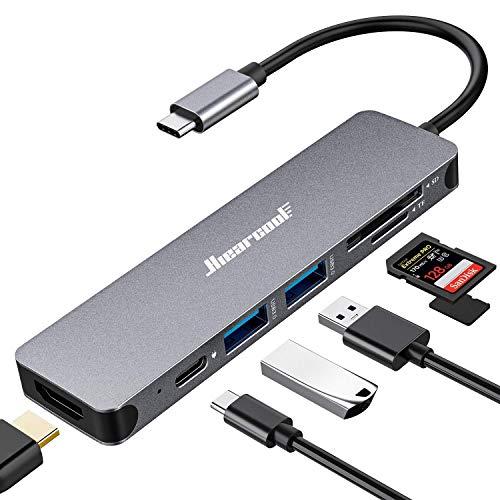
This hub includes a pair of USB-A ports, microSD and SD card slots, and an HDMI port, and that’s all. It accepts up to a rated 100W of USB-C input charging, too.
OWC USB-C Travel Dock – Best budget USB-C hub, runner-up
Price comparison from over 24,000 stores worldwide
Product
Price
Price comparison from Backmarket
Who should buy the OWC USB-C Travel Dock?
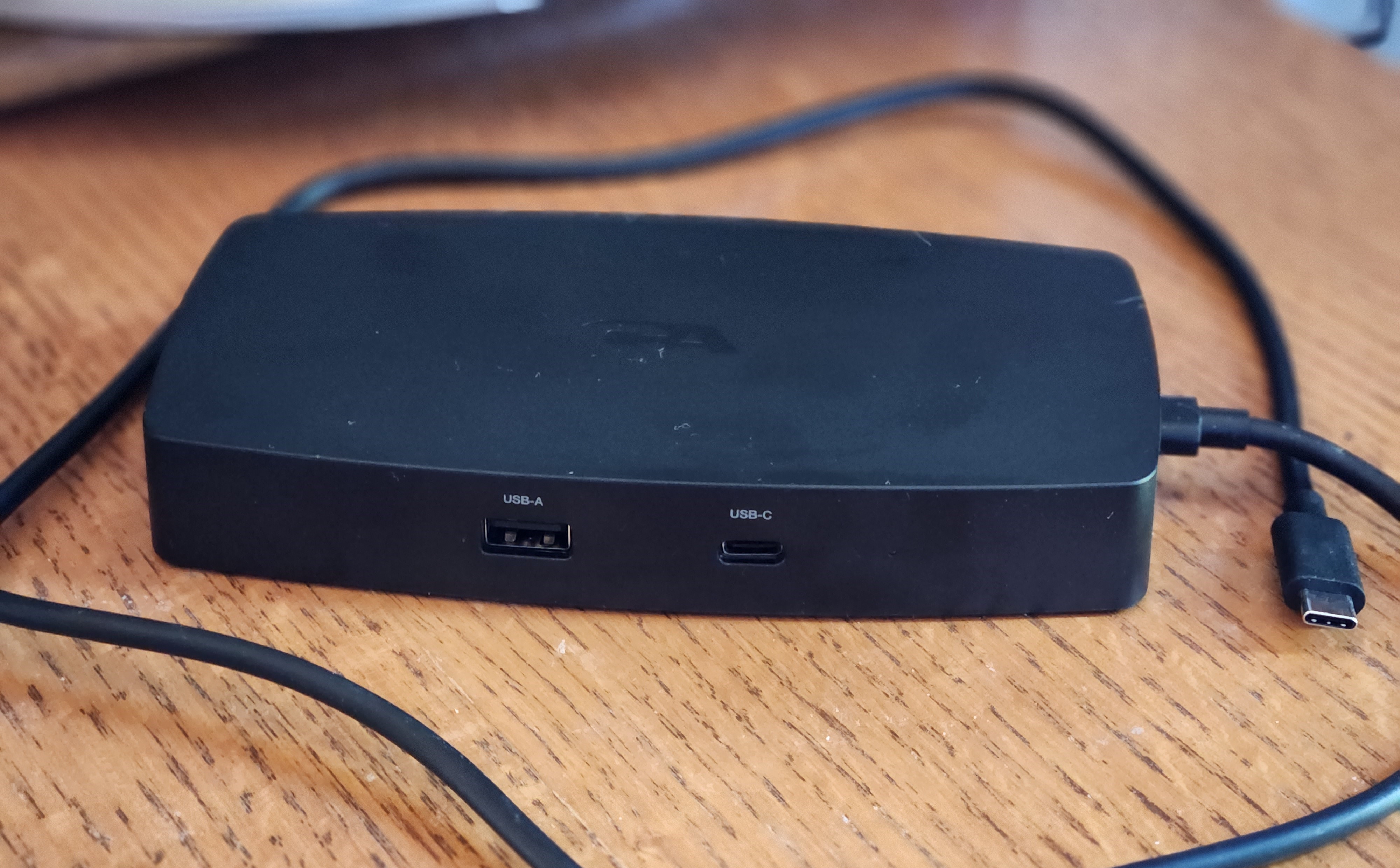
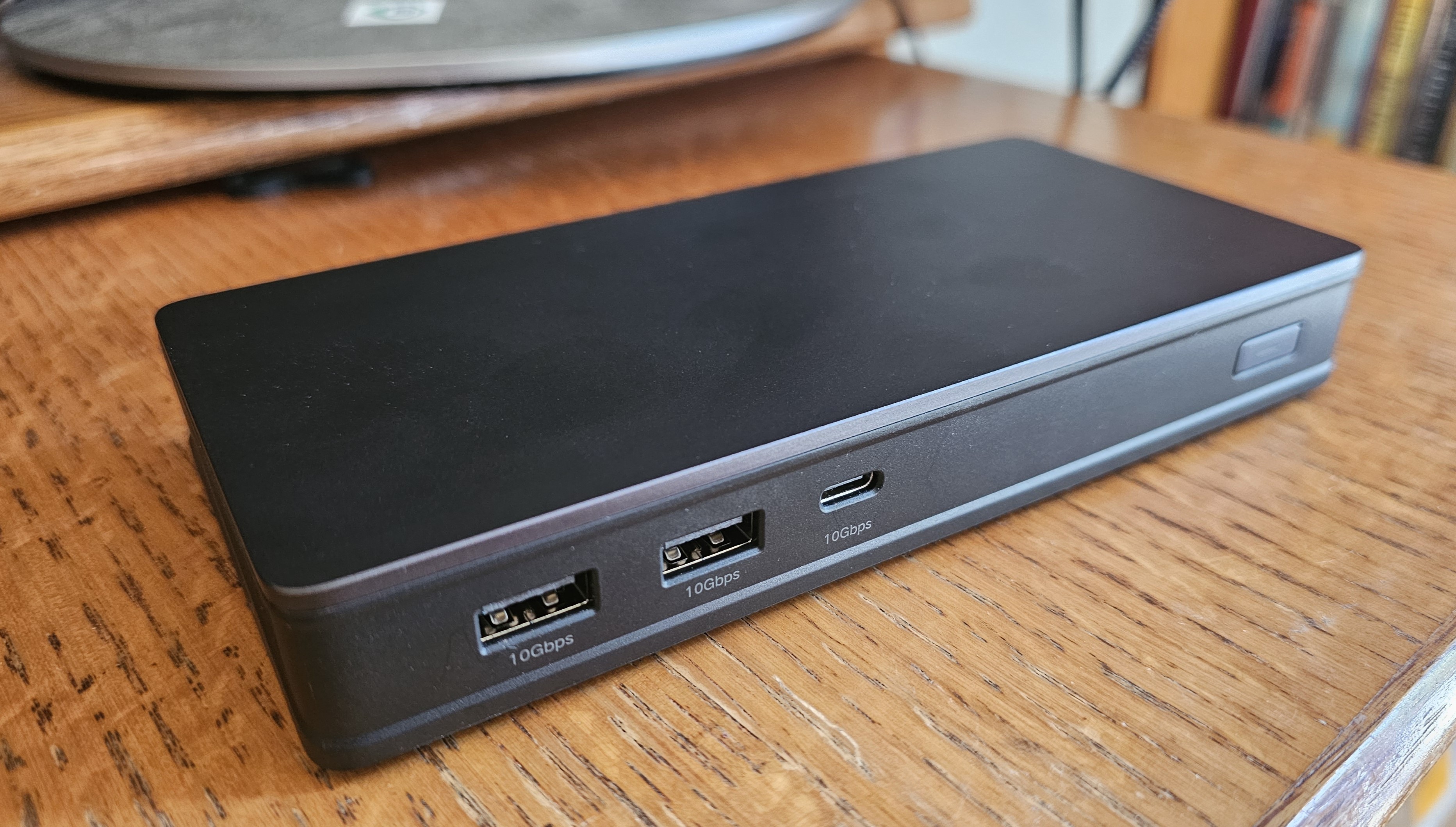
I’ve reviewed USB-C hubs and dongles that forego the traditional long, rectangular “dongle” form factor into something that’s a bit more stable. Dongles do have a tendency to flop all over your desk, and the OWC Travel Dock feels like a cross between a traditional docking station and a dongle. And it’s cheap, too! Dongles are usually reserved as travel gear, and I think this would work well for an executive or someone who likes a tidier desk.
OWC USB-C Travel Dock: Further considerations
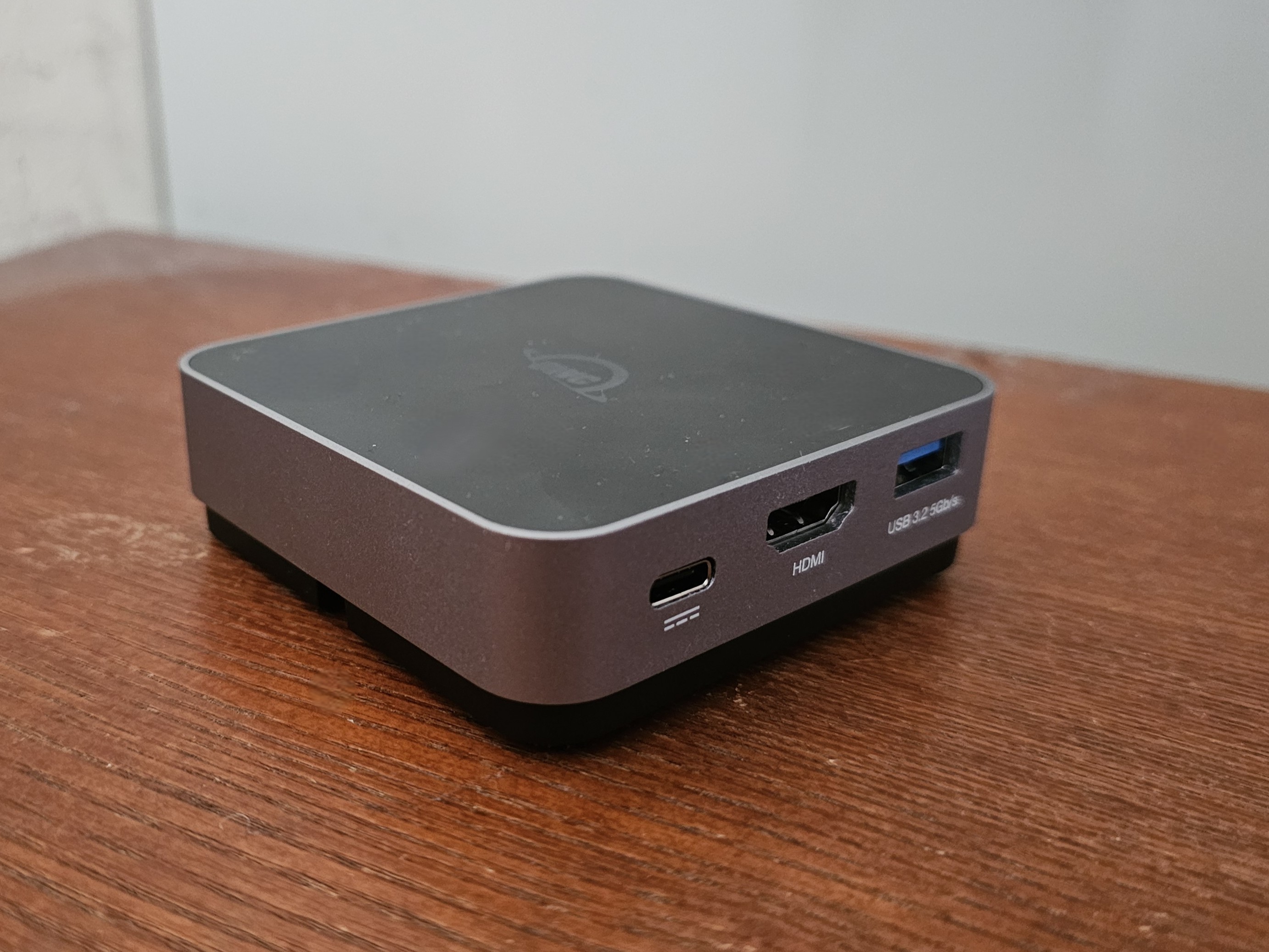
The “hidden” USB-C cable is a nice touch, though extended it’s a bit short. This is also a 5-in-1 hub, so while it provides the essentials (two USB-A ports for mouse and keyboard, Ethernet, and HDMI, plus USB-C charging input) there’s not much else.
Price comparison from over 24,000 stores worldwide
Product
Price
Price comparison from Backmarket
Who should buy the Monoprice 13-in-1 Dual-HDMI + DP MST Dock?
If you own a modern laptop and want access to a ton of legacy ports for a reasonable price, this Monoprice hub/dock should be your choice. You need to own a modern laptop, though; a Microsoft Surface Book 2 with an 8th-gen Core chip inside didn’t produce any output over its USB-C port; several recent Samsung and Surface laptops with 12th-gen and 13th-gen Core chips inside worked well, though.
Monoprice 13-in-1 Dual-HDMI + DP MST Dock: Further considerations
If it looks like a dock, and is priced like a dock, is it a dock? You might not care, but it’s certainly on the pricey side.
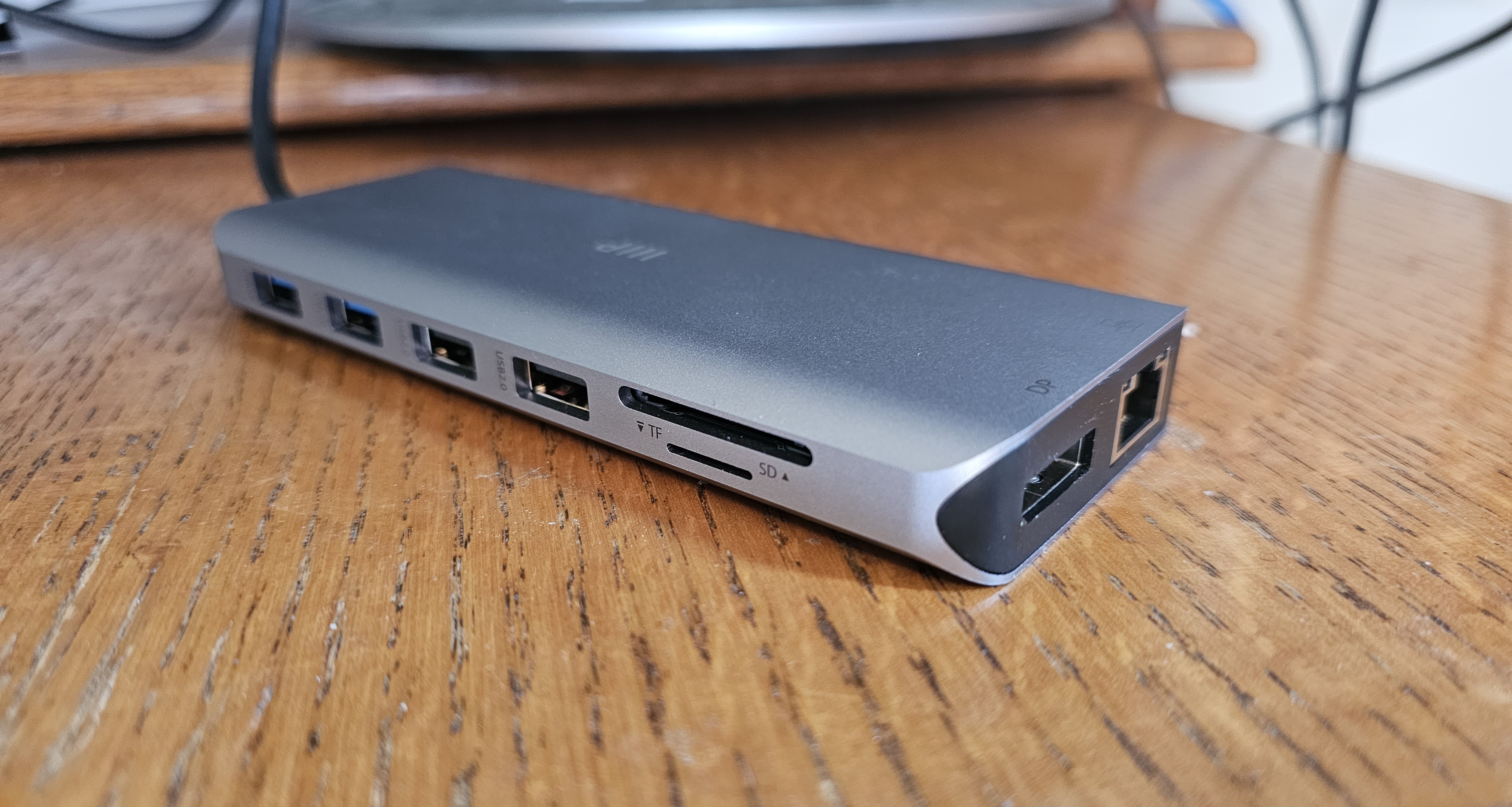
This 13-in-1 USB-C hub does it all, including connecting to two 4K displays (one at 60Hz, one at 30Hz). It does so by using support for built-in compression techniques within modern laptops to squeeze more effective throughput over the 10Gbps USB-C port. There are absolutely gobs of ports, including five USB-A ports (two at 480Mbps for mice and keyboards), two HDMI 1.2 connections, and even a DisplayPort port.
There’s even a power input jack, so you can use your laptop’s charger and feed up to a tested 87W into the laptop. There aren’t any USB-C ports, but the assumption is that you can use your laptop for that.
Price comparison from over 24,000 stores worldwide
Product
Price
Price comparison from Backmarket
Who should buy the Cyber Acoustics DS-1000 Docking Station?
This dock is for the user who wants a stationary solution for expansion, something that’s left on a desk, with a monitor or two and several peripherals attached. (USB-C dongles are portable by nature, and you can use one of our earlier suggestions for working on the road.) This dock is also suited for someone who plans to work with two displays, rather than just one. Is it better than a Thunderbolt dock? Not really, but if you have a laptop without Thunderbolt, this can approximate the capabilities of those devices.
You’ll need a modern laptop, with a 12th-gen Core chip and above, for this dock to work its magic. If you have an older laptop, this isn’t the device for you.
Cyber Acoustics DS-1000 Docking Station: Further considerations
A docking station typically offers more ports and a dedicated power supply. What I like about this Cyber Acoustics dock is that it can drive two 4K displays if you need to, at 60Hz resolution. It also can fast-charge a smartphone with its integrated USB-C dock, which a bus-powered USB hub can’t do. It outputs 90W to your laptop, which is enough to power most notebooks. It has both a USB-C port as well as five USB-A ports, plenty for expansion, plus the HDMI connections and even Ethernet.
The catch is that this really only works well on 12th-gen Core laptops and above. It uses a bit of black magic called HBR3 with DSC to push compressed data through the 10Gbps USB-C connection, and in my experience anything 11th-gen and older risks it not working at all. I really like this dock, but just make you sure you own a modern PC.
Price comparison from over 24,000 stores worldwide
Product
Price
Price comparison from Backmarket
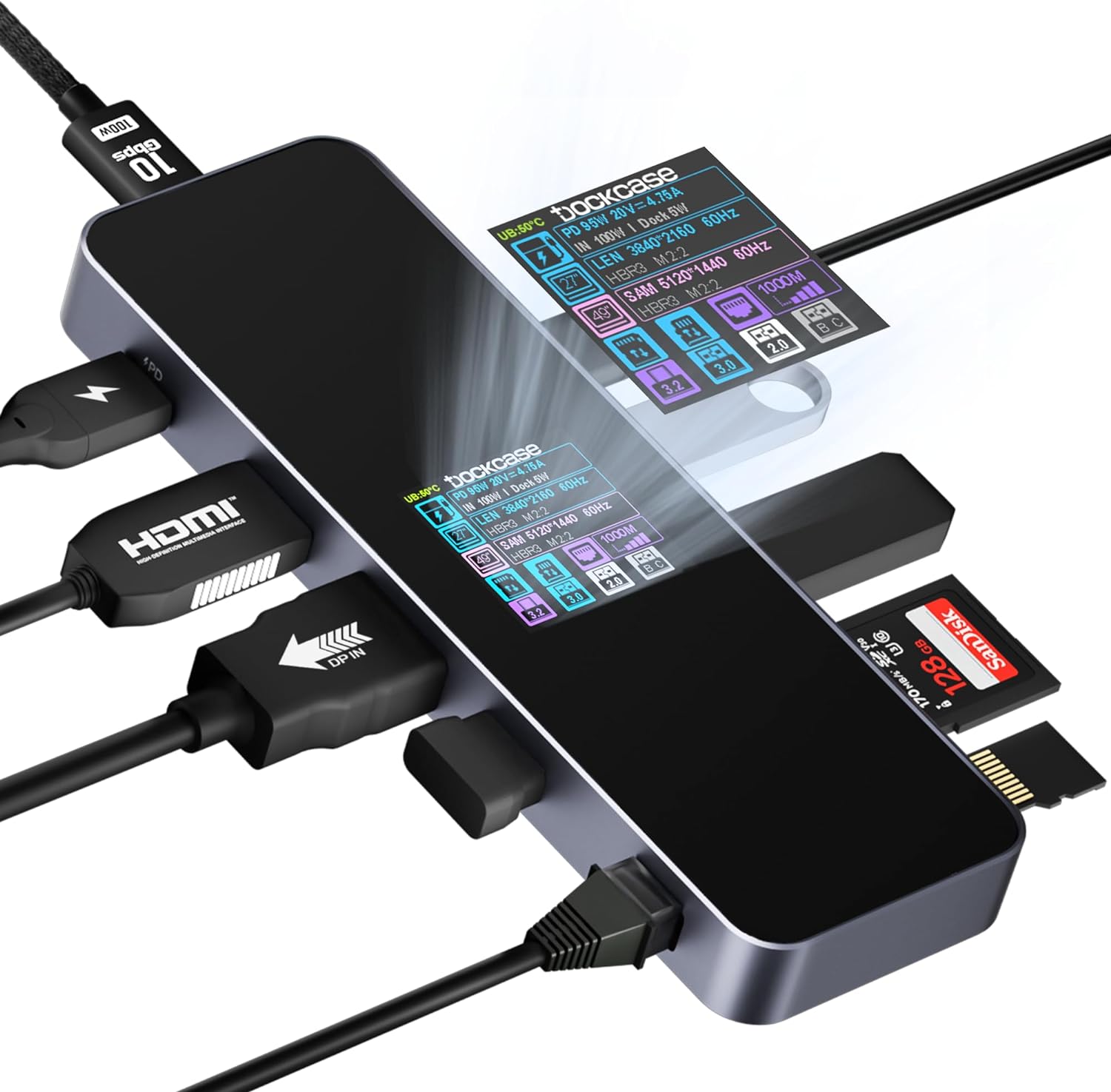
Who should buy the Dockcase Smart USB-C Hub 10-in-1 Explorer Edition?
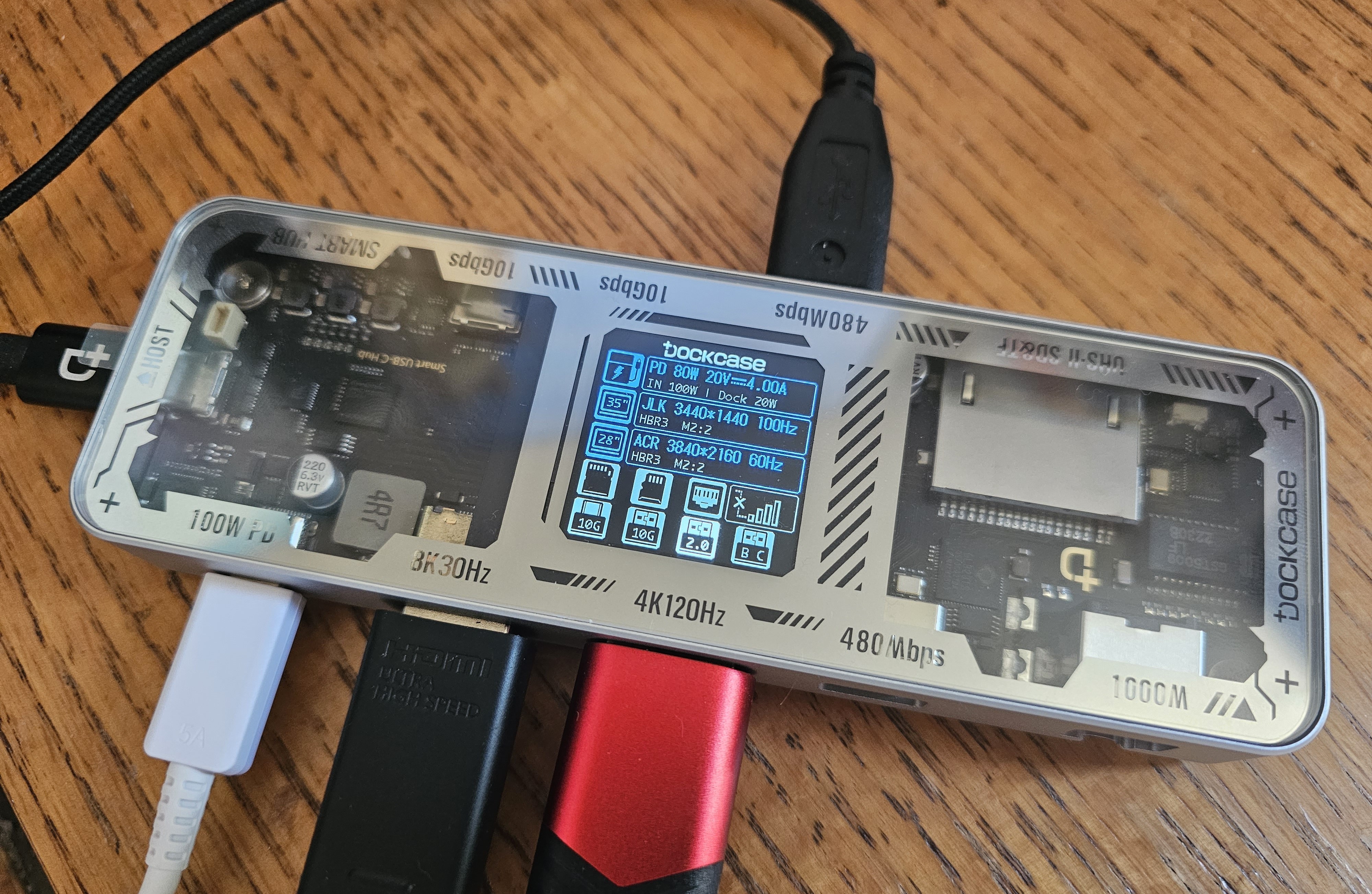
Nerds. Yep, this is one of the nerdiest products I’ve ever used, and I like and loathe how it just lets you sort of discover what it can do. But it tells you what your laptop is connecting to and how it’s working! It even reports glitches! I love that.
Are you the type of person who owns an OBD scanner to diagnose any issues with your car? If you are, this is the USB-C hub for you.
The Dockcase Smart USB-C Hub 10-in-1 Explorer Edition: Further considerations
Part of me loves the sheer nerdiness of the Dockcase 10-in-1 Dock, if only because I’ve never seen anything like it in terms of the information it offers.
Note that Dockcase offers alternatives: There’s a $69.99 6-in-1 dock, and a newer Dockcase “Visual Smart” 10-in-1 dock that eliminates some of the labeled ports in favor of a jet-black aesthetic. I prefer the nerdier version with lots of ports.
Not only is the metal hub larger than most, with multiple external connectors that designate a premium hub, but there’s an actual display: A small LCD screen provides a detailed look at what devices are connected to each port and what their capabilities are. Put another way, the Dockcase Smart USB-C Hub 10-in-1 feels more like an OBD2 diagnostic device for your car, or a USB multimeter.
As a dock, it’s excellent. As a tool, it can use some improvement: The interface is extremely clunky, and Dockcase really doesn’t even have a manual that explains it all. But this device is also small enough that it fulfills the requirements of a docking station without it being ungainly.
Price comparison from over 24,000 stores worldwide
Product
Price
Price comparison from Backmarket
Who should buy the Ugreen 9-in-1 USB-C (Revodok) Docking Station CM615?
DisplayLink docks fit between a USB-C dongle and a Thunderbolt dock, and I always think of a DisplayLink buyer as a small business owner or home worker who is focused on productivity and lots of high-end displays. DisplayLink docks excel for office work, but struggle in handling high frame rates for games.
This is our top pick for an upgraded DisplayLink dock, which has its own pros and cons — slightly more expensive than a USB-C docking station, but more features, too.
Ugreen 9-in-1 USB-C (Revodok) Docking Station CM615: Further considerations
Ugreen’s 9-in-1 USB-C docking station is typical of the brand: quality design and manufacture, obtuse naming, and pricing that seems to vary from one vendor to the next. But this DisplayLink dock offers an excellent mix of port flexibility at a solid price. There is one catch: It lacks any power input at all, and you’ll need to use your laptop’s USB-C power supply (or buy one) to charge both this dock and the laptop itself.
Like most DisplayLink docks, this dock was unusually stable, with no flickering between displays — one of the reasons I like DisplayLink docks. The price nails that sweet spot, too. Just remember to bring your smartphone charger.
Price comparison from over 24,000 stores worldwide
Product
Price
Price comparison from Backmarket
Who should buy the Plugable USB-C Triple 4K HDMI Docking Station (UD-6950PDZ)?
As noted in the best pick above, DisplayLink docks work best for a home office, with an emphasis on productivity. You’ll want to avoid gaming.
Plugable USB-C Triple 4K HDMI Docking Station (UD-6950PDZ): Further considerations
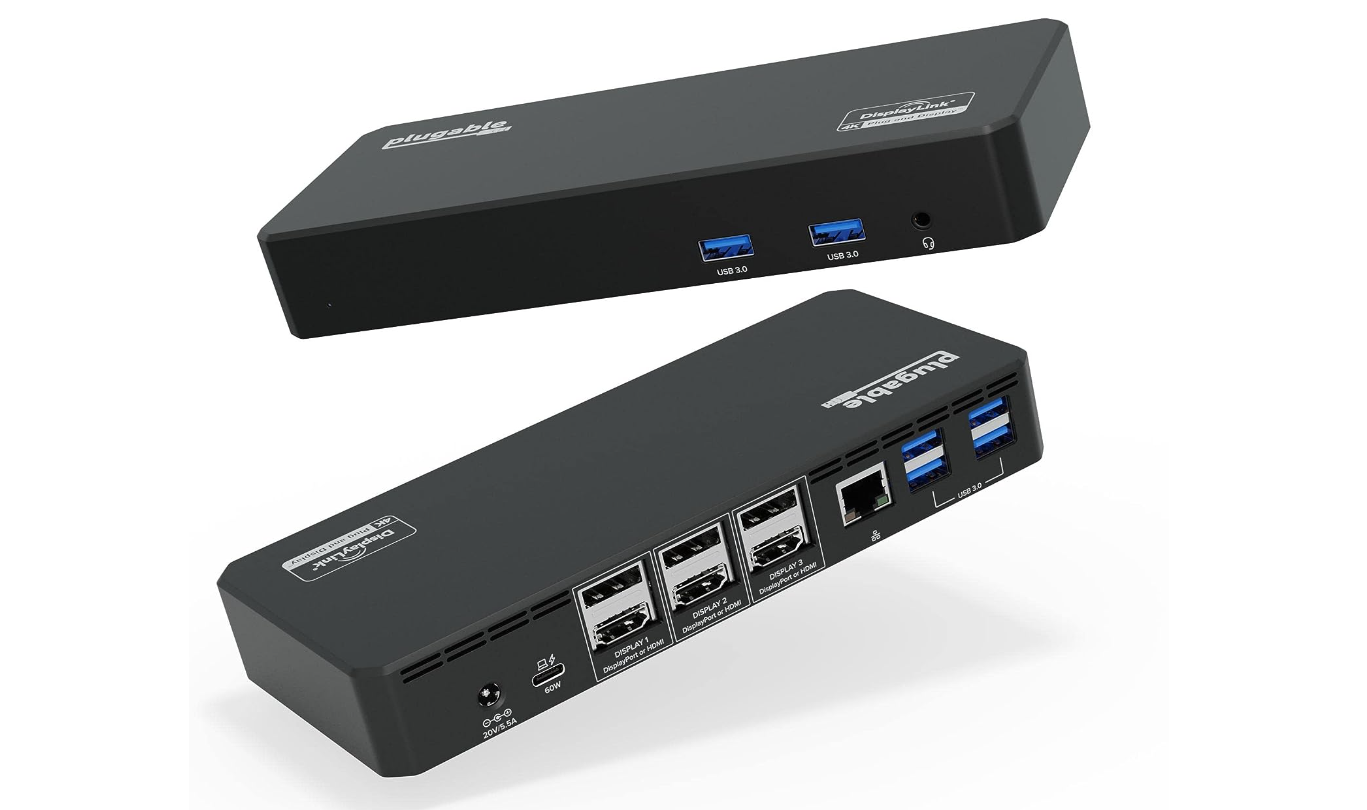
Plugable’s dock means that you can connect to three 4K displays, even if you don’t absolutely have to. Most docks ask you to choose between DisplayPort and HDMI, or even use a direct Thunderbolt connection. Plugable offers both.
The performance of this dock was up to par, though keep in mind that DisplayLink uses compressed data running over a 10Gbps connection. Press it too hard, and you will see some degradation in video and storage performance.
We test USB-C hubs/dongles slightly differently than docking stations. A separate article offers a detailed explanation on how we test USB-C hubs, but here’s a short summary: First we test the physical configuration, and how ports are spaced and whether filling one port impedes use of the port next to it.
We also run performance tests to make sure ports function as advertised. Finally, we consider price and weight it against functionality and build quality. More complex hubs usually command more money, but that’s not always the case!
Who curated this article?
My name is Mark Hachman, and I’ve been working as a technology reporter and reviewer for 30 years. I review USB-C hubs/dongles, Thunderbolt docking stations, and DisplayLink docks, so I have a good handle on the different types of I/O technologies being used and what will be best for you. I’ve been reviewing these devices since work-from-home became popular in 2020, realizing pretty quickly that home users wanted a mix of displays and legacy peripherals.
How to choose the best USB-C hub
You’ll want to do a careful of assessment of your work equipment and your needs in order to find the right hub or dock for yourself.
First, take stock of your peripherals
Here’s where to start: Take a look at the peripherals you own, or plan to buy. Do you have an old external hard drive that uses a traditional USB-A cable? Do you manually back up photos from an SLR via its SD card? Or is your Wi-Fi connection unreliable enough that you’d prefer Ethernet? Figure out what ports you’ll need. This advice is for Windows users; Macs have their own limitations on USB-C connections.
Keep in mind that you may want to use both a mouse and keyboard, and possibly connect a printer, too. You can disconnect a keyboard to print, but it’s kind of a pain.
This laptop has several USB-C ports, but if yours has just one, you’ll want to daisy-chain the laptop’s power cord by plugging it directly into the hub, like so.
Next, check out what ports your laptop already has
It’s also important to take stock of your laptop or tablet’s ports: Does it have one USB-C port or two? If your device only has one port, is there a separate charging connection? If your laptop or tablet has a USB-C port and uses it exclusively for charging, you’ll want to buy a USB-C hub with a dedicated charging input port. (In this case, it’s also possible that only the charging port on the hub will work, though this isn’t typical.)
Note how much input power the port allows, and confirm that it will be sufficient for your laptop. Otherwise, you’ll be forced to choose between charging your laptop and accessing other devices, which makes little sense. Most laptops will pop up a warning about a “slow charger” if your laptop’s not getting enough juice.
Does your monitor have a USB-C port?
Recently, we’ve begun to see more displays include a USB-C port as well as HDMI and DisplayPort inputs. This is a positive sign (kind of) in that your monitor may be able to eliminate the need for a USB-C hub.
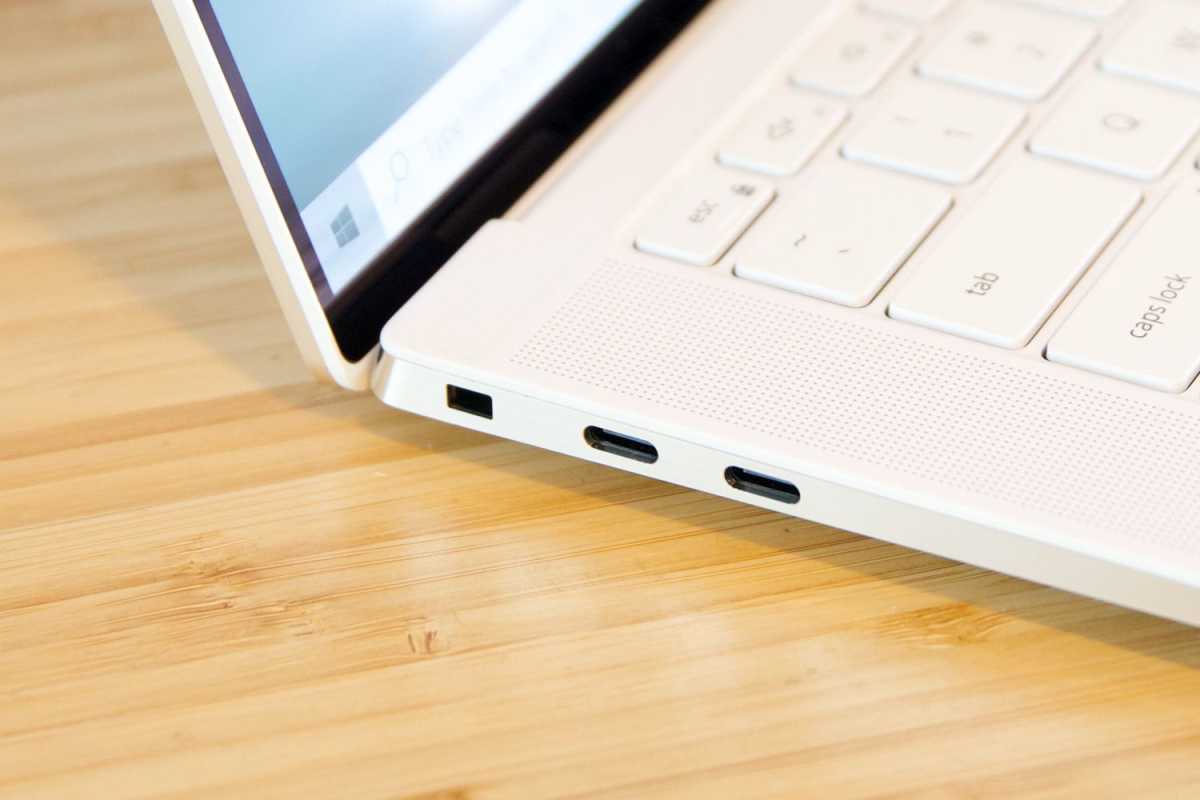
A laptop’s USB-C port.
Matt Smith/IDG
This has a couple of wrinkles. First, monitor ports have never been the most accessible, and trying to find the right port on the back of a big, clunky display isn’t fun. You may find want to invest in a cheap USB-C hub just to avoid the hassle.
Second, that monitor’s USB-C port may actually be a video input — so instead of connecting an HDMI cable between your PC and the display, you can simply run a USB-C to USB-C cable and accomplish the same thing. How do you know to do that? First, check out our roundup of the best USB-C displays, then read it carefully. We distinguish between the two to help you out.
Assess your laptop and peripheral power needs
Keep in mind that the hub’s power port is for taking power in to your laptop, and not out to a phone. But your hub may still be able to charge your phone, with some caveats. A “bus-powered” USB hub connects to your laptop and pulls power from it, which it has share with several devices — and it won’t do it that well.
Some docks will include a USB-C port whose only purpose is to accept your laptop’s USB-C charger. That port will power your laptop as well as any ports connected to it. These devices will make more power available for fast charging your phone. (Your hub probably won’t enable specialized charging like the Samsung Galaxy S20’s Super Fast Charging, however, even if you use the supplied Samsung cable. You’ll still need to connect your phone to its charger for that.)
Making sense of the USB-C technologies
A USB-C port on your laptop can either run at 5Gbps or 10Gbps, with the latter being almost ubiquitous these days. That’s plenty of bandwidth for a printer, a mouse, a keyboard, or a hard drive, even all at once. Products like displays, Ethernet, and high-speed SSDs gobble up that bandwidth, however.
We find that the display technologies tend to have the most influence over what you should buy. If you simply want to connect to an external 1080p display — or two — a USB-C dongle should work fine, provided that the dongle has the available ports. It’s certainly the cheapest option. Once you start trying to connect to one or two 1440p or 4K displays, however, you may find that you’ll want to consider options like the USB-C docking stations. You can get around this, in part. Instead of plugging your Ethernet cable into the USB-C dongle, you can use a separate Wi-Fi connection, for example.
Traditionally, the only other alternative was a Thunderbolt dock. Provided your laptop had a Thunderbolt port, Thunderbolt’s 40Gbps bandwidth allows for two 4K displays, running at 60Hz, plus various peripherals. (You can use a USB-C dock even if you have a Thunderbolt port, by the way.) USB4, a similar technology, is basically the same as Thunderbolt for your purposes.
Now, there are also two intermediary technologies to choose from: a DisplayLink USB-C dock, and a USB-C dock that takes advantage of something called HBR3 and DSC.
DisplayLink, owned by Synaptics, uses software compression between your laptop and the dock to approximate a Thunderbolt experience over a generic USB-C connection. It requires a software driver, but our experience is that it’s an excellent choice for office work, but not gaming. Here are the best DisplayLink docks and why to buy them.
HBR3 with Display Compression (HBR3 with DSC) is essentially an industry standard version of DisplayLink. The problem? The technology hasn’t been widely publicized, let alone supported. Our experience has been that docks that support HBR3 work well with laptops using 12th-gen Core processors on up. Laptops with a 10th-gen Core chip inside them aren’t supported, and 11th-gen Core laptops are iffy. If you own a 12th-gen Core laptop, especially a member of Intel’s premium Evo brand, you stand a good chance of success. Otherwise, don’t bother. (We haven’t tested with laptops that use an AMD Ryzen chip.)
Thunderbolt cables and ports include the little lightning-bolt icon, which differentiates them from the otherwise unmarked USB-C cables.
Finally, don’t worry about platform branding
Because USB-C is common among Macs, Windows PCs, and phones, some hubs align their branding with a particular platform. Go ahead and use that USB-C that’s billed as being “for MacBook Pro, Chromebook, and XPS” with any Windows PC — we did, and it works just fine. You won’t need any special software or drivers.
After testing our USB-C hubs, we can confirm that some no-names perform just as well as their more well-known counterparts, and for less money, too. One thing to keep in mind: Because price is so critical to our recommendations, know that some of the prices may change as manufacturers offer sales. Therefore some hubs we didn’t recommend primarily based on price could become more purchase-worthy.
FAQ
1.
Why buy a USB-C hub or dongle?
Remember when laptops used to contain all sorts of ports: USB-A, HDMI, SD card slots, and more? And do you remember how svelte the early Macintosh laptops looked, especially when Apple began removing all of the ports in favor of USB-C and Thunderbolt? PC makers did, and decided that was the approach that they would take, too.
Unfortunately, that left laptop owners like you with the problem of legacy hardware: printers, keyboards, SD card, micro SD cards, and so on — and with no ports to plug them into. Enter the USB-C hub, an inexpensive product that helps solve that problem. Just pay attention to what ports the USB-C hub offers, to make sure it meets your needs.
2.
I don’t understand what the difference is between a USB-C hub, a DisplayLink dock, and a Thunderbolt docking station. What do I need?
Here’s the short answer: If you want to connect your laptop to a printer, an SD card or microSD card, mouse, keyboard, or legacy 1080p monitor, stick with a basic 10Gbps USB-C hub/dongle. If you want to add a pair of additional displays (especially 4K), or high-speed SSD drives, we’d recommend you look at our list of 10Gbps DisplayLink docks or 40Gbps Thunderbolt docking stations. Generally, the larger, powered docks offer more features.
It is confusing, since they all use the “same” USB-C port. Generally, most modern laptops have a small Thunderbolt “lightning bolt” logo to help distinguish the faster port.
3.
What’s the difference between a USB-C hub, USB-C dongle, and a USB-C docking station?
A USB-C hub or dongle (we use the terms interchangeably) is a small, portable device that you can slide into a bag or backpack. A USB-C docking station tends to be heavy and bulky enough that you’ll want to keep it on your desk. It’s not true that a USB-C docking station will have more features than a USB-C hub, as some compact USB-C hubs pack in a surprising number of ports.
Docking stations tend to be bigger and bulkier, and are designed to live on your desk. If there’s anything that docking stations tend to have that dongles sometimes don’t, it’s a USB-C port designed only to accept power from your laptop’s USB-C charger. That allows you to gain additional ports as well as charging capabilities from the same dock.
4.
How much does a USB-C hub or dongle cost?
Expect to pay between $30 and $40 for a good USB-C hub. USB-C docking stations are bigger and bulkier but add even more capabilities. We’d expect you to pay over $100 for these.
5.
How much does price matter when buying a USB-C hub or dongle?
Honestly, not much. Pay attention to our reviews and those from other shoppers, but buy according to what the hub or dongle offers. You can absolutely find solid USB-C hubs and dongles for an inexpensive price.
USB-C docking stations, though, can feel a bit overpriced. In part, that’s because Thunderbolt docks were wildly expensive during the 2020 to 2021 pandemic years. USB-C docking stations are an alternative, but their prices were nudged upward, too. Fortunately, prices have come down, as the supply chain regained a semblance of normalcy.
6.
What is the difference between USB-C and Thunderbolt?
Both USB-C and Thunderbolt use the same USB-C connection. The difference is that a “generic” USB-C connection typically provides 10Gbps of bandwidth, and Thunderbolt provides 40Gbps, with a road to 120Gbps with 2024’s Thunderbolt 5.
Thunderbolt ports are becoming more common, so it’s possible that your laptop won’t have any “USB-C” ports; they’ll be Thunderbolt-enabled instead. (To tell the difference, consult your laptop’s manual or look for a small “lightning bolt” logo over the port itself. That’s usually a sign that it’s a Thunderbolt port.) A USB-C dongle and a Thunderbolt dock are similar, in that they both provide a number of additional ports.
There’s a key difference, though. The rule of thumb is that a USB-C dongle provides enough bandwidth for two 1080p displays at 60Hz, or a single 4K display at 30Hz. (Staring at any 30Hz display for a length of time can tire out your eyes, so I don’t recommend it.) A Thunderbolt dock, however, allows enough bandwidth to connect two 4K displays at 60Hz, plus all the peripherals you wish to attach. If you don’t need big, high-resolution displays, don’t buy a Thunderbolt dock and purchase a USB-C hub instead.
7.
What’s a DisplayLink USB-C dock?
A DisplayLink USB-C dock is what you might call a “tweener” device: something between USB-C and Thunderbolt. DisplayLink docks embed a small chip from Synaptics in the docking station, and require use of a software driver that you’ll need to download. (USB-C and Thunderbolt are essentially plug and play.) The Synaptics chip compresses the data, and gives you the ability to connect (no joke) up to three or sometimes four 4K display all over a 10Gbps USB-C cable. It feels a bit like black magic.
They’re not foolproof; DisplayLink docks are best for office work (email, Word, Excel, and so on that don’t require a whole lot of bandwidth, because the images are largely static) and web browsing. Transfer a lot of data (or play back a lot of high-bitrate video) and you’ll see some stuttering.
We used to break out DisplayLink docks into their own page, but we now include recommendations on this list of the best USB-C hubs, as well as our list of the best Thunderbolt docks. If you shop smart, you can get the capabilities of a Thunderbolt dock, for less.
8.
Can you connect a USB-C dongle to a Thunderbolt dock? Or to another USB-C hub?
You can absolutely connect a USB-C hub to a Thunderbolt dock. You probably won’t be able to connect a USB-C dongle to another USB-C dongle/hub, but if your laptop has more than one USB-C port, you can connect a USB-C hub to each.
Thunderbolt offers the ability to “daisy-chain” devices, however, so you can connect one Thunderbolt dock to another. USB-C, however, does not.
9.
Why do USB-C hubs get so hot?
USB-C hubs can get warm or even hot while using them to transfer data or charge devices. This is because the electronic components and circuitry within hubs build up heat during use. Depending upon the hub’s material, heat can become trapped inside the hub leading it to become hot to the touch.
If you are concerned about your hub becoming too hot during use, you may consider purchasing a hub made from metallic parts, such as aluminum, so that heat can more easily dissipate as it builds up.
Even though two USB-C hubs may have wildly different brand names, you may sometimes find that they’re otherwise identical or just very similar.
We’ve given you a lot of detail on what makes a good USB-C hub or dongle and what to consider when buying one. In general, however, these are fairly inexpensive, flexible ways to upgrade your laptop, and I’d recommend always carrying one in your laptop bag!
I’ve tested the best laptop docking stations for several years now, and they’re incredibly useful! They add so much more to your home office than you might think: high-speed connections to mice, keyboards, printers, and multiple monitors using a Thunderbolt or USB4 connection.
Think of a Thunderbolt docking station as a complement to a modern laptop, the vast majority of which now include a Thunderbolt 4 or USB4 port. If you’re not familiar with what a docking station is or how it works, I’ll explain that too.
What this story does is recommend the best Thunderbolt docks — an overall pick, as well as budget and premium recommendations — based on my own testing of dozens of Thunderbolt docking stations. That testing includes a formal performance evaluation, of course, but also simply using each dock for several days.
Be aware that older laptops often don’t use Thunderbolt. They may have a slower, generic USB-C port instead, making our picks for the best USB-C hubs and dongles a better choice. If you’re interested in productivity and not gaming, consider a middle ground: my favorite DisplayLink USB-C docks. I explain how to make that decision below these recommendations.
Why you should trust PCWorld for Thunderbolt dock reviews and buying advice: PCWorld has been in business since the late 1980s, featuring a steady stream of news, reviews, how-to articles, and more. We don’t try to cover every topic under the sun. Instead, we focus on what you need to know — and buy — in the world of PCs.
Kensington Thunderbolt 4 Dual 4K Dock (SD5780T) – Best overall Thunderbolt dock
Pros
Solid performance
No thermal issues
Pretty solid mix of ports, including downstream Thunderbolt 4
Price cuts have helped make it more affordable
Cons
One display port, requiring an additional dongle for two displays
No dedicated phone charging port, but Thunderbolt can do it
Price comparison from over 24,000 stores worldwide
Product
Price
Price comparison from Backmarket
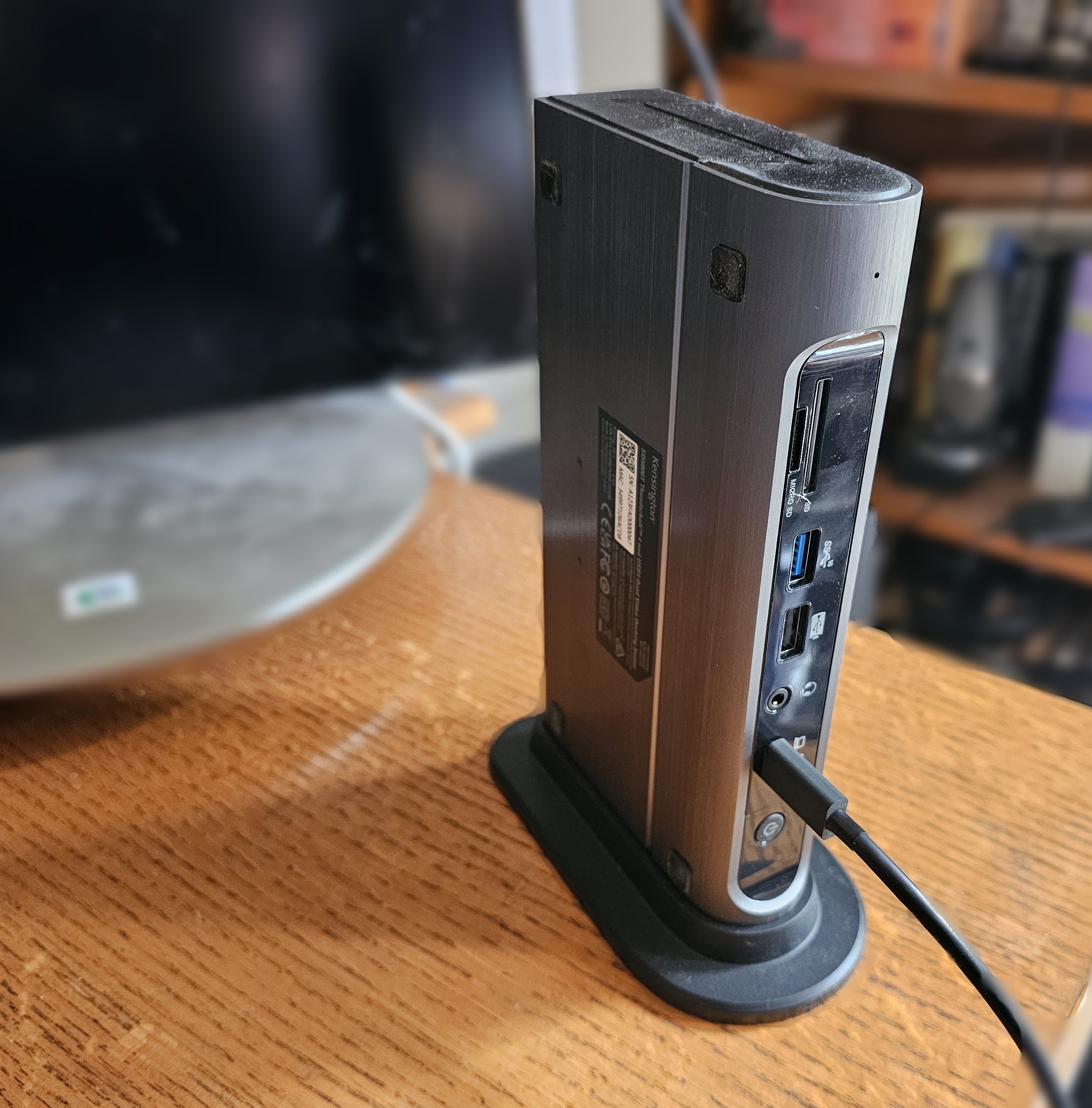
Who should buy the Kensington SD5780T?
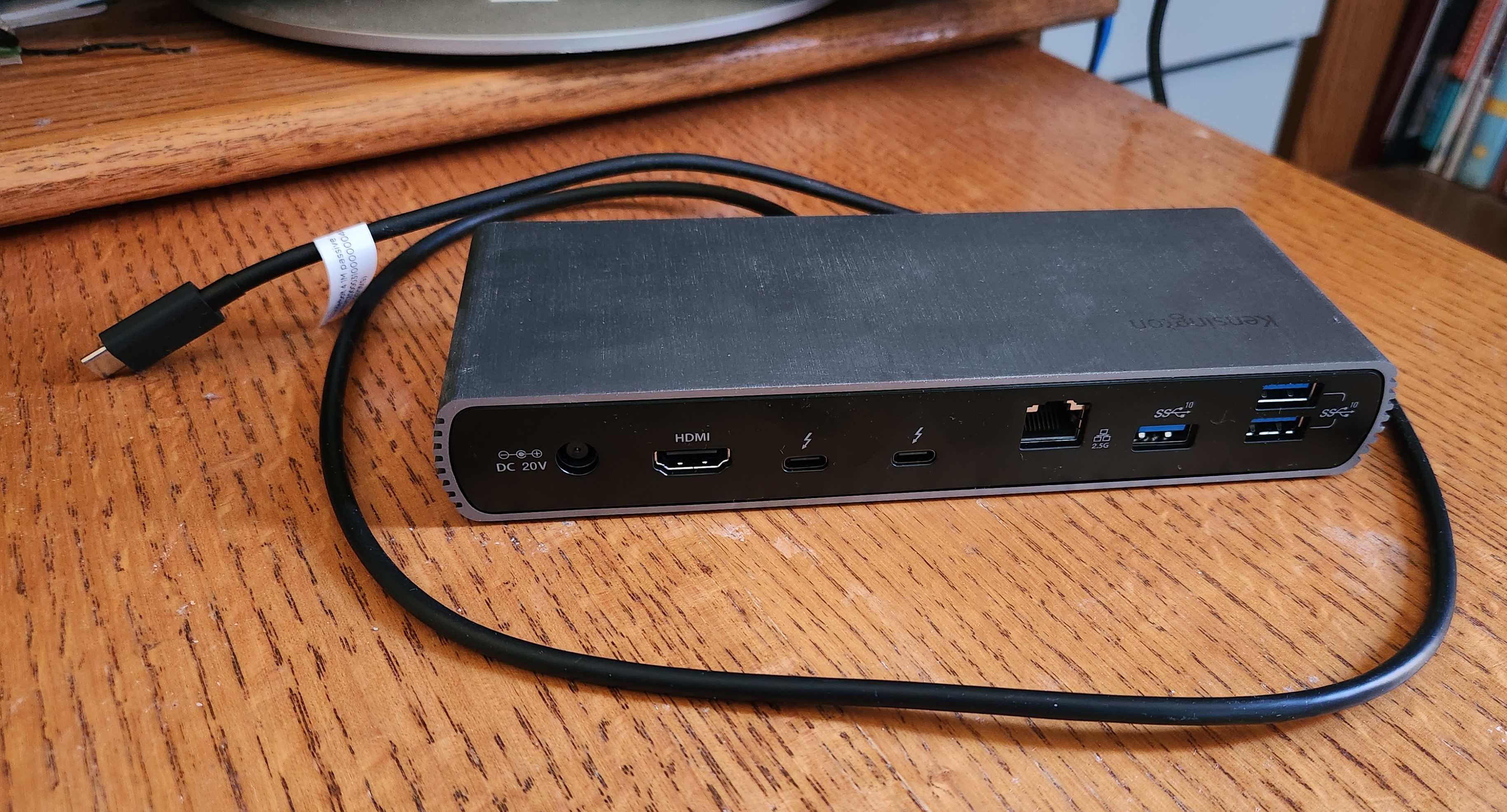
The SD5780T is an ideal “starter” dock, for someone who has a laptop and a single external display and might want to add more in the future. Adding a second display will require the purchase of a USB-C (Thunderbolt) to HDMI cable, which will cost an additional $15 or so. The inclusion of the SD card slot should appeal to photographers who record photo or video on those cards.
One of my testing credos is “affordable flexibility,” and I favor a dock that will fit into your existing setup. But I also don’t want you to pay through the nose for it. There are other docks that allow you to get by without using a display adapter, but they generally charge for it — sometimes even $100 more. The SD5780T has one dedicated display port, and you’ll have to buy a $15 USB-C adapter cable to support a second. That’s cheaper than the alternative.
Kensington SD5780T: Further considerations
The Kensington SD578OT is a solid Thunderbolt 4 dock in all respects. For those who wish to use a single 4K monitor, chances are that you already own an HDMI cable. In my tests, the dock was stable (and not all are!) with a nice port selection. The dock will charge your smartphone, albeit with a USB-A port. The bottom line: This is currently among the best combination of value and features in a Thunderbolt dock that I’ve tested.
Price comparison from over 24,000 stores worldwide
Product
Price
Price comparison from Backmarket
Who should buy the Plugable 11-in-1 Thunderbolt 5 Docking Station (TBT-UDT3)?
It’s becoming more apparent that Thunderbolt 5 simply isn’t going to be part of Intel’s laptop processor platforms heading into 2026, which still dominate. With that said, Plugable’s dock is a solid choice for anyone looking to future-proof their home office. Gaming laptops and video-editing workstations is where Thunderbolt 5 will appear in the near future. Note that I moved Sonnet’s dock — with a solidly-performing integrated SSD — into the premium category. Plugable’s dock is a more reasonably priced TB5 solution.
Plugable 11-in-1 Thunderbolt 5 Docking Station (TBT-UDT3): Further considerations
All of the Thunderbolt 5 docks are designed more like hubs, with Thunderbolt 5-out rather than dedicated display cables. You’ll have to buy your own. The upside to all this is that you can easily decide whether to use those ports as display outputs, or to connect to an external storage device.
Price comparison from over 24,000 stores worldwide
Product
Price
Price comparison from Backmarket
Who should buy the Wavlink Thunderbolt 4 Triple Display Docking Station?
If you want a generous set of extra ports and to connect a couple of 4K displays, this affordable yet able Thunderbolt 4 dock is a great solution.
Wavlink Thunderbolt 4 Triple Display Docking Station: Further considerations
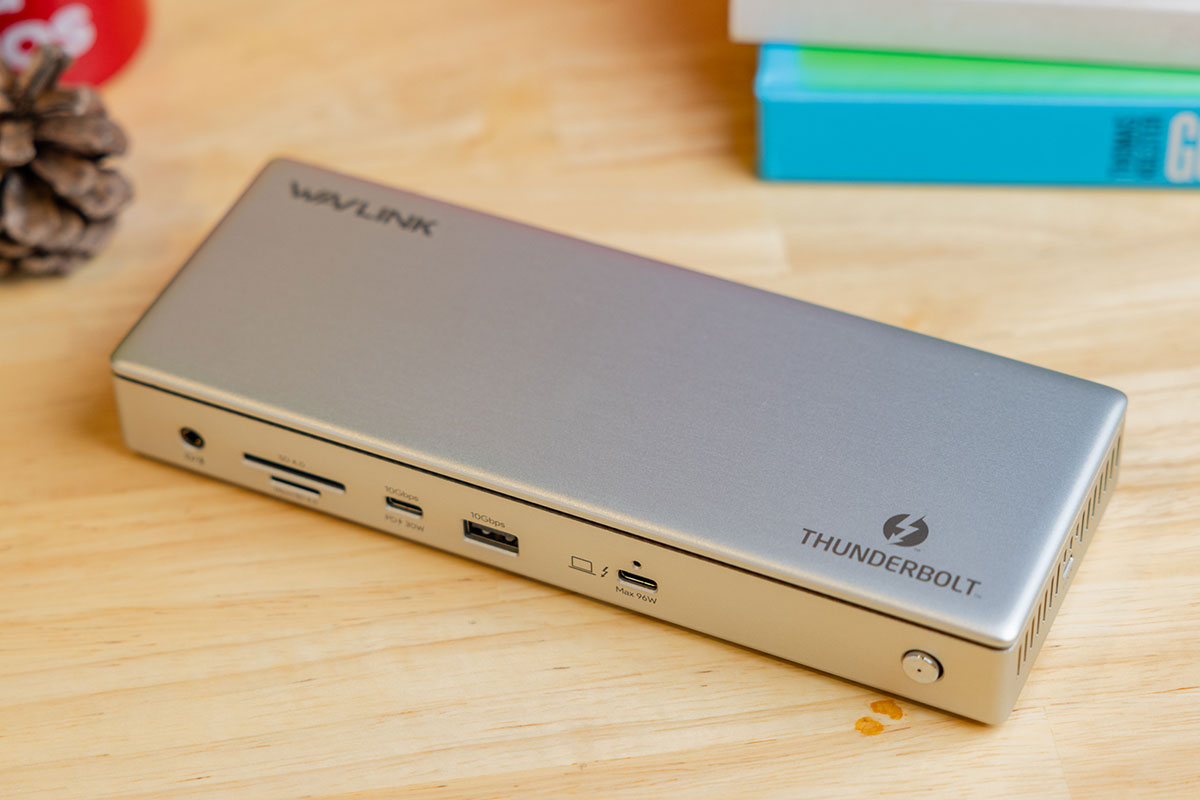
For this I’m leaning on Macworld’s choice of docks, which offers an excellent feature set at an affordable price — and it will work just fine with Windows machines. The dock is a well-priced and loaded Thunderbolt 4 dock, though it sacrifices two of the potential three downstream TB4 ports in favor of two HDMI 2.1 ports. Use one of these for one external display and the downstream TB4 port for the other. The spare HDMI port can be used for a third extended display on Windows PCs.
Power delivery to the laptop is 96W, enough for a lightweight content-creation laptop. There’s a handy 30W USB-C charging port at the front, which also supports 10Gbps data transfer.
Price comparison from over 24,000 stores worldwide
Product
Price
Price comparison from Backmarket
Who should buy the Ugreen Revodok Pro 13-in-1 Triple Display Docking Station?
I recommend this dock for those who own laptops with 13th-gen Core hardware or above. HBR3/DSC technology really doesn’t work on older systems like 11th-gen Core hardware and older PCs. If you own an AMD Ryzen laptop, too, it may be a little iffy. Great price, though!
Ugreen Revodok Pro 13-in-1 Triple Display Docking Station: Further considerations
The only reason this isn’t my pick for the best budget Thunderbolt docking station is because it uses a generic form of data compression known as HBR3 (High Bit Rate 3) with DSC (Display Stream Compression), which is built into the DisplayPort spec. That’s a particular technology that is more common within recent Intel Core (and Core Ultra) laptops, but isn’t guaranteed to appear on yours. (If you own a laptop with a Thunderbolt port, though, this should work just fine.) You’ll also have to supply your own USB-C power cable.
Otherwise, this docking station has so much to offer. The price is outstanding, of course, but Ugreen’s dock is also so flexible yet so stable. Everything’s well labeled, and the dock offers DisplayPort as well as HDMI options. And it’s really quite portable, too. Just remember that charger.
Price comparison from over 24,000 stores worldwide
Product
Price
Price comparison from Backmarket
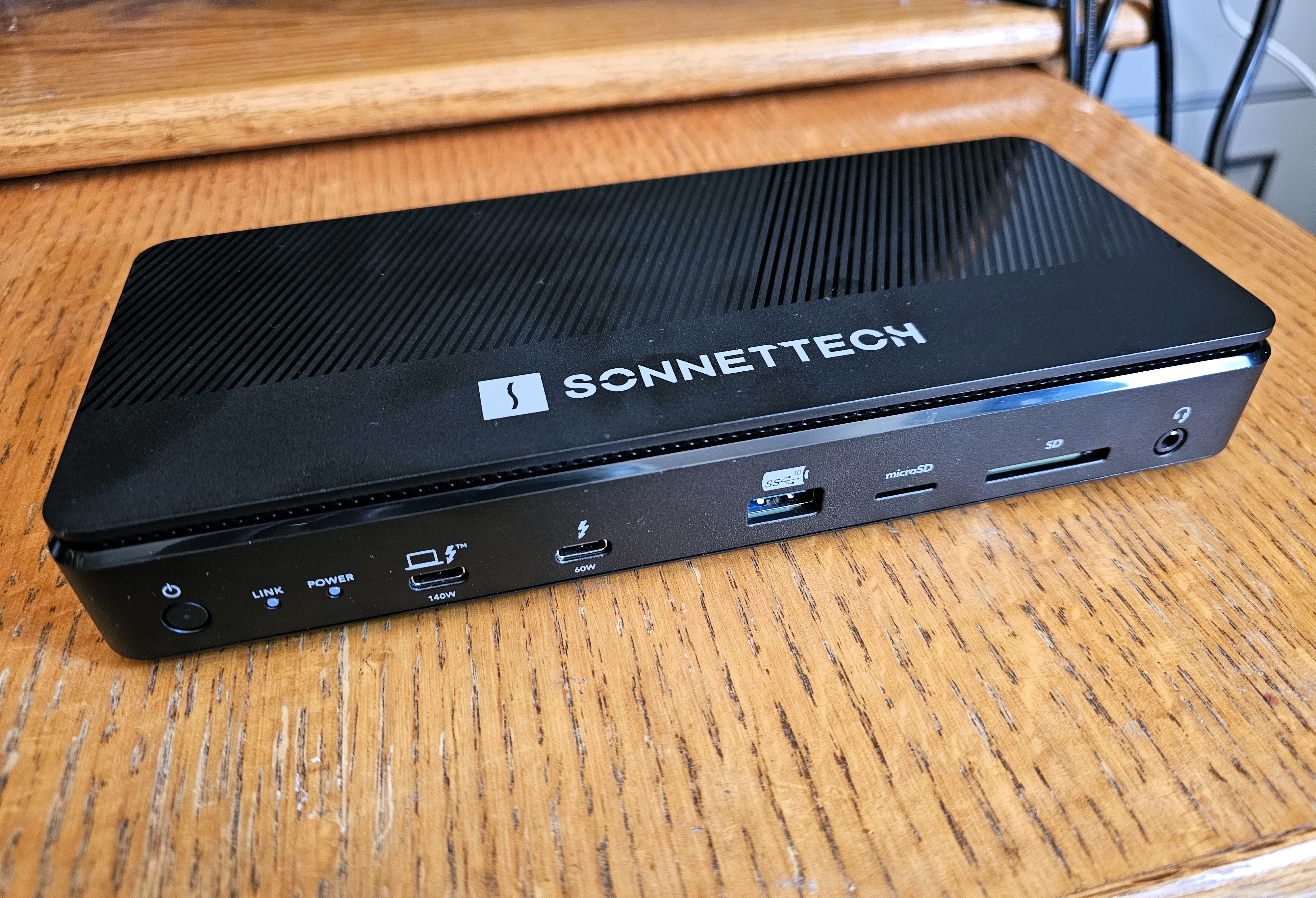
Who should buy the Sonnet Echo 13 Thunderbolt 5 SSD Dock?
Yes, this is the same dock I selected as my overall pick. But if you’re looking for a premium Thunderbolt dock, I think this fits the bill. We have a cheaper runner-up option just below.
Sonnet Echo 13 Thunderbolt 5 SSD Dock: Further considerations
The performance that this dock offers really boils down to the integrated SSD. It’s simply one of the fastest storage options that I’ve tested for an external drive, though it’s confined to the dock. (It’s not removeable.) But if you want a 4GB SSD option, you’ll pay $750 (at press time). That’s kind of insane.
Price comparison from over 24,000 stores worldwide
Product
Price
Price comparison from Backmarket
Who should buy the Kensington Thunderbolt 4/USB 4 Quad Video Docking Station (SD5800T)?
Not everyone needs four displays, or has the laptop hardware to power them. This is for the “battlestation” enthusiast or someone who needs to be surrounded by information. But you might be a person who simply doesn’t want to have to deal with additional display adapters, either.
Kensington Thunderbolt 4/USB 4 Quad Video Docking Station (SD5800T): Further considerations
You may not need four displays, but many shoppers often feel like they want to buy a docking station and not have to worry about picking up a display adapter or cable. This dock does that.
About the only weakness is a lack of adequate smartphone charging from the USB-C port — a trait shared by its competitors, too, for some reason. You may notice that I recommend a Sonnet dock as the best overall dock, and I stand by it — but you’ll see the best performance from it if you own a Thunderbolt 5 laptop. This premium dock has more mainstream appeal.
Price comparison from over 24,000 stores worldwide
Product
Price
Price comparison from Backmarket
Who should buy the Plugable 5-in-1 Thunderbolt Hub (USB4-HUB3A)?
The hub works as a “splitter” of sorts for the Thunderbolt connection.
Why should you care? This hub can be used for an emerging market of Thunderbolt/USB-C monitors, which are much more common in the Mac market but may become more prevalent in the Windows space in the future.
Put another way, if you own a USB-C monitor, those displays tend to also have legacy ports (USB-A, USB-C) inside them, which means that a Thunderbolt dock and its cluster of ports may be redundant. This hub is a way to save a little money for the user who has a specific setup.
Plugable 5-in-1 Thunderbolt Hub (USB4-HUB3A): Further considerations
How does a Thunderbolt hub differ from a Thunderbolt dock? In this case, there’s less of an emphasis on legacy ports, and more of a focus on a direct connection to a display. The Mac world tends to emphasize Thunderbolt-connected displays far more than the Windows world does, so this might be a niche product for most of you. But this thing is tiny (4.75 x 2.88 x 0.5 inches) even if, unfortunately, the associated power brick isn’t.
It will send 15W of power via the Thunderbolt/USB-C connections to charge smartphones, and 60W to the host PC.
If you don’t need a big, bulky dock with multiple connections, Plugable’s 5-in-1 Hub just does the job and without any extra fuss. If your laptop needs more power than the 60W Plugable hub provides, I would recommend the Satechi Thunderbolt 4 Slim Hub Pro instead.
Price comparison from over 24,000 stores worldwide
Product
Price
Price comparison from Backmarket
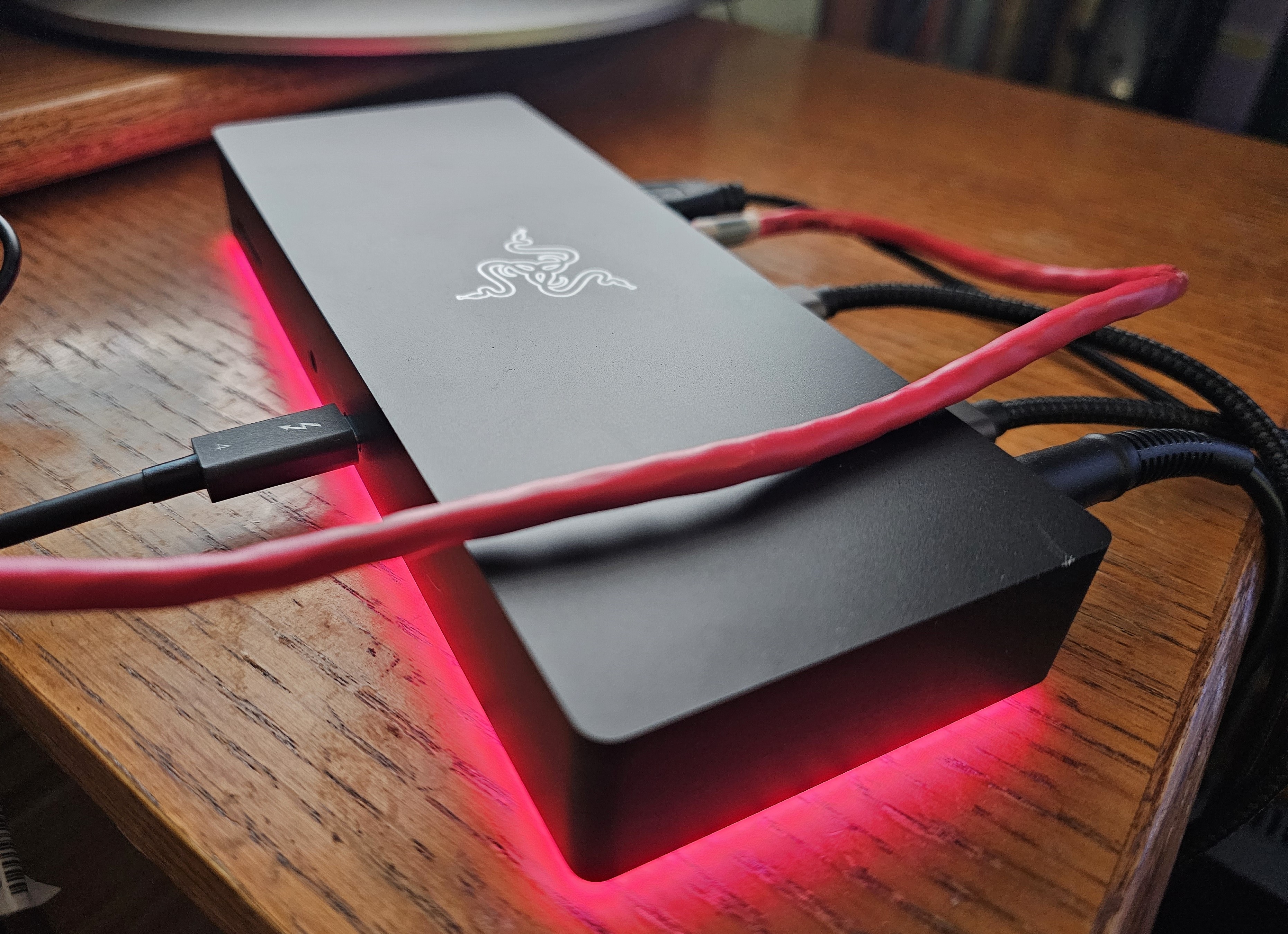
Who should buy the Razer Thunderbolt 4 Dock Chroma?
Gamers, obviously. But even a stodgy old reporter like me likes it, because the RGB can either be fixed to a certain color or turned off entirely. And the dock surprised me with its stability and construction. You can certainly buy this dock for its blingy aesthetic, but it works just as well as a more down-to-earth alternative, too. Razer did a very nice job balancing both aspects.
Razer Thunderbolt 4 Dock Chroma: Further considerations
I was surprised by how much I like this combination dock/hub. It’s a premium offering, with enough ports that I’d almost consider it a full-fledged dock. But with three upstream Thunderbolt ports, you can characterize it as a hub as well. As one of the more modern docks, with rock-solid stability, it won me over in the end, though its storage performance was middling. And, of course, remember to invest in cables.
The RGB lighting is fun, and optional — it can be turned off.
Price comparison from over 24,000 stores worldwide
Product
Price
Price comparison from Backmarket
Who should buy the Plugable USB4 Dual HDMI Docking Station (UD-4VPD)?
This is a general-purpose USB4 dock, which can be adopted by anyone. But it’s best suited for laptops with a Ryzen chip inside, and for photographers who need the SD card slots.
Plugable USB4 Dual HDMI Docking Station (UD-4VPD): Further considerations
Thunderbolt and USB4 are basically the same. USB4 ports typically appear on laptops with AMD Ryzen chips inside (because Intel refuses to certify an AMD laptop as Thunderbolt-compliant.) Why include a dedicated USB4 category? In part, because not everyone knows this.
This dock can get hot, but it’s an affordable budget option.
Price comparison from over 24,000 stores worldwide
Product
Price
Price comparison from Backmarket
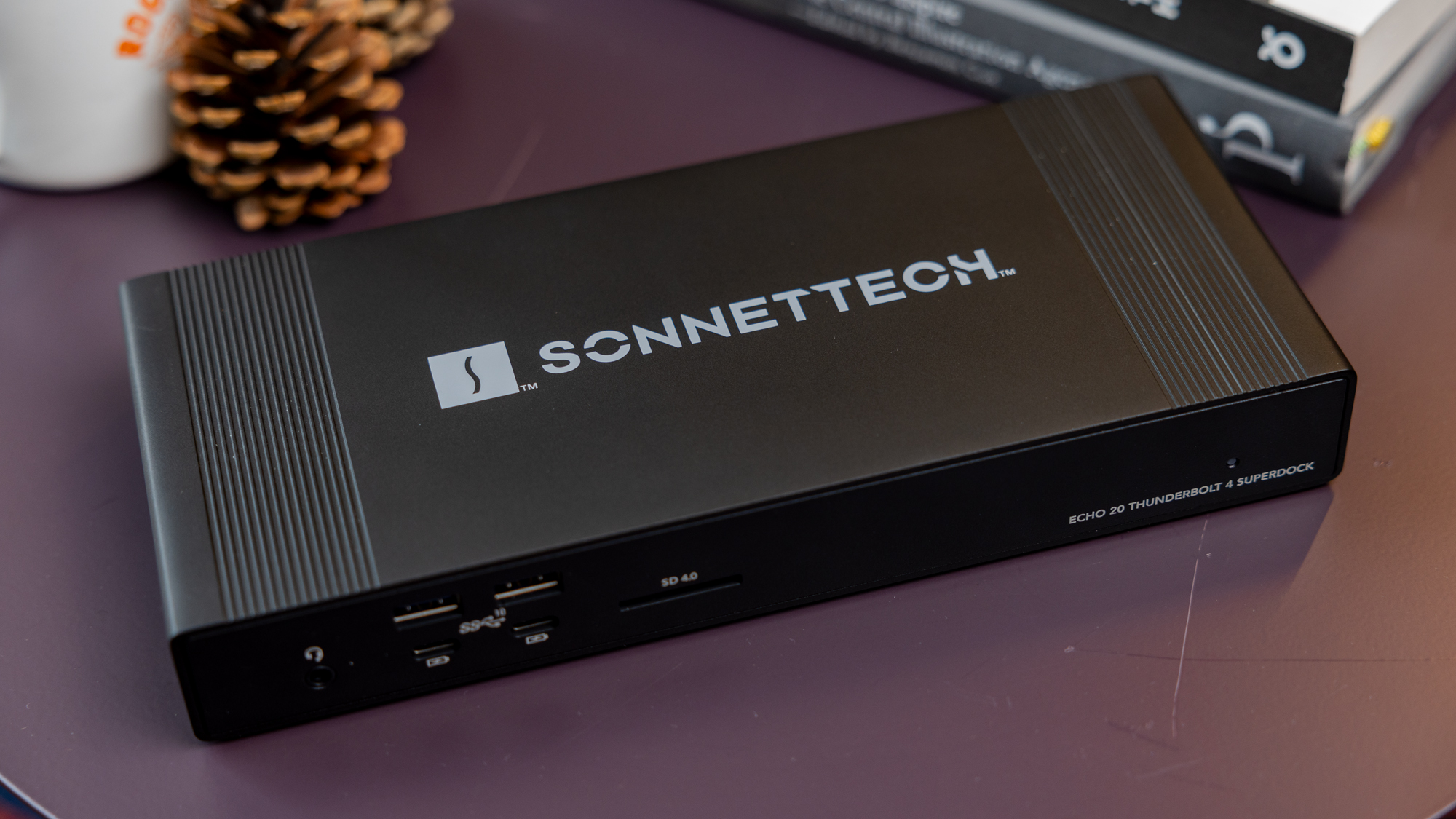
Who should buy the Sonnet Echo 20 Thunderbolt 4 SuperDock?
Think of this dock as a more full-featured version of our Thunderbolt 4 hub recommendation, above. Though this recommendation is targeted at Mac users, there’s no reason that an owner of a Windows PC couldn’t buy this dock, too. If you’re trying to save space on your desk but also want an external SSD, this hybrid dock could serve both needs.
Sonnet Echo 20 Thunderbolt 4 SuperDock: Further considerations
This recommendation comes courtesy of our colleagues at Macworld, who have compiled their own list of best Thunderbolt docking stations for the Apple Mac market. “Boasting an impressive 19 top-rated ports, Thunderbolt 4 certified, and with a bonus internal SSD storage feature, the Sonnet Echo 20 Thunderbolt SuperDock offers remarkable value for money,” Macworld writes.
I haven’t reviewed this dock myself, but there’s an undeniable surplus of ports, and an SSD enclosure. (I definitely liked the SSD enclosure on our top pick!) And it’s reasonably priced, too.
DisplayLink USB-C docks, which I discuss in more detail in a separate article, don’t offer enough bandwidth for high-refresh rate monitors or gaming, but they work admirably well for everyday office work, including watching movies. Anecdotally, they’ve often been more stable than a Thunderbolt dock on older hardware, as sometimes Thunderbolt docks have issues “waking up” when the host laptop wakes up from standby. You can “break” the dock by pushing more and more over the connection, like streaming while copying files.
What I’d like to see in a DisplayLink USB-C docking station is a feature set that approaches a full-fledged Thunderbolt dock, but that is priced below what you’d pay for Thunderbolt performance. The current pick does just that. Some recent reviews do not appear here — for instance, StarTech’s USB-C Triple Monitor Dock fell short.
Ugreen 9-in-1 USB-C (Revodok) Docking Station CM615 – Best USB-C DisplayLink dock
Price comparison from over 24,000 stores worldwide
Product
Price
Price comparison from Backmarket
Who should buy the Ugreen 9-in-1 USB-C (Revodok) Docking Station CM615?
If you’re not worried about hunting down the proper software driver (because Ugreen, bless them, does not make it apparent that it needs one) than I would recommend that you buy this dock. It offers many of the features of more expensive Thunderbolt docks at an affordable price.
Ugreen 9-in-1 USB-C (Revodok) Docking Station CM615: Further considerations
Like some of our premium Thunderbolt docks, Ugreen provides options to use either HDMI or DisplayPort to connect a display, allowing you to use your existing display cables and save some money.
Like most DisplayLink docks, this dock was unusually stable, with no flickering between displays — one of the reasons I like DisplayLink docks. Some other Thunderbolt docks offer the same flexibility to shift between monitors, but not many. Ugreen’s dock does so affordably.
Price comparison from over 24,000 stores worldwide
Product
Price
Price comparison from Backmarket
Who should buy the Sonnet Echo 13 Triple 4K Display Dock?
The price differential between the Sonnet and Ugreen docks should help answer that question: The Sonnet buyer is willing to pay a little more for what is really a well-made and well-documented dock, with clear instructions. Really, without the price differential and the audio issues, this would be the top dock in the category.
Sonnet Echo 13 Triple 4K Display Dock: Further considerations
Sonnet’s Echo 13 Triple 4K Display Dock follows the intriguing path other DisplayLink docks have blazed: The dock’s built-in compression means you can connect to three 4K displays, without penalty. And yes, it works as advertised, though with one issue that holds it back: spotty audio that really needs to be fixed. (If you use your laptop’s headphone jack, there’s no issue.)
There was a tiny bit of instability, but performance was excellent. And with 20W of charging power for your phone and 100W for your laptop, you’ll be able to power a wider range of laptop options.
Is Thunderbolt 5 storage ready? Thunderbolt 5 exhibits a marked improvement in sequential transfers, but our first look at the spec suffered some backwards-compatibility issues.
Let’s face it: Tariffs have been a major wild card on all sorts of purchases. Daily discounts and so-called “lightning deals” affect prices, too.
Thunderbolt docks, however, still receive discounts during major shopping events like Amazon’s Prime Day deals and holiday sales. While our automated pricing technology that we use in our reviews should reflect the current price of the item, it’s always a good idea to check PCWorld’s list of deals for these major shopping events. We generally dedicate specific articles to the best deals on Thunderbolt docks and USB-C hubs.
How PCWorld tests Thunderbolt docks
I’ve written a separate article about how I test Thunderbolt docks, which goes into detail about how evaluate the performance of docks. Put very briefly, I examine each dock physically, making measurements on the cord length and port spacing. I then connect the dock to a variety of laptops.
My performance testing includes streaming video, transferring video files back and forth, running standardized benchmarks, and more. In addition, I simply use the dock for several days just to discover any quirks or glitches.
Who curated this article?
My name is Mark Hachman, and I’ve covered the technology industry as a reporter and reviewer for over 30 years. I’ve worked from home for years, so when the pandemic hit I instantly realized that all the things I had already nerded out about — using a laptop docking station, setting up multiple monitors — would become a priority for PCWorld’s readers. When someone tells me that they bought one of the docking stations that I’ve recommended, and that they love it — well, that’s why I do what I do.
How to choose the best Thunderbolt dock
Ports, cables, peripherals: Those are the three major considerations when buying a Thunderbolt dock.
Check your laptop’s specifications. If you own a laptop with a Thunderbolt 4 port, buy a dock with a Thunderbolt 4 connection. Thunderbolt 4 docks will work with laptops with a Thunderbolt 5 connection, but at Thunderbolt 4 speeds. Still, you may save a few bucks with an older dock.
Think about what you want to connect the dock to. Here, the priority is usually the displays. Consider the displays you own (which typically include either HDMI or DisplayPort connections) and think about whether the dock will accommodate them. I prefer docks with dedicated display ports, so that a display with an HDMI port, for example, can connect directly.
I am seeing a small but growing percentage of Thunderbolt docks that include a Thunderbolt cable to your laptop and then dedicated Thunderbolt connections out to displays. These docks tend to cater to Mac users. However, you can buy a dongle or cable that converts Thunderbolt/ USB-C to HDMI or DisplayPort, or else you can buy a USB-C display.
What will you want to plug into the dock? Use that answer as a guide. Do you want a basic Thunderbolt dock, with just a pair of HDMI ports for connecting two displays? Does an SD card slot matter? How many USB Type A peripherals do you plan to attach? Do you want to charge your smartphone?
Check your laptop’s power supply. Does it plug into your laptop via USB-C? If so, a Thunderbolt dock will likely power it. You’ll need to understand how the dock supplies power, though. Check your laptop’s charger to learn how much power it supplies, and how much the dock will need to supply to replace it. If your laptop or devices aren’t receiving enough power, you may see a warning pop up.
A “bus-powered” dock won’t come with an external charger in the package, saving some cost, space, and power concerns. (Today, these are pretty rare.)
A dock with power delivery will supply its own power and charge your laptop and/or a phone via your laptop’s existing USB-C charger. What I’ve found is that some docks, especially those with a free Thunderbolt port, will supply enough power for even today’s most modern fast-charging smartphones, even without explicit support for them.
Powered Thunderbolt docks, especially those that power your laptop, can ship with some pretty sizeable power bricks.
Mark Hachman / IDG
There’s one more consideration: the length of the Thunderbolt cable between your laptop and the dock itself. You may have noticed or heard about USB-C ports wearing out on smartphones; a loose or wobbly connector on a Thunderbolt dock can cause a monitor to unexpectedly flicker or lose connection. Consider how much tension will be put on a cable. A Thunderbolt dock that’s dangling from a Thunderbolt port will stress the physical connector. You don’t want that!
We’re starting to see some docks with an SSD enclosure inside. It’s possible that this will become more of a viable product over time, but for now it’s still niche.
If you’re a Mac user who has stumbled across this article, welcome. But please be aware that early Apple MacBook Pros powered by Intel silicon supported up to two 4K displays. The first MacBook Pros powered by the Apple M1 chip only support a single 4K display. Many Mac users have recently left negative reviews on Thunderbolt docks on shopping sites because of this. Apple also hasn’t explicitly committed to Thunderbolt 5, either. Buy a PC!
FAQ
1.
How do I know if my laptop has Thunderbolt?
The short answer: Look at the laptop’s published specifications to be sure. A Thunderbolt port uses a USB-C connection, and it may look indistinguishable from a USB-C port. Put another way: all Thunderbolt ports are USB-C, but not all USB-C ports are Thunderbolt-equipped.
Thunderbolt ports are supposed to have a small lightning-bolt icon to identify them. But some laptop makers use a similar lightning-bolt icon to indicate that a USB-C port can be used for charging your phone, and not for Thunderbolt. Laptop makers sometimes don’t want to clutter the clean lines of their products by adding additional logos, it seems. Fortunately, most laptops now choose to highlight their Thunderbolt capabilities, so the ports should be well-marked.
In June 2024, Intel held a technical session talking about its Core Ultra 200 (Lunar Lake) processor. One of the big changes Intel is making is to force laptop makers to a) cluster all of the older USB-C ports on one side of the laptop, away from the Thunderbolt and b) require the ports (including Thunderbolt) to be clearly labeled. That’s a small but important win for users.
USB4 is Thunderbolt’s more generic competitor, and USB4 docks and Thunderbolt docks are often interchangeable. The USB Implementor’s Forum is going to ask laptop makers to add a separate, different USB4 logo to laptops as well. This strikes me as unnecessarily confusing.
Two laptops, both with USB-C ports, and both with lightning-bolt symbols. Which laptop offers Thunderbolt? The top one, though it can be difficult to tell. Consulting the manufacturer’s specifications is your safest bet.
IDG
2.
How fast is Thunderbolt?
Put simply, 40Gbps, for Thunderbolt 3 or 4.
Most USB-C ports are built on the second-generation USB 3.1 data-transfer standard, which transfers data at 10Gbps. Thunderbolt 3 and 4 ports, the most common standard, transfer data at up to 40Gbps. Thunderbolt 4 differs very slightly in that it supports a theoretical maximum of 32Gbps for external storage devices, but you probably won’t notice the difference.
Intel unveiled an 80Gbps version of Thunderbolt in 2024, called Thunderbolt 5, meaning that you’ll see Thunderbolt docks with even more capabilities. In certain scenarios, Thunderbolt 5 can reroute data to deliver 120Gbps in one direction. More laptops are arriving with a discrete Thunderbolt 5 chip inside, though they’re still somewhat rare and tend to land inside gaming laptops.
3.
What should I buy: Thunderbolt 3, Thunderbolt 4, or Thunderbolt 5?
I’d recommend a Thunderbolt 4 dock. You can score a deal as retailers continue to clear out old Thunderbolt 3 inventory, but they’re being phased out. You can always future-proof your setup with a Thunderbolt 5 laptop and dock. but those aren’t essential quite yet.
Thunderbolt 5 is the 80Gbps version, which backwards compatible with both Thunderbolt 3 and 4. Thunderbolt 5 isn’t something to worry about quite yet. (I’ve even tested a Thunderbolt 5 setup, and didn’t like it. Even the Thunderbolt ecosystem doesn’t seem convinced that Thunderbolt 5 will become a thing for a couple of years.) However, I think it’s the fault of an early test laptop, and not the spec itself. Thunderbolt 5 will happen.
I’ll detail some of the differences between the specifications below. But if you’re new to this, let us reiterate: Thunderbolt 3 and 4 are basically the same, and Thunderbolt 5 won’t be an issue until after 2025.
Essentially, Thunderbolt 3 and Thunderbolt 4 allow up to 40Gbps maximum bandwidth, enough for two 4K/60 displays. “Up to” is the key phrase: Thunderbolt 3 is only required to support a 10Gbps connection, allowing for a single external 4K display (a 16Gbps PCIe connection, paired with USB 3.2). Most manufacturers go beyond this, however, and our recommended docks support the full 40Gbps specification (and two 4K displays) unless noted. Thunderbolt 3 also supports a slower (16Gbps) PCIe connection for connecting to external storage.
Thunderbolt 3 is also the only specification (not Thunderbolt 4) that we’ve seen connecting to external GPUs, in case you’d like to try that approach. Thunderbolt 5 adds that capability back, but I haven’t seen anything that really takes advantage of it.
Thunderbolt 4 doesn’t allow for any leeway—you’re getting a full-fledged 40Gbps connection (32Gbps PCIe + USB 3.2), no questions asked. For external storage, Thunderbolt 4 supports 32Gbps of data transfer—this really only matters for video, external GPU connections, or possibly games. Thunderbolt 4 supports “wake on sleep” from an external keyboard or mouse, which allows you to tap your external keyboard or wiggle your mouse to wake up your PC, which is handy. Thunderbolt 4 allows for longer cables and more Thunderbolt ports on laptops, too.
Device maker Anker has a nice table of all of the technical features associated with Thunderbolt 3, Thunderbolt 4, and USB4, if you really want to get into the fine distinctions (below). What’s USB4? We address that further down.
4.
I already own a USB-C dongle. Can I use it with Thunderbolt?
Yes, you can connect the dongle to a Thunderbolt port. But the 10Gbps dongle won’t magically transform into a 40Gbps Thunderbolt port, as there’s circuitry within the dock that allows it to work with your laptop’s high-speed Thunderbolt port. However, there’s nothing saying that you can’t connect the dongle to an available USB-C port on the Thunderbolt dock itself, either. If your laptop has two Thunderbolt ports, you can also attach a Thunderbolt dock to one port, and the dongle to the other.
That solution will add more clutter to your desk, but it might allow you to buy a cheaper, budget dock, too. It’s up to you!
Thunderbolt dock and I/O hub designer Anker provided this summary of the differences between Thunderbolt 3 and Thunderbolt 4.
Anker
5.
My laptop says it has a USB4 port, not Thunderbolt. Can I use it with a Thunderbolt dock?
Probably. USB4 ports typically appear on laptops with AMD Ryzen processors inside. USB4 and Thunderbolt 4 are compatible and functionally equivalent. (Though Thunderbolt is an open standard, Intel declines to certify non-Intel hardware. That means that Ryzen laptops end up with USB4 ports, and Intel Core laptops include Thunderbolt.)
As a subset of Thunderbolt 4, a USB4 device will run just fine plugged into a Thunderbolt 4 port. But dock makers tell us that a Thunderbolt 4 device may not work as expected when plugged into what is specifically a USB4 port. Instead, most hubs and docks are marketed as Thunderbolt 4, while most devices (like an external SSD) are designed around USB4. (We test Thunderbolt docks on Thunderbolt laptops.) There are USB4 docks, however, which you’ll find above in our list of best picks.
USB4 Version 2 is a standard that will propel USB4 to 80Gbps, just like Thunderbolt 5. I haven’t seen any docking stations marketed as USB v2 (also known as USB80Gbps), however.
Note that Thunderbolt 3 and 4 require at least 15W to power devices plugged into the Thunderbolt port, such as a bus-powered hard drive. USB4 requires just half that.
I did try to connect a Thunderbolt 5 dock to a USB4 laptop, and it didn’t work. It should! It may just be a driver issue.
6.
What is so important about Thunderbolt 5?
The Thunderbolt 5 spec pushes I/O bandwidth from 40Gbps in Thunderbolt 4 to 80Gbps in Thunderbolt 5, and even to 120Gbps in some cases. Another good way to think of Thunderbolt 5 is in the context of what it can do. Thunderbolt 4 allows enough bandwidth for two 4K displays, running at 60Hz. Thunderbolt 5 will offer enough bandwidth to connect to three 4K displays, at 144Hz apiece. That helps make Thunderbolt 5 a gaming-class technology, rather than just for office work.
Thunderbolt 5 will also allow for 64Gbps of dedicated bandwidth for storage and external GPUs, double the 32Gbps on Thunderbolt 4.
Finally, there’s power. Thunderbolt 5 will provide up to 240W (140W required) of charging power for your laptop. Most laptops require 65W to 90W today, but gaming laptops require more. All this means is that a Thunderbolt 5 dock will potentially eliminate the need to carry a gaming laptop’s charger around. (It won’t be in all cases, but some.) Note that you’ll need a laptop that supports this power spec, however!
And that’s the problem. Thunderbolt 5 debuted in 2024, both in laptops as well as docks and devices. Although we saw a couple of early products at CES 2024, I only saw two TB5 laptops for several months: a version of the Razer Blade and the Maingear ML-17. Both have discrete chips inside, rather than being directly integrated inside the processor. I tried a Thunderbolt 5 setup, and it stunk, though I think it’s the fault of Maingear’s laptop, and not the docks.
Why does that matter? If a function like Thunderbolt 5 isn’t built right into the processor, a laptop OEM must buy it separately. That takes time, money, and engineering, and most laptop makers think hard before spending extra. There are a few Thunderbolt 5 docks, but hardly any laptops that support it. At CES, I was told that it may take a couple of years for Thunderbolt 5 to really go mainstream — 2026 or maybe 2027.
Thunderbolt Share is a new way of connecting two PCs via a Thunderbolt cable. Plug one end of the cable into one Thunderbolt port, and the other into a Thunderbolt port on another laptop, and voila! They’re connected. Thunderbolt Share allows you to use one PC to control another, sync files, share files, and more, all at Thunderbolt speeds. I explain Thunderbolt Share and test it, here.
It sounds simple, easy, and powerful, but it’s more complicated than that. Both PCs have to run Intel’s Thunderbolt Share software, and you’ll only be able to get that from a licensed PC or Thunderbolt dock. Thunderbolt 4 and Thunderbolt 5 will run Thunderbolt Share, but not Thunderbolt 3 — well, officially. The same goes for USB 4; it might work, and it might not. Intel isn’t saying.
Thunderbolt Share will be supported by a handful of PC makers as well as dock makers like Belkin, Plugable, and more. But you know what? That announcement kind of came and went. I’m not betting on Thunderbolt Share being more than a gimmick right now. I didn’t really see it make an appearance at CES 2025, either.
8.
What cable should I use with a Thunderbolt dock?
Virtually every Thunderbolt dock will ship with its own cable. We recommend that you use Thunderbolt 3 cables with Thunderbolt 3 products, and Thunderbolt 4 cables with Thunderbolt 4 products. Ditto for the first Thunderbolt 5 cables, when the technology ships.
9.
My Thunderbolt docking station only has Thunderbolt connections, but I need to connect it to my monitor. How can I connect a Thunderbolt dock to my HDMI display?
You’ll need a special USB-C to HDMI cable, rated for Thunderbolt speeds. I recommend and have purchased this Uni Thunderbolt to HDMI cable from Amazon, which is about $16. You can find cheaper options, but make sure they’re rated for either Thunderbolt or a 4K@60Hz display.
10.
What differentiates a DisplayLink USB-C docking station from a Thunderbolt dock?
A DisplayLink USB-C docking station is a new category of docking station. They’re often marketed just as a USB-C docking station, unfortunately, though the DisplayLink logo features prominently on the box. The key here is that the DisplayLink technology (now owned by Synaptics) uses data compression between your PC and the dock to approximate a Thunderbolt experience (a pair of 4K displays at 60Hz, plus additional peripherals) across the narrower, slower USB-C bus. You’ll need to install a software driver for your PC to communicate with the DisplayLink chip built into the dock.
The advantage here is twofold. First, DisplayLink allows you to “cheat” and get a Thunderbolt dock experience on an older laptop. Alternatively, even if you do own a laptop with a Thunderbolt port, you may be able to find a DisplayLink USB-C dock for a cheaper price than Thunderbolt. This is a viable solution, especially if you don’t mind not playing PC games.
Our separate story on DisplayLink docks has more. For a while, DisplayLink offered a consistently cheaper option than Thunderbolt. Older Thunderbolt technologies and tariffs have now muddled those waters that the distinction isn’t as clear-cut.
11.
What is HBR3 with DSC?
We’re starting to see some USB-C docking stations take advantage of another technology: HBR3 (High Bit Rate 3) with DSC (Display Stream Compression). Think of it as the industry-standard, manufacturer-agnostic version of DisplayLink. It works over the USB-C port, and again provides a dual 4K60 display experience.
The problem? It’s wonky. I’ve found that support for the technology was very iffy in 11th-gen hardware, and really seems to work consistently in 12th-gen or 13th-gen Core laptops (and above, when they ship). It’s becoming more common, however, and works more stably in the most recent Intel Core laptops.
12.
Can I use an external graphics card (eGPU) with Thunderbolt?
With Thunderbolt 3? Yes, you can. Certain manufacturers (Razer is one, though there are others) have built enclosures that can house a standard desktop graphics card, connected to your laptop via a Thunderbolt cable. Although a mobile gaming laptop with an external GPU does a good job enabling mobile gaming, a desktop GPU does even better. Thunderbolt simply connects the two.
The only eGPUs I’ve seen with Thunderbolt use Thunderbolt 3, not Thunderbolt 4. Why is that?
According to a representative for Razer, the differences between Thunderbolt 3 and Thunderbolt 4 were too small. “When we release any product, we only do so when there can be a material advantage over the previous generation,” we were told.
Since Thunderbolt 4 was backwards compatible and functionally equivalent to Thunderbolt 3, Razer simply declined to invest in the production and testing of a Thunderbolt 4 eGPU. I presume other manufacturers followed suit.
The vast majority of Thunderbolt docks should include a Thunderbolt cable like this one, which indicates that it’s specified for Thunderbolt 3.
Sometimes you just want to relax and hear your music or movie’s audio without being encumbered by wearing headphones. That’s especially the case if you’re enjoying your media with friends or family. The problem is that laptop speakers just often don’t have great sound; they can sound muffled, tinny, and/or lack audio fidelity. What you need instead is a good pair of PC speakers to get the best sound from your media files.
Luckily, you don’t need to buy a complete 7.1 surround sound system to feel satisfied. For less than $100, you can find some affordable PC speakers that provide quality audio. It’s true that at this price point you will need to make a few compromises, but the best budget computer speakers can still offer a quality listening experience while saving you money, and that’s what we call a win-win.
Why should you trust us? Because our PC speaker reviewers have tried most of the budget speaker models on the market, so they know the ones that stand out from those that don’t quite hit the mark. Our testing criteria is also as thorough as it gets. To test each speaker, we set it up in a typical environment — on a desk in a home office — and play a variety of audio tracks while pushing a speaker system’s sound capabilities to the limit. We consider everything from how practical the design is, to the audio fidelity. We also compare and contrast models to make recommendations based on our findings.
Price comparison from over 24,000 stores worldwide
Product
Price
Price comparison from Backmarket
Why we like the Creative Pebble
We wouldn’t have thought a set of $25 speakers could impress us much, let alone turn out to be our favorite. But Creative Pebble’s simple USB-powered 2.0 system defies all odds, producing richer, more immersive audio than you commonly find in speakers at twice the price — and twice the size. Though we wish these offered Bluetooth connectivity for mobile devices, the Pebble is still a top-notch choice.
Who should buy the Creative Pebble
If you’re strapped for cash and still want decent audio, then the Creative Pebble is a no-brainer. You just need to have a USB-A port and a 3.5mm audio jack handy in your PC. You’ll also need to be cool with the fact that your speakers will be tethered, so you’ll need to unplug them if you want to move your rig.
Price comparison from over 24,000 stores worldwide
Product
Price
Price comparison from Backmarket
Why we like the AmazonBasics USB-Powered Computer Speakers with Dynamic Sound
These AmazonBasics USB-powered computer speakers get you well-rounded audio for a rock-bottom price. They’re easy to use with simple plug and play USB connectivity. They also feature attractive glowing blue LED accent lights below each speaker’s bottom radiator.
Who should buy the AmazonBasics USB-Powered Computer Speakers with Dynamic Sound
If your budget consists of just loose change and your goal is simply to release the sound from your PC without it sounding terrible, then these speakers will do nicely.
Price comparison from over 24,000 stores worldwide
Product
Price
Price comparison from Backmarket
Why we like the Monoprice DT-3BT
For years, Monoprice has sold affordable, quality tech gear without fanfare or frills. It continues this tradition with its 50-watt DT-3BT desktop speakers, which sport clear audio and support the most common kinds of connections. There’s of course Bluetooth 5.0 for clean, wire-free setups, but TRS and RCA jacks are available, too. Combined with the understated appearance and tidy $100 price tag, they’re an excellent option for speakers with good sound and simple setup straight out of the box.
Who should buy the Monoprice DT-3BT
If you like to hear layered elements in your music, then you’ll really like the Monoprice DT-3BT’s emphasis on higher and lower tones. These speakers also project sound very well, so choose them if you like to fill up your living room with the sound of your tunes or media.
Price comparison from over 24,000 stores worldwide
Product
Price
Price comparison from Backmarket
Why we like the Creative Pebble Pro
Imagine our top overall pick, and then soup it up with more features — namely, much more connectivity and sweet RGB lighting. That’s the Creative Pebble Pro. If you have multiple devices (plus a headset and microphone), these speakers let you centralize everything. You can connect devices via USB, a 3.5mm aux cable, and Bluetooth, and there are jacks for a 3.5mm headset and a dedicated 3.5mm microphone, too. It’s a great upgrade option if you want the Pebble’s great sound but want just one set of speakers for your gear.
Who should buy the Creative Pebble Pro
Anyone who wants the versatility of being able to use their speakers with more than just their PC — so a smartphone, tablet, or other device. These speakers are also ideal if you use a 3.5mm microphone and like the idea of using the Creative Pebble Pro’s software to do things like muting or unmuting your calls or filtering out unwanted noise.
Price comparison from over 24,000 stores worldwide
Product
Price
Price comparison from Backmarket
Why we like the Cyber Acoustics CA-2890 Speaker Bar
This basic speaker bar may be outclassed by other extremely affordable rivals in some ways, but the Cyber Acoustics CA-2890 Speaker Bar has a feature that keeps it in the running — you can clip it to a monitor. That gets this speaker off your desk, a plus for anyone that loves minimalism. Add in clear audio reproduction, and lack of distortion at high volume, and those seeking a good compact option can forgive it for its lack of bass and proper stereo output.
Who should buy the Cyber Acoustics CA-2890 Speaker Bar
Anyone super tight for desk space or who just likes a clean, uncluttered place to plant their PC. If that’s you, then you’ll love the speaker’s clip-on functionality that will win you back some much-needed real estate.
Price comparison from over 24,000 stores worldwide
Product
Price
Price comparison from Backmarket
Why we like the Creative Pebble X Plus
With USB, Bluetooth, and 3.5mm auxiliary input, the Creative Pebble X Plus offers more than just plug-and-play speaker functionality. Indeed, you can connect it up wirelessly to your phone or wire it up to create a complete audio solution for your bedroom, dorm room, or home office. Two speakers and a woofer draw a peak 60 watts of power to comfortably fill a room with sound. They produce a clear soundstage with good level of detail in the mids and treble range. A plastic film under the woofer was a small quirk that softened the bass in our playtesting, but removing it fixed that issue.
The device makes a stylish presence on a desktop or near a PC. The two speakers, which are shaped like spheres measure a compact 5.48 inches, while the cube-shaped woofer is only slightly larger at 6.24 inches. The speakers also sport RGB lighting, which you can personalize in Creative’s companion app.
Who should buy the Creative Pebble X Plus
Anyone who wants a complete audio solution for their bedroom, dorm room or home office. These speakers may be compact, but they sound great, feature both wired and wireless connectivity options, and are also powerful enough to fill up a room. Plus, the RGB lighting will liven up your personal space.
Creative Pebble’s simple USB-powered 2.0 system defies all odds. At just $25, it produces richer, more immersive audio than you commonly find in speakers at twice the price — and twice the size.
2.
What type of speaker should I get? Ex: Should I aim for a 5.1 setup? And are 2.1 speakers better than 2.0 speakers?
In this price range, a 5.1 multi-channel speaker setup (five speakers, one subwoofer) won’t sound as good as better models. The same amount of money can buy a much better-quality two-speaker system. These basic 2.0 stereo setups, which are comprised of just a left and right speaker with a single driver (the actual loudspeaker) in each, abound in this price range. Occasionally you can also find a decent 2.1 system — a pair of speakers to handle the higher frequencies and separate subwoofer for the bass — for not much more. These take up extra space but often produce more balanced sound.
3.
How do I pick a speaker that sounds good?
Don’t lean too heavily on manufacturers’ specs when making a decision. Even if you can parse frequency response numbers, they are often exaggerated. Let your ears be your guide instead. Listen for a good balance between the high (treble), mid, and low (bass) frequencies. Often, speakers will exaggerate one — usually the treble or the bass — at the expense of the others. Good speakers will produce full, detailed audio that sounds as the creator intended it.
Be aware, though, that finding strong bass response in this price range can be challenging. Without a subwoofer, 2.0 systems have trouble reproducing low frequencies. The manufacturers often use technological tweaks to amplify the bass notes, but these can sound boomy, and distort the overall mix. If a deep, controlled bottom end is a priority, a 2.1 system might be a better investment.
4.
Should I get speakers that use AC power? Or is a set that uses USB power okay?
Both these options are prevalent in the sub-$100 price range. USB-powered speakers reduce cord clutter, as they don’t need a separate power cable. However, they can’t supply as much juice as the AC variety, so they tend to produce lower volume and less bass.
5.
How important is a speaker’s design?
You wouldn’t think it could matter much, but even among budget PC speakers, design can play a big part in how your speaker sounds and how easy it is to use. For example, PC speakers that fire downwards instead of upwards may produce muffled sound, since the sound will have to bounce off an extra surface before reaching your ears.
Design can also play a big part determining things like how portable your speaker is. For example, wired speakers aren’t as easy to use on the go as those with Bluetooth connectivity, and small portable speakers are preferable over big cumbersome ones if you need to move them from location to location.
6.
How do I set up my PC speakers?
You can expect there to be two or sometimes three components to your PC speakers. Ideally, you’ll want as an immersive sound as you can possibility get, which in a two-piece setup means placing a speaker either side of your PC. If your speakers also come with a woofer, this is best placed on the ground, since the heavier vibrations it produces will likely cause some rattling on your desk.
Slightly angling your speakers towards your ears makes the speakers easier to hear. If you want more of a cinematic kind of sound experience you might like to also move each of your speakers further out from your laptop. This will broaden the sound stage you get from your speaker setup.
PCWorld tests webcams with one goal in mind: value. I want you to buy a webcam with the best picture quality, the best noise cancellation, and the best overall feature set for the lowest price. Our picks for the best PC webcams reflect this.
Webcams exploded during the work-from-home movement in 2020, and we’ve covered them closely ever since. Below, you’ll find our pick for the best webcam overall, budget webcam offerings, and premium 4K webcams that offer the best of everything. We have a separate article covering the best Windows Hello webcams, which use biometrics to help eliminate passwords.
Our webcam testing methodology emphasizes showing you screenshots of how the webcam will take photos and video in multiple lighting conditions, audio tests, and more. Price matters, and we may adjust our recommendations on price fluctuations due to sales or tariffs. The best webcams meet these criteria.
Why you should trust PCWorld for webcam reviews and buying advice: PCWorld has covered technology since the 1980s, including PC peripherals like webcams. But ever since the work-from-home movement kicked off in 2020, webcams have become a critical aspect of business and social activity alike — and we were on top of it from the beginning. Since then, we’ve written numerous webcam reviews, sharing testing responsibilities among our colleagues in Germany, Sweden, and elsewhere.
Price comparison from over 24,000 stores worldwide
Product
Price
Price comparison from Backmarket
Who should buy the Anker PowerConf C200?
What sold me on this webcam are the basics: It’s just a good webcam for an affordable price. As such, it will appeal to a broad segment of buyers: work-from-home employees, small businesses, and general consumers. If you’re tired of your laptop’s webcam and want something better, start here with the Anker PowerConf C200.
It offers an affordable yet substantial upgrade from the 720p cameras found in most laptop webcams to a 1440p webcam. The webcam also works well in low light, a pitfall of many webcams.
Anker PowerConf C200: Further considerations
Anker and Amazon characterize this as a “Mac” camera. It’s plug-and-play within Windows, however.
Additional features include an adjustable field of zoom that crops down to 65 degrees, meaning you can orient the camera on your face alone. The camera autofocuses, too. Naturally, there are noise-canceling mics and a privacy shutter that actually turns off the entire device.
You will need Anker’s free Windows software, though, to enable some of these features. (That’s available on the Anker website.) We weren’t sold on the need for original software at first, but many other webcams now offer similar apps to enable full functionality.
Price comparison from over 24,000 stores worldwide
Product
Price
Price comparison from Backmarket
Who should buy the eMeet Piko+?
Someone without an inquisitive cat. Seriously. The only knock on this camera is that (for now) it lacks a laptop mount, meaning that you’ll have to screw the camera to its tripod. That might be okay for those with a tidy desk, but bumping the camera means that you’ll have to readjust it. Otherwise, I think that most people will really like this cute little webcam.
I was amazed by its ability to capture crisp, 4K visuals in low light, and that was really what sold me.
eMeet Piko+: Further considerations
The eMeet Piko+ has a list price that’s hundreds of dollars less than some of the other 4K webcams we recommend. You’d have to put each webcam side by side to discern any differences.
I’m not a huge fan of the included utility software’s UI, but its ability to unlock some of the camera’s features, such as cropping and zooming, are easy enough to find and offer powerful configurability options — and hey, it’s software. It can be tweaked.
Price comparison from over 24,000 stores worldwide
Product
Price
Price comparison from Backmarket
Who should buy the Creative Live! Cam Sync 4K?
If 4K matters, and you don’t feel like spending a lot, this is the camera for you. To me, this feels like a good choice for a student, or someone who wants to look good in front of their friends and maybe while taking remote classes, but just doesn’t want to spend a ton of money.
It’s also best for someone who will be streaming from an environment without a lot of (changing) natural light, but is still well-lit by a lamp or screen.
The question you should always ask of budget hardware is, what corners did they cut? Here, the answer is: not many.
Creative Live! Cam Sync 4K: Further considerations
Okay, it has manually adjustable focus, but that’s not a problem if you don’t move around a lot. Similarly, backlight adjustment is typically handled automatically, but this webcam’s manual adjustment is not a problem if you work in a single location — you can dial it in and forget it. There’s a flip-over privacy shutter, and a button to mute the mic.
You’re going to find that it cheats in the frame rate a bit, and I wasn’t wild about the color balance. But for about $50, for a 4K camera? It’s worth investigating.
Price comparison from over 24,000 stores worldwide
Product
Price
Price comparison from Backmarket
Who should buy the eMeet SmartCam C960 2K?
This is for the person who says, “I want to upgrade my webcam, but I want to spend the least amount of money possible.” You’ll still get a decent upgrade; more than you would expect, actually. If a $10 discount matters, buy the cheaper 1080p version.
This webcam is also going to work better on a desktop monitor, by lieu of its rather simple mount. It feels flimsier when attached to a laptop.
eMeet SmartCam C960 2K: Further considerations
eMeet’s camera feels like a step up from other budget offerings. It’s not perfect. However, the 1440p resolution is a better both on paper and in the real world. The other part of the equation that often gets passed over are how well the noise-cancelling mics work, and in this case I was pretty impressed.
This camera is also available from multiple retailers, which helps keep the price down — a must for a budget webcam. To be fair, you’ll notice the review compares the C960 2K to its predecessor, the more vanilla (1080p) C960. It’s about $10 cheaper. The C960 2K’s picture is marginally better, with improved autofocusing, but I think that the C960 2K’s mics are genuinely superior.
I don’t love some of this webcam’s features, including the stick-on privacy shutter…but it is a budget webcam, after all.
Price comparison from over 24,000 stores worldwide
Product
Price
Price comparison from Backmarket
Who should buy the BenQ IdeaCam S1 Pro?
The IdeaCam S1 Pro looks particularly nice under good lighting, so it’s better for a user who isn’t expecting the camera to do a lot of heavy lifting in that regard. And while it might not offer the absolute top-of-the-line options, it never really fails at anything, either. It’s just a good, solid value. Period.
What I think I like most about this webcam, though, is that it excels as a webcam, then adds additional value through its peripherals, including both a macro (closeup) lens as well as a free remote control. This almost-but-not-quite 4K webcam even flips over for a top-down view.
If you’re a streamer (a woodworker or baker, say) then the ability to flip the webcam into a top-down mode, then undock the IdeaCam S1 Pro and bring it in close with the macro lens, feels like a tool hardly any other webcam offers.
BenQ IdeaCam S1 Pro: Further considerations
The IdeaCam S1 Pro would probably be our favorite webcam if it wasn’t for the $100 or so price premium it commands, which isn’t for everyone. It’s robustly built, and ships with a free software utility that adds to its capabilities. (Zooming in and out is most easily accomplished via the remote control, which does take up more room on your desk.)
The webcam slides in and out of a robust mount quite easily. Pair that with the macro lens, and you can zoom in on detail work for presentations or hobbyists. The webcam has autofocus, though you’ll probably want to lock down the focus for the macro lens. It all works surprisingly well together, though.
Price comparison from over 24,000 stores worldwide
Product
Price
Price comparison from Backmarket
Who should buy the OBSBOT Tiny 2 PTZ 4K?
If the budget webcams we selected above were ideal for students, this is the lecturer’s webcam. Share your slides with your student (or your clients, in a business setting) and let your video app project a snapshot of your face over them as you illustrate your point. If you walk and talk, this is the webcam for you.
Floating on a gimbal, this tiny(!) 4K webcam can literally pan, zoom, and rotate essentially 360 degrees, using AI to lock on your face and follow it as you walk around a room.
OBSBOT Tiny 2 PTZ 4K: Further considerations
While the Tiny 2 webcam boasts the same gimbal and tracking features as the first Tiny PTZ webcam, OBSBOT used a bigger 1/1.5-inch 50Mpixel sensor in the new model that lets in more light and provides a slightly clearer picture. So it accomplishes what you’d expect in a webcam: It wildly succeeds as just a webcam, with gorgeous 4K HDR images — but provides the increased tracking capabilities to add value. It almost tracks a little too well; avoid zooming in too close if you walk around so as not to give your viewers vertigo!
I also love the fantastic software package that accompanies the webcam, which on the Tiny 1 was the best I’d ever seen. I’m less impressed by two new features: voice commands, which are useful but not necessary, and new “beauty” features that use AI to adjust your face. While the latter features work, I prefer a more natural appearance, flaws and all.
Price comparison from over 24,000 stores worldwide
Product
Price
Price comparison from Backmarket
Who should buy the NexiGo N980P?
If you have more than one person on camera at any one time, consider something like the NexiGo N980P. During the pandemic, the local middle school’s drama department broadcast monologues and scenes via Zoom, which allowed students the opportunity to perform. But a narrow webcam wouldn’t have allowed these scenes to be broadcast as effectively.
This camera would work equally well with a small conference room or even a family gathering, such as a living room where one family talks to grandparents overseas. It’s still a fixed-focus camera though — if you want an autofocusing model I recommend you pay about $100 for the upgraded NexiGo N680p instead.
NexiGo N980P: Further considerations
Not everyone needs a wide-angle webcam. But this does allow you to show off more of a scene than an ordinary webcam does, which makes it a valuable tool for specialized applications.
This fixed-focus 1080p webcam captures frames at a smooth 60 frames per second, as opposed to the more standard 30fps. You’ll look smoother and more lifelike as a result. The wide angle means that it will work well in a conference room. A privacy shutter is included.
Logitech Performance FHD Webcam – Best overall webcam for Windows Hello
Price comparison from over 24,000 stores worldwide
Product
Price
Price comparison from Backmarket
Who should buy the Lenovo Performance Windows Hello Webcam?
If I hadn’t tested this webcam myself, I might not have recommended it. But I was really impressed by the quality of the video this camera captured. (See our review, below, for more.) Our existing picks for the best budget webcams have a higher resolution, which I think elevates them above the Lenovo.
With a solid webcam performance and Windows Hello capability, I think you’ll really like this webcam, even as basic as it is. And you’ll save a ton, too.
Lenovo Performance Windows Hello Webcam: Further considerations
It is basic, down to the packaging. Windows handles all of the necessary adjustments: contrast, white balance, et cetera. There are no utilities to facilitate any settings you might make. The noise cancellation is adequate, but not much more than that.
Price comparison from over 24,000 stores worldwide
Product
Price
Price comparison from Backmarket
Who should buy the CA Essential Webcam Flex?
Some will dismiss the Webcam FLex as a gimmick. It kind of is. But this is also a good camera for people who want to feel more connection with the person on the other end of a video call.
With a webcam mounted on top of your monitor, you can’t look at the eyes of the person you’re talking to while maintaining eye contact with the physical webcam. CA’s webcam solves that problem, giving conversations a much more natural feel.
CA Essential Webcam Flex: Further considerations
You’ll be able to look directly into the “face” of the person you’re talking to, even if you may need to move the webcam slightly to the left or right to not block their image. Still, the person you’re talking to will see your face directly in their screen, rather than offset.
I can see this being a good camera for professionals who require fostering a sense of connection to be effective at their jobs — such as a therapist or a salesperson, for example.
Elgato Facecam Mk. 2: Elgato’s upgraded 1080p webcam offers very good image quality and top-notch image software that allows you to preview changes to the image, even if the webcam is being used. But it lacks a microphone, which is a key omission even if Elgato (a mic maker) believes you’ll already buy one of its own.
iContact Camera Pro: One of the few line-of-sight webcams, the iContact dangles the webcam down in the middle of your screen, which allows you to “look” directly at the person you’re speaking to. It’s a great idea, executed a bit poorly.
Coolpo AI Huddle Mini Lite: Though this laptop id designed to be mounted on a laptop, Coolpo designed it for both individual and group use. It features excellent image quality and noise cancellation, though the utility app is buggy.
How PCWorld tests webcams
Our recommendations for webcams are weighted pretty heavily toward the image each webcam produces, as you might expect. But there are a number of additional criteria we look at when making a webcam recommendation. A separate article provides a detailed explanation of how we test webcams at PCWorld.
Simply put, I weight price heavily, trying to ensure that you’re getting the most for your money. I then look at the images those cameras produce, in multiple lighting scenarios, and take screenshots for you to examine in our individual reviews. I test how well it mounts to a laptop or monitor. Finally, I test the noise cancellation and other features.
Who curated this article?
My name is Mark Hachman, and I’ve been writing for PCWorld for over a decade. All told, I have over 30 years of experience in technology journalism, with about half of that specifically covering consumer products.
How to choose the best webcam
Laptop webcams generally offer basic 1080p functionality, so I look for a webcam that offers something better. Desktops, which don’t offer any webcam at all, lower the bar.
Take note of whether you want to use your webcam for personal use, such as recording a video for a friend; streaming; or for applications like Google Meet, Zoom, or Microsoft Teams. With the first two categories, you can record at the higher resolutions that a premium webcam provides, just like a high-end smartphone camera.
Neither Teams, Meet, or Zoom will stream the output of a 4K camera. On the other hand, they will accept the input of a 4K camera and simply downscale it to 1080p resolution. That’s not too shabby: 4K webcams tend to use larger sensors, letting in more light. You’ll tend to look better, even if your video call doesn’t take full advantage of the higher resolution. For that reason, I still think a 4K (or 2K) webcam is a good choice.
A higher resolution also allows you to digitally “zoom in” on your face, making you the focus of the call or stream. Some cameras already do this using a tight field-of-view; others can “crop in” using zoom functionality.
The other factor to consider is the refresh rate: you’ll seem more natural with a 60Hz webcam, which is the refresh rate most televisions use.
Looking like you’re on television will subtly lend you authority. People gravitate toward celebrities, and a 4K, 60Hz webcam is basically what your TV offers. If you’re an executive or making sales calls over Zoom or Teams, a premium webcam may give you an edge. That’s why professional streamers use them, after all.
All of my testing assumes that you’ll be using the available lighting. But you can certainly project an aura of confidence or authority with an accessory like a ring light. I haven’t found any webcams with an integrated ring light that I like, however — they just don’t offer enough light for me to recommend them. A well-lit room with natural light is my preferred setup for most scenarios.
Webcams: Glossary of words to know
Adjustable or fixed focus
Don’t worry about fixed-focus, as virtually all webcams have been pre-configured at a focal length that’s about the distance between your face and your laptop or monitor. You’ll need to account for this with tripods, however, or pay a little more for an autofocusing webcam. Autofocus webcams are handy for situations where you may be moving about the room, but beware distracting webcams that frequently refocus.
Higher frame rates
A standard webcam captures video at 30 frames per second, and will look “normal.” You’ll notice the smoothness of a 60fps camera though, and so will people you’re on a video call with.
Field of view (FOV)
The camera’s field of view can vary. A 90-degree FOV helps people focus on you (and perhaps not the mess you’ve hidden off to the side). A 110-degree or higher FOV works better for group shots, although distortion can become a problem the wider your FOV gets. A 65-degree FOV may be perfect if it’s just you.
Think of a 90-degree FOV as one that would show two people seated side-by-side at what you would consider a “standard” distance from a webcam, or a foot or two. A 110-degree FOV can show three people, squeezed a bit close together. Keep in mind that many videoconferencing applications offer the option of virtual backgrounds, which eliminate visual clutter.
Privacy shutter
These devices are not a privacy threat, for the simple reason that they can be unplugged easily. Most have a flip-down privacy shutter, but you could always put tape over the camera or drape it with a dark cloth.
Ring lights
Yes, integrated ring lights are now a thing on premium webcams, and worth the money if lighting is a challenge for you. While the integrated light will certainly help with lighting, a big bright monitor display (use a full-screen version of Notepad for a white screen) in front of you can serve a similar function. You can also purchase a ring light separately.
Windows Hello
You may have used Windows Hello with a fingerprint reader or another laptop. The camera simply “recognizes” you, logging you in. It’s exceptionally convenient. We have a separate article on the best Windows Hello webcams.
Tripod bundle
With so many webcams on the market, manufacturers are trying hard to differentiate their products. The new trend is a small tripod, which gives you more options for mounting the camera. Not all webcams include this. Normally, however, you can simply clip the webcam to the top of a display or a laptop with its “jaws” clamp, so a tripod isn’t really necessary unless you move around a lot or want a different angle.
AI
There’s a potential wild card that may be attached to webcams in the future: artificial intelligence, specifically Windows Studio Effects.
Windows Studio Effects uses the AI capabilities within a Copilot+ PC to blur your background, provide audio filtering, and provide a facsimile of eye contact, even if you aren’t looking directly at the camera. They also “crop in” to your face, offering something like automatic panning and zooming. (The OBSBOT webcams don’t need any of this, using an independent gimbal and tracking software to keep you in the frame.) Most videoconferencing applications perform these tasks already.
Honestly, the most impactful use of AI I’ve seen is AI-based noise cancellation, which works like magic, filtering out background music and white noise. (The one test that I haven’t tried is to check if it filters out the sound of a baby crying, which would be useful if your infant just woke up from a nap while working at home.)
These AI capabilities tap into the NPU on Copilot+ PCs, which include AMD’s Ryzen AI 300 processors, Intel’s Core Ultra mobile processors, and the Qualcomm Snapdragon X Elite.
FAQ
1.
What is the best webcam?
The best webcam overall is the Anker PowerConf C200. This 1440p webcam offers autofocus and an adjustable field of view for framing, as well as noise cancelling mics and a privacy shutter that turns off the device for added assurance. At $60 it’s a great value and a substantial improvement over a laptop’s 720p offering.
2.
What is the best budget webcam?
The best budget webcam is the Creative Live! Cam Sync 4K. That’s right, 4K. Of course, for $50, there are some compromises. For example, focus and backlight must be adjusted manually as opposed to automatically, and the color balance isn’t stellar. But all in all, it offers a lot for the money, including a privacy shutter and button for muting the mic.
3.
Can you use a smartphone as a webcam?
Soon, yes! Microsoft is testing a smartphone webcam feature in Windows 11 that sounds like it should be out in a month or two. The feature would allow you to mount a smartphone (how you do it is up to you) and then use either its front or rear camera as a webcam in any and all video applications. You’ll need a phone running Android 9 or above, and the connecting software to enable it to talk to Windows.
Sorry, iPhone users: This is only for Android smartphones.
4.
Do you need Wi-Fi for a webcam?
Yes and no. These webcams all connect to your computer directly, via a USB port, and you can record video from them while offline. Your computer will then need to be connected to either ethernet or to Wi-Fi for you to be able to chat with a friend or business partner, however.
5.
Can a webcam work without a computer?
Some webcams can work without a computer, but not all of them. USB webcams, featured here, connect via USB to a computer and require it to operate. USB webcams are most often those used for video chat or live streaming from your computer on websites such as Twitch.
IP webcams however, can connect directly to a network, router, or modem and do not require a computer at all in order to work. IP webcams are most often used as security cameras or for live feeds that upload directly to the cloud. Those are separate products, however, and not the same webcams we’re talking about here.
6.
How do I connect my webcam to the internet?
For USB webcams, it will be as simple as plugging the camera into your computer’s USB port, and then connecting to the internet via your computer.
7.
What software do I need to connect my webcam?
Technically, most webcams are plug and play, so you should simply be able to connect them to your PC to get them to work. Many, however, require their own software utilities to be installed to take advantage of specific features and to facilitate automatic updates. To actually use your webcam in a conference call, however, you’ll need to use Zoom, Microsoft Teams, Google Meet, or another videoconferencing app. Make sure you enter the app’s settings menu and select the webcam’s camera and microphone to provide the audio and video for your call.
Amazon’s Prime Big Deal Days sales offer one of the year’s best opportunities to score deals on USB-C hubs and docks and their more powerful cousins, Thunderbolt docking stations. All offer important, necessary ways to expand your laptop’s ports and connect legacy devices like printers and mice.
What we call the October Prime Day event kicks off on October 7 and will last through October 8, but early deals are already popping up.
I write, test, and recommend the best USB-C hubs and dongles, and do the same for the best Thunderbolt docks. For the past several years, I’ve been responsible for seeking out the best deals in both categories for Amazon’s Prime Days, Black Friday, and more. I think it’s fair to say that you’ll find the best USB-C and Thunderbolt docking station deals right here. Confused? Check the FAQ, below.
Below, you’ll find a list of deals, as well as a list of frequently-asked questions explaining what you should look for. I don’t expect anything unusual in terms of USB-C hub prices. Thunderbolt docks, however, are a different story: Thunderbolt 5 is arriving in the market, and older Thunderbolt 3 products (which are still somewhat viable) are being phased out.
Best early October Prime Day deals on Thunderbolt docks
I value flexibility in my docking station choices, and right now StarTech’s dock offers the most port flexibility. I really like Ugreen’s hardware as well, but the 208 is more of a hub, and you’ll need to buy display cables that take its USB-C video connections and translate them to HDMI. Those are about $18 per cable. ((The 213 has a display port, but it’s also more expensive.) Kensington’s SD5700T falls under the same category, unfortunately.
TechAdvisor, our sister site, loved the CalDigit TS4, which is still expensive but on a decent sale.
Best early October Prime Day deals on USB-C dongles and hubs
The number of deals has expanded, so I’m separating out the traditional “dongles” from the others, below. Ugreen is a top-rated brand that I’ve personally used, so just select whatever fits your budget.
Best early October Prime Day deals on USB-C docking stations
These are more traditional, chunkier docking stations for your desktop, and something you might prefer if you’d like more ports or in some cases dedicated power.
I’ve reviewed the Baseus Spacemate 11-in-1 dock listed here, and I rather liked it, even though it felt a little unnecessarily over-engineered. Note that the price when I reviewed it was $199.99, so the discount is a little deceiving — it’s closer to half off the initial price. Note that the 11-in-1 supplies its own charger; the 9-in-1 hub does not.
Best early October Prime Day deals on DisplayLink docking stations
All of these are DisplayLink docking stations, which means that you can use them with a laptop with a generic USB-C port. You’ll just have to install a software driver first. (The linked story has a fuller explanation.) They’re essentially more powerful versions of a generic USB-C docking station like the Belkin 11-in-1 GaN dock.
Deals updated at 8:38 AM PT on Oct. 6, 2025.
Other great early October Prime Day deals
These aren’t the only early October Prime Day deals being tracked by the PCWorld team. If you’re looking to supercharge your home setup with the juiciest tech sales, hit the links for only the best expert-curated picks we’ve found.
Why should I buy a USB-C hub or Thunderbolt docking station?
Laptops have generally begun replacing all of the legacy ports (the boxy USB-A plug, HDMI, SD card slots, and more) with generic USB-C ports. That’s fine, but what if you have a wired printer or mouse or external SSD? You’ll need to connect it to your laptop, and you might need the right physical port connector.
If you have a fast external SSD or hard drive, the external throughput will certainly help you get the most out of your peripheral. And if you want to connect multiple displays, you’ll need a USB-C hub (and preferably a docking station) with support for two display connectors.
2.
How do I know whether to buy a USB-C hub or a Thunderbolt docking station?
USB-C hubs and Thunderbolt docks use the same physical USB-C connection. A USB-C port (and USB-C hub or dongle) use a basic 10Gbps connection, while a Thunderbolt port increases the throughput to 40Gbps. Ideally, you should see a small “lightning bolt” icon signal a Thunderbolt port, while an unmarked port may be just a generic USB-C port.
Manufacturers, though, aren’t forced to label their ports. Your best bet is to haul out your laptop’s manual and check.
Thunderbolt docks will only work with a Thunderbolt connection. You can buy a USB-C hub or dongle and connect it to a Thunderbolt port, but it will only run at the 10Gbps speed.
3.
USB-C hubs, dongles, and docking stations: what’s the difference?
I use hubs and dongles interchangeably to describe the small devices that hang off your USB-C port with a short cable. A docking station is generally large and heavy enough that it will remain on your desk. Virtually all Thunderbolt devices are large enough to be considered docking stations.
You can buy USB-C docking stations that lack Thunderbolt connections, but those are a bit rarer. A docking station also usually includes a charger so you can use it instead of your laptop charger.
4.
My laptop has USB4, not Thunderbolt. Can I use a Thunderbolt dock?
USB4 and Thunderbolt 4 are functionally the same. Intel refuses to certify non-Intel platforms like AMD’s Ryzen for Thunderbolt, and the new Copilot+ PCs from Microsoft powered by Qualcomm Snapdragon X Elite chips are in the same boat.
USB-C hubs work with basically anything with a USB-C port on it. Don’t worry about those at all.
5.
How do I know whether to buy Thunderbolt 3, 4, or 5?
Thunderbolt is backwards-compatible, so you can own a laptop with Thunderbolt 4 and connect it to a Thunderbolt 4 or Thunderbolt 3 dock without worry. It’s not forward-compatible, however. While Thunderbolt 3 and Thunderbolt 4 both transfer 40Gbps, you’re probably best to play it safe and match the specs of your port to the specs of the device.
6.
How will tariffs affect the prices of Thunderbolt docks and USB-C hubs during Prime Day sales?
This is the big wild card. The United States has extended its pause on reciprocal tariffs on foreign goods until November 10. At that point, it’s anyone’s guess what will happen.
Many hubs and docks are made in China, which has been a prime tariff target for this administration. On the other hand, dock makers like Plugable have specifically told me that they’ve moved manufacturing out of China, too. But consider: CalDigit announced its TS4 docking station in 2022 for $359.95. Its current list price: $449.95, and it’s “on sale” at Amazon for $379.
Unfortunately, it’s become even more complicated, practically overnight. Some dock and hub makers have moved their manufacturing out of China and Taiwan to Vietnam, and the Trump administration just set a 20 percent tariff on goods imported from Vietnam, and 40 percent on goods routed through the country. It’s just not clear exactly which company makes its products in Vietnam or China, however.
There’s probably one sure answer to avoid tariffs: buy early to avoid paying the possibility of extra import tax.
7.
Some of these docks have had bad reviews on shopping sites. Why?
While Macs adopted Thunderbolt first, some of the Apple M1 silicon couldn’t keep up with Intel Thunderbolt controllers used by Windows PCs, and the Apple MacOS experience suffered as a result. If you see a negative comment, try and determine if it’s a Windows user making it. The experience may be totally different.
8.
Are the best Thunderbolt dock and USB-C dongle deals at Amazon?
Historically, yes. I check other sites, but over the past few years Amazon has consistently offered the best deals on these two product categories. Thats not always the case; Best Buy, for example, is often very competitive in Chromebooks.
One of the best upgrades you can make to your home office is the addition of a monitor arm. A good-quality arm not only frees up usable space on your desk’s surface, it enables more ways to move and position your display/s for optimal comfort and ergonomics. And a monitor arm makes your office setup look really cool.
The only catch is the price. Most monitor arms worth buying will cost close to $200, and heavy-duty arms capable of holding two large displays can be priced even higher. The good news is that a good-quality monitor arm is likely to last you for a very long time. That’s why it’s important to make the right choice when you purchase a monitor arm.
To help you with that, we’ve tested several popular monitor arms, for both single- and dual-monitor setups. Below you’ll find our curated list of recommendations, with detailed explanations of what features and qualities make them stand out. We even have some good budget recommendations. Below our picks, we point out some arms that we aren’t so keen on — to provide a point of comparison.
Why you should trust PCWorld for monitor arm reviews and buying advice: It’s in our name! PCWorld has been covering PCs since 1983. That includes PC hardware of all types, including monitors and monitor accessories. All of our recommendations have been tested hands-on and vetted by our expert reviewers, who’ve applied not only performance benchmarks but rigorous usability standards.
Price comparison from over 24,000 stores worldwide
Product
Price
Price comparison from Backmarket
The Ergotron LX Pro is a practical, effective, easy-to-use monitor arm. Ergotron achieves this ease-of-install with clever, yet simple, engineering.
The LX Pro’s clamp mechanism, which secures the monitor to a desk, takes the extra step of providing a comfortable handhold that makes it easy to work the clamp without tools. The arm’s two sections, meanwhile, simply slip into place. Ergotron also provides thumb screws for attaching the arm’s VESA mount to the back of your monitor.
Depending on your monitor, you may need to use the included hex wrench to tighten the components. Otherwise, installation doesn’t require tools.
The arm’s desk clamp mechanism is wide, which is important. Clamps with a small surface concentrate more force on your desk and cause damage if over-tightened. A wider clamp better distributes the force. That means the LX Pro is less likely to damage weaker desks (though caution when tightening the clamp is recommended).
Fortunately, the arm’s ease of installation doesn’t lead to functional downsides. The arm can support monitors up to 34 inches diagonally that weigh up to 22 pounds. The arm also lifts up to 13 inches, tilts up to 85 degrees, and can swivel and rotate to a full 360 degrees. Cables are routed through channels in the arm and secured by sturdy detachable cladding. Ergotron provides a 10-year warranty.
The LX Pro even fixes our gripes about its predecessor, the Ergotron LX. The LX Pro’s base is more compact, the white colorway now has a color-coordinated VESA mount, and the new design is more attractive. The only downgrade compared to the old Ergotron LX is a lower maximum weight (the LX could handle up to 25 pounds). But that’s unlikely to matter, as 32-inch and 34-inch monitors usually weigh 15 pounds or less.
The LX Pro’s $209 MSRP is enough to make shoppers think twice, but it’s great value for money. The arm’s overall build quality feels competitive with more expensive monitor arms, such as the Humanscale M2.1.
That makes the Ergotron LX Pro an easy recommendation. It’s simple to set up, looks nice, works well in day-to-day use, yet remains affordable. We already liked the Ergotron LX, but the LX Pro is a great upgrade.
Price comparison from over 24,000 stores worldwide
Product
Price
Price comparison from Backmarket
The MSI MAG MT201 is an inexpensive monitor arm that’s rated to support 49-inch screens that weight up to 44 pounds. That’s high enough that it’s unnecessary; even my 42-inch LG B4 television weighs only 25 pounds. The MAG MT201 has a spring (rather than gas or gas-spring hybrid) tension system that proved capable of handling the 32-inch monitors I had on hand.
Setting up the MAG MT201 is a bit complicated. The stand’s assembly requires multiple steps and tightening numerous screws. Tools are provided, but it will take about 15 to 20 minutes to finish. This is something that separates the MAG MT201R from more expensive arms, like the top-rated Ergotron LX Pro. The steps required to assemble each monitor arm are similar, but the MT201 requires more screws, and some screws in awkward positions.
Adjusting the monitor is less difficult. The arm itself felt sturdy and swivels left and right, as well as up and down, without trouble. You’ll want an Allen-head screwdriver handy, though, as several adjustments including the monitor arm neck and height tension require it. The arm includes a quick-release VESA mount, meaning you can detach a monitor from it by removing a single thumb-screw. It’s a nice feature to have on a budget arm.
Aside from a prominent MSI logo, the monitor arm looks sleek, professional, and reserved, and could work equally well for a home office or a gaming setup. Build quality isn’t amazing, with plastic cladding over metal framing, but it’s a looker for a budget monitor arm. It’s better than the industrial look of the Monoprice monitor arm (our former budget pick) and more distinctive than budget arms from Huanuo and Vivo. The MAG MT201 also delivers a massive gain in quality over arms in the $25 to $50 bracket, most of which are less adjustable and even more difficult to set up.
Price works in the MSI MAG MT201’s favor. It carries an MSRP of $99.99, but it’s often on Amazon for around $60 to $80, with an all-time low price of $49.99. That makes the MSI MAG MT201 feel like the minimum viable monitor arm. Buying anything less expensive doesn’t make sense, as you’ll sacrifice too much in quality and design.
Huanuo HNSS6 Single Monitor Arm – Best monitor arm under $50
Price comparison from over 24,000 stores worldwide
Product
Price
Price comparison from Backmarket
The Huanuo HNSS6 Single Monitor Arm is easily our go-to recommendation for shoppers looking to buy the least expensive monitor arm that can still fulfill its job.
The arm comes in two pieces: The lower portion swivels while the upper portion allows for height, tilt, and rotation adjustments. A gas spring provides tension to keep monitors aloft, which is an upgrade from the clips and screws used by the least expensive arms. However, it’s worth noting that gas springs can lose their potency over time. These features are typical for the price: Most competitors are similar in design and use a gas cylinder.
What makes the Huanuo a winner is its overall quality and ease of install. Setup required installation of just three screws (and adjustment to a couple more). The clamp used to mount the arm to the desk was intuitive compared to rivals like the MountUp Single Monitor Arm, as the spacing of the clamp is adjustable without removing and re-installing screws to secure it. The arm claims to hold 32-inch displays up to 20 pounds, which is enough to hold most monitors. We tested it with panels up to 32 inches weighing up to 12 pounds, and it supported those with ease.
One notable downside is cable management. The plastic covers provided are finicky and won’t hold many wires, so if you want to add USB cables in addition to a video connection and power, you’re probably out of luck. To be fair, though, the same is true of most inexpensive arms.
The Huanuo wasn’t as easy to set up or adjust as the Ergotron LX, our favorite overall pick, and it’s not as sturdy as the Monoprice Single Monitor Arm, which typically sells for $60. Still, the Huanuo gets the job done.
Price comparison from over 24,000 stores worldwide
Product
Price
Price comparison from Backmarket
Want a monitor arm that gets the job done and looks good doing it? The Herman Miller Flo is for you.
The Flo’s design sets it apart from the pack. Herman Miller ditches the angular, industrial design of many competitors for a smooth, natural look. While clearly designed for a corporate office, it also fits in with a home office setup, where its friendly, approachable look helps it blend in with its surroundings. The Flo is backed by a 12-year warranty and offers 24/7 customer service.
It’s easy to set up and use. The monitor’s clamp works similarly to other monitor arms I tested, but it’s more refined and requires fewer screws (a grommet is also available). The VESA mount is also excellent, providing a simple clip design that’s secure and can be easily pre-mounted to a monitor for simple installation. The way this mount works accommodates monitors that have a slightly recessed mount position, which may cause problems for other monitor arms.
The monitor’s range of adjustment isn’t much different from other high-end monitor arms. It offers 13.3 inches of vertical adjustment, 80 degrees of tilt, and 360 degrees of swivel and rotation. That’s essentially identical to the less expensive Ergotron LX. The Flo’s operation is smoother, however: I found I could adjust a monitor’s height with a mere nudge.
Surprisingly, the Flo has a listed weight limit of 20 pounds and recommends use with monitors weighing at least 7 pounds. Most monitors fit within this range, but some heavier models won’t be compatible with the Flo.
Herman Miller lists the Flo at $295, which is a lot to ask for a single-monitor arm. The Ergotron LX offers similar features at a much lower price. However, the Flo is a smoother, more appealing monitor arm, and worth the upgrade if you want form with your function.
Price comparison from over 24,000 stores worldwide
Product
Price
Price comparison from Backmarket
It’s natural, given the only slight difference in name, to think the Ergotron HX is merely an uprated version of the Ergotron LX. That’s not the case. This is an entirely different monitor arm which pairs its increased capacity with improved build quality and a more professional look.
First, let’s talk weight. The Ergotron HX is rated to hold monitors that weigh up to 42 pounds and screen sizes up to 49 inches. That’s an extraordinarily high weight limit—I haven’t reviewed a single monitor in 2023 that exceeds it. I attached both a 32-inch widescreen and 38-inch ultrawide monitor, which weighed roughly 15 and 20 pounds, respectively, and the HX easily handled both.
The use of plastic is minimal and reserved for small portions of cladding that appear used only for cable routing. The arm’s moving parts include larger, sturdier mechanisms, and felt extremely smooth in my use. Ergotron backs the arm with a 10-year warranty.
The monitors range of adjustment is a bit limited compared to the LX. It offers 11.5 inches of height, 75 degrees of tilt, 180 degrees of swivel, and 360 degrees of rotation. However, a somewhat more limited height adjustment is typical in this category due to the size of monitors these stands are expected to carry.
The monitor arm’s impressive design also provides a more robust look. This could be a con for some, however, as the arm can seem a bit…much in a home office setup. It’s an expensive arm, as well. Expect to pay about $350.
The Ergotron HX is an obvious choice if you want to mount an ultrawide, super-ultrawide, or large format widescreen monitor on your desk.
Humanscale M2.1 with M/Connect – Best monitor arm w/ built-in dock
Price When Reviewed:
$356 (dock starts at an additional $214)
Price comparison from over 24,000 stores worldwide
Product
Price
Price comparison from Backmarket
The Humanscale M2.1 with M/Connect laptop docking station is an attractive, robust, and modern monitor arm that can expand your laptop’s connectivity without taking up additional space on your desktop.
Humanscale’s entry-level M2.1 doesn’t include a laptop dock, but it’s designed to accommodate the M/Connect 3, which nestles snuggly into the base of the arm. Most home office shoppers will likely choose the M/Connect 3 USB Data Hub, which currently retails for $253 (on top of the M2.1’s base price of $356). The hub adds three USB-C ports and two USB-A ports. If you want even more ports, the $600 M/Connect 3 Pro Dock adds two more USB-A ports, two more USB-C, Ethernet, and two DisplayPort ports.
The M/Connect 3’s added connectivity is an excellent way to expand the ports on a laptop. Its central location makes the ports easy to access and keeps them firmly located in a set position on your desk (as opposed to freestanding hubs and adapters, which tend to get shoved around, or off, a desk). It’s also a good alternative to a USB-C monitor. We like USB-C monitors, but packing connectivity into the monitor can make it difficult to access some ports, as most are located on the rear of the display.
Connectivity aside, the Humanscale M2.1 is a robust, if conventional, monitor arm. It can handle monitors between 5 and 15 pounds, which is enough to support the vast majority of widescreen monitors under 32 inches in size. It also has a “smart stop” feature, which lets users customize the amount of rotation the arm allows, and easy-to-use quick release joints that are handy when disassembling or moving the arm. The arm isn’t as smooth in operation as the Herman Miller Flo, but it remains easy enough to adjust.
Ergotron LX Dual Monitor Arm – Best dual monitor arm
Price comparison from over 24,000 stores worldwide
Product
Price
Price comparison from Backmarket
Two monitors are always better than one, and the same goes for monitor arms. It’s no surprise, then, that Ergotron’s LX Side-by-Side ranks as our best dual monitor arm. The Ergotron LX Side-by-Side pairs two LX monitor arms together on one mount. The look, feel, and specifications of each arm are close to its standalone sibling.
Monitor size is one exception: While the standard LX is rated for monitors up to 34 inches, the Side-by-Side’s arm is only rated for monitors up to 27 inches. The monitor arms aren’t long enough to fit two 32-inch or 34-inch monitors side-by-side. Vertical arrangements are also supported, though only if one of the two monitors is small (less than 23 inches diagonal).
Look and feel is otherwise similar to the standard Ergotron LX, and that’s why the dual monitor arm also earns a recommendation. The dual-monitor arm provides the same winning balance of build quality, adjustability, and smooth operation, and it’s backed by the same 10-year warranty. Pricing is a bit higher at $330, which is a slight savings compared to buying two LX arms individually.
Workstream by Monoprice Dual Monitor Arm – Best budget dual monitor arm
Price comparison from over 24,000 stores worldwide
Product
Price
Price comparison from Backmarket
The same logic that applies to our favorite dual monitor arm also to the budget model, giving Monoprice’s Workstream Dual Monitor Arm a clear path to victory.
In fact, the dual arm’s pricing is even more impressive. The Workstream Dual Monitor is four times less expensive than the Ergotron LX Side-by-Side. I’m a bit shocked by the quality Monoprice can offer at a $100 price point. Ergotron’s alternative is more attractive and easier to use, but is it four times better? That’s a tough call.
The Workstream’s downsides are identical to standard model. Build quality is impressive for the price, but the arm is difficult to set up and not as smooth in operation. I’m also doubtful the arm is capable of handling two 20-pound monitors, as its spec sheets claim. Fortunately, 27-inch monitors (the largest this arm can handle side-by-side) usually weigh less than 10 pounds, so weight capacity shouldn’t be an issue.
Price comparison from over 24,000 stores worldwide
Product
Price
Price comparison from Backmarket
The Huanuo HNDS12 represents a middle ground for shoppers who want an upgrade in quality but need to respect their budget.
Each monitor arm is almost all metal with only a small piece of plastic to provide cable routing. The arm also has gas springs capable of lifting up to 26 pounds of weight, which is enough to handle 32-inch widescreen and 34-inch ultrawide monitors.
There’s one unusual feature: a USB hub. This includes two USB ports that are placed at the front of the arm base. Each of these will need to plug in to your computer, which might be a problem if you have a laptop with just a few ports, but it’s a functional bonus.
The Huanuo HNDS12, like the HNDS6 (below), is a bit fiddly to set up. It has two clamps that need to be adjusted and roughly a dozen screws that need to be installed. The gas springs also require a bit of adjustment to reduce the force provide, at least when used with a 24-inch or 27-inch monitor.
Still, the HNDS12 is a good pick at its regular retail price of $140, which often drops as low as $110 when on sale. It looks attractive and offers plenty of force for holding larger monitors.
Price comparison from over 24,000 stores worldwide
Product
Price
Price comparison from Backmarket
The Clearspace Uni-2’s design is a bit different from most competitors. It places two individual arms on a single pole. Each arm can adjust for height, swivel, and tilt, and each monitor mounts to an “independent slider” which can move right or left, making it easier to tune the placement of each monitor relative to the other. Compared to the Humanscale M8.1, I found the Uni-2 easier to adjust. However, the Humanscale M8.1’s beefy crossbar is likely to prove more stable if you’re mounting large monitors.
I think the Clearspace Uni-2 looks great, and that’s important. Competitors from Humanscale and Herman Miller also look luxurious but have a more corporate or “executive’s office” vibe. The Uni-2’s softer look feels more appropriate for a home office. Clearspace also provides black, silver, and white colorways, and every component of each colorway is molded in the promised color (which isn’t true of most competitors). Clearspace also throws in subtle touches, like soft-touch inserts on the side of each monitor arm. That’s the kind of design a home office user will appreciate.
Clearspace also looks to separate itself with connectivity. The Uni-2 comes standard Smart Hub that provides a single USB-A and USB-C port. That’s a small edge over competitors, which often sell the dock as an upgrade. Owners can improve the basic hub with the optional SmartDock (pictured), which expands connectivity to include additional USB ports, HDMI, and Ethernet. Unfortunately, I can’t recommend it: The SmartDock is priced at $650 yet lacks support for features I’d expect at that price, like 4K 60Hz video and 2.5Gbps Ethernet.
While the optional SmartDock is a miss, the arm is a winner. The Clearspace Uni-2 is expensive, but the price can be justified if you’re picky about the look and feel of your home office space. Clearspace also offers a single-monitor and triple-monitor arm: While I didn’t test them, I expect they’d offer similar perks.
Price comparison from over 24,000 stores worldwide
Product
Price
Price comparison from Backmarket
The MSI MPG MT201R is a heavy-duty monitor arm that’s rated to support 49-inch screens that weigh up to 44 pounds. It supports that weight with a gas spring mount. While that might sound like a lot, you shouldn’t think it makes the arm any more durable than another. Most monitors, even large ones, weigh less than 25 pounds, anyway.
Unboxing and setting up the MPG MT201R can take a while, as the stand comes in numerous parts connected by numerous screws. The tools are provided, and the included assembly guide is clear enough, but more expensive monitor arms usually ship with fewer parts. The monitor includes a VESA quick release feature that makes it easy to attach or detach a monitor by removing a single thumb screw.
The C-Clamp plate is broad and the base of the stand is also large. Together, these make for a very secure fit that is less likely to damage a desk, because the load of the clamp’s force is spread out more evenly.
MSI’s branding is prominent, and I don’t think that’s a plus. The monitor arm will only look “right” with an MSI MPG monitor. Even then, I don’t think MSI’s design across its product line is coherent enough to justify buying an MSI arm to go with an MSI monitor. On the plus side, the arm has RGB lighting which runs through the arm itself. The lighting is powered by USB-A. It doesn’t sync with other devices, but it looks nice.
Pricing is a bit awkward. The MSI MPG MT201R has an MSRP of $129.99 and often sells at that price, though it’s occasionally reduced to $99.99. That’s fair, but aside from the RGB lighting, I don’t think the MPG MT201R adds much value over a less expensive arm like the MSI MAG MT201 or the Workstream by Monoprice monitor arm. I’m also not sold on the design, which seems meant to appeal only to MSI super-fans.
Price comparison from over 24,000 stores worldwide
Product
Price
Price comparison from Backmarket
The MSI MPG MT161R is an affordable single monitor arm built for gamers who want something with some flair. It has a spring mechanism that can support screens up to 45 inches that weigh up to about 35 pounds.
Design is what sets the MPG MT161R apart. It uses plastic cladding to create a dramatic, mechanical look with sharp edges and a bit of red trim. The centerpiece, however, is undoubtedly the monitor arm’s base. It uses RGB lighting and reflective material to create a fun hall-of-mirrors effect. The lighting is powered by USB-A.
The extensive use of plastic cladding over the arm’s metal components is not to the arm’s credit, however. It feels spindly and inexpensive. To be fair, it’s an affordable arm with an MSRP of $109.99—but I think a price around $75 would be more in line with the quality of the arm. While the RGB lighting is fun, it’s limited to the base of the arm and doesn’t sync with other devices.
Setting up the arm is a bit finicky. The arm ships in numerous pieces and requires installation of numerous screws. Tools are included, and the assembly manual is adequate, but it’s annoying. The monitor includes a quick-release VESA mount which allows a monitor to be removed or reattached using a thumbscrew.
While I appreciate MSI’s attempt to design an arm that looks different, it’s hard to recommend the result. Many less expensive arms are at least as functional and the design, though unique, doesn’t seem worth much of a premium. I can only recommend it if you fancy the arm’s look.
Price comparison from over 24,000 stores worldwide
Product
Price
Price comparison from Backmarket
The MountUp MU0004 Single Monitor Arm seems like an even more affordable alternative to the Huanuo HNSS6. They look similar in photos, and each has a gas spring. However, the MountUp’s lower price — usually $5 to $10 less than the Huanuo — comes with some compromises.
The MountUp arm was more difficult to install. This is due to the clamp, which has a two-piece design that requires screws be removed and re-installed when adjusting the clamp’s size. Adjustment of the clamp was also a bit more difficult, as turning the knob required more force, and the clamp lacks a rubberized pad to prevent it from marking the underside of your desk. We also didn’t like the MountUp’s fit and finish. It had a coarse, matte feel that seemed more industrial than the Huanuo, and miles behind the Ergotron LX.
It’s not all bad news. MonutUp says the monitor arm can support 32-inch displays up to 17 pounds. That’s rather heavy for a modern monitor, and it easily handled a 32-inch display weighing 12 pounds. While inferior to the Huanuo, the MonutUp could work if you don’t mind fiddling with a few more screws during installation and can overlooks is lackluster build quality.
Still, it’s hard to justifying paying $30 for the MonutUp if you can bug the Huanuo for $40 (or even $50). A monitor arm can last for years, so spending a few extra bucks for a better experience makes sense.
Price comparison from over 24,000 stores worldwide
Product
Price
Price comparison from Backmarket
At the time we bought it for testing, the Vivo STAND-V002 was ranked as the second best-selling monitor arm on Amazon. That’s a shame, because it’s easily the worst arm we’ve tested so far.
To be fair, it’s also the least expensive. The STAND-V002 is typically sold below $30. That’s less than many top-selling single monitor arms! Vivo achieves that by cutting the arm’s features to the bone.
Adjustability is minimal, so much so that Vivo (mostly) advertises the STAND-V002 as a “desk mount” or “stand” instead of an arm. It has a clamp, a pole, and two jointed arms that attach to the pole at a single point. You can adjust the monitors for height, but only together: One can’t be higher than the other. The arms, meanwhile, have joints that allow swivel and adjustment side-to-side, as well as tilt up and down. You can’t adjust these on-the-fly, though, because everything is tensioned by screws that must be loosened with a tool, adjusted, and then re-tightened to keep the monitors in place.
Build quality is poor. Vivo claims the arms can hold two monitors up to 22 pounds each, but we noticed a slight deflection downward even when attaching a 27-inch display weighing 10 pounds. Cable management is provided by plastic clips that are barely adequate to the task and tend to fall off when jostled. The clamp is small and lacks a rubber pad, so it could mark softer woods and materials.
We suppose the Vivo could work if you plan to mount a couple 24-inch monitors and don’t care about adjusting them once in place, but it’s otherwise not worth $30. It’s cheap, sure — but in our experience, monitor arms this cheap tend to fall apart after a couple years (or less).
Price comparison from over 24,000 stores worldwide
Product
Price
Price comparison from Backmarket
Humanscale is synonymous with high-end office furniture: The Freedom chair is something of an icon in executive offices across the globe. But Humanscale’s high-end office hardware is at times an awkward fit for a home office, as the M8.1 demonstrates.
The Humanscale M8.1 looks similar to the M2.1, but it’s upgraded to handle monitors between 6 and 28 pounds (almost double the M2.1 in our list above). That’s enough to handle nearly any monitor available today, including large ultrawides like the Dell Ultrasharp U4025QW. The arm can also handle two monitors of the appropriate combined weight and offers a “crossbar” to support them both on a single arm.
That’s good, and useful, but pricing is an obstacle. The arm starts at $545, but the crossbar (required to use two monitors) ups the price to $686. The M/Connect 3 laptop dock is also available to the M8.1 but, of course, adds even more to the price. That’s a bit hard to accept when the Ergotron HX, which supports monitors up to 42 pounds, starts at $350, or $585 for the dual-monitor crossbar version. Ergotron’s alternative feels as sturdy, supports even larger and heavier displays, and is less expensive.
The Humanscale M8.1 has features you won’t find on the Ergotron, such as an optional laptop dock and customizable arm rotation, and it’s a fine selection if price is no obstacle. In most cases, though, the M8.1’s price will be hard to justify.
Price comparison from over 24,000 stores worldwide
Product
Price
Price comparison from Backmarket
Huanuo’s HNDS6 is a budget dual-monitor arm that’s popular on Amazon (in fact, it’s listed as the best-seller in Computer Monitor Arms). It provides a reasonable level of quality at a low price but fails to unseat the Workspace by Monoprice Dual Monitor Arm on our list.
We’ll begin with the positives, which, to be clear, outweigh the problems. The Huanuo HNDS6 carefully walks the value tightrope to deliver a decent dual-monitor arm at a typical price of $60 (which can dip below $50 on sale). The arm’s metal construction feels rigid and looks durable.
Each arm is rated to hold between 4.4 and 14.3 pounds. That’s not a lot: The Workstream by Monoprice arm is rated up to 20 pounds. Still, it’s enough to handle a huge majority of 24- and 27-inch monitors, and the monitor arms provided plenty of lift in our testing.
We’re not a fan of the arm’s installation. It has two clamps instead of one unified clamp, which is strange, because the base of the monitor arm is one solid piece. There are roughly a dozen screws to install. And the included cable routing can prove hard to tighten once several cables are held within the routing.
The Huanuo HNDS6 is a decent dual-monitor arm for the price and worthwhile on a discount (it was once sold for just $38). In general, though, we think the Monoprice Workstream Dual Monitor Arm provides more for a similar price.
What to look for in a monitor arm
Purchasing a monitor arm is a bit different from purchasing most home office gear. A monitor arm, unlike a monitor, is a hefty, durable piece of equipment that never really goes obsolete. It must also support the specific functions you want out of the box, since upgrades and customization tend to be limited.
If you’re still on the fence about whether a monitor arm is worth the money and the time it takes to set up, read our article that answers why a monitor arm is most definitely worth it.
Adjustability and range of motion
The range of adjustability and motion a monitor arm can offer is a critical but often overlooked feature. A monitor arm should adjust for height, tilt, swivel, and pivot—and it should do so without tools.
All the monitor arms we recommend meet this standard, but some differences remain. Only some monitor arms provide 360 degrees of swivel, meaning the neck of the monitor arm can be rotated to any position. That’s handy if your desk is in the middle of your room since you can use the monitor from various positions.
Most inexpensive monitor arms ditch adjustability and stick with simple tension mechanisms that are secured by a screw. It’s inexpensive but fixes the monitor’s position in place once it’s adjusted. We recommend avoiding mounts that use this strategy.
Ease of installation and adjustment
None of the monitor arms tested were difficult to install, but the difference between budget and premium models was clear. Budget models require more screws to install, and the default tension of the arm’s adjustment mechanism is less likely to be suitable out-of-the-box.
The ease of adjustment varies greatly, too. All the monitor arms we surveyed require an Allen wrench to adjust tension (which is necessary if the arm seems too stiff or loose), but some were much more difficult than others. The Herman Miller Flo felt smooth and effortless, while the Workstream by Monoprice required serious torque.
Cable management
Proper cable management is important if you value a clean, clutter-free desk.
This is one aspect of design that didn’t improve with pricing. The Herman Miller Flo’s cable management was basic, while the Workstream by Monoprice hid cables well. This did come with a trade-off, though, as the Flo’s seemed least likely to cause cables to bind while moving the monitor.
While cable management is useful, none of the monitor arms I tested can handle the full complement of cables that might be attached to a high-end USB-C monitor (like the Dell U3223QE). This is an aspect of monitor arm design that manufacturers could improve.
Maximum supported size and weight
It’s important to buy a monitor arm that can handle the monitor you own.
This won’t be a major concern if you own a 24-inch or 27-inch monitor, as most such monitors weigh 10 pounds or less. With that said, it’s wise to double-check the monitor’s weight before buying a monitor arm. Remember the monitor’s weight can exclude its stand. Larger 32-inch, 34-inch, and 49-inch monitors are more difficult to handle and may require an upgrade to a “heavy duty” monitor arm.
Monitor size limits should be respected as well. It might be possible to attach a 40-inch monitor to an arm meant for a 32-inch monitor. The 40-inch monitor may even come within the arm’s weight limit. A larger monitor will distribute weight differently, however, which could cause an arm’s tension mechanism to fail.
How we test monitor arms
Every monitor arm we recommend was personally tested first-hand at a PC World contributor’s home or the PC World office. We examine the quality, ease of installation, and range of adjustment of each arm to verify it meets the manufacturer’s claims. The monitors we use to test arms can vary over time, but generally include at least one 27-inch and one 32-inch widescreen monitor. Monitor arms rated for “heavy duty” use were tested with at least one monitor that weighs 20 pounds or more.
FAQ
1.
What is the best monitor arm?
The best single monitor arm is the Ergotron LX Pro. It’s easy to set up, looks attractive, works well in day-to-day use, and, at just a little over $200, remains affordable.
2.
What is the best cheap monitor arm?
The best budget monitor arm is the MSI MAG MT201. It can accommodate screens up to 49 inches and 44 pounds. There is a little bit of assembly required, but the necessary tools are supplied. But once done, adjusting the arm is easy. It also looks very nice for a budget monitor arm. MSRP is $99.99, but it’s common to see the MT201 for $70 or less.
3.
Is a monitor arm worth it?
Whether a monitor arm is worth the price is subjective, but we believe our recommended monitor arms are worth making the investment. A monitor arm is easier to use than a stand, allows a wider range of adjustment, and keeps your desk clear of clutter. They’re also durable—there’s a good chance you’ll replace a monitor before the monitor arm.
4.
Are monitor arms compatible with my monitor?
Nearly all monitors, and nearly all monitor arms, use the VESA mounting standard. The 100x100mm bolt pattern is by far the most common, though 75x75mm is sometimes used as an alternative. All the monitor arms we recommend support both bolt patterns.
Not sure that your monitor supports VESA? Check the rear of the monitor. The VESA mount can be found in the center of the monitor, and the bolt pattern can be verified with a ruler or tape measure. This is likely beneath the neck of your monitor’s stand if you have one attached.
It’s possible to mount a monitor that lacks a VESA mount, but you’ll need to purchase a VESA adapter. It’s a large, X-shaped device that clamps to the rear of the monitor.
5.
Are monitor arms compatible with my desk?
Most monitor arms offer two mounting options: clamp and gromet.
A clamp mount is the most common for home office use. A U-shaped clamp fits over an edge of your desk. A screw mechanism is used to secure it. Most clamps are adjusted by hand and fit a wide range of desks. It’s important to double-check a monitor arm’s specifications if your desk is more than an inch thick, as some clamp mounts are too small to work with a thick desk surface. The clamp also requires an edge that’s free of obstructions on both the top and bottom of the desk.
Grommet mounts insert into the circular cut-outs found on many desks built and sold for corporate offices. A grommet mount is also a form of clamp, but size of the mechanism is different, and the mount attaches the monitor to the interior of the desk instead of an exterior edge.
Nearly all monitor arms ship with a clamp and grommet mount, but grommet mounts are less common. It’s wise to double-check that a grommet mount is supported if that’s how you plan to mount the monitor arm.
6.
Will a monitor arm damage my desk?
It’s possible that a monitor arm’s clamp mount, if used, will cause minor damage to your desk. It may scratch the desk’s surface when mounted or removed, and over-torquing the clamp might cause a dent on some softer desks, such as those which use a veneer over particleboard. A glass desk can also prove troublesome—refer to the desk’s manufacturer to make sure it’s safe to use a monitor arm.
7.
Do monitor arms wobble?
A quality monitor arm will tame minimal monitor wobble, though some might come through if the arm is mounted to a thin, light desk. Make sure to mount the monitor arm to a secure surface and adjust the arm’s tension to a level suitable for the monitor you’ve mounted.
8.
Should I buy a $25 monitor arm on Amazon?
A monitor arm’s price tag can intimidate budget shoppers. Most budget monitors sell for $200 or less. Spending another $150 to $300 for a monitor arm can seem hard to justify.
Still, we encourage shoppers to avoid cheap monitor arms found on Amazon and other retailers. The least expensive monitor arms lack a dynamic tension mechanism, like a gas piston or spring. A few arms in the $35 to $50 range use a gas piston, but it’s often a wimpy example barely sufficient for holding a 27-inch monitor.
Inexpensive monitor arms also lean more heavily on plastic. That’s not necessarily a problem out-of-the-box, but plastic tends to become brittle over time, which may reduce the lifespan of a monitor arm.

 Login
Login