Reading view

Apple M5 unveiled: 10 CPU cores, 10 GPU cores, and the ‘next big leap’ in AI

Apple on Wednesday announced the launch of its M5 processor, saying the chip “ushers in the next big leap in AI performance for Apple silicon.” The M5 appears in new editions of the iPad Pro, MacBook Pro, and Vision Pro, all of which are available for U.S. and U.K. customers to pre-order as of today.

‘A faster, more efficient, and more capable chip’

The M5, as you would expect, is a higher-performance chip than its M4 predecessor. Although it’s still built using 3-nanometer technology (albeit 3rd-gen, compared to 2nd-gen on the M4), Apple claims substantial improvements in graphical speed in particular.

According to the announcement, the M5’s 10-core GPU architecture, with a Neural Accelerator in each core, delivers “over 4x the peak GPU compute performance compared to M4” as well as “enhanced graphics capabilities and third-generation ray tracing.” Overall, Apple claims, the new chip is capable of up to 45 percent higher graphics performance than the M4.

On the CPU side, what Apple describes as “the world’s fastest performance core” promises a 15 percent bump in multithreaded performance compared to the M4. And unified memory bandwidth has been improved by almost 30 percent to 153GB/s.

All of which sounds good on paper, but what’s all this theoretical power for? Apple makes this very clear: AI. Unlike the M4 announcement in May 2024, which referenced AI only twice in the first seven paragraphs, the M5’s press release mentions the current tech obsession in the headline, the standfirst, the first subhead, the captions of the first two pictures, twice in the first paragraph, twice in the second paragraph, three times in the third paragraph…

So we can expect lots more discussion of Apple Intelligence in the year to come, then. But for now, we can focus on the first three products to feature the M5 chip.

Rival chips inbound: Panther Lake unveiled: A deep dive into Intel’s next-gen laptop CPU and Benchmarked: Snapdragon X2 Elite Extreme crushes Intel’s laptop CPUs

New iPad Pro

There’s a new iPad Pro for fall 2025, and the M5 is its main, indeed almost its only, significant upgrade. The M5 Pro is the same size, the same design, available in the same colors, and appears to be otherwise virtually identical to the M4 model in every respect except four: it gets the M5 chip, Wi-Fi 6E has been bumped to Wi-Fi 7, Bluetooth 5.3 has been bumped to Bluetooth 6, and there’s a new fast-charging capability.

The M5 is clearly the headline change, and Apple claims this means the new device offers “up to 3.5x the AI performance than iPad Pro with M4 and up to 5.6x faster than iPad Pro with M1.” The last addition on my list could be an appealing upgrade, too, however. Apple says the new iPad Pro can be charged to 50 percent in 30 minutes if you’ve got the right adapter.

There’s one other change, but it only affects the cellular models. They get Apple’s C1X modem that was introduced with the iPhone 17.

The M5 iPad Pro starts at $999/£999 for the 11-inch model and $1,299/£1,299 for the 13-inch model. It’s available to preorder starting today and will go on sale on Wednesday, October 22. For more details about this product, check out our iPad Pro news hub.

New MacBook Pro

As was rumored ahead of the announcement, Apple is only announcing new MacBooks with the standard M5 chip; there’s no sign of higher-end models with an M5 Pro or M5 Max. As before, the M5 laptop is only available in a 14-inch size.

As on the iPad Pro, the MacBook Pro’s main upgrade is the M5 chip. Apple says this delivers “up to 3.5x the AI performance and up to 1.6x faster graphics than the previous generation.” But there’s also an upgrade to battery life (an estimated 24 hours, compared to 22 hours on the 14-inch MacBook Pro with an M4 Pro), and faster SSD performance.

The 14-inch MacBook Pro with M5 starts at $1,599/£1,599. It’s available to preorder starting today and will go on sale on Wednesday, October 22. For more details about this product, check out our MacBook Pro M5 news hub.

New Vision Pro

Finally, the M5 makes an appearance on a second iteration of Apple’s Vision Pro mixed-reality headset. The company says this will mean “faster performance, sharper details throughout the system, and even more battery life, setting a new standard for what’s possible in spatial computing.”

Other than the M5 chip, the new Vision Pro features a new cushioned Dual Knit Band to improve comfort. Owners of the M2 Vision Pro can order a new band for $99.

The updated Vision Pro is available to preorder starting today for customers in Australia, Canada, France, Germany, Hong Kong, Japan, the UAE, the UK, and the U.S, and will go on sale in those countries on Wednesday, October 22. Other countries will follow.

This article originally appeared on our sister publication Macworld.

  •  

Update your Apple devices to fix dozens of vulnerabilities

Apple has released security updates for iPhones, iPads, Apple Watches, Apple TVs, and Macs as well as for Safari, and Xcode to fix dozens of vulnerabilities which could give cybercriminals access to sensitive data.

How to update your devices

How to update your iPhone or iPad

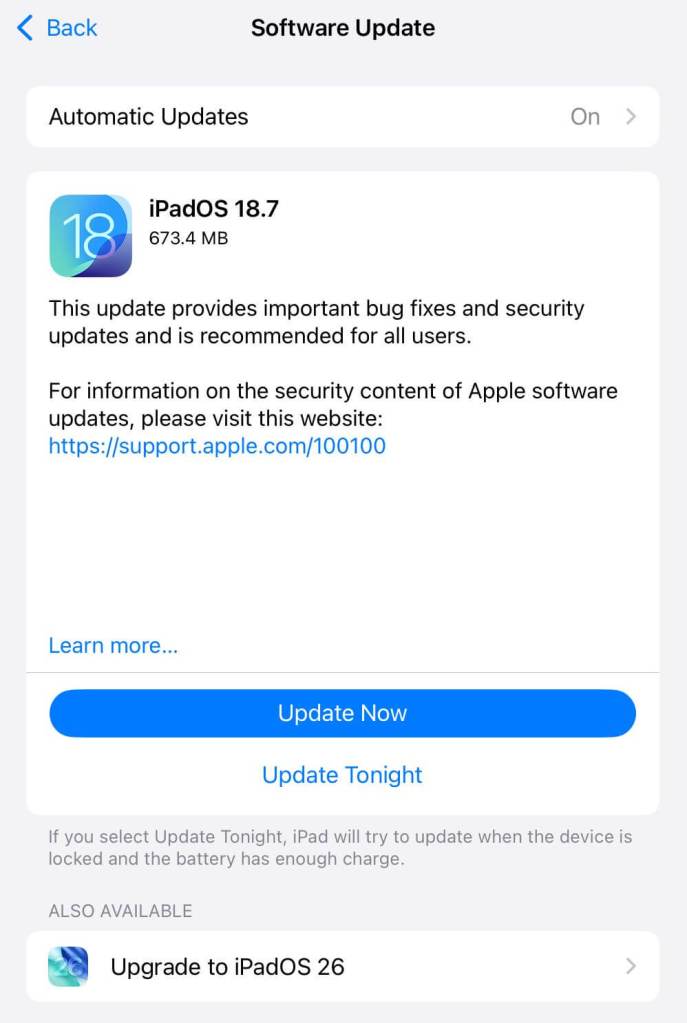
For iOS and iPadOS users, you can check if you’re using the latest software version, go to Settings > General > Software Update. It’s also worth turning on Automatic Updates if you haven’t already. You can do that on the same screen.

 choices in the iPad update or upgrade screen

How to update macOS on any version

To update macOS on any supported Mac, use the Software Update feature, which Apple designed to work consistently across all recent versions. Here are the steps:

  • Click the Apple menu in the upper-left corner of your screen.
  • Choose System Settings (or System Preferences on older versions).
  • Select General in the sidebar, then click Software Update on the right. On older macOS, just look for Software Update directly.
  • Your Mac will check for updates automatically. If updates are available, click Update Now (or Upgrade Now for major new versions) and follow the on-screen instructions. Before you upgrade to macOS Tahoe 26, please read these instructions.
  • Enter your administrator password if prompted, then let your Mac finish the update (it might need to restart during this process).
  • Make sure your Mac stays plugged in and connected to the internet until the update is done.

How to update Apple Watch

  • Ensure your iPhone is paired with your Apple Watch and connected to Wi-Fi.
  • Keep your Apple Watch on its charger and close to your iPhone.
  • Open the Watch app on your iPhone.
  • Tap General > Software Update.
  • If an update appears, tap Download and Install.
  • Enter your iPhone passcode or Apple ID password if prompted.

Your Apple Watch will automatically restart during the update process. Make sure it remains near your iPhone and on charge until the update completes.

How to update Apple TV

  • Turn on your Apple TV and make sure it’s connected to the internet.
  • Open the Settings app on Apple TV.
  • Navigate to System > Software Updates.
  • Select Update Software.
  • If an update appears, select Download and Install.

The Apple TV will download the update and restart as needed. Keep your device connected to power and Wi-Fi until the process finishes.

Updates for your particular device

Apple has today released version 26 for all its software platforms. This new version brings in a new “Liquid Glass” design, expanded Apple Intelligence, and new features. You can choose to update to that version, or just update to fix the vulnerabilities:

iOS 26 and iPadOS 26iPhone 11 and later, iPad Pro 12.9-inch 3rd generation and later, iPad Pro 11-inch 1st generation and later, iPad Air 3rd generation and later, iPad 8th generation and later, and iPad mini 5th generation and later
iOS 18.7 and iPadOS 18.7iPhone XS and later, iPad Pro 13-inch, iPad Pro 12.9-inch 3rd generation and later, iPad Pro 11-inch 1st generation and later, iPad Air 3rd generation and later, iPad 7th generation and later, and iPad mini 5th generation and later
iOS 16.7.12 and iPadOS 16.7.12iPhone 8, iPhone 8 Plus, iPhone X, iPad 5th generation, iPad Pro 9.7-inch, and iPad Pro 12.9-inch 1st generation
iOS 15.8.5 and iPadOS 15.8.5iPhone 6s (all models), iPhone 7 (all models), iPhone SE (1st generation), iPad Air 2, iPad mini (4th generation), and iPod touch (7th generation)
macOS Tahoe 26Mac Studio (2022 and later), iMac (2020 and later), Mac Pro (2019 and later), Mac mini (2020 and later), MacBook Air with Apple silicon (2020 and later), MacBook Pro (16-inch, 2019), MacBook Pro (13-inch, 2020, Four Thunderbolt 3 ports), and MacBook Pro with Apple silicon (2020 and later)
macOS Sequoia 15.7macOS Sequoia
macOS Sonoma 14.8macOS Sonoma
tvOS 26Apple TV HD and Apple TV 4K (all models)
watchOS 26Apple Watch Series 6 and later
visionOS 26Apple Vision Pro
Safari 26macOS Sonoma and macOS Sequoia
Xcode 26macOS Sequoia 15.6 and later

Technical details

Apple did not mention any actively exploited vulnerabilities, but there are two that we would like to highlight.

A vulnerability tracked as CVE-2025-43357 in Call History was found that could be used to fingerprint the user. Apple addressed this issue with improved redaction of sensitive information. This issue is fixed in macOS Tahoe 26, iOS 26, and iPadOS 26.

A vulnerability in the Safari browser tracked as CVE-2025-43327 where visiting a malicious website could lead to address bar spoofing. The issue was fixed by adding additional logic.

Address bar spoofing is a trick cybercriminals might use to make you believe you’re on a trusted website when in reality you’re not. Instead of showing the real address, attackers exploit browser flaws or use clever coding so the address bar displays something like login.bank.com even though you’re not on your bank’s site at all. This would allow the criminals to harvest your login credentials when you enter them on what is really their website.


We don’t just report on phone security—we provide it

Cybersecurity risks should never spread beyond a headline. Keep threats off your mobile devices by downloading Malwarebytes for iOS, and Malwarebytes for Android today.

  •  

How to set up two-step verification on your WhatsApp account

Two step verification is the name Meta uses for what is generally referred to as Two-factor authentication (2FA). 2FA is not fool-proof, but it is one of the best ways to protect your accounts from hackers.

It adds an extra step when logging in, which is a small extra effort for you, but it dramatically boosts your security. WhatsApp 2FA, called Two-Step Verification, requires you to enter a PIN code when registering your phone number on a new device, stopping hackers even if they have your SMS code.

Here’s how to enable 2FA on WhatsApp for Android and iOS.

How to set up two-step verification for WhatsApp on Android

  1. Open WhatsApp.
  2. Go to Settings (you’ll see it if you tap the three dots, usually located in the upper right corner).
  3. Tap Account.
  4. Select Two-step verification.
  5. Tap Enable.
  6. Create a unique 6-digit PIN and confirm it.
  7. Optionally, you can add your email address to recover your PIN if you forget it.
  8. Tap Save.

Now, whenever you verify your phone number on WhatsApp and every so often when you open the app, you’ll need the 6-digit PIN.

How to set up two-step verification for WhatsApp on iPhone or iPad

  1. Open the WhatsApp app on your iPhone or iPad.
  2. Tap on Settings (the gear icon)
  3. Tap on Account.
  4. Select Two-step verification.
  5. Tap on Turn on or Set up PIN to begin.
  6. Enter a six-digit PIN of your choice, then enter it again to confirm it.
  7. Optionally, you can add your email address to recover your PIN if you forget it.
  8. Tap Save or Done.
  9. If you added an email, enter the verification code sent to that email to complete the process.

Now, whenever you verify your phone number on WhatsApp and every so often when you open the app, you’ll need the 6-digit PIN.

Enable it today if you can

Even the strongest password isn’t enough on its own. 2FA means a thief must have access to your an additional factor to be able to log in to your account, whether that’s a code on a physical device or a security key. In addition to your password, this makes an account takeover much harder.

We recommend you set up 2FA on all your important accounts, including messaging and social media accounts. Do it today if you get a chance: It only takes a few minutes but can save you from hours or even days of headaches later. It’s currently the best password advice we have.


We don’t just report on phone security—we provide it

Cybersecurity risks should never spread beyond a headline. Keep threats off your mobile devices by downloading Malwarebytes for iOS, and Malwarebytes for Android today.

  •