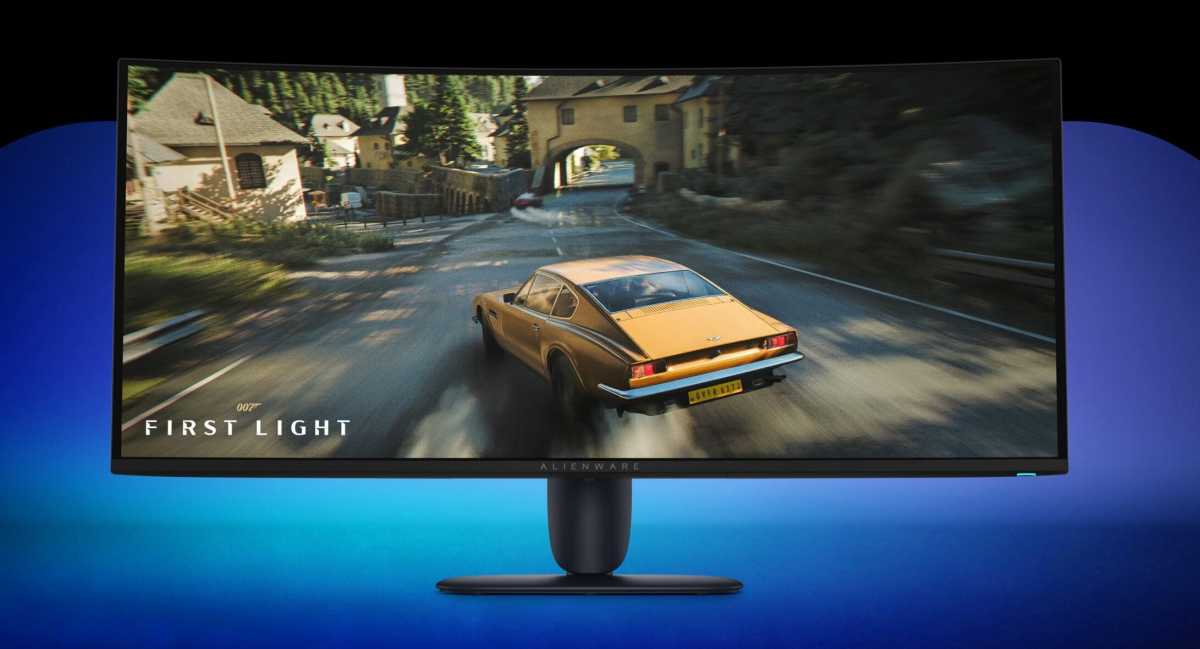
Being a PC gamer in 2026 makes me want to self-medicate. Upgrading your PC hardware or looking for a new laptop is an exercise in self-punishment, as RAM and storage push prices beyond the breaking point. That being the case, if you’re trying to upgrade on Amazon Prime Day, it’s time to look to everything else on your desk.
I’ve made a pick for every major component connected to your desktop PC, and a few more besides. Hopefully you can find a few things you’re interested in, at a budget that works for your wallet. And for more deals, be sure to check out the rest of PCWorld’s Prime Day coverage.
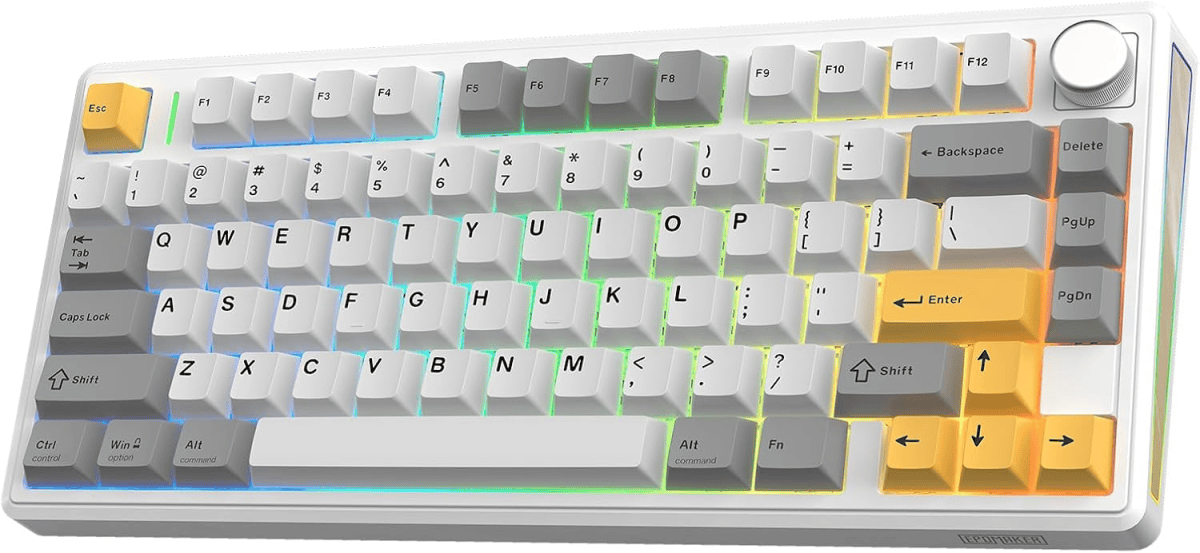
Good lord keyboards have gotten expensive, probably because a lot of brands have realized that people are willing to shell out for them. This Epomaker model has all the features I look for — multi-device wireless, hot-swap switches, PBT keycaps — plus a little extra blink and a choice of switches. It’s a great way to get something new (or get into the hobby) for cheap.
This is the mouse I use every day, a far, far cheaper copy of Razer’s swappable Naga Pro design. It gives you a choice of side panels: Three buttons for shooters and other simple games, or nine buttons for MMOs and MOBAs, plus four more programmable buttons on top. The thing is crazy flexible for the price, just $37 during the sale.
Another one that I’m using right this minute. This super-wide, real felt mat adds a touch of class to my desktop, while still protecting it and giving me a solid surface. If you want something a little more conventional and gamer-y, I can also personally recommend Corsair’s big ol’ mouse mat, just $16 at the time of writing.
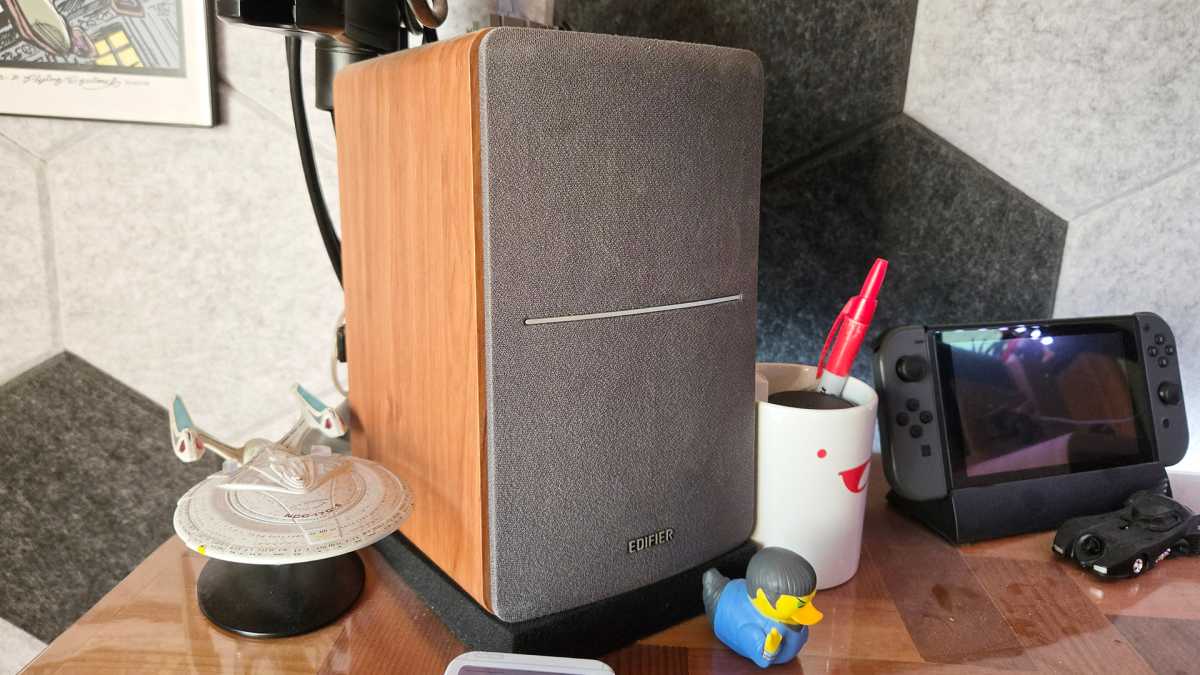
These are the favorite of Reddit’s Battlestation sub, and yes, I use them too. I’ve loved these speakers for years, but I have to admit they’re less of a deal than they used to be after the price jumped up without any new upgrades. Thanks, 2026. Even so, at $40 off the current list price they’re a good discount. Want Bluetooth too? Then go for the $140 version.
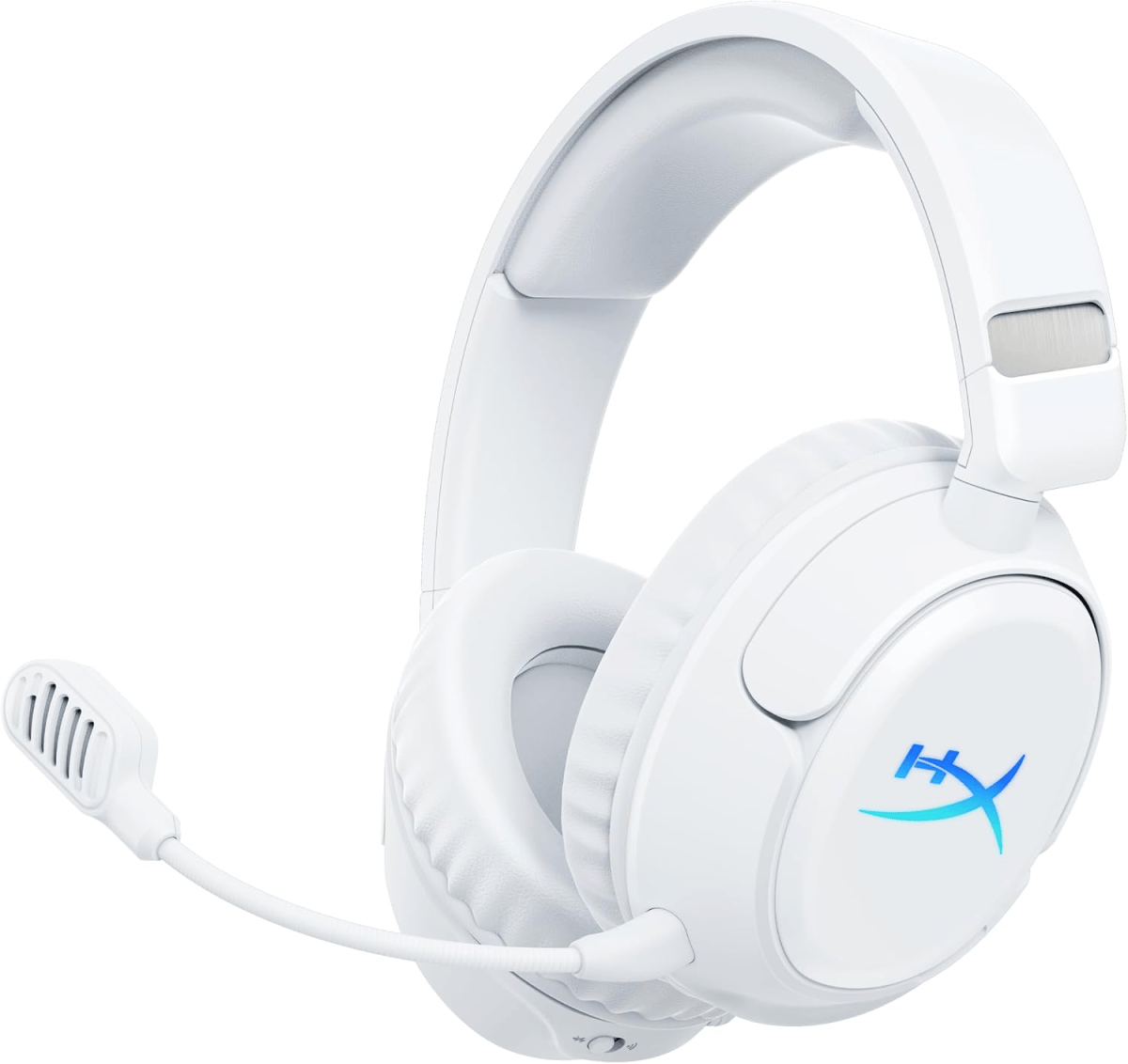
For me, a headset pulls double duty: focus for games and flexibility for listening when I’m away from my desk. And nobody beats HyperX when it comes to wireless battery life. This headset claims 100 hours of life in 2.4GHz mode — weeks or months for most users — and 150 in Bluetooth. All for nearly $50 off the retail price, not bad at all.
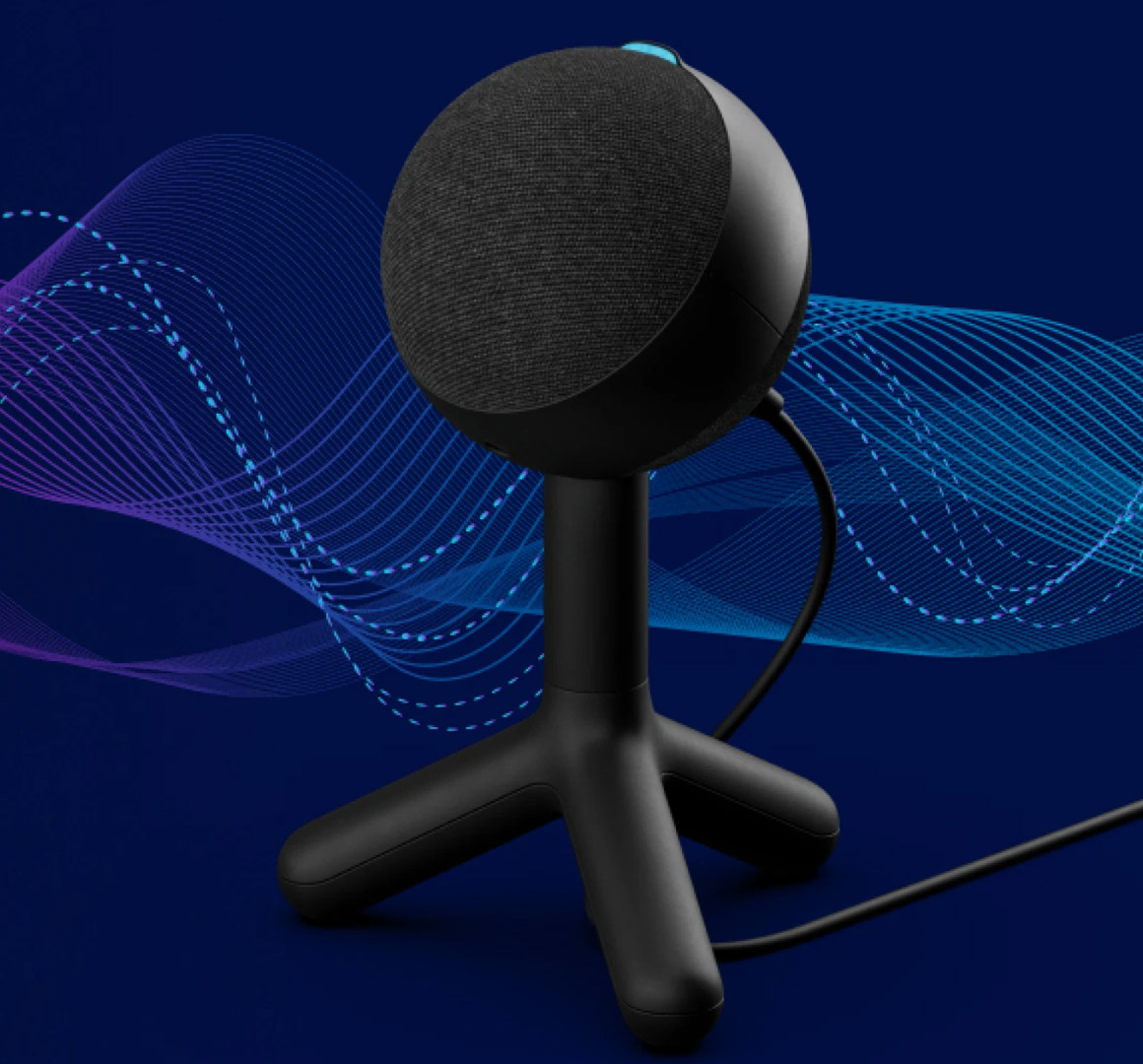
This budget option won’t get you ready to launch a podcast or music career. But for a nice upgrade to spare the ears of your teammates or coworkers, it’ll do fine. And just fifty bucks is more than reasonable.
Your parents were right: Gaming in a dark room will ruin your eyesight. This monitor bar will illuminate the space both on your desk and on your wall, without washing out what’s on your screen. All for under thirty bucks with a remote control, that’s a steal.
Look, a good electronic screwdriver set is useful in any household. But if your household is the kind that likes to roll up its collective sleeves and dive deep into the bones of DIY desktop computers, a good electronic screwdriver set is downright necessary. Good news! You can grab a beefy 25-piece electric screwdriver set for just $28.50 at Amazon during Prime Big Deal Days — damned near half off its usual $50 price tag.
I’ll take it! No, seriously — I just bought one before bothering to write this to expand beyond my much tinier set.
HOTO’s kit contains 25 different S2 steel bits of varying shapes and sizes, including an extended standard bit for those times when you need to reach far into the guts of your PC. Not enough? The kit also comes with an extender — and all the bits are magnetic so you won’t have to worry about dropping screws into your case’s guts while you’re meddling.
The screwdriver itself offers three different torque settings, a long-lasting 1500mAh battery charged via USB-C, and a circular LED light to improve visibility. Again: Great for DIY desktop deep-dives.
If you don’t own an electric screwdriver set currently, this HOTO set would be a game changer — and you can get it for an incredibly delicious price right now. Don’t wait, though: Amazon Prime Day ends at midnight on Wednesday. Be sure to check out PCWorld’s roundup of the best Prime Day tech deals if you’re looking to maximize your dollars!
Amazon’s October Prime Day (hopefully) kicks off the holiday sales season, and it’s an ideal opportunity for you to update your home office. From new displays to an update to the humble mouse, these are some of the deals that we’re keeping an eye as the deal days progress.
Keep in mind that Amazon’s October Prime Day deals last just today and tomorrow, October 6 through October 7. However, rival Walmart is running its own sales all week, so that may keep deals in place longer than Amazon planned. If so, expect to see this article updated as warranted.
Remember, some or all of these deals might require an Amazon Prime membership to sign up for. Don’t despair — there are ways to get Amazon Prime for free.
Believe it or not, there are two centerpieces for your desk, your display and the laptop docking station. We have deals on both.
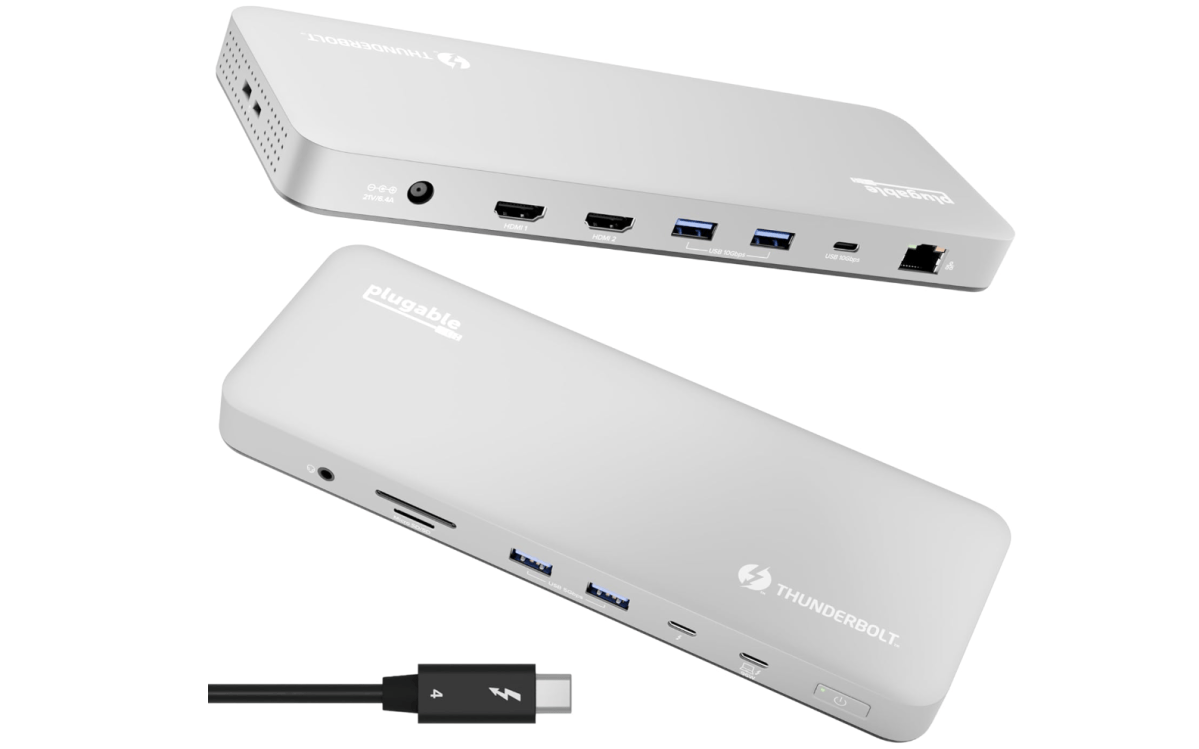
Plugable Thunderbolt 4 Dock: $149.96 ($50 off at Amazon)
Amazon
Who is this for? Plugable’s dock is slim, compact, and to the point: It gives you what you want, and not much more. I really like the two dedicated HDMI display ports and the additional Thunderbolt4 upstream port, which can be used for connecting a monitor or for additional expansion.
Why is this deal good? I’ve seen mainstream Thunderbolt 4 docks at $225 to $250, and it’s wonderful to see a focused Thunderbolt 4 dock arrive at a price well under that.
Get the Plugable Thunderbolt 4 Dock for $149.96 at Amazon
I really want to buy a new OLED display for my desk, but the problem is that OLED displays with stunning blacks and high contrast aren’t quite there in the format I’d like: large, 4K, and high refresh rate. So you have a choice: drop down to a slightly lower-res 1440p display, or choose a more traditional IPS panel…which to be honest, works just fine.
High-refresh rate OLEDs are generally considered “gaming” monitors, even if you use them for normal work.
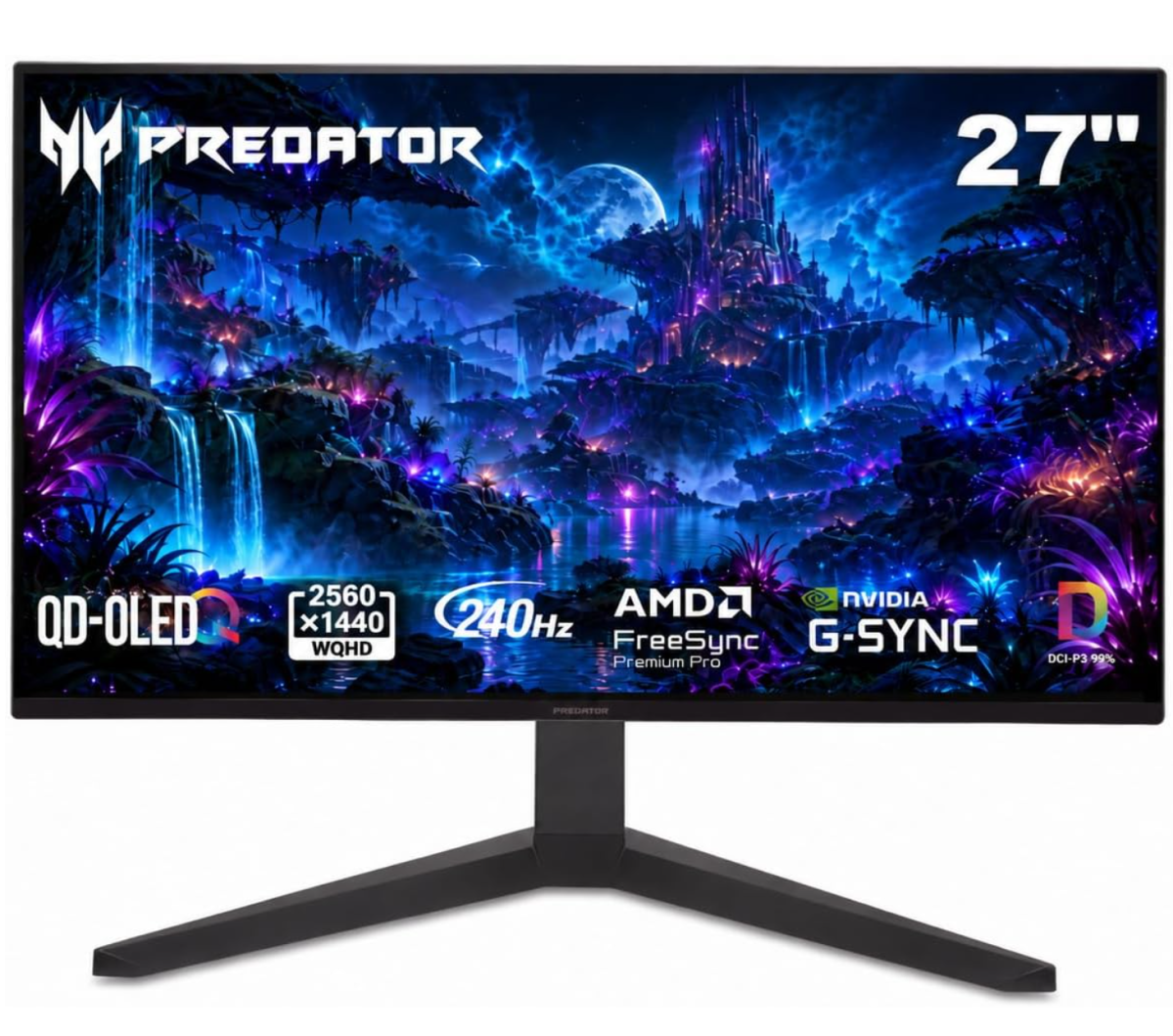
Acer Predator 26.5-inch 1440p OLED (X27U): $314.99 at Amazon
Who is this for? Acer’s Predator 1440p OLED is designed for gamers, but there’s little difference between someone who is using this for productivity or for playing games after hours. Since it offers 99 percent DCI-P3 coverage, you can certainly use it for photo editing as well as shooting aliens.
Why is this deal good? There’s no discount on this display, but it’s at the lowest price in a year, so it’s worth it.
Get the Acer Predator 26.5-inch 1440p OLED (X27U) for $314.99 at Amazon
if you’re looking for something a little more productivity focused, however, there’s an opportunity to buy a lovely large 32-inch 4K IPS display, too.
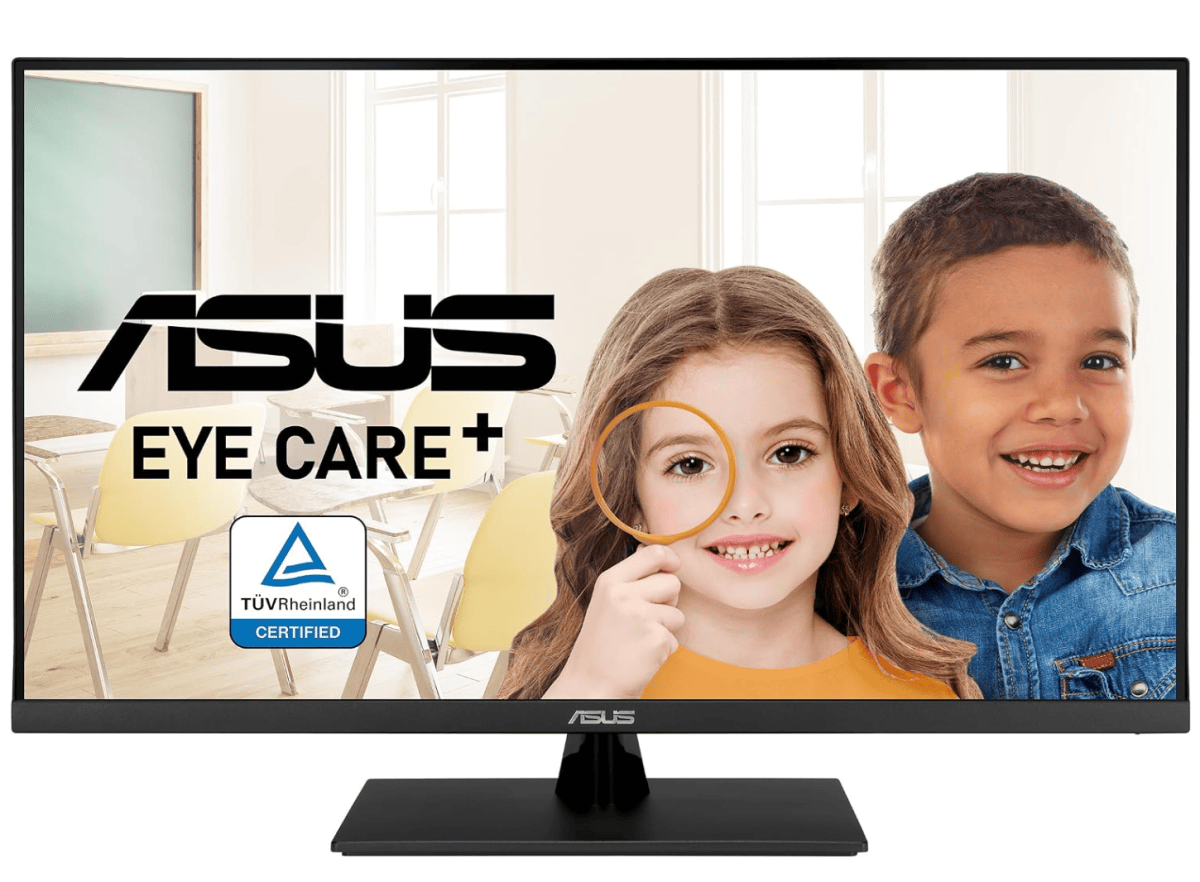
Asus 32-inch 4K Display (VP327Q), $179.00 ($70 off at Amazon)
Amazon /Asus
Who is this for? The selling point here is size: A 32-inch display allows you to see more of what you’re working on, especially for a single display. Is it too large? I don’t think so, especially with the number of pixels it’s pushing. DisplayPort and HDMI connections can accommodate most display outputs. There are built-in blue-light filters, too.
Why is this deal good? Another display that’s at its lowest price in a year. A month ago, this would have cost about $239 or so.
Get the Asus 32-inch 4K Display (VP327Q) for $179.00 ($70 off) at Amazon
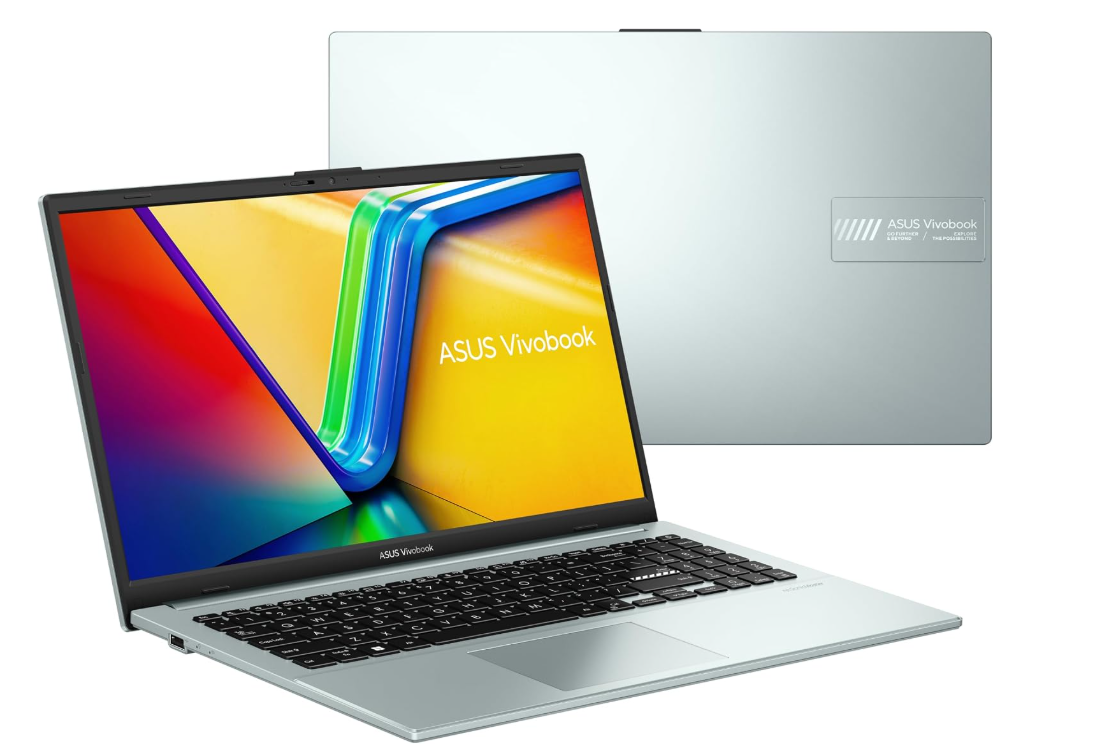
Don’t forget that laptop! We think that the Asus Vivobook Go is one of the best deals we’ve seen.
Asus Vivobook Go 15, $479.99 ($120 off at Amazon)
Asus
Who is this for? My colleague Ashley Biancuzzo says that the Vivobook Go is for anyone who just needs a barebones machine. Just something reliable for browsing or streaming. Whatever it is you do when you’re busy killing time. Check out her roundup of the best Prime Day laptop deals for more.
Why is this a good deal? The Vivobook Go sits in that increasingly important “just enough laptop” category. It’s not trying to be crazy powerful. It’s trying to be consistent.
Get the Asus Vivobook Go 15 for $479.99 ($120 off at Amazon)
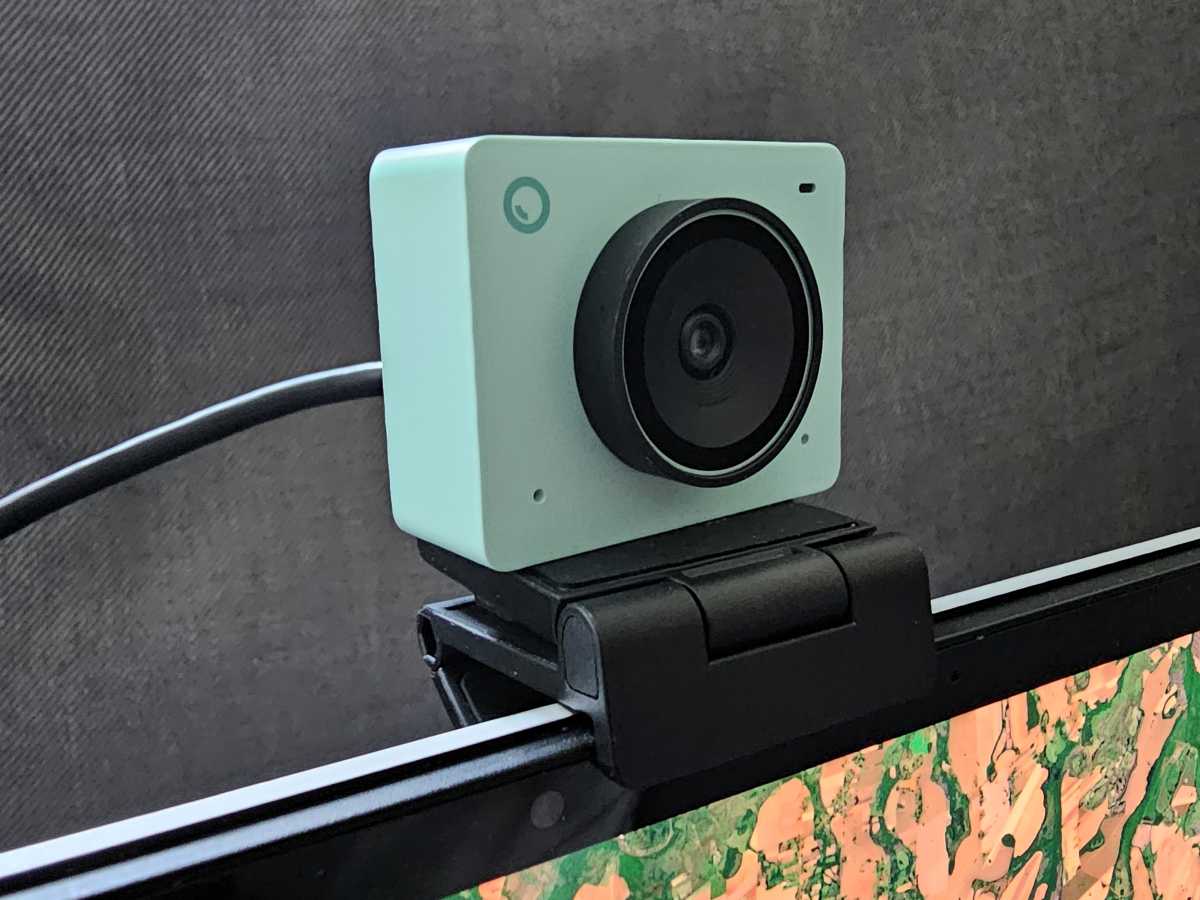
What would a home office be without a webcam? I reviewed the Obsbot Meet 2 4K webcam earlier this year, and I loved it. Amazon has it on a substantial sale for October Prime Day.
Obsbot Meet 2 4K webcam: $99.00 ($30 off at Amazon)
Mark Hachman / Foundry
Who is this for? The fact is that 4K webcams are more common than ever, so testing them really helps determine which webcams work best in low light, which are more color-accurate, et cetera. My review of the Obsbot Meet 2 really helped convince me that this is a webcam that you want to buy. (Sample pictures included, of course.)
Why is this deal good? You will find lower prices on other webcams at Amazon. However, nearly a quarter off on a solid 4K webcam is worth it, I think.
Get the Obsbot Meet 2 4K webcam for $99.00 ($30 off at Amazon)
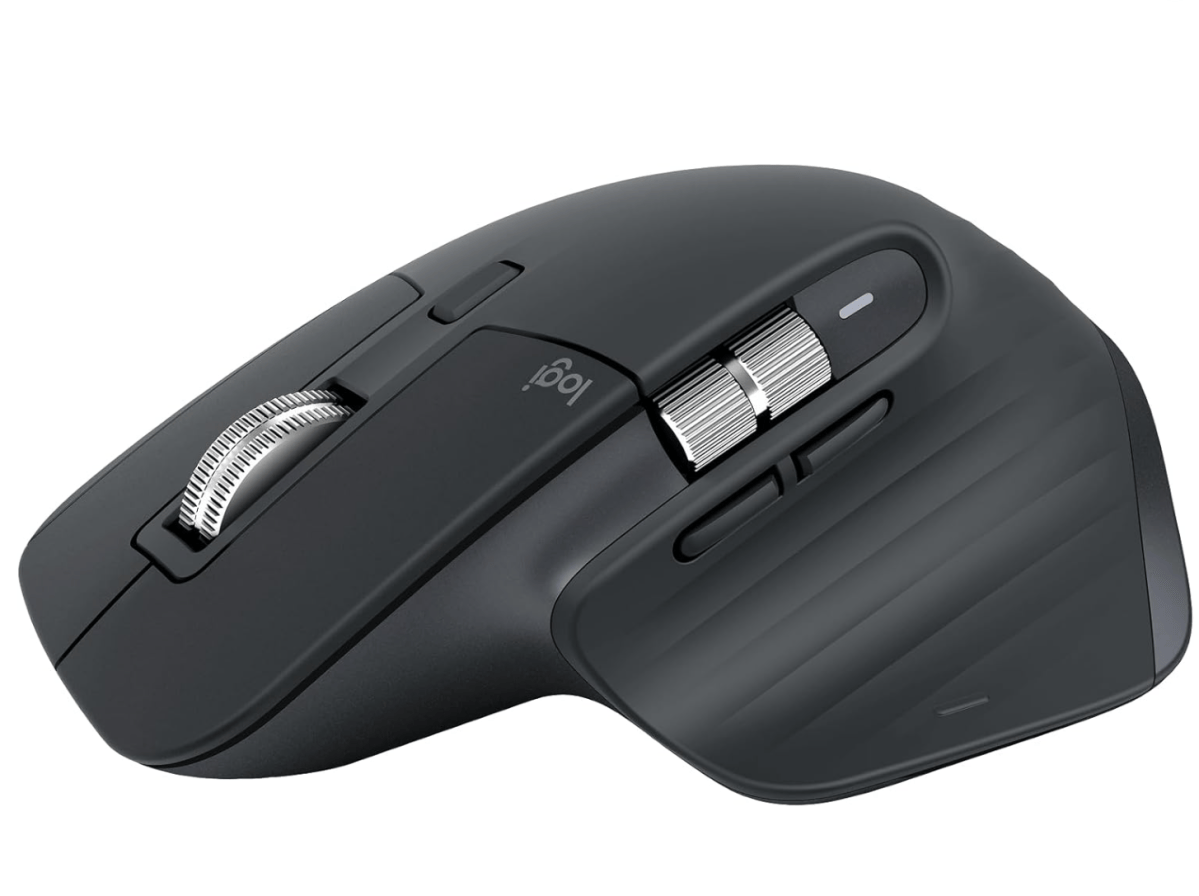
Unfortunately, Amazon is not selling the excellent Logitech MX Master 4 mouse as part of its Amazon October Prime Day sales. However, the older MX Master 3S mouse is being offered at a decent discount, which is an ideal opportunity to upgrade if you haven’t done it already.
Logitech MX Master 3S (Bluetooth) Wireless Mouse: $79.99 ($20 off at Amazon)
Who is this for? The Logitech MX Master 3S boasts an incredibly accurate 8,000 dpi sensor and the series’ noted thumbwheel and thumb rest. If you set the MX Master 4 aside, it’s probably the ultimate productivity mouse. The MX Master 4, unfortunately, is not on sale.
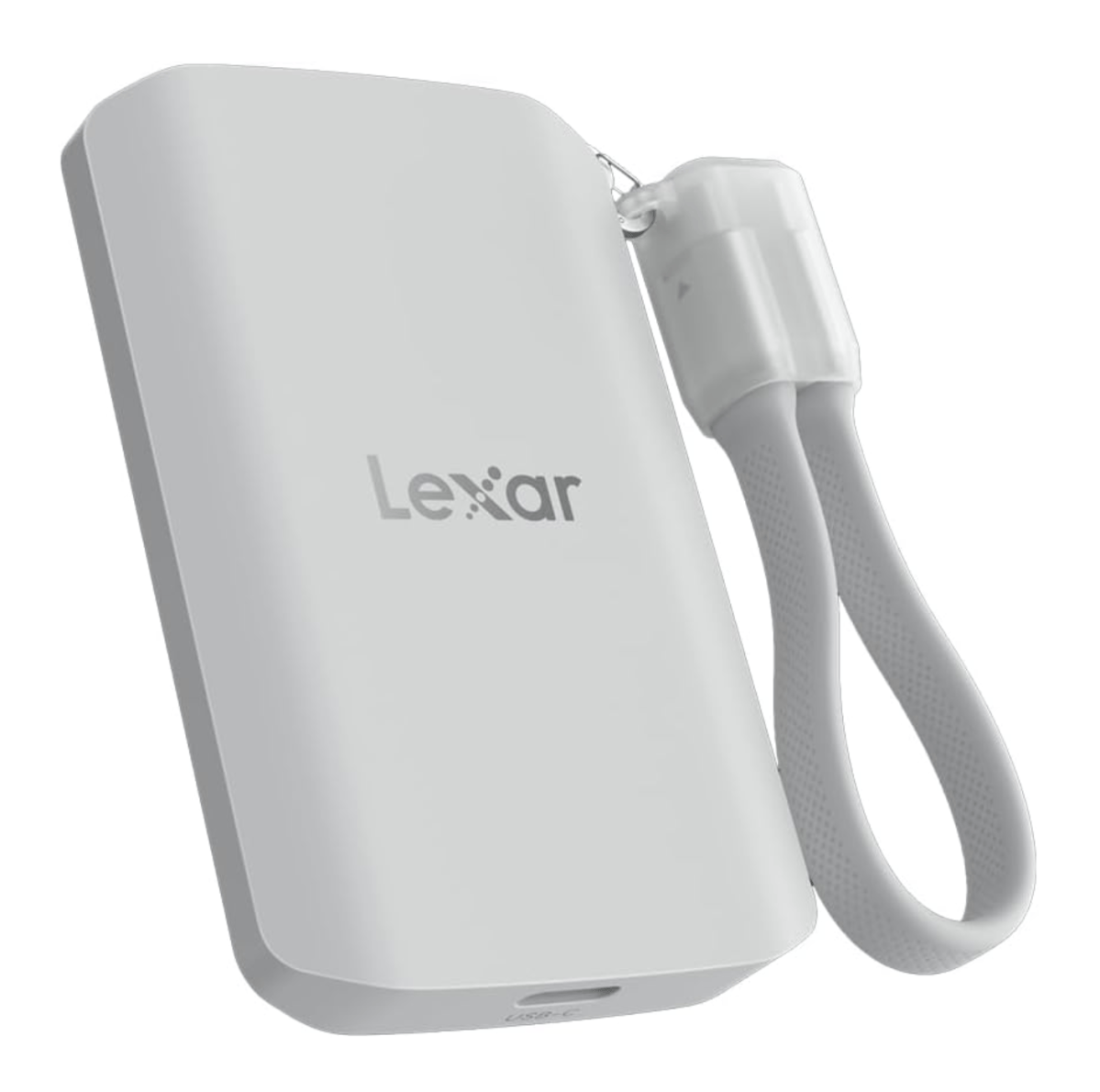
OK, storage prices stink these days, but hang on…what’s this?
Lexar 2TB ES5 External SSD: $284.49 ($95 off at Amazon)
Who is this for? This drive works as an external SSD for PCs and phones with a USB-C port, and also includes MagSafe compatibility for iPhones, which is something you rarely see. It’s a nice, quick way to transfer files quickly from your phone to your PC, and the USB-C cord works as a strap, too.
Why is this deal good? We all know that storage prices have skyrocketed, but the price of this external SSD isn’t bad: It’s the lowest price since February, when the prices started spiking. Amazon says that this drive was about at $180 or so a year ago, but that’s just the way it goes.
Get the Lexar 2TB ES5 External SSD for $284.49 ($95 off) at Amazon
Amazon’s October Prime Day is one of the best opportunities for shoppers to score great deals on Thunderbolt docks and their cousins, USB-C hubs, before the holiday season kicks off in earnest. I should know — I’ve been reviewing and tracking them for years and years!
Laptop docking stations, Thunderbolt docks, and USB-C hubs offer an opportunity to connect a variety of peripherals to your laptop — even adding new ports your notebook may lack. Nothing against other retailers, but Amazon has hosted the best deals on all three categories over the past few years. It’s where I’d expect to find most of the deals during its October Prime Day deals (also known as Amazon’s Prime Big Deal Days, running Oct. 6 and 7) and before.
When I look for a deal, I have an idea of what a docking station should cost, based upon my extensive history of reviewing docking stations. I then compare it against the feature set the dock offers, as well as the historical price of the item as listed on Amazon and on pricing comparison sites. Note that I’m looking to save you money — if there’s an affordable dock that offers a better value at a regular price, I’m going to recommend it versus another, more expensive dock that’s on sale. Some deals are Amazon Prime exclusive — sign up for Prime for free via using our tip!
Below you’ll find the best deals I found, along with an explanation of why you should buy them. If you’re uncertain whether you need a Thunderbolt dock or USB-C dock, see the FAQ at the bottom of this article. Be sure to check out PCWorld’s best Prime Day deals, too!
(Updated at 1:44 PM on Oct. 7)
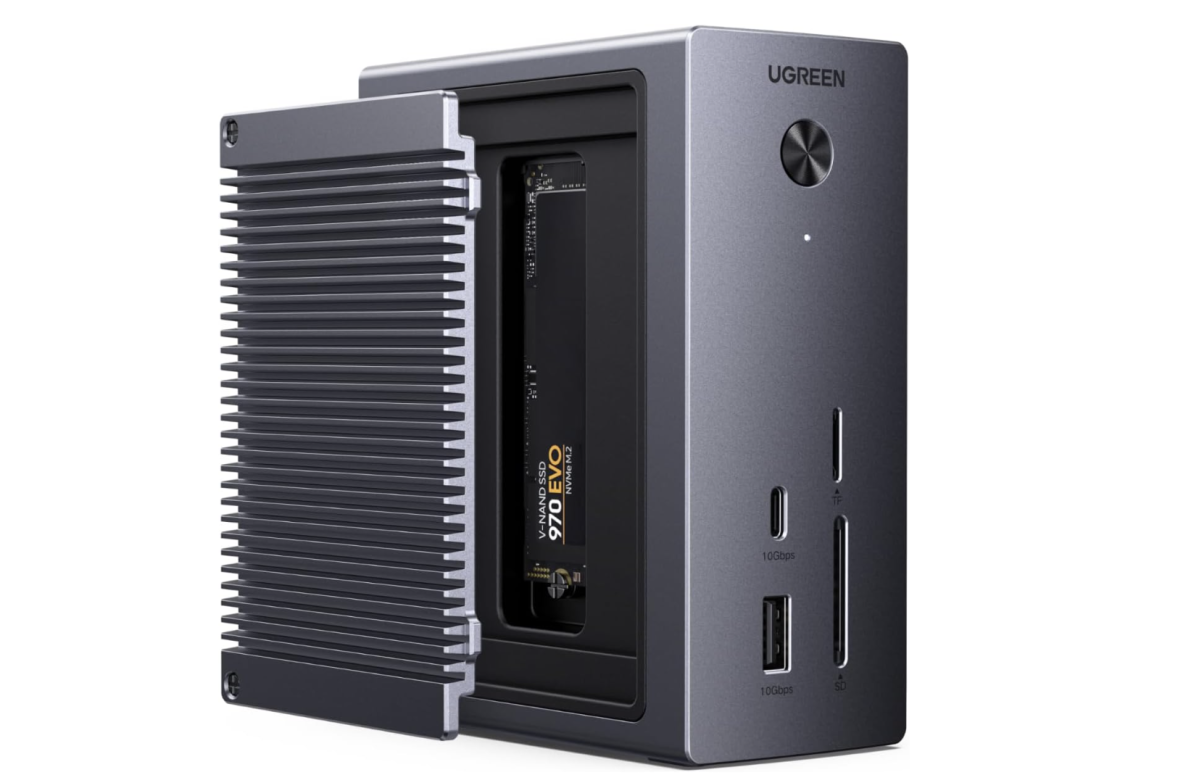
Best budget docking station deal: Ugreen Revodok NVMe Docking Station, $59.99 ($20 off at Amazon)
Who is this for? If you’re a budget buyer who doesn’t need to connect more than one external monitor, this one’s for you. USB-C hubs and dongles flop all over your desk; this USB-C docking station simply takes that functionality and builds it into a nice compact little docking station. The plus is an SSD slot that can serve as handy local storage. Keep in mind that this dock cuts a few corners; you’ll need to provide your own USB-C power supply (up to 100W, but any USB charger will do) and your own SSD. Otherwise, there’s a USB-C and a USB-A port, HDMI, Ethernet, and a card reader.
Why is this deal good? This dock started off at its $79.99 list and has steadily decreased since then. USB-C hubs can fall into the $30 range or so, but I’d pay a few bucks extra for a nice vertical docking station like this. Oh, and you’ll probably see a lot of Ugreen in these deals — I’ve reviewed a lot of Ugreen docks, and they’re a solid budget brand.
Get Ugreen's Revodok NVMe Docking Station for $56.99 on Amazon
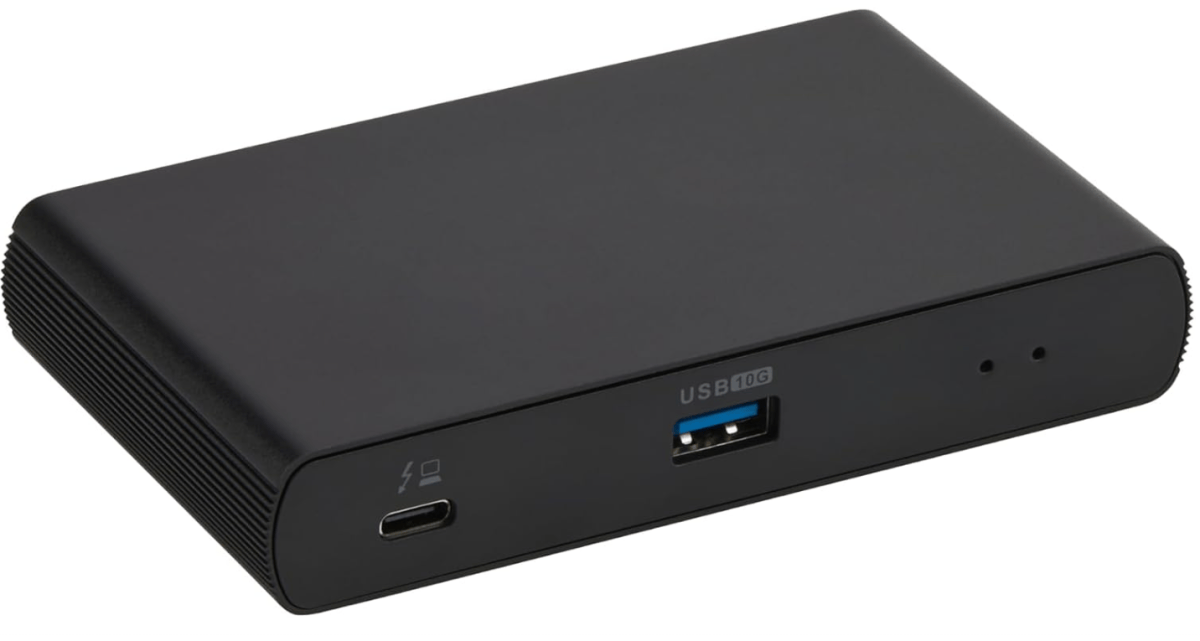
Best budget Thunderbolt docking station: Amazon Basics Thunderbolt 4 Docking Station, $102.33 ($46.60 off at Amazon)
Amazon
Who is this for? Amazon’s Basics dock works best for people who want a minimal, affordable dock for connecting to multiple monitors. Note that you’ll have to supply the display cables yourself (you’ll find deals on those lower in this story) and there’s just one legacy USB-A port. On the other hand, there’s an extra Thunderbolt 4 port for further port expansion.
Why is this deal good? This is an affordable dock on a solid sale. I’m not a huge fan of the dock’s configuration, as it feels like you’ll have to plow some of the savings back into cables or a USB-C hub to add some more ports. Even doing so, however, won’t cost more than the dock will at regular price.
Get the Amazon Basics Thunderbolt 4 Docking Station for $102.33 at Amazon
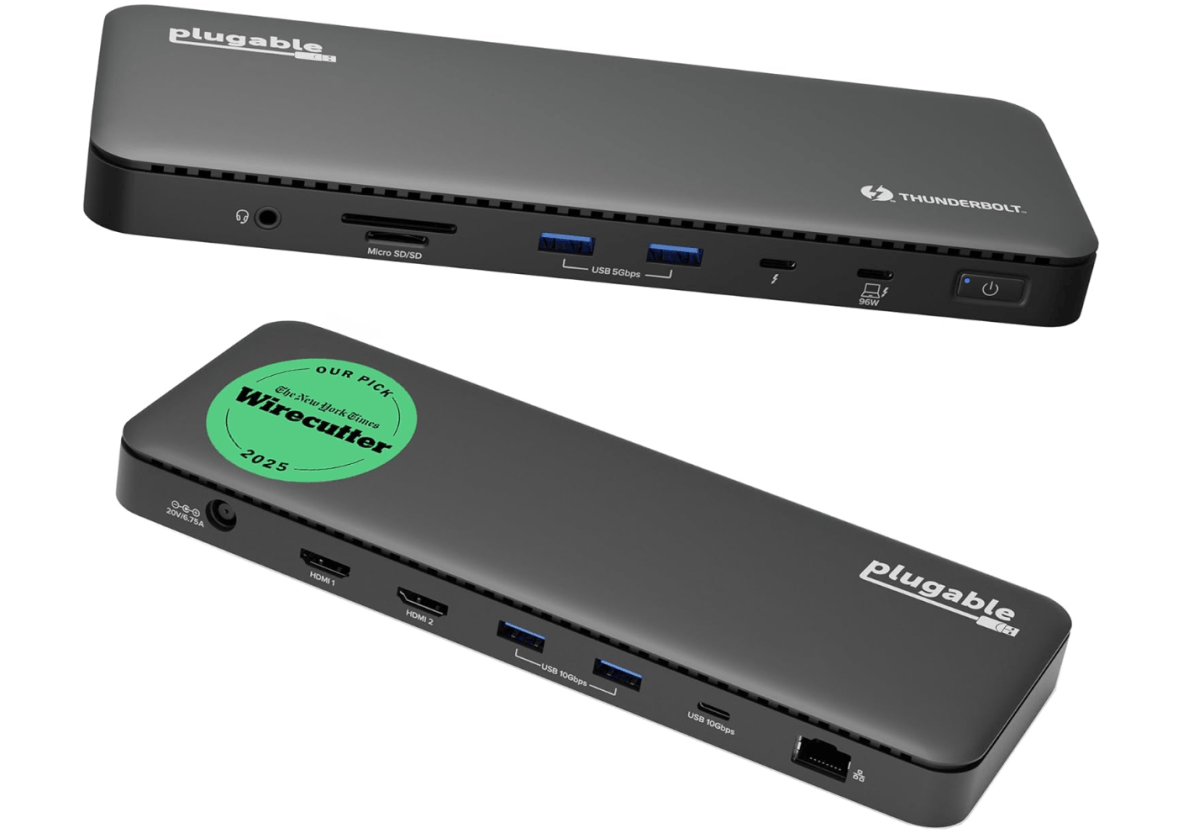
Best mainstream Thunderbolt dock deal: Plugable Thunderbolt 4 Dock, $169.95 ($50 off at Amazon)
Who is this for? Plugable’s dock is slim, compact, and to the point: it gives you what you want, and not much more. I really like the two dedicated HDMI display ports and the additional Thunderbolt4 upstream port, which can be used for connecting a monitor or for additional expansion.
Plugable put a very similar dock on sale earlier in Prime Day, but just switched the discount to this dock — which is equally as good — for the second day. It is $20 more, though.)
Why is this deal good? I’ve seen mainstream Thunderbolt 4 docks at $225 to $250, and it’s wonderful to see a focused Thunderbolt 4 dock arrive at a price well under that.
Get the Plugable Thunderbolt 4 Dock for $169.95 at Amazon
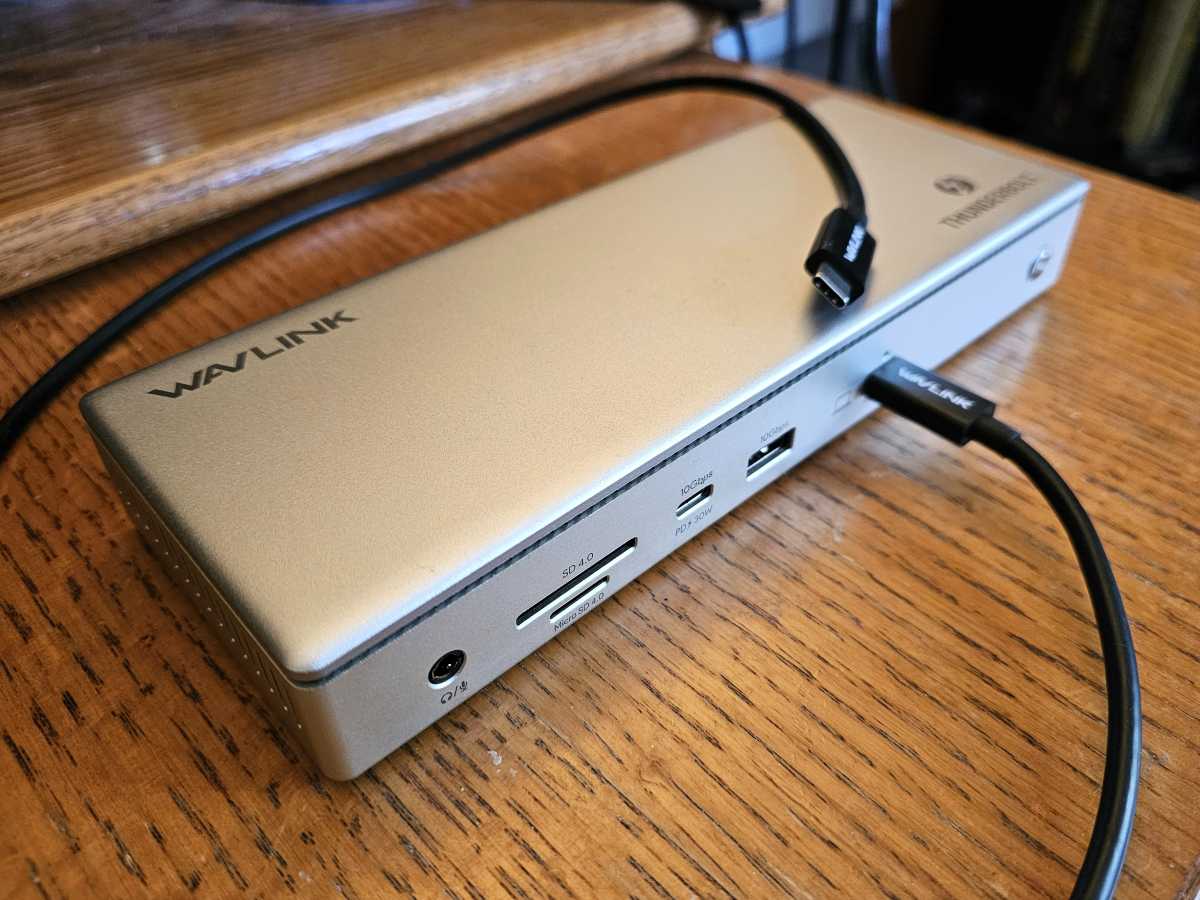
Best mainstream Thunderbolt dock deal, runner-up: Wavlink Thunderbolt 4 Dock, $162.44 ($37.55 off at Amazon)
Mark Hachman / IDG
Who is this for? This is a great mainstream dock at an outstanding price, and I’d recommend it for the vast majority of users who own a Thunderbolt docking station. This dock has a 30W USB-C charging port on the front, and another USB-C port (Thunderbolt 4) on the back which can be used for charging or display. But there’s also a pair of dedicated HDMI ports, eliminating the need for specific adapter cables. I’ve personally reviewed this dock, and found it to be solid, albeit with a few quirks.
Why is this deal good? I tend to expect Thunderbolt docks to hover around $200 or so. Amazon charged a lower price for Prime Day, and this dock has touched $175 before. Now it’s even better than that!
Alternatively, Ugreen’s 8-in-1 Thunderbolt 4 dock is on sale for $161.47 (35% off) but it only has USB-C / Thunderbolt ports as display options. You may find yourself spending more on display cables.
Get Wavlink's Thunderbolt 4 Dock for $162.44 at Amazon
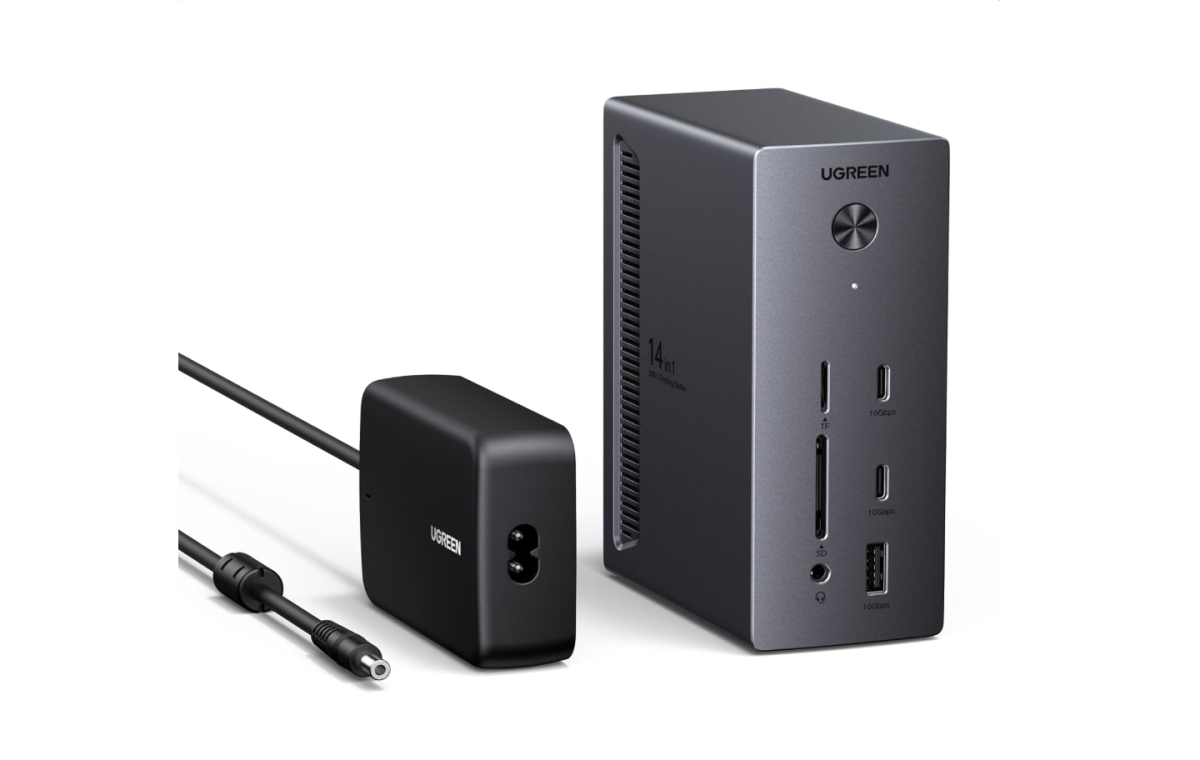
Best mainstream USB-C docking station deal: Ugreen 14-in-1 USB-C Docking Station: $79.99 ($60 off at Amazon)
Who is this for? If you don’t need the full power of a Thunderbolt dock, this Ugreen 14-in-1 docking station offers a ton of functionality in a more accessible USB-C format: three display ports (two HDMI, one DisplayPort), plus 140W charging via a 27W charger output and 100W upstream to the laptop dock. In addition, there’s an SD/TF card reader as well as a pair of USB-C ports and a USB-A port.
Why is this deal good? The lowest price this dock hit in the last year was $73, but Amazon and Ugreen were charging $120 for most of the year.
Get the Ugreen 14-in-1 USB-C Docking Station for $79.99 at Amazon
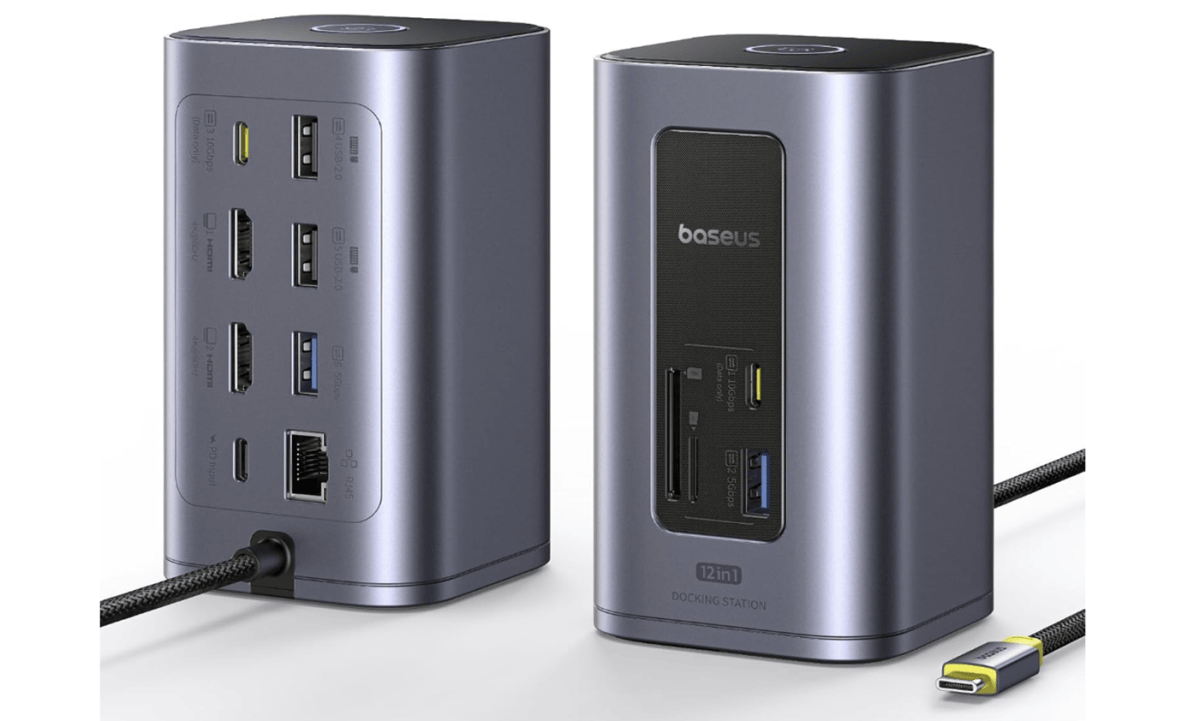
Best mainstream USB-C docking station deal, runner-up: Baseus SpaceMate Nomos Air: $79.99 ($20 off at Amazon)
Amazon / Baseus
Who is this for? As the name suggests, the SpaceMate emphasizes a clean, compact design. The SpaceMate Nomos builds on the original SpaceMate design, which, honestly, I didn’t love. Nevertheless, the original Spacemate $199.99 dock is priced at $99.99 today, and the Nomos is even less. You gotta like that trend.
In its favor, though, the Nomos goes back to the basics: two display ports and a smart array of other I/O ports, too. There is a catch: though the dock supports 95W charging, it does not ship with its own (USB-C) charger. You’ll have to buy or supply your own.
Why is this deal good? I rank this below the Ugreen since you’ll have to supply your own charger. Otherwise this is an affordable USB-C docking station that’s received a heavy discount for the October Prime Day sale.
Get the Baseus Spacemate Dock for $63.99 at Amazon
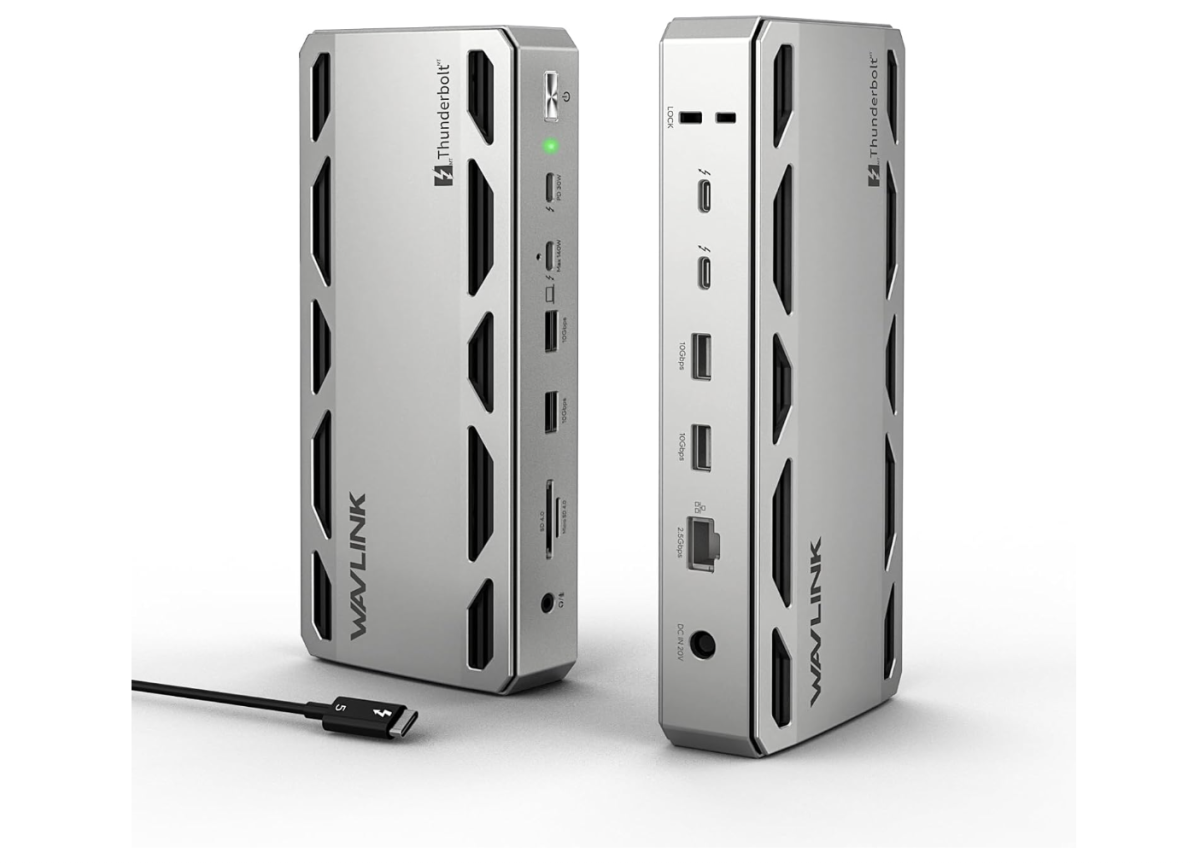
Best premium docking station deal: Wavlink 12-in-1 Thunderbolt 5 Dock: $219 at Amazon
Who is this for? The Apple Mac natively supports Thunderbolt 5, but several Windows gaming laptops do too, and a TB5 dock can future-proof your setup as well as provide a connection to a high-speed single display, if your laptop also supports Thunderbolt 5. This dock doesn’t provide a dedicated display connection, but it’s discounted substantially less than other rival TB5 docks. (Check the list of cables below for upgrade options.) This dock has three Thunderbolt connections, 140W of charging power to the host, and a number of USB-A ports.
Why is this deal good? This was the best Thunderbolt 5 dock deal for Prime Day. At this point, I think it represents the best value for a TB5 dock during October Prime Day. I typically expect a TB5 dock to be priced above $250 and even closer to $300. This dock wasn’t discounted before this October Prime Day, but it certainly is now.
Get Wavlink's Thunderbolt 5 dock for $170.43 at Amazon
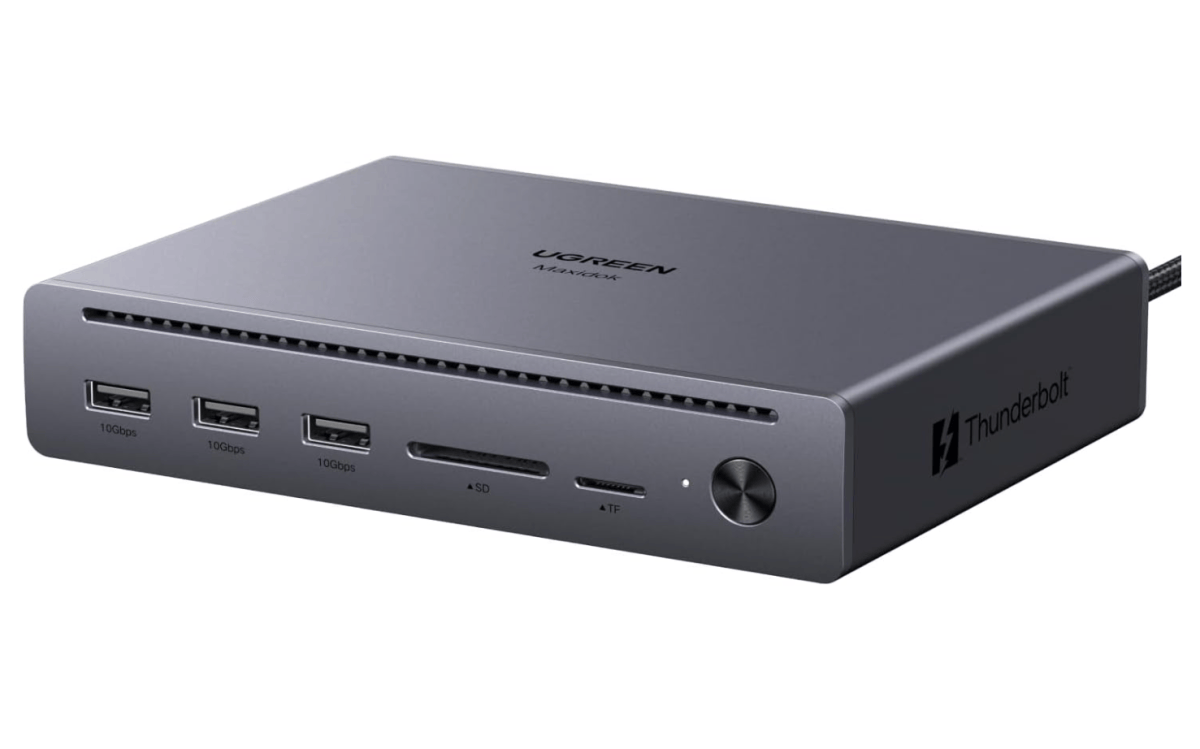
Best premium docking station deal, runner-up: Ugreen Maxidok Thunderbolt 5 Docking Station, $218.47 on Amazon
Who is this for? Consider this a premium Thunderbolt 5 dock for the subset of Windows gaming laptops that include a Thunderbolt 5 port. I haven’t reviewed this dock myself, though Amazon’s customers say that they appreciate the dedicated display ports that eliminate the need for display dongles or converter cables.
Why is this deal good? My original deal in this category was the StarTech Thunderbolt 5 Dock for $275.94, as I preferred the slightly greater array of ports. But the price of Ugreen’s dock is too good to pass up. This dock includes a single display port, which might means that you’ll have to purchase a cable, listed below. Even then, the Ugreen is a better deal.
Get the Ugreen Maxidok Thunderbolt 5 Docking Station at Amazon for $218.47
Some docking stations include dedicated display ports, so your display’s HDMI or DisplayPort cable can plug right in. Others don’t, and you’ll need to pair your ports to what the dock offers. Even if your display and dock both support direct USB-C/Thunderbolt connections, chances are that cables won’t be included. Here’s some quick suggestions on what to buy if you need them.
Most Thunderbolt 4 docks support up to two 4K displays at 60Hz. If your display supports both DisplayPort and HDMI, it doesn’t really matter which port you use.
For a USB-C (Thunderbolt) connection on the dock to an HDMI input on your display: buy these 6-foot Uantin cables for $7.99 (20% off) for October Prime Day.
For a USB-C (Thunderbolt) connection on the dock to a DisplayPort input on your display, buy these 6-foot Benfei cables for $7.99, 20% off for October Prime Day.
These aren’t the only October Prime Day deals being tracked by the PCWorld team. If you’re looking to supercharge your home setup with the juiciest tech sales, hit the links for only the best expert-curated picks we’ve found.
Why should I buy a USB-C hub or Thunderbolt docking station?
Laptops have generally begun replacing all of the legacy ports (the boxy USB-A plug, HDMI, SD card slots, and more) with generic USB-C ports. That’s fine, but what if you have a wired printer or mouse or external SSD? You’ll need to connect it to your laptop, and you might need the right physical port connector.
If you have a fast external SSD or hard drive, the external throughput will certainly help you get the most out of your peripheral. And if you want to connect multiple displays, you’ll need a USB-C hub (and preferably a docking station) with support for two display connectors.
2.
How do I know whether to buy a USB-C hub or a Thunderbolt docking station?
USB-C hubs and Thunderbolt docks use the same physical USB-C connection. A USB-C port (and USB-C hub or dongle) use a basic 10Gbps connection, while a Thunderbolt port increases the throughput to 40Gbps. Ideally, you should see a small “lightning bolt” icon signal a Thunderbolt port, while an unmarked port may be just a generic USB-C port.
Manufacturers, though, aren’t forced to label their ports. Your best bet is to haul out your laptop’s manual and check.
Thunderbolt docks will only work with a Thunderbolt connection. You can buy a USB-C hub or dongle and connect it to a Thunderbolt port, but it will only run at the 10Gbps speed.
3.
USB-C hubs, dongles, and docking stations: what’s the difference?
I use hubs and dongles interchangeably to describe the small devices that hang off your USB-C port with a short cable. A docking station is generally large and heavy enough that it will remain on your desk. Virtually all Thunderbolt devices are large enough to be considered docking stations.
You can buy USB-C docking stations that lack Thunderbolt connections, but those are a bit rarer. A docking station also usually includes a charger so you can use it instead of your laptop charger. I also associate a docking station as something that resides on your desk, all the time.
4.
My laptop has USB4, not Thunderbolt. Can I use a Thunderbolt dock?
USB4 and Thunderbolt 4 are functionally the same. Intel refuses to certify non-Intel platforms like AMD’s Ryzen for Thunderbolt, and the Copilot+ PCs from Microsoft powered by Qualcomm Snapdragon X Elite chips are in the same boat. Those two PC platforms use USB4 docking stations instead.
USB-C hubs work with basically anything with a USB-C port on it. Don’t worry about those at all.
5.
How do I know whether to buy Thunderbolt 3, 4, or 5?
Thunderbolt 3 docking stations have been largely phased out, though you’ll need to hunt one down if your laptop is equipped with Thunderbolt 3. Otherwise, Thunderbolt 4 is the default standard, while Thunderbolt 5 is reserved for Macs and some Windows gaming laptops.
You can buy a Thunderbolt 5 dock if your laptop supports just Thunderbolt 4, but you won’t see the full benefits of it until your laptop supports Thunderbolt 5, too. Put another way, Thunderbolt 5 supports up to 80GB/s and in some cases 120GB/s data throughput. A Thunderbolt 4 laptop connected to a Thunderbolt 5 dock will transfer data at Thunderbolt 4 (40GB/s) speeds.
On the other hand, you’ll need both pieces (a dock and laptop) to support TB5, so upgrading the dock during a Prime Day sale in anticipation of upgrading your laptop down the road isn’t a bad idea.
6.
Some of these docks have had bad reviews on shopping sites. Why?
While Macs adopted Thunderbolt first, some of the M1-based Macs couldn’t keep up with Intel Thunderbolt controllers used by Windows PCs, and the Apple MacOS experience suffered as a result. If you see a negative comment, try and determine if it’s a Windows user making it. The experience may be totally different. With Apple’s adoption of Thunderbolt 5, however, some of those complaints have gone away.
7.
Are the best Thunderbolt dock and USB-C dongle October Prime Day deals at Amazon?
Historically, yes. I check other sites, but over the past few years Amazon has consistently offered the best deals on these two product categories. That’s not always the case; Best Buy, for example, is often very competitive in Chromebooks.
Sometimes you just want to relax and hear your music or movie’s audio without being encumbered by wearing headphones. That’s especially true when you’re enjoying media with friends or family. Of course, laptop speakers aren’t known for having great sound — they often sound muffled, tinny, and/or lacking in audio fidelity. The solution, friends, is a solid set of PC speakers to get the best sound from your media files.
You don’t need to buy a complete 7.1 surround sound system to feel satisfied. For less than $150, you can find some affordable PC speakers that are capable of producing quality audio. Yes, at this price point you will need to make a few compromises, but the best budget computer speakers can still offer an enjoyable listening experience while saving you money. We call that a win-win.
Why you should trust PCWorld for budget computer speaker reviews and buying advice: PCWorld’s PC speaker reviewers have tried most of the budget speaker models on the market, so they know the ones that stand out from those that don’t quite hit the mark. Our testing criteria is also as thorough as it gets. To test each speaker, we set it up in a typical environment — on a desk in a home office — and play a variety of audio tracks while pushing a speaker system’s sound capabilities to the limit. We consider everything from the practicality of the design, to the audio fidelity. We also compare and contrast models to make recommendations based on our findings.
Price comparison from over 24,000 stores worldwide
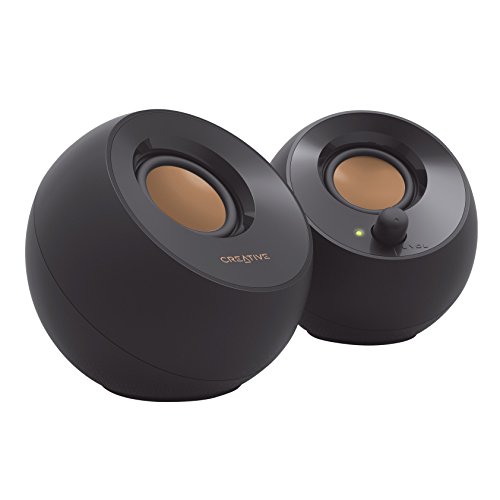
Who should buy the Creative Pebble?
If you’re strapped for cash and still want decent audio, then the Creative Pebble is a no-brainer. You just need to have a USB-A port and a 3.5mm audio jack handy in your PC. You’ll also need to be cool with the fact that your speakers will be tethered — i.e., you’ll need to unplug them if you want to move your rig.
Creative Pebble: Further considerations
We wouldn’t have thought a set of $25 speakers could impress us much, let alone turn out to be our favorite. But Creative Pebble’s simple USB-powered 2.0 system defies all odds, producing richer, more immersive audio than you commonly find in speakers at twice the price — and twice the size. Though we wish these offered Bluetooth connectivity for mobile devices, the Pebble is still a top-notch choice.
Price comparison from over 24,000 stores worldwide
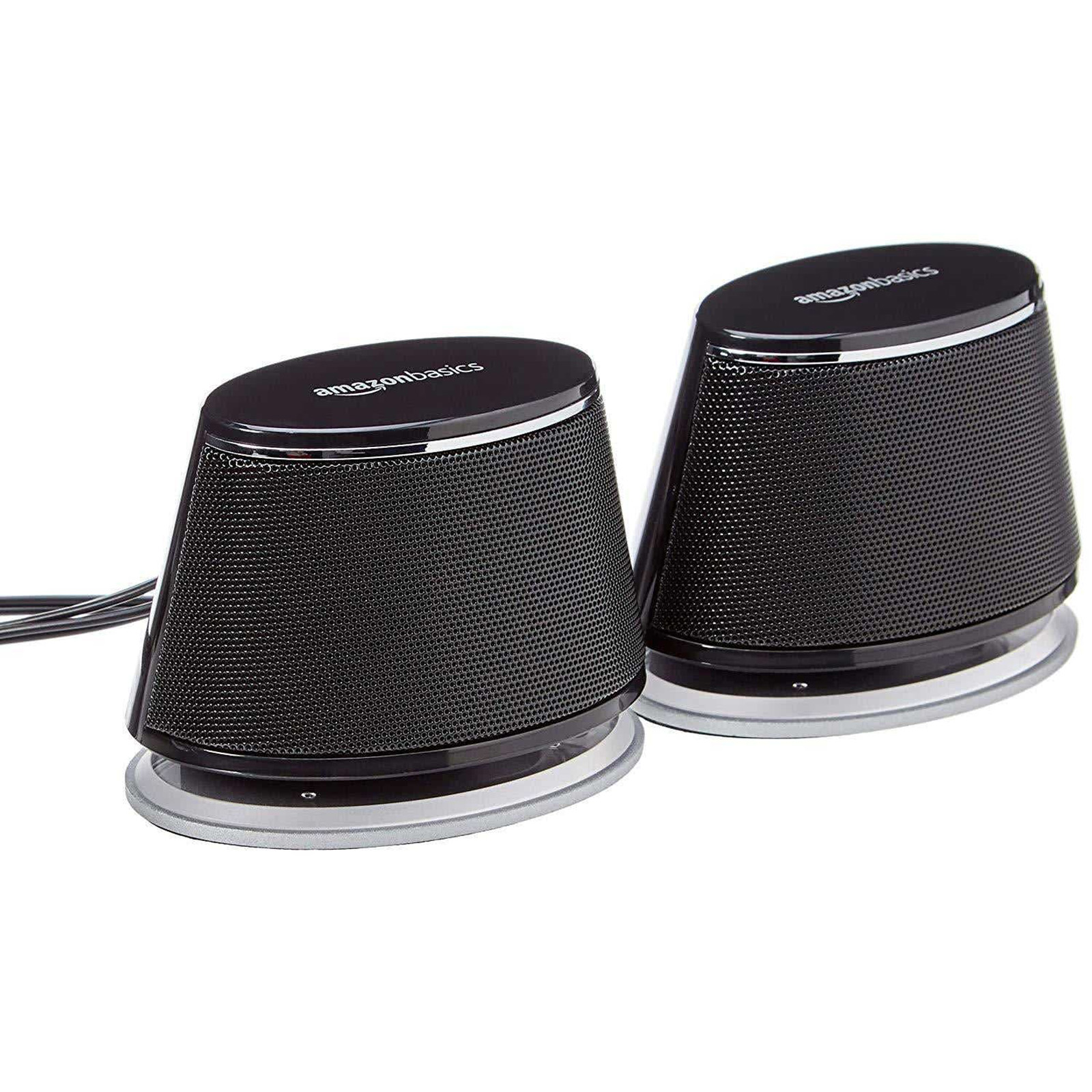
Who should buy the AmazonBasics USB-Powered Computer Speakers with Dynamic Sound?
If your budget consists of just loose change and your goal is simply to release the sound from your PC without it sounding terrible, then these speakers will do nicely.
AmazonBasics USB-Powered Computer Speakers with Dynamic Sound: Further considerations
These AmazonBasics USB-powered computer speakers get you well-rounded audio for a rock-bottom price. They’re easy to use with simple plug-and-play USB connectivity. They also feature attractive glowing blue LED accent lights below each speaker’s bottom radiator.
Price comparison from over 24,000 stores worldwide
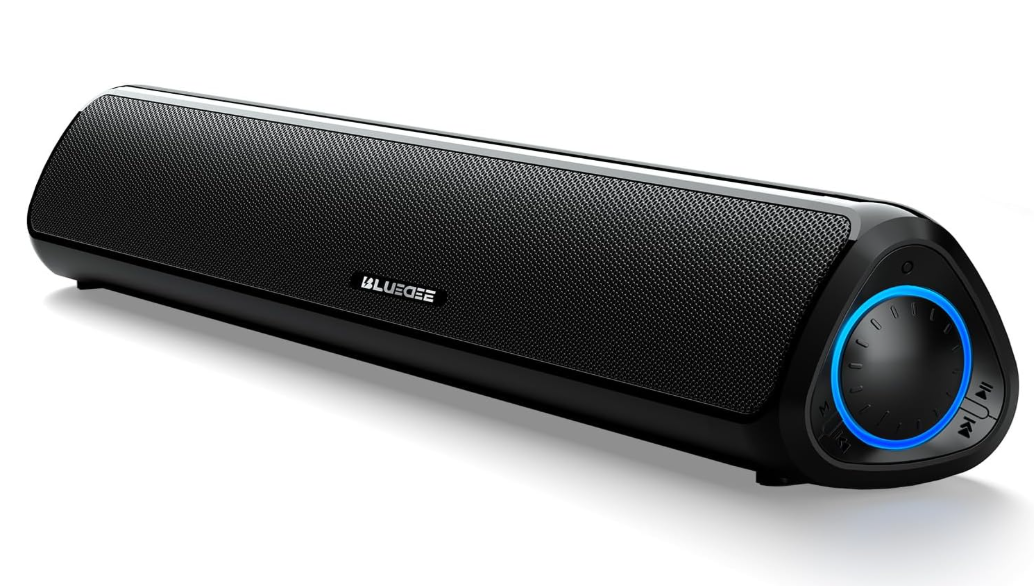
Who should buy the Bluedee computer soundbar?
This is a good choice for anyone who wants the versatility of a PC soundbar that can also be used as a portable Bluetooth speaker. This soundbar is ideal as a space saving option on a desktop setup, since it’s quite compact. It weighs only 2.2 pounds, so it’s easily moved from location to location.
Bluedee computer soundbar: Further considerations
The Bluedee computer soundbar supports both Bluetooth connectivity as well as wired connectivity in the form of USB-C and 3.5mm aux cable connection, so it can be used with other devices in your home, namely your mobile phone, TV, and / or gaming console. It also features voice commands, so you can easily tell which mode you’re in. The controls on the side are large and easily accessible. The audio quality is very clear.
Price comparison from over 24,000 stores worldwide
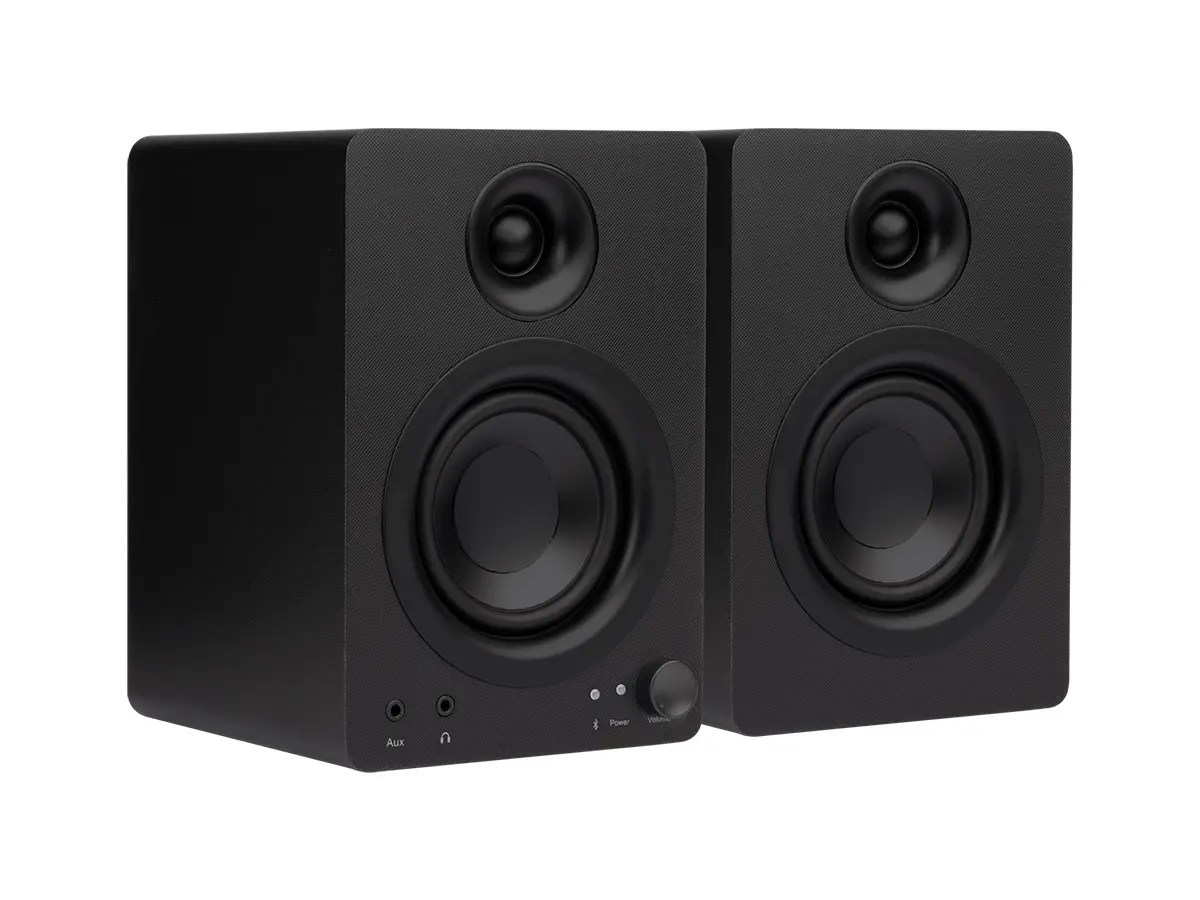
Who should buy the Monoprice DT-3BT
If you like to hear layered elements in your music, then you’ll really like the Monoprice DT-3BT’s emphasis on higher and lower tones. These speakers also project sound very well, so choose them if you like to fill up your living room with the sound of your tunes or media.
Monoprice DT-3BT: Further considerations
For years, Monoprice has sold affordable, quality tech gear without fanfare or frills. It continues this tradition with its 50-watt DT-3BT desktop speakers, which sport clear audio and support the most common kinds of connections. There’s of course Bluetooth 5.0 for clean, wire-free setups, but TRS and RCA jacks are available, too. Combined with the understated appearance and tidy $130 price tag, they’re an excellent option for speakers with good sound and simple setup straight out of the box.
Price comparison from over 24,000 stores worldwide
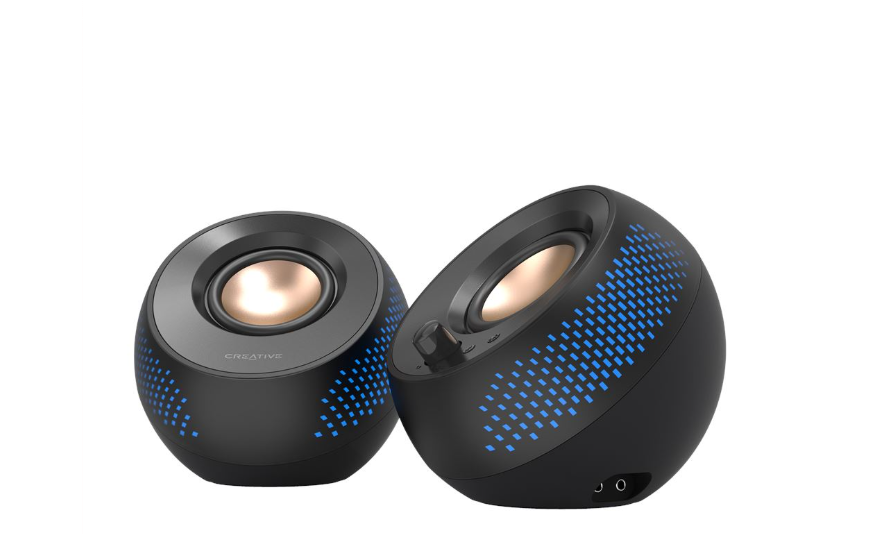
Who should buy the Creative Pebble X?
Anyone who wants the versatility of being able to use their speakers with more than just their PC — a smartphone, tablet, or other device — should consider the Creative Pebble X. These speakers are also ideal if you use a 3.5mm microphone and like the idea of using the Creative Pebble X’s software to do things like muting or unmuting your calls or filtering out unwanted noise.
Creative Pebble X: Further considerations
Imagine our top overall pick, and then soup it up with more features — namely, much more connectivity and sweet RGB lighting. That’s the Creative Pebble X. If you have multiple devices (plus a headset and microphone), these speakers let you centralize everything. You can connect devices via USB, a 3.5mm aux cable, and Bluetooth, and there are jacks for a 3.5mm headset and a dedicated 3.5mm microphone, too. It’s a great upgrade option if you want the Pebble’s great sound but want just one set of speakers for your gear.
Price comparison from over 24,000 stores worldwide
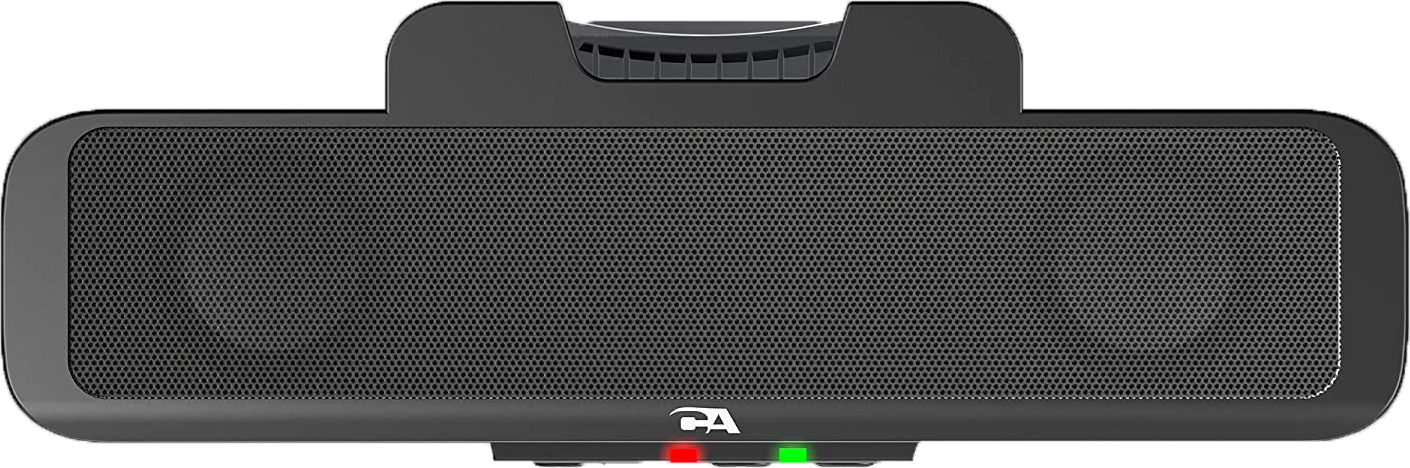
Who should buy the Cyber Acoustics CA-2890 Speaker Bar?
These are for buyers who are super tight for desk space or who just likes a clean, uncluttered place to plant their PC. If that’s you, then you’ll love the speaker’s clip-on functionality that will win you back some much-needed real estate.
Cyber Acoustics CA-2890 Speaker Bar: Further considerations
This basic speaker bar may be outclassed by other extremely affordable rivals in some ways, but the Cyber Acoustics CA-2890 Speaker Bar has a feature that keeps it in the running — you can clip it to a monitor. That gets this speaker off your desk, a plus for anyone that loves minimalism. Add in clear audio reproduction, and lack of distortion at high volume, and those seeking a good compact option can forgive it for its lack of bass and proper stereo output.
Price comparison from over 24,000 stores worldwide
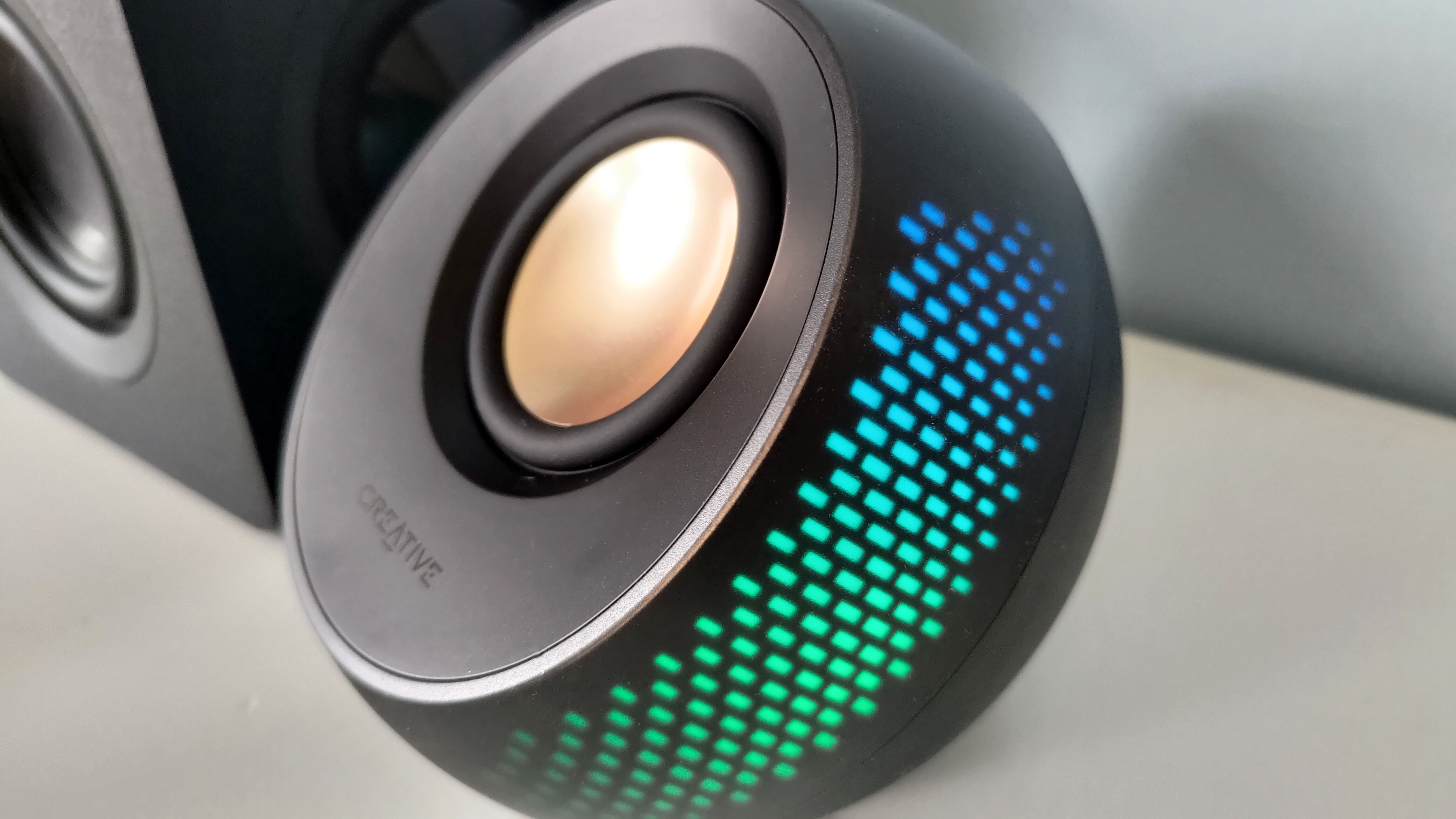
Who should buy the Creative Pebble X Plus?
Anyone who wants a complete audio solution for their bedroom, dorm room, or home office. These speakers may be compact, but they sound great, feature both wired and wireless connectivity options, and are also powerful enough to fill up a room. Plus, the RGB lighting will liven up your personal space.
Creative Pebble X Plus: Further considerations
With USB, Bluetooth, and 3.5mm auxiliary input, the Creative Pebble X Plus offers more than just plug-and-play speaker functionality. Indeed, you can connect it up wirelessly to your phone or wire it up to create a complete audio solution for your bedroom, dorm room, or home office. Two speakers and a woofer draw a peak 60 watts of power to comfortably fill a room with sound. They produce a clear soundstage with a good level of detail in the mids and treble range. A plastic film under the woofer was a small quirk that softened the bass in our playtesting, but removing it fixed that issue.
The device makes a stylish presence on a desktop or near a PC. The two speakers, which are shaped like spheres, measure a compact 5.48 inches, while the cube-shaped woofer is only slightly larger at 6.24 inches. The speakers also sport RGB lighting, which you can personalize in Creative’s companion app.
While the above speakers are the best value and fall into the category of budget, we also liked the Creative Pebble Nova and the Logitech Z150. The Creative Pebble Nova is a premium speaker offering premium sound for $279. It features excellent connectivity supporting 3.5mm aux-in and Bluetooth. This speaker also has a unique bowling ball style design.
The Logitech Z150, at $35, is a simple plug-and-play speaker supporting a 3.5mm aux-in cable. It’s quite small and lightweight and has a strong volume and output for such a small device.
Can you get a better deal?
We at PCWorld are constantly on the hunt for better deals. Amazon and other retailers are frequently running deals throughout the year, so you should have a chance at snaring a discount if you time your purchase for the sales.
While the prices in this list are updated daily, they do not account for special offers or deals. It’s best to check our PCWorld deals articles to see what offers are available each week. Additionally, it’s worth keeping an eye out for deals at sales events such as Amazon Prime Day in the summer and Black Friday at the end of November to see what special offers are available.
How we test PC speakers
We test speakers on a range of different criteria, including their design and build, their sound quality, their ease of setup and additional features. For a more detailed guide on our evaluation process check out PCWorld’s comprehensive guide on how we test PC speakers.
Sound tests are kept as simple as possible. We evaluate the tonal range of the speakers and how detailed the audio signature is. Since bass is such a big point of contention in speakers, we take extra notes on whether speakers have a commanding bass presence or are lacking in that department. We also take note of the clarity of sound and look for the absence of distortion in the sound signature.
Who curated this article?
Dominic Bayley is PCWorld’s PC speaker reviewer and Australian Editor. His tech interests span a heap of topics — everything from gaming laptops to headsets and mice.
How to choose the best PC speaker
One of the first things you should do is decide on a budget for your PC speaker system. Most of our picks in this chart fall into the cheaper budget range category of $100 or under. These are speakers which offer good value for money so they’re a good place to start if you don’t want to spend a lot.
Size
You’ll have to decide on the size of the speaker system you want. For this, consider the room size you’re wanting to fill with sound. If you have a large room and want to fill it with audio you may want to invest in a speaker system with more than two speakers, preferably with a subwoofer, so a 2.1 speaker system. If you’re trying to fill a small room, you can get away with a smaller speaker system, so with just two satellites or a 2.0 speaker system.
Connectivity
Next think about the connectivity you’ll be needing. This will dictate how you’ll use your speakers and with which devices. Will you need wireless Bluetooth as well as wired connectivity? Or just wired connectivity? If you want to use your speakers with your smartphone as well as your PC, I’d recommend you get speakers with Bluetooth functionality also. Then, not all wired connectivity is the same. You may want to consider whether you need USB-C connectivity or just 3.5mm aux-in?
Ease of setup
Different speaker models can have different degrees of setup, some being tricky and others being relatively easy. The Bluedee soundbar, for example, is a relatively easy option to set up requiring just one cable. It may be tricky to know which models are hard to set up and which ones aren’t just by looking at them. The best way to find out how easy or hard a speaker is to set up is to read our PCWorld reviews.
Sound
It’s true that not all speakers sound alike. Some sound warm and champion the mid-tones and others are more skewed to the bass or treble tones. You should decide what you need the speakers for when considering the kind of sound you should get. Will you be listening to music? in which case you’ll need a deeper bass presence, or will you just be playing games and need a speaker that is well represented in the mid-tones? Again, the best way to tell how a speaker sounds is to read our PCWorld reviews where we evaluate them for you.
FAQ
1.
What are the best budget speakers for PC?
Creative Pebble’s simple USB-powered 2.0 system defies all odds. At just $25, it produces richer, more immersive audio than you commonly find in speakers at twice the price — and twice the size.
2.
What type of speaker should I get? Ex: Should I aim for a 5.1 setup? And are 2.1 speakers better than 2.0 speakers?
In this price range, a 5.1 multi-channel speaker setup (five speakers, one subwoofer) won’t sound as good as better models. The same amount of money can buy a much better-quality two-speaker system. These basic 2.0 stereo setups, which are comprised of just a left and right speaker with a single driver (the actual loudspeaker) in each, abound in this price range. Occasionally you can also find a decent 2.1 system — a pair of speakers to handle the higher frequencies and separate subwoofer for the bass — for not much more. These take up extra space but often produce more balanced sound.
3.
How do I pick a speaker that sounds good?
Don’t lean too heavily on manufacturers’ specs when making a decision. Even if you can parse frequency response numbers, they are often exaggerated. Let your ears be your guide instead. Listen for a good balance between the high (treble), mid, and low (bass) frequencies. Often, speakers will exaggerate one — usually the treble or the bass — at the expense of the others. Good speakers will produce full, detailed audio that sounds as the creator intended it.
Be aware, though, that finding strong bass response in this price range can be challenging. Without a subwoofer, 2.0 systems have trouble reproducing low frequencies. The manufacturers often use technological tweaks to amplify the bass notes, but these can sound boomy, and distort the overall mix. If a deep, controlled bottom end is a priority, a 2.1 system might be a better investment.
4.
Should I get speakers that use AC power? Or is a set that uses USB power okay?
Both these options are prevalent in the sub-$100 price range. USB-powered speakers reduce cord clutter, as they don’t need a separate power cable. However, they can’t supply as much juice as the AC variety, so they tend to produce lower volume and less bass.
5.
How important is a speaker’s design?
You wouldn’t think it could matter much, but even among budget PC speakers, design can play a big part in how your speaker sounds and how easy it is to use. For example, PC speakers that fire downwards instead of upwards may produce muffled sound, since the sound will have to bounce off an extra surface before reaching your ears.
Design can also play a big part determining things like how portable your speaker is. For example, wired speakers aren’t as easy to use on the go as those with Bluetooth connectivity, and small portable speakers are preferable over big cumbersome ones if you need to move them from location to location.
6.
How do I set up my PC speakers?
You can expect there to be two or sometimes three components to your PC speakers. Ideally, you’ll want as an immersive sound as you can possibility get, which in a two-piece setup means placing a speaker either side of your PC. If your speakers also come with a woofer, this is best placed on the ground, since the heavier vibrations it produces will likely cause some rattling on your desk.
Slightly angling your speakers towards your ears makes the speakers easier to hear. If you want more of a cinematic kind of sound experience you might like to also move each of your speakers further out from your laptop. This will broaden the sound stage you get from your speaker setup.
The best USB-C hubs add ports to your PC, providing connections to legacy peripherals like mice, keyboards, printers, or more. If you follow my advice, you shouldn’t pay that much for a hub, either.
Most users will probably be happy with any of my standard hub recommendations. But if you want to go further, I have additional options for more specialized purposes. Those include USB-C docking stations that sit on your desk, plus some higher-end alternatives: DisplayLink docks, as well as the best Thunderbolt docks. They cost more, but provide more functionality. (A FAQ at the end of this roundup can help you decide.)
I keep at least one of these lightweight little USB-C hubs in my backpack at all times. You should too!
Why you should trust PCWorld for USB-C hub reviews and buying advice: PCWorld has been supplying news, reviews, and recommendations for the best computing products since our first magazines hit newsstand shelves in 1983. We maintain a rigorous testing process, and our reviews are not influenced by advertisers or other considerations. Most of these products were purchased directly by PCWorld reviewers, but in certain cases review units have been provided by the manufacturers.
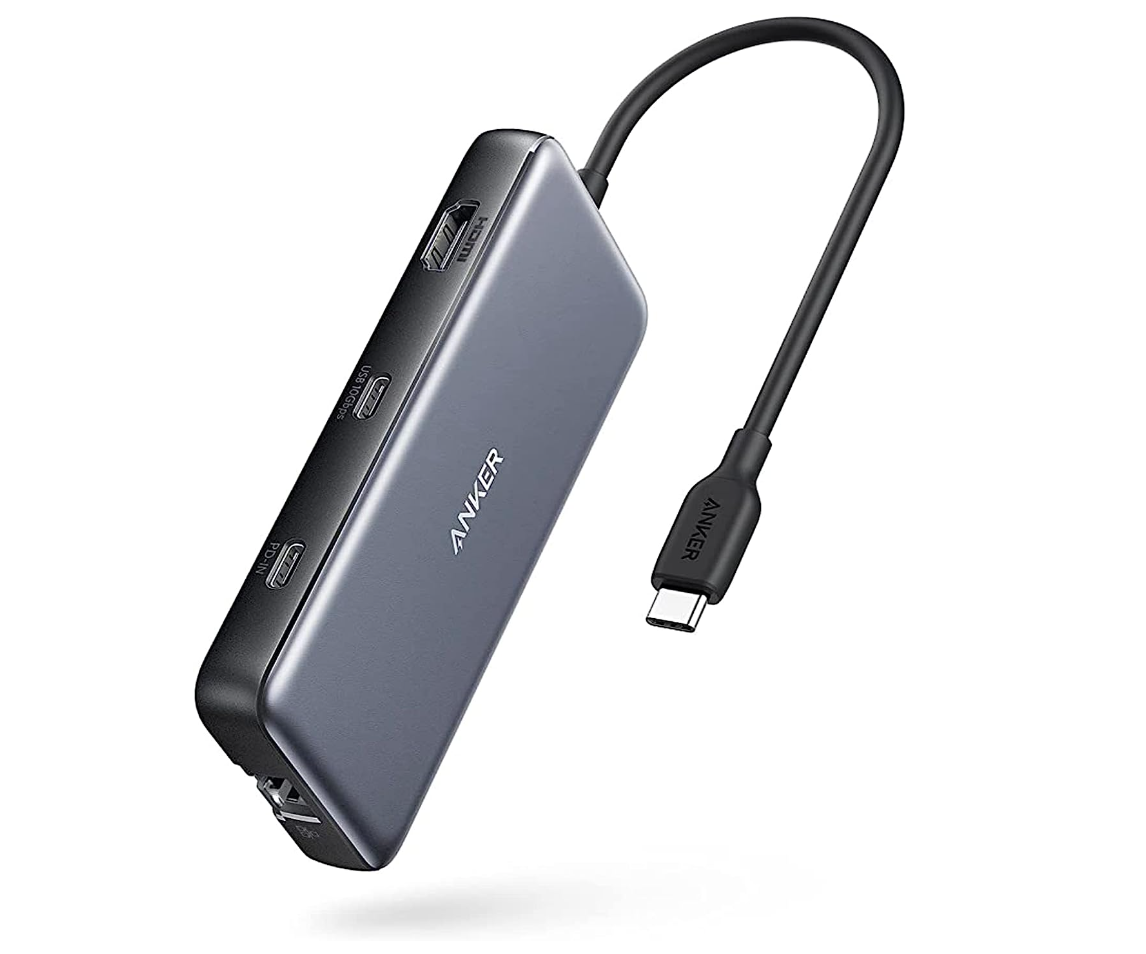
Anker 555 8-in-1 USB-C Hub – Best overall USB-C hub
Price comparison from over 24,000 stores worldwide
Who should buy the Anker 555 8-in-1 USB-C Hub?
I’d recommend this USB-C hub to just about anyone. Most users will be able to take advantage of the USB-A ports for legacy mice and keyboards, the HDMI port, a USB-C port, and Ethernet. These are the ports I’d expect on a device like this. If you’re looking for more display ports or more USB-C connections, however, you’ll need to buy a more premium device.
Anker 555 8-in-1 USB-C Hub: Further considerations
Can a USB-C hub feel elegant? This one does. Anker’s 8-in-1 USB-C hub feels surprisingly weighty (4.5 ounces), with a premium metallic (aluminum and polycarbonate) sheen that keeps the hub cool. Overall, Anker’s hub is well designed, with adequate spacing between the two 5Gbps USB-A ports. There’s also a 5Gbps USB-C connection for data, plus a second USB-C port for power input at up to a rated 85W. (The charger allows up to 100W in, but supplies 85W.) There’s both an SD card slot and a microSD card slot, too.
I had previously recommended Anker’s 7-in-1 Hub instead. Both hubs are similar, but this upgrade adds two things: an Ethernet port, and an HDMI port capable of 60Hz. The earlier pick output just 30Hz, and that capability was getting a bit outdated.
The hub offers an 18-month warranty, and it even ships with a carrying pouch. I think this hub includes the right mix of ports for the right price.
Price comparison from over 24,000 stores worldwide
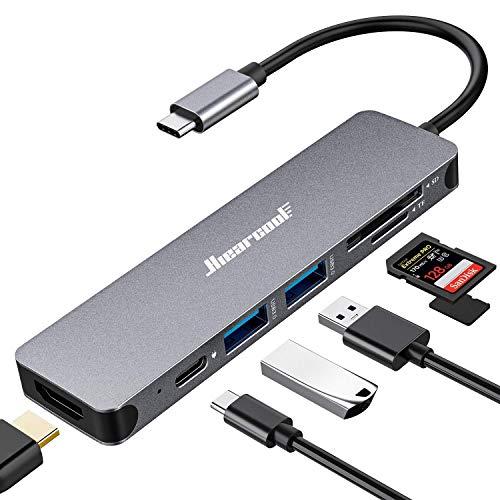
Who should buy the Hiearcool USB-C Hub?
This is a hub for basic expansion, especially if you own an older laptop. It has one HDMI port that’s only capable of 4K resolution at a fatiguing 30Hz. However, it will work just fine for a single external 1080 display or even a 1440p monitor, if you own one. The two USB-A ports are designed for a mouse and keyboard, or a printer. If you need something cheap and capable, this hub will work just fine.
Hiearcool USB-C Hub: Further considerations
Let’s face it: If you’ve ever browsed Amazon’s inventory of USB-C hubs, it’s easy to be overwhelmed. I can tell you that I factor in price heavily on some of these picks, and this is a USB-C hub that I’ve personally used. It works, it offers a myriad of ports, and it does so at a very, very good price. It even ships in multiple colors, which is handy when peering into the depths of a travel bag or briefcase.
This hub includes a pair of USB-A ports, microSD and SD card slots, and an HDMI port, and that’s all. It accepts up to a rated 100W of USB-C input charging, too.
OWC USB-C Travel Dock – Best budget USB-C hub runner-up
Price comparison from over 24,000 stores worldwide
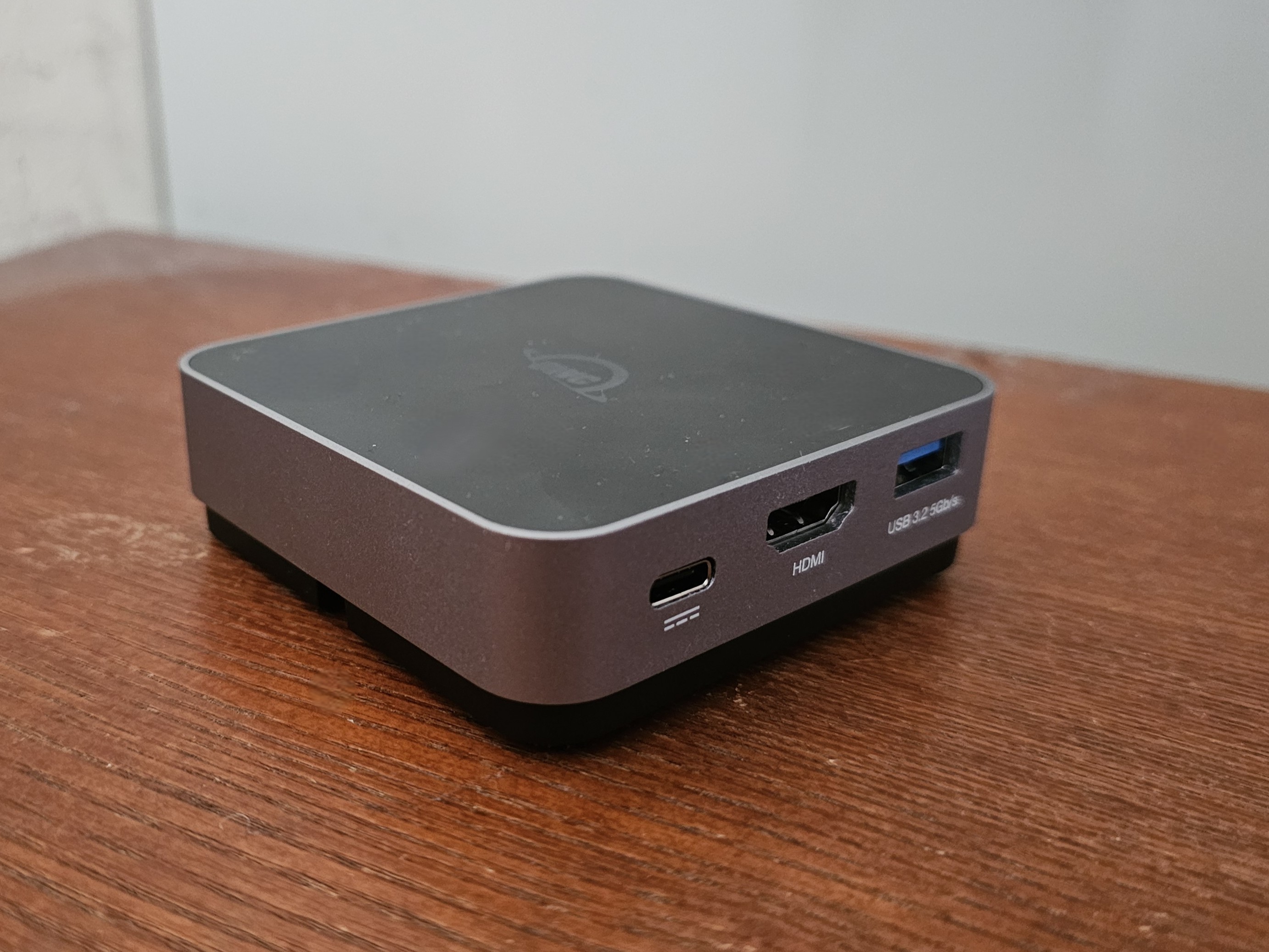
Who should buy the OWC USB-C Travel Dock?
I’ve reviewed USB-C hubs and dongles that forego the traditional long, rectangular “dongle” form factor into something that’s a bit more stable. Dongles do have a tendency to flop all over your desk, and the OWC Travel Dock feels like a cross between a traditional docking station and a dongle. And it’s cheap, too! Dongles are usually reserved as travel gear, and I think this would work well for an executive or someone who likes a tidier desk.
OWC USB-C Travel Dock: Further considerations
The “hidden” USB-C cable is a nice touch, though extended it’s a bit short. This was also a 5-in-1 hub, so while it provides the essentials (two USB-A ports for mouse and keyboard, Ethernet, and HDMI, plus USB-C charging input) there’s not much else. (Editor’s Note: OWC updated this dock with an additional SD card slot, increasing the price slightly.)
Monoprice 13-in-1 Dual-HDMI + DP MST Dock – Best premium USB-C hub
Pros
Multiple display possibilities
Tons of ports
Cons
Confusing documentation
Slow SD card slot
High-speed ports can get clogged by the main 10Gbps USB-C connection
Price comparison from over 24,000 stores worldwide
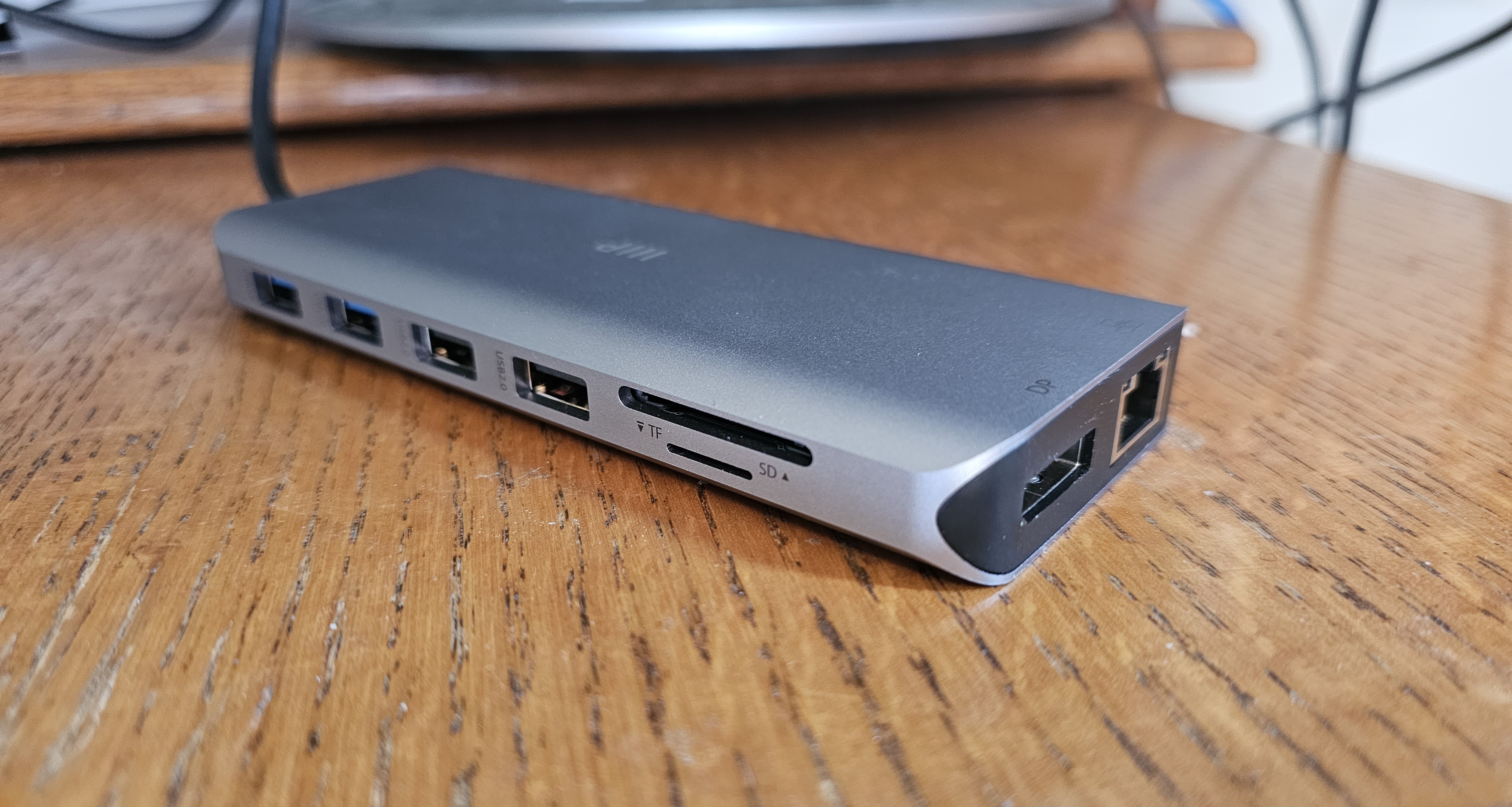
Who should buy the Monoprice 13-in-1 Dual-HDMI + DP MST Dock?
If you own a modern laptop and want access to a ton of legacy ports for a reasonable price, this Monoprice hub/dock should be your choice. You need to own a modern laptop, though; a Microsoft Surface Book 2 with an 8th-gen Core chip inside didn’t produce any output over its USB-C port; several Samsung and Surface laptops with 12th-gen and 13th-gen Core chips from 2022 onward worked well, though. More recent laptops from 2024 on through 2026 should also work fine.
Monoprice 13-in-1 Dual-HDMI + DP MST Dock: Further considerations
If it looks like a hub or dongle, but is priced like a dock, is it a dock? You might not care, but it’s certainly on the pricey side.
This 13-in-1 USB-C hub does it all, including connecting to two 4K displays (one at 60Hz, one at 30Hz). It does so by using support for built-in compression techniques within modern laptops to squeeze more effective throughput over the 10Gbps USB-C port. There are absolutely gobs of ports, including five USB-A ports (two at 480Mbps for mice and keyboards), two HDMI 1.2 connections, and even a DisplayPort port.
There’s even a power input jack, so you can use your laptop’s charger and feed up to a tested 87W into the laptop. There aren’t any USB-C ports, but the assumption is that you can use your laptop for that.
Price comparison from over 24,000 stores worldwide
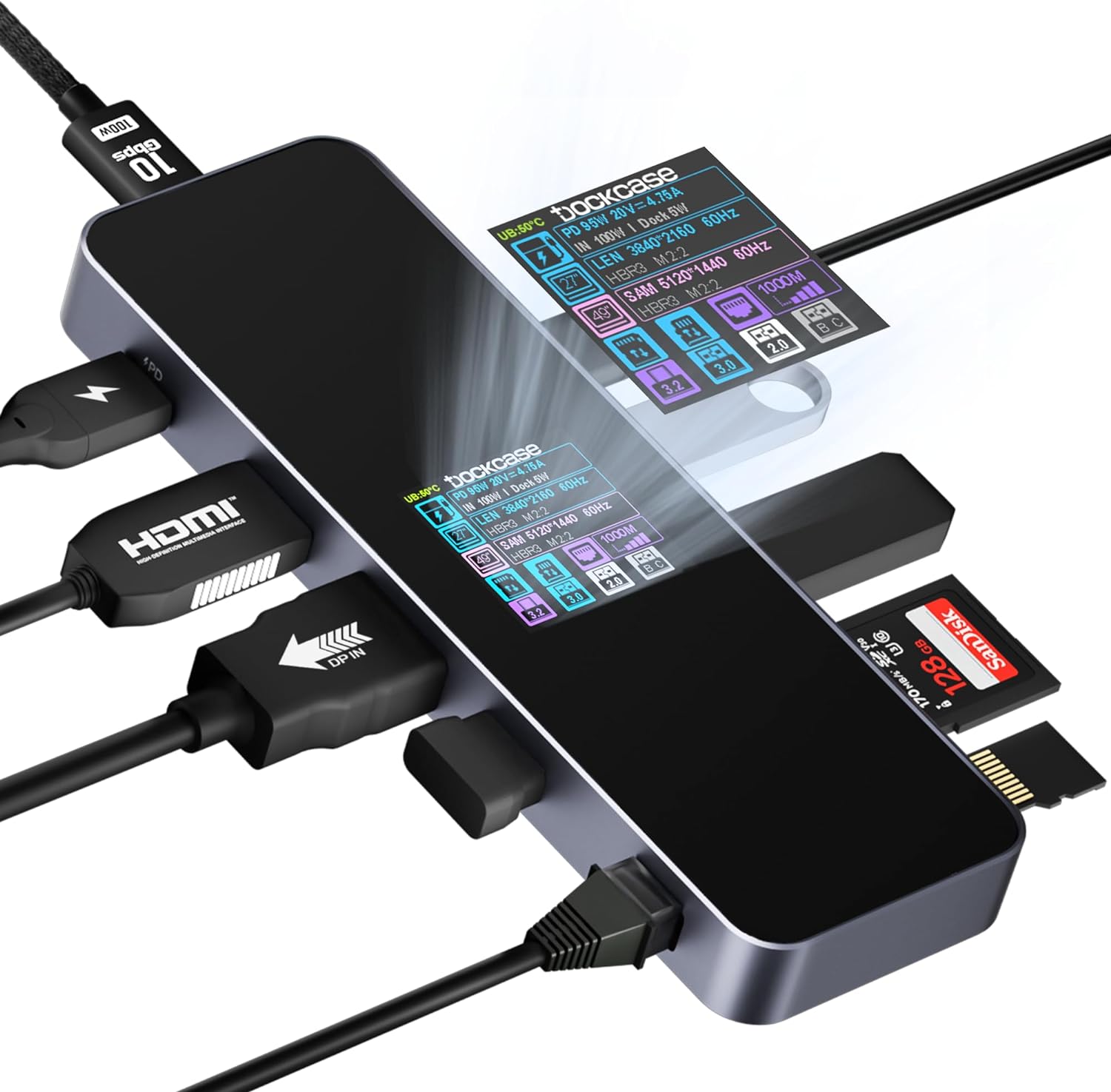
Who should buy the Dockcase Smart USB-C Hub 10-in-1 Explorer Edition?
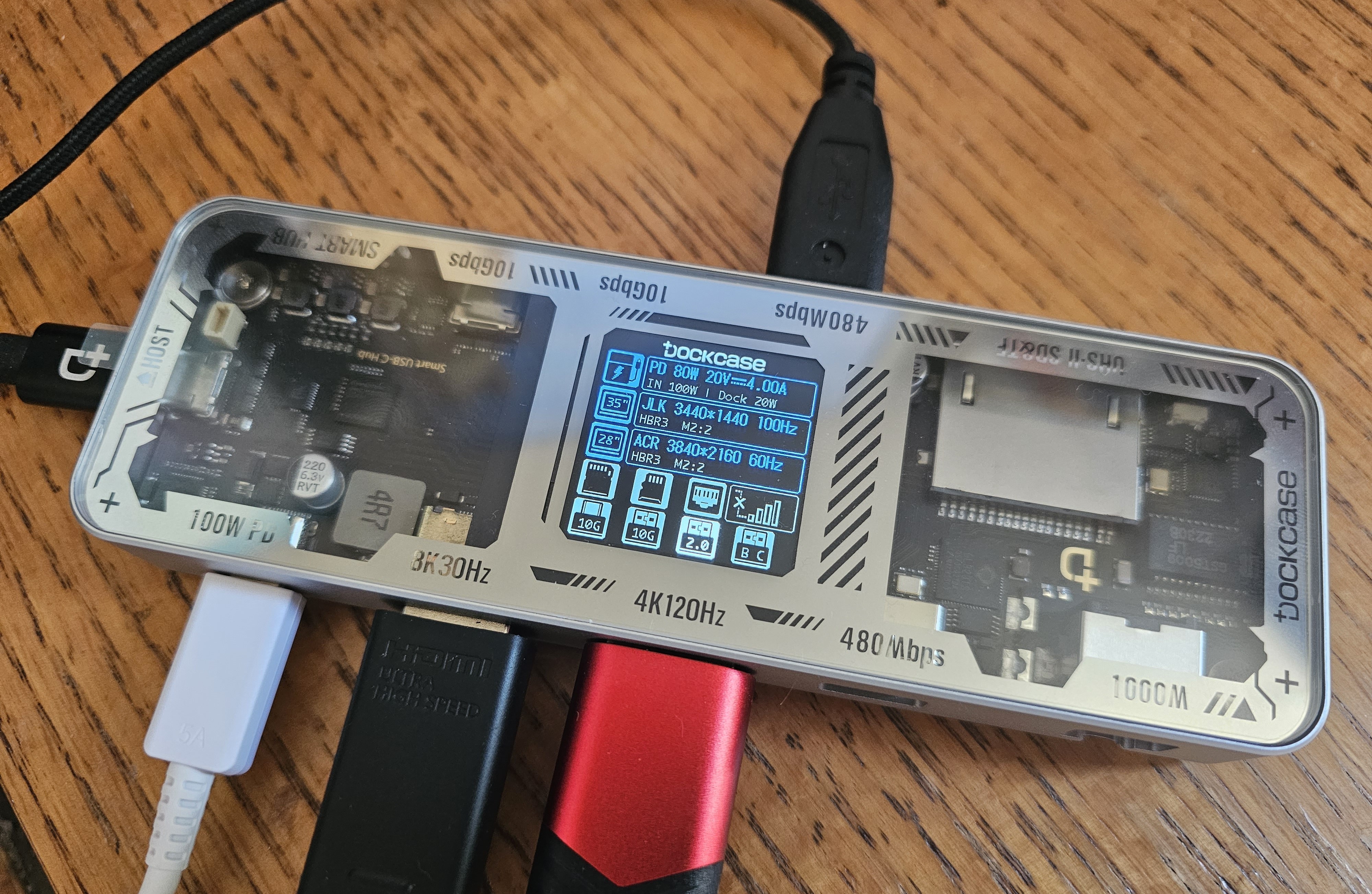
Nerds. Yep, this is one of the nerdiest products I’ve ever used, and I like and loathe how it just lets you sort of discover what it can do. But it tells you what your laptop is connecting to and how it’s working! It even reports glitches! I love that.
Are you the type of person who owns an OBD scanner to diagnose any issues with your car? If you are, this is the USB-C hub for you.
The Dockcase Smart USB-C Hub 10-in-1 Explorer Edition: Further considerations
Part of me loves the sheer nerdiness of the Dockcase 10-in-1 Dock, if only because I’ve never seen anything like it in terms of the information it offers.
Note that Dockcase offers alternatives: There’s a $69.99 6-in-1 dock, and a newer Dockcase “Visual Smart” 10-in-1 dock that eliminates some of the labeled ports in favor of a jet-black aesthetic. I prefer the nerdier version with lots of ports.
Not only is the metal hub larger than most, with multiple external connectors that designate a premium hub, but there’s an actual display: A small LCD screen provides a detailed look at what devices are connected to each port and what their capabilities are. Put another way, the Dockcase Smart USB-C Hub 10-in-1 feels more like an OBD2 diagnostic device for your car, or a USB multimeter.
As a dock, it’s excellent. As a tool, it can use some improvement: The interface is extremely clunky, and Dockcase really doesn’t even have a manual that explains it all. But this device is also small enough that it fulfills the requirements of a docking station without it being ungainly.
Price comparison from over 24,000 stores worldwide
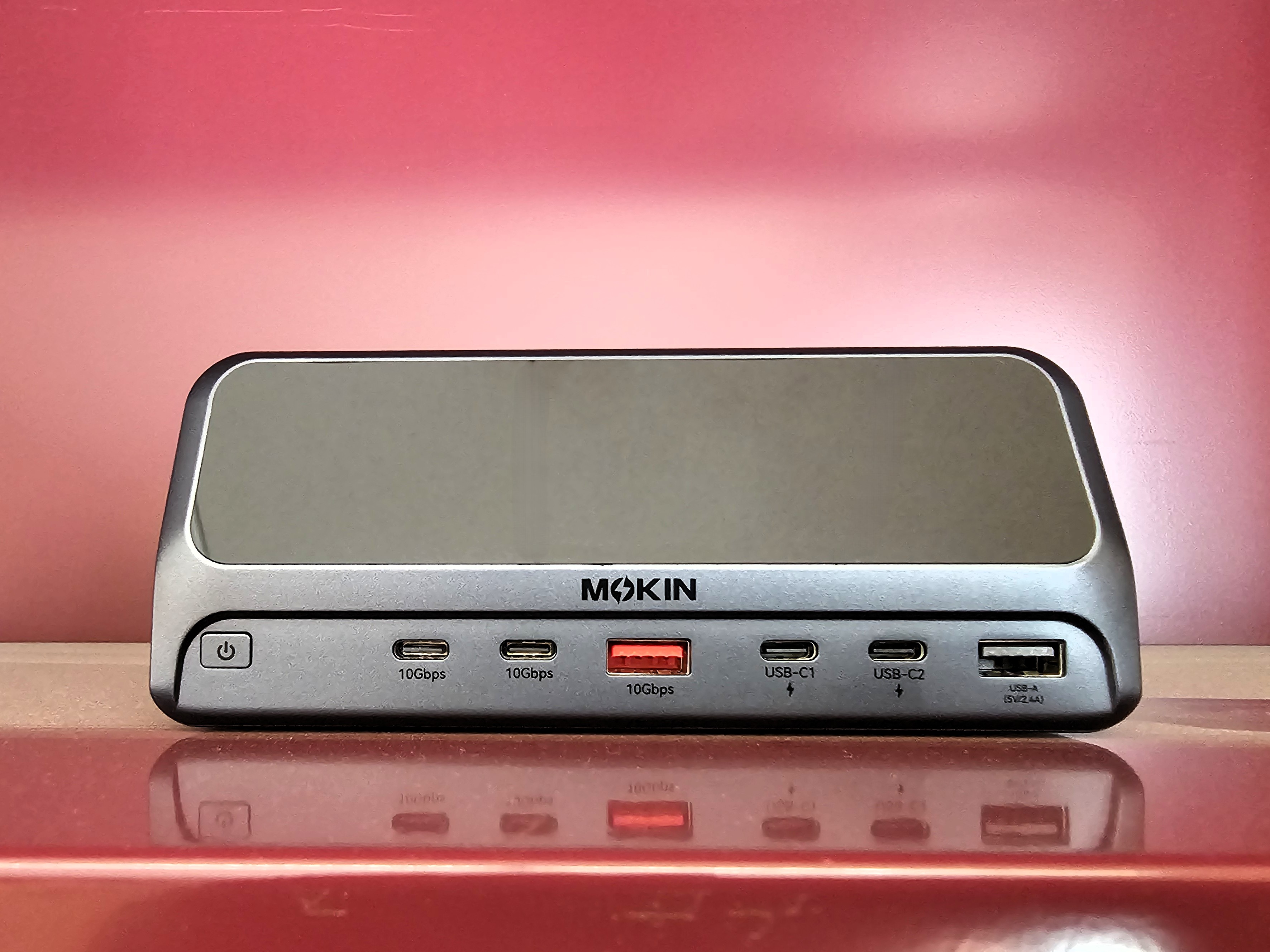
Who should buy the Mokin 160W GaN All in One Docking Station?
For those of you who want to know what’s going on under the hood of your USB-C docking station, this dock is for you. This dock always reports how much power it’s supplying, but when you insert or detach a monitor cable, it will alert you to what’s going on there, too. This might be a little too much information for some users, but if you’re the type of person who has a CPU widget floating on their desktop, this might be the dock for you.
Mokin 160W GaN All in One Docking Station: Further considerations
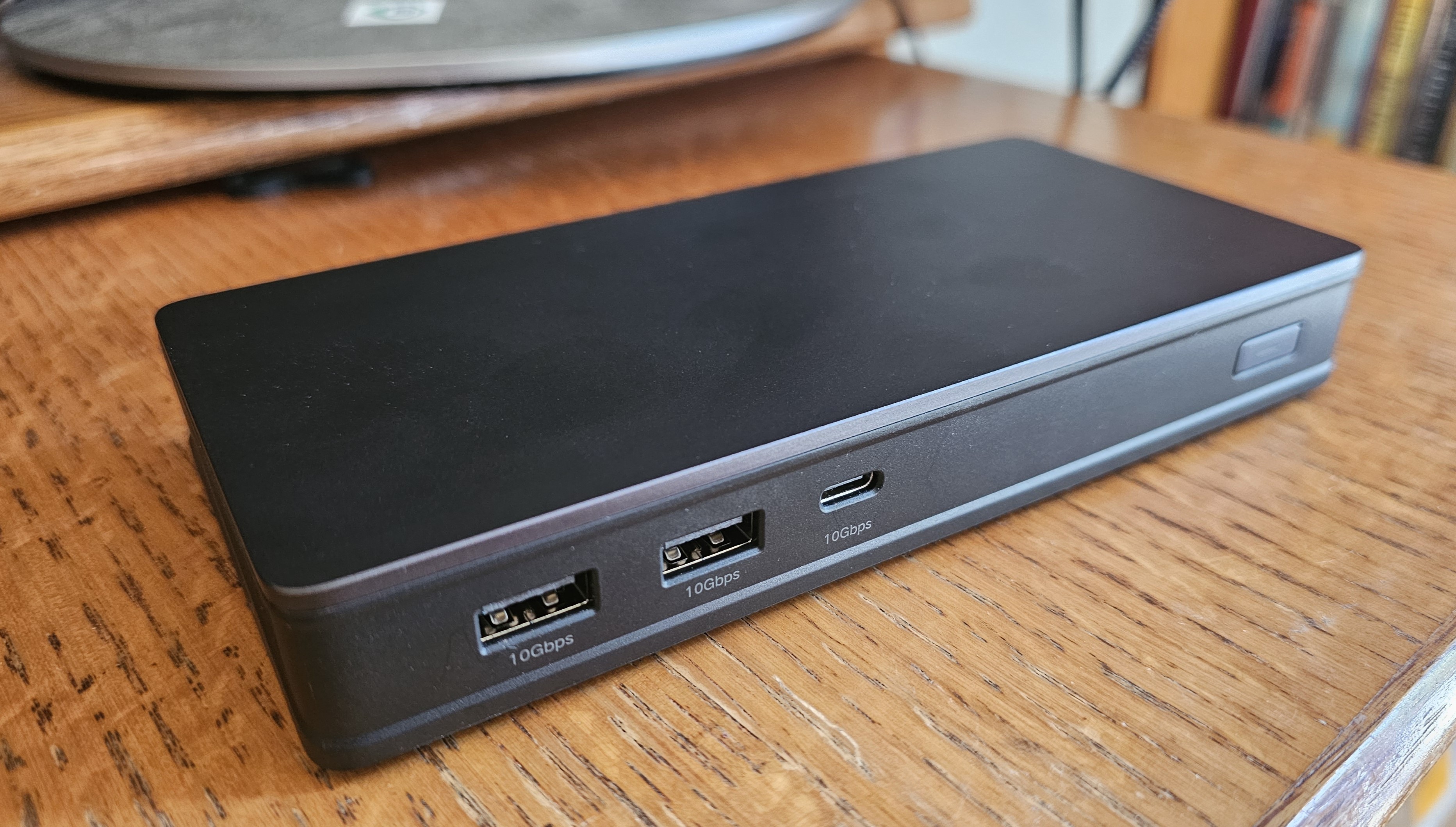
The split between data-only and charging ports is a little weird, especially if you’re using a mouse, keyboard, and webcam — and that extra USB-A port just isn’t available. (Really, who needs a power-only USB-A port?) But this dock pretty much nails your basic needs, offers a compact form factor, and is priced right, too.
Price comparison from over 24,000 stores worldwide
Who should buy the Ugreen 9-in-1 USB-C (Revodok) Docking Station CM615?
DisplayLink docks fit between a USB-C dongle and a Thunderbolt dock, and I always think of a DisplayLink buyer as a small business owner or home worker who is focused on productivity and lots of high-end displays. DisplayLink docks excel for office work, but struggle in handling high frame rates for games.
This is our top pick for an upgraded DisplayLink dock, which has its own pros and cons — slightly more expensive than a USB-C docking station, but more features, too.
Ugreen 9-in-1 USB-C (Revodok) Docking Station CM615: Further considerations
Ugreen’s 9-in-1 USB-C docking station is typical of the brand: quality design and manufacture, obtuse naming, and pricing that seems to vary from one vendor to the next. But this DisplayLink dock offers an excellent mix of port flexibility at a solid price. There is one catch: It lacks any power input at all, and you’ll need to use your laptop’s USB-C power supply (or buy one) to charge both this dock and the laptop itself.
Like most DisplayLink docks, this dock was unusually stable, with no flickering between displays — one of the reasons I like DisplayLink docks. The price nails that sweet spot, too. Just remember to bring your smartphone charger.
Price comparison from over 24,000 stores worldwide
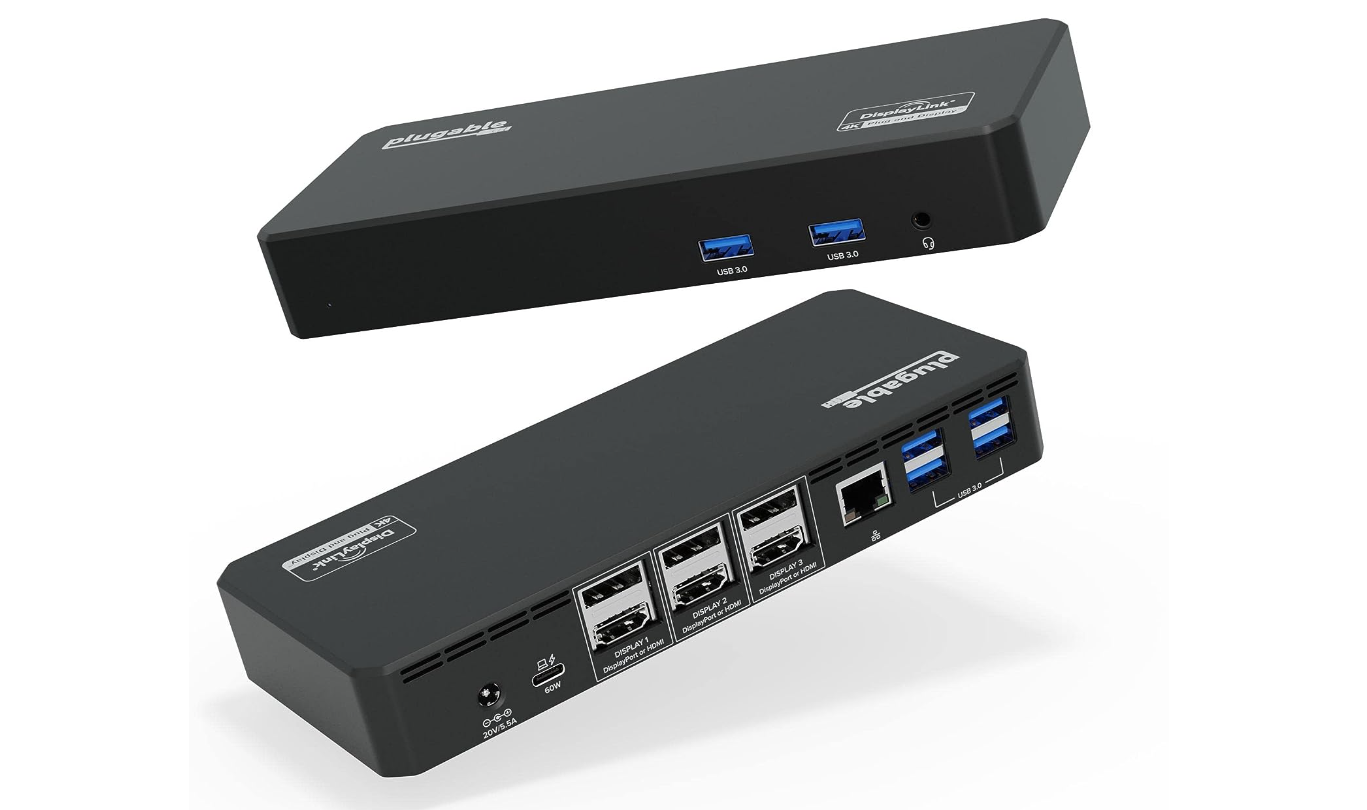
Who should buy the Plugable USB-C Triple 4K HDMI Docking Station (UD-6950PDZ)?
As noted in the best pick above, DisplayLink docks work best for a home office, with an emphasis on productivity. You’ll want to avoid gaming.
Plugable USB-C Triple 4K HDMI Docking Station (UD-6950PDZ): Further considerations
Plugable’s dock means that you can connect to three 4K displays, even if you don’t absolutely have to. Most docks ask you to choose between DisplayPort and HDMI, or even use a direct Thunderbolt connection. Plugable offers both.
The performance of this dock was up to par, though keep in mind that DisplayLink uses compressed data running over a 10Gbps connection. Press it too hard, and you will see some degradation in video and storage performance.
Anker Nano 13-in-1 USB-C dock review: This combo USB-C dock/hub doesn’t deliver the amount of charging power I’d hope for, though the two-for-one special is unique.
USB-C buying guide: Our friends at PCWelt have some advice on how to differentiate USB from Thunderbolt.
How we test USB-C hubs
We test USB-C hubs/dongles slightly differently than docking stations. A separate article offers a detailed explanation on how we test USB-C hubs, but here’s a short summary: First we test the physical configuration, and how ports are spaced and whether filling one port impedes use of the port next to it.
We also run performance tests to make sure ports function as advertised. Finally, we consider price and weight it against functionality and build quality. More complex hubs usually command more money, but that’s not always the case!
Who curated this article?
My name is Mark Hachman, and I’ve been working as a technology reporter and reviewer for 30 years. I review USB-C hubs/dongles, Thunderbolt docking stations, and DisplayLink docks, so I have a good handle on the different types of I/O technologies being used and what will be best for you. I’ve been reviewing these devices since work-from-home became popular in 2020, realizing pretty quickly that home users wanted a mix of displays and legacy peripherals.
How to choose the best USB-C hub
You’ll want to do a careful of assessment of your work equipment and your needs in order to find the right hub or dock for yourself.
First, take stock of your peripherals
Here’s where to start: Take a look at the peripherals you own, or plan to buy. Do you have an old external hard drive that uses a traditional USB-A cable? Do you manually back up photos from an SLR camera via its SD card? Or is your Wi-Fi connection unreliable enough that you’d prefer Ethernet? Figure out what ports you’ll need. This advice is for Windows users; Macs have their own limitations on USB-C connections.
Keep in mind that you may want to use both a mouse and keyboard, and possibly connect a printer, too. You can disconnect a keyboard to print, but it’s kind of a pain. Even if you own a modern 2026 laptop, you may still have hardware from several years ago. A hub bridges your laptop to its peripherals, but can serve as a bridge to the past, too.
This laptop has several USB-C ports, but if yours has just one, you’ll want to daisy-chain the laptop’s power cord by plugging it directly into the hub, like so.
Next, check out what ports your laptop already has
It’s also important to take stock of your laptop or tablet’s ports: Does it have one USB-C port or two? If your device only has one port, is there a separate charging connection? If your laptop or tablet has a USB-C port and uses it exclusively for charging, you’ll want to buy a USB-C hub with a dedicated charging input port.
Note how much input power the port allows, and confirm that it will be sufficient for your laptop. Otherwise, you’ll be forced to choose between charging your laptop and accessing other devices, which makes little sense. Most laptops will pop up a warning about a “slow charger” if your laptop’s not getting enough juice.
A laptop’s USB-C port.
Matt Smith/IDG
Video adds another wrinkle. Older laptops often included dedicated video ports, often HDMI; modern laptops in 2026 may include a dedicated video port as well. But video can also run over the USB-C port through a technology called DP Alt Mode which enables certain USB-C ports to send video signals to external monitors using the DisplayPort protocol, via the USB-C cable.
The problem, even as manufacturers like BenQ admit, is that these cables aren’t often properly labeled. There’s no way for us to tell you whether your USB-C port can support video passing over it. You’ll need to consult your laptop’s manual to tell. If the port does support video, you can either use a USB-C hub to connect to an external monitor. Alternatively, you can run the USB-C cable to a display with a USB-C cable input. These USB-C displays have only been available for a few years, but they provide an alternate way of routing video out of your laptop.
Assess your laptop and peripheral power needs
Desktop hubs will often take power in from an external charger like the one you plug into your phone, and use it to power your laptop. On these hubs or dongles, there will be a dedicated USB-C input port to accept power, but not data. A powered laptop docking station, on the other hand, ships with its own charger — which may be hardwired into the docking station and take will power in and also push it out to peripherals.
As I noted above, the input power to your laptop needs to be sufficient to power it. But if you’re investing in a powered USB-C docking station, check our reviews to see how much power the hub or docking station can push out to peripherals. The 2026 iPhone 17 Max consumes 40W of charging power to fast-charge the phone; most docking stations won’t get near that. But an older phone, such as an Apple iPhone 14, only needed 30W of charging power. Older phones need even less power to fast-charge them.
You certainly don’t have to buy a USB-C docking station or hub to charge a phone; most hubs weren’t built with them in mind. It’s useful to know, however, what your hub or docking station will be able to do or not do.
Making sense of the USB-C technologies
A USB-C port on your laptop can either run at 5Gbps or 10Gbps, with the latter being almost ubiquitous these days. That’s plenty of bandwidth for a printer, a mouse, a keyboard, or a hard drive, even all at once. Products like displays, Ethernet, and high-speed SSDs gobble up that bandwidth, however.
Display technologies tend to have the most influence over what you should buy. If you simply want to connect to an external 1080p display — or two — a USB-C dongle should work fine, provided that the dongle has the available ports. It’s certainly the cheapest option. If you want to connect more displays with higher resolution, you may have to examine other choices.
Traditionally, the only other alternative was a Thunderbolt dock. Provided your laptop had a Thunderbolt port, Thunderbolt’s 40Gbps bandwidth allows for two 4K displays, running at 60Hz, plus various peripherals. (You can use a 10Gbps USB-C dock even if you have a 40Gbps Thunderbolt port, but only 10Gbps of that throughput will be available to the 10Gbps dock.) Thunderbolt is usually associated with laptops which use Intel processors; laptops with AMD Ryzen or Qualcomm Snapdragon chips inside use the “generic” equivalent, also called USB4.
There are also two intermediary technologies to choose from: a DisplayLink USB-C dock, and a USB-C dock that takes advantage of something called HBR3 and DSC.
DisplayLink, owned by Synaptics, uses software compression between your laptop and the dock to approximate a Thunderbolt experience over a generic USB-C connection. It requires a software driver, but our experience is that it’s an excellent choice for office work, but not gaming. Here are the best DisplayLink docks and why to buy them.
HBR3 with Display Compression (HBR3 with DSC) is essentially an industry standard version of DisplayLink. The problem? The technology hasn’t been widely publicized, let alone supported. Our experience has been that docks that support HBR3 work well with laptops using 12th-gen Core processors on up. Laptops with a 10th-gen Core chip inside them aren’t supported, and 11th-gen Core laptops are iffy. If you own a laptop chip with a 12th-gen Core chip or one that’s even more recent, you stand a good chance of success. Otherwise, don’t bother.
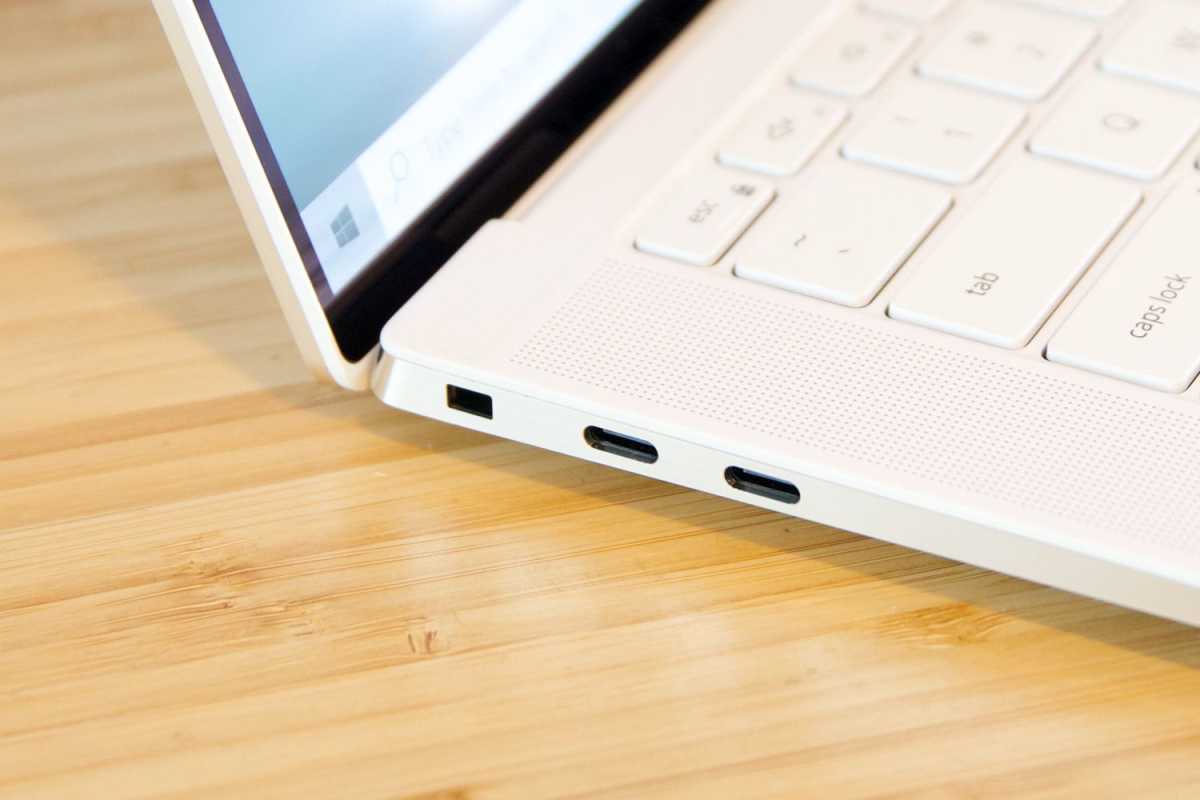
Thunderbolt cables and ports include the little lightning-bolt icon, which differentiates them from the otherwise unmarked USB-C cables.
Finally, don’t worry about platform branding
Because USB-C is common among Macs, Windows PCs, and phones, some hubs align their branding with a particular platform. Go ahead and use that USB-C that’s billed as being “for MacBook Pro, Chromebook, and XPS” with any Windows PC — we did, and it works just fine. You won’t need any special software or drivers.
After testing our USB-C hubs, we can confirm that some no-names perform just as well as their more well-known counterparts, and for less money, too. One thing to keep in mind: Because price is so critical to our recommendations, know that some of the prices may change as manufacturers offer sales. Therefore some hubs we didn’t recommend primarily based on price could become more purchase-worthy.
FAQ
1.
Why buy a USB-C hub or dongle?
Remember when laptops used to contain all sorts of ports: USB-A, HDMI, SD card slots, and more? And do you remember how svelte the early Macintosh laptops looked, especially when Apple began removing all of the ports in favor of USB-C and Thunderbolt? PC makers did, and decided that was the approach that they would take, too.
Unfortunately, that left laptop owners like you with the problem of legacy hardware: printers, keyboards, SD card, micro SD cards, and so on — and with no ports to plug them into. Enter the USB-C hub, an inexpensive product that helps solve that problem. Just pay attention to what ports the USB-C hub offers, to make sure it meets your needs.
2.
I don’t understand what the difference is between a USB-C hub, a DisplayLink dock, and a Thunderbolt docking station. What do I need?
Here’s the short answer: If you want to connect your laptop to a printer, an SD card or microSD card, mouse, keyboard, or legacy 1080p monitor, stick with a basic 10Gbps USB-C hub/dongle. If you want to add a pair of additional displays (especially 4K), or high-speed SSD drives, we’d recommend you look at our list of 40Gbps Thunderbolt docking stations. Generally, the larger, powered docks offer more features.
It is confusing, since they all use the “same” USB-C port. Generally, most modern laptops have a small Thunderbolt “lightning bolt” logo to help distinguish the faster port.
3.
What’s the difference between a USB-C hub, USB-C dongle, and a USB-C docking station?
A USB-C hub or dongle (we use the terms interchangeably) is a small, portable device that you can slide into a bag or backpack. A USB-C docking station tends to be heavy and bulky enough that you’ll want to keep it on your desk. It’s not true that a USB-C docking station will have more features than a USB-C hub, as some compact USB-C hubs pack in a surprising number of ports.
Docking stations tend to be bigger and bulkier, and are designed to live on your desk. If there’s anything that docking stations tend to have that dongles sometimes don’t, it’s a USB-C port designed only to accept power from your laptop’s USB-C charger. That allows you to gain additional ports as well as charging capabilities from the same dock.
4.
How much does a USB-C hub or dongle cost?
Expect to pay between $30 and $40 for a good USB-C hub, even in 2026 — maybe a bit more with tariffs. USB-C docking stations are bigger and bulkier but add even more capabilities. We’d expect you to pay over $100 for these.
5.
How much does price matter when buying a USB-C hub or dongle?
Honestly, not much. Pay attention to our reviews and those from other shoppers, but buy according to what the hub or dongle offers. You can absolutely find solid USB-C hubs and dongles for an inexpensive price.
USB-C docking stations, though, can feel a bit overpriced. In part, that’s because Thunderbolt docks were wildly expensive during the 2020 to 2021 pandemic years. USB-C docking stations are an alternative, but their prices were nudged upward, too. Fortunately, prices have come down, as the supply chain regained a semblance of normalcy.
6.
What is the difference between USB-C and Thunderbolt?
Both USB-C and Thunderbolt use the same USB-C connection. The difference is that a “generic” USB-C connection typically provides 10Gbps of bandwidth, and Thunderbolt provides 40Gbps, or 120Gbps with Thunderbolt 5.
Thunderbolt ports are becoming much more common, so it’s possible that your laptop won’t have any “USB-C” ports; they’ll be Thunderbolt-enabled instead. (To tell the difference, consult your laptop’s manual or look for a small “lightning bolt” logo over the port itself. That’s usually a sign that it’s a Thunderbolt port.) A USB-C dongle and a Thunderbolt dock are similar, in that they both provide a number of additional ports.
There’s a key difference, though. The rule of thumb is that a USB-C dongle provides enough bandwidth for two 1080p displays at 60Hz, or a single 4K display at 30Hz. (Staring at any 30Hz display for a length of time can tire out your eyes, so I don’t recommend it.) A Thunderbolt dock, however, allows enough bandwidth to connect two 4K displays at 60Hz, plus all the peripherals you wish to attach. If you don’t need big, high-resolution displays, don’t buy a Thunderbolt dock and purchase a USB-C hub instead.
7.
What’s a DisplayLink USB-C dock?
A DisplayLink USB-C dock is what you might call a “tweener” device: something between USB-C and Thunderbolt. DisplayLink docks embed a small chip from Synaptics in the docking station, and require use of a software driver that you’ll need to download. (USB-C and Thunderbolt are essentially plug and play.) The Synaptics chip compresses the data, and gives you the ability to connect (no joke) up to three or sometimes four 4K display all over a 10Gbps USB-C cable. It feels a bit like black magic.
They’re not foolproof; DisplayLink docks are best for office work (email, Word, Excel, and so on that don’t require a whole lot of bandwidth, because the images are largely static) and web browsing. Transfer a lot of data (or play back a lot of high-bitrate video) and you’ll see some stuttering.
We used to break out DisplayLink docks into their own page, but we now include recommendations on this list of the best USB-C hubs, as well as our list of the best Thunderbolt docks. If you shop smart, you can get the capabilities of a Thunderbolt dock, for less.
8.
Can you connect a USB-C dongle to a Thunderbolt dock? Or to another USB-C hub?
You can absolutely connect a USB-C hub to a Thunderbolt dock. You probably won’t be able to connect a USB-C dongle to another USB-C dongle/hub, but if your laptop has more than one USB-C port, you can connect a USB-C hub to each.
Thunderbolt offers the ability to “daisy-chain” devices, however, so you can connect one Thunderbolt dock to another. USB-C, however, does not.
9.
Why do USB-C hubs get so hot?
USB-C hubs can get warm or even hot while using them to transfer data or charge devices. This is because the electronic components and circuitry within hubs build up heat during use. Depending upon the hub’s material, heat can become trapped inside the hub leading it to become hot to the touch.
If you are concerned about your hub becoming too hot during use, you may consider purchasing a hub made from metallic parts, such as aluminum, so that heat can more easily dissipate as it builds up.
Even though two USB-C hubs may have wildly different brand names, you may sometimes find that they’re otherwise identical or just very similar.
We’ve given you a lot of detail on what makes a good USB-C hub or dongle and what to consider when buying one. In general, however, these are fairly inexpensive, flexible ways to upgrade your laptop, and I’d recommend always carrying one in your laptop bag!

 Login
Login