PDF files are a necessary component of our multi-platform world. With this convenient file format, users are able to view and share documents across various devices, using various operating systems and software programs.
While tasks such as simple viewing and/or commenting on a PDF can be accomplished with free software, there are times when you need a broader range of tools for working with a PDF document. You might want to make edits, reorganize the elements of a file, or collaborate with others to make changes. In cases such as these, you’re better served by a full-featured PDF editor.
The best PDF editors allow you to edit, create, alter, and convert PDF files just like you would with any other text document. Adobe’s Acrobat Pro is full-featured PDF editor, and probably the most well known. Adobe has earned its renown honestly with an excellent feature set and overall utility. But it’s also expensive.
Fortunately, there’s a whole range of capable and even great third-party PDF editors that provide less pricey alternatives to Adobe’s premier product.
PROMOTION
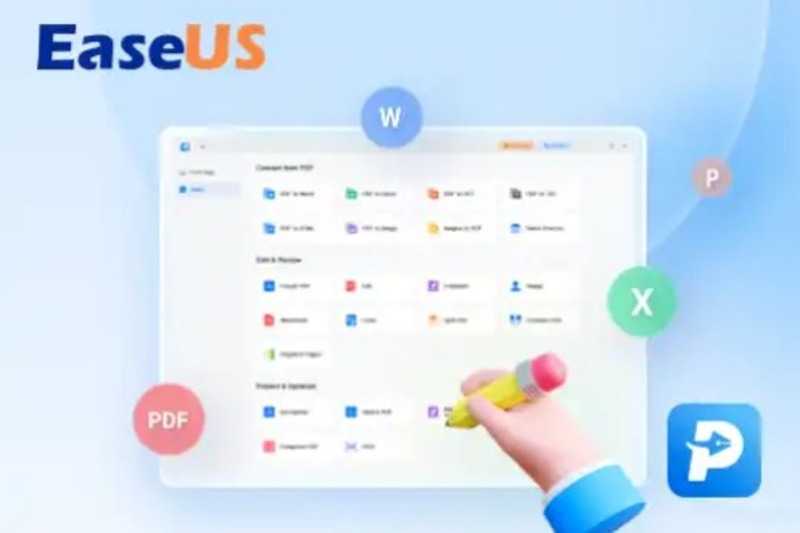
EaseUS PDF Editor – Edit, Convert, Compress & Protect PDFs
Integrate PDF maker, PDF editor, PDF converter, and PDF reader in one full pack with all the basics you need. The clean interface simplifies your PDF work to edit, convert, comment, annotate, merge, split, background, page, watermark, sign PDFs, or fill forms. Your PDF workloads are down by batch processing efficiently.
Now 25% OFF Exclusive Code: PCWORLD25
Free Download
Our picks below cover the gamut of PDF editing needs and budgets.
Why you should trust PCWorld for PDF editor reviews and buying advice: At PCWorld, we’ve been testing PC hardware and software for over 40 years. Our evaluation process is always hands-on and thorough, taking into account real-world usage needs. We don’t ever recommend something we wouldn’t be comfortable using ourselves.
Adobe Acrobat Pro – Best PDF editor overall
Pros
- Easily navigable tabbed interface
- Comprehensive PDF editing features
- Streamlined sharing feature makes it easier to fill documents and get signatures
Cons
- Rich feature set can be overwhelming for new users
Price When Reviewed:
$19.90/mo I $239.88/yr
Best Prices Today:
Price comparison from over 24,000 stores worldwide
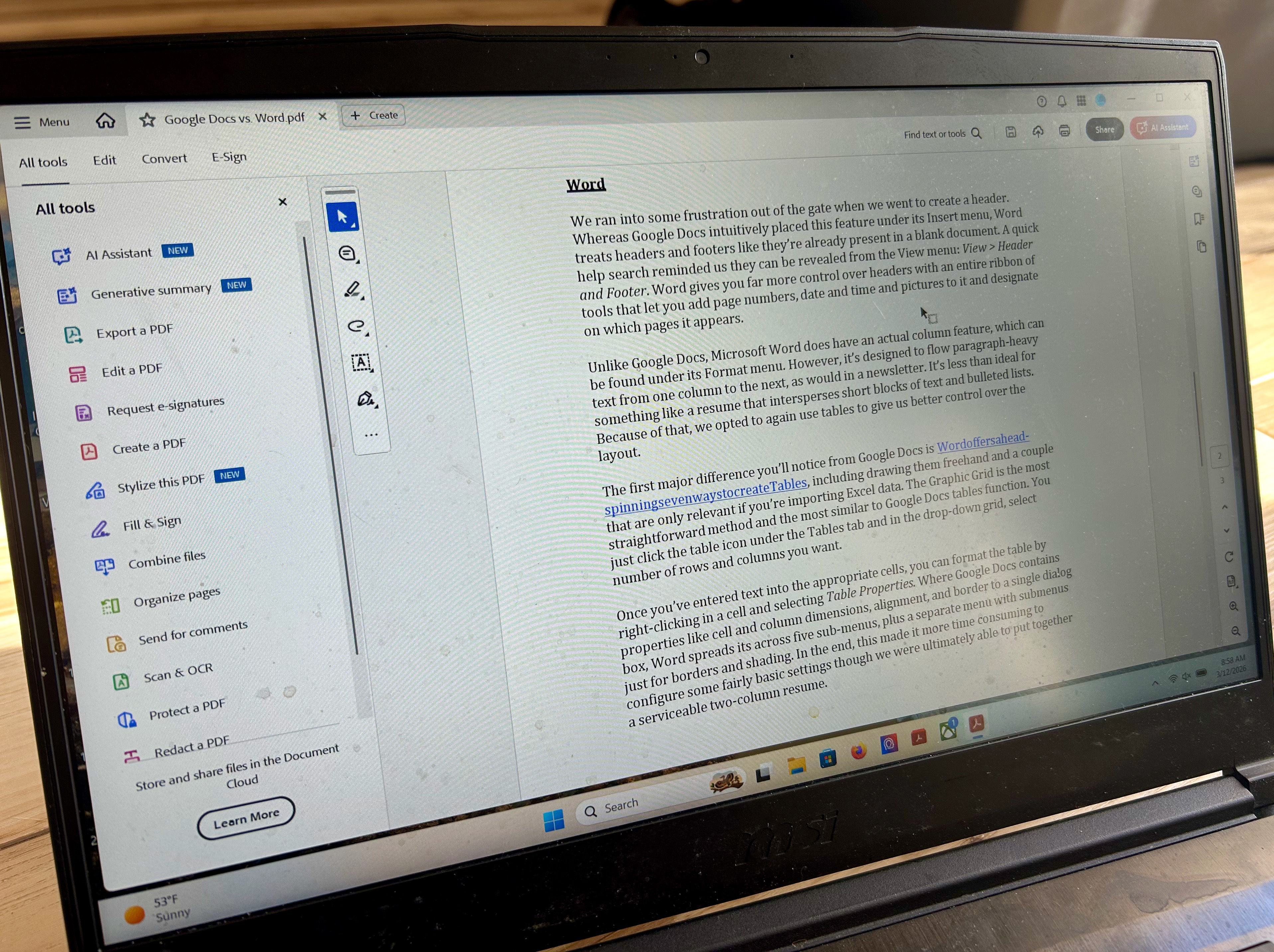
Adobe Acrobat Pro remains the industry standard for good reason. Its rich combination of creation, editing, reviewing, and security features are mimicked by the best alternative options, but we feel Acrobat still does it best. Its recent interface redesign makes it much easier to navigate through its robust toolset than the nested menus of yore, and its cloud subscription option puts its advanced features within reach of more individuals and small businesses. (See how it compares to the Adobe Acrobat Standard.)
Though many of its features are available in other, cheaper PDF editors, Acrobat is still the editor against which all others are judged. Not surprisingly, Acrobat Pro includes an Al assistant, albeit not at an additional $4.99 per month. Depending on your PDF editing needs, the AI’s ability to summarize, answer questions, or extract key details from documents could earn its keep in valuable time saved. See our article on “5 ways Adobe Acrobat’s AI Assistant gives you a productivity edge.”
Read our full
Acrobat Pro DC review
Nitro PDF – Best PDF editor runner-up
Pros
- Intuitive Microsoft Office ribbon-style interface
- Excellent document conversion
- Multi-platform
Cons
- Expensive
- May be more than casual users need
Price When Reviewed:
$15 per user/mo or $270 for 3-year license
Best Prices Today:
Price comparison from over 24,000 stores worldwide
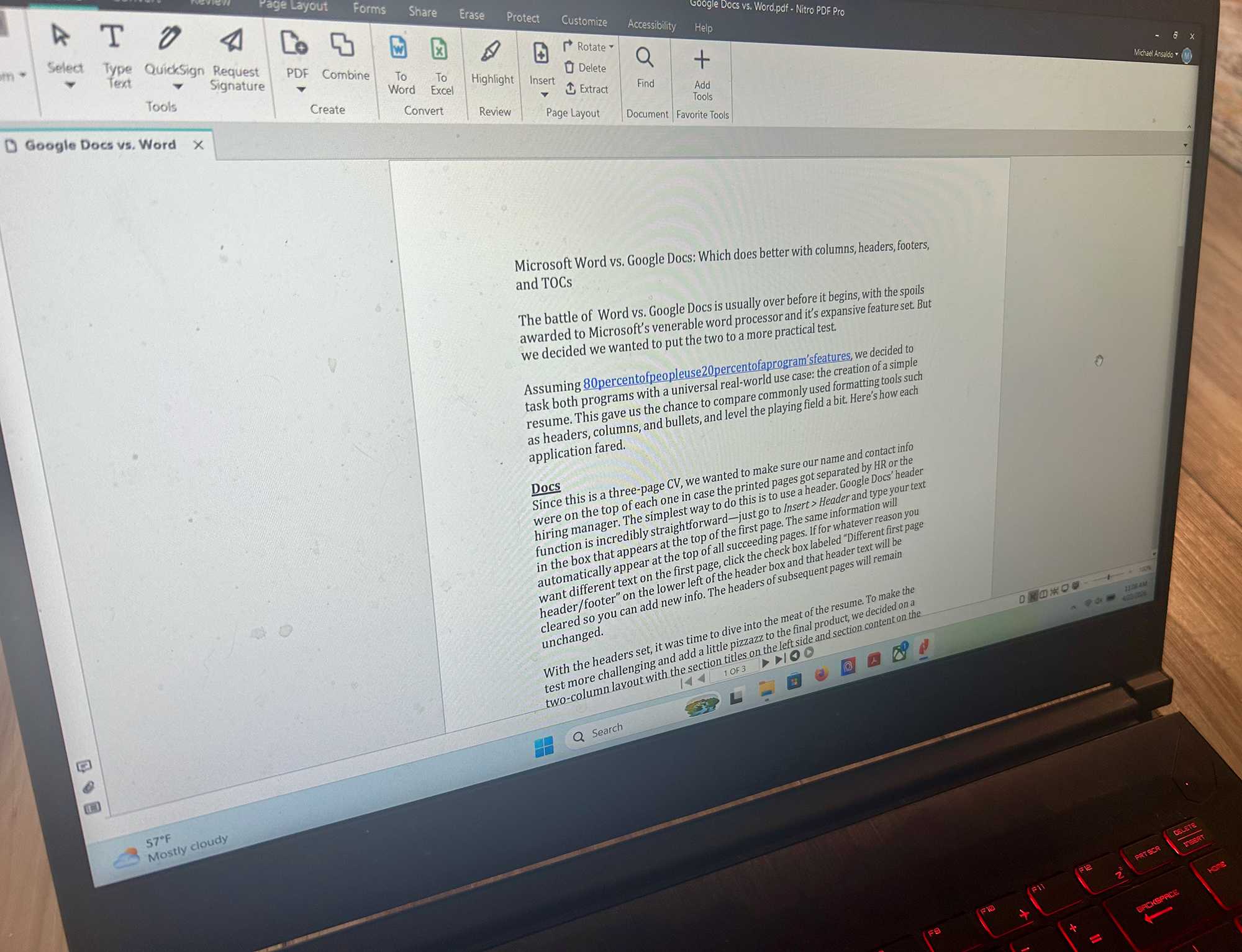
A fully featured PDF editor that can go toe-to-toe with Acrobat Pro’s feature set, Nitro PDF is a less costly alternative by about $60 per year. The Standard plan’s subscription fee is $15 a month, or $180 per year. Its full suite of PDF editing features cover the range of needs and scenarios: content editing; review and markup; form fill and signing; and multiple security options for sensitive documents including permissions, password protection, and data redaction. It even facilitates adding, removing, and editing bates numbering in legal documents.
A Microsoft Office-style ribbon interface makes workflows feel familiar and intuitive. The addition of AI is judicious, and can provide practical assistance such as by summarizing PDFs and allowing you to ask questions about content.
But don’t just take our word for Nitro PDF’s impressive capabilities. You can learn that first hand by taking advantage of Nitro PDF’s 14-day free trial. No credit card is required and none of the features are locked — there’s nothing like a test drive to persuade you.
Read our full
Nitro PDF review
EaseUS PDF Editor – Best cheap PDF editor
Pros
- Full set of editing tools
- Annotation options enable easy collaboration
- Straightforward interface
Cons
- Windows only
- Needs subscription to remove usage limits
Price When Reviewed:
Free I $29.95/mo I $49.95/yr I $79.95/lifetime
Best Prices Today:
EaseUS
25% off original price$22.46
Price comparison from over 24,000 stores worldwide
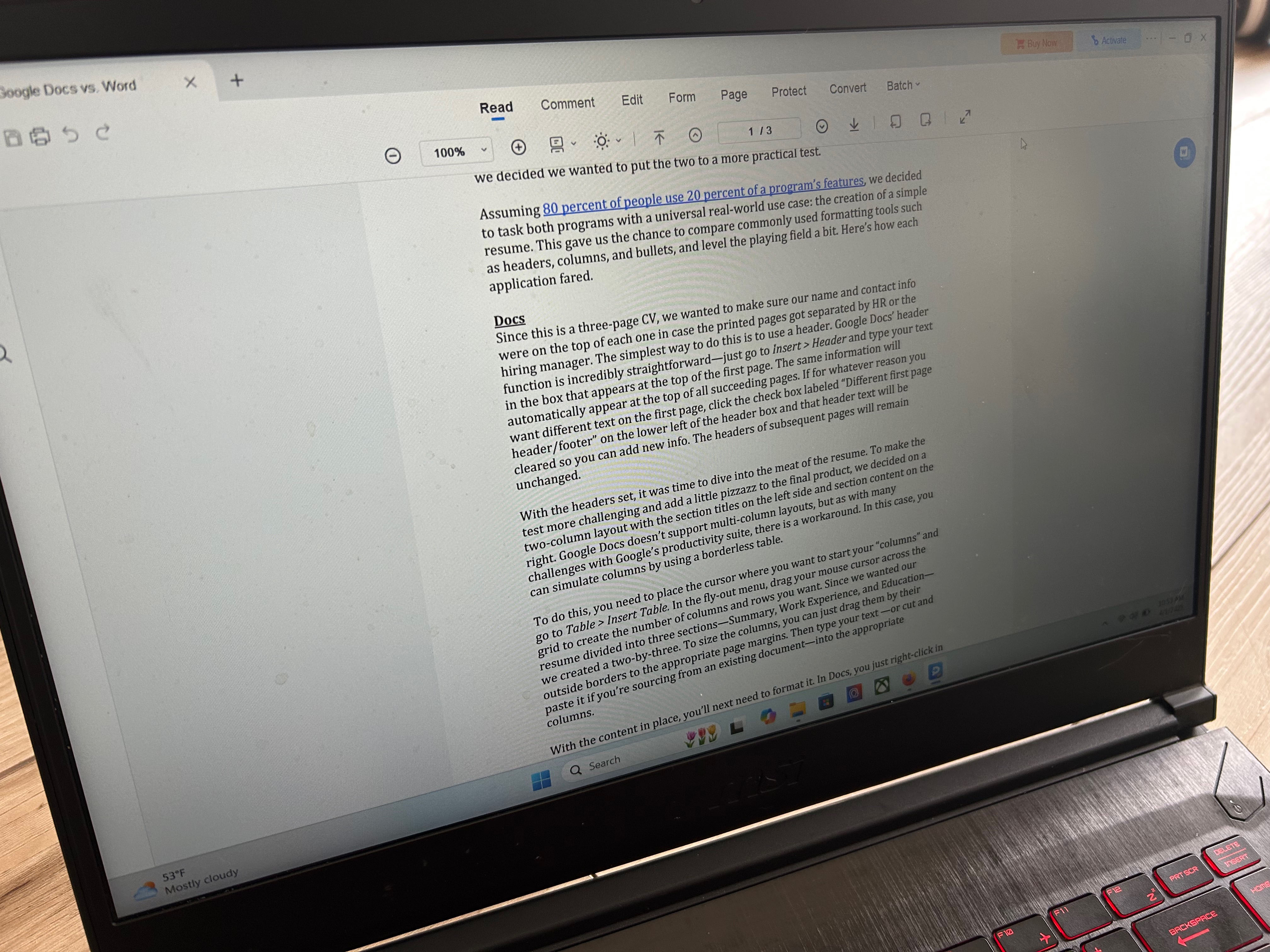
EaseUS PDF Editor might not have the name recognition of some of the other editors on this list, but it’s more than capable of holding its own in the crowded PDF editor market. It provides all of the essential tools for managing PDF files without any of the elaborate or hard-to-understand features. It allows users to jump right in to their toolset and get straight to editing.
While EaseUS’s features are great, they are also pretty standard fare among PDF editors. What makes it stand out among the pack is its affordable price—$29.95 a month, $49.95 annually, or $79.95 for a lifetime license. It’s a great value for those who regularly edit PDFs and don’t want to pay out the nose.
EaseUS also offers a fully functional free version (with embedded watermarks on your edited documents) so users can take it for a spin to see if it meets their needs before they commit to paying any money.
Read our full
EaseUS PDF Editor review
PDF Candy – Best free PDF editor
Pros
- Many advanced features
- OCR capability
- Very easy to use
Cons
- No Mac support
- Free trial only offers basic features
Price When Reviewed:
Free
Best Prices Today:
Price comparison from over 24,000 stores worldwide
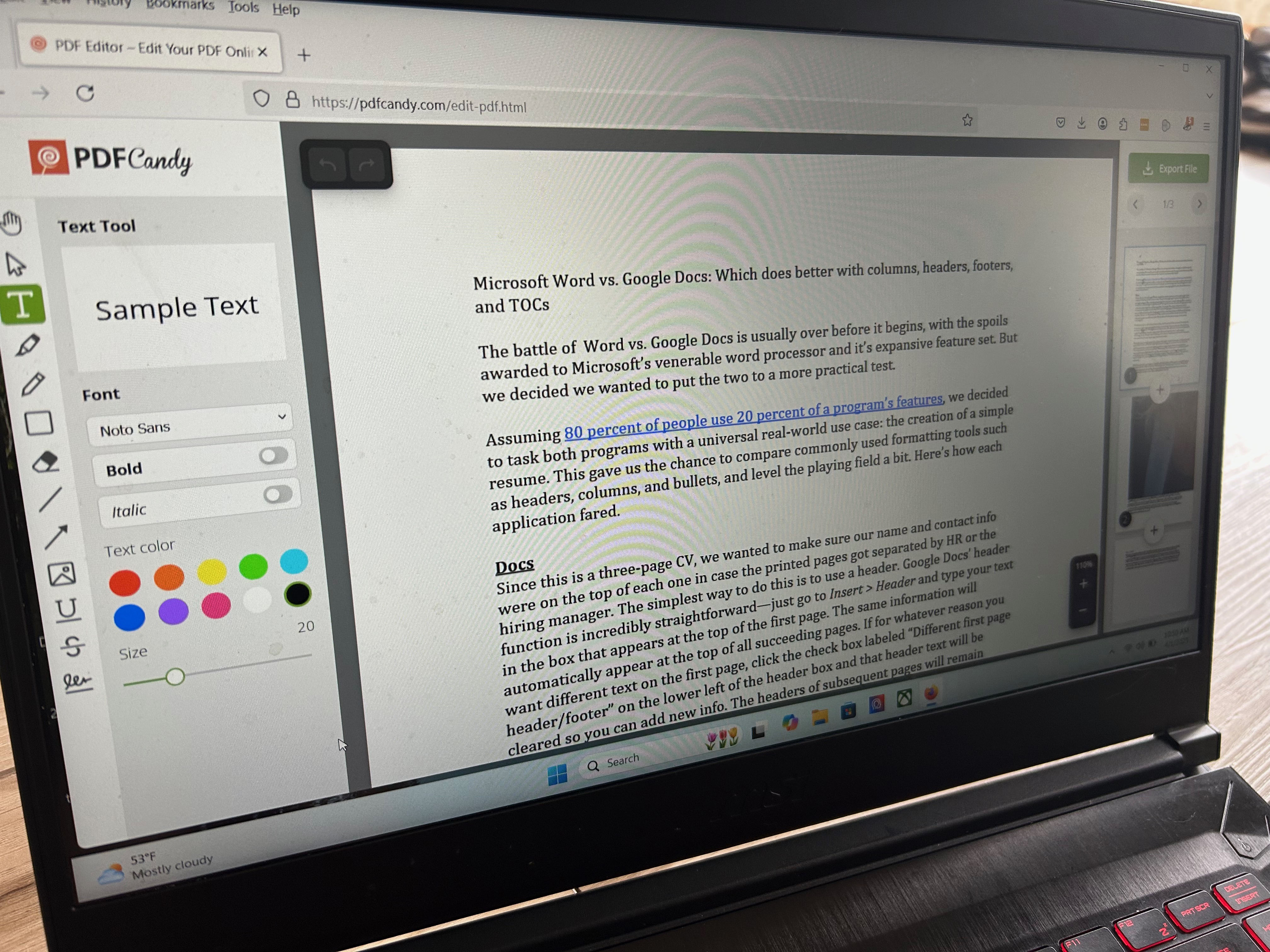
PDF Candy is the rare free PDF editor that offers a lot of the features you’d typically have to pay for. We’re talking scanning, multiple file-conversion options, and OCR functionality. A whopping 98 tools in all. This is what makes PDF Candy stand out among the multitude of lesser free PDF editors.
Of course, being free, there are compromises. In this case, the interface is a little disjointed, with the tool icons lacking any discernible organizing principle. But once you get familiar with the layout, you’re off and running.
There’s also the fact of being limited to one PDF task per hour with the free version. This is a non-issue if your needs are modest and consist of the occasional PDF editing task. If you want unfettered access, you need to shell out $6 per month, or $48 per year.
Read our full
PDF Candy review
PDF Expert – Best PDF editor for Mac
Pros
- Syncs across Mac, iPhone, and iPad
- Comprehensive editing and annotation tools
- Simple, intuitive interface
Cons
- Requires annual payment
- Lifetime license enables use on Mac only
Price When Reviewed:
Free 7-day trial, $79.99 annually, $139.99 lifetime
Best Prices Today:
Price comparison from over 24,000 stores worldwide
PDF Expert is an excellent editor that fits seamlessly into the Apple ecosystem, making it our pick for Macs, iPads, and iPhone users.
While macOS does include a PDF editor in its Preview app, iOS devices don’t have a native PDF editor and PDF Expert fills that gap nicely.
It has a clean and intuitive interface and offers a plethora of easy-to-use editing options such as page management, converting scanned files into editable documents, and conversion to other file formats, among other things. The pricing plan is also considerably cheaper than most of the other top picks, meaning this is a no-brainer for Apple users.
In its latest iteration, PDF Expert includes and AI-powered chat assistant that can be particularly helpful with long or complex documents. For example, it can extract key points, summarize information, and generate hashtags as a navigation aid.
Read our full
PDF Expert (iOS) review
Apple Preview PDF editor – Best free PDF editor for Mac
Pros
- Full set of PDF markup tools
- Supports form filling
- PDFs can be protected with passwords, encryption, and permission controls
Cons
- Limited native sharing options
- Only available to Mac users
Price When Reviewed:
Built into macOS
Best Prices Today:
Price comparison from over 24,000 stores worldwide
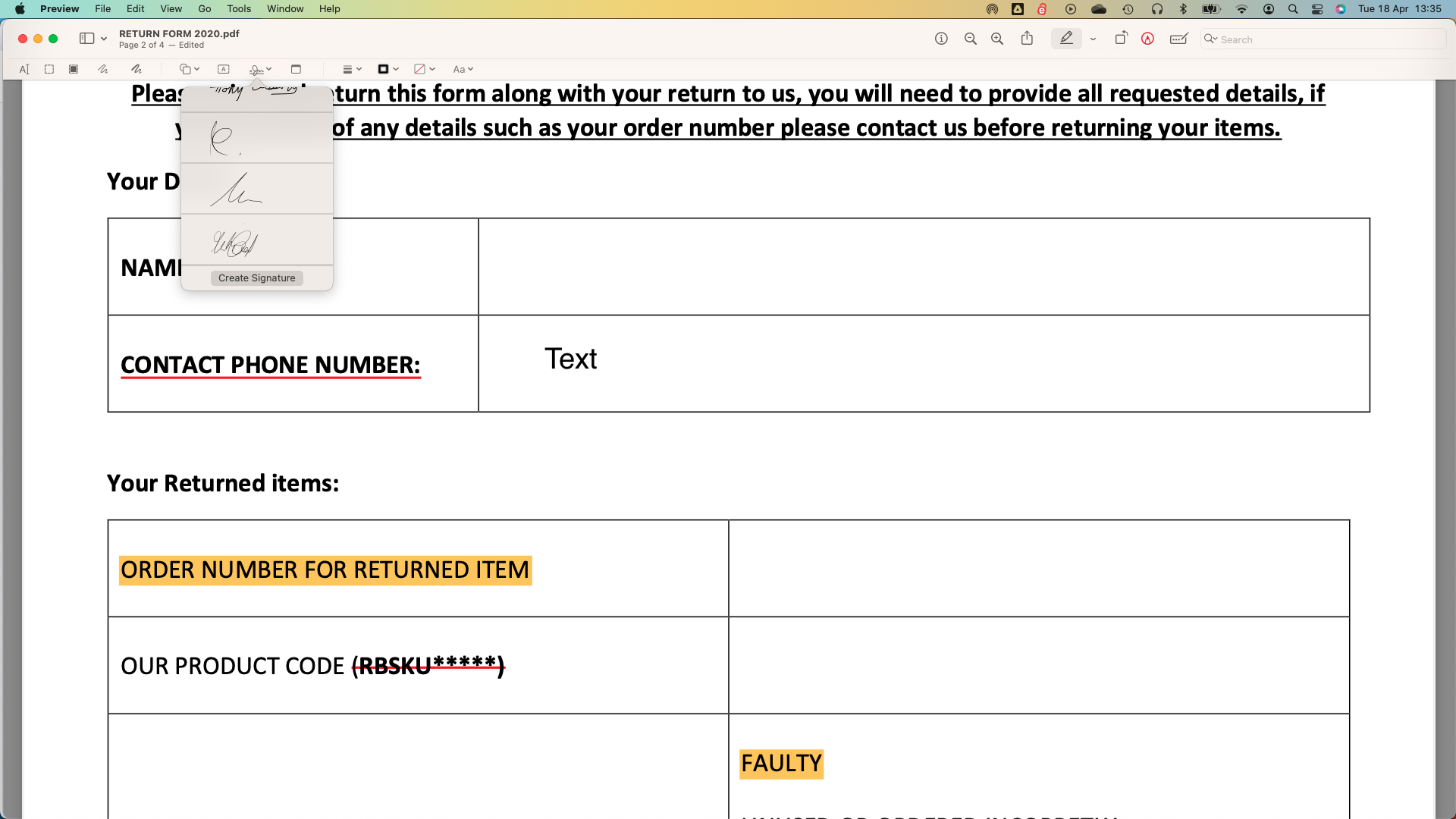
Mac users needn’t look beyond the macOS for their PDF editing needs, since there is a full set of PDF markup tools already available at their disposal in Apple Preview. It has the chops to handle most personal and business PDF editing needs, including encryption, password protection, and permissions for files.
Apple Preview’s PDF features and capabilities are impressive and should be all you need for most common editing tasks. The drawback, of course, is that only Mac users can take advantage of them.
Read our full
Apple Preview PDF editor review
pdfFiller – Best online PDF editor
Pros
- Intuitive web-based interface
- Robust security options
- Lots of business-ready capabilities
Cons
- Business features won’t be needed by some users
- Requires annual commitment to get best value
Price When Reviewed:
Basic: $8 per month; Plus: $12 per month; Premium: $15 per month. Those prices require an annual commitment. Prices start at $20 a month with no commitment.
Best Prices Today:
pdfFiller monthly (on annual contract)
$8
Price comparison from over 24,000 stores worldwide
pdfFiller is a browser-based PDF editor that allows you do to just about everything PDF-related—editing, securing, sharing, creating, and storing PDF files—all from its intuitive and simple web interface.
Its design is similar to a desktop app, with the toolbar across the top, and document thumbnails along the side, so it’s very easy to select the page you want to work on and perform the desired function, be it adding, deleting, or copying/pasting text; changing font style, size, and color; and so on. A standard set of markup tools is also available. It has a surprisingly deep set of features for both personal and business use. For instance the Premium plan offers an impressive legal document library, as well as SignNow support.
While incredibly versatile, not all of pdfFiller’s advanced features will suit everyone. Fortunately, there are three subscription tiers, which gives users a way to meet their editing needs without paying extra for unnecessary features: Basic for $8/mo; Plus for $12/mo; Premium for $15/mo with an annual commitment. Month-to-month options are also available, but at a higher cost, of course.
Read our full
pdfFiller review
Other PDF editor reviews
- MyPDFTools: This handy, free PDF toolkit offers easy and effective basics, but more demanding jobs expose some limitations.
- Swifdoo PDF for Windows: This full-featured, low-priced Acrobat alternative should serve most users well, with most everything you’d need for editing PDFs.
- MobiPDF: Budget buyers will find a lot to like about PDF Extra. It offers good basic-to-intermediate PDF functionality that will please both casual and professional users, for a fraction of the cost of pinnacle program Adobe Acrobat Pro.
- PDF24 Creator: This is a capable free editor that comes in handy for casual use, but if you need a program for more regular editing duties, PDF24 Creator has annoyances that will hinder its helpfulness.
- PDF-XChange Editor: Another full-featured PDF editor that will fulfill most editing needs for a reasonable price. It also offers a respectable free version, if you can accept its watermarks.
- Kofax Power PDF 5: This is a close alternative to Adobe Acrobat Pro with essential and advanced editing tools and lots of help resources, making it suitable for old hands and those new to PDF editing.
Who curated this article?
Michael Ansaldo is PCWorld’s primary PDF reviewer. He’s a veteran tech journalist who has been reviewing and writing about hardware, software, and services for a variety of publications including TechHive, Wired, Macworld, Mac|Life, Mobile Magazine, Enterprise.Nxt, Executive Travel, and others. He was formerly PCWorld’s Small Business Editor.
A word about online PDF editors
Why spend a chunk of change on a desktop editor when free online PDF editors abound? The simple answer is because you get what you pay for. Generally, free online editors will let you add text and comments, merge and split documents, and convert files to and from PDF. With rare exception, however, they won’t let you edit existing text and many have file-size and page-volume restrictions. And a lot of them will watermark your edited document. For these reasons, web PDF editors are best reserved for simple, fast editing jobs. Call in these big dogs for anything more demanding.
How to choose the best PDF editor
PDF editors come in a variety of flavors, offering varying feature sets—from basic functionality to power-user tools. It’s important to know what features best match your workflow before you commit to a PDF editor.
Create, convert, and export PDFs
The most fundamental function of a PDF editor is to make PDFs, either from scratch, scanned hard copies, or by converting digital documents. A good PDF editor should be able to transform a variety of file types—from Microsoft Office formats to images to HTML—and do so seamlessly, preserving the original formatting. It should also include OCR technology to make the PDF text searchable and editable. Likewise, a good PDF editor must be able to export PDFs into other editable formats such as Microsoft Word and PowerPoint, HTML, or plain text, maintaining the original files hyperlinks, images, and other elements.
Content editing
Another bit of magic that PDF editors unlock is the ability to modify text; insert, resize, and move images; and reorganize pages in the PDF. A good one will perform these tasks as easily as in a text document or slide deck, allowing in-line editing, dragging-and dropping graphics, and adding or removing hyperlinks.
Review and annotate
A good PDF editor should also let you or anyone else using it add comments and other annotations to PDF files during review. It should have tools to mark up both text documents and graphic-heavy files like webpages. Common options include sticky notes, callout boxes, highlighting, freehand drawing tools, and stamps with messages like “approved,” “revised,” and “confidential.”
Security
All businesses deal with documents containing sensitive data. Look for a PDF editor that includes security features that allow access for authorized eyes only. Good options will usually offer several levels of security, including password protection, permissions setting, and content redaction, which “blacks out” selected text and images. Most PDF editors will also offer one or more ways to electronically sign documents.
Mobile support
While deep PDF editing is best done on a desktop, it’s nice to be able to review and annotate files when you’re out and about. While PDFs can typically be reviewed in any PDF reader or editor, regardless of which one they were created in, consider looking for an editor that has a dedicated mobile app, is optimized for mobile devices, or allows cloud access to features through a mobile browser.
One of the great things about a PDF is that it can be read and edited in any PDF program regardless of which one it was created in. So beyond the features outlined here, let your personal preferences guide you in making your decision.
FAQ
1.
What is the best PDF editor?
If you want a PDF editor that truly does it all, PCWorld’s pick is Adobe Acrobat Pro. It’s the industry standard for a reason. As a subscription-based product, you can count on it to always be up to date, in terms of patches and feature enhancements. That also grants you access to a mobile version that’s both robust and user friendly.
2.
What is the difference between a PDF document and a PDF form?
While there are a number of different types of PDF file formats, they all fall under the umbrella term of PDF documents. A PDF form is a type of PDF document that has editable form fields a user can fill out. Typically, parts of the document are static and can’t be changed in a PDF form, such as questions in a survey or instructions about filling out the form. In a PDF form, the content fields a user fills out are open to editing and can offer a list of possible answer options or can be written in freely.
3.
Are PDF documents and Word files different?
Yes. They are two entirely different document formats. While you can export from one file format to another, they are not the same. Word file formats are usually used for word processing, editing, and making changes to text. PDF documents on the other hand, are most often utilized for viewing, sharing, and printing. Additionally, Word files are read and write and contain some version of the “.doc” file format. Whereas PDF files are typically read-only and contain the “.pdf” file format.
4.
Can you protect PDF documents from being edited by other people?
Yes. If you have a PDF document that you don’t want anyone else to edit, you can protect the file. You can do this by opening the file in Acrobat, for instance, and clicking Tools > Protect. Then you have a few options as to whether you want to simply restrict editing with a password, or if you want to encrypt the file for further safety. Once you choose how you want to protect the PDF document, you can set a password and save.
5.
Can you merge PDFs with a free PDF editor?
As a matter of fact, many free PDF editors allow you to merge two or more PDFs into one document. Such is the case with our top free pick PDF Candy. Open up the PDF editor application or website in your browser and search for the Merge option. It will then ask you to add the files of all PDFs you wish to merge. Once the files have been added, arrange the page order and alignment before proceeding with the merge. Afterwards, all of your previously PDF files will be merged into one new PDF document.
6.
Does Google have a free PDF editor?
Yes and no. Google doesn’t provide a designated free PDF editor itself, but there are third-party Chrome extensions that you can use to help get the job done. Alternatively, you can make use of Google Drive to edit a PDF document. Simply upload the document onto your Google Drive and then select the file and right-click and select Open with > Google Docs. The file will be opened as an editable Google Docs text document. Then just make your edits and when you’re finished click File > Download >PDF Document to revert it back to a PDF file.
This method is a quick and easy way to edit a simple PDF document, but be careful as Google Docs can run into formatting issues if your original document has complex visual formatting such as tables and graphs. In this case, it is best to use a designated free or premium PDF editor.

 Login
Login