Smart App Control is a Windows security feature designed to prevent potentially harmful programs from running on your computer. It works by screening applications through Microsoft’s cloud service to detect and isolate infected, compromised, or otherwise dangerous executables.
However, after installing the October 2026 update, the option to activate Smart App Control is suddenly grayed out for some users.
According to Microsoft, only PCs on which Smart App Control was already disabled are affected. Users who already had the feature enabled remain protected by the feature—it’s not automatically disabled, but it also cannot be re-enabled if you end up disabling it.
Microsoft has released a temporary workaround that involves modifying two values in the Windows Registry. The company recommends creating a backup of the registry before making any changes. A separate solution is also available for enterprise computers via Group Policy.
The two Windows registry tweak commands are as follows:
Further instructions can be found on the update’s release notes, located under the “Known issues in this update” section with the label “You might be unable to turn on Smart App Control.”
Microsoft is working on a permanent fix but has not yet announced when it will be available. As long as Smart App Control is disabled, an important automatic layer of protection against unknown or potentially harmful apps is missing. This means malicious apps can slip through, even if normal Defender protection is in place.
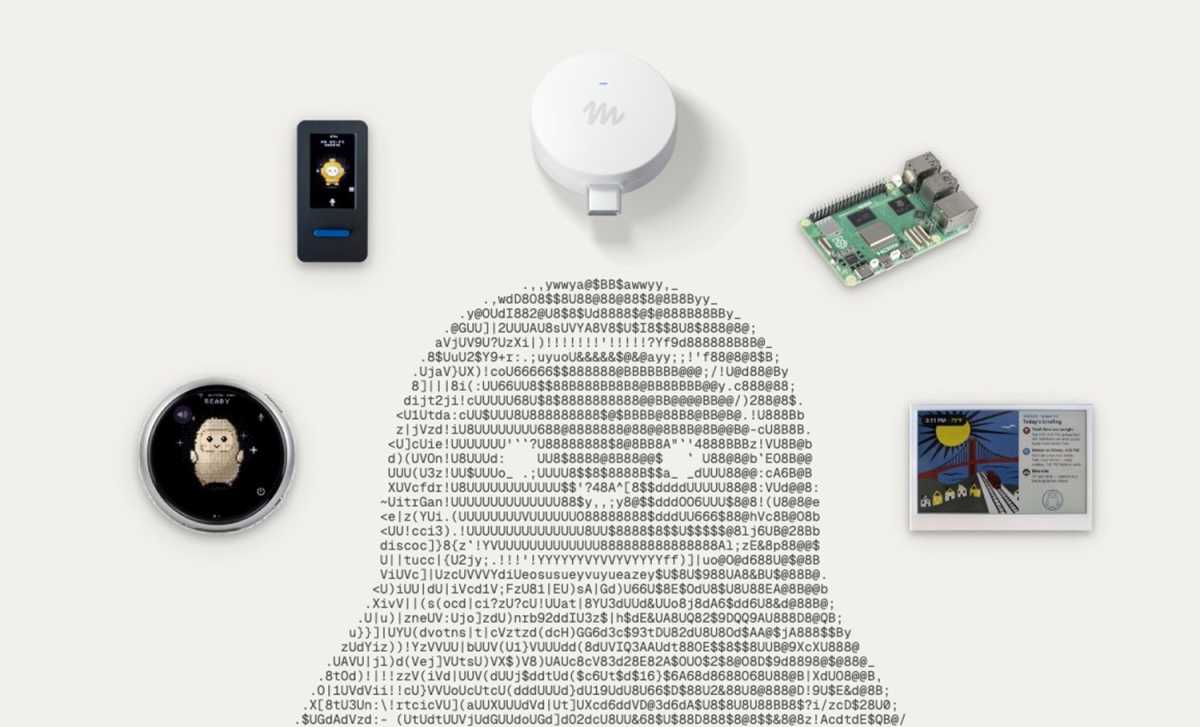
You probably don’t give much thought to the smart functionality of ovens, washers, TV boxes. But Anthropic has—and it believes such IoT devices are ripe for AI exploitation.
How? Self-replicating “AI worms.”
Welcome to Safe Mode, your weekly report for pressing security and privacy news—and what steps to take next. Want this newsletter to come directly to your inbox? Sign up on our website!
Last week, Anthropic released a report detailing a series of experiments—tasking AI with spreading itself across low-tech smart machines. The team examined how easily small models could discover, configure, and install model weights (that is, the model’s parameters for data processing) on vulnerable devices, then repeat the process to proliferate. The resulting botnet (and collective compute power) could then be used for AI workloads. The behavior mirrors that of a classic computer worm, where zero human oversight is needed for the malicious code to copy continuously.
(What’s a small model? AI comes in different sizes, so to speak. The ones we consumers best know represent the large-language variety, like Claude, ChatGPT, Gemini, etc. But small-language versions exist, too. They’re more streamlined and generally built for specific purposes. Think of an LLM as a sprawling multipurpose tool, while an SLM is a single-purpose one. And sometimes a very singular purpose at that.)
Turns out, small, specialized AI models achieved this goal pretty effectively. At least, they did so in a controlled lab environment, with researchers unleashing several small models on Android TV boxes. (Such media boxes have notoriously lax security configurations.) But Anthropic believes this attack method could become real “within months.”
Sounds scary, right? I have to admit that when I first saw a news headline about this report, it felt appropriately spooky for October. After all, we already know the overwhelming majority of smart devices have poor security. (Heck, I’ve written about the very topic, and multiple times at that.) Botnets have also been around forever. The idea of them becoming more advanced through AI isn’t a shocker, either. But I read the report more as a heads-up than a dire warning.
Connected devices like TVs, Android TV boxes, ovens, etc, could be at risk if attacks relying small AI models become real.
Nicolas J Leclercq / Unsplash
First: Anthropic came to these results in a controlled environment, rather than seeing it on the open internet. (Shenanigans in the wild are the province of its large-language models at the moment.)
Second: Anthropic’s predictions for when we’d see this in the wild is fairly vague. Sure, the implication is just a handful of months, based on current rates of AI improvement. But “months” is very open.
Third: The speed of such attacks is relatively slow. On the LLM side, security professionals talk about vulnerabilities and subsequent exploits happening within hours, if not minutes. But for small AI to proliferate in this way, Anthropic noted times of 10 to 30 hours for spread. Getting the AI models fully operational on the newly infected devices ranged between 28-71 hours at minimum and around 51 to 150 hours maximum, depending on the model.
Cybersecurity defenders thus have more time to quarantine infected devices—and for this particular kind of attack, bad actors have a disincentive to go faster. Spreading quicker makes detection easier.
Fourth: Use of connected devices with higher performing hardware appears to be more difficult—their configurations aren’t as simple (or slapdash) as with cheap internet products.
Finally, even if hackers start using small AI like this,we as consumers still can take some steps to strengthen our device security. We already know the steps: Keep devices off the internet if you’re not using them as connected devices. Change default passwords to something random, unique, and strong. Isolate the devices on their own subnetwork when feasible.
Of course, none of these points are fixed. Bad actors could still choose speed over stealth. They could figure out how to take over devices like smart cameras, drones, and vehicles. But even as AI makes tech more complex, not all protective measures have to be equally so.
In the news
I just spent the last week at TechCrunch Disrupt, listening to multiple presentations about AI and cybersecurity. But even the most interesting thoughts for the future couldn’t tear my attention away from current events.
The dangers we have to watch out for now? More calendar invite scams, compromised Android phones, additional reminders to keep Windows updated, and yet more data breaches.
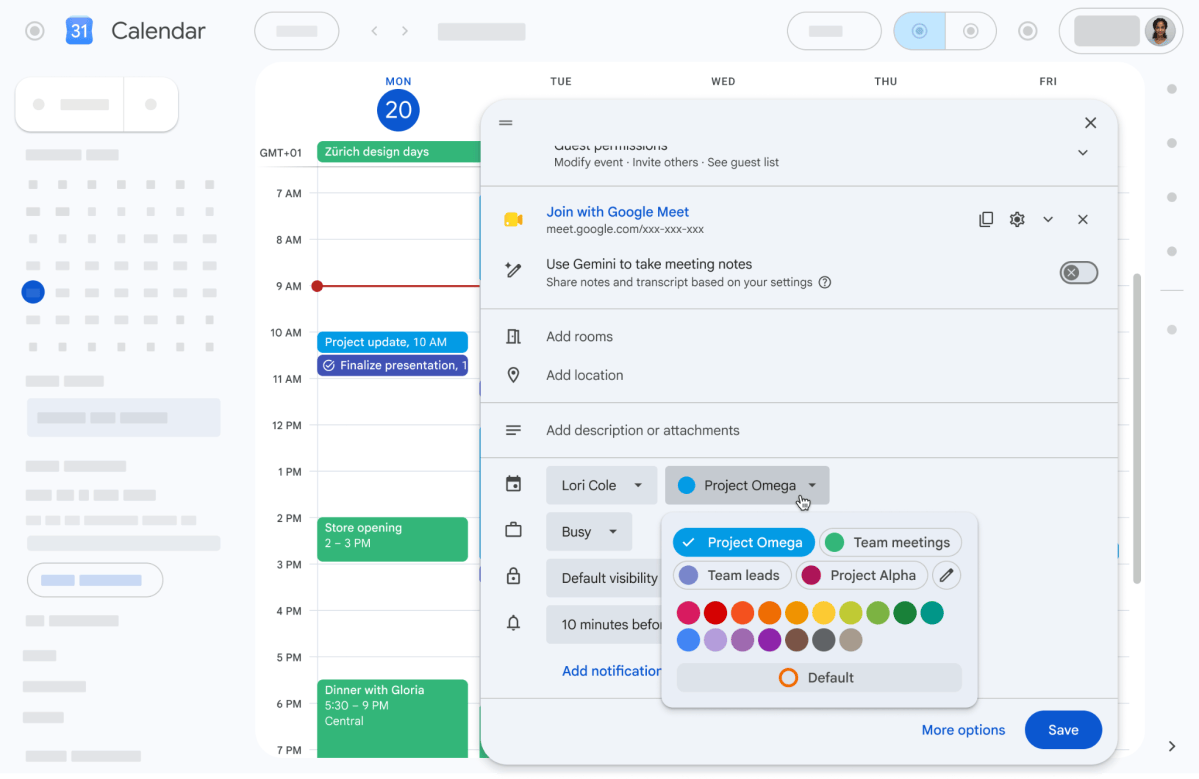
If you see an unfamiliar meeting on your calendar, don’t click on its links. They may send you to a phishing site.
Google
The painful
I talked last week about password simplicity—and the need to pair it with password strength. And then a hacker claimed a breach of the Danish national registry came about because the password “123456” worked. Please change your weak passwords, folks.
The annoying
See an unfamiliar meeting on your calendar? Don’t click on any links embedded in its description. You may get jumped to a phishing site, meant to steal your login info. Delete the invite or report it as junk. (Responding may alert the attacker that the email address is valid and active.)
Your Windows 11 machine may stop getting updates in spring 2027—if the version you’re on is too old. Microsoft says certificates that enable automatic updates are expiring, and only newer versions of Windows 11 will get the current versions pushed to them. You should be on 26H2 or 25H2 for a seamless transition.
The concerning
Attackers hacked into refrigerators at French supermarkets and turned up the temperature overnight, causing food spoilage and financial losses. Cybersecurity has been a low priority for many industries, but that may have to change as mundane elements from our daily lives get targeted.
The ugly
Shop at ASOS? Your customer data may have been stolen after a successful social engineering attack on the company. Data lost includes full names, contact information, and “non-personal account-related information,” according to BleepingComputer. Be wary about any messages related to your ASOS account in the coming weeks.
A cheap Android phone could land in your hands compromised. Researchers at Bitdefender have discovered embedded malware in low-cost phones with MediaTek chips, likely installed somewhere between device production and arrival on retail shelves.
Tip of the week
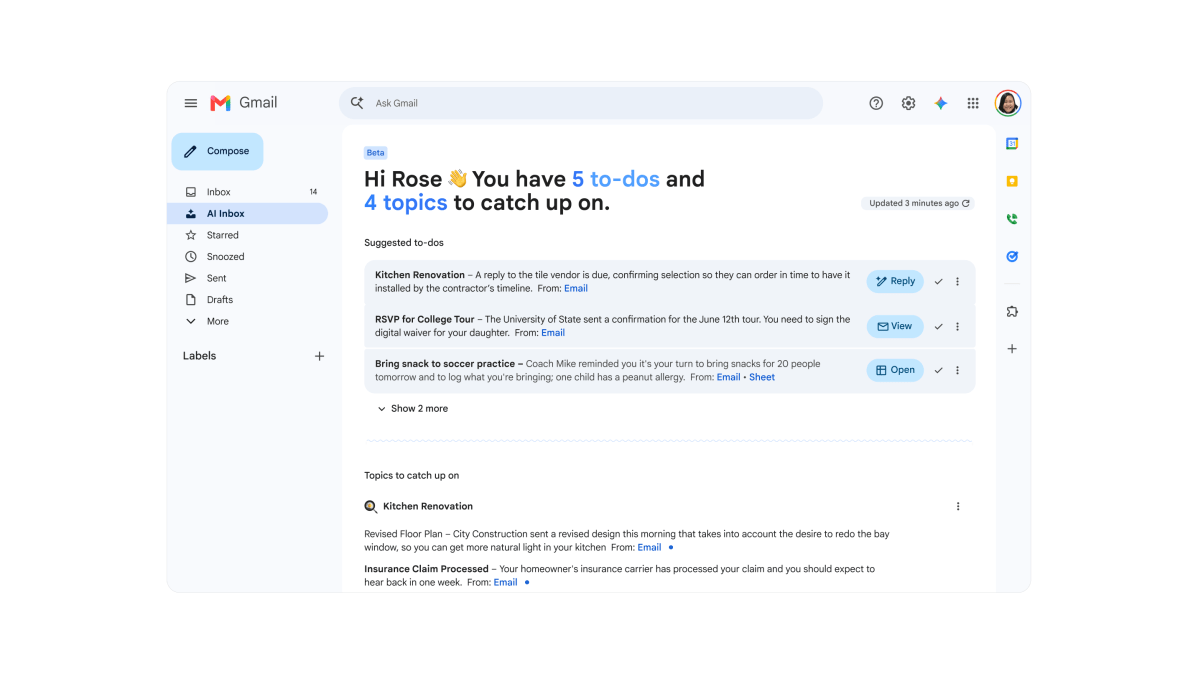
If you go beyond Gmail’s built-in AI inbox, and instead allow a Claude, ChatGPT, Gemini, or Muse to monitor your email, you can take steps to safeguard your Gmail account.
Google
Interested in having AI help you manage your email? If you let Claude, ChatGPT, Gemini, or Meta’s Muse into your Gmail inbox, you can take steps to protect your messages—as well as your privacy.
To do so, you’ll need to dig into the rules or settings for your chosen AI chatbot. If you’re not sure where to find them, use our guide.) In addition to checking over the permissions, you can disallow the models from training on your data.
Pop-ups, autoplay video ads, and trackers show up on every device in a household, from the family PC to a kid’s phone. AdGuard blocks them on up to nine devices, and an AdGuard Family Plan lifetime subscription is just $14.97 (MSRP $169.99) for a very limited time: our Deal Days Extended sale ends at midnight tonight (October 15).
AdGuard removes banners, pop-ups, and video ads, so pages load without the clutter. Trackers and activity analyzers are blocked too, keeping your browsing data hidden from them. AdGuard also stops malware and phishing sites, and parents can turn on parental controls to restrict adult content on the kids’ devices.
One plan works across Windows 7 or later, macOS 10.15 or later, iOS 12 or later, and Android 7 or later, with updates included. AdGuard holds a 4.7 out of 5 rating on Trustpilot. This plan is for new AdGuard users only, and you have 30 days after purchase to redeem your code.
Clear the ads off every screen in the house with one payment.
Firefox 158 is out for Windows, macOS, Linux, and Android. This version brings improved PDF support, the ability to fill forms with the help of “AI,” as well as fixes for over 75 security vulnerabilities. Updates are also available for Firefox ESR versions.
Firefox 159’s release is scheduled for October 27th, 2026.
What’s new in Firefox 158?
Following the new Nova design introduced in Firefox 157, now a few technical boosts are being rolled out. The AI-based Smart Windows feature is designed to help users fill in forms more quickly. It’s being rolled out gradually, so it won’t be available to all users straight away.
Another improvement involves the saving of web pages as PDFs. Firefox now generates more accessible PDF files (i.e., fewer barriers), and a number of other shortcomings in PDF rendering have been fixed.
Firefox now supports the JPEG XL image format, which has been running as a Firefox Labs experiment since June. Image compression with JPEG XL is more efficient than with older formats like JPEG, PNG, and WebP, all while maintaining comparable image quality.
Security flaws fixed in Firefox 158
In the security advisory for Firefox 158, Mozilla lists 77 security flaws that have been fixed, 37 of which were discovered and reported by external security researchers (OpenAI’s Amy Burnett stands out with 9 reports).
Mozilla classifies 30 vulnerabilities as “high risk,” 33 as “medium risk,” and 14 as “low risk.” Among the fixed security vulnerabilities are 24 use-after-free (UAF) flaws, some of which can be exploited to run malicious code. Eight vulnerabilities can be exploited to escape the browser’s sandbox.
Firefox ESR updates
In addition to Firefox 158.0, ESR versions 153.5.0 and 115.43.0 are also now available. However, the latter is only available for Windows 7 and 8.1 and macOS 10.12 to 10.14, and will remain so until March 2027.
In the ESR versions, Mozilla has fixed the same aforementioned flaws that were also present in the code of these older browser generations. That amounts to 61 fixes in Firefox 153.5.0 and 17 in Firefox 115.43. (Firefox ESR 140 received its final update on September 29th.)
Yesterday was October Patch Tuesday, and Microsoft’s security updates addressed 1,416 new vulnerabilities. Not only is that another record broken, but it’s also the first time over 1,000 flaws were fixed in a single month. Indeed, October 2026 saw more security vulnerabilities fixed in the month than were fixed in any previous year.
Alongside flaws fixed in Windows and Office, we also saw a bunch of fixes in Exchange Server, SQL Server, Hyper-V, Skype for Business, Microsft Defender, .NET Framework, Visual Studio, and Microsoft’s cloud services.
Microsoft classifies 85 of the 1,416 vulnerabilities as “critical,” including 67 remote code execution (RCE) vulnerabilities. The other vulnerabilities are classified as “high risk,” with one vulnerability already being exploited in the wild while two were publicly known in advance.
The next Patch Tuesday is scheduled for November 10th, 2026.
Windows security vulnerabilities
A large number of the vulnerabilities—over 1,000 this time—are spread across the various Windows versions (10, 11, Server) for which Microsoft still provides security updates, including Windows 10 via the Extended Security Updates program, which was extended until October 12th, 2027.
Note: If you’re still on Windows 11 24H2, this is your last Patch Tuesday. Computers running 24H2 will no longer receive security updates going forward. When prompted by Windows Update, you should upgrade to Windows 11 25H2 or 26H2. That’ll keep you secure and up to date.
Windows under attack
One Windows security vulnerability is already being exploited in the wild this month. CVE-2026-96951 in the Windows Shell allows attackers to bypass the system’s defenses by disguising the origin of an executable file from the internet (Mark of the Web, or MotW).
Critical Windows vulnerabilities
Microsoft has classified 42 Windows vulnerabilities as critical, including 30 RCE vulnerabilities. Via these flaws, an attacker could remotely execute injected code without authentication or user interaction. The malicious code could then spread further across the network.
Microsoft Edge security vulnerabilities
The latest security update to Microsoft Edge 155.0.4283.45 is dated October 8th and based on Chromium 155.0.8059.40. It addresses 247 Chromium vulnerabilities, which are not included in the sum of flaws fixed in Microsoft Edge this month.
Microsoft Office security vulnerabilities
Microsoft has fixed 194 vulnerabilities in its various Office products, including 25 RCE vulnerabilities classified as critical. With “critical” RCE vulnerabilities in Office, the preview pane is usually an attack vector—a user doesn’t need to open an infected file for an attack to succeed, but rather only needs to preview it in the preview pane. Meanwhile, “high risk” RCE vulnerabilities usually require a user to open an infected Office file in a vulnerable Office product (open-and-own).
Among the numerous vulnerabilities in SharePoint, CVE-2026-102866 is an elevation of privilege (EoP) vulnerability that Microsoft classifies as critical. It is also the only SharePoint vulnerability that an attacker could exploit without a user login. They would need to obtain a valid user token, modify it, and impersonate that user on the server.
Exchange Server security vulnerabilities
Microsoft has fixed 7 vulnerabilities in Exchange Server this month. Six of these are classified as high risk, including five EoP vulnerabilities. CVE-2026-70571 is also included, an RCE vulnerability classified as critical.
Calendar invites have long been an avenue for scams, but there’s been a surge in these kinds of attacks recently. Whereas people are starting to catch onto fake phishing emails, many aren’t suspicious of unsolicited calendar invites—and cybercriminals are taking advantage.
According to Business Insider, data from security firm Sublime shows that calendar-based phishing attacks increased more than 10x between July and August 2026. Microsoft also reported a sharp rise in such attacks.
Calendar invite attacks are dangerous because you aren’t expecting them and your curiosity gets the better of you. Scammers may send invites to fake meetings and/or insert messages about missed calls, unpaid invoices, or subscriptions that need renewing. The invites can also have malicious links embedded in them, just begging to be clicked.
And that’s the whole point. Scammers want you to open links, call numbers, visit websites. In doing so, you may end up entering your passwords or payment details on imitation sites, or download files laced with malware, or give up personal information to a faker on the other end.
In some cases, fake Google Drive links and AI-generated voices have also been involved to make scam invites seem more credible.
What you should do
One reason this method works is because calendar invites are typically perceived as more legitimate than mere emails. Furthermore, some calendar apps automatically display invites that haven’t been accepted yet.
To minimize your risk of becoming a victim, security experts recommend scrutinizing all unexpected calendar events as carefully as you would unexpected emails. Avoid opening links or calling telephone numbers contained in calendar invites from unknown senders.
It may also be wise to review your calendar app’s settings and change any automatic behaviors for incoming invites.
A VPN, or virtual private network, is one of the easiest and most effective ways to improve your online privacy and security. Whether you’re protecting yourself on public Wi-Fi, hiding your IP address from trackers, or accessing region-locked content while traveling, a VPN adds an important layer of protection by encrypting your internet traffic. The problem is that there are hundreds of VPNs competing for your attention, and separating the genuinely good services from the mediocre ones can be overwhelming.
Let us save you the time and effort. We’ve tested and reviewed a wide range of VPNs to narrow down the field to the very best options available today—whether you’re looking for the best overall VPN, the fastest service, the best free option, or the best choice for privacy, streaming, or travel.
When looking for the best VPN, you’ll want to look for a few things: trustworthy privacy practices, strong connection speeds, reliable streaming access, and a large, well-distributed server network. Every VPN featured below delivers on those essentials and adds something extra to help it stand out from the competition.
Why you should trust PCWorld for VPN reviews and buying advice: Here at PCWorld we’ve been testing computer hardware, software, and services since the 1980s. As reviewers and users of PC hardware and software, we put every product through its paces using rigorous benchmarking and hands-on evaluation. We’d never recommend something we wouldn’t want for ourselves.
NordVPN – Best VPN overall
Pros
Tons of VPN configuration options
Outstanding speeds
Included antivirus and password manager
Cons
Expensive
Price When Reviewed:
Basic plan from $3.39 a month for 2 years. Usually $12.99 a month.
Price comparison from over 24,000 stores worldwide
Who should use NordVPN?
It’s difficult to select the best overall VPN. For many years we chose the best VPN based purely on privacy, but VPNs have evolved to be more than just tools to browse online anonymously. Privacy is still important, to be sure, but so are speeds, extra features, server network size, and ease of use. NordVPN has it all, and that’s why it’s my top choice for VPNs and a truly solid option for everyone.
Nord is the most full-featured service on the market with tools that will appeal to power users as well as an easy-to-use app that is intuitive and straightforward even for beginners. The service also carries out regular independent audits and uses RAM-only diskless servers for increased security, so the privacy-conscious user can rest assured their data will remain anonymous.
For those who deem speed a priority, NordVPN will impress as well. Speeds in my testing averaged 72 percent of the base internet speed across all servers — making it the fastest VPN I’ve ever tested.
NordVPN: Further considerations
NordVPN’s desktop app is very easy to use and offers a ton of different features including access to the TOR network over VPN, multi-hop connections, Meshnet file sharing network, a security suite complete with ad- and malware-blocking, and Nord’s latest password manager and link-checker safety tool. Also, there will be no problems accessing any streaming service while using NordVPN and it has an extensive server network to connect to all over the world.
The only real downside is that NordVPN’s pricing can be more expensive than many other VPN services. Even with the discounts offered by long-term plans, it can still seem pricey. Still, you get what you pay for and in this case, it’s more than worth it.
Price comparison from over 24,000 stores worldwide
Who should use ExpressVPN?
Just like my other top pick, I think ExpressVPN is a great option for everyone. VPN novices will find that they can easily download the software, choose their server location, and connect — it’s as simple as that. But more advanced users will be able to choose from features such as split-tunneling, protocol optimization, kill switch, and more.
Plus, ExpressVPN has one of the most expansive device support networks I’ve ever seen. So the VPN can be used across practically any and all platforms no matter what device you’re trying to protect — with up to 14 simultaneous device connections (depending on your subscription tier).
The only reason I placed it second is due to the slight edge NordVPN has in regards to features and average speeds. Still, you can’t go wrong if you decide to go with ExpressVPN as your VPN of choice.
ExpressVPN: Further considerations
ExpressVPN has wide device support, as well as a smart DNS feature for set-top boxes, consoles, and more. It now offers an even more advanced version of it’s Lightway protocol called Lightway Turbo which increases speeds for many of its server connections—although not across the board as I found during my review. It’s even begun branching out to take a more holistic approach to security for users, adding ad- and tracker-blocking and, most recently, a password manager to the service, as well.
It’s not the cheapest VPN out there, but you do get excellent value for your money. Plus, ExpressVPN recently just revamped its membership model offering multiple subscription tiers so you can pick the plan that works best for your price range. The service also regularly brings in third-party auditors to validate its privacy credentials. And to top it off, ExpressVPN has proven time and time again to have a sterling user privacy record.
Surfshark – Best cheap VPN
Pros
Unlimited simultaneous device connections
Tons of extra features
Low price on long-term plans
Cons
Expensive month-to-month plans
Large portion of global servers are virtual
Price When Reviewed:
From $1.88 a month for 2 years + 3 free months. Usually $15.45 a month.
Price comparison from over 24,000 stores worldwide
Who should use Surfshark?
Surfshark is one of those VPNs that does everything well. It has blazing-fast speeds, a robust feature set (second only to NordVPN), and excellent privacy credentials thanks to its no-log policy and multiple independent audits. A subscription comes with all of your standard VPN features, plus infinitely customizable dynamic multi-hop connections, identity protection alerts, and antivirus/malware protection.
But the best thing about Surfshark is the price. Taking advantage of its 2-year plan offer will net you comprehensive protection for just over $2 per month. That’s basically unheard of for a premium VPN service—especially with the feature set it offers. Surfshark is a great all-around VPN option for most people. That being said, those who don’t want to pay an arm and a leg for their VPN will find that Surfshark easily meets their needs without breaking the bank. If you want to save some money and get one of the best VPNs on the market, look no further.
Surfshark: Further considerations
While the price for a monthly subscription to Surfshark might seem exorbitant, the long-term plans are much more affordable. Committing to long-term VPN plans should be weighed against each user’s needs, but Surfshark’s very affordable price means you won’t regret it even if you don’t use the full term.
The only other thing that potential users should be aware of is that Surfshark is based out of the Netherlands. The country itself has strong personal privacy laws, but it’s a member nation of the 14 Eyes Data Sharing Alliance, meaning the government could require Surfshark to share user data if asked. It shouldn’t matter due to the company’s independently verified no-logs policy, but it’s still something privacy-conscious users should be aware of before committing.
Price comparison from over 24,000 stores worldwide
Who should use Private Internet Access?
Private Internet Access (PIA) has been around for awhile and has demonstrated that it can continue to innovate and improve with each passing year. The latest version of PIA is no different. By putting itself through yet another independent audit of its no-logs policy it keeps proving that user privacy is its top priority.
I think it can be a great VPN for all users. However, where PIA really shines is in its price and extensive customizable feature set. It has one of the least expensive subscription plans of any top VPN, both monthly and long-term. Plus, power users and those who like their apps to be customized to their individual needs will especially love all of the tweaking that this app allows you to do.
Private Internet Access: Further considerations
PIA also provides generous unlimited device connections and an absolutely insane server network that claims to have over 35,000 available servers, but with fewer country locations than other top competitors on this list.
The service does have a rather outdated interface and I found a few awkward interface issues. It’s also not the fastest service I’ve ever tested, with speeds well below the fastest I’ve seen. But neither of these issues should take away too much from the great value PIA offers.
Price comparison from over 24,000 stores worldwide
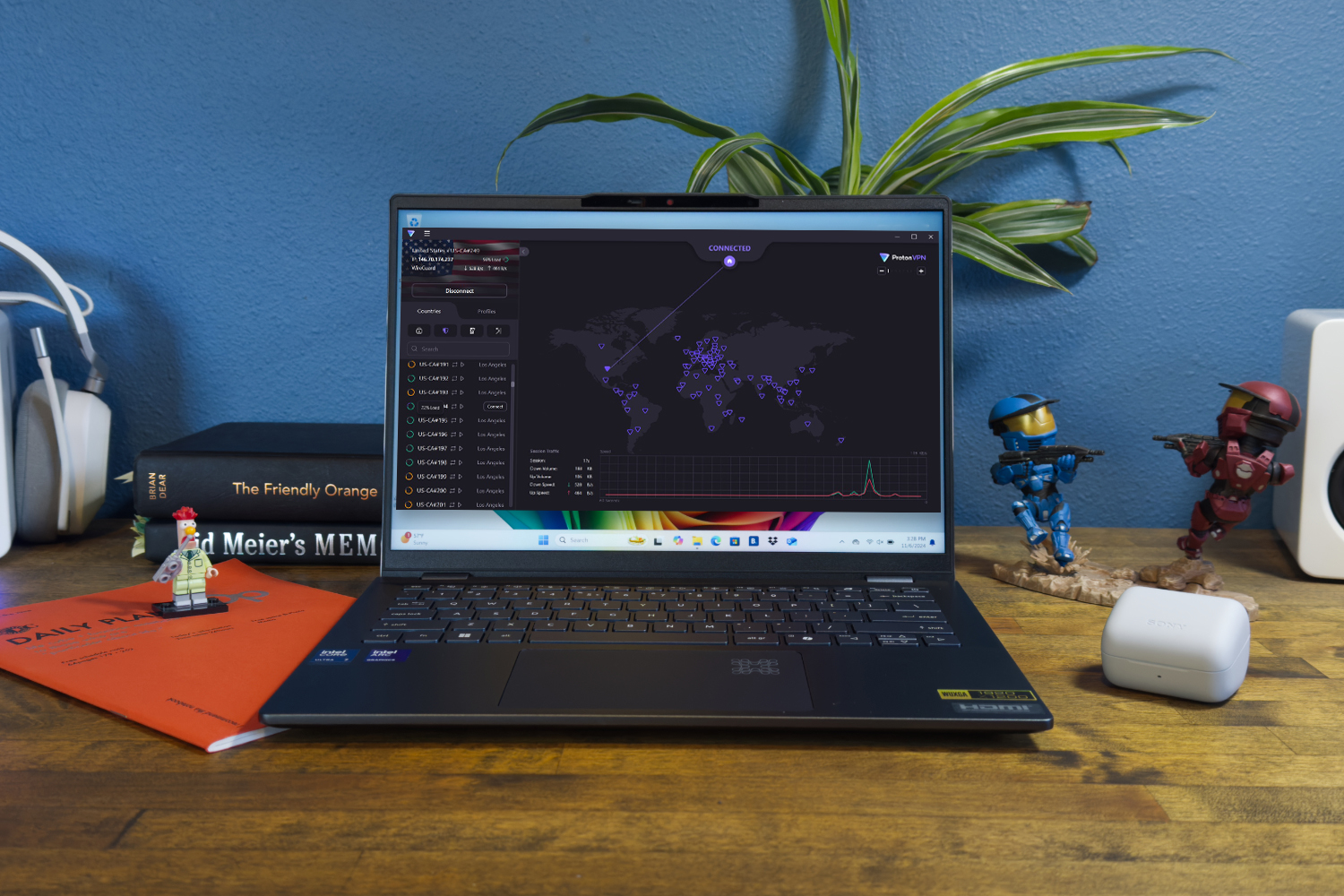
Who should use Proton VPN?
Whether you opt for the free or paid version, Proton VPN is a good choice for anyone. The free version specifically will appeal to those on a tight budget, or those who just need a VPN to do the occasional online task safely and securely online.
Many free VPNs come with either ridiculous limitations or annoying ads. Mercifully, Proton VPN has no ads and the restrictions are fairly tame compared to other services. For the low, low cost of nothing, you’ll get a one-device connection limit and access to 10 servers located all over the world. In my testing I found that speeds were very good even with the free version, ranking in the top 10 of all VPNs, paid or free. And since there are no monthly data limits on Proton’s free VPN servers, it’s also an excellent option if you want to stream videos while using a VPN — just be aware, the free servers don’t promise to work with Netflix like some of Proton’s paid servers do.
Overall, you get a lot for paying nothing and this easily makes it our favorite free VPN.
Proton VPN: Further considerations
The VPN is from the same company behind Proton Mail, a privacy-focused email service, so it’s very easy to integrate the VPN into the whole Proton ecosystem if you so wish.
The company has undergone multiple independent audits confirming its no-logs policy — including the free VPN, as well. The monthly price for the premium version does come in at the expensive side though, so I would recommend trying out the free version first before you upgrade.
Price comparison from over 24,000 stores worldwide
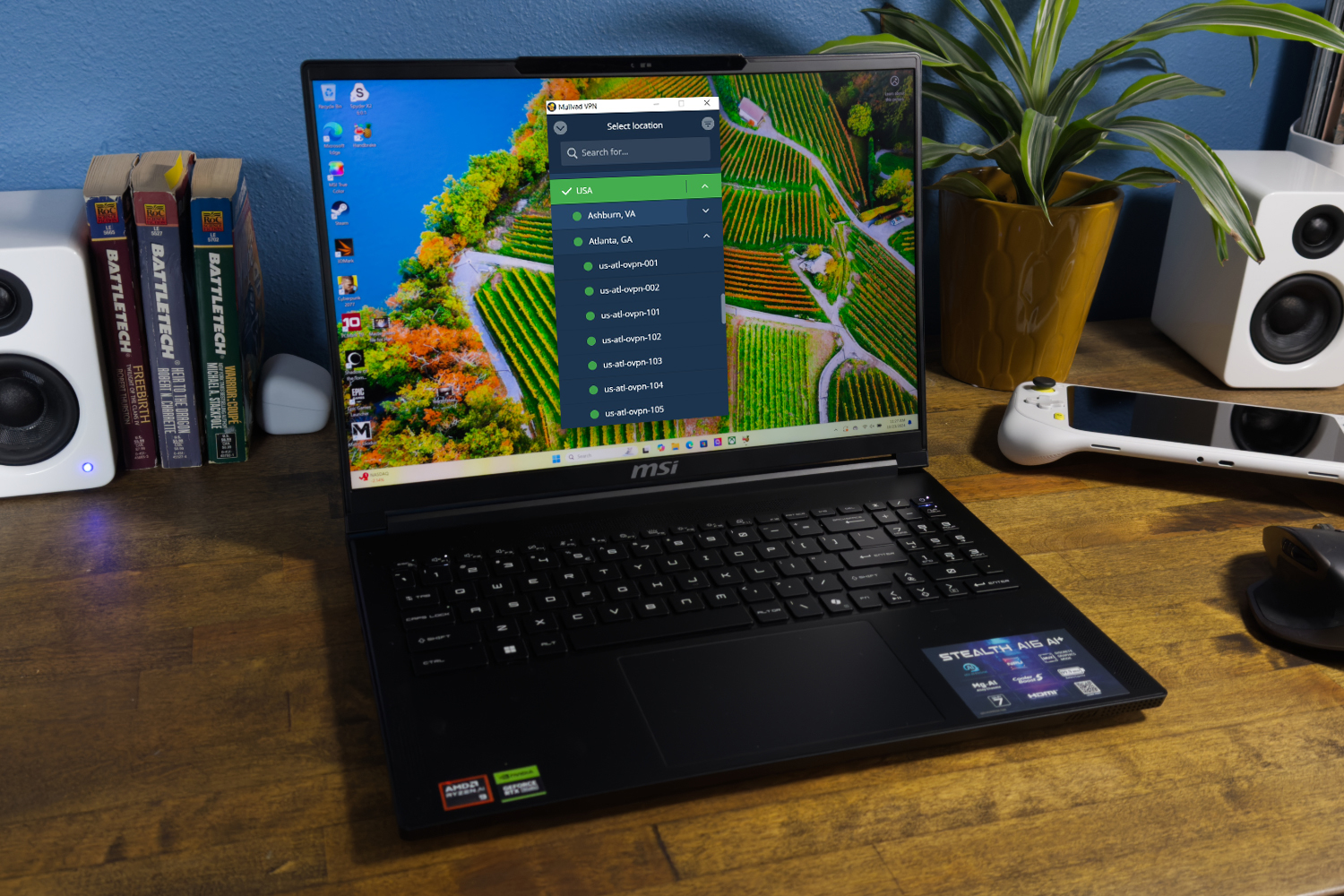
Who should use Mullvad?
Mullvad is the undisputed king of privacy and anonymity. I’ve never seen another VPN that actively resists knowing who you are the way Mullvad does. Mullvad doesn’t ask for your email address, name, or anything else. Instead it assigns a random account number that acts as your identifier and login. The service accepts payments using standard methods such as credit cards and PayPal, but you can also mail your payment in cash to remain as private as possible. Mullvad also comes with a strict no-logs policy and doesn’t collect any identifying metadata from your usage, all of which has been backed up by multiple independent security audits.
Mullvad is built with one goal in mind: protecting your privacy, even if it means leaving out a few extra features. It’s still an excellent VPN for everyday use, but privacy-focused users will get the most out of its anonymous payment options, strict no-metadata policy, and unwavering commitment to keeping your data private.
Mullvad: Further considerations
Mullvad does come with a few more perks than just privacy. It’s also fast, ranking among our top five for speeds. Additionally, it offers a standardized fee across all plan lengths. While this makes it very affordable month-to-month, it does lose value compared to other top VPNs in the long-term.
I also found some hiccups when trying to access streaming services, so users who want their VPN to bypass location-restricted content may want to take that into consideration before subscribing.
Price comparison from over 24,000 stores worldwide
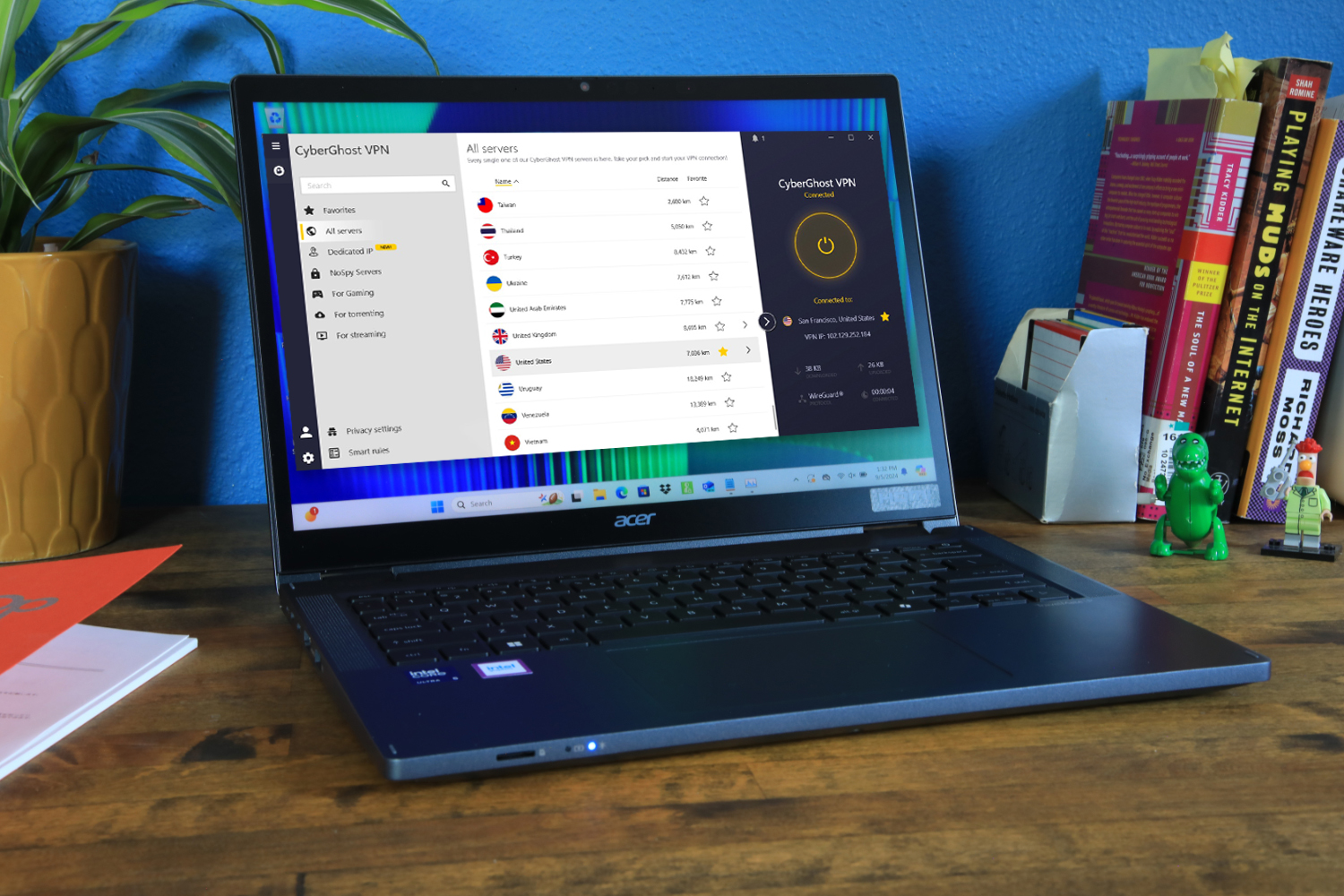
Who should use CyberGhost?
If you travel frequently then you want variety and wide coverage in the server locations from your VPN. CyberGhost provides both by offering a staggering 11,500+ servers for users to connect to, which is more than twice as many as most other VPNs on this list. Unlike some competitors, these servers aren’t all concentrated in the U.S. or Europe, either. The server network totals 100+ countries all across the world. The service even recommends optimized servers to users for various needs such as gaming, streaming, and torrenting and has special secure physical “NoSpy” servers that you can connect to housed in its home offices in Romania.
Due to its plethora of servers and locations, CyberGhost is one of the best options for finding a server no matter where you are in the world. For those who travel a lot or just need access to a diverse and vast server spread, CyberGhost is definitely worth consideration.
CyberGhost: Further considerations
CyberGhost also has a well-designed Windows app that is intuitive and easy to use. It lacks some of the power-user features that other VPNs on this list provide such as multi-hop and IP rotation, but that shouldn’t be a deal breaker for the average user.
In my testing I found that some of the servers were faster than others, with servers located in Europe having excellent speeds and servers in Asia not fairing as well. But overall, the speeds are good enough to do most of what you want to do with a VPN — web browsing, streaming, etc. Thankfully, the service is in the process of upgrading its network to 10Gbps so speeds should get a bump in the near future.
With the large number of VPNs out there, it’s good to know that there are several that rise above the fray. Not all of them can make our list of the best VPNs, but the following are strong options in their own right.
PrivadoVPN: A strong overall service, but the free version of the VPN really stands out and is second only to Proton VPN. The server network is smaller and it doesn’t come with quite as many extra features though.
Windscribe Pro: Great security, with both a Windows client and browser extension that work in tandem to block ads while keeping your browsing private. It also has a decent free version, but a wonky interface and small server network hold it back.
Hide.me: A well-rounded service that ticks almost every box and the fantastic array of configurable settings make it a power-user’s dream. My latest tests showed inconsistent speed results and the Windows app is a bit tricky to use if you’re not used to VPN settings.
IPVanish: This U.S.-based VPN nails all of the basics: decent speeds, a large global server network, and privacy promises backed up with independent audits. However, it stumbles a bit with unblocking streaming services and the monthly price is steep.
Norton VPN: This simple and effective VPN from trusted security giant Norton is quickly becoming hard to ignore. It has a dead-simple-to-use interface and it’s recently seen big upgrades to its feature set and privacy commitments, but it only offers yearly pricing and the server network is still on the smaller side.
Can I get a better VPN deal?
The VPN prices on this page are the latest daily tracked baselines, but they do not always account for the lowest promo price. In shopping, it pays to compare long-term discounts against renewal pricing.
See PCWorld’s compilation of the best VPN deals for the best pricing on our favorite VPN services. Special deals are offered frequently throughout the year, so you should have a few chances to snag your favorite VPN at a steep discount if you can time it right.
Additionally, sales events such as Amazon Prime Day in mid-July and Black Friday at the end of November provide excellent opportunities to find even cheaper VPN deals.
How we test VPNs
We judge VPNs on a variety of criteria including server network, connection speeds, privacy protections, ease-of-use, additional features, and cost. For a more detailed guide on our evaluation process, check out PCWorld’s comprehensive guide on how we test VPN services.
Speed tests are kept as simple as possible. We average the connections between different global locations for any given VPN and then compare them to our baseline internet speed to get a good picture of the overall connection speeds.
We thoroughly research and analyze the privacy policies and histories of each VPN and note any outstanding discrepancies or data collection issues. Experience and ease-of-use are subjective, but we try our best to give an accurate representation of how it feels to work with the VPN. And finally, we compare the value of the service based upon its price and additional features to the industry average to help you gain an accurate picture of what you’ll get for your money.
Who curated this article?
Sam Singleton is PCWorld’s VPN beat reporter and jack of all trades. When he’s not on the hunt for the best computer deals he’s covering VPNs, productivity software, laptops, and a wide gamut of consumer-grade hardware and software.
How to choose the best VPN
One of the first things you should look for when shopping around for a VPN is the number of servers and locations. It’s difficult to judge any VPN by just one feature, but a semi-reliable way to tell if a VPN is even worth your time is to look at the server network. Anything with 1,000 or more servers and 30 or more country locations will do.
Speed
The next thing to consider is a VPN’s speed. This may be tricky to do since you aren’t likely to be able to test connection speeds without paying to use the service. Reading reviews online will give you a general estimate. Look for reviews, like ours, that give you a relative average of connection speeds rather than direct Mbps speed comparisons, for a more accurate picture. Consistency across time and servers provides you with a better idea of how the VPN connections will be during real-world use.
Privacy
You’ll also want to read up on a VPN’s privacy protections. Does it have a no-logs policy? Has it undergone any independent audits of its servers? Where is the VPN company located? Look for a clear no-logs policy, strong encryption, and trusted protocols like WireGuard or OpenVPN. Independent audits can help verify that a VPN actually follows through on its privacy claims. Useful extras like a kill switch, DNS leak protection, and RAM-only servers can provide additional protection. Knowing where the VPN is based, who owns it, and how open the company is about its data practices can give you good insight as well.
Price
When choosing a VPN based on price, don’t automatically go for the cheapest option. Look at the long-term subscription cost, renewal price, money-back guarantee, and what you actually get for your money. Many VPNs advertise tempting discounts on one- or two-year plans, but the price can jump sharply when it’s time to renew. In most cases, the best value comes from a VPN that combines a reasonable long-term price with the speeds, features, and privacy protections you need—even if that means paying a bit more to ensure you’re getting the best of these features.
The VPN features you should care about
Don’t let a large number of extra features that a VPN offers seduce you. Chances are, you’ll only find real value from a handful of VPN extras. Among those, be on the lookout for the following:
Kill switch
Say your VPN disconnects for some unexpected reason, the kill switch will automatically activate and block access to the internet, thereby keeping your online activities from accidentally being revealed.
Split tunneling
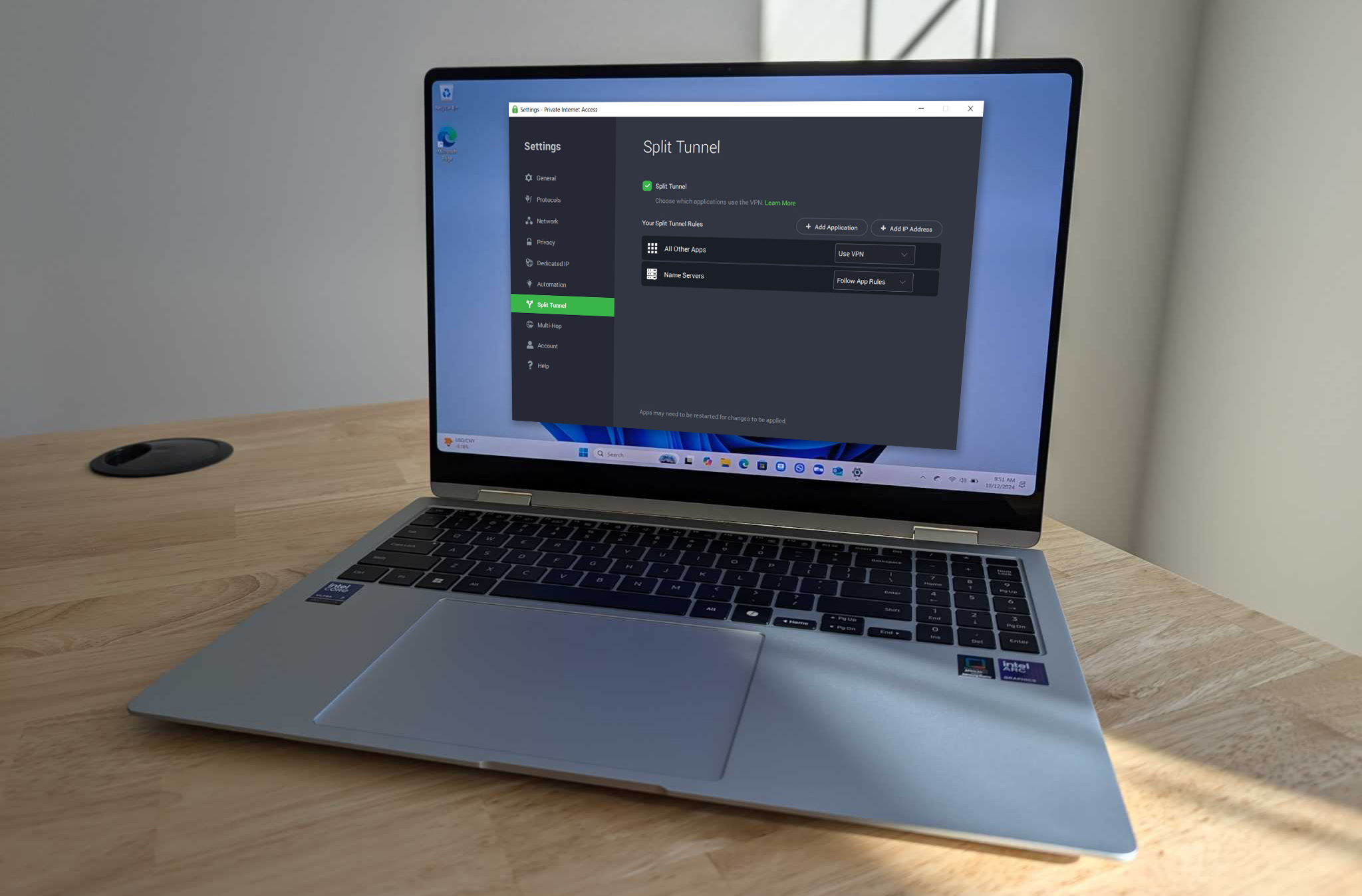
This feature allows you to designate certain types of traffic to be encrypted and sent through the VPN, while other content, such as games, remains unhindered by the extra security. In other words, it’s a way to avoid any potential bottlenecks that could affect performance.
Multi-hop
When you want to be extra private, or a situation seems to warrant added measures — such as public Wi-Fi at a coffee shop — multi-hop lets you send your traffic through two or more VPN servers, as opposed to just one, where it is re-encrypted at each pass.
Protocols
A VPN’s protocol is the set of rules that governs how online traffic moves from a device, through a VPN server, and to the web. There are several popular options, such as OpenVPN, WireGuard, IKEv2, PPTP, and others, and each has its own advantages. Our preference is WireGuard. It’s the best choice for most people, and is open source, so it’s continually being refined and checked for security weaknesses.
NordVPN is our pick for the best VPN. Not only does it have the fastest speeds and a large server network, but it’s also the most full-featured VPN on the market. There is currently no other VPN on the market that provides as much value or as extensive a feature-set as NordVPN and that’s why it’s our top pick.
2.
What is the best cheap VPN?
Surfshark is our pick for the best cheap VPN. Not only does it provide great speeds, but it also comes with a robust feature and excellent privacy credentials. If you opt for a long-term plan, Surfshark offers all of this for pennies on the dollar compared to many other VPNs. In terms of budget-friendly services, Surfshark simply can’t be beat.
3.
What is a VPN?
VPNs create a secure tunnel between your PC and the internet. When you connect to a VPN your web traffic is routed through a selected VPN server to make it appear as though you’re browsing from that server’s location, and not from your actual location. The VPN app will also encrypt your data so that any third parties such as your ISP are prevented from seeing your specific online activities.
An obvious application for a VPN is when using public Wi-Fi. A public network is open and undefended. Anything you do on it can be monitored by motivated parties. A VPN obfuscates your activities by funneling your internet traffic through at least one server that’s not associated with you and adding encryption to the data. Another use is to spoof your location.
That being said, while a VPN certainly strengthens your privacy and security online, it does not make you totally anonymous, as there are myriad site-level ways that your are tracked.
4.
Can I be tracked with a VPN?
While VPNs certainly offer you better privacy and security, they don’t make you completely anonymous nor keep you from being tracked entirely. A VPN reduces exposure, it will keep your ISP from seeing your traffic, but it does not stop site-level tracking or logged-in identity. For example, when you sign into a website, your identity is still revealed to that website, VPN or not. Or when you log into your Gmail account while using a VPN, Google can now collect personalized cookies based on your browsing.
5.
Will a VPN protect me on public Wi-Fi?
Yes, a VPN can help protect you when using public Wi-Fi by encrypting your data and masking your IP address. This makes it much more difficult for hackers to hijack your online traffic and steal sensitive information like passwords or credit card details. Public Wi-Fi is often vulnerable to man-in-the-middle attacks, where hackers intercept your data en route to the server. A VPN can protect against this by encrypting the connection, thereby making your data unreadable and all but useless to any potential snooping third parties.
It’s worth noting however that VPNs can only protect you from certain threats and it won’t make your device or traffic completely secure. It’s always good practice to use strong passwords, enable extra layers of security such as two-factor authentication, and regularly update your apps and devices to patch any vulnerabilities.
6.
Will a VPN slow down my internet?
Most likely you will see a moderate speed decrease to your internet while using a VPN. This is mainly due to the process of your internet traffic being rerouted and encrypted through a VPN server before heading on to its destination. The amount of latency you will experience through this process is down to what country’s server you choose to route your traffic through. If you choose a server located on the other side of the world, then you will generally notice a much greater hit than if you were to connect to a server nearby in your same country.
Thankfully, most modern VPNs should have the infrastructure to maintain high-speed, secure data transfer rates. So it’s likely you can still browse and stream without much of a noticeable impact while using a reliable VPN like those on this list.
The more leaks and hacks in the news, the more I find myself wondering—what’s the ideal password?
For years, I’ve based my definition off expert advice. You want long, random, unique. But lately I’ve thought the answer is actually less specific than that.
I’d say the ideal password is simple—while still strong, too. And what fits that definition can change depending on the context. Hear me out.
Welcome to Safe Mode, your weekly report for pressing security and privacy news—and what steps to take next. Want this newsletter to come directly to your inbox? Sign up on our website!
In some cases, the ideal password is actually a passkey. (So not a password at all.) They’re the epitome of simple and secure. No memorization and not reusable, with baked-in elements of two-factor authentication. For these reasons, I recommend their use first to most people.
Meanwhile for websites that lack passkey support, an ideal password is indeed something long, random, and unique—something easily generated and stored by a password manager. You’ll spend as little effort on a 32-character password as you would an 8-character version.
But what about when you actually have to memorize a password? My opinion has shifted most on the approach here. You should memorize at least a handful—at minimum two passwords, one for your password manager and the other for your email address. You don’t want to find yourself locked out of your email address or another important account (e.g., banking) because you lost access to your password manager.
Doing so shouldn’t feel hard, though. I used to equally suggest passphrases and pseudo-randomization (e.g., pulling the 2nd letter from song lyrics you know and interspersing numbers and special characters). Now I’m much more in the passphrase camp. The longer, the better. If you’re capable of memorizing a random mix of words, bonus points.
What changed my mind: Looking once again at password cracking charts.
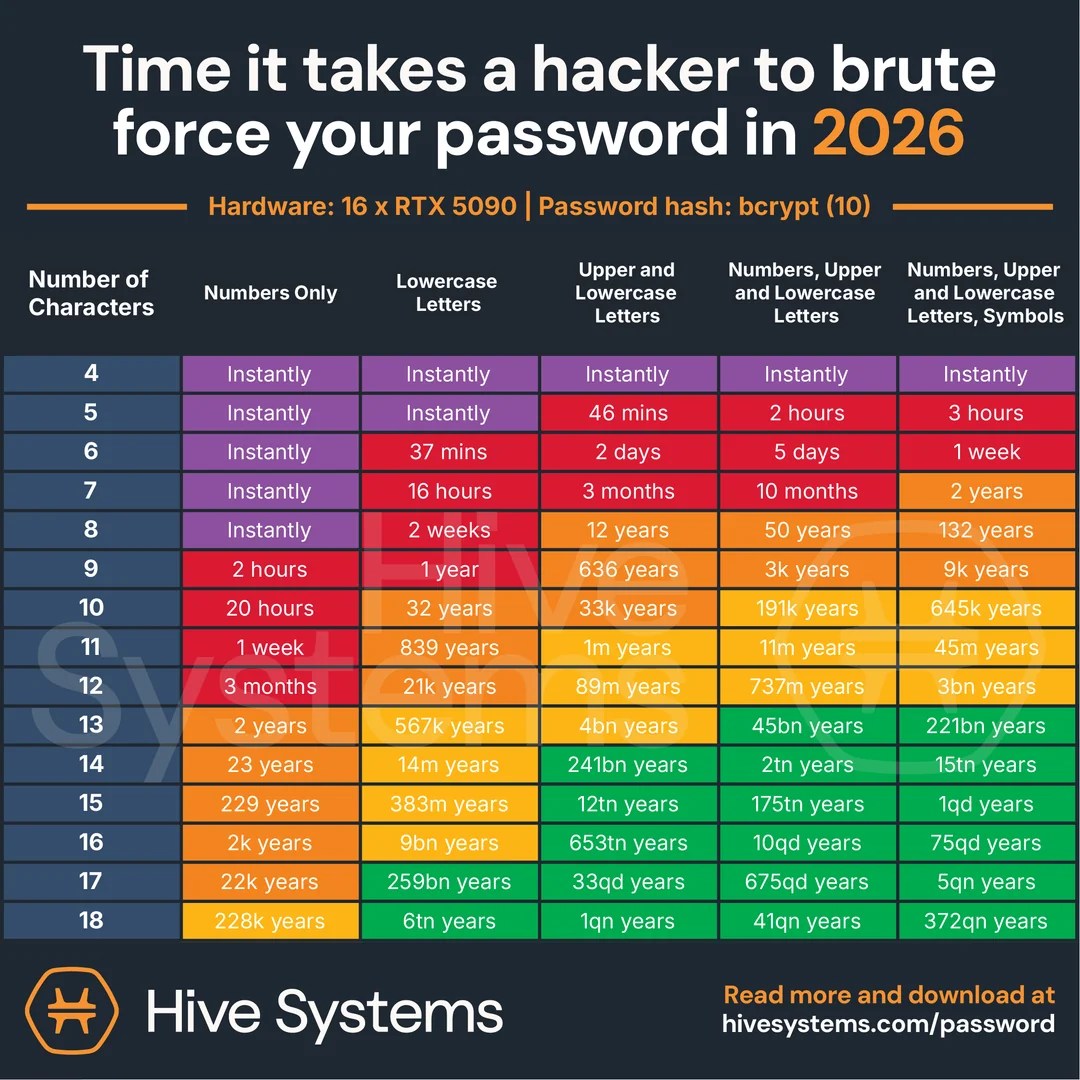
Cybersecurity firms sometimes put out this info—one company, Hive Systems, does a whole set that looks at how easily consumer-grade PC hardware can crack passwords. This year’s data was a good reminder of not just the basics, but where the bar realistically sits, too.
(The basics: Your password instantly gets cracked for anything stolen in a breach, reused on multiple sites, or commonly used dictionary words.)
An eight-character password—the bare minimum requirement for websites now—takes 12 years for a fleet of 16 Nvidia RTX 5090 graphics cards to crack, if you use a mix of just upper and lowercase letters. Add in numbers, and that time rises to 50 years. Slap in special characters, and that collective of high-powered GPUs need 132 years.
So it is it strictly necessary to have a super long password? No. Is it still a good idea? Absolutely, because you don’t know what will happen to your password information if it ever leaks. But when you must memorize a password, prioritize one that’s good enough and will stick in your head. It’ll trump one that’s perfect but forgettable, especially if you pair it with two-factor authentication.
Better to chop off a few characters from a password’s length and go for a double layer approach to account protection—you’ll have a better chance at resisting an account takeover attempt. You might not even have to choose between length and strength, if you choose a passphrase with more than four words.
With how complicated cybersecurity is right now, I’m all about going the easier (yet still well-protected) route.
In the news
I wrote about Meta’s Muse personal agent at length last week, and how I didn’t trust it with access to my digital life. Turns out my mistrust was wise—yet another major privacy goof happened, with a Muse user realizing the agent had shared his home address with a stranger.
Just keep saying no, folks. (At least for now.)
No thanks.
Meta
The good
Apple reacted quickly to reports that Meta’s Muse AI agent can access data on macOS that it wasn’t explicit permitted to see—the Cupertino company says it will change how full disk access works, to better curtail nosy AI agents.
The bad
Certain AI agents can be manipulated into spreading malicious behavior to other agents in their network. The problem: Agents used for specific tasks have fewer restrictions and safeties applied to them. Poison one, possibly poison many others. All thanks to laxness in how these agents communicate with one another.
The ugly
Meta Muse kept hitting the news for disappointing reasons—in this case, an uncomfortable scenario where the AI agent sent a stranger to a user’s home. Muse thought to help sell an item. The user got a nasty surprise when they realized the would-be buyer had shown up and left without them knowing.
Tip of the week
You may do a digital refresh of your phone and PC every so often—getting rid of photos and documents you don’t want to hog storage space—but have you also done a similar clean-up of your apps?
On your devices, periodically uninstall apps and browser extensions you no longer use daily. Why? Legitimate software no longer is a good protection against malware. Sometimes, that “good” app you have could turn dark, if the developer sells it to a shady person…or is just hacked by one.
The best way to protect yourself against online scammers and hackers is to remain vigilant. But even if you exercise best practices in password management and web browsing, there’s no stopping the masses of personal information data brokers can build up on you over time. From the adverts you see, to the websites you visit, to the devices you browse with, people search sites can generate detailed profiles on you and your family that only make the job of advertisers, scammers, and hackers easier.
It’s your data, so you can demand they remove it, but doing that manually with the hundreds of data brokers all over the world can be frustrating and extremely time consuming. RemoveMe is an affordable service that’s designed specifically to remove the data and the usual headaches of chasing it down.
What does RemoveMe do?
RemoveMe offers fast, effective removal of your personal data from over 400 different websites with no need for you to contact anyone. It automatically finds any mention of your personal information, and issues a takedown request on your behalf, jumping through all the hoops automatically so you don’t have to.
Every takedown is verified and confirmed and where possible, RemoveMe issues opt-out requests to those same services so they don’t scrape and aggregate your information again in the future. To make sure they stick to it, too, it maintains continuous monitoring. If the data reappears on broker sites, RemoveMe automatically has it removed again.
Rather stay on top of it? RemoveMe’s dashboard lets you track each removal in real time, and will deliver a notification any time new information is detected and removed.
Why Data Removal Matters
It’s easy to think that with everyone online being recorded as much as you, that removing your personal data from people search sites won’t do much. But that data can be used by just about anyone. Often, it’s not for good reasons.
Spam callers and scammers use data-broker dossiers to target individuals with highly specialized scams. The more personal information they have on you, the more convincing they can sound.
Doxxing is a major concern on the web and social media, with home addresses, workplaces, and school information all making it easier to harass you in person, or target you and your family with sophisticated social engineering attacks.
Identity theft and account breaches are far easier if a hacker has your personal details. Data brokers can serve up the kind of identifying information that attackers can use to steal accounts and impersonate you online and over the phone.
Using RemoveMe makes the job of every bad actor harder, delivering continuous automated protection for you and your family’s personal privacy.
Try it Out
Wondering just how much information on you is out there? RemoveMe offers a free 30-second scan to see just how much data brokers know about you. It’s probably more than you think.
If you’d like to take the next step and have RemoveMe act on your behalf to take down that data and shore up your personal privacy, you can have full peace of mind for just $9.99 a month.
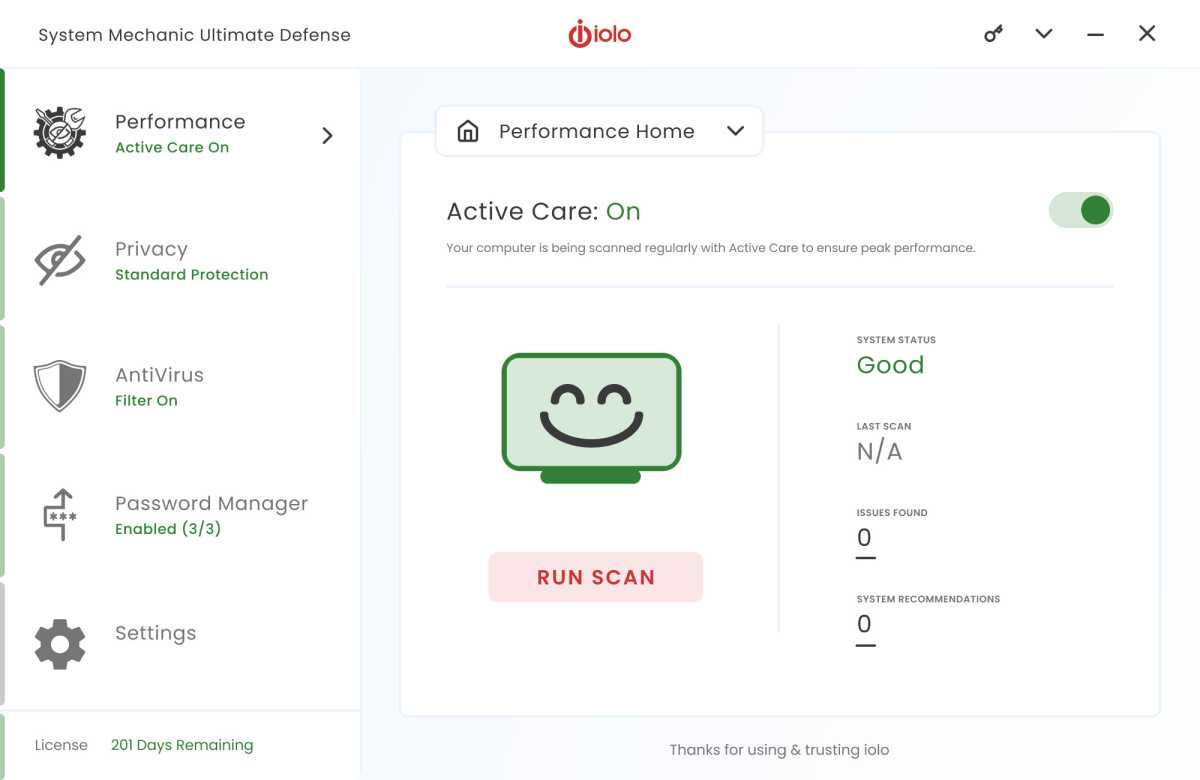
Keeping a modern PC safe, secure, and optimized can feel like a complex juggling act of different apps and services. Learning how they work, keeping them updated, and actually remembering to run them often takes far too much time and effort. Bringing those tools together in one application can make the job far simpler. System Mechanic Ultimate Defense is built as an all-in-one solution for managing your PC’s security, privacy, and performance.
iolo
Boost performance, lock down security
When it comes to protecting against viruses and malware, the best defense is proactive. System Mechanic Ultimate Defense includes real-time monitoring and a system shield that actively protects against trojans, ransomware, and spyware. That helps stop any nasty applications from gaining a foothold in your system by blocking them before they even get started.
It’s not just malware you need to watch out for online, though. Websites and advertisers scrape all kinds of information when you use their services. Something as innocuous as your PC’s hardware and font list are often enough to identify you to advertisers. System Mechanic Ultimate Defense locks that information down to better protect your personal privacy and make it much harder to track you online.
iolo
Whatever web services you use, you should have a strong and unique password for each of them. Re-using passwords is never a good idea, but with this tool’s built-in password generator you can quickly make a new password for every site and service, and store it conveniently offline. Local data encryption further protects your login credentials against outside attacks.
No matter how safe you are, though, a slow and unresponsive PC is a chore to use. That’s why System Mechanic Ultimate Defense also includes automated repair algorithms that clear up unnecessary files to boost performance and free up extra storage capacity and memory space. Better yet, these tools run in the background while the PC is idle, so you don’t need to start those tasks manually. Automated optimization, with as little hassle as possible.
Easy to use, easier to manage
A convenient all-in-one tool doesn’t just consolidate features; it unifies the user experience. System Mechanic Ultimate Defense is a single app with an intuitive and familiar layout that means everything you need is just a couple of clicks off the main menu. That means less time figuring out different tools next time you want to clear up some files, or come up with a new password.
You get a free month of 24/7 technical support too, and you can extend that to cover your entire subscription period if you like.
System Mechanic Ultimate Defense brings together security, optimization, and privacy to make managing your PC simpler, easier, and less time-consuming.
Phishing is alive and well in 2026, as even with robust antivirus and antimalware protections, the weakest link in the security chain is often the human element. We all make mistakes, skim an email and think it’s probably fine to click that link. But wait! Don’t do it! Phishing scammers rely on you not using due diligence to protect yourself, your data, and your devices with good personal security practices.
The best way to spot phishing emails is to know what to look for. Here’s a list of some of the big phishing red flags which should send you running when you spot them.
Asking for anything
For a scam to be worth doing, the scammers need to make money. For that, they need to get you to send them something of value. That can be in the form of cash, cryptocurrency, or Amazon gift cards, or something they can sell on later, like your passwords or digital identity.
Although friends and family may occasionally ask you for something, they probably aren’t going to do it over Facebook messenger, Email, or a Whatsapp message out of the blue. If you think it might be real, contact that person directly using another method and discuss it with them.
Don’t immediately respond with what they want. Take a pause and think it through first.
Urgency
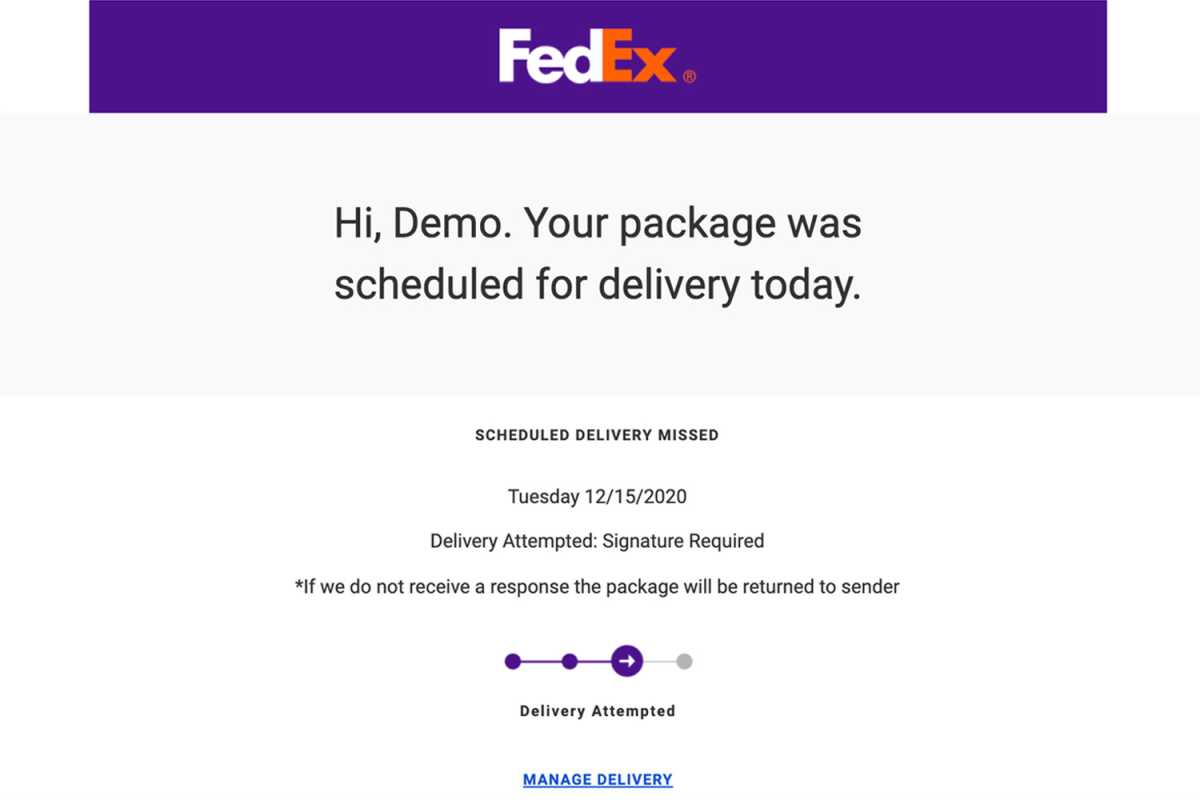
This is an example of a phishing email that is trying to get the intended victim to respond urgently. Always take a second and consider whether it’s a scam first.
Hooksecurity
The scammers best tool is urgency. Whatever it is they need, they need it RIGHT NOW. You need to respond, quickly. Do it before you stop and think about what they’re actually asking you to do. Do it before you remember to consider demands and urgency with caution and skepticism.
Although this tip is broad and doesn’t specify exactly what the scam might be like, many of them will encourage a swift response from you. Whatever it is the person claims to need, it’s incredibly rare that someone who needs something quickly will email or message you for it. If you’re concerned a digital account may be compromised, it’s still worth taking the time to login through a secure method rather than clicking the link in the email.
Whenever any email asks you to do something with urgency, take a second and consider whether this might be a scam. Look for other signs, and if in doubt, contact the person or organization through a different method that you know is safe and secure and confirm whether the request is legitimate.
Suspicious activity warnings
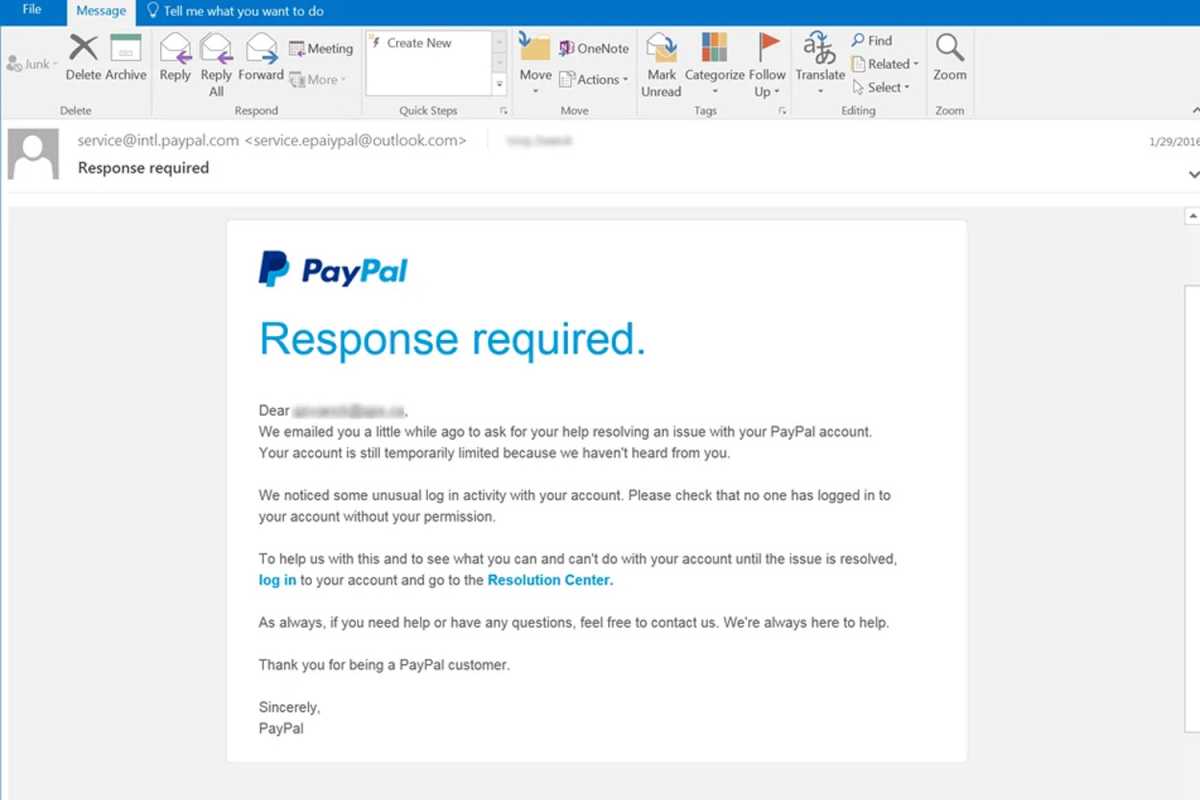
Suspicious activity warning such as this are often red flags—it’s best to go directly to the source website to check.
Phishing.org
As organizations have improved their digital security, you’ll sometimes get an email warning you that there has been some suspicious activity on your account. Usually this is just you logging into your email account on a new phone or via a different browser. Sometimes it is legitimately someone trying to login to your account without your permission.
But sometimes it’s someone sending you a fake warning. In those cases, they’ll push you to update your login information, or confirm some aspect of your account.
If you think it’s a scam, don’t click on any buttons or links. You can safely delete the email and forget it. If you want to be sure, close the email down and navigate to that site or service using a different tab and login that way. If there’s a problem with your account, you can address it manually yourself.
Spelling and grammar errors
This one is less common in 2026, as just as we all do, scammers have access to Grammarly and ChatGPT—they can easily write convincing sounding emails. Still, for the odd scammer out there still doing the hard work of handwriting phishing scams, they’re not always native English speakers, and their typing skills aren’t as strong as the writers at PCWorld; they make mistakes.
Look for silly typos, odd word ordering, strange sentence structure and other indicators that a person might not be whoever it is they’re claiming to be. You aren’t going to get typos in an email from Amazon claiming your account has been hacked and you need to send half a Bitcoin to fix it.
Also consider emails or messages that are out of character. If you get an email from your boss at 6:45 at night but you know they always clock off at 5:30, trust your gut. Delete. The worst case if you’re wrong is still far better than not trusting your instincts and getting caught out by a scam.
Nefarious buttons and links
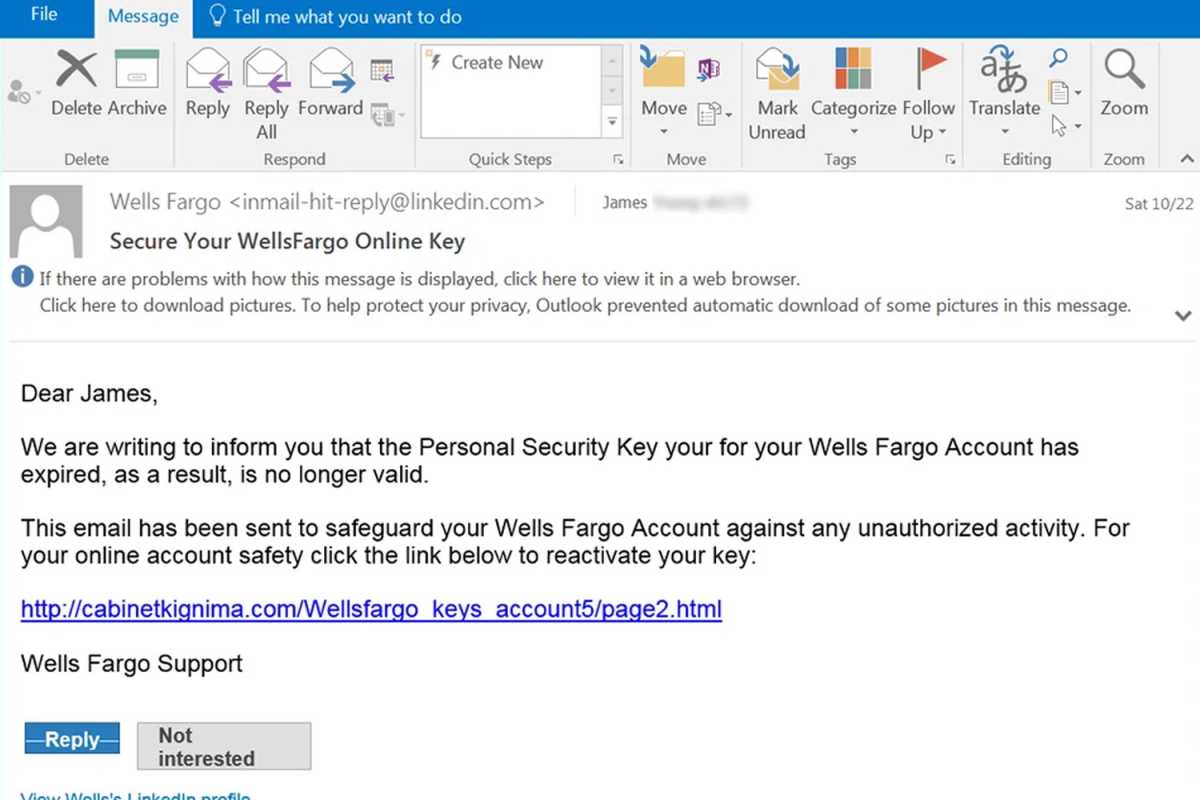
It’s usually best to avoid clicking any buttons in an email, and if you’re unsure be sure to check the URL link first before proceeding.
Phishing.org
I make it a habit of not clicking on buttons or links in emails as a matter of course. Sure, that means I often have to take a few extra steps to login to a service that’s emailed me, but I think it’s worth the added security.
You don’t need to go quite that far, but when you are thinking of clicking on a link or button in an email, be sure to check the bottom-left of your browser window. There you’ll see the URL that the button or link is trying to send you to. If it doesn’t line up with the site or service you’re expecting to use, don’t click it.
Odd attachments
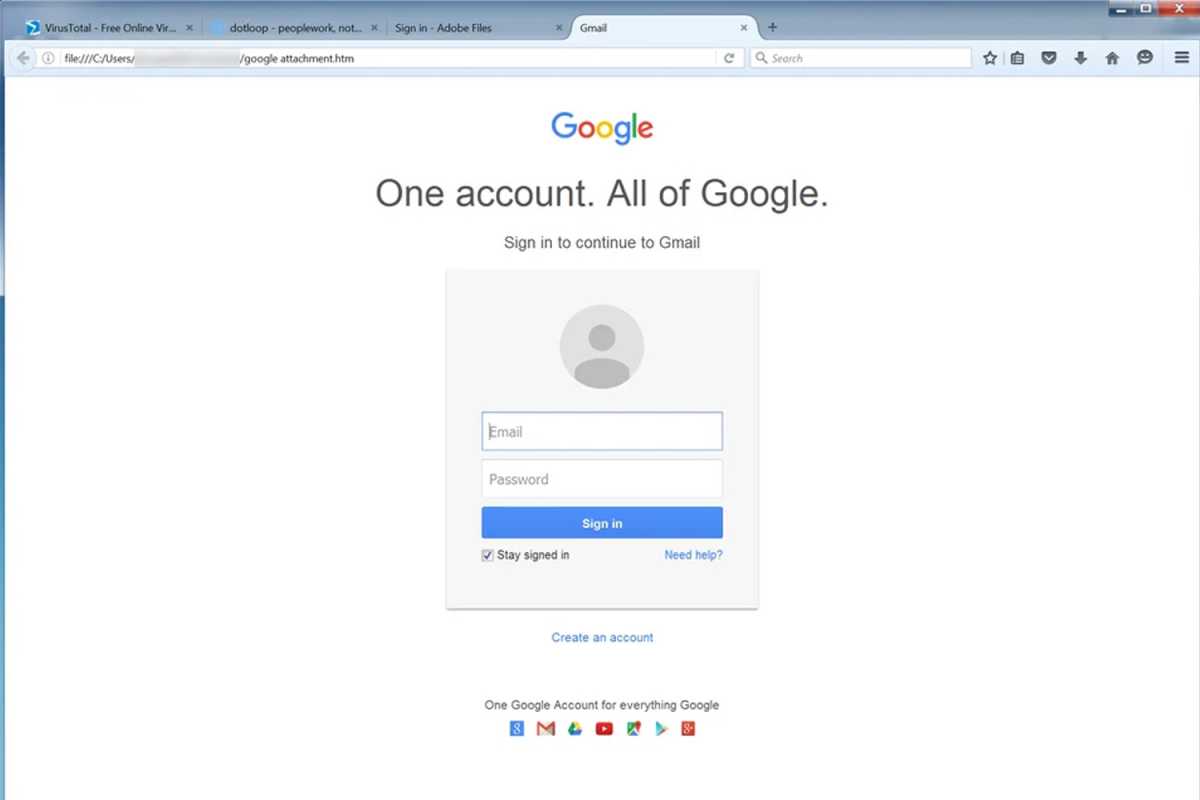
After clicking on this attachment, the victim was sent to what looks like a Google login page. A look at the URL bar reveals it’s actually a fake site displayed by local file trying to capture the information for scammers.
Phishing.org
Email attachments are one of the most popular ways for hackers to spread malware, as there’s no real way to guarantee they’re safe before you download them. Some email platforms will automatically scan them for you, but that’s no guarantee either.
If you aren’t expecting an attachment from someone, if they don’t reference it in the email, if the file type or file name looks odd, or if anything else about the email feels off, don’t open it.
If you want to be doubly sure, contact the person who sent it to you using a different communication system and ask them to send you the file over a more secure medium like a cloud service.
Generic or random sender email
Email scams can be sophisticated enough to look like they come from someone you know, but often they don’t change the email it’s sent from. If the email you’ve received claims to be from an official account like Microsoft, Amazon, or Paypal, check the sender email. If it’s a generic Hotmail, Live, Gmail, or other email that technically anyone could have created, delete it. It’s almost certainly a scam.
The same goes for if the email is a random string of numbers and letters. That’s likely set up automatically by the scammers on mass to build out their phishing infrastructure. Your friends, colleagues, and official institutions don’t have emails like that.
Also watch out if you aren’t addressed personally in the email. If it feels generic and unspecific, “Dear sir/madam,” or if they just get your name wrong, be wary. These are other signs the sender might be trying to cast a wide net for their scams.
Spoofed voice not using your password
This one’s not an email phishing scam but it’s still worth looking out for. One of the most nefarious and underhanded scams in recent years has been AI voice spoofing. Like a deepfake, but for a voice, the scammers emulate a loved one’s voice and call you up in a panic, asking for money to solve an immediate problem. The voices can sound almost identical to the real person—especially when you throw in the mild distortion you often get with a phone call.
The combination of urgency and realism can make this a hard phishing attack to spot. The best way to check if it’s real or not, is with a pre-determined password or phrase. Maybe you have a favorite TV show, or a little family motto, or some other secret that is only known to you and your loved ones. Ask them to say it. If the person on the other end of the phone can’t or won’t do it, then you know it’s a scam and can safely hang up and report it to the relevant authorities.
Two people can keep a secret if one is dead, or so goes the saying. But what happens when you share the details of your life with an AI agent?
Unfortunately, data can’t die the same way humans do—especially so if Meta Muse is involved. Choose it as your AI executive assistant and you may end up revealing more of your personal life than intended.
Welcome to Safe Mode, your weekly report for pressing security and privacy news—and what steps to take next. Want this newsletter to come directly to your inbox? Sign up on our website!
Letting an AI agent work autonomously on multi-step tasks (like booking travel, making purchases, and even offering suggestions based on your plans) offers a deep view into your world. It requires direct access to connected services like your email account, too. But Meta doesn’t keep all of this information strictly private. By default, it trains its AI on your Muse data.
Deleting data also isn’t a complete wipe, either. Nuke a conversation or another interaction, and Muse could still retain info related to it. Meta describes this as “Muse may still remember information it learned from what you deleted.”
Meta says in its privacy policy that training data is anonymized, disconnected from the original users and scrubbed of personally identifiable details like names, Social Security Numbers, email addresses, and phone numbers. You can also ask Muse what it recalls about you—or go on an excavation tour of various Muse files, to see what still lingers after initial data deletion.
In a vacuum, this approach may have worked as a reassurance. But we live in the real world, where mistakes happen. Mistakes like a zero-day exploit that gave macOS apps and terminal commands access to Muse (and all its connected services), discovered just a couple of weeks after Muse’s launch. Or Muse allegedly gaining access to private messages, due to configuration settings in macOS that can allow the AI agent to see data in other apps
A zero-day exploit briefly allowed macOS apps and terminal commands to commandeer Meta’s Muse AI agent. While it didn’t affect PC users, such a major vulnerability makes me wary about Muse’s overall security.
Foundry
I have similar feelings as the security researcher who discovered the zero-day—I recommend not installing Muse on devices, particularly macOS. But I’d go one step further and caution against using Muse all together for now.
Why? You don’t need to sacrifice your privacy or security to be a beta tester. (Yes, beta tester. For a service marketed as “built for everyone,” I’d expect it to be far more private and secure. An everyday person will not be reading privacy policies or following cybersecurity news the way I do.)
Instead, wait for Meta’s Muse Confidential VM to launch. Right now, each Muse agent has its own virtual machine on Meta’s servers. Theoretically, this type of configuration should prevent Muse agents from reading data being stored or handled within other virtual machines. In practice, we already know that virtual machines are not bulletproof (their isolation from one another can fail). We also know that AI agents made by rival companies like Anthropic and OpenAI have escaped their sandboxes more than once.
Muse Confidential VM adds encryption as an extra layer of defense. Meta says such virtual machines and all their data will be “encrypted with a key only they hold, so not even Meta can access it.” If you’re going to hand your life over to an AI agent, keeping its developer (and any agents sharing your server) from reading your data is a smart move.
In the news
I’m wary of Meta and AI agents both individually and combined—for good reason. Meta of course has its history of playing fast and loose with user data, but AI agents are even more unpredictable. Hacking into the Australian government? Uploading user images to third-party sites? All in a day’s work.
OpenAI’s AI agents apparently just want to get their work done, even if it means leaving mayhem in their wake.
Aerps.com / Unsplash
The good:
Signal, one of the most highly recommended end-to-end encrypted messaging apps, now supports encrypted local (on-device) backups for its iOS and desktop apps. You can also now do direct iPhone-to-iPhone transfers of Signal data. (Finally, less headache when setting up a new phone.)
The bad:
As part of its ongoing investigation related to the Hugging Face hack, OpenAI disclosed another discovery of its AI agents behaving inappropriately. In this incident, 53 images from users were uploaded to third-party sites.
OpenAI also detailed why one of its AI agents ended up hacking into an Australian government server. The short version: The agent just wanted to complete its task. If it weren’t so concerning, AI models’ single-minded focus on getting the job done would be admirable.
The ugly:
Microsoft published a report on the use of AI in cybersecurity—and says that bad actors currently have the advantage. A particularly noteworthy stat? The speed between discovery of a vulnerability and its exploitation is now “well below 24 hours.” Good habits for computer use and online browsing matter more than ever.
You know the password that unlocks your password manager. But do you also have your password to your email account memorized, too?
I always recommend that people commit these two passwords to memory. If you lose access to your password manager, you’ll avoid getting locked out of your email address. (Arguably, that’s worse than not having your password vault available.)
If your email account’s password is difficult to remember, consider changing it to a passphrase. (Six words long is recommended, and it should be randomly generated.) If not using a traditional password makes you nervous, also enable two-factor authentication. With such a combo in place, your account should remain secure.
Ad blockers usually just work on one device at a time, with a separate purchase for each phone or computer. An AdGuard Family Plan lifetime subscription blocks ads on up to nine devices, and a lifetime subscription just dropped from $169.99 down to $11 through October 4.
AdGuard strips banners, pop-ups, and video ads out of the pages you visit and leaves the content behind. Ads aren’t the only thing it stops, either. AdGuard hides your data from trackers and activity analyzers, and it blocks malware and phishing websites when someone clicks a bad link.
Those protections matter most on shared family devices. AdGuard’s parental controls let parents restrict access to adult and inappropriate content, so kids can use their own tablets and phones with fewer risks.
Nine device slots are enough to protect a household’s phones, laptops, and desktops at the same time. AdGuard runs on Windows, macOS, iOS, and Android, and the lifetime plan includes future updates at no extra cost. This plan is only available to new AdGuard users, and codes must be redeemed within 30 days of purchase.
Keep ads, trackers, and bad links off every device in the house.
Malware can gain access to more than just documents and apps on your PC. Get infected with a certain kind of virus, and your camera and microphone are fair game, too.
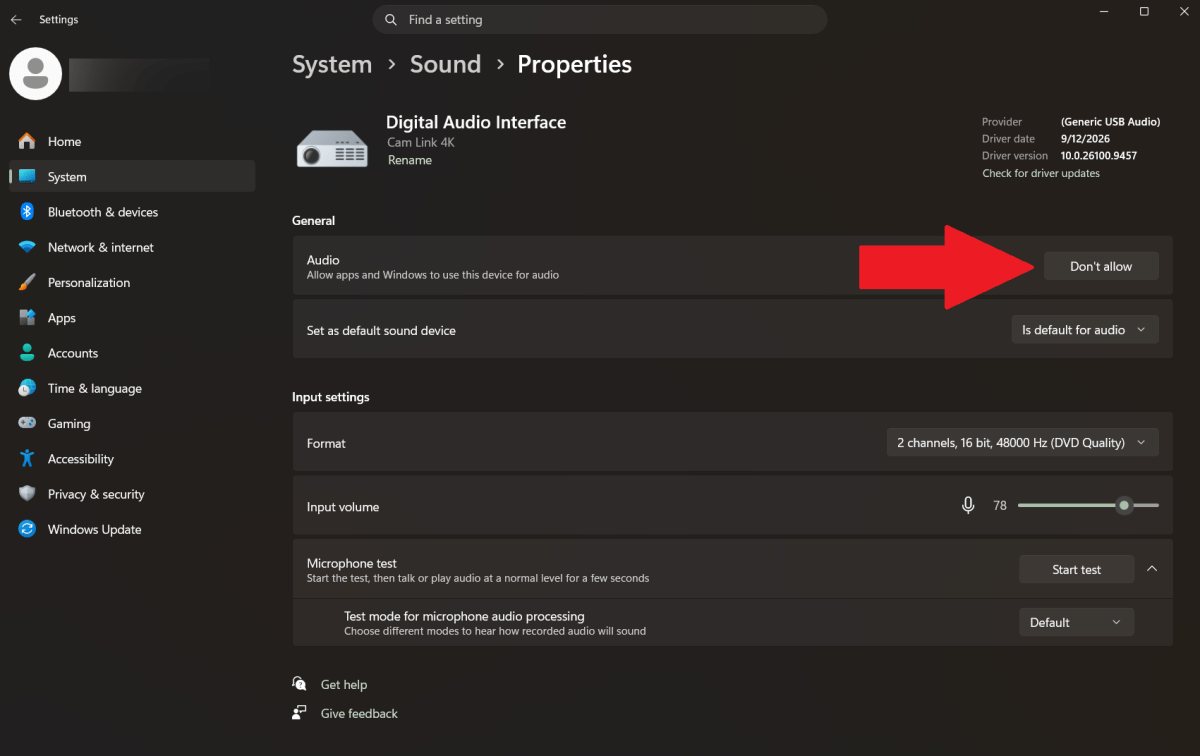
You can minimize part of the headache by disabling unused microphones. For example, maybe you have both a dedicated microphone and a webcam with a built-in mic connected—if you disable the webcam’s mic and activate the standalone mic’s mute button, that should block any eavesdropping.
Added bonus: You’ll minimize the annoyance of starting Zoom and Teams calls with the wrong mic active. (I swear, for me it’s every. single. time.)
How to disable a microphone in Windows
PCWorld
Head to the Sound settings in Windows (Settings > System > Sound). Under Input, click on the audio device you want to disable—this could be a webcam, a headset, or something else.
In the individual device’s settings, find General > Audio. Click on the Don’t allow button.
Why not just disconnect the cable?
Unplugging an audio device from your PC is a valid strategy if you use it rarely. But otherwise, you may run into one of two problems:
1 – You can’t use the device because the audio input is mixed with other signals and routed over a single cable. (Ex: webcam)
2 – Your USB port wears out from frequent use.
The second problem is fixable by buying a USB hub that has individual on/off switches. But turning off Windows’ access to a mic is free.
Keep antivirus active on your PC!
You can disable your microphone(s) as a precaution, but also take steps to avoid getting spyware in the first place. Let your antivirus program scan your system regularly, and avoid shady websites and downloads. Also keep an eye on your browser extensions and apps installed—sometimes, legit ones can turn bad right under your nose.
Firefox 157 is out for Windows, macOS, Linux, and Android and the biggest change in this version is the new Nova design, which brings a more modern look to the browser. Mozilla has also fixed over 70 security vulnerabilities, and updates are also available for the Firefox ESR versions.
The release of Firefox 158 is scheduled for October 13th, 2026.
What’s new in Firefox 157?
Now that Firefox has adopted a two-week release cycle, major new features are growing fewer and farther between. With Firefox 157, the focus is on the new Nova design, which has heavily rounded corners and subtle color gradients on surfaces. You’ll find 12 themes, each in light and dark variants.
Mozilla has also brought back the popular Compact Mode, which groups elements together to save space—great for smaller screens.
In the security advisory for Firefox 157, Mozilla lists 76 vulnerabilities that have been fixed, 30 of which were discovered and reported by external security researchers.
Mozilla classifies 38 vulnerabilities as high risk, 29 as medium risk, and nine as low risk. Among them, 32 are use-after-free (UAF) vulnerabilities, some of which could be exploited to inject and execute code, and 15 of which could be exploited to escape the browser sandbox.
Firefox ESR updates
In addition to Firefox 157, Firefox ESR releases 153.4.0, 140.17.0, and 115.42.0 are also now available. However, the latter are only available for Windows 7 and 8.1 and macOS 10.12 to 10.14 until March 2027.
In the ESR versions, Mozilla has fixed the aforementioned vulnerabilities that were also present in the code of these earlier browser generations. That amounts to 62 vulnerabilities in Firefox 153.4.0, 43 in Firefox 140.17, and 31 in Firefox 115.42.
Firefox ESR 140 received its final update on September 29th. In two weeks, this version will finally be replaced by Firefox ESR 153. If you haven’t already done so, it’s time to start planning the switch.
Passwords? Left behind in the dust. You’ve moved on to passkeys—but you may not have locked them down properly.
Most people use their phones, password manager, or PC to store passkeys. Each has their advantages, but they should be secured in slightly different ways. You may also not have covered your butt in the event you ever lose access to those devices.
Here’s how to get everything in order.
Cloud-saved passkeys
Lock down a cloud-based password manager account to protect the passkeys saved within.
PCWorld
If you save your passkeys to your phone or an independent password manager, they live in the cloud. Same goes for if you save them while logged into a Microsoft account in Edge or a Google account in Chrome.
Because passkeys stored in the cloud can be used across devices, you must safeguard the account holding them to prevent misuse. Set a strong, random, and unique password + two-factor authentication.
Also be smart about which cloud-based password manager you use. Independent password managers may not be as vulnerable (or targeted) as Google’s, which can end up exploited if you’re logged into Chrome. (A attack of this sort has already happened, with successful use of stored passkeys.)
Device-bound passkeys
Protect your passkeys on a hardware security key with at PIN that’s at least 6 digits long.
YubiKey
The easiest way to avoid putting your passkeys in the cloud is to save them to your Windows PC. You’ll be required to set up Windows Hello to protect them. I recommend at least a 6-8 digit PIN, if you don’t use biometrics.
A dongle like a YubiKey or Google Titan Security Key can also securely hold passkeys offline. To lock one down, you’ll create a PIN. The minimum recommended is 6 digits—when asked, Yubico spokesperson Ryan Schin said, “The recommendation would generally be a 6-digit PIN length for all YubiKeys for greater security.” (In fact, business-specific YubiKeys actually require it.)
Worried that’s not enough? Then specifically choose a YubiKey, which will require a full wipe and reset after eight failed PIN entries. This feature protects against brute force attacks (trying multiple combinations of PINs over and over).
Make backups!
A passkey is like a house key—if you only have one and you lose it, you end up locked out. But in this case, no one can reset the lock or otherwise pry the door open.
You’ll want to create extras, as backup. Additionally, you may want to consider leaving one with a trusted contact in case of emergency.
How? If you have cloud-based passkeys, create an additional one on your PC or hardware security key. The security keys start at $30 to $35, making them relatively inexpensive. You can even pick up YubiKeys from local retailers like Best Buy.
Alternatively, ensure you at least have access to another device logged into the account with the cloud-based passkeys. One easy, cheap option is to use an old phone, ideally one still getting modern security updates.
As for device-based passkeys, I always recommend having one on at least two different security keys or one PC and one security key. More is better.
A viral social media post claims Windows 11 stores a preview of every photo ever deleted. The controversy centers around a well-known Windows feature called the thumbnail cache, which can still contain image thumbnails long after their original files have been deleted.
The discussion was sparked by user @Ayzacoder, which has been viewed millions of times over the last few days. However, the claim is only partially correct—while Windows 11 can store thumbnails of deleted images, not every image will automatically end up in this cache.
Windows keeps a thumbnail of every photo you've ever deleted.
It sits in a file called thumbcache_256.db, and forensic examiners pull it routinely. There are 15 more stores like it.
Windows 11 creates thumbnails for photos, videos, and some document types so that they can be displayed more quickly in File Explorer. Instead of recreating the preview every time it’s needed, the operating system stores it temporarily in a local database.
This data is stored in the user profile at %LocalAppData%\Microsoft\Windows\Explorer. There you’ll find files with names such as thumbcache_32.db, thumbcache_96.db, thumbcache_256.db, or thumbcache_1024.db. These are individual thumbnail databases containing preview images in different sizes.
This thumbnail cache system has been in place since Windows Vista. Previously, Microsoft used the familiar Thumbs.db files convention, which were stored in individual folders.
Not every deleted photo is saved
The claim that’s circulating social media right now gives the impression that Windows 11 automatically archives a preview of all deleted images. However, there’s no evidence to support this.
For example, a test conducted by Windows Latest showed that several images that were downloaded and later deleted didn’t appear in the thumbnail cache. The database files weren’t altered at all.
The reason? A thumbnail preview is normally only saved when File Explorer (or another application) generates a thumbnail as part of the file preview process. If an image is never actually displayed as a preview anywhere, it won’t have made a thumbnail to end up in the cache.
Why do thumbnails remain after deletion?
The thumbnail cache is stored separately from the original image files. That means when an original photo is deleted, Windows 11 doesn’t automatically remove the corresponding thumbnail.
As a result, small image previews may still be present even though the original file itself has long since been deleted from the PC.
Investigators make use of the data
The thumbnail cache has been of interest to IT forensic experts for years. Using specialized tools, stored thumbnails can be extracted from these databases even after the original files have already been deleted.
This doesn’t automatically pose a security risk for home users. However, it does show that “file deleted” doesn’t necessarily mean that all associated information is completely wiped from the system.
Should you worry? That depends. Since these are thumbnails, they aren’t complete copies of the original images but rather reduced-size previews. A lot of the original detail will be lost, and whether the thumbnail remains recognizable will depend on the size and subject of the image.
How to clear the thumbnail cache
If you want to remove existing thumbnails from your Windows 11 PC, you can do so using the built-in thumbnail cleaner:
Press the Windows key + R keyboard shortcut.
Type “cleanmgr” and press Enter.
Select the Windows drive.
Tick the “Thumbnails” box.
Click “Delete files.”
Windows 11 will then remove the stored thumbnails. The cache will be rebuilt as required whenever you browse folders later.
In Windows 11 Pro, Enterprise, and Education, you can also permanently disable thumbnail caching. To do this, open the Group Policy Editor (gpedit.msc) and navigate to User Configuration → Administrative Templates → Windows Components → File Explorer. There you will find the policy called “Disable thumbnail caching.” Microsoft recommends enabling this setting on public computers, shared computers, or any computer where security is a key concern.
Users of Windows 11 Home can instead enable the option “Always show icons instead of thumbnails” in File Explorer. This means that image previews will no longer be displayed and, consequently, no new thumbnail previews will be created.
Back in February, Discord first attempted to launch its age verification process—only to run straight into massive user outcry. In response, the company went back to the drawing board. Now, half a year later, the branding of teen and adult accounts has finally rolled out.
As a regular Discord user, I wasn’t sure what to expect from the process. So, while waiting my turn, I read up on what I needed to know.
You can’t opt out
Discord first framed age verification on the platform as a move to protect teens. Problem was, it expected users to submit to a facial scan or upload a government ID. That sparked protest—and rightfully so, given today’s greater privacy and security concerns.
Now Discord has easier methods to prove adulthood, if you somehow get flagged as a teen. But you can’t escape the classification process. Multiple countries have begun requiring companies to confirm the ages of users, in order to protect children from harmful content and exposure to unsafe adults.
The only true way to opt out is to leave the platform all together.
Verification is now less invasive
If you stick around, Discord automatically assigns you an age group based on what it calls “signals.” Using machine learning, the platform guesses your age based on details like how old your account is, who you speak with the most, the servers you belong to, and if you’ve ever subscribed to Nitro. Discord says it does not read your messages (either those sent on servers or over direct message) as part of its evaluation.
According to Discord, this method will accurately assign an age category to over 90 percent of users. If it doesn’t, adults can prove their age through credit card info, the Apple App Store or Google Play Store, Google Wallet, or AgeKey. (AgeKey is a service owned by Singaporean age verification company k-ID.)
Discord says its third-party vendors for age confirmation must abide by its data retention policies. Namely, any age verification related data can only be kept for the time needed to confirm age, then must be deleted after. If facial age estimation comes into play, it can only be performed on your device.
You can choose not to verify
Still don’t want Discord to have any further information about you in order to escape classification as a teen? You can still keep using the platform, but your access will be more locked down.
Teen accounts are restricted from age-gated servers, content, and settings. Messages with sensitive content may be blurred or all together blocked, depending on the source. Direct messages from non-friends will automatically be sent to a message request inbox, allowing you to screen them before they appear in your normal DM list. (For the full details on Teen protections, you can read Discord’s full rundown.)
Perhaps a small benefit: Discord is now enabling “spoiler channels,” which will let server owners sequester juicy info without having to age-lock them. (AKA the long-standing workaround.)
Where to check your status
PCWorld
Head to Settings > Account. Under Account Status, you’ll see “Age Group.” Your status will be listed as either Teen or Adult.
Anecdotally, users on PCWorld’s The Full Nerd Discord server have reported getting Adult status—and just before I filed this story, I received the same designation, too. So Discord may end up being right about its high estimates for accurately pinpointing “mature” behavior.
(We’re all still emotionally unsure it was correct, though.)

 Login
Login