❌

Reading view

Firefox’s biggest redesign in years just landed with Nova

Firefox 157 is out for Windows, macOS, Linux, and Android and the biggest change in this version is the new Nova design, which brings a more modern look to the browser. Mozilla has also fixed over 70 security vulnerabilities, and updates are also available for the Firefox ESR versions.

The release of Firefox 158 is scheduled for October 13th, 2026.

What’s new in Firefox 157?

Now that Firefox has adopted a two-week release cycle, major new features are growing fewer and farther between. With Firefox 157, the focus is on the new Nova design, which has heavily rounded corners and subtle color gradients on surfaces. You’ll find 12 themes, each in light and dark variants.

Mozilla has also brought back the popular Compact Mode, which groups elements together to save space—great for smaller screens.

You can learn more about the Nova redesign and what it entails in this announcement post by the Mozilla team.

Security fixes in Firefox 157

In the security advisory for Firefox 157, Mozilla lists 76 vulnerabilities that have been fixed, 30 of which were discovered and reported by external security researchers.

Mozilla classifies 38 vulnerabilities as high risk, 29 as medium risk, and nine as low risk. Among them, 32 are use-after-free (UAF) vulnerabilities, some of which could be exploited to inject and execute code, and 15 of which could be exploited to escape the browser sandbox.

Firefox ESR updates

In addition to Firefox 157, Firefox ESR releases 153.4.0, 140.17.0, and 115.42.0 are also now available. However, the latter are only available for Windows 7 and 8.1 and macOS 10.12 to 10.14 until March 2027.

In the ESR versions, Mozilla has fixed the aforementioned vulnerabilities that were also present in the code of these earlier browser generations. That amounts to 62 vulnerabilities in Firefox 153.4.0, 43 in Firefox 140.17, and 31 in Firefox 115.42.

Firefox ESR 140 received its final update on September 29th. In two weeks, this version will finally be replaced by Firefox ESR 153. If you haven’t already done so, it’s time to start planning the switch.

  •  

Passkeys are safer than passwords. Here’s how to protect yours

Passwords? Left behind in the dust. You’ve moved on to passkeys—but you may not have locked them down properly.

Most people use their phones, password manager, or PC to store passkeys. Each has their advantages, but they should be secured in slightly different ways. You may also not have covered your butt in the event you ever lose access to those devices.

Here’s how to get everything in order.

Cloud-saved passkeys

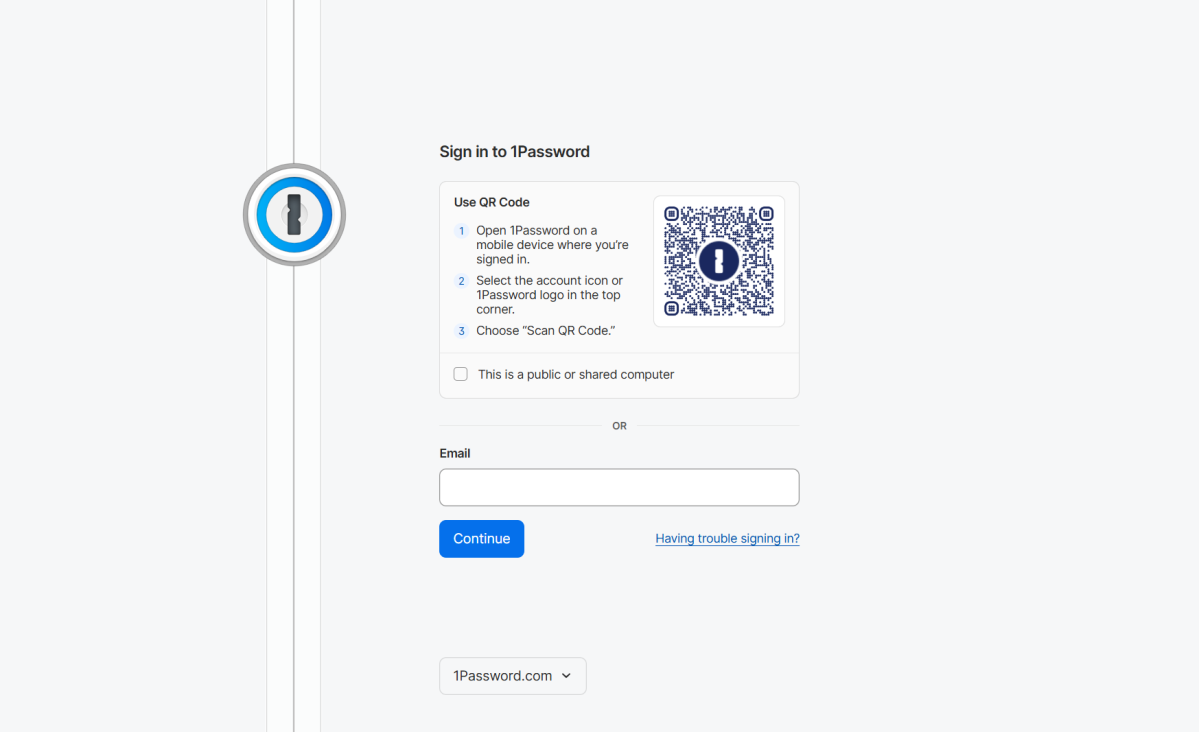
1Password login with QR code screen
Lock down a cloud-based password manager account to protect the passkeys saved within.

PCWorld

If you save your passkeys to your phone or an independent password manager, they live in the cloud. Same goes for if you save them while logged into a Microsoft account in Edge or a Google account in Chrome.

Because passkeys stored in the cloud can be used across devices, you must safeguard the account holding them to prevent misuse. Set a strong, random, and unique password + two-factor authentication.

Also be smart about which cloud-based password manager you use. Independent password managers may not be as vulnerable (or targeted) as Google’s, which can end up exploited if you’re logged into Chrome. (A attack of this sort has already happened, with successful use of stored passkeys.)

Device-bound passkeys

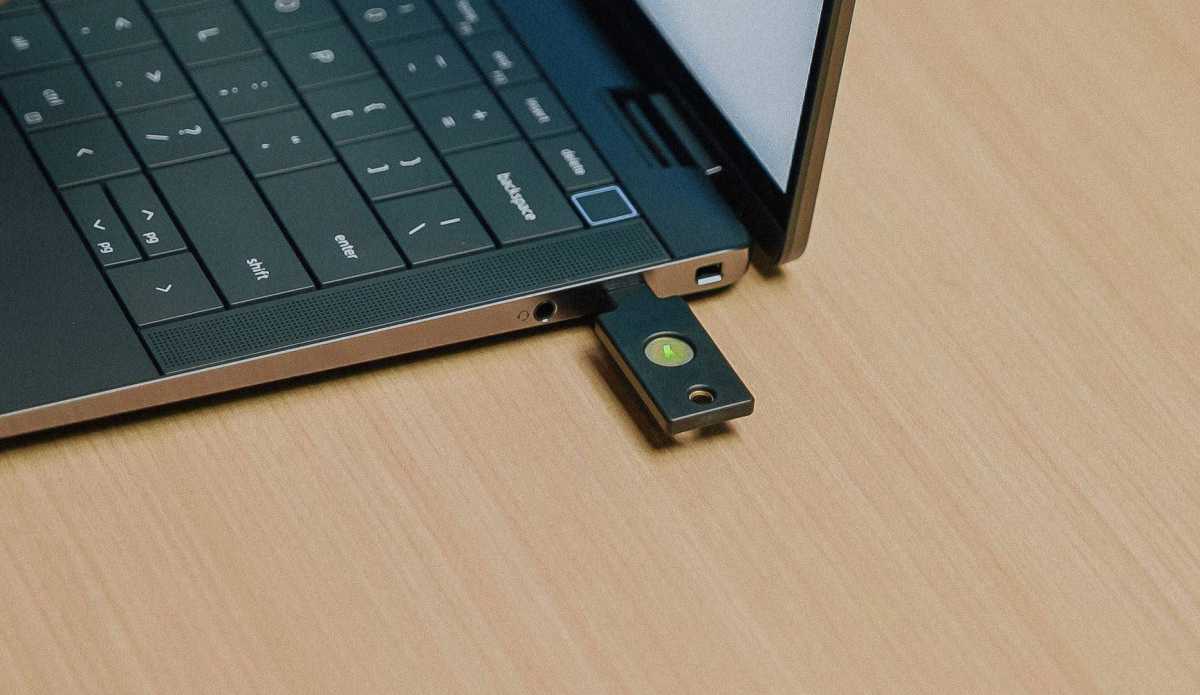
USB-C version of a YubiKey plugged into a Windows laptop
Protect your passkeys on a hardware security key with at PIN that’s at least 6 digits long.

YubiKey

The easiest way to avoid putting your passkeys in the cloud is to save them to your Windows PC. You’ll be required to set up Windows Hello to protect them. I recommend at least a 6-8 digit PIN, if you don’t use biometrics.

A dongle like a YubiKey or Google Titan Security Key can also securely hold passkeys offline. To lock one down, you’ll create a PIN. The minimum recommended is 6 digits—when asked, Yubico spokesperson Ryan Schin said, “The recommendation would generally be a 6-digit PIN length for all YubiKeys for greater security.” (In fact, business-specific YubiKeys actually require it.)

Worried that’s not enough? Then specifically choose a YubiKey, which will require a full wipe and reset after eight failed PIN entries. This feature protects against brute force attacks (trying multiple combinations of PINs over and over). 

Make backups!

A passkey is like a house key—if you only have one and you lose it, you end up locked out. But in this case, no one can reset the lock or otherwise pry the door open.

You’ll want to create extras, as backup. Additionally, you may want to consider leaving one with a trusted contact in case of emergency.

How? If you have cloud-based passkeys, create an additional one on your PC or hardware security key. The security keys start at $30 to $35, making them relatively inexpensive. You can even pick up YubiKeys from local retailers like Best Buy.

Alternatively, ensure you at least have access to another device logged into the account with the cloud-based passkeys. One easy, cheap option is to use an old phone, ideally one still getting modern security updates. 

As for device-based passkeys, I always recommend having one on at least two different security keys or one PC and one security key. More is better.

  •  
❌