Well consider me suitably chastised and with enough humble pie in my stomach that I won’t need to eat for a week, because these things aren’t as stupid as I thought. In fact, after a couple of months of playing around with one, they’re actually pretty great.
I’m an idiot. And to prove just how much, here are all the useful ways I’ve found to use my new laptop stand.
What’s in a laptop stand?
Jon Martindale
Just before we dive into what I like about my new laptop stand, let’s just define what we’re talking about. The one I have is this overblown, overpriced thing from Egonofis. Gorgeous as it is – it even matches the wood grain of my desk – it’s completely unnecessary.
Branch does one which is both sturdy and attractive, with similarly wood-grain inspired styling, and it’s well under $100. It also has near flawless reviews with close to 100 of them, which is rare to find on any product, let alone a laptop stand.
Rain Design’s all-metal one isn’t as easy to fold away, but it’s very strong and gives you most of what you need from a laptop stand for less than $50. There are also some capable Amazon Basics models too, which you can have for around $25.
Point being, you don’t need to spend over $200 on a laptop stand. You certainly can though, and there may be some quality of life reasons why you might.
Useful for third screen
Who needs a monitor arm when you can just setup your laptop on a stand as an extra screen.
Jon Martindale
Until I can afford that super, ultra-wide gaming and professional grade do-it-all monitor of my dreams, I’m a multi-screen guy. I have a big vertical 4K thing from Dell, and an older but still-good Asus high refresh rate display for gaming. But I could always use more screen space. That’s where the laptop stand comes in.
I don’t want a screen that’s flat down on the desk – it’ll ruin my posture staring at that thing. But with the Egonofis stand, I can have my gaming laptop propped up next to me with something useful on it. Maybe it’s my email, or the various chat apps I use through Rambox.
Whatever I want, it’s right there, and with the stand it’s easy to position it wherever it’s useful or not cluttering up the desk space.
Improving ergonomics and posture
I am an utter bore when it comes to posture during the work day, but when you’ve gone through months of crippling nerve pain, you’ll do almost anything to avoid it. Even using silly laptop stands that prove to be anything but.
I have my desk and monitors setup just how I like them for excellent posture. Proper eye height, proper distance, etc. That’s really hard to do with most laptops, as they’re either down on a desk surface, or you’re crunched up trying to get down to their level. Not so with a laptop stand.
It’s not quite a desk converter, but for getting the laptop up off of the desk and at a better, more neutral, posture-enhancing height, it works like a charm. It’s also easier to position the keyboard at a neutral height and angle for comfortable arm and wrist position. Alternatively, I can more easily attach an external keyboard and maintain the right distance from the screen by making the laptop more vertical.
Great for controller gaming
As silly as this may look, the practicality of bringing your screen closer to you while gaming on a laptop makes it worth it.
Jon Martindale
A laptop keyboard is an important component for day-to-day use, but if you’re gaming with a controller and trying to relax back to do it, I often find myself sitting too far from the laptop to see the screen as comfortably. The keyboard just ends up pushing the laptop further from me because there isn’t the physical space in my cramped office to put it where I want.
With a laptop stand, I can make the most of the space I have, while sitting as close as I like for maximum visual clarity.
Using a laptop like a Kindle
Proprietary Eponym aside (I’m a Kobo man, myself), I’ve found my laptop stand can also be particularly useful for turning my laptop into a multi-device… device. Either propped on its side, or flipped around in tablet mode, I can lift the laptop up into a comfortable, vertical position and prop it up somewhere within easy reach. Combine it with reader mode and a wireless mouse for easy scrolling, and it’s a great way to set yourself up for reading longform documents, website articles, or even an Ebook.
The same goes for watching movies and TV shows, too. With a laptop stand you just have so much more control over how you look at your laptop. That makes it the perfect tool for building out a little media station for watching your favorites. Much better than slouching down and watching it on your lap. My back hurts even writing that.
Better thermals
A laptop stand allows for better airflow which can increase thermal proficiency.
Sincerely Media
This one is more important for gaming laptops, but most laptop stands can also act like a basic cooling pad. They don’t (usually) have fans built in, so they aren’t going to increase airflow dramatically, but by lifting your laptop up off of whatever surface it was on, it certainly increases its access to cooler air. Especially if it tends to pull that air in from the underside.
This is particularly useful if you want to use your laptop on a bed or otherwise flexible fabric surface that will almost completely block up any intake and exhaust vents your laptop has, causing it to swiftly overheat.
Using a laptop stand isn’t perfect, but it’s much better than trying to play games on a cushion.
Portability
I don’t know about you, but when I travel, I really miss my home office set up. The multiple monitors, the ergonomic display arms, the keyboard tray and standing desk set at just the right height.
While I can’t bring all that with me when I travel, I can bring my laptop stand. It’s not the same, and I still miss my usual set up when using it, but if I want to bring a little taste of ergonomic home comforts with me, I now can. It’s even the right wood grain.
Regardless of how it looks, though, a laptop stand is an ergonomic enhancer that you can bring with you. Considering the potential for worse posture and bad habits forming when working or living out of a hotel or airport lounge for a while, a laptop stand will now forever be on my travel inventory. It’s that important.
Amazon’s October Prime Day (hopefully) kicks off the holiday sales season, and it’s an ideal opportunity for you to update your home office. From new displays to an update to the humble mouse, these are some of the deals that we’re keeping an eye as the deal days progress.
Keep in mind that Amazon’s October Prime Day deals last just today and tomorrow, October 6 through October 7. However, rival Walmart is running its own sales all week, so that may keep deals in place longer than Amazon planned. If so, expect to see this article updated as warranted.
Remember, some or all of these deals might require an Amazon Prime membership to sign up for. Don’t despair — there are ways to get Amazon Prime for free.
Believe it or not, there are two centerpieces for your desk, your display and the laptop docking station. We have deals on both.
Plugable Thunderbolt 4 Dock: $149.96 ($50 off at Amazon)
Amazon
Who is this for? Plugable’s dock is slim, compact, and to the point: It gives you what you want, and not much more. I really like the two dedicated HDMI display ports and the additional Thunderbolt4 upstream port, which can be used for connecting a monitor or for additional expansion.
Why is this deal good? I’ve seen mainstream Thunderbolt 4 docks at $225 to $250, and it’s wonderful to see a focused Thunderbolt 4 dock arrive at a price well under that.
Get the Plugable Thunderbolt 4 Dock for $149.96 at Amazon
I really want to buy a new OLED display for my desk, but the problem is that OLED displays with stunning blacks and high contrast aren’t quite there in the format I’d like: large, 4K, and high refresh rate. So you have a choice: drop down to a slightly lower-res 1440p display, or choose a more traditional IPS panel…which to be honest, works just fine.
High-refresh rate OLEDs are generally considered “gaming” monitors, even if you use them for normal work.
Acer Predator 26.5-inch 1440p OLED (X27U): $314.99 at Amazon
Who is this for? Acer’s Predator 1440p OLED is designed for gamers, but there’s little difference between someone who is using this for productivity or for playing games after hours. Since it offers 99 percent DCI-P3 coverage, you can certainly use it for photo editing as well as shooting aliens.
Why is this deal good? There’s no discount on this display, but it’s at the lowest price in a year, so it’s worth it.
Get the Acer Predator 26.5-inch 1440p OLED (X27U) for $314.99 at Amazon
if you’re looking for something a little more productivity focused, however, there’s an opportunity to buy a lovely large 32-inch 4K IPS display, too.
Asus 32-inch 4K Display (VP327Q), $179.00 ($70 off at Amazon)
Amazon /Asus
Who is this for? The selling point here is size: A 32-inch display allows you to see more of what you’re working on, especially for a single display. Is it too large? I don’t think so, especially with the number of pixels it’s pushing. DisplayPort and HDMI connections can accommodate most display outputs. There are built-in blue-light filters, too.
Why is this deal good? Another display that’s at its lowest price in a year. A month ago, this would have cost about $239 or so.
Get the Asus 32-inch 4K Display (VP327Q) for $179.00 ($70 off) at Amazon
Don’t forget that laptop! We think that the Asus Vivobook Go is one of the best deals we’ve seen.
Asus Vivobook Go 15, $479.99 ($120 off at Amazon)
Asus
Who is this for? My colleague Ashley Biancuzzo says that the Vivobook Go is for anyone who just needs a barebones machine. Just something reliable for browsing or streaming. Whatever it is you do when you’re busy killing time. Check out her roundup of the best Prime Day laptop deals for more.
Why is this a good deal? The Vivobook Go sits in that increasingly important “just enough laptop” category. It’s not trying to be crazy powerful. It’s trying to be consistent.
Get the Asus Vivobook Go 15 for $479.99 ($120 off at Amazon)
What would a home office be without a webcam? I reviewed the Obsbot Meet 2 4K webcam earlier this year, and I loved it. Amazon has it on a substantial sale for October Prime Day.
Obsbot Meet 2 4K webcam: $99.00 ($30 off at Amazon)
Mark Hachman / Foundry
Who is this for? The fact is that 4K webcams are more common than ever, so testing them really helps determine which webcams work best in low light, which are more color-accurate, et cetera. My review of the Obsbot Meet 2 really helped convince me that this is a webcam that you want to buy. (Sample pictures included, of course.)
Why is this deal good? You will find lower prices on other webcams at Amazon. However, nearly a quarter off on a solid 4K webcam is worth it, I think.
Get the Obsbot Meet 2 4K webcam for $99.00 ($30 off at Amazon)
Unfortunately, Amazon is not selling the excellent Logitech MX Master 4 mouse as part of its Amazon October Prime Day sales. However, the older MX Master 3S mouse is being offered at a decent discount, which is an ideal opportunity to upgrade if you haven’t done it already.
Logitech MX Master 3S (Bluetooth) Wireless Mouse: $79.99 ($20 off at Amazon)
Who is this for? The Logitech MX Master 3S boasts an incredibly accurate 8,000 dpi sensor and the series’ noted thumbwheel and thumb rest. If you set the MX Master 4 aside, it’s probably the ultimate productivity mouse. The MX Master 4, unfortunately, is not on sale.
OK, storage prices stink these days, but hang on…what’s this?
Lexar 2TB ES5 External SSD: $284.49 ($95 off at Amazon)
Who is this for? This drive works as an external SSD for PCs and phones with a USB-C port, and also includes MagSafe compatibility for iPhones, which is something you rarely see. It’s a nice, quick way to transfer files quickly from your phone to your PC, and the USB-C cord works as a strap, too.
Why is this deal good? We all know that storage prices have skyrocketed, but the price of this external SSD isn’t bad: It’s the lowest price since February, when the prices started spiking. Amazon says that this drive was about at $180 or so a year ago, but that’s just the way it goes.
Get the Lexar 2TB ES5 External SSD for $284.49 ($95 off) at Amazon
The best USB-C hubs add ports to your PC, providing connections to legacy peripherals like mice, keyboards, printers, or more. If you follow my advice, you shouldn’t pay that much for a hub, either.
Most users will probably be happy with any of my standard hub recommendations. But if you want to go further, I have additional options for more specialized purposes. Those include USB-C docking stations that sit on your desk, plus some higher-end alternatives: DisplayLink docks, as well as the best Thunderbolt docks. They cost more, but provide more functionality. (A FAQ at the end of this roundup can help you decide.)
I keep at least one of these lightweight little USB-C hubs in my backpack at all times. You should too!
Why you should trust PCWorld for USB-C hub reviews and buying advice: PCWorld has been supplying news, reviews, and recommendations for the best computing products since our first magazines hit newsstand shelves in 1983. We maintain a rigorous testing process, and our reviews are not influenced by advertisers or other considerations. Most of these products were purchased directly by PCWorld reviewers, but in certain cases review units have been provided by the manufacturers.
Anker 555 8-in-1 USB-C Hub – Best overall USB-C hub
Price comparison from over 24,000 stores worldwide
Who should buy the Anker 555 8-in-1 USB-C Hub?
I’d recommend this USB-C hub to just about anyone. Most users will be able to take advantage of the USB-A ports for legacy mice and keyboards, the HDMI port, a USB-C port, and Ethernet. These are the ports I’d expect on a device like this. If you’re looking for more display ports or more USB-C connections, however, you’ll need to buy a more premium device.
Anker 555 8-in-1 USB-C Hub: Further considerations
Can a USB-C hub feel elegant? This one does. Anker’s 8-in-1 USB-C hub feels surprisingly weighty (4.5 ounces), with a premium metallic (aluminum and polycarbonate) sheen that keeps the hub cool. Overall, Anker’s hub is well designed, with adequate spacing between the two 5Gbps USB-A ports. There’s also a 5Gbps USB-C connection for data, plus a second USB-C port for power input at up to a rated 85W. (The charger allows up to 100W in, but supplies 85W.) There’s both an SD card slot and a microSD card slot, too.
I had previously recommended Anker’s 7-in-1 Hub instead. Both hubs are similar, but this upgrade adds two things: an Ethernet port, and an HDMI port capable of 60Hz. The earlier pick output just 30Hz, and that capability was getting a bit outdated.
The hub offers an 18-month warranty, and it even ships with a carrying pouch. I think this hub includes the right mix of ports for the right price.
Price comparison from over 24,000 stores worldwide
Who should buy the Hiearcool USB-C Hub?
This is a hub for basic expansion, especially if you own an older laptop. It has one HDMI port that’s only capable of 4K resolution at a fatiguing 30Hz. However, it will work just fine for a single external 1080 display or even a 1440p monitor, if you own one. The two USB-A ports are designed for a mouse and keyboard, or a printer. If you need something cheap and capable, this hub will work just fine.
Hiearcool USB-C Hub: Further considerations
Let’s face it: If you’ve ever browsed Amazon’s inventory of USB-C hubs, it’s easy to be overwhelmed. I can tell you that I factor in price heavily on some of these picks, and this is a USB-C hub that I’ve personally used. It works, it offers a myriad of ports, and it does so at a very, very good price. It even ships in multiple colors, which is handy when peering into the depths of a travel bag or briefcase.
This hub includes a pair of USB-A ports, microSD and SD card slots, and an HDMI port, and that’s all. It accepts up to a rated 100W of USB-C input charging, too.
OWC USB-C Travel Dock – Best budget USB-C hub runner-up
Price comparison from over 24,000 stores worldwide
Who should buy the OWC USB-C Travel Dock?
I’ve reviewed USB-C hubs and dongles that forego the traditional long, rectangular “dongle” form factor into something that’s a bit more stable. Dongles do have a tendency to flop all over your desk, and the OWC Travel Dock feels like a cross between a traditional docking station and a dongle. And it’s cheap, too! Dongles are usually reserved as travel gear, and I think this would work well for an executive or someone who likes a tidier desk.
OWC USB-C Travel Dock: Further considerations
The “hidden” USB-C cable is a nice touch, though extended it’s a bit short. This was also a 5-in-1 hub, so while it provides the essentials (two USB-A ports for mouse and keyboard, Ethernet, and HDMI, plus USB-C charging input) there’s not much else. (Editor’s Note: OWC updated this dock with an additional SD card slot, increasing the price slightly.)
Monoprice 13-in-1 Dual-HDMI + DP MST Dock – Best premium USB-C hub
Pros
Multiple display possibilities
Tons of ports
Cons
Confusing documentation
Slow SD card slot
High-speed ports can get clogged by the main 10Gbps USB-C connection
Price comparison from over 24,000 stores worldwide
Who should buy the Monoprice 13-in-1 Dual-HDMI + DP MST Dock?
If you own a modern laptop and want access to a ton of legacy ports for a reasonable price, this Monoprice hub/dock should be your choice. You need to own a modern laptop, though; a Microsoft Surface Book 2 with an 8th-gen Core chip inside didn’t produce any output over its USB-C port; several Samsung and Surface laptops with 12th-gen and 13th-gen Core chips from 2022 onward worked well, though. More recent laptops from 2024 on through 2026 should also work fine.
Monoprice 13-in-1 Dual-HDMI + DP MST Dock: Further considerations
If it looks like a hub or dongle, but is priced like a dock, is it a dock? You might not care, but it’s certainly on the pricey side.
This 13-in-1 USB-C hub does it all, including connecting to two 4K displays (one at 60Hz, one at 30Hz). It does so by using support for built-in compression techniques within modern laptops to squeeze more effective throughput over the 10Gbps USB-C port. There are absolutely gobs of ports, including five USB-A ports (two at 480Mbps for mice and keyboards), two HDMI 1.2 connections, and even a DisplayPort port.
There’s even a power input jack, so you can use your laptop’s charger and feed up to a tested 87W into the laptop. There aren’t any USB-C ports, but the assumption is that you can use your laptop for that.
Price comparison from over 24,000 stores worldwide
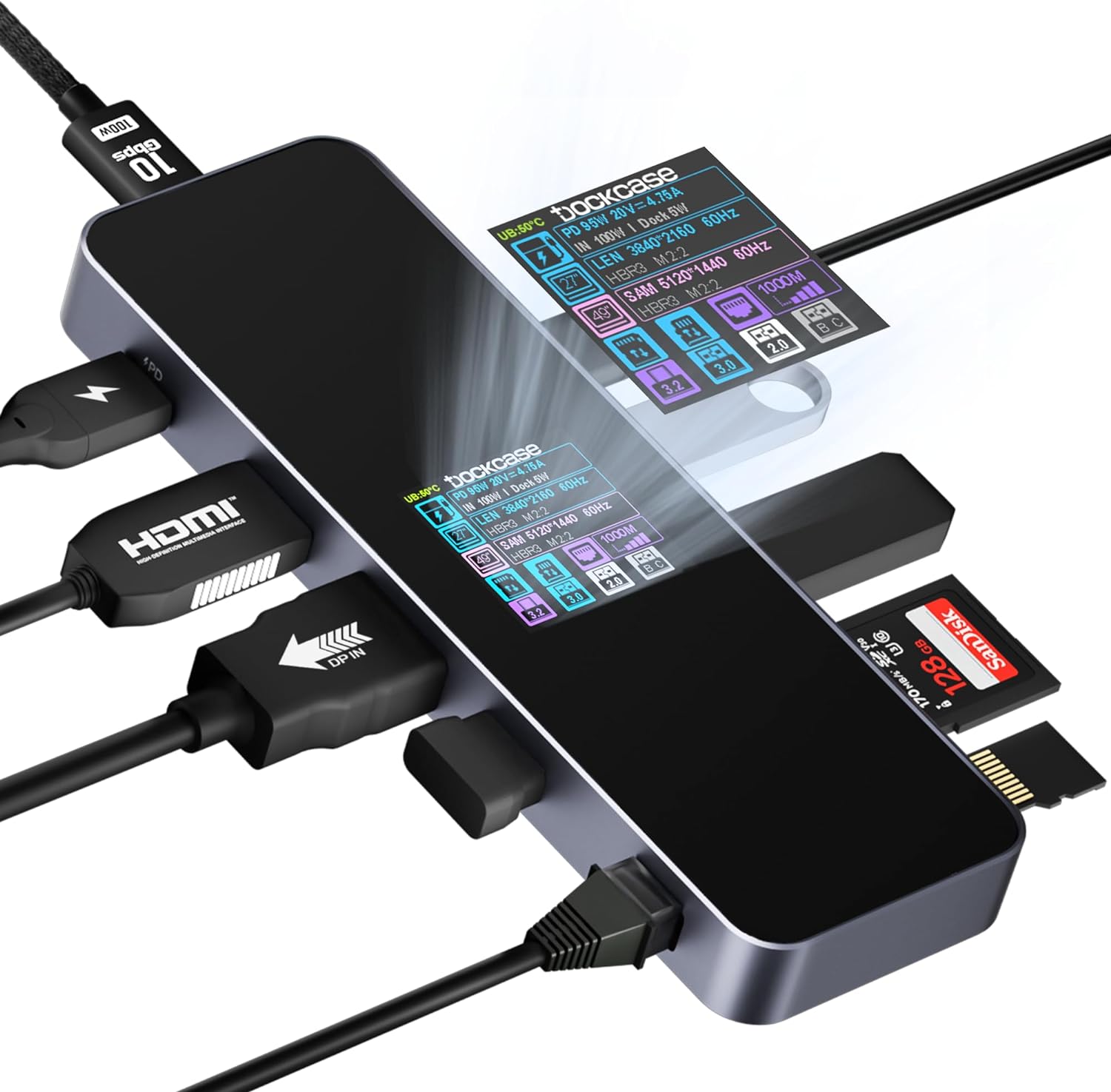
Who should buy the Dockcase Smart USB-C Hub 10-in-1 Explorer Edition?
Nerds. Yep, this is one of the nerdiest products I’ve ever used, and I like and loathe how it just lets you sort of discover what it can do. But it tells you what your laptop is connecting to and how it’s working! It even reports glitches! I love that.
Are you the type of person who owns an OBD scanner to diagnose any issues with your car? If you are, this is the USB-C hub for you.
The Dockcase Smart USB-C Hub 10-in-1 Explorer Edition: Further considerations
Part of me loves the sheer nerdiness of the Dockcase 10-in-1 Dock, if only because I’ve never seen anything like it in terms of the information it offers.
Note that Dockcase offers alternatives: There’s a $69.99 6-in-1 dock, and a newer Dockcase “Visual Smart” 10-in-1 dock that eliminates some of the labeled ports in favor of a jet-black aesthetic. I prefer the nerdier version with lots of ports.
Not only is the metal hub larger than most, with multiple external connectors that designate a premium hub, but there’s an actual display: A small LCD screen provides a detailed look at what devices are connected to each port and what their capabilities are. Put another way, the Dockcase Smart USB-C Hub 10-in-1 feels more like an OBD2 diagnostic device for your car, or a USB multimeter.
As a dock, it’s excellent. As a tool, it can use some improvement: The interface is extremely clunky, and Dockcase really doesn’t even have a manual that explains it all. But this device is also small enough that it fulfills the requirements of a docking station without it being ungainly.
Price comparison from over 24,000 stores worldwide
Who should buy the Mokin 160W GaN All in One Docking Station?
For those of you who want to know what’s going on under the hood of your USB-C docking station, this dock is for you. This dock always reports how much power it’s supplying, but when you insert or detach a monitor cable, it will alert you to what’s going on there, too. This might be a little too much information for some users, but if you’re the type of person who has a CPU widget floating on their desktop, this might be the dock for you.
Mokin 160W GaN All in One Docking Station: Further considerations
The split between data-only and charging ports is a little weird, especially if you’re using a mouse, keyboard, and webcam — and that extra USB-A port just isn’t available. (Really, who needs a power-only USB-A port?) But this dock pretty much nails your basic needs, offers a compact form factor, and is priced right, too.
Price comparison from over 24,000 stores worldwide
Who should buy the Ugreen 9-in-1 USB-C (Revodok) Docking Station CM615?
DisplayLink docks fit between a USB-C dongle and a Thunderbolt dock, and I always think of a DisplayLink buyer as a small business owner or home worker who is focused on productivity and lots of high-end displays. DisplayLink docks excel for office work, but struggle in handling high frame rates for games.
This is our top pick for an upgraded DisplayLink dock, which has its own pros and cons — slightly more expensive than a USB-C docking station, but more features, too.
Ugreen 9-in-1 USB-C (Revodok) Docking Station CM615: Further considerations
Ugreen’s 9-in-1 USB-C docking station is typical of the brand: quality design and manufacture, obtuse naming, and pricing that seems to vary from one vendor to the next. But this DisplayLink dock offers an excellent mix of port flexibility at a solid price. There is one catch: It lacks any power input at all, and you’ll need to use your laptop’s USB-C power supply (or buy one) to charge both this dock and the laptop itself.
Like most DisplayLink docks, this dock was unusually stable, with no flickering between displays — one of the reasons I like DisplayLink docks. The price nails that sweet spot, too. Just remember to bring your smartphone charger.
Price comparison from over 24,000 stores worldwide
Who should buy the Plugable USB-C Triple 4K HDMI Docking Station (UD-6950PDZ)?
As noted in the best pick above, DisplayLink docks work best for a home office, with an emphasis on productivity. You’ll want to avoid gaming.
Plugable USB-C Triple 4K HDMI Docking Station (UD-6950PDZ): Further considerations
Plugable’s dock means that you can connect to three 4K displays, even if you don’t absolutely have to. Most docks ask you to choose between DisplayPort and HDMI, or even use a direct Thunderbolt connection. Plugable offers both.
The performance of this dock was up to par, though keep in mind that DisplayLink uses compressed data running over a 10Gbps connection. Press it too hard, and you will see some degradation in video and storage performance.
Anker Nano 13-in-1 USB-C dock review: This combo USB-C dock/hub doesn’t deliver the amount of charging power I’d hope for, though the two-for-one special is unique.
USB-C buying guide: Our friends at PCWelt have some advice on how to differentiate USB from Thunderbolt.
How we test USB-C hubs
We test USB-C hubs/dongles slightly differently than docking stations. A separate article offers a detailed explanation on how we test USB-C hubs, but here’s a short summary: First we test the physical configuration, and how ports are spaced and whether filling one port impedes use of the port next to it.
We also run performance tests to make sure ports function as advertised. Finally, we consider price and weight it against functionality and build quality. More complex hubs usually command more money, but that’s not always the case!
Who curated this article?
My name is Mark Hachman, and I’ve been working as a technology reporter and reviewer for 30 years. I review USB-C hubs/dongles, Thunderbolt docking stations, and DisplayLink docks, so I have a good handle on the different types of I/O technologies being used and what will be best for you. I’ve been reviewing these devices since work-from-home became popular in 2020, realizing pretty quickly that home users wanted a mix of displays and legacy peripherals.
How to choose the best USB-C hub
You’ll want to do a careful of assessment of your work equipment and your needs in order to find the right hub or dock for yourself.
First, take stock of your peripherals
Here’s where to start: Take a look at the peripherals you own, or plan to buy. Do you have an old external hard drive that uses a traditional USB-A cable? Do you manually back up photos from an SLR camera via its SD card? Or is your Wi-Fi connection unreliable enough that you’d prefer Ethernet? Figure out what ports you’ll need. This advice is for Windows users; Macs have their own limitations on USB-C connections.
Keep in mind that you may want to use both a mouse and keyboard, and possibly connect a printer, too. You can disconnect a keyboard to print, but it’s kind of a pain. Even if you own a modern 2026 laptop, you may still have hardware from several years ago. A hub bridges your laptop to its peripherals, but can serve as a bridge to the past, too.
This laptop has several USB-C ports, but if yours has just one, you’ll want to daisy-chain the laptop’s power cord by plugging it directly into the hub, like so.
Next, check out what ports your laptop already has
It’s also important to take stock of your laptop or tablet’s ports: Does it have one USB-C port or two? If your device only has one port, is there a separate charging connection? If your laptop or tablet has a USB-C port and uses it exclusively for charging, you’ll want to buy a USB-C hub with a dedicated charging input port.
Note how much input power the port allows, and confirm that it will be sufficient for your laptop. Otherwise, you’ll be forced to choose between charging your laptop and accessing other devices, which makes little sense. Most laptops will pop up a warning about a “slow charger” if your laptop’s not getting enough juice.
A laptop’s USB-C port.
Matt Smith/IDG
Video adds another wrinkle. Older laptops often included dedicated video ports, often HDMI; modern laptops in 2026 may include a dedicated video port as well. But video can also run over the USB-C port through a technology called DP Alt Mode which enables certain USB-C ports to send video signals to external monitors using the DisplayPort protocol, via the USB-C cable.
The problem, even as manufacturers like BenQ admit, is that these cables aren’t often properly labeled. There’s no way for us to tell you whether your USB-C port can support video passing over it. You’ll need to consult your laptop’s manual to tell. If the port does support video, you can either use a USB-C hub to connect to an external monitor. Alternatively, you can run the USB-C cable to a display with a USB-C cable input. These USB-C displays have only been available for a few years, but they provide an alternate way of routing video out of your laptop.
Assess your laptop and peripheral power needs
Desktop hubs will often take power in from an external charger like the one you plug into your phone, and use it to power your laptop. On these hubs or dongles, there will be a dedicated USB-C input port to accept power, but not data. A powered laptop docking station, on the other hand, ships with its own charger — which may be hardwired into the docking station and take will power in and also push it out to peripherals.
As I noted above, the input power to your laptop needs to be sufficient to power it. But if you’re investing in a powered USB-C docking station, check our reviews to see how much power the hub or docking station can push out to peripherals. The 2026 iPhone 17 Max consumes 40W of charging power to fast-charge the phone; most docking stations won’t get near that. But an older phone, such as an Apple iPhone 14, only needed 30W of charging power. Older phones need even less power to fast-charge them.
You certainly don’t have to buy a USB-C docking station or hub to charge a phone; most hubs weren’t built with them in mind. It’s useful to know, however, what your hub or docking station will be able to do or not do.
Making sense of the USB-C technologies
A USB-C port on your laptop can either run at 5Gbps or 10Gbps, with the latter being almost ubiquitous these days. That’s plenty of bandwidth for a printer, a mouse, a keyboard, or a hard drive, even all at once. Products like displays, Ethernet, and high-speed SSDs gobble up that bandwidth, however.
Display technologies tend to have the most influence over what you should buy. If you simply want to connect to an external 1080p display — or two — a USB-C dongle should work fine, provided that the dongle has the available ports. It’s certainly the cheapest option. If you want to connect more displays with higher resolution, you may have to examine other choices.
Traditionally, the only other alternative was a Thunderbolt dock. Provided your laptop had a Thunderbolt port, Thunderbolt’s 40Gbps bandwidth allows for two 4K displays, running at 60Hz, plus various peripherals. (You can use a 10Gbps USB-C dock even if you have a 40Gbps Thunderbolt port, but only 10Gbps of that throughput will be available to the 10Gbps dock.) Thunderbolt is usually associated with laptops which use Intel processors; laptops with AMD Ryzen or Qualcomm Snapdragon chips inside use the “generic” equivalent, also called USB4.
There are also two intermediary technologies to choose from: a DisplayLink USB-C dock, and a USB-C dock that takes advantage of something called HBR3 and DSC.
DisplayLink, owned by Synaptics, uses software compression between your laptop and the dock to approximate a Thunderbolt experience over a generic USB-C connection. It requires a software driver, but our experience is that it’s an excellent choice for office work, but not gaming. Here are the best DisplayLink docks and why to buy them.
HBR3 with Display Compression (HBR3 with DSC) is essentially an industry standard version of DisplayLink. The problem? The technology hasn’t been widely publicized, let alone supported. Our experience has been that docks that support HBR3 work well with laptops using 12th-gen Core processors on up. Laptops with a 10th-gen Core chip inside them aren’t supported, and 11th-gen Core laptops are iffy. If you own a laptop chip with a 12th-gen Core chip or one that’s even more recent, you stand a good chance of success. Otherwise, don’t bother.
Thunderbolt cables and ports include the little lightning-bolt icon, which differentiates them from the otherwise unmarked USB-C cables.
Finally, don’t worry about platform branding
Because USB-C is common among Macs, Windows PCs, and phones, some hubs align their branding with a particular platform. Go ahead and use that USB-C that’s billed as being “for MacBook Pro, Chromebook, and XPS” with any Windows PC — we did, and it works just fine. You won’t need any special software or drivers.
After testing our USB-C hubs, we can confirm that some no-names perform just as well as their more well-known counterparts, and for less money, too. One thing to keep in mind: Because price is so critical to our recommendations, know that some of the prices may change as manufacturers offer sales. Therefore some hubs we didn’t recommend primarily based on price could become more purchase-worthy.
FAQ
1.
Why buy a USB-C hub or dongle?
Remember when laptops used to contain all sorts of ports: USB-A, HDMI, SD card slots, and more? And do you remember how svelte the early Macintosh laptops looked, especially when Apple began removing all of the ports in favor of USB-C and Thunderbolt? PC makers did, and decided that was the approach that they would take, too.
Unfortunately, that left laptop owners like you with the problem of legacy hardware: printers, keyboards, SD card, micro SD cards, and so on — and with no ports to plug them into. Enter the USB-C hub, an inexpensive product that helps solve that problem. Just pay attention to what ports the USB-C hub offers, to make sure it meets your needs.
2.
I don’t understand what the difference is between a USB-C hub, a DisplayLink dock, and a Thunderbolt docking station. What do I need?
Here’s the short answer: If you want to connect your laptop to a printer, an SD card or microSD card, mouse, keyboard, or legacy 1080p monitor, stick with a basic 10Gbps USB-C hub/dongle. If you want to add a pair of additional displays (especially 4K), or high-speed SSD drives, we’d recommend you look at our list of 40Gbps Thunderbolt docking stations. Generally, the larger, powered docks offer more features.
It is confusing, since they all use the “same” USB-C port. Generally, most modern laptops have a small Thunderbolt “lightning bolt” logo to help distinguish the faster port.
3.
What’s the difference between a USB-C hub, USB-C dongle, and a USB-C docking station?
A USB-C hub or dongle (we use the terms interchangeably) is a small, portable device that you can slide into a bag or backpack. A USB-C docking station tends to be heavy and bulky enough that you’ll want to keep it on your desk. It’s not true that a USB-C docking station will have more features than a USB-C hub, as some compact USB-C hubs pack in a surprising number of ports.
Docking stations tend to be bigger and bulkier, and are designed to live on your desk. If there’s anything that docking stations tend to have that dongles sometimes don’t, it’s a USB-C port designed only to accept power from your laptop’s USB-C charger. That allows you to gain additional ports as well as charging capabilities from the same dock.
4.
How much does a USB-C hub or dongle cost?
Expect to pay between $30 and $40 for a good USB-C hub, even in 2026 — maybe a bit more with tariffs. USB-C docking stations are bigger and bulkier but add even more capabilities. We’d expect you to pay over $100 for these.
5.
How much does price matter when buying a USB-C hub or dongle?
Honestly, not much. Pay attention to our reviews and those from other shoppers, but buy according to what the hub or dongle offers. You can absolutely find solid USB-C hubs and dongles for an inexpensive price.
USB-C docking stations, though, can feel a bit overpriced. In part, that’s because Thunderbolt docks were wildly expensive during the 2020 to 2021 pandemic years. USB-C docking stations are an alternative, but their prices were nudged upward, too. Fortunately, prices have come down, as the supply chain regained a semblance of normalcy.
6.
What is the difference between USB-C and Thunderbolt?
Both USB-C and Thunderbolt use the same USB-C connection. The difference is that a “generic” USB-C connection typically provides 10Gbps of bandwidth, and Thunderbolt provides 40Gbps, or 120Gbps with Thunderbolt 5.
Thunderbolt ports are becoming much more common, so it’s possible that your laptop won’t have any “USB-C” ports; they’ll be Thunderbolt-enabled instead. (To tell the difference, consult your laptop’s manual or look for a small “lightning bolt” logo over the port itself. That’s usually a sign that it’s a Thunderbolt port.) A USB-C dongle and a Thunderbolt dock are similar, in that they both provide a number of additional ports.
There’s a key difference, though. The rule of thumb is that a USB-C dongle provides enough bandwidth for two 1080p displays at 60Hz, or a single 4K display at 30Hz. (Staring at any 30Hz display for a length of time can tire out your eyes, so I don’t recommend it.) A Thunderbolt dock, however, allows enough bandwidth to connect two 4K displays at 60Hz, plus all the peripherals you wish to attach. If you don’t need big, high-resolution displays, don’t buy a Thunderbolt dock and purchase a USB-C hub instead.
7.
What’s a DisplayLink USB-C dock?
A DisplayLink USB-C dock is what you might call a “tweener” device: something between USB-C and Thunderbolt. DisplayLink docks embed a small chip from Synaptics in the docking station, and require use of a software driver that you’ll need to download. (USB-C and Thunderbolt are essentially plug and play.) The Synaptics chip compresses the data, and gives you the ability to connect (no joke) up to three or sometimes four 4K display all over a 10Gbps USB-C cable. It feels a bit like black magic.
They’re not foolproof; DisplayLink docks are best for office work (email, Word, Excel, and so on that don’t require a whole lot of bandwidth, because the images are largely static) and web browsing. Transfer a lot of data (or play back a lot of high-bitrate video) and you’ll see some stuttering.
We used to break out DisplayLink docks into their own page, but we now include recommendations on this list of the best USB-C hubs, as well as our list of the best Thunderbolt docks. If you shop smart, you can get the capabilities of a Thunderbolt dock, for less.
8.
Can you connect a USB-C dongle to a Thunderbolt dock? Or to another USB-C hub?
You can absolutely connect a USB-C hub to a Thunderbolt dock. You probably won’t be able to connect a USB-C dongle to another USB-C dongle/hub, but if your laptop has more than one USB-C port, you can connect a USB-C hub to each.
Thunderbolt offers the ability to “daisy-chain” devices, however, so you can connect one Thunderbolt dock to another. USB-C, however, does not.
9.
Why do USB-C hubs get so hot?
USB-C hubs can get warm or even hot while using them to transfer data or charge devices. This is because the electronic components and circuitry within hubs build up heat during use. Depending upon the hub’s material, heat can become trapped inside the hub leading it to become hot to the touch.
If you are concerned about your hub becoming too hot during use, you may consider purchasing a hub made from metallic parts, such as aluminum, so that heat can more easily dissipate as it builds up.
Even though two USB-C hubs may have wildly different brand names, you may sometimes find that they’re otherwise identical or just very similar.
We’ve given you a lot of detail on what makes a good USB-C hub or dongle and what to consider when buying one. In general, however, these are fairly inexpensive, flexible ways to upgrade your laptop, and I’d recommend always carrying one in your laptop bag!

 Login
Login